Clearing the app’s data returns the FrontDesk app to its pairing screen, as if it had just been installed.
When to do it
- To pair the tablet again: the app is stuck, or its stored keys stopped working.
- To pair it to a different server or a different device record.
- Before handing the tablet to another site.
Before you start
- Any registrations or check-ins the kiosk queued while offline and has not uploaded yet are deleted with the data, so let it reconnect and upload first.
- Have the device record’s current key ready (on its General panel). The key is single-use, so always copy the one shown there now.
Steps
-
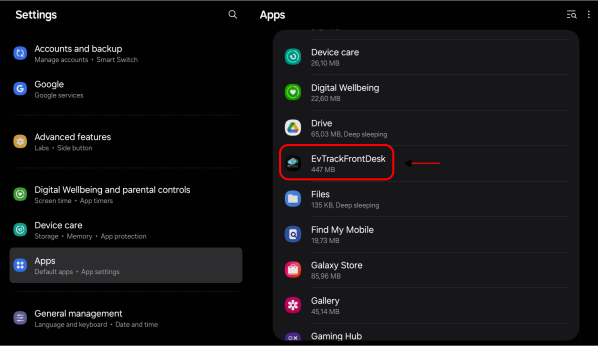
On the tablet, open Settings > Apps > EvTrackFrontDesk.
-
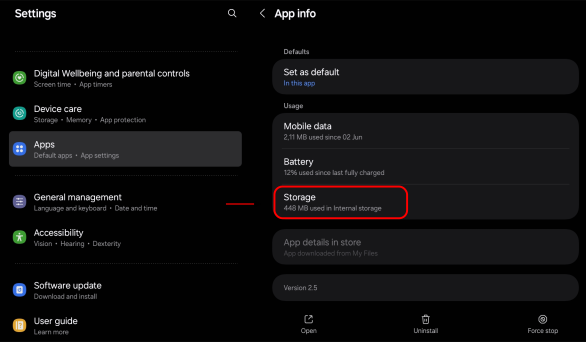
Tap Storage.
-
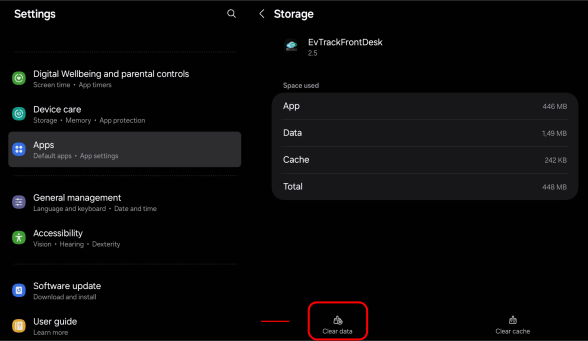
Tap Clear data.
-
Confirm with Delete.
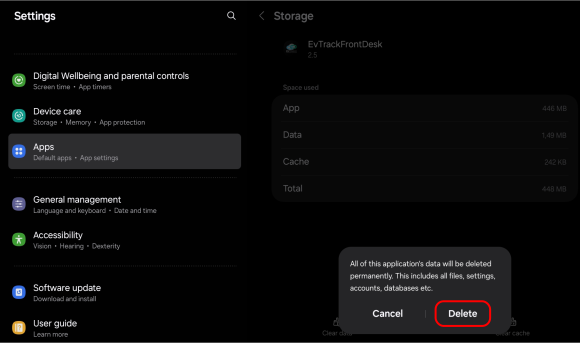
Menu names vary slightly between Android versions and manufacturers.
Then pair again
Open the app, then enter the server address and the key now on the General panel of the device record, see Register the Device and Get Its Key. The steps are the same as in Install and Pair the App.
The device record on the server is unchanged by a clear, so nothing needs deleting there.