Use this page when you invited a visitor and they say the invitation email never arrived. An operator who can edit visitor settings can usually fix it in about five minutes, without inviting the visitor again.
Symptom
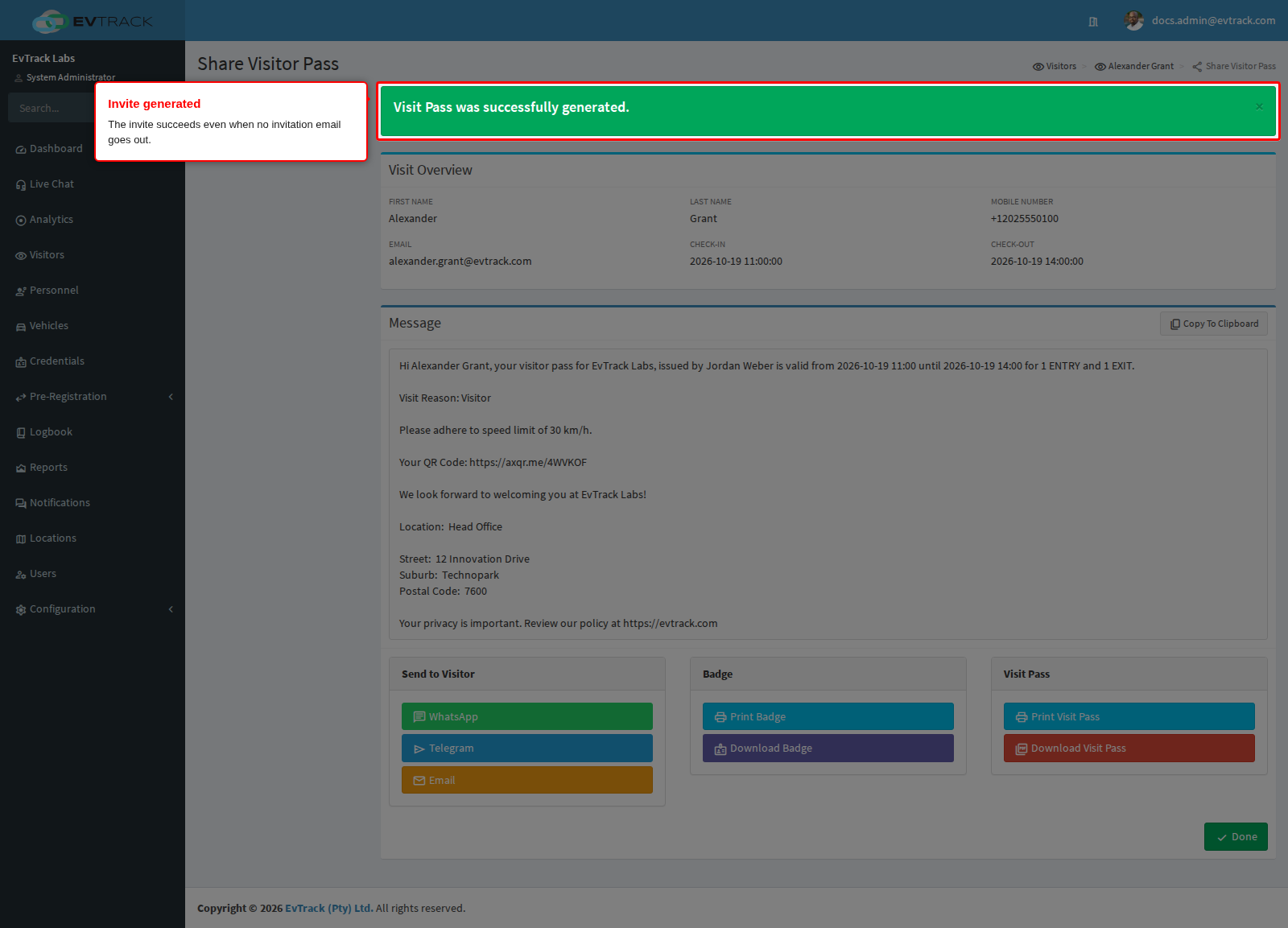
You invited the visitor, clicked Generate Invite, and the Share Visitor Pass page opened with “Visit Pass was successfully generated.”. The visit is listed on the Visitors Dashboard as Expected. The visitor, though, has no invitation in their inbox. If no invitation channel is switched on at all, the Send to Visitor panel on that page also has no Resend Pass button.
What it means
The visit and its QR code exist. Only the email did not go out. EvTrack sends the invitation in the background after the visit is saved, so the success message tells you the visit was created, not that an email was delivered.
You do not need to invite the visitor again. Once the cause is fixed, resend the pass from the visit, as in “Fix it now” below.
Why it happens
-
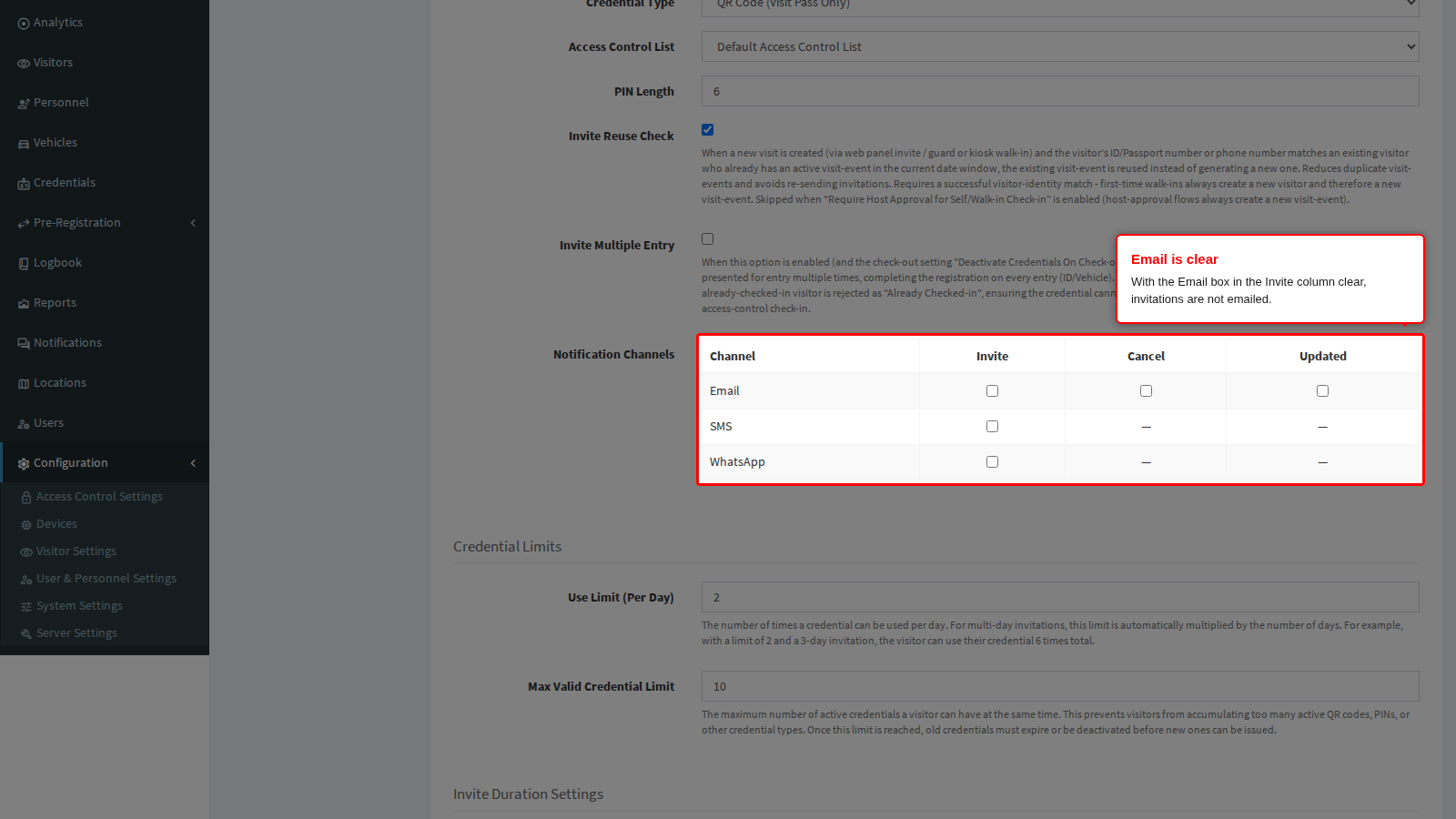
Invitations are not emailed. Under Configuration > Visitor Settings, on the Visit Pass tile’s General panel, the Email box in the Invite column of Notification Channels is clear. A new system starts with it ticked; a system upgraded from an older version keeps the value it had.
- The visitor has no email address. Open the visitor’s Profile tab and check Email; the Share Visitor Pass page also shows “-“ for a visitor without one. If the Profile tab has no Email field at all, the Email row under Configuration > Visitor Settings > Required Fields is set to Not Required, see Required Fields.
- The invitation went to the host. Send to Host Instead of Visitor is ticked in the Recipients panel of Configuration > Visitor Settings > Visitor Emails > Invitations. The invitation then goes to the visit’s host instead of the visitor; anyone copied, and anyone who registered on the visitor’s behalf, still receives it. See Visitor Email Settings.
- The credential is not a QR code or a PIN. Invitations are emailed only for those two. If Credential Type on the Visit Pass General panel is an ID, MVL or LPR credential, no invitation email is sent.
- The invite became a request. If Generate Invite did not open the Share Visitor Pass page but said the invitation “has been submitted for location manager review” or “has been submitted to compliance officers for review”, the location requires manager review or compliance checks are switched on. No visit exists yet, and no invitation goes out until the request is approved. See Approval Workflow.
- On an on-site system, the mail server is not delivering. Use Send Test Email on the email server page, see Email Server (SMTP and MS Graph).
The location’s Invite Email tab is not a cause: it changes what the invitation says and who is copied, but it cannot stop it being sent.
Fix it now
The example below is the most common cause on upgraded systems: the Email box in the Invite column is clear.
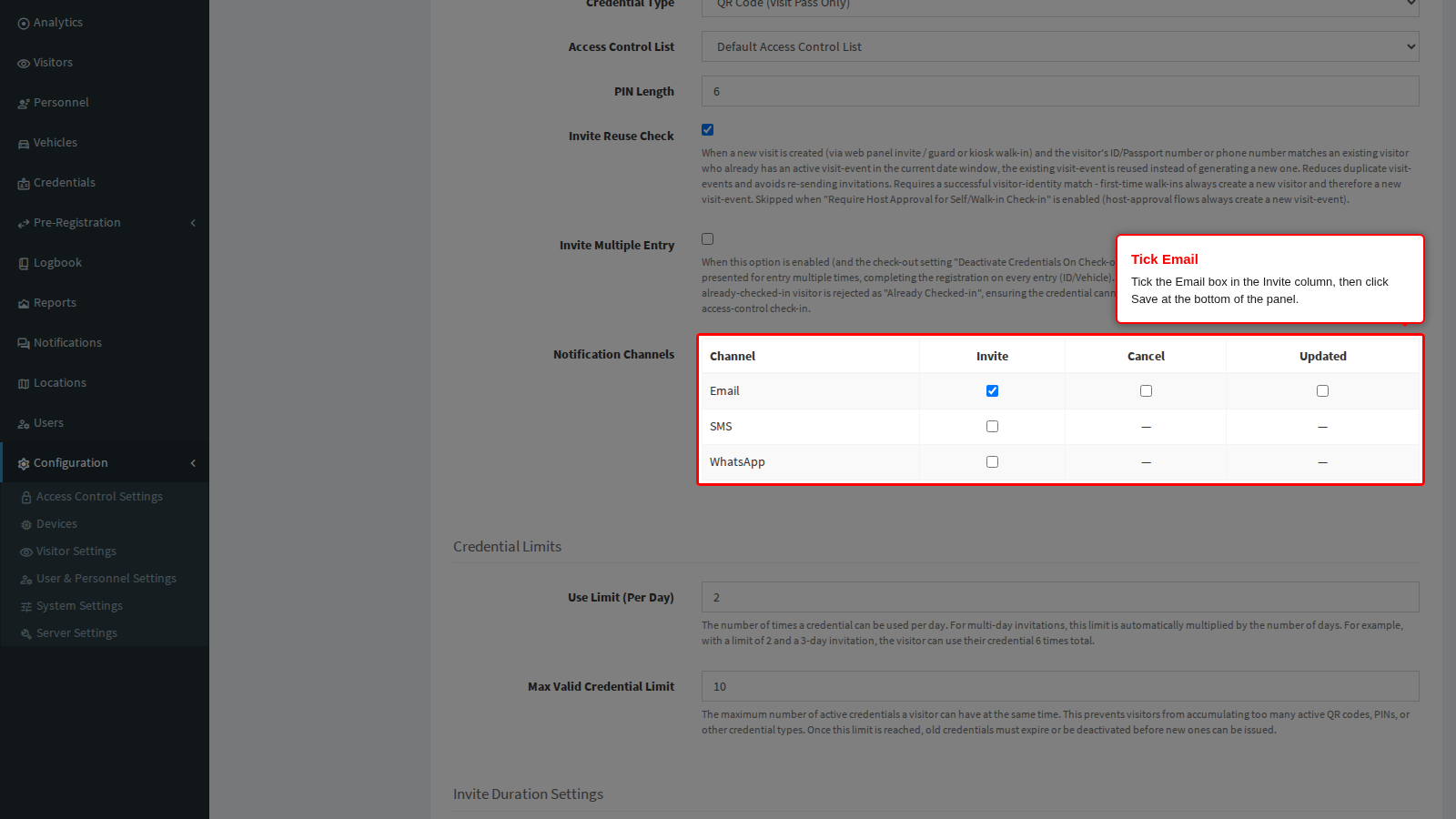
Step 1: Tick Email in the Invite column and save
Go to Configuration > Visitor Settings, click the Visit Pass tile; the General panel opens. In Notification Channels, tick the Email box in the Invite column, then click Save at the bottom of the panel.
Step 2: Choose Resend Pass on the visit
Open Visitors and click the Dashboard tab. Click the status of the visit, here Expected, and choose Resend Pass in the menu.
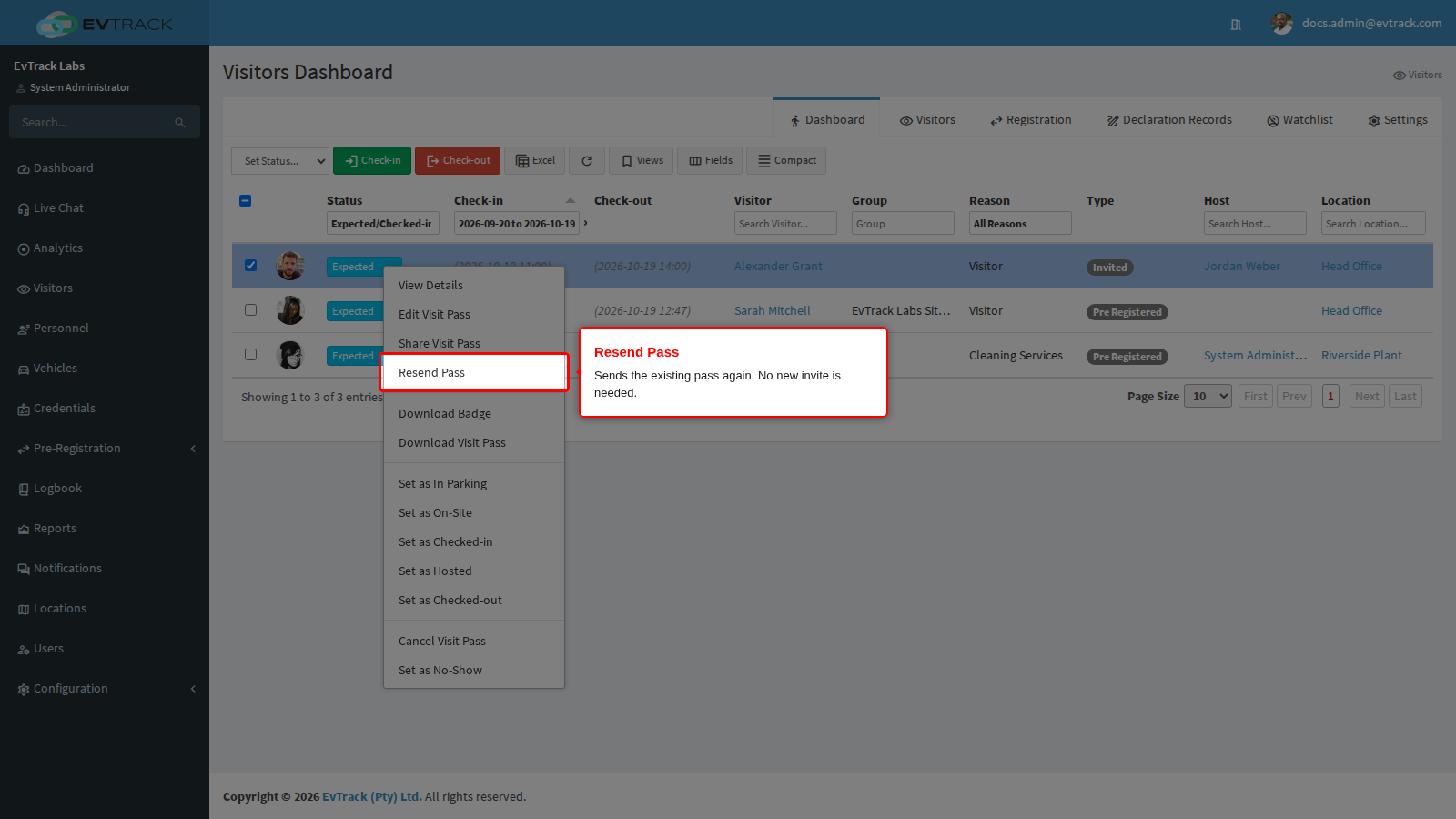
- Resend Pass is offered only to roles allowed to resend visit passes, for a visit that is Expected, Checked-in, On Site, In Parking or Hosted and has not passed its end time, and only while at least one channel in the Invite column is ticked.
- A visit that is finished or past its end cannot be resent (“This visit pass has been finalised and cannot be resent.” or “This visit pass has expired and cannot be resent.”). Invite the visitor again instead.
Step 3: Resend by email
The Resend Visit Pass dialog lists the channels that are switched on, with Email ticked. Click Resend.
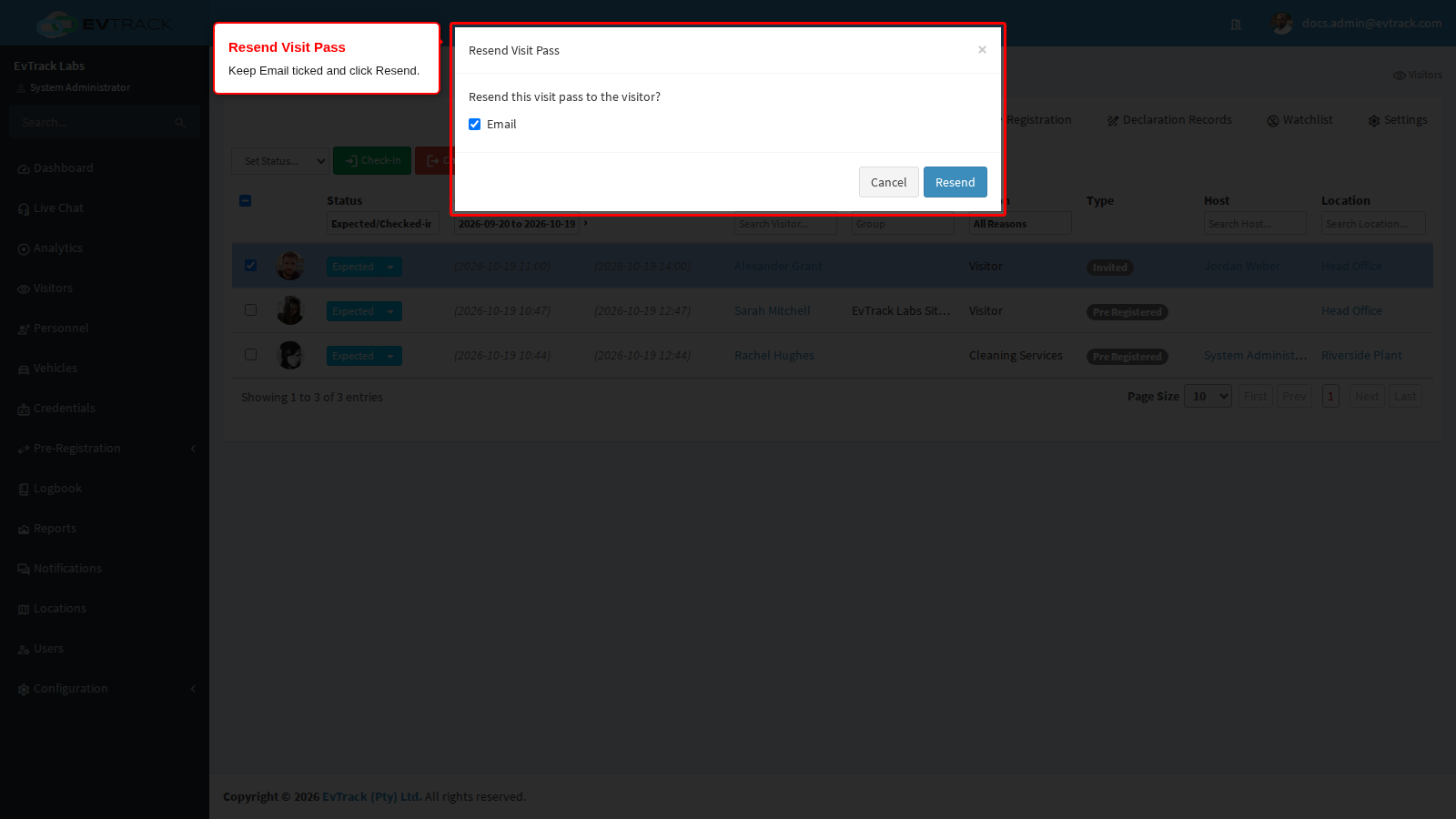
For the other causes, fix the cause first, then resend the same way:
- No email address: add it on the visitor’s Profile tab and click Save, then resend. Until the visit has someone to email, the dialog refuses with “No invitation email can be sent because there is no valid email address to send it to. Add an email address and try again.”.
- Send to Host Instead of Visitor: if visitors should receive their own invitations, clear the box and click Save, then resend.
- Credential Type: set it back to QR Code (Visit Pass Only) and click Save. A visit created with another type keeps it, so invite the visitor again.
- Approval: approve the request, see Approval Workflow.
Check it worked
The dialog shows “The visit pass is being resent to the visitor. Delivery will follow shortly.”. The visitor then receives the same invitation email the first invite should have sent: it greets them by name, names your company and the host, and carries the QR code with a Get QR Code button.
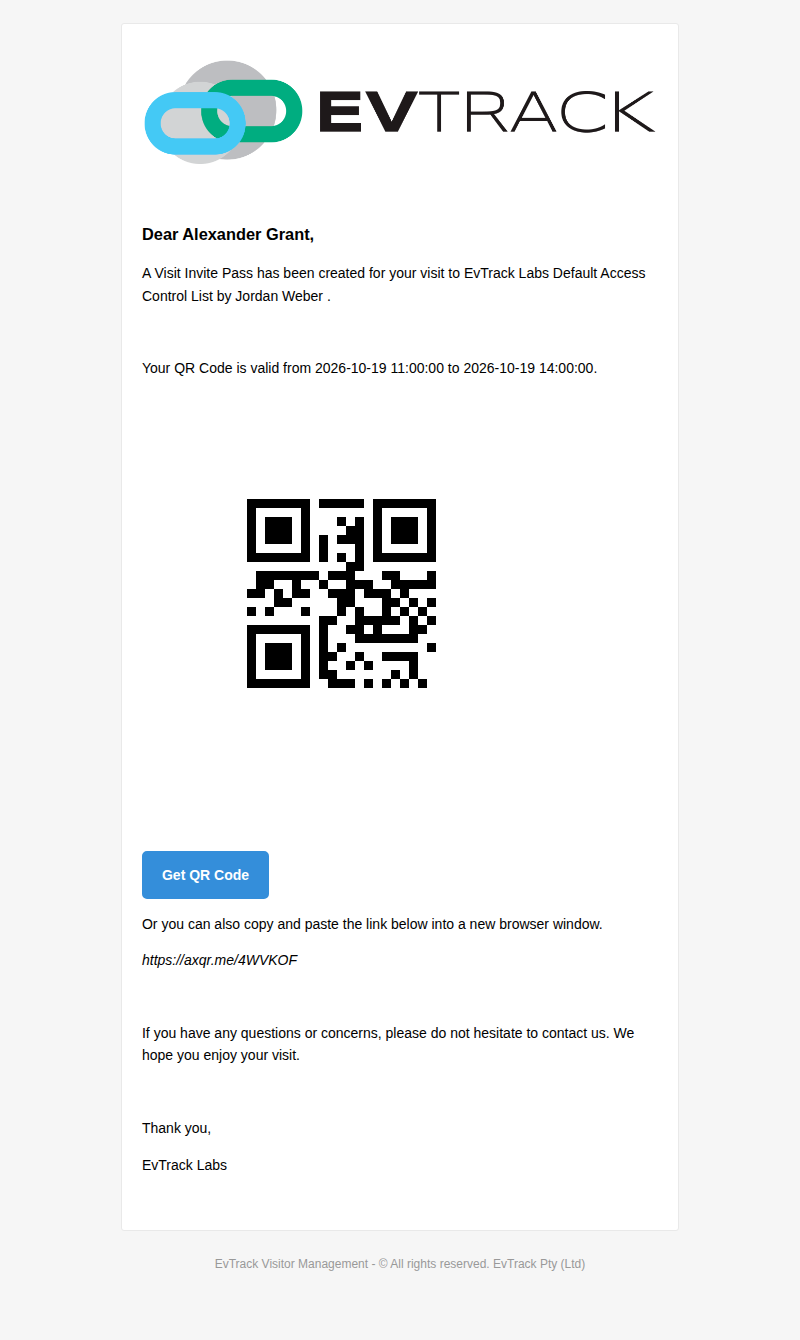
If it still does not arrive, ask the visitor to check their spam folder, and on an on-site system send a test email from the email server page.