Visitors can register themselves before a visit using the public self-registration form - shared as a link or QR code (see Visitor Registration). The visitor verifies their email address with a one-time PIN, completes the form, and the request lands in the Registration list for processing.
The captures in Steps 1-5 show the public pages exactly as the visitor sees them - there is no operator UI on these screens.
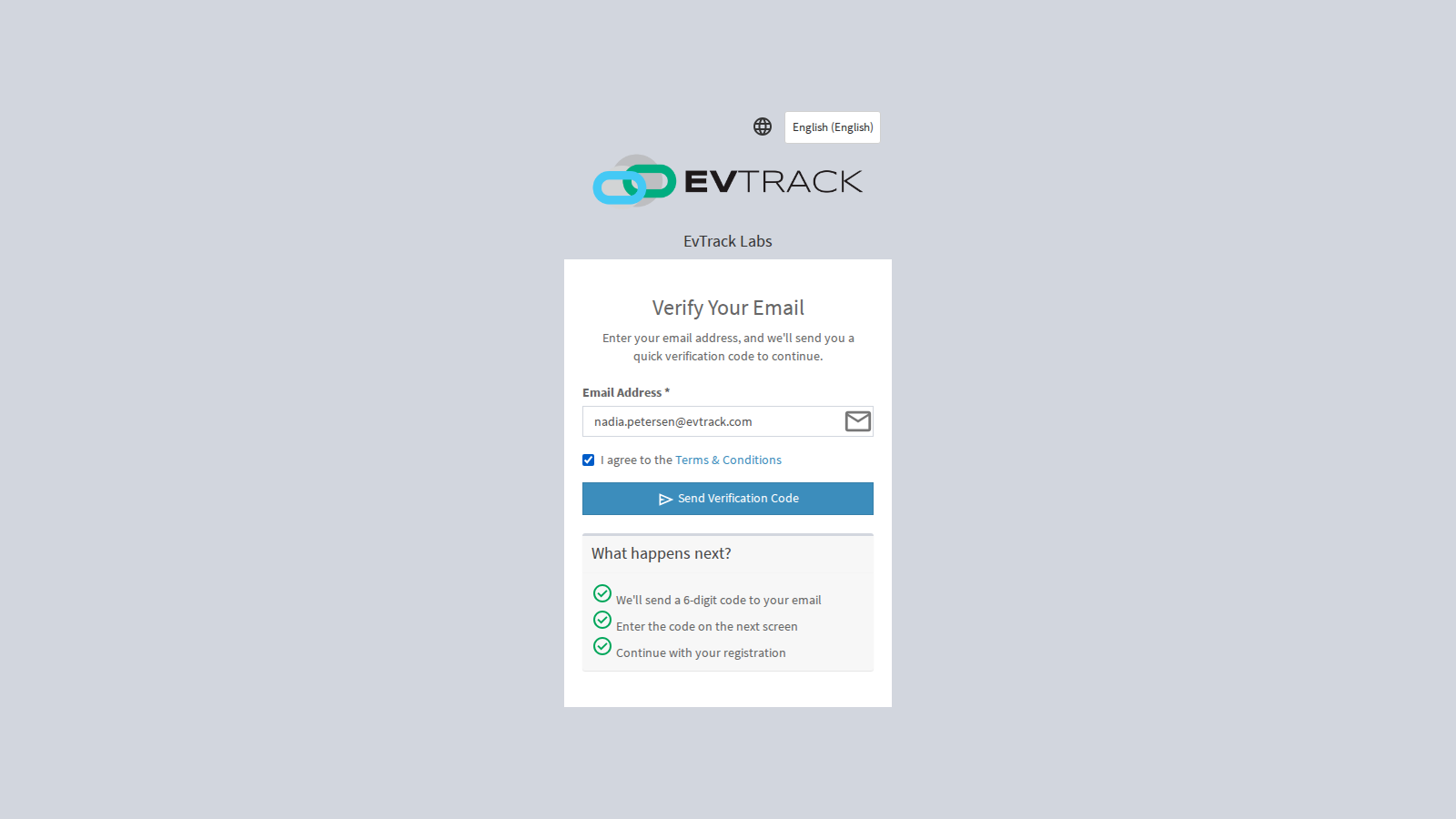
Step 1: Enter an email address
Opening the registration link asks the visitor for their email address.
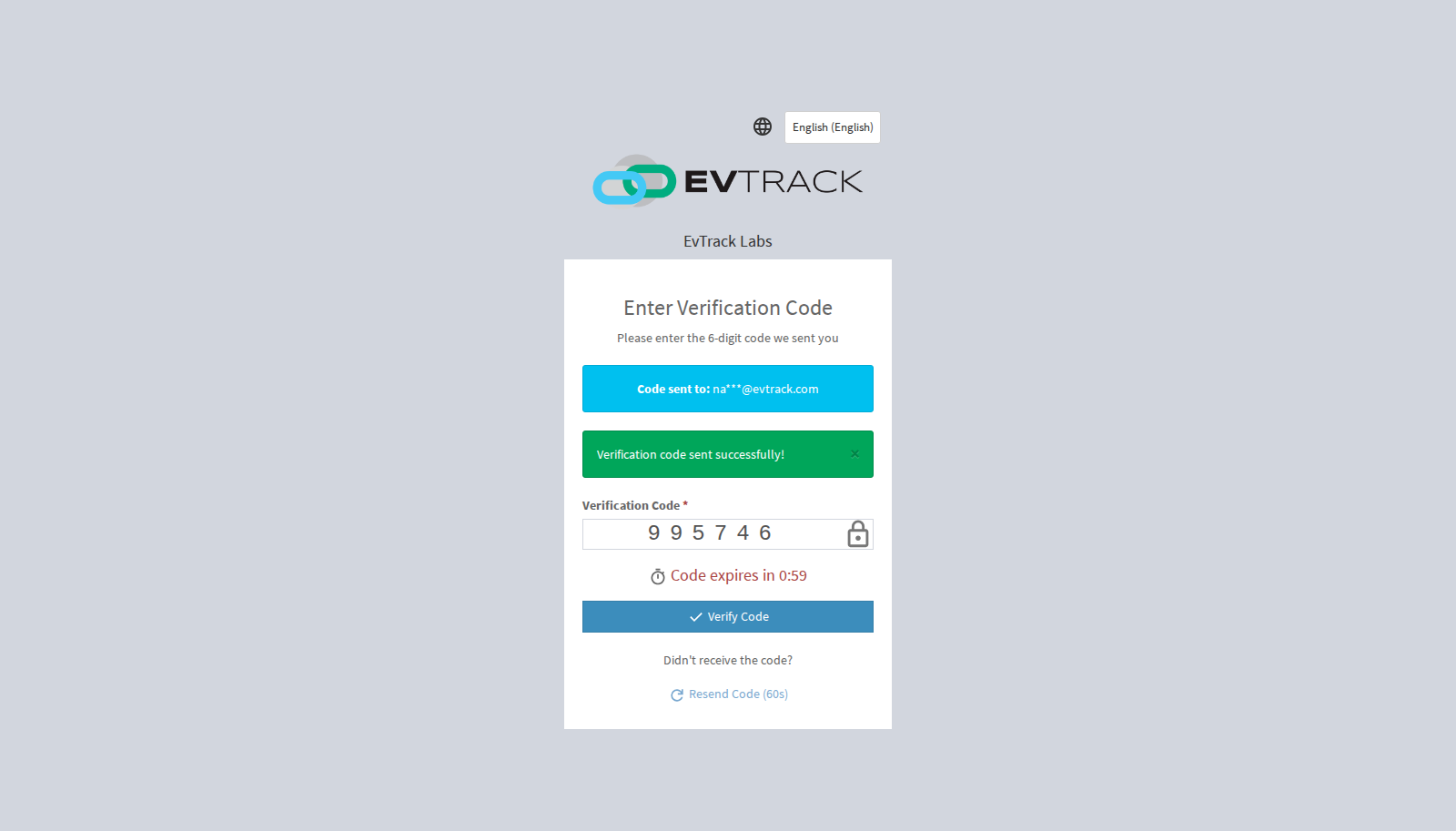
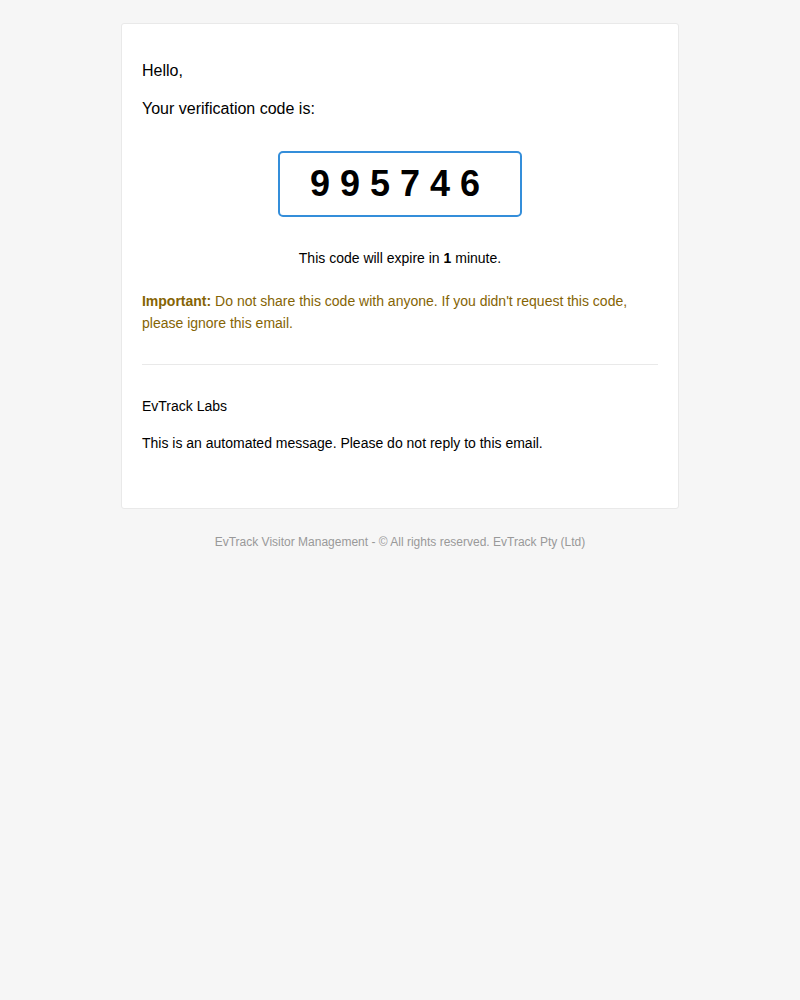
Step 2: Verify with the one-time code
A verification code is emailed to the visitor, who enters it to continue.
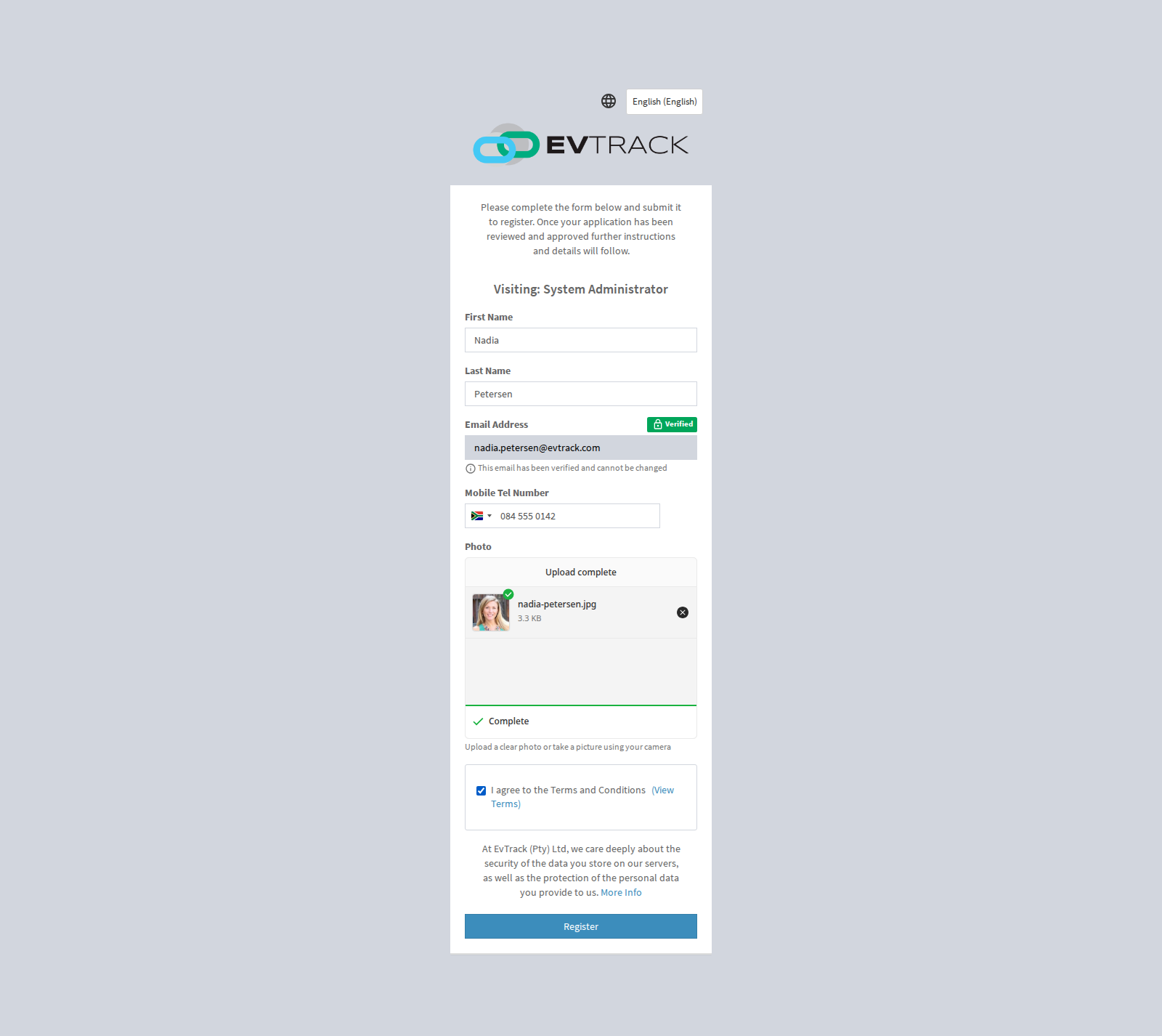
Step 3: The registration form
After verification the registration form opens. Which fields are shown and required is configured under Visitors > Settings > Self-Registration.
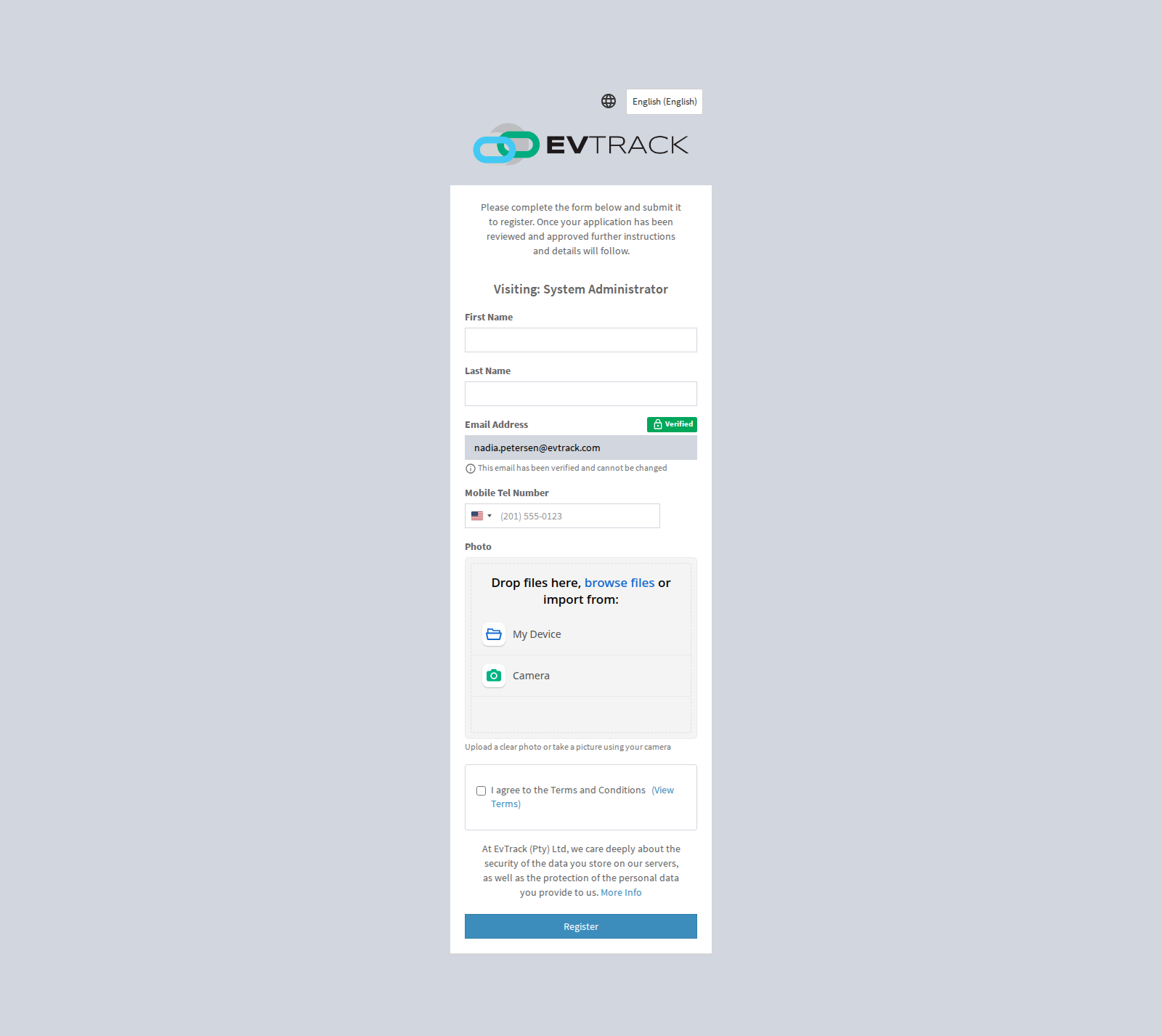
Step 4: Complete the details
The visitor fills in their details. Depending on your self-registration field policy, the form can also require a photo and a copy of an ID document or passport.
Step 5: Submit
After submitting, the visitor sees a confirmation. Depending on your settings, the request may need operator or host approval before a visit pass is issued.
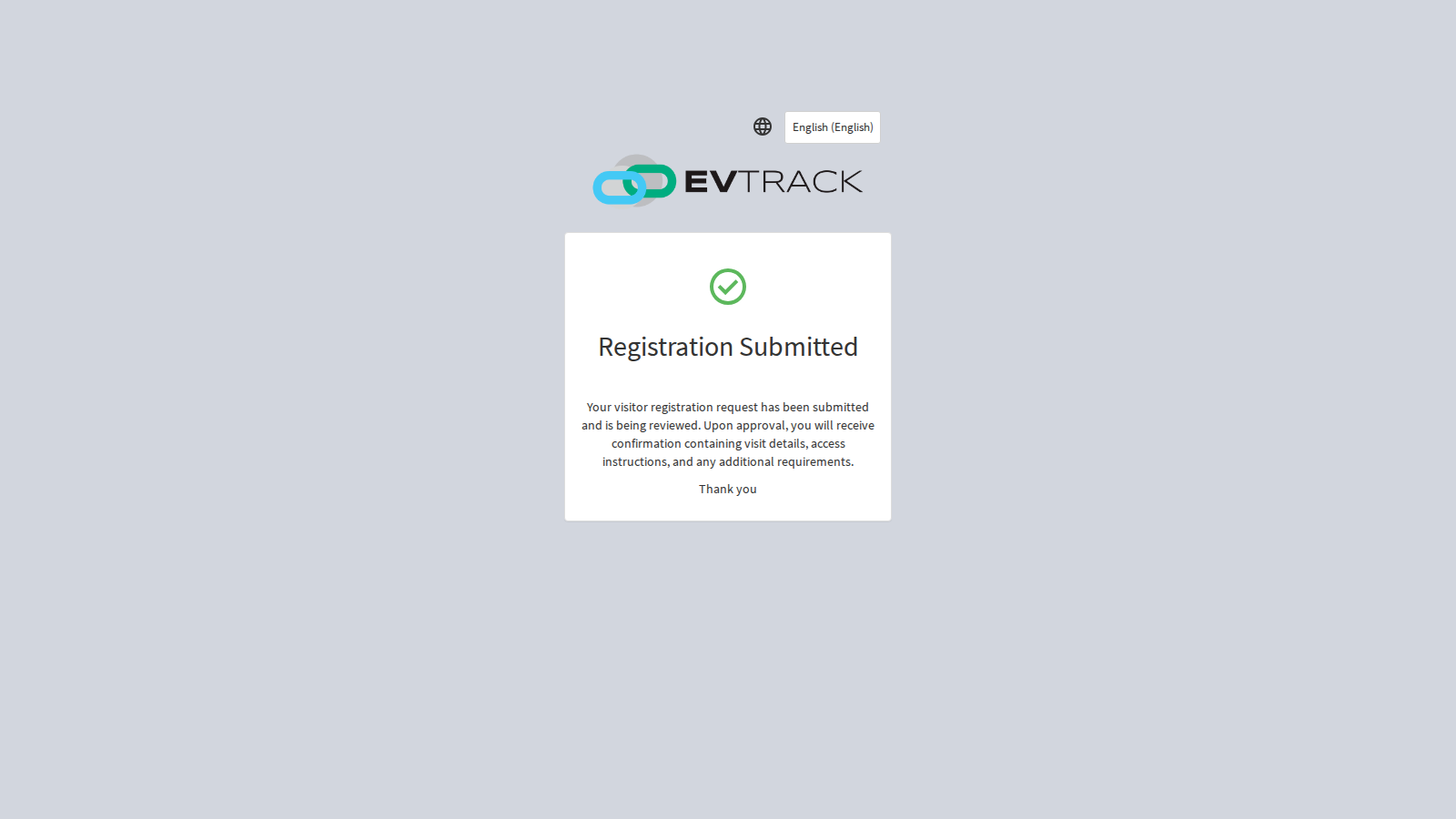
When the visitor registers through a location link, this page shows that location’s logo and company name, and the location’s own success message if one is set. The verification code email the visitor receives carries that location’s company name too.
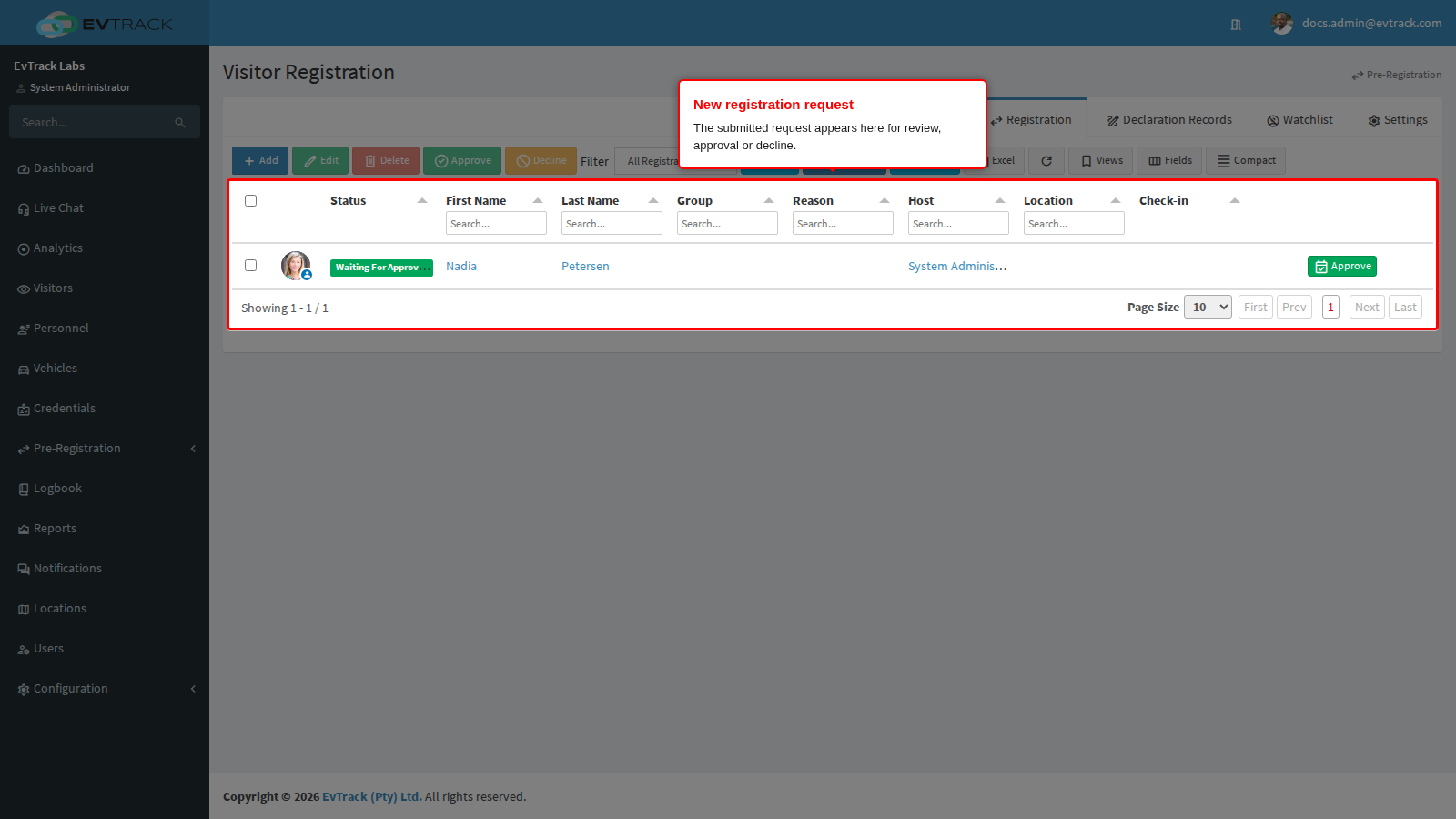
Step 6: The request appears for processing
Back in the operator UI, select Visitors in the sidebar and open Registration - the submitted request appears in the list with status Waiting For Approval, where operators review, approve or decline it. A request for a location that requires manager approval and has a manager assigned shows Waiting Location Manager Approval, unless the visitor used a location link that a host shared while the inviting host reviews such requests (Notify Inviting Host for Location Links, see Self-Registration Settings): that request goes to that host first. Otherwise, with compliance checks switched on, any new request (through any kind of link) shows Require Host Approval.
Troubleshooting
| What the visitor sees | Likely cause | What to do |
|---|---|---|
| No registration email | The address was mistyped, or the email was filtered | Re-send the link; ask the visitor to check their spam folder |
| No verification code | Filtered, or delayed by the visitor’s mail server | Use Resend Code (available after 60 seconds); check spam |
| “Code has expired” | The code is valid for 25 minutes by default | Request a new code |
| The photo will not upload | The file is too large or in an unsupported format | Use the camera option instead |
| The request went to the wrong people | The link for another location was used | Send the link for the right location |