When a visitor asks you to delete their personal data, delete their visitor record, and set retention periods so that most of what the delete keeps is removed on schedule. Some records are never removed by a retention period; What is kept lists them. It takes about ten minutes.
Before you start
- You can edit system settings, and you have the rights to delete visitors.
- You know the retention periods your data-protection policy requires, in days.
- You have the visitor’s full name. Their ID number helps you confirm you have the right record.
- If Share Visitors Between Users is off under Privacy, you can delete only your own visitors, unless your account may view all visitors.
Steps
Step 1: Check the retention periods
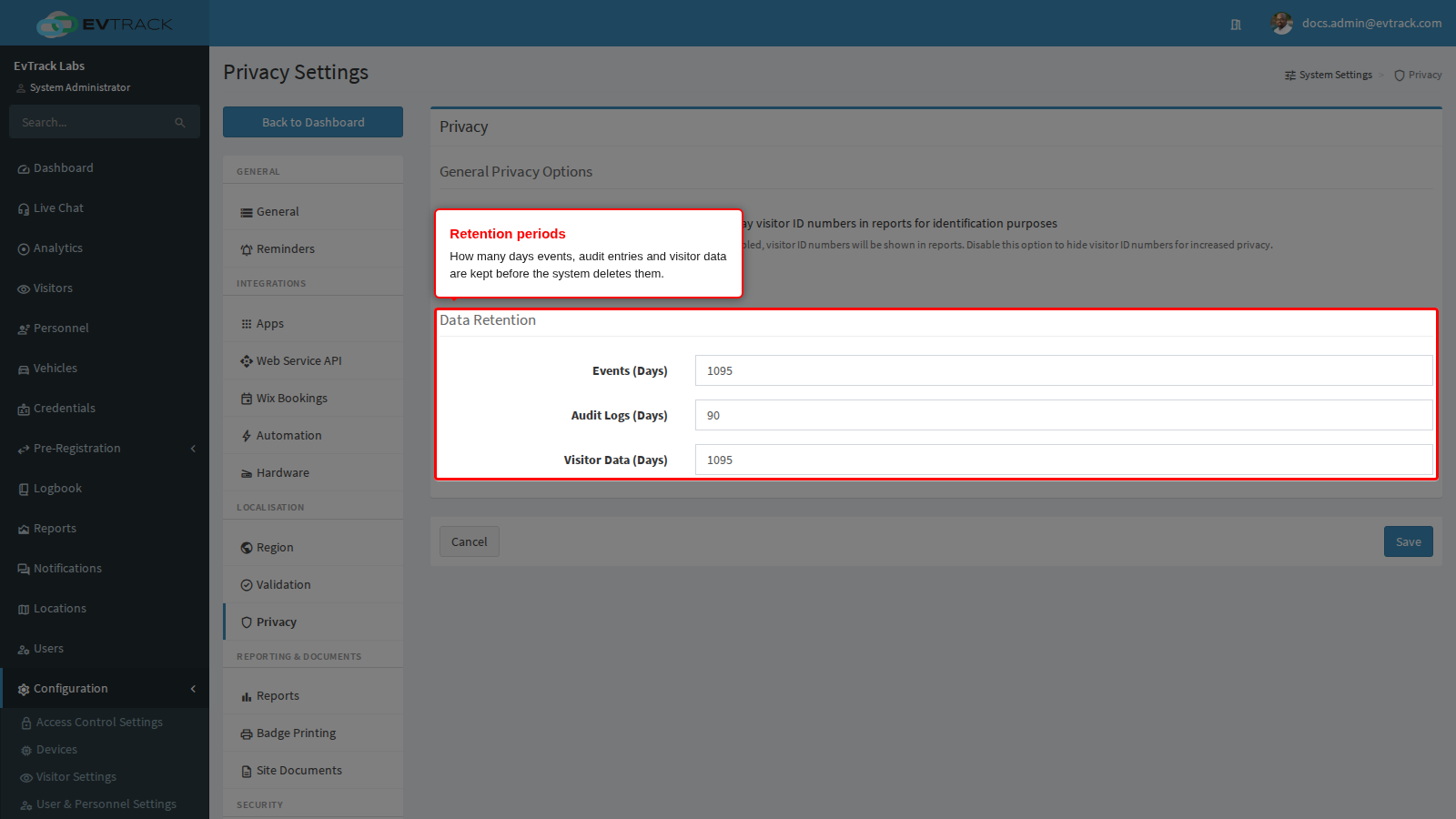
Go to Configuration > System Settings > Privacy. The Data Retention section holds three periods, in days:
- Events (Days), 1 to 1095: access events, visits, statistics and expired visitor credentials older than this are deleted.
- Audit Logs (Days), 1 to 180: audit entries and archived audit exports older than this are deleted.
- Visitor Data (Days), 1 to 1095: signed agreement records older than this are deleted, and so are visitors with no recent activity. A visitor’s record is only deleted once all of their access events have been deleted, so set Events (Days) no longer than Visitor Data (Days) if your policy needs both removed together.
Step 2: Save
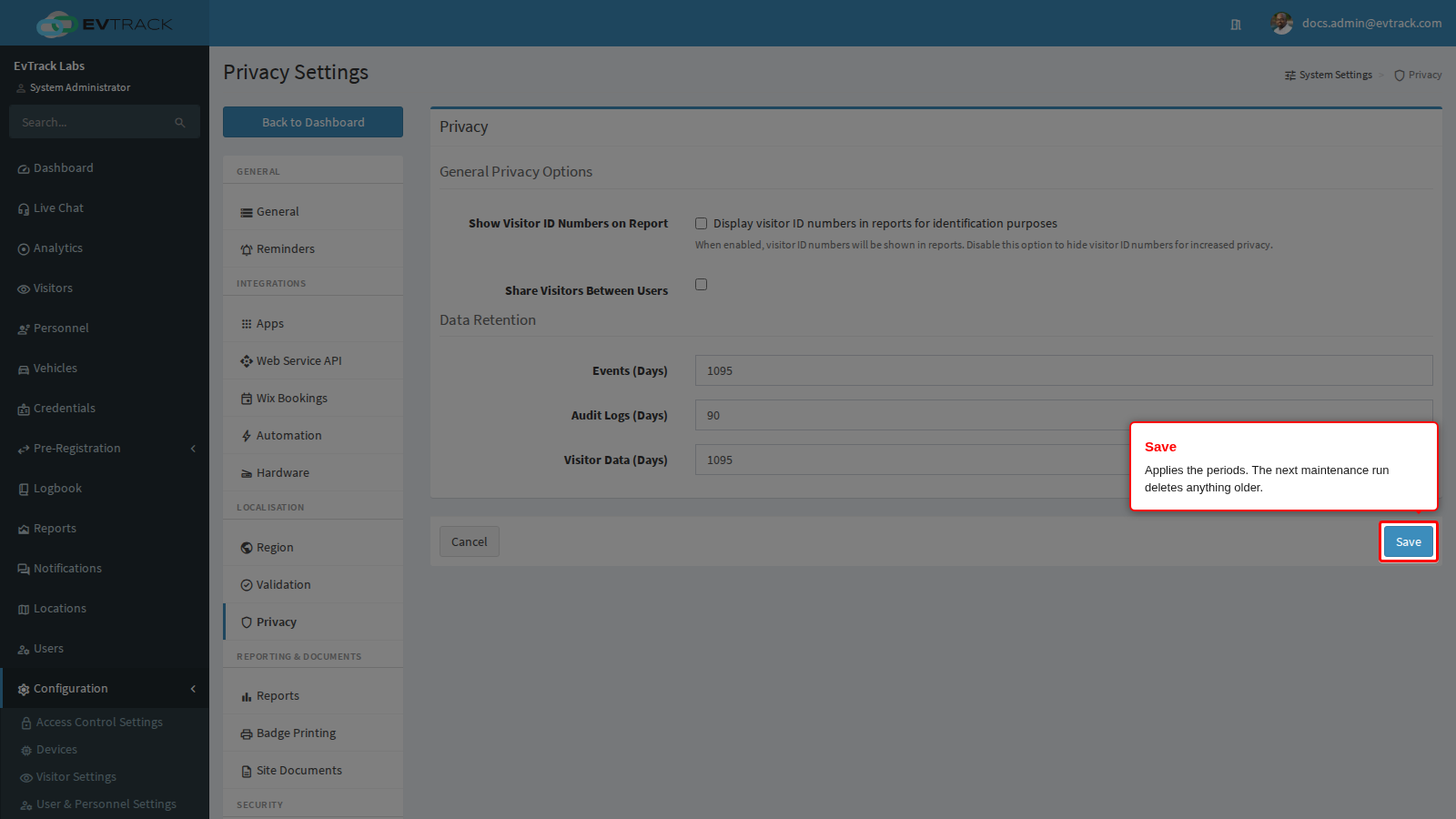
If you changed a period, click Save. A maintenance job runs every 30 minutes and permanently deletes anything older than the periods you set. A shorter period takes effect at its next run, and nothing it deletes can be restored. Export anything you still need first.
Step 3: Find the visitor and click Delete
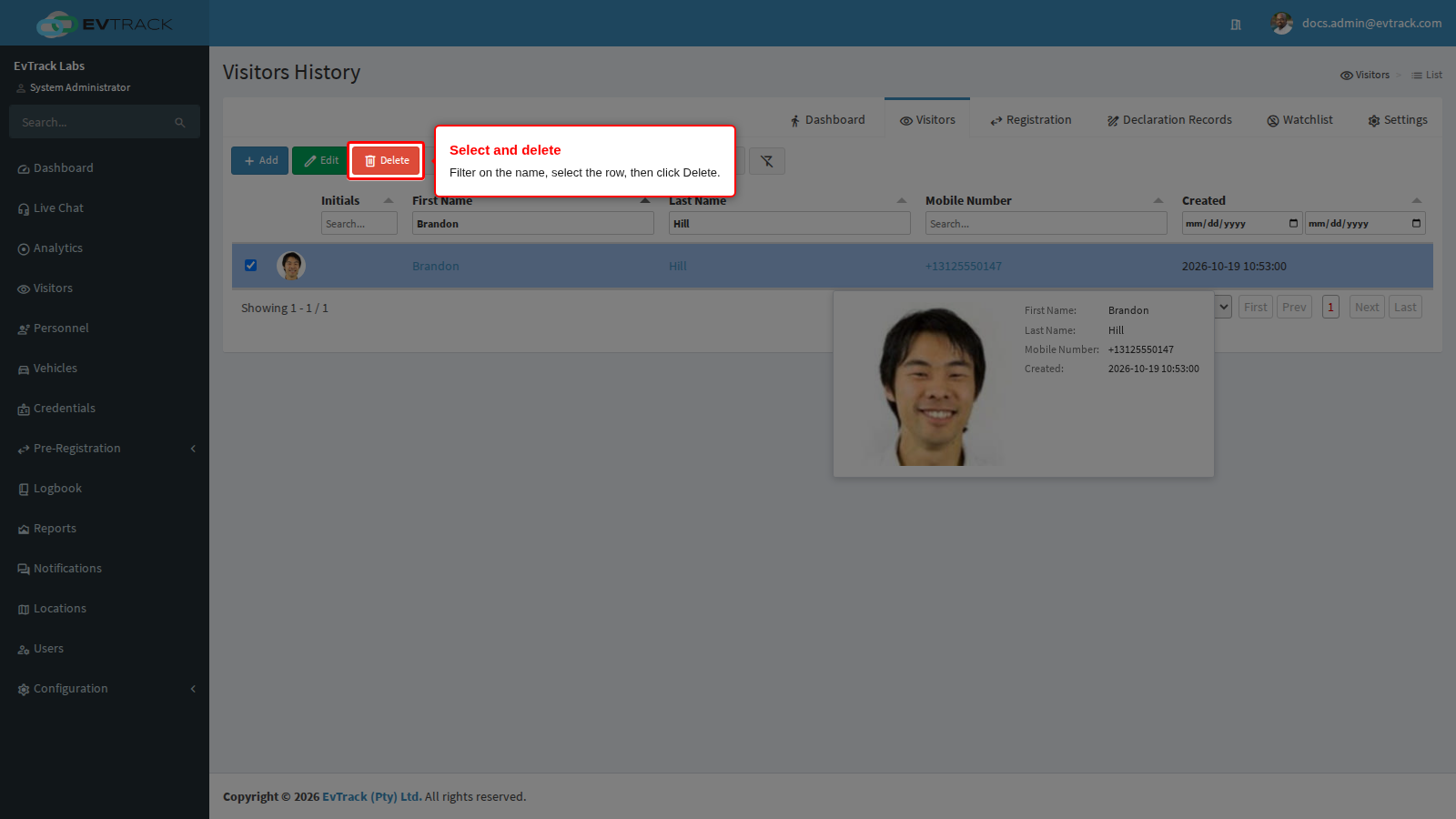
Open Visitors. Type at least three letters of the last name into the Last Name column filter, and of the first name into the First Name filter. Select the visitor’s row, then click Delete in the toolbar.
Step 4: Confirm the delete
The confirmation page lists the visitor with their photo and details. Check that this is the person who asked, then click Delete.
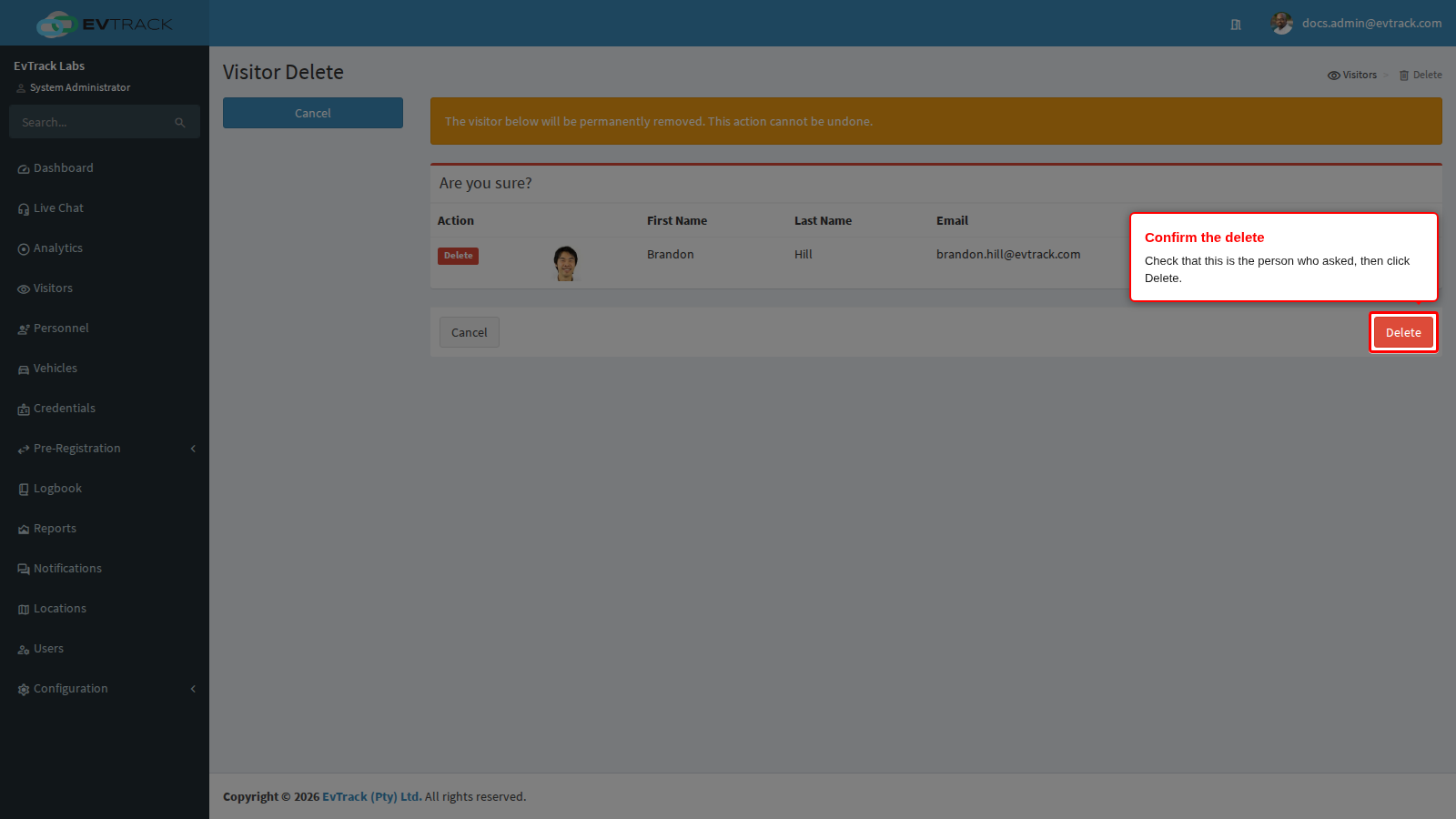
If the visitor has an expected or checked-in visit, the delete is not refused. The system cancels those visits first, then deletes the visitor.
Check it worked
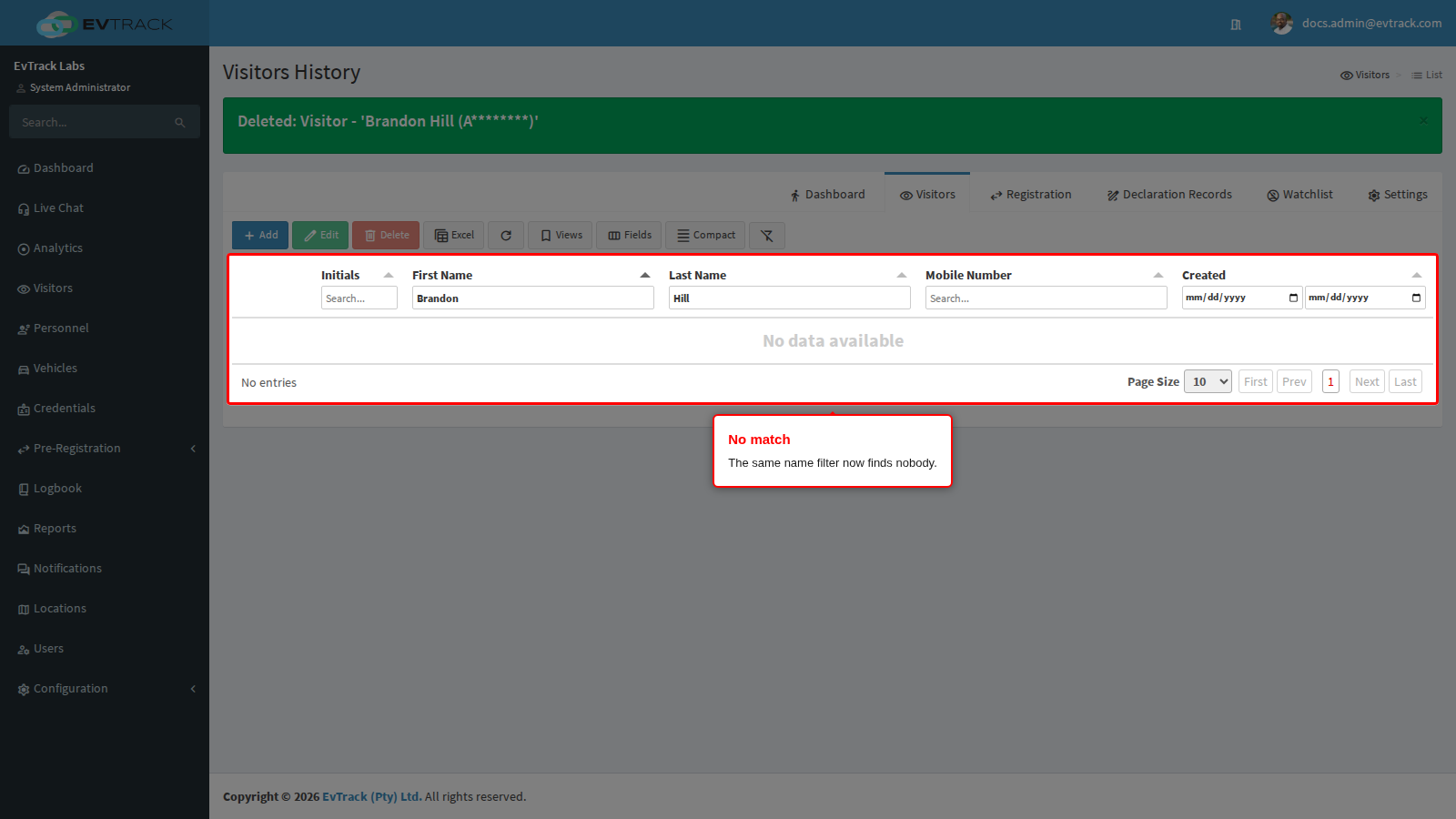
The Visitors list reopens with a message that starts “Deleted: Visitor” and names the visitor. Filter on the same name again: the list shows no visitor.
The delete removes the following:
- The visitor record: name, ID or passport number, contact details, date of birth, address and comments.
- The visitor’s photos and the signature on their profile. These are removed through a background queue, within moments of the delete.
- The documents on the visitor’s profile: uploaded files, ID card photo, copy of ID and portrait.
- The visitor’s QR code. Their credentials are unlinked from them.
What is kept
These records are kept after the delete.
- Signed agreement records. Each record keeps the visitor’s name, ID number, email address, mobile number and answers, and the record remains under Visitors > Declaration Records. No screen deletes it: it is deleted when it is older than Visitor Data (Days). While the visitor has signed agreements, you cannot complete their erasure from the web application: the record goes after Visitor Data (Days), but the signature image is kept (next item).
- Signature images on agreement records. A signature drawn on an agreement is stored separately. It is kept, even after the retention job deletes the agreement record it belongs to.
- Visits and access events. Past visits, and any visits the delete cancelled, remain until they are older than Events (Days). They include the answers and files the visitor gave for custom questions.
- The audit entry for the delete. It keeps the deleted visitor’s details, including their ID number and contact details. This is by design, so that the audit trail shows exactly what was deleted. The Audit Report under Reports > System shows these details. The entry is deleted when it is older than Audit Logs (Days).
- Watchlist entries and vehicles. The watchlist link to the visitor is removed, but the watchlist entry keeps its own details. Vehicles the visitor was linked to are kept.
- Pre-registrations. A registration request for the visitor is not deleted by the visitor delete, and none of the retention periods applies to it. Delete it yourself under Visitors > Registration, see Approval Workflow.
If it didn’t work
- The visitor is not in the list.
- A column filter needs at least three letters before it searches. Type more of the name.
- Share Visitors Between Users is off and the visitor is not one of yours. Ask a user who may view all visitors to delete them.
- The person still appears in Declaration Records. This is expected: a visitor delete does not remove signed agreement records. They are deleted when they are older than Visitor Data (Days). To have them removed sooner, shorten that period. This deletes every agreement record older than it, for all visitors, and also deletes every visitor who has had no activity for that long and has no access events left. Tell the person that the signature image itself is kept.
- A visitor you expected the retention job to delete is still there. A visitor is only deleted once all of their access events have aged out under Events (Days). If Events (Days) is longer than Visitor Data (Days), shorten it.
- The audit trail still shows the deleted visitor’s details. This is by design. The entry remains until it is older than Audit Logs (Days).