Use this page when visitors check in at a FrontDesk kiosk but no badge comes out of the printer, and the kiosk shows no printer message. An operator who can edit devices and visitor settings can usually fix it in about five minutes.
Symptom
A visitor registers at the kiosk and the check-in goes through: the kiosk shows “Thank you!” with the check-in confirmation, then moves on by itself. The printer does nothing, and the kiosk never says “Please wait while we print your badge.” or shows a printer error.
If the kiosk does show a printer message, such as “we could not print your badge due to a printer connection error.”, printing is switched on and the tablet cannot reach the printer. See the last cause under “Why it happens”.
What it means
The kiosk has printing switched off. It decides whether to print from the settings it loads from EvTrack: when those say printing is off, it skips the printer and confirms the check-in instead. The check-in is recorded as usual, and nothing is wrong with the printer itself.
Why it happens
A kiosk prints only when all three of these are true: Enabled Badge Printing is ticked for the system, the kiosk’s own printer Enabled is not No, and the kiosk has a printer Driver. So one of these is the cause:
-
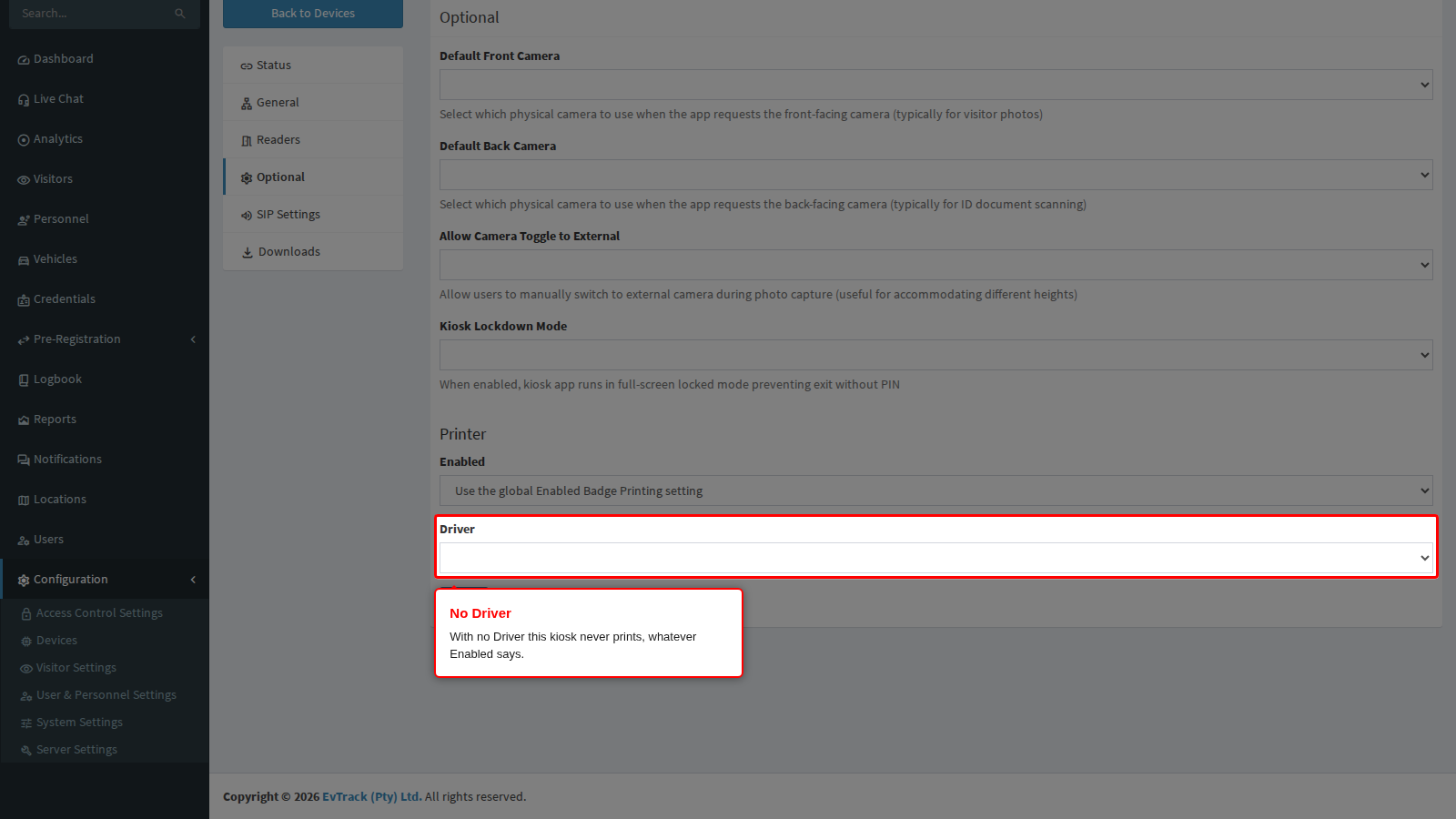
The kiosk has no printer Driver. Open Configuration > Access Control Settings > Devices, open the kiosk’s record and click Optional. Under Printer, the Driver is empty. A kiosk with no Driver never prints, even when Enabled Badge Printing is ticked and the kiosk’s Enabled follows it. A newly added kiosk has no Driver until you choose one.
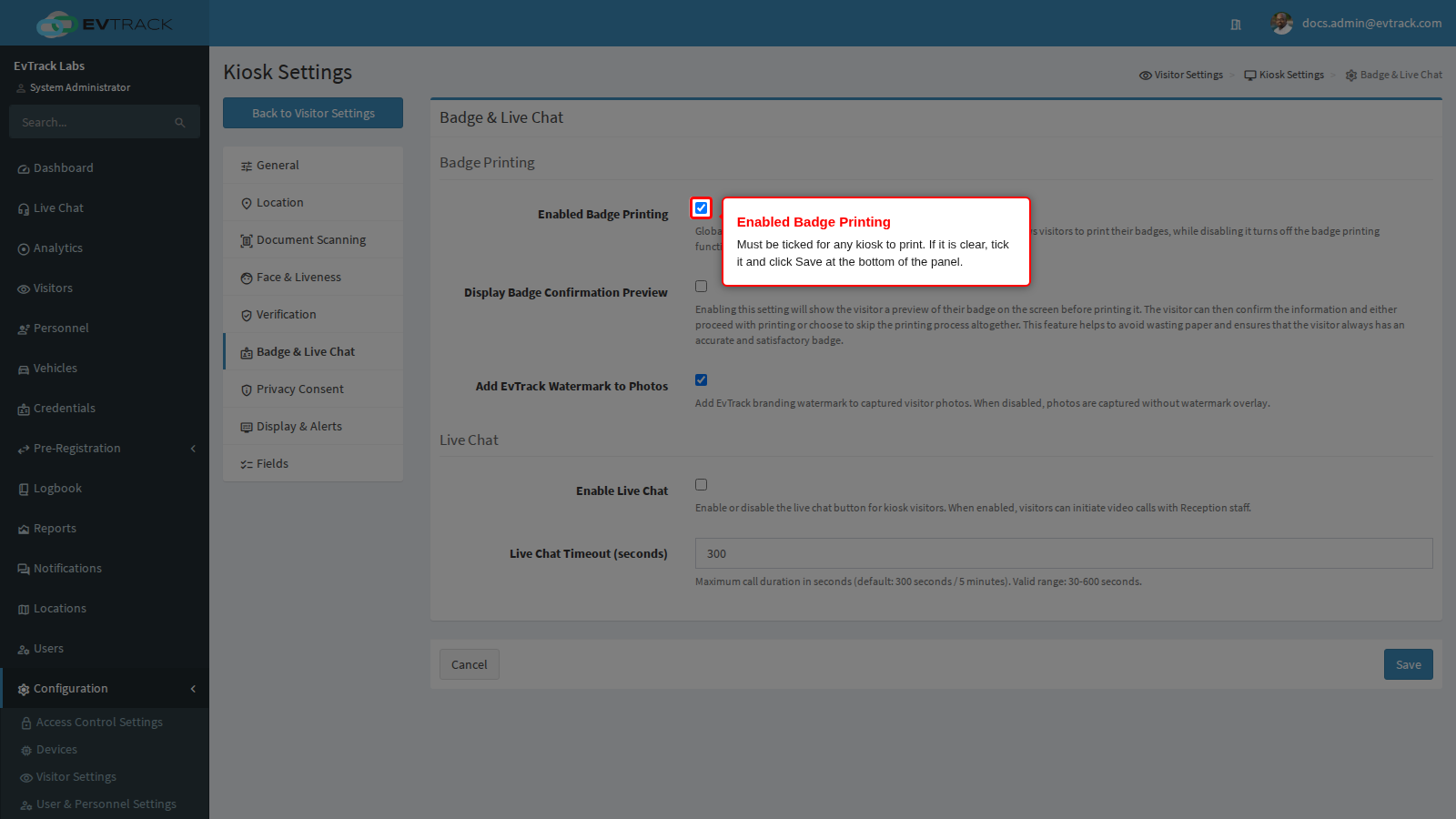
- Enabled Badge Printing is off. It is under Configuration > Visitor Settings, Kiosk tile, Badge & Live Chat, and a new system starts with it off. While it is off, no kiosk prints, even one whose Enabled is Yes. A kiosk whose Enabled is empty (Use the global Enabled Badge Printing setting) follows it.
- The kiosk’s Enabled is No. No on the kiosk’s Optional tab switches that one kiosk off, even while Enabled Badge Printing is on.
- The kiosk has not picked up the change yet. A kiosk reads its settings every five minutes while it can reach the server, and every time the FrontDesk app starts.
- The visitor did not go through the registration form. The badge is printed at the end of the kiosk’s registration form. A visitor with an invitation QR code or one-time PIN skips that form while Direction Requiring Visitor Registration with Visitor PIN / QR / ID Card (Visitor Settings > Kiosk > General) is NONE, and gets no badge, see Walk-in and Offline. A registration made while the kiosk was offline is queued for later, also without a badge.
- The kiosk shows a printer message: the tablet cannot reach the printer. The check-in has gone through, but the kiosk says “we could not print your badge due to a printer connection error.” and offers Retry Print and Skip; it moves on by itself after two minutes. Check that the printer is on and that the Optional tab has the right address:
- Network printers: the IP Address/Domain must be the printer’s address on the tablet’s network, and the tablet and the printer must be on the same network. For Zebra LINK-OS TCP/IP, the Port must be the printer’s port; left empty, it is 9100.
- Bluetooth printers: the MAC Address must be the printer’s. The tablet asks to allow Nearby devices at the first print; if that is refused, the kiosk says “Please allow the requested permissions to continue” and then shows the connection error.
- Other messages of the same kind name the cause, for example “because the printer is out of paper.”
Fix it now
The example below fixes the first cause: the kiosk has no printer Driver, while Enabled Badge Printing is already ticked.
Step 1: Check that Enabled Badge Printing is ticked
Go to Configuration > Visitor Settings, click the Kiosk tile and choose Badge & Live Chat. Enabled Badge Printing must be ticked. If it is clear, tick it and click Save at the bottom of the panel.
Step 2: Choose the kiosk’s printer Driver
Go to Configuration > Access Control Settings > Devices, open the kiosk’s record and click Optional. Under Printer, choose the Driver that matches your printer, then fill in the fields that appear below it:
- Network printers (Brother QL TCP/IP, Evolis Card Printer TCP/IP, Zebra LINK-OS TCP/IP, Epson ePOS TCP/IP): IP Address/Domain. Zebra LINK-OS TCP/IP also has Port, a whole number from 1 to 65535; left empty, it is 9100.
- Bluetooth printers (Brother QL Bluetooth, Epson ePOS Bluetooth): MAC Address, for example
00:11:22:33:FF:EE. Lower case is accepted. - Epson ePOS USB needs no field: connect the cable to the tablet.
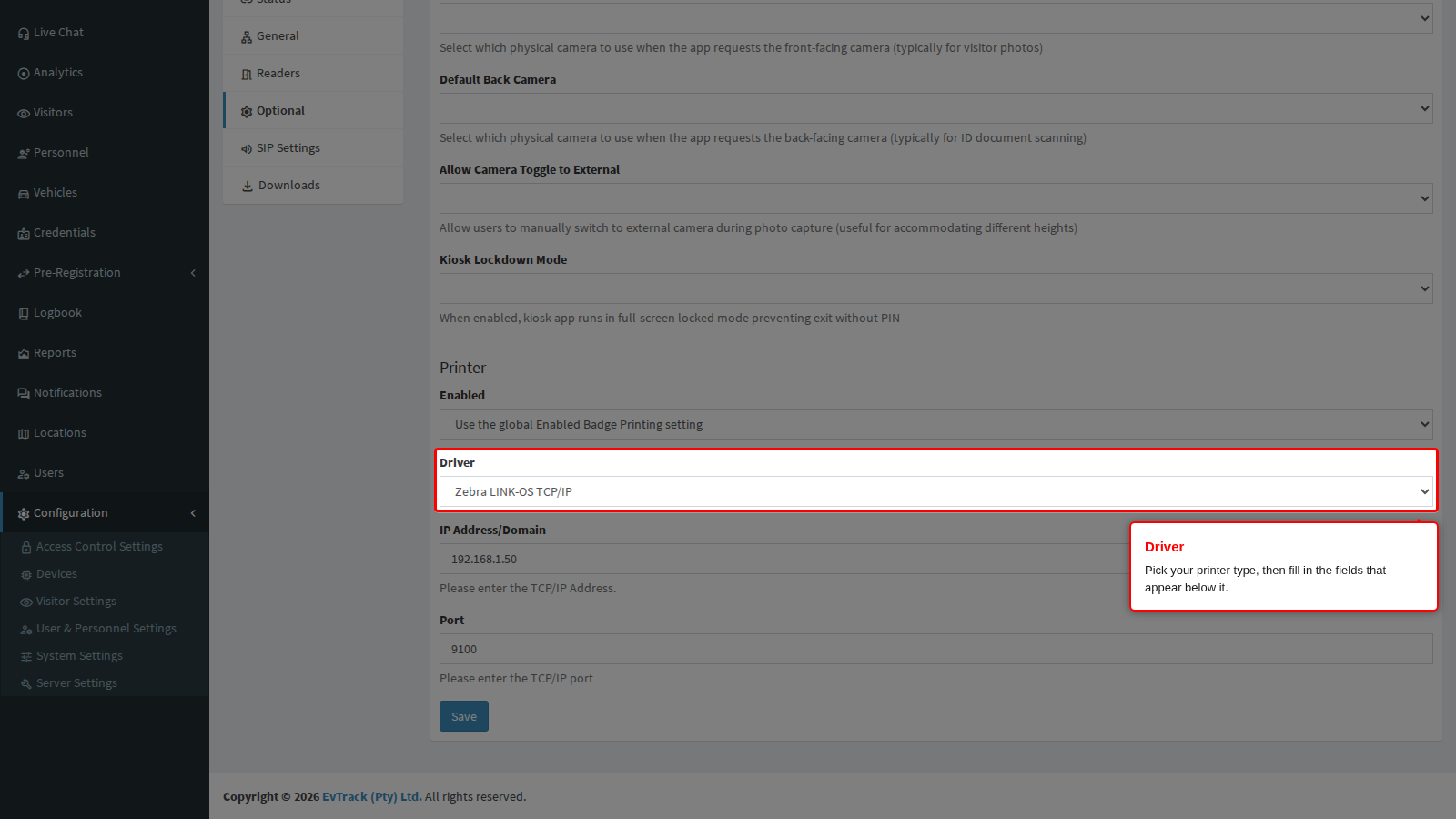
The example uses a Zebra printer at 192.168.1.50 on port 9100. Device Options: Printer, Cameras and Lockdown describes every driver and field.
Step 3: Leave Enabled on the global setting and save
In Enabled, just above the Driver, leave the empty choice Use the global Enabled Badge Printing setting, or choose Yes. Then click Save at the bottom of the tab.
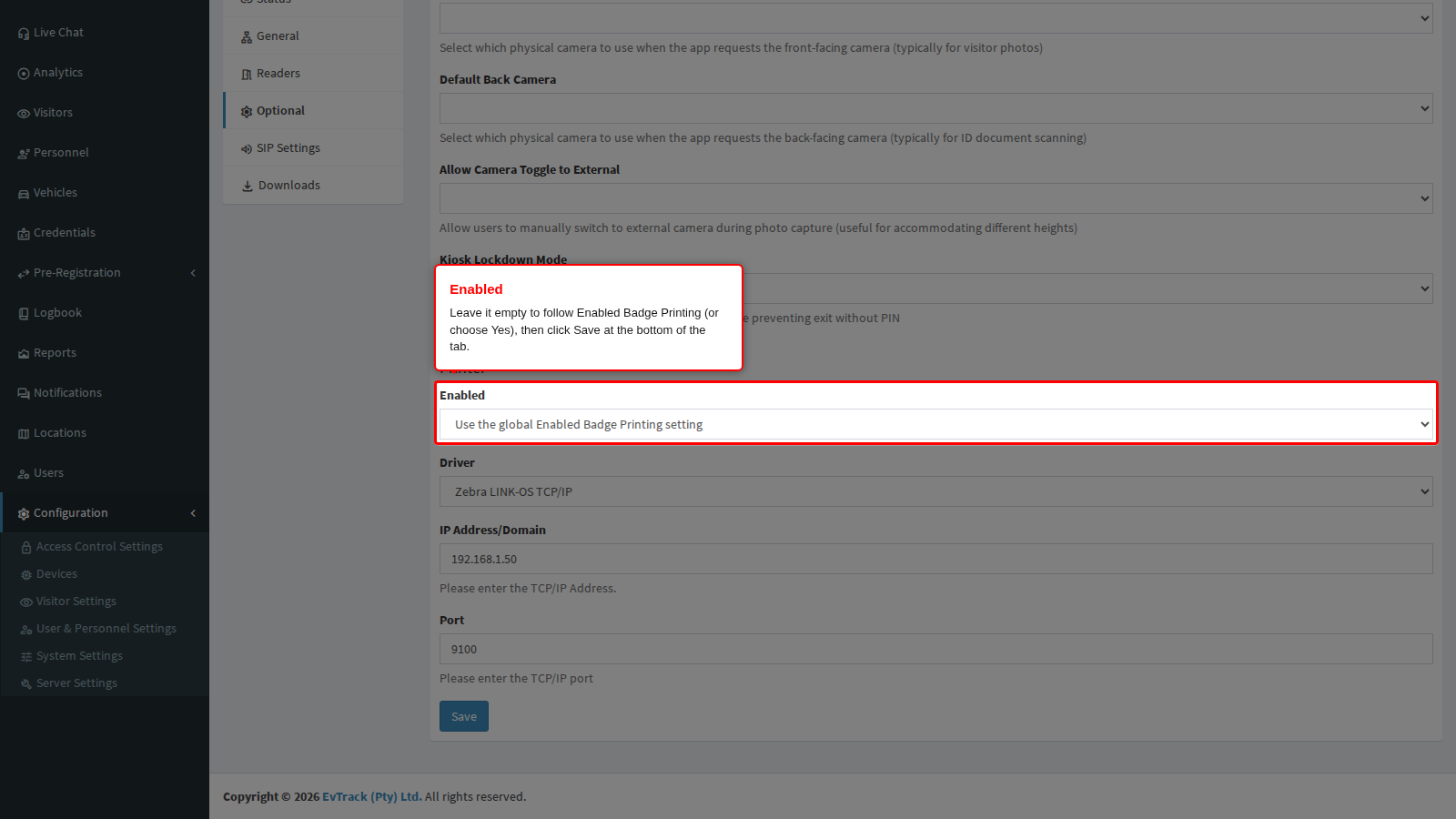
If the save is refused, the Optional tab comes back with the message above the form and nothing is saved. Correct the field and save again:
- “The printer port must be a whole number from 1 to 65535.”
- “Enter the MAC Address as six pairs of digits or letters A to F, separated by colons or hyphens, for example 00:11:22:33:FF:EE.”
- “Enter a Lockdown Exit PIN of 4 to 6 digits while Kiosk Lockdown Mode is enabled.” or “The Lockdown Exit PIN must be 4 to 6 digits.” Kiosk Lockdown Mode is on for this kiosk: enter a PIN of 4 to 6 digits in Lockdown Exit PIN and save again.
For the other causes: tick Enabled Badge Printing and click Save; set the kiosk’s Enabled back to the empty choice or Yes and click Save; or restart the FrontDesk app so the kiosk reads its settings at once.
To set up badge printing from the start, see Print visitor badges from the kiosk.
Check it worked
The page reloads on Optional with an updated message, and the Printer fields show the saved Driver and address.
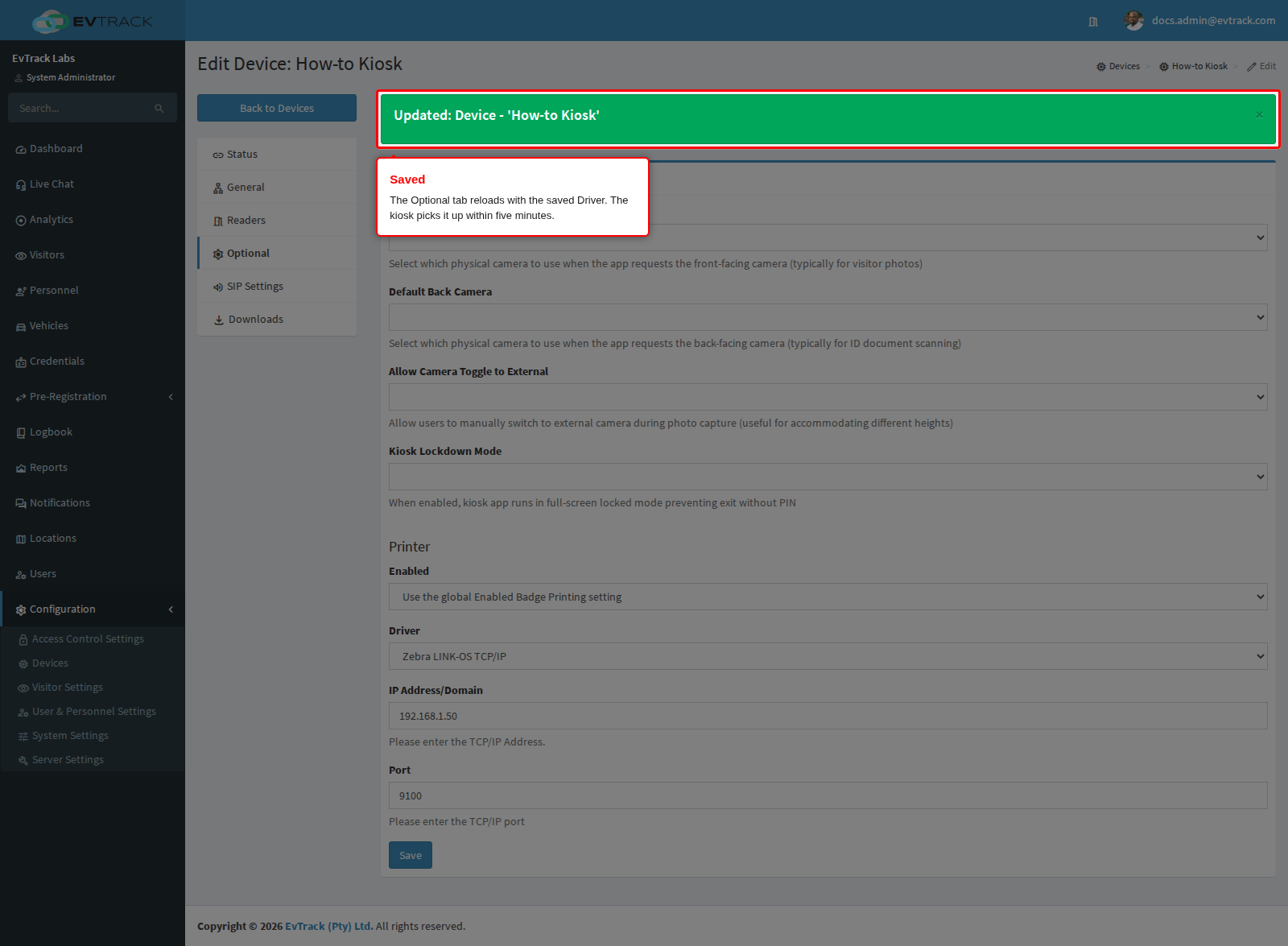
The kiosk picks the change up within five minutes, or at once when the FrontDesk app restarts. Register a test visitor at the kiosk: once the check-in is granted, the kiosk says it is printing the badge (“… Please wait while we print your badge.”) instead of showing “Thank you!”, the printer produces the badge, and the kiosk moves on by itself. With Display Badge Confirmation Preview on, the kiosk first shows the badge under “Print Badge?” and prints when the visitor taps PRINT.
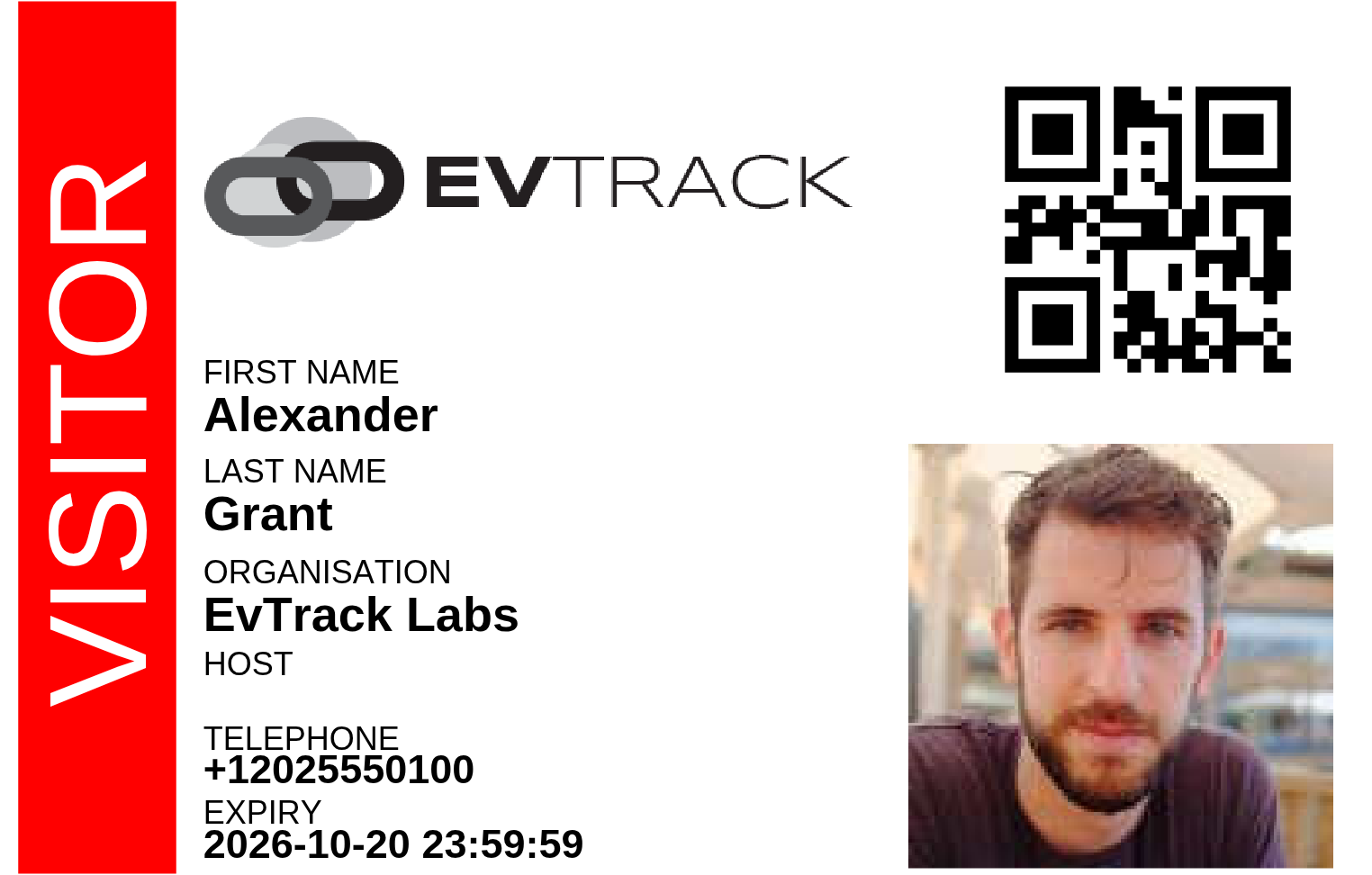
The badge carries the visitor’s details and the photo taken at the kiosk, in the layout selected under Visitor Template on Configuration > System Settings > Badge Printing, see Badge Printing. This is Alexander Grant’s badge: