A visit pass is the credential a visitor presents at the checkpoint - a QR code or PIN bound to a validity window and access rights. Passes are issued when an invite is generated or a registration is approved, so the visitor must already have a generated invite or an approved registration before a pass appears here.
Step 1: Find the visitor in the Visitors list
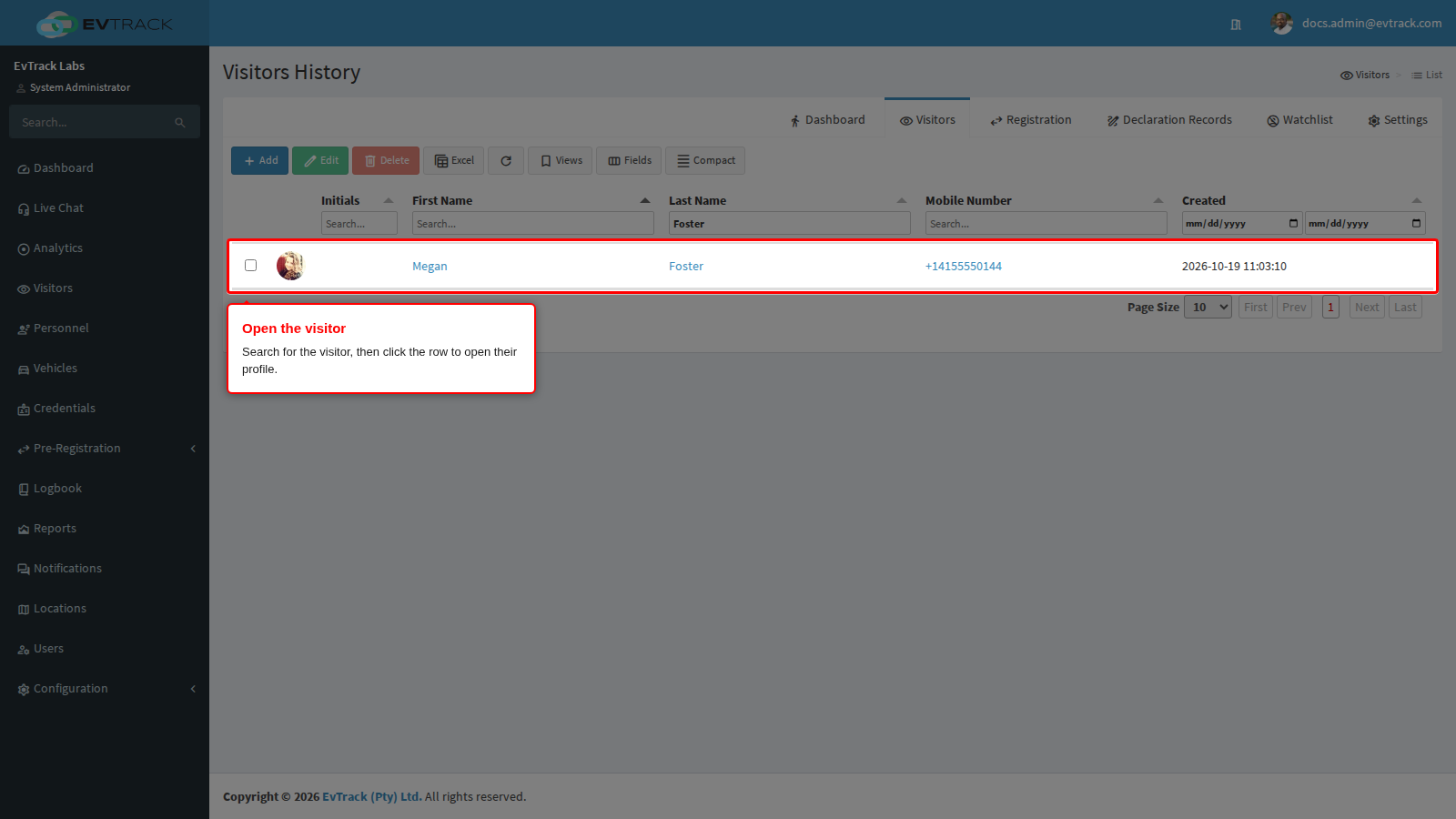
Select Visitors in the sidebar to open the Visitors History list. Type part of the visitor’s name into the column filter under the Last Name header, then click the visitor’s row to open their profile.
Step 2: Select the Visit Pass tab
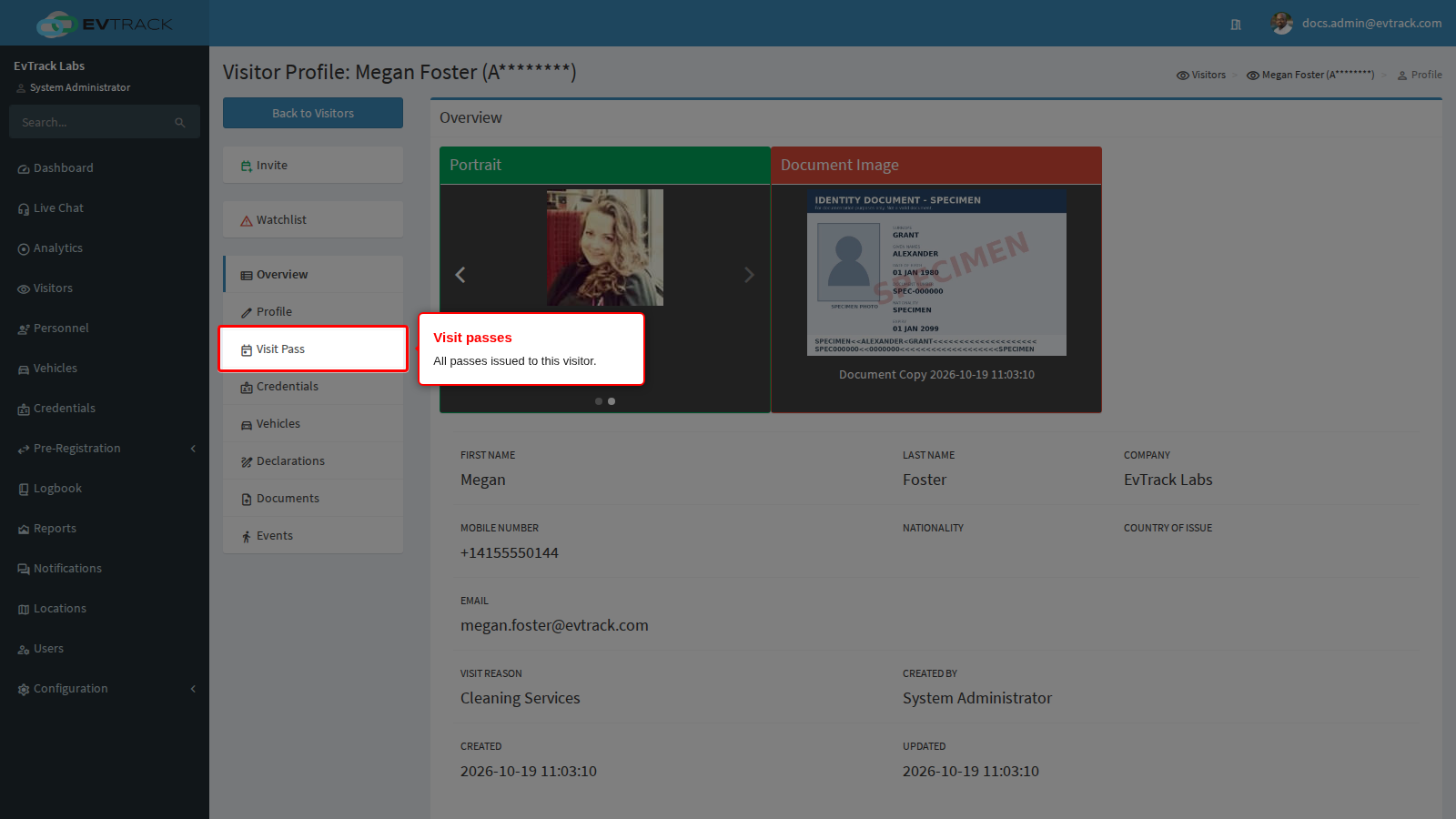
The visitor’s profile opens on the Overview tab. Select the Visit Pass tab.
Step 3: Review the issued passes
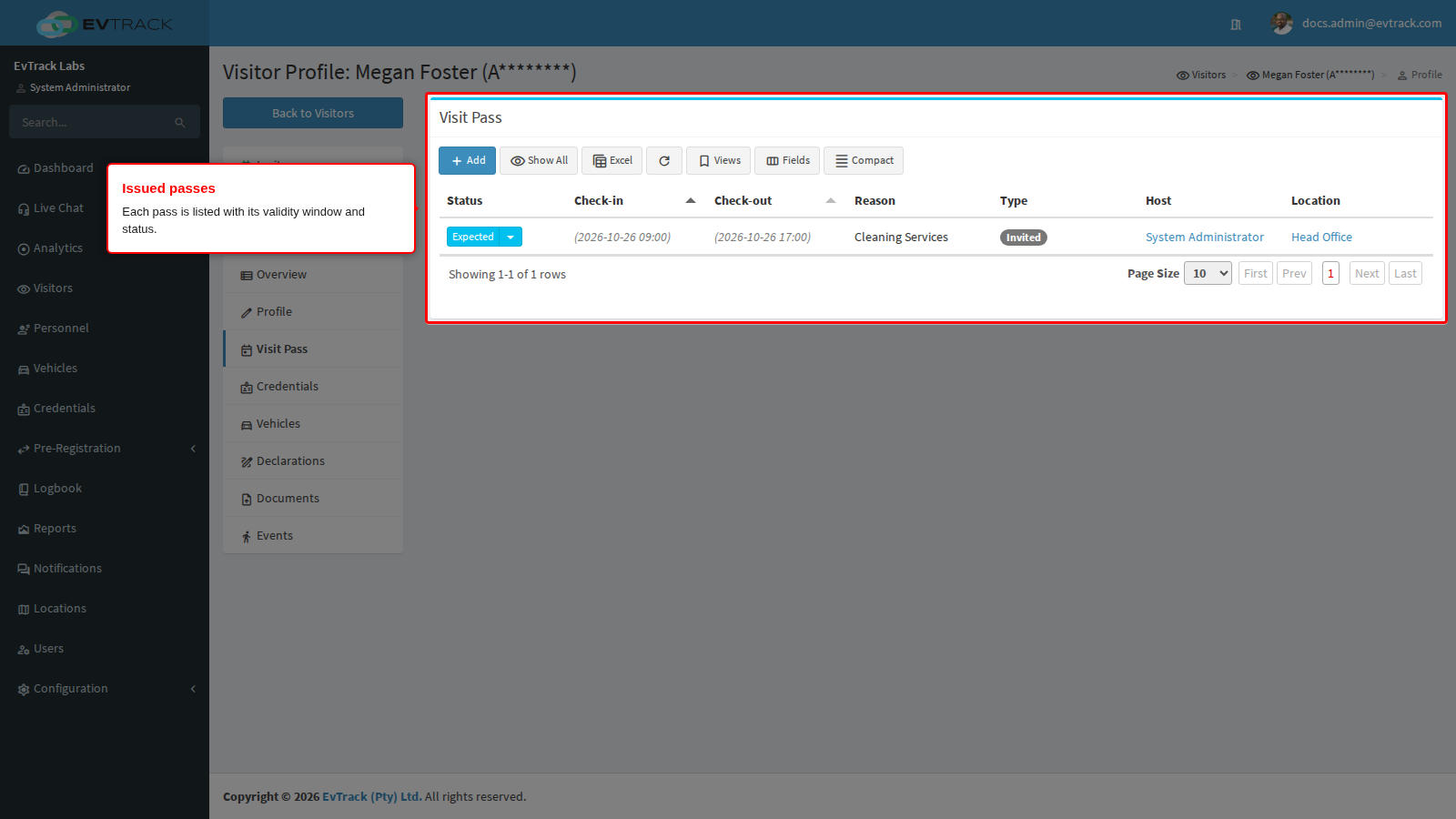
Every pass issued to the visitor is listed with its validity window and status. From here passes can be viewed, edited or resent.
Sharing a pass
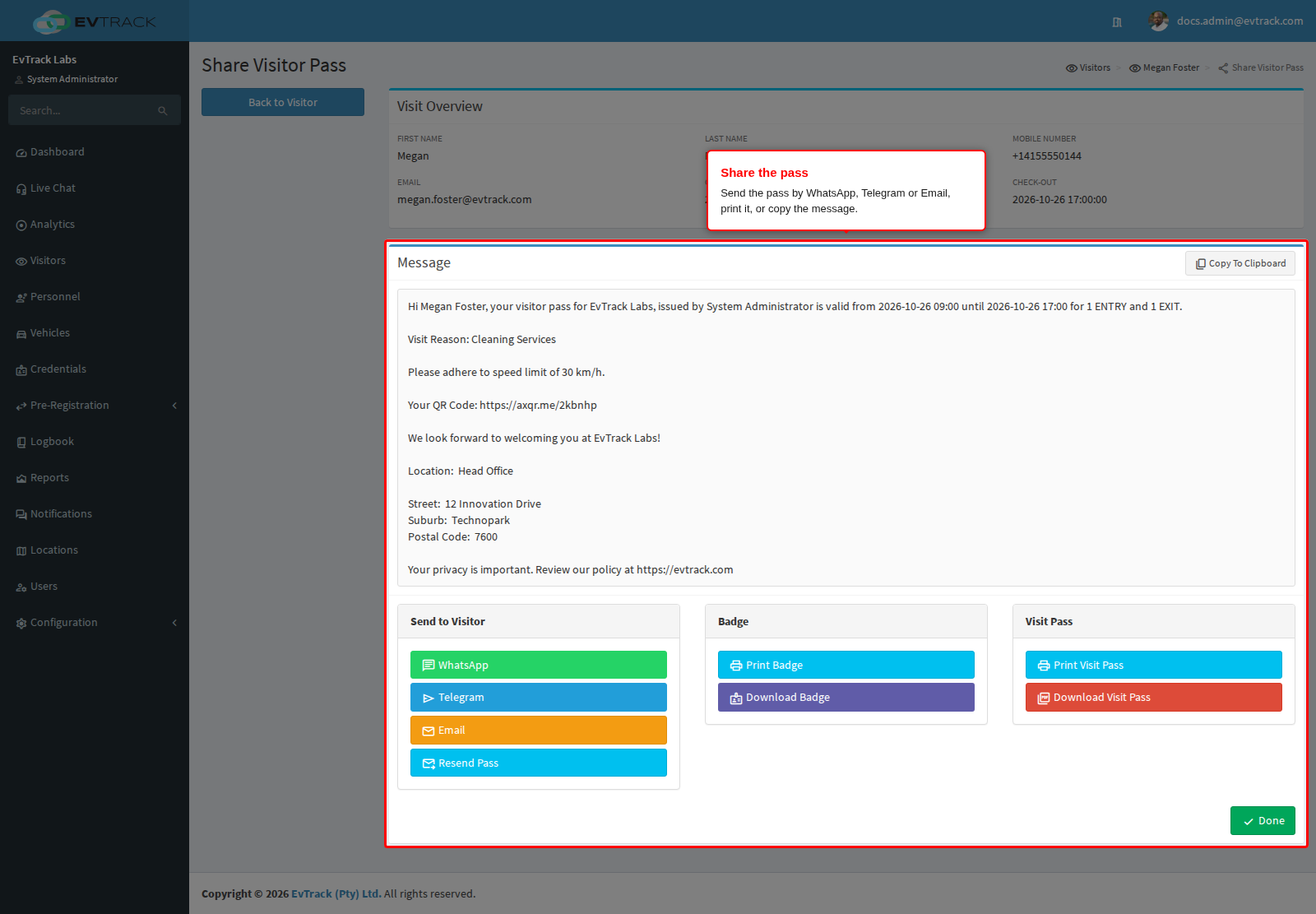
After generating an invite, the Share Visitor Pass page shows the visit overview and the pass message as a read-only preview, with Copy To Clipboard in the message header, a Send group (WhatsApp, Telegram, Email, Resend Pass) and a Documents group (Print Badge, Download Badge, Download Visit Pass). Buttons your role does not allow are not shown.
The printable pass
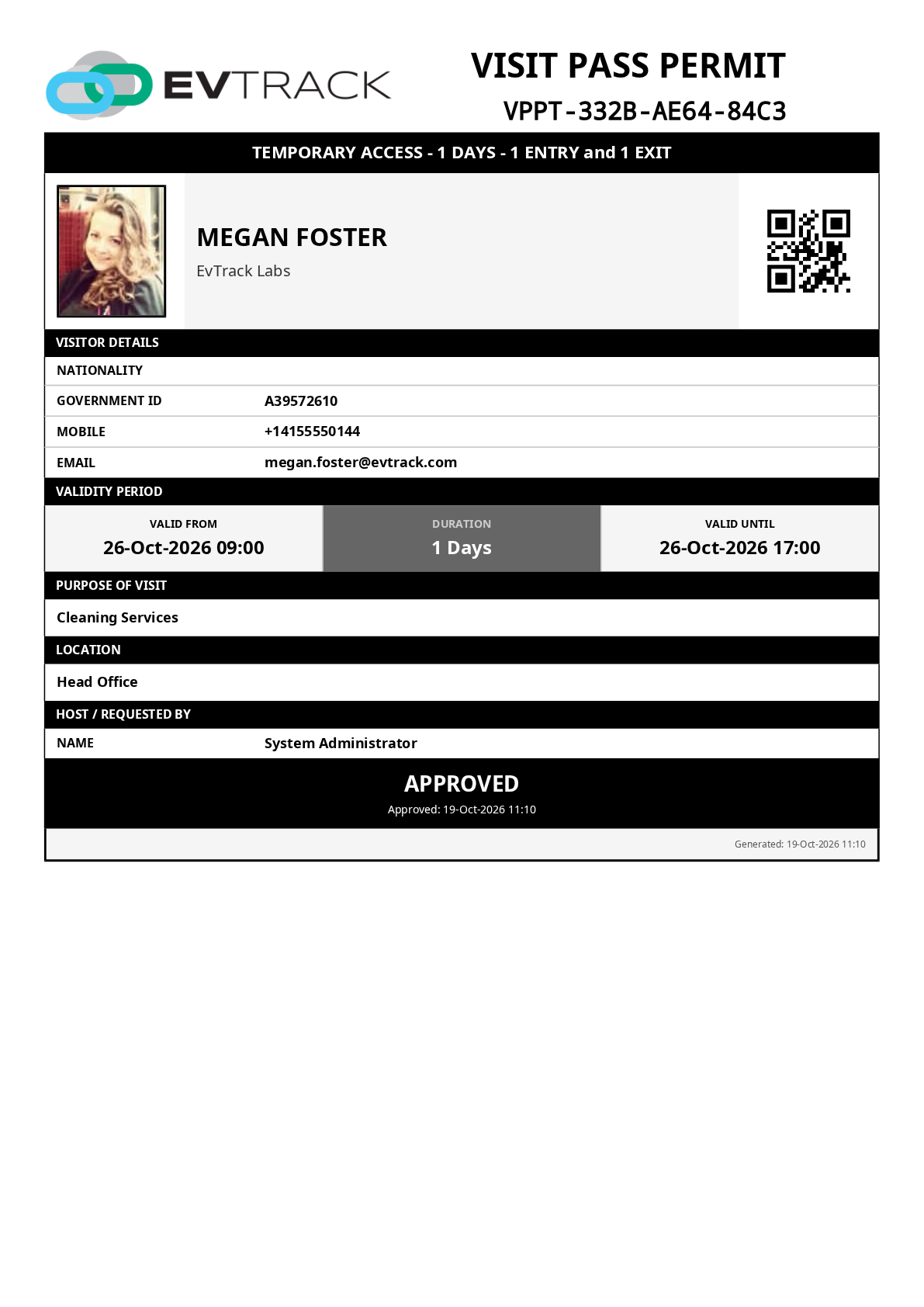
The pass can be downloaded or printed as a PDF badge - the capture below shows the rendered PDF exactly as it prints, carrying the visitor’s details, photo, the validity window and the scannable code.
Visitor badge templates
Besides the pass, a printable visitor badge can be produced from the share page (Print Badge / Download badge) and from the visitor list row actions. The layout is controlled by the Visitor Template setting under Configuration > System Settings > Badge Printing - see Badge Printing to change it, and Custom SVG Badge Templates to design your own. One generated example per built-in layout:
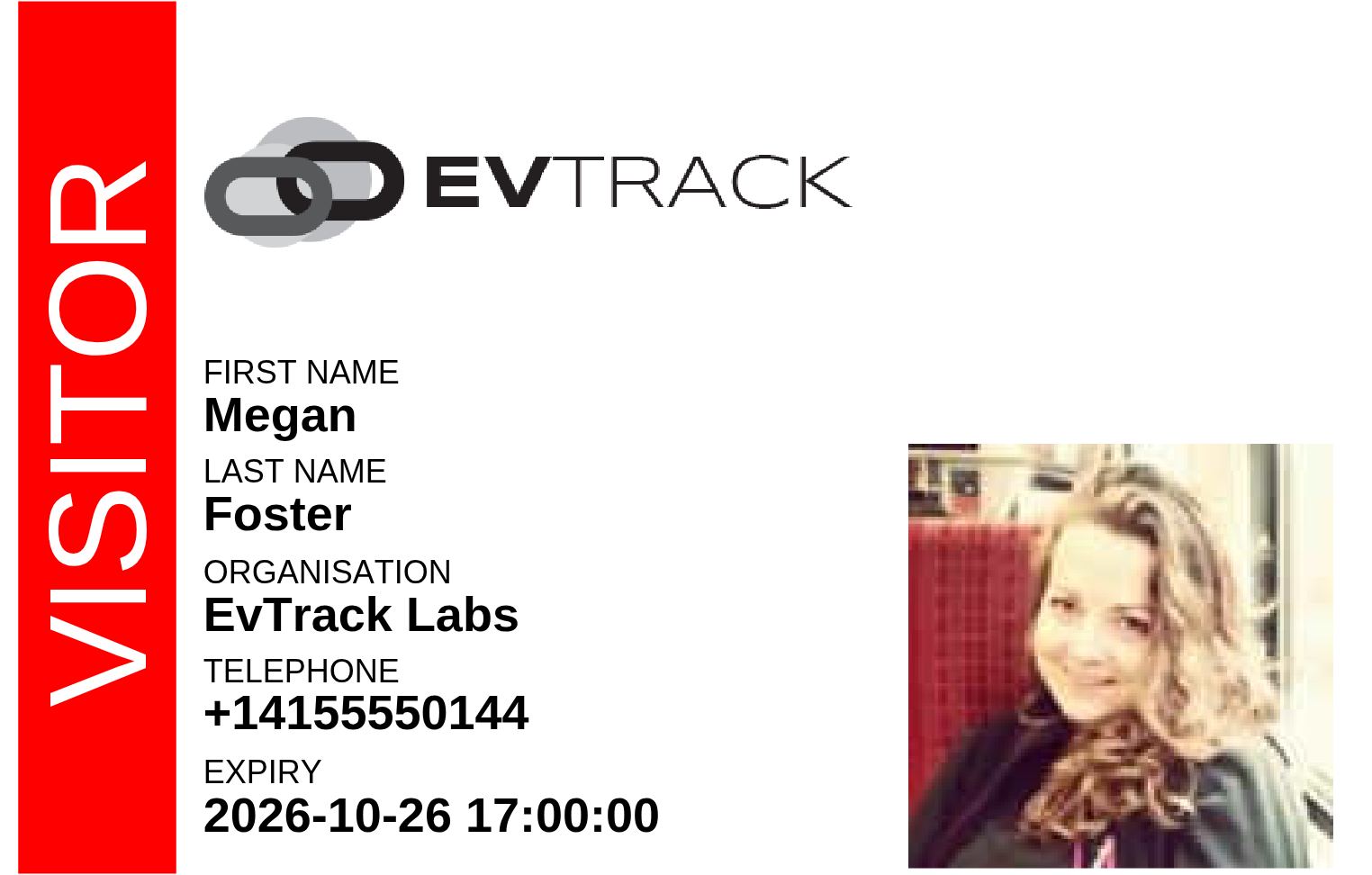
Banner Style - a banner layout without a QR code.
QR Code Only - a minimal badge carrying just the visitor’s QR code.
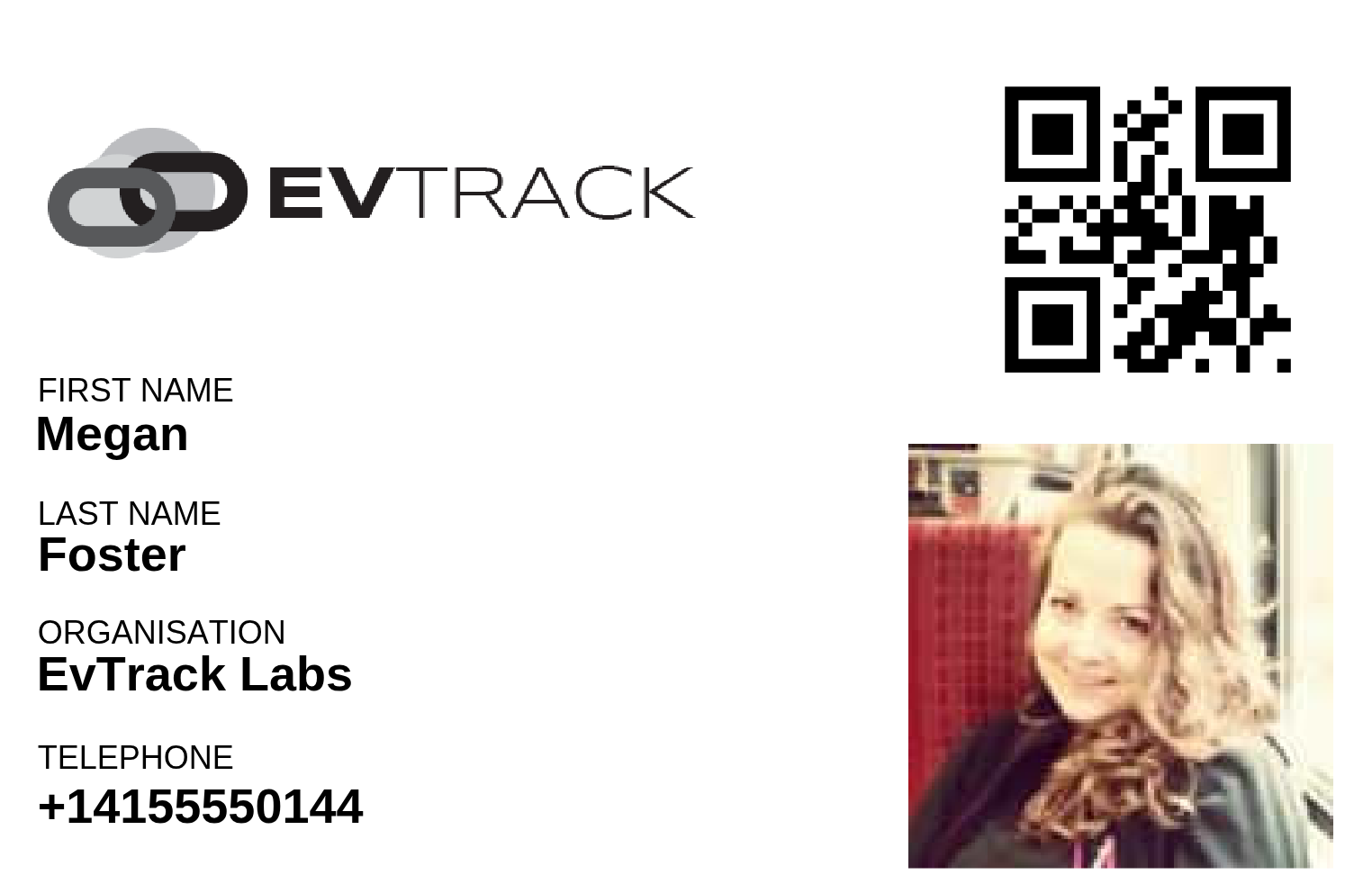
Banner with QR Code - the banner layout plus the visitor’s access QR code.
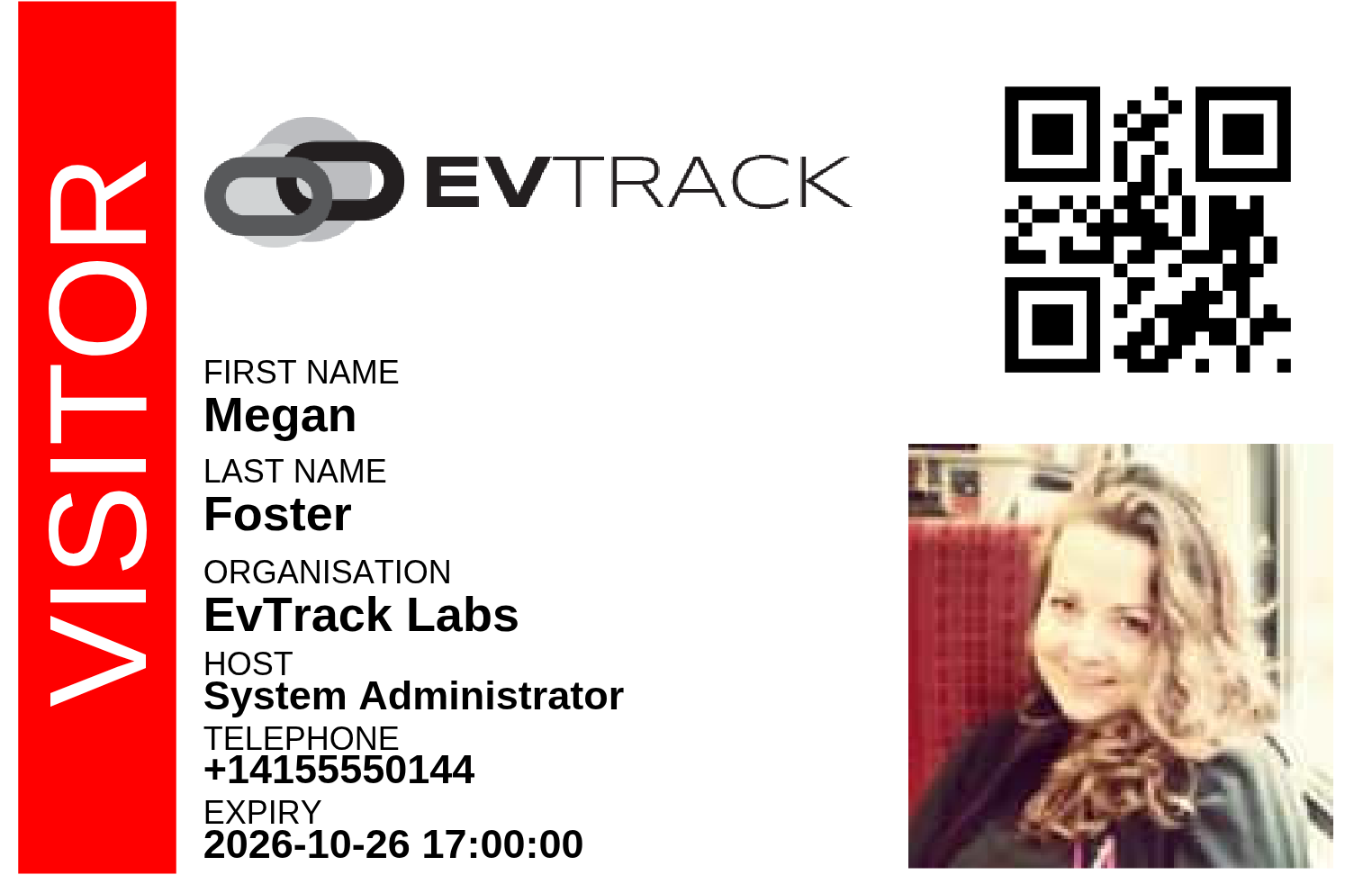
Portrait with QR Code - a vertical layout with the QR code.
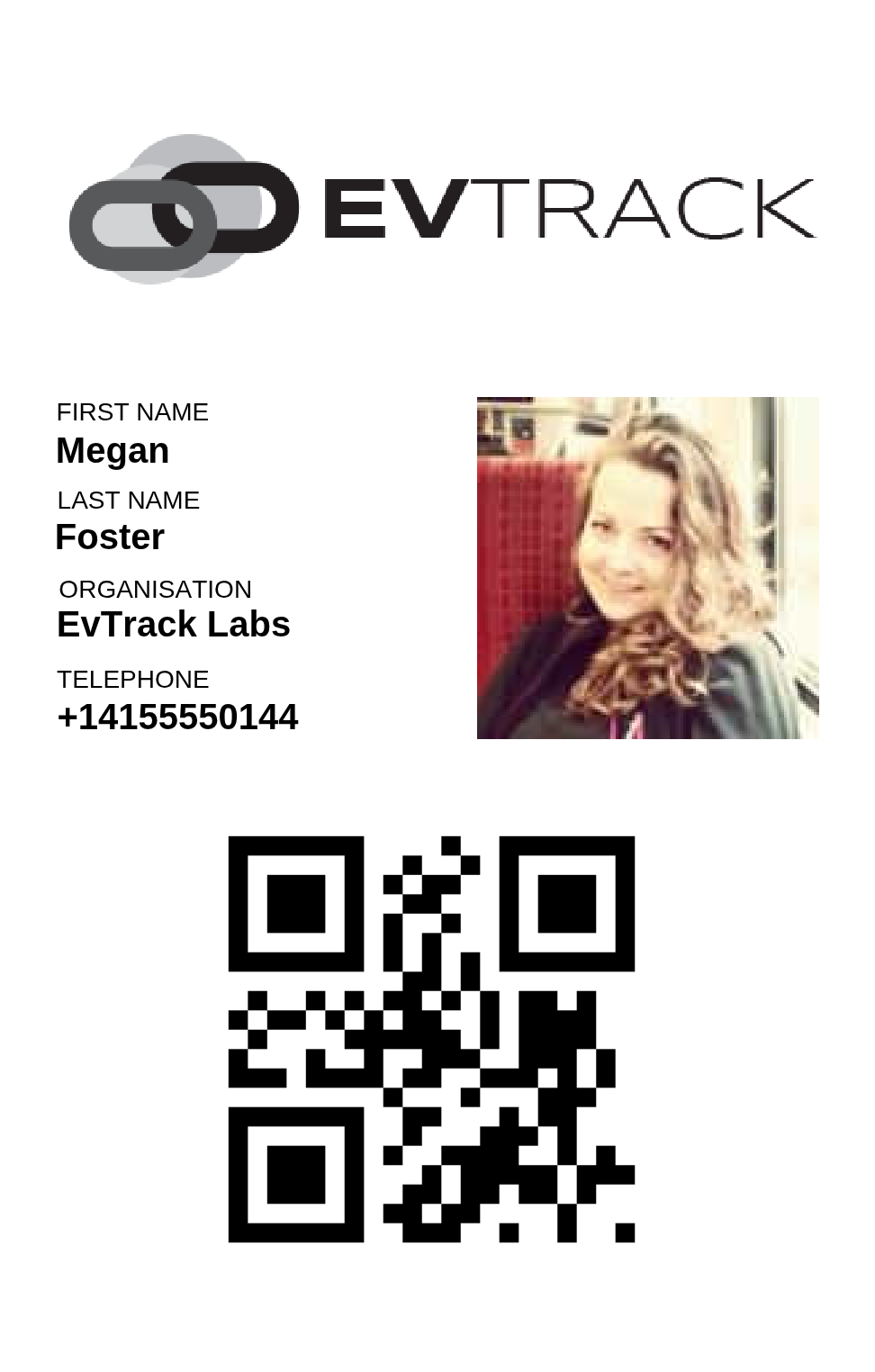
Portrait Banner with QR Code - a vertical banner layout with the QR code.
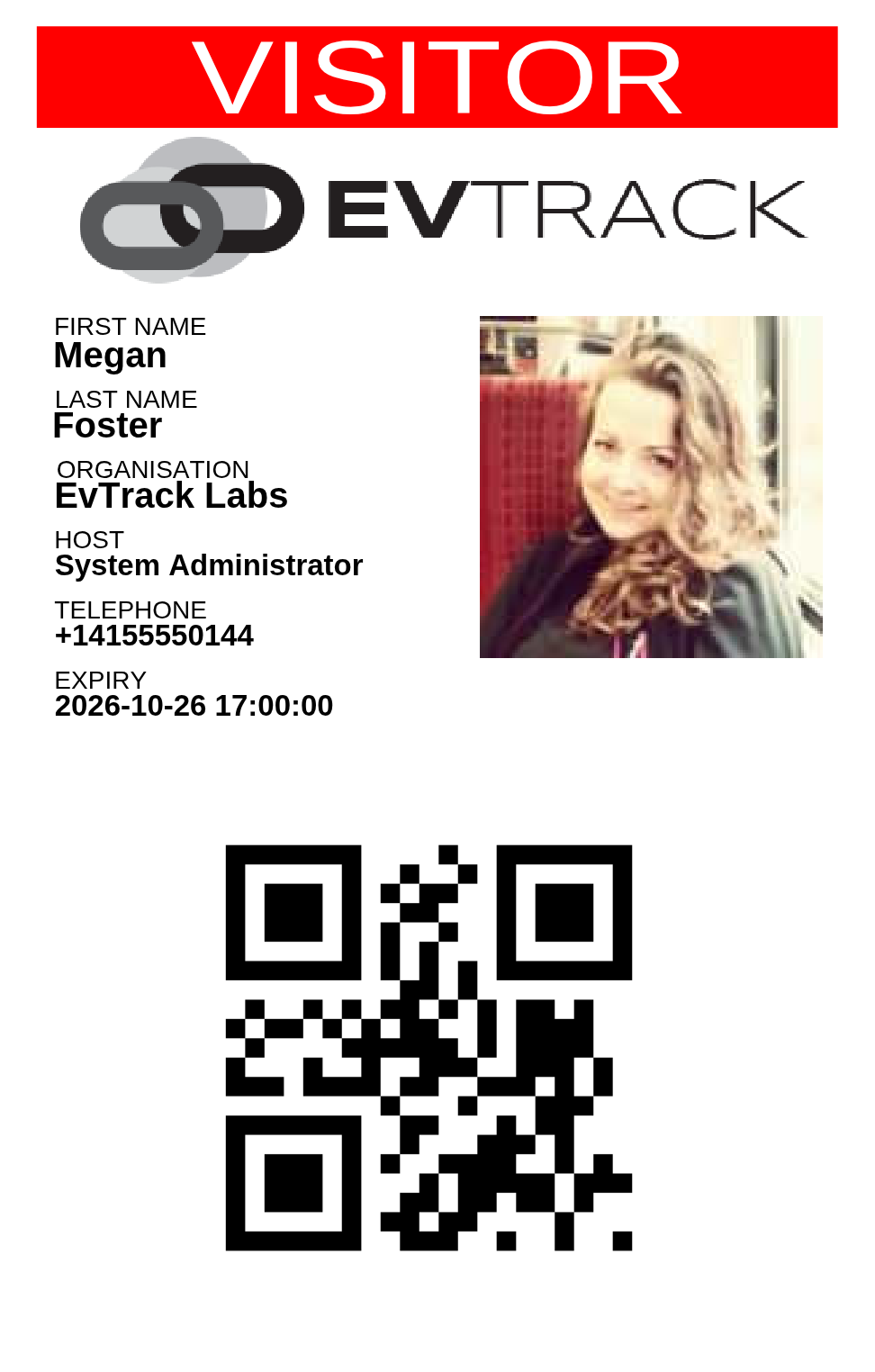
What the visitor should know
| Tell your visitor | Why |
|---|---|
| Bring the ID they registered with | Reception and the kiosk compare it with the pass |
| Keep the email | They can show the code on their phone or print the badge |
| Use the most recent email | Where your administrator has switched on the Updated email (off by default), a changed visit sends a new pass email |
| Arrive inside the visit window | The code does not work before the start or after the end (or outside the Early Check-in and Late Check-out periods, where set) |
What is checked at the checkpoint
| On the pass | Checked by | Against |
|---|---|---|
| The QR code or PIN | The kiosk, the guard app or a reader | The visit window and the pass status |
| The photo | Reception, and face readers where fitted | The person standing there |
| Name and company | Reception | The ID document |
| Host and location | Reception | Whether the host expects the visitor |
Notes
The pass message the visitor receives states the validity window (for example “valid from 2026-08-01 to 2026-08-02”) - the pass only grants access within that window. If a visitor is unsure of the site’s address, they should verify the details with their host. For security reasons, codes to enter or exit the site are only ever issued through the host - never by EvTrack support.