Make a FrontDesk kiosk print a badge for every visitor who registers on it, in the badge layout you choose, on a printer connected to that kiosk. It takes about fifteen minutes.
Before you start
- You can edit visitor settings, system settings and devices.
- The FrontDesk kiosk is paired, see Kiosk and Guard Devices, and its readers are bound to an access control point, see Access Control Points. Until they are, the kiosk cannot load its settings. That access control point must also have a rule on the Default Access Control List, or visitor passes are refused there.
- The badge printer is set up and switched on, and you know how the tablet reaches it: an IP address on the tablet’s network, a Bluetooth MAC address, or a USB cable. Give a network printer a fixed IP address so it does not change.
Steps
Step 1: Switch on Enabled Badge Printing
Go to Configuration > Visitor Settings, click the Kiosk tile and choose Badge & Live Chat in the kiosk menu. Tick Enabled Badge Printing and click Save at the bottom of the panel.
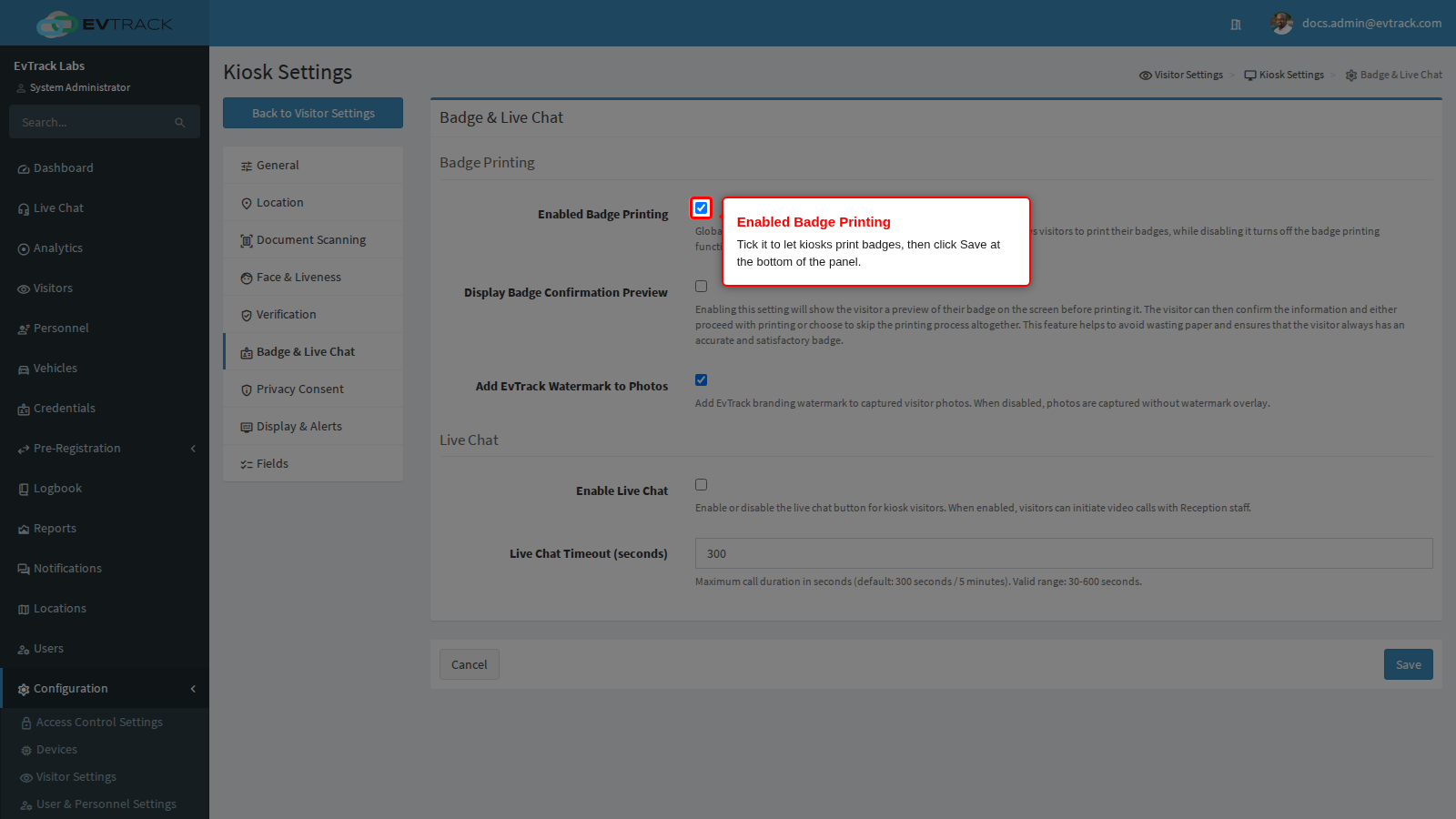
- This switch is global. While it is off, no kiosk prints, whatever the kiosk’s own printer settings say.
- Display Badge Confirmation Preview, on the same panel, is optional. With it on, the kiosk shows the badge under “Print Badge?” and prints only when the visitor taps PRINT; SKIP goes on without a badge. Leave it off for a fully automatic print.
Step 2: Check the badge layout
Go to Configuration > System Settings > Badge Printing. The layout selected under Visitor Template is the one every kiosk prints. To use another, select it and click Save at the bottom of the page.
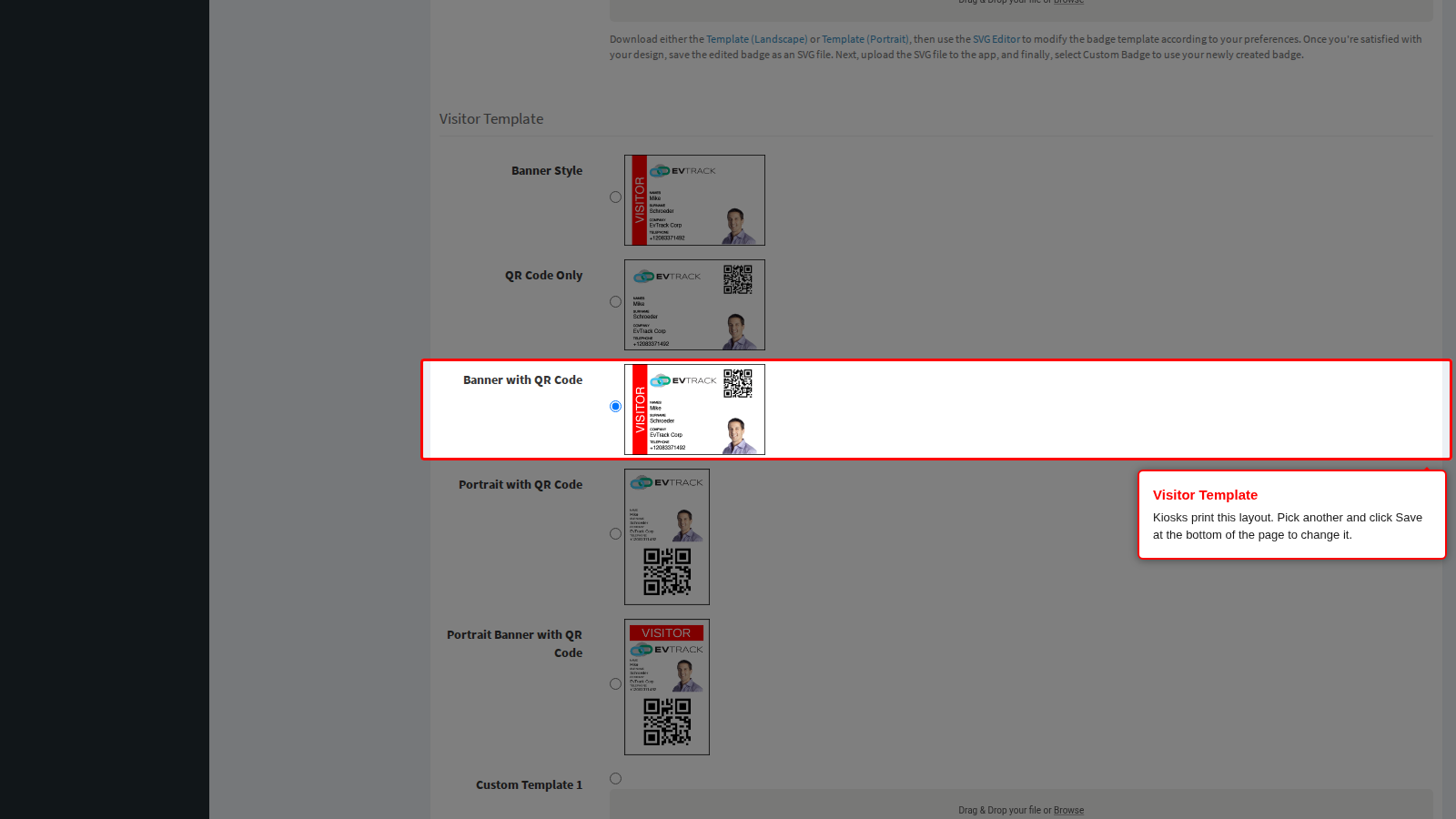
- Choose a layout “with QR Code” when the badge should carry the visitor’s access QR code. Banner Style has none. The QR code is printed only when the visit’s credential is a QR code, which is what the Credential Type on the Visit Pass settings issues by default, see Visit Pass. Kiosks on FrontDesk 2.35 or earlier print the layout’s sample QR code for any other credential until the app is updated.
- To print your own design, see Custom SVG Badge Templates. Kiosks fetch a changed layout the next time they refresh their settings.
Step 3: Choose the kiosk’s printer Driver
Go to Configuration > Access Control Settings > Devices, open the kiosk’s record and click Optional. Under Printer, choose the Driver that matches your printer, then fill in the fields that appear below it:
- Network printers (Brother QL TCP/IP, Evolis Card Printer TCP/IP, Zebra LINK-OS TCP/IP, Epson ePOS TCP/IP): IP Address/Domain. For Evolis it is optional; left empty, the kiosk uses the first Evolis printer it finds.
- Zebra LINK-OS TCP/IP also has Port, a whole number from 1 to 65535. Left empty, it is 9100.
- Bluetooth printers (Brother QL Bluetooth, Epson ePOS Bluetooth): MAC Address, for example
00:11:22:33:FF:EE. - Brother printers also have Model and Paper Orientation.
- Epson ePOS USB needs no field: connect the cable to the tablet.
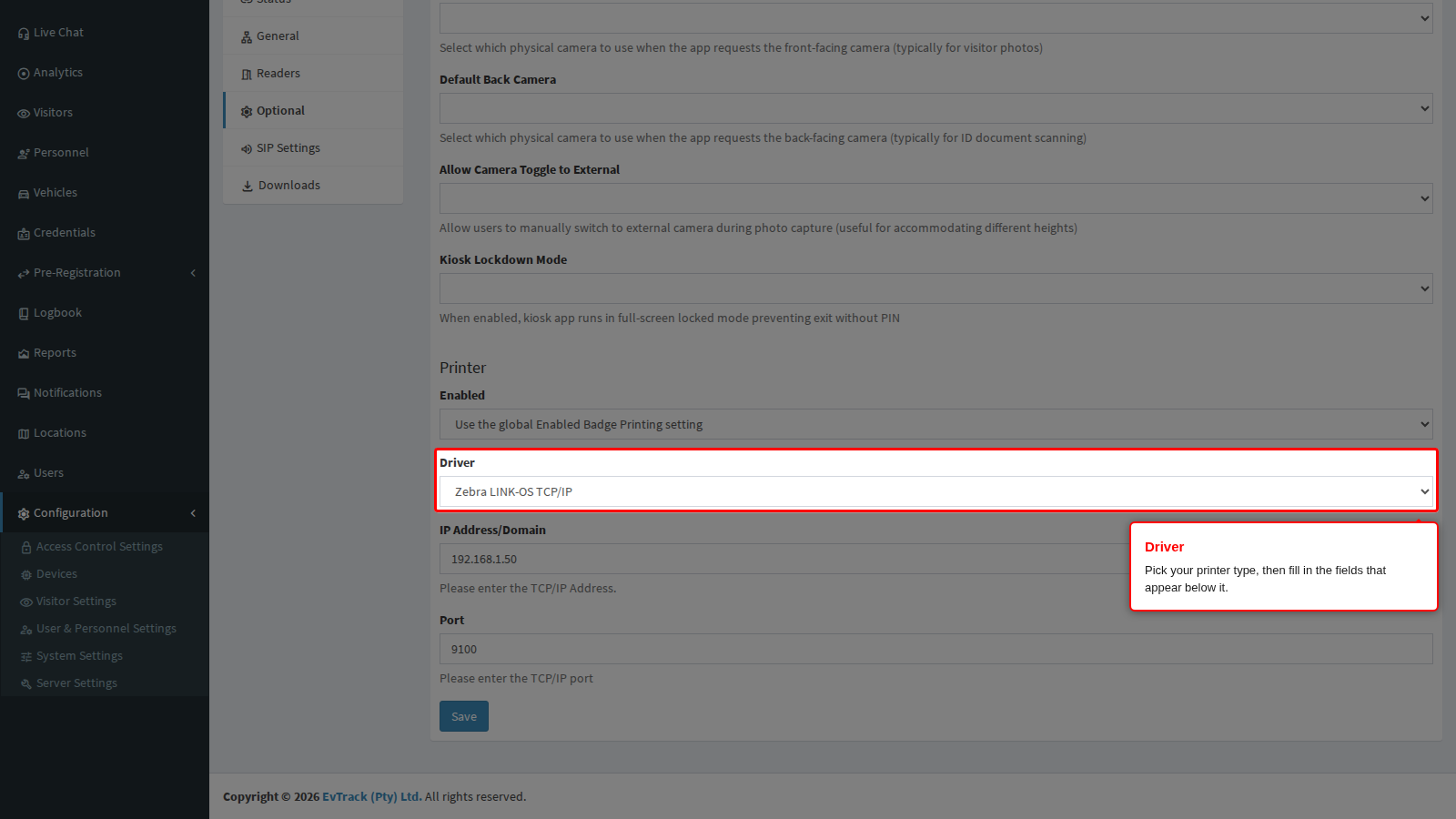
The example uses a Zebra printer at 192.168.1.50 on port 9100. Device Options: Printer, Cameras and Lockdown describes every driver and field.
Step 4: Leave Enabled on the global setting and save
In Enabled, just above the Driver, leave the empty choice Use the global Enabled Badge Printing setting, or choose Yes. Both print while the global switch from Step 1 is on. No switches this kiosk off even then. Click Save at the bottom of the tab.
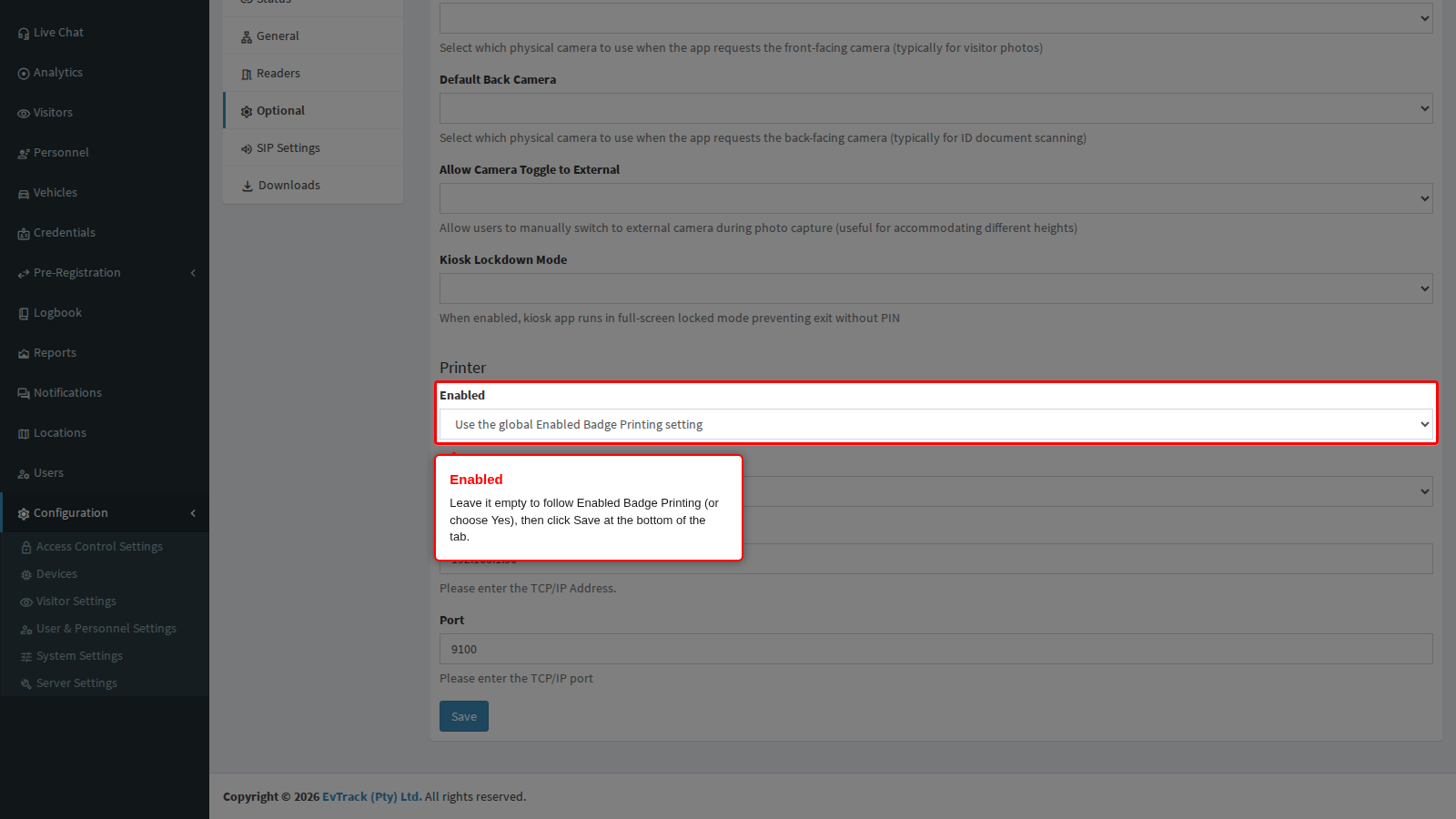
The page reloads on Optional with the saved values. The kiosk picks the change up within five minutes, or at once when the FrontDesk app restarts. Repeat Steps 3 and 4 for every kiosk with a printer; a kiosk with no Driver never prints.
Check it worked
Register a test visitor at the kiosk. Once the check-in is granted, the kiosk confirms it, adds “Please wait while we print your badge.” and the printer produces the badge, then the kiosk moves on by itself. With Display Badge Confirmation Preview on, the kiosk first shows the badge under “Print Badge?” and prints when the visitor taps PRINT. With a Bluetooth printer, allow Nearby devices when the tablet asks at the first print.
The badge carries the visitor’s details and the photo taken at the kiosk, in the layout from Step 2. This is Alexander Grant’s badge in the Banner with QR Code layout:
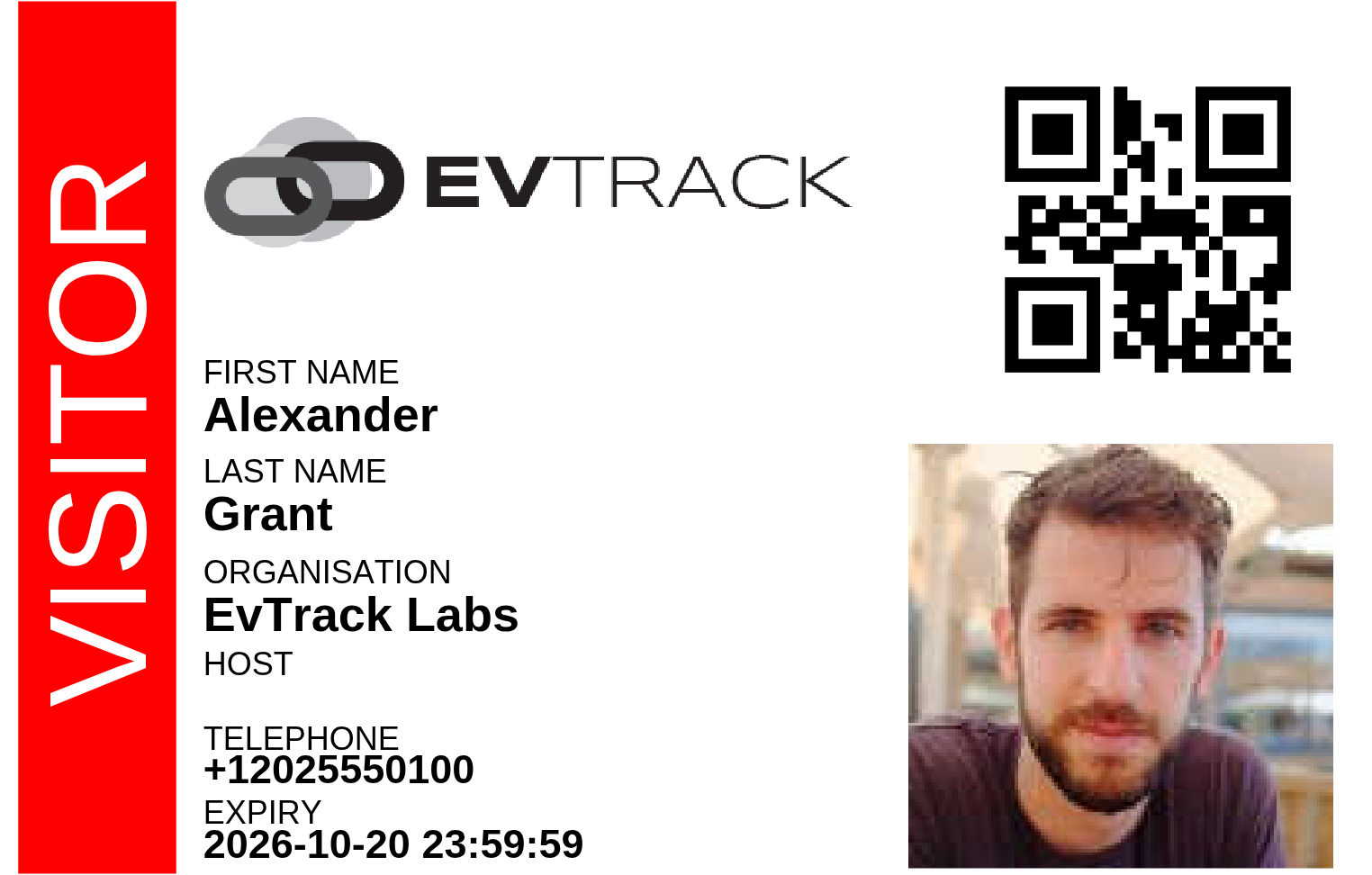
A badge is printed at the end of the kiosk’s registration form. Visitors with an invitation QR code or one-time PIN get one too when the kiosk sends them through that form, which it does while Direction Requiring Visitor Registration with Visitor PIN / QR / ID Card (Visitor Settings > Kiosk > General) is IN or BOTH; a new system starts on IN. With NONE they check in straight away and no badge is printed, see Walk-in and Offline.
If it didn’t work
- The kiosk shows “Thank you!” and confirms the check-in, but nothing prints. The kiosk has printing off. Check each of these in turn:
- Enabled Badge Printing is not ticked on Badge & Live Chat. Tick it and save.
- The kiosk’s Optional tab has no Driver. Choose one, fill in its fields and save.
- The kiosk’s Enabled is No. Set it back to the empty choice or Yes and save.
- The kiosk has not refreshed yet. It reads its settings every five minutes while it can reach the server, and at every app start. Wait, or restart the FrontDesk app.
- The kiosk confirms the check-in but says “we could not print your badge due to a printer connection error.” The check-in has gone through, but the tablet could not reach the printer. Check the printer is on, and that the address on the Optional tab is right: the IP Address/Domain and, for Zebra, the Port for a network printer (the tablet and the printer must be on the same network), or the MAC Address for a Bluetooth printer. Then tap Retry Print, or Skip; the kiosk moves on by itself after two minutes. Other messages of the same kind name the cause, for example “because the printer is out of paper”.
- A visitor got no badge although others did. Either the visitor checked in with an invitation QR code or one-time PIN while Direction Requiring Visitor Registration with Visitor PIN / QR / ID Card is NONE, so the kiosk skipped the registration form where the badge is printed (set it to IN to send them through the form), or the kiosk was offline: the registration was queued for later and no badge was made.
- The badge has no photo or no QR code. The photo comes from the kiosk’s photo step: tick Photo on Kiosk > Fields, see Fields and Required Fields. Banner Style has no QR code: choose a layout “with QR Code” under Visitor Template. A “with QR Code” layout prints the QR code only when the visit’s credential is a QR code: check the Credential Type on the Visit Pass settings. On FrontDesk 2.35 or earlier a visit with another credential shows the layout’s sample QR code instead, until the app is updated.
For more causes and how to check each one, see The kiosk prints nothing.