Use this page when a visitor presents their card or QR code at a door and the door does not open. An operator who can edit visitor settings and credentials can usually fix it in about five minutes.
Symptom
The visitor holds their card or QR code to the door’s reader and the door does not open. A plain door reader shows the visitor nothing either way, so check the record. Open the visitor, click the Events tab and choose Access Denied in the filter at the top of the Type column; to see one card only, type its number in the Card# search box. A refusal shows an orange badge reading the direction (for example IN) under Type, the card number under Card#, and the door in Description.
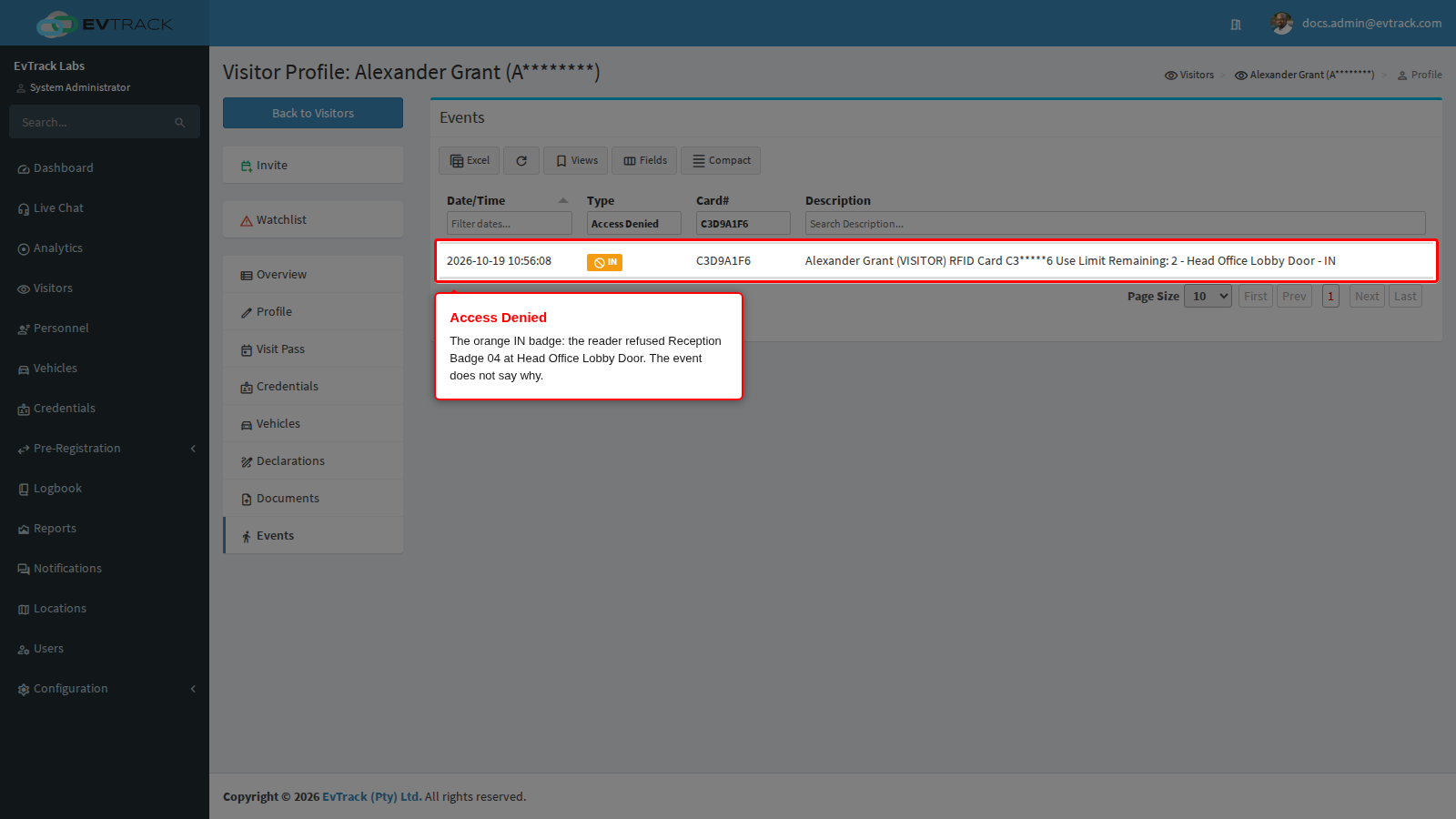
If the visitor’s Events tab shows no refusal for the card, the reader did not match it to one of the visitor’s usable credentials: the number is on no credential, the card was returned or swapped, or the credential is switched off, has used up its entries or is past its end date. Those refusals are recorded without the visitor’s name, so they do not appear on the visitor. If there is no record of the swipe anywhere, check that the reader is set up on the door, see Access Control Points.
What it means
The reader matched the card to the visitor’s credential and refused it. The event does not say why: a missing list, a door that is not on the list and a schedule that excludes the moment all produce the same Access Denied event.
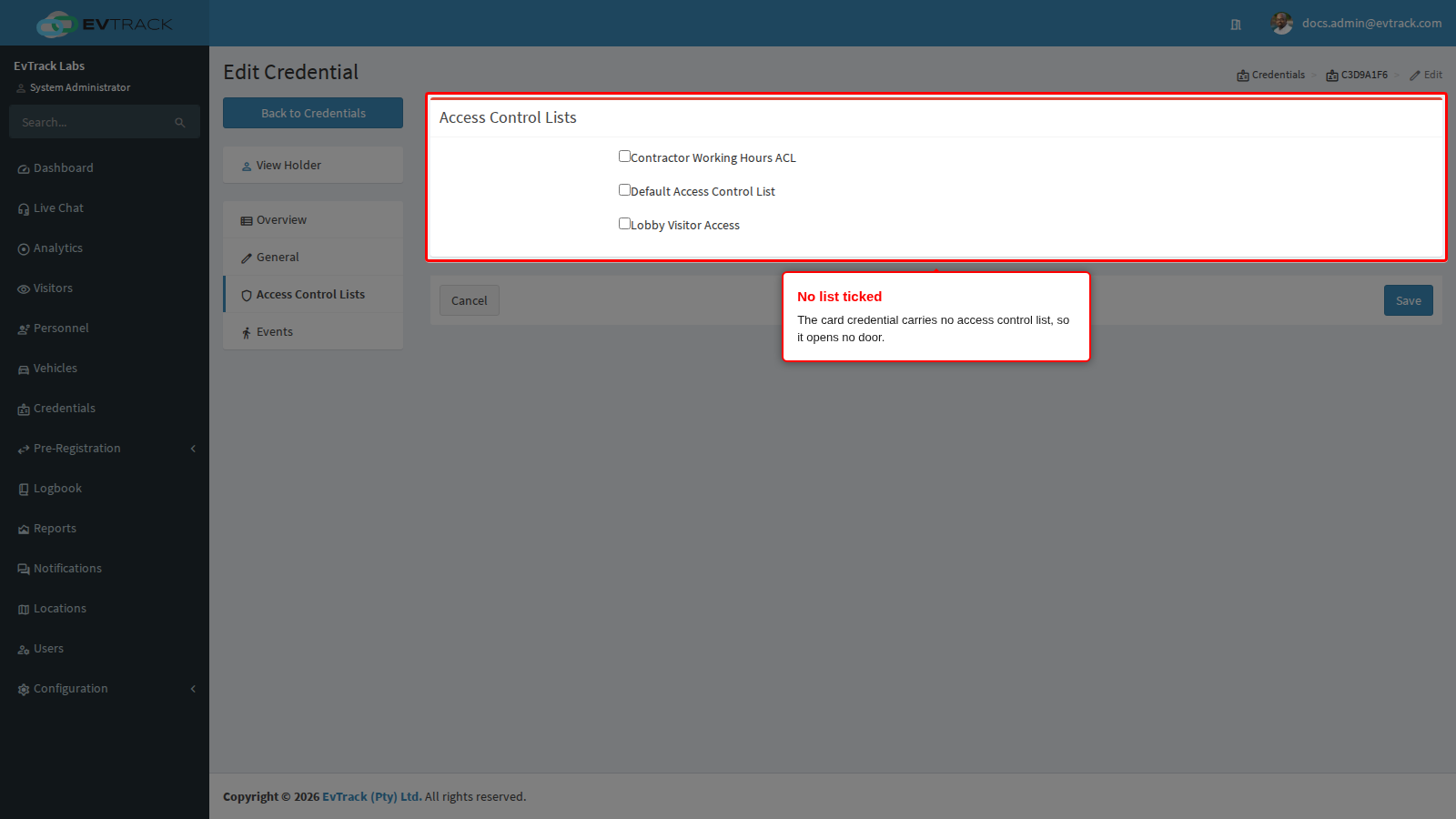
The most common reason is that the credential carries no access control list. A credential with no list identifies the visitor but opens no door, and the reader refuses it before it looks at anything else. Click the Credentials tab, click the card (or the visit pass) and choose the Access Control Lists tab: no list is ticked. A loan card from a card pool carries the same lists as the visitor’s pass, so when the pass has none, the card has none either.
Why it happens
- No list was given to the pass. Access Control List under Default Visitor Invite Settings on Configuration > Visitor Settings > Visit Pass > General is set to None, so passes are issued without that list. A pass then carries only the lists another rule adds (the host’s location, the visit’s location, the visit reason, the visit status (see Status-Based Access) or parking), and with none of those it opens no door until a list is ticked by hand. This is the cause fixed below.
- The list does not cover this door, or not at this time. The credential carries a list, but no rule on it names this door’s access control point, or the rule’s schedule does not allow this day and time. Open the list, click Access Rules and check both columns. A list with no rules opens nothing.
- The credential is not usable right now. It is switched off, has used up its entries, or the time is outside its own dates. A visitor’s pass and card follow the visit’s start and end times.
- The loan card is no longer the visitor’s. A card from a card pool stops opening doors when it is returned, when it is swapped for another card, and at check-out. With Issue assigned cards as door credentials off under Check-out Settings, a card is only recorded on the visit and opens nothing.
The reader stops at the first check that fails. The decision diagram “Why was this person denied?” in Access Control Lists shows the order of the checks; follow it to work through the other causes.
Fix it now
The example below fixes the first cause: Access Control List is set to None.
Step 1: Choose a list for every new pass
Go to Configuration > Visitor Settings, click the Visit Pass tile and open the General panel. Under Default Visitor Invite Settings, choose the list that holds your visitor doors in Access Control List and click Save at the bottom of the panel.
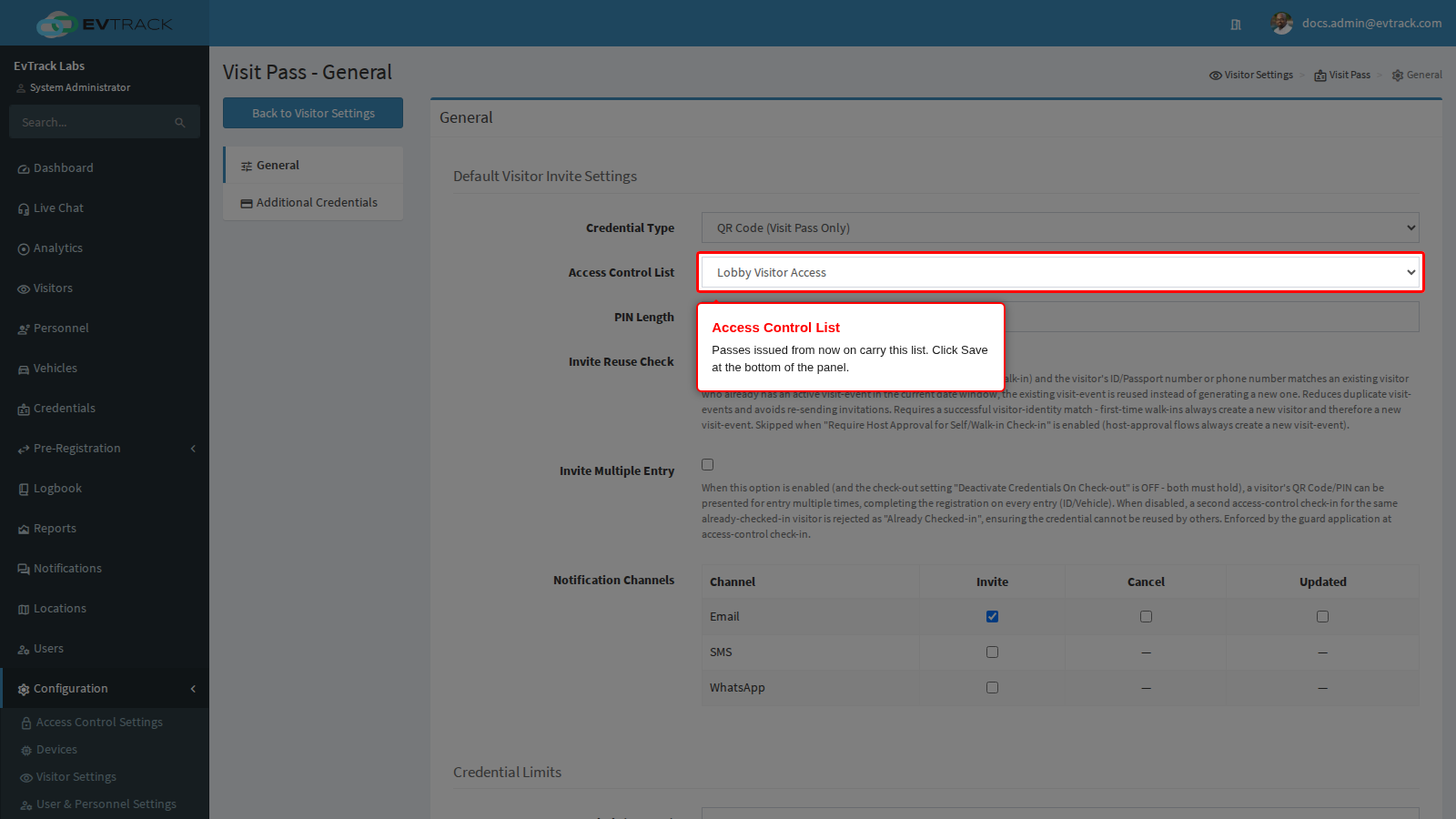
- Passes issued from now on carry this list.
- Passes already issued keep what they have until the visit’s status changes or the visit is edited, unless ACL Update Strategy on the same panel is MANUAL. Step 2 gives the visitor at the door the list straight away.
- The list must have a rule for each door visitors may use, see Access Control Lists.
Step 2: Tick the list on the visitor’s credential
Click Visitors in the sidebar, open the visitor and click the Credentials tab. Click the card that was refused, choose the Access Control Lists tab, tick the list and click Save. You return to the visitor with a success message. Do the same for the visitor’s pass if they also use a QR code.
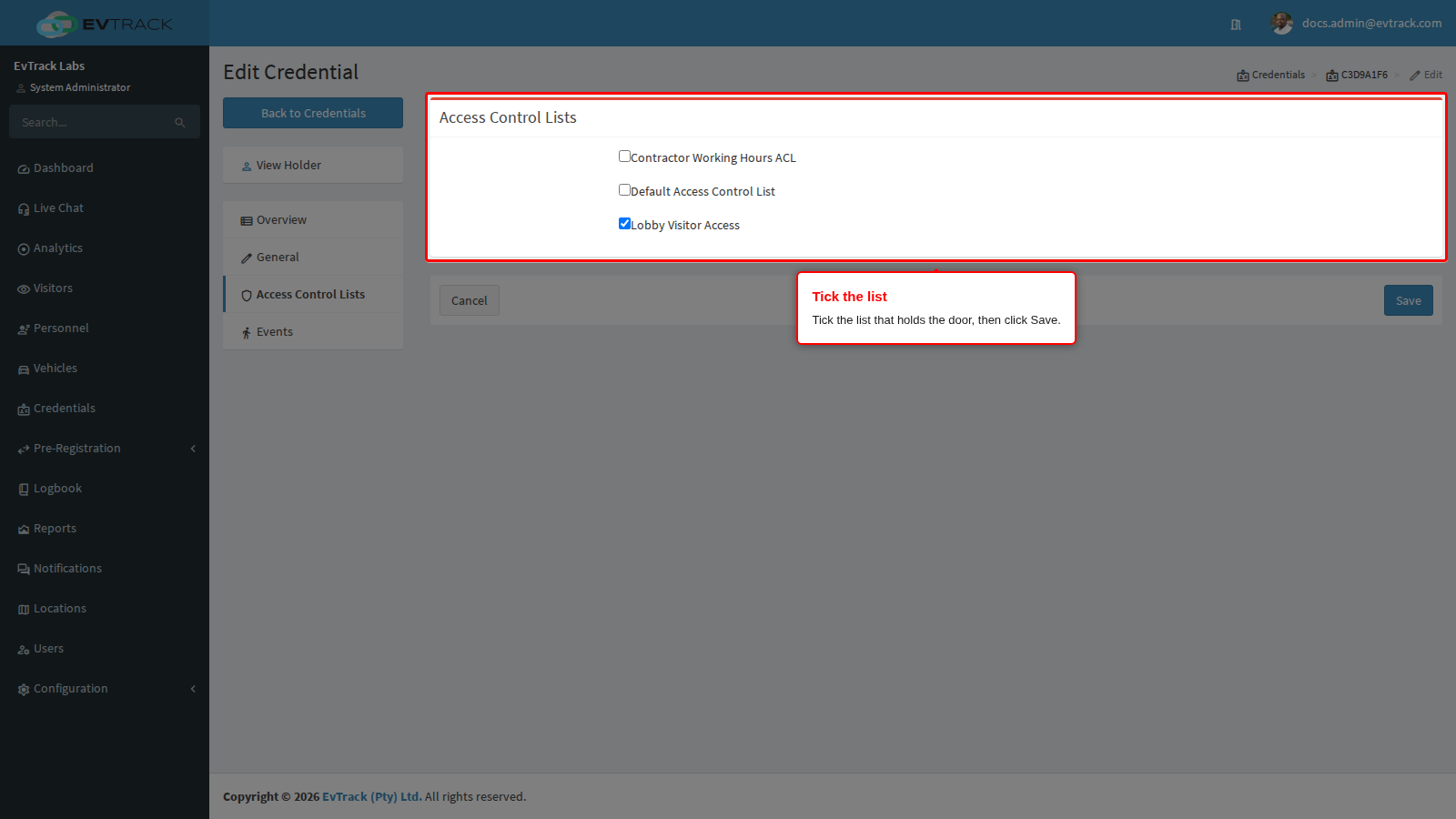
Do Step 1 first. With ACL Update Strategy on ENFORCE, the lists on a pass are rebuilt from the system’s settings the next time they are worked out again, so a list ticked by hand while Access Control List is None is taken off again. See Visit Pass Settings.
For the whole setup, see Give visitors door access with a QR code or card.
Check it worked
Ask the visitor to present the same card at the same door. The door opens at once; nothing else needs to change. On the visitor’s Events tab, choose Access Granted in the Type filter: the entry shows a green IN badge, the card number under Card#, and the door in Description.
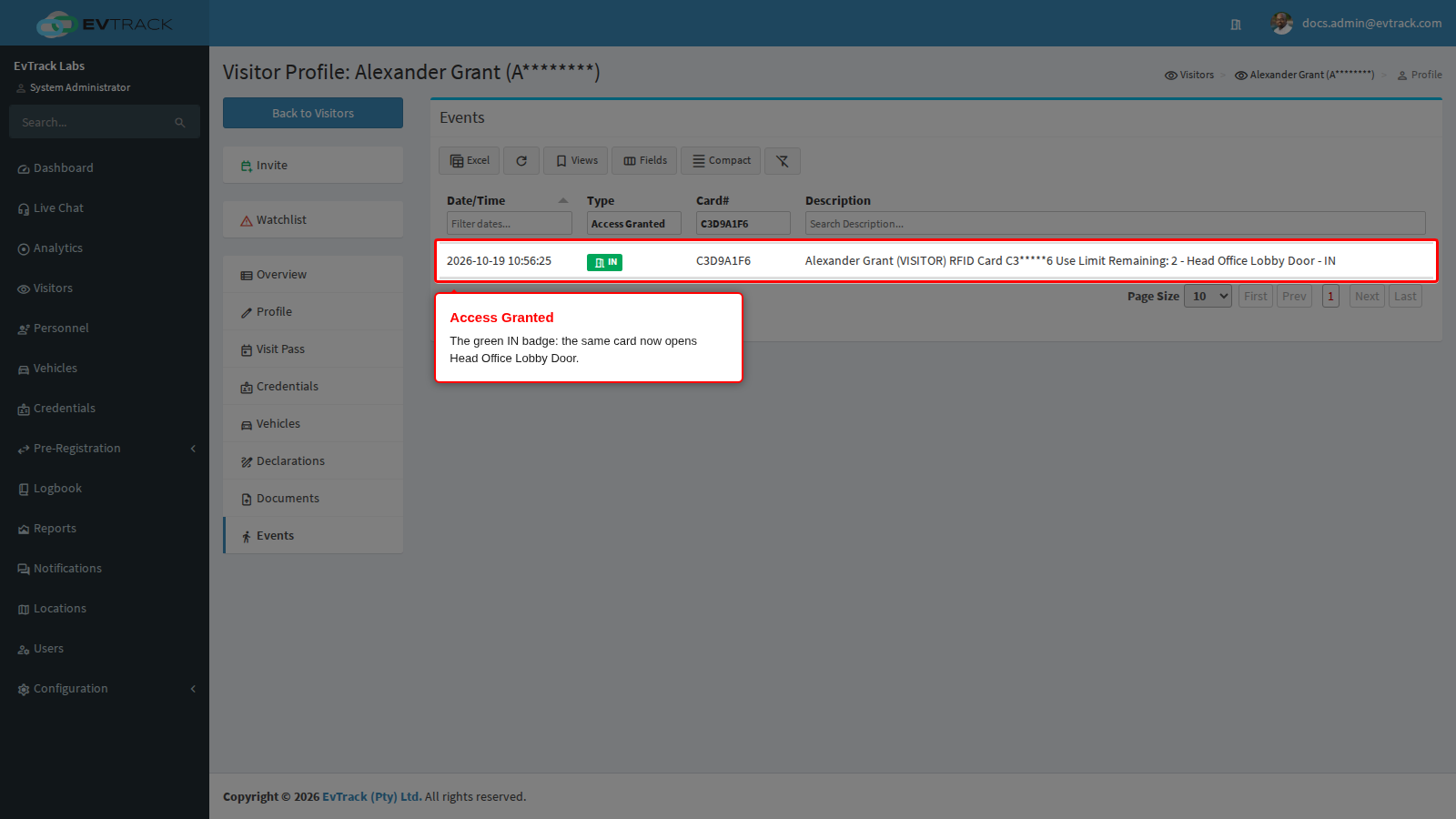
If the door still refuses the card, a second cause is in play. Work through the decision diagram in Access Control Lists, starting with the list’s Access Rules and their schedules (see Schedules).