Use this page when a visitor’s request has been in the Registration list for a long time and nobody seems able to approve it. An administrator can usually clear it in a few minutes.
Symptom
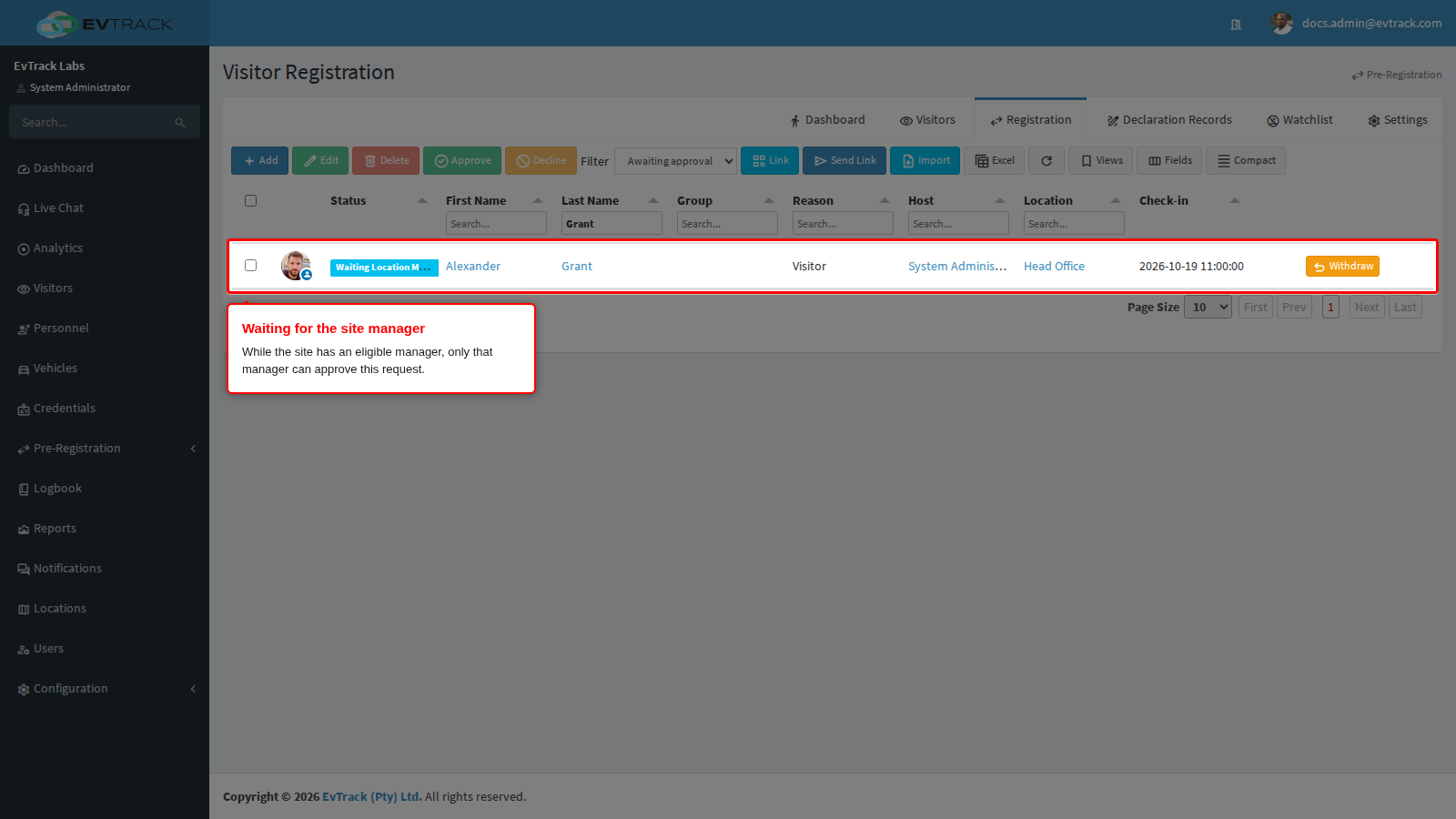
In Visitors > Registration the request still shows the status Waiting Location Manager Approval. The visitor has no pass and no visit, and you have no Manager Approve button on the row (a Withdraw button may show).
What it means
The request was sent to the managers of its site for review, and it now waits for one of them. While the site has an eligible manager, only that manager (or one of the site’s delegates during the delegation dates) can open and approve the request. Other operators, administrators included, cannot.
A manager counts only while their row on the site’s Managers tab is switched on and their user account is enabled and inside its Active Date and Expiry Date. A request in this list never times out. It waits until somebody approves it, declines it, withdraws it or deletes it.
Why it happens
-
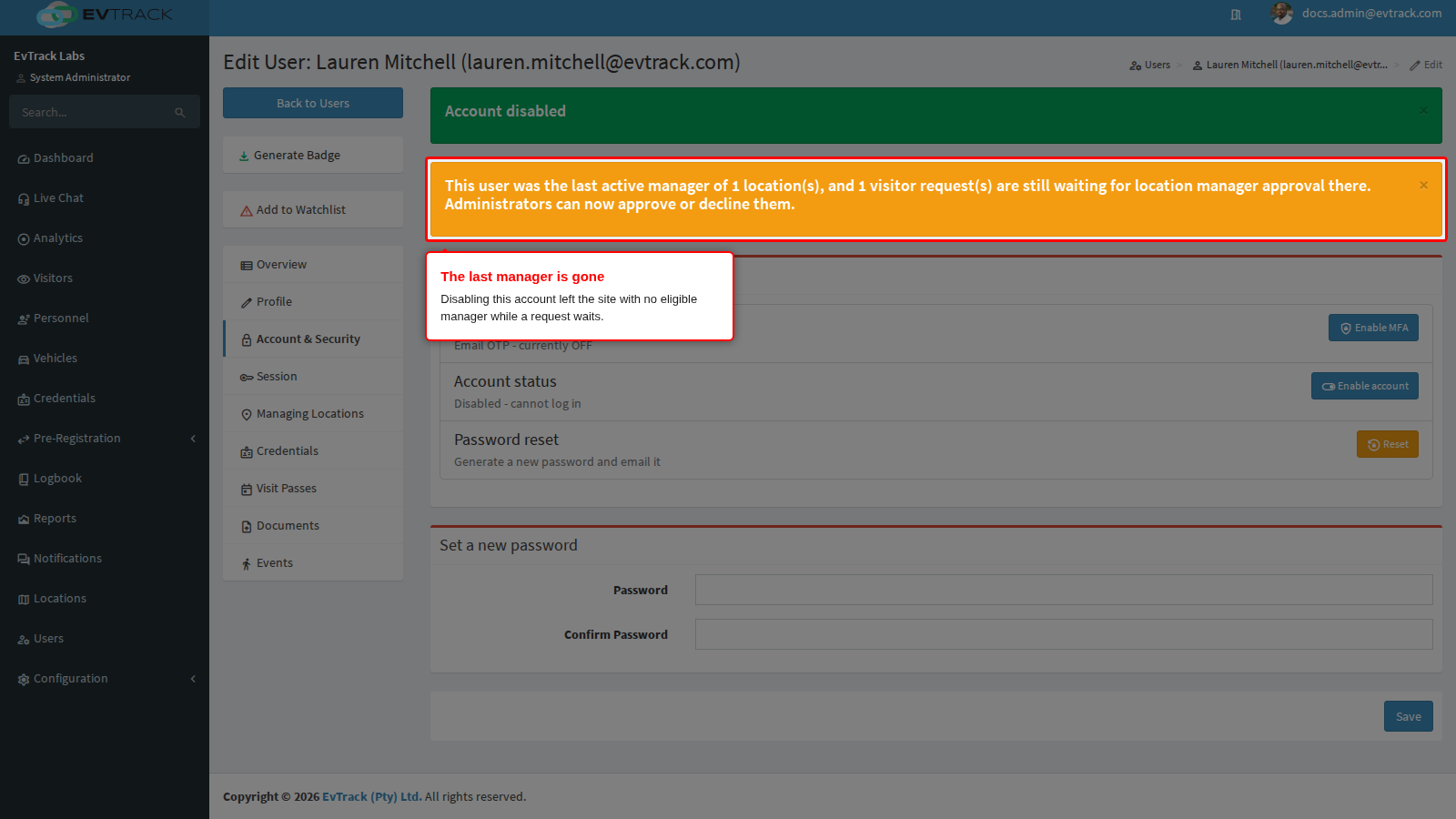
The site’s only manager has left, been disabled or expired. That manager was removed from the site’s Managers tab or switched off there after the request was sent, or their account was disabled or passed its Expiry Date. A disabled or expired manager who is still on the Managers tab keeps new requests waiting too. The request keeps waiting, but the site has no eligible manager. When you disable such a manager, or save dates that take their account out of its window, the user page warns you: “This user was the last active manager of 1 location(s), and 1 visitor request(s) are still waiting for location manager approval there. Administrators can now approve or decline them.” The Managers tab shows the same kind of warning when you remove or switch off the last manager. A manager whose account simply reaches its Expiry Date shows no warning.
- The manager has not acted yet. Every eligible manager and delegate of the site was emailed once, when the request was submitted for review, and nobody else was. If the site had managers but none of them could act, the system’s administrators were emailed instead. The request waits for them under the Manager Review filter of their own Registration list. Ask a manager to open it there. If the reminder “Approver: registrations awaiting your decision” is switched on (under Visitors > Settings > Reminders, with Send reminder emails on under Settings > System > Reminders), managers also get a daily email listing requests submitted in the last 30 days. See Reminder Emails.
- The request is waiting for someone else. Check the status in the first column:
- Waiting For Approval waits for the host, the operator who entered it, or a user who can process all registrations. Its row button is Approve.
- Require Host Approval comes from a visitor’s own registration while the compliance check is on. Its row button is Request Review.
- Under Compliance Review waits for a compliance officer. Only a compliance officer can confirm it. When the compliance check is on (under Configuration > Visitor Settings > Compliance), a manager’s approval sends the request on to the compliance officer, so the request moves to this status instead of being approved. See Compliance.
- It is a host approval, not a manager approval. A walk-in captured on the Visitors Dashboard and held for its host shows under the Waiting filter and times out (it then shows under Timed out); see Reception Host Approval. A visitor at a kiosk or checkpoint waiting for the host is a separate feature with its own timeout, about two minutes by default; see Host Approval.
- It is a group. A group is decided on its leader’s row. The members are listed under the leader and have no button of their own. Approval is refused with “Add at least one group member before approving the group leader’s registration.” or “This group has … members, which exceeds the maximum group size. Remove members before approving.” See Group Registrations (Admin).
Require Manager Approval is on each location’s Advanced tab, and Approval Mode offers only Any One Manager: one eligible manager’s approval is enough. See Approval Workflow.
If a manager says the request email never came, the account checks described in The host was not notified apply to managers too. To register a group, see Register a group or contractor crew.
Fix it now
The example below fixes the first cause: the site’s only manager was disabled while the request was waiting. While the site has no eligible manager, an administrator can open, approve or decline the request. To hand it back to a manager instead, add or switch on a manager on the site’s Managers tab (see Location Managers), or re-enable or extend the manager’s account (see User Validity and Credential Expiry). Once the site has an eligible manager again, only managers can act on the request.
Step 1: Open the request from the queue
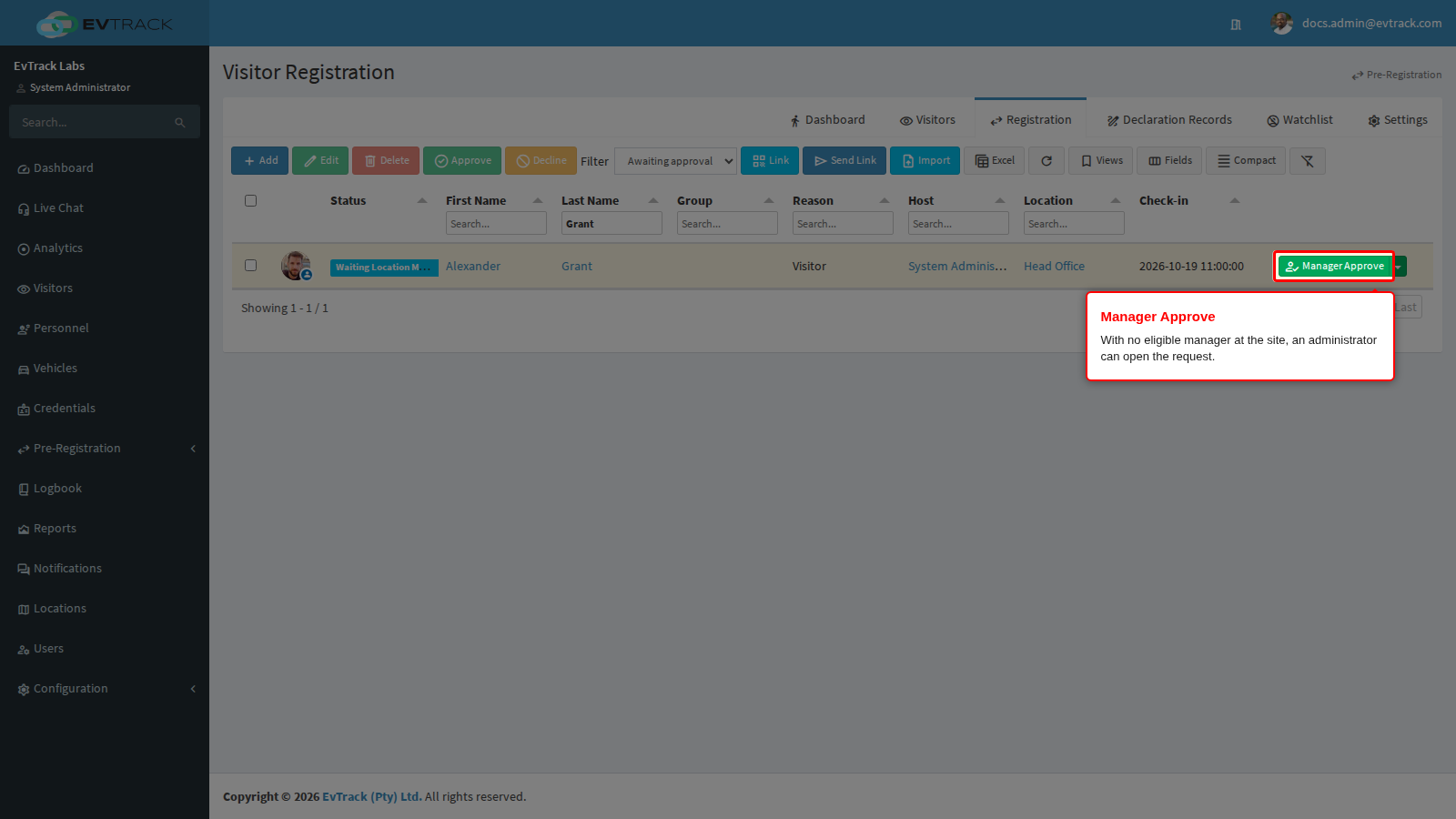
Log in as an administrator and open Visitors > Registration. Set the Filter to Awaiting approval (or All Registrations). The Manager Review filter (shown only to site managers) lists only the sites you manage yourself, so the request does not appear there. On the request’s row, click Manager Approve.
Step 2: Approve the request
The processing screen opens. Check the Visit Reason, Location, Check-in and Check-out values: the buttons are disabled until all four are filled (a hint under them names the next one), and the check-in may not be more than 30 minutes in the past. Click Approve, then confirm in the dialog.
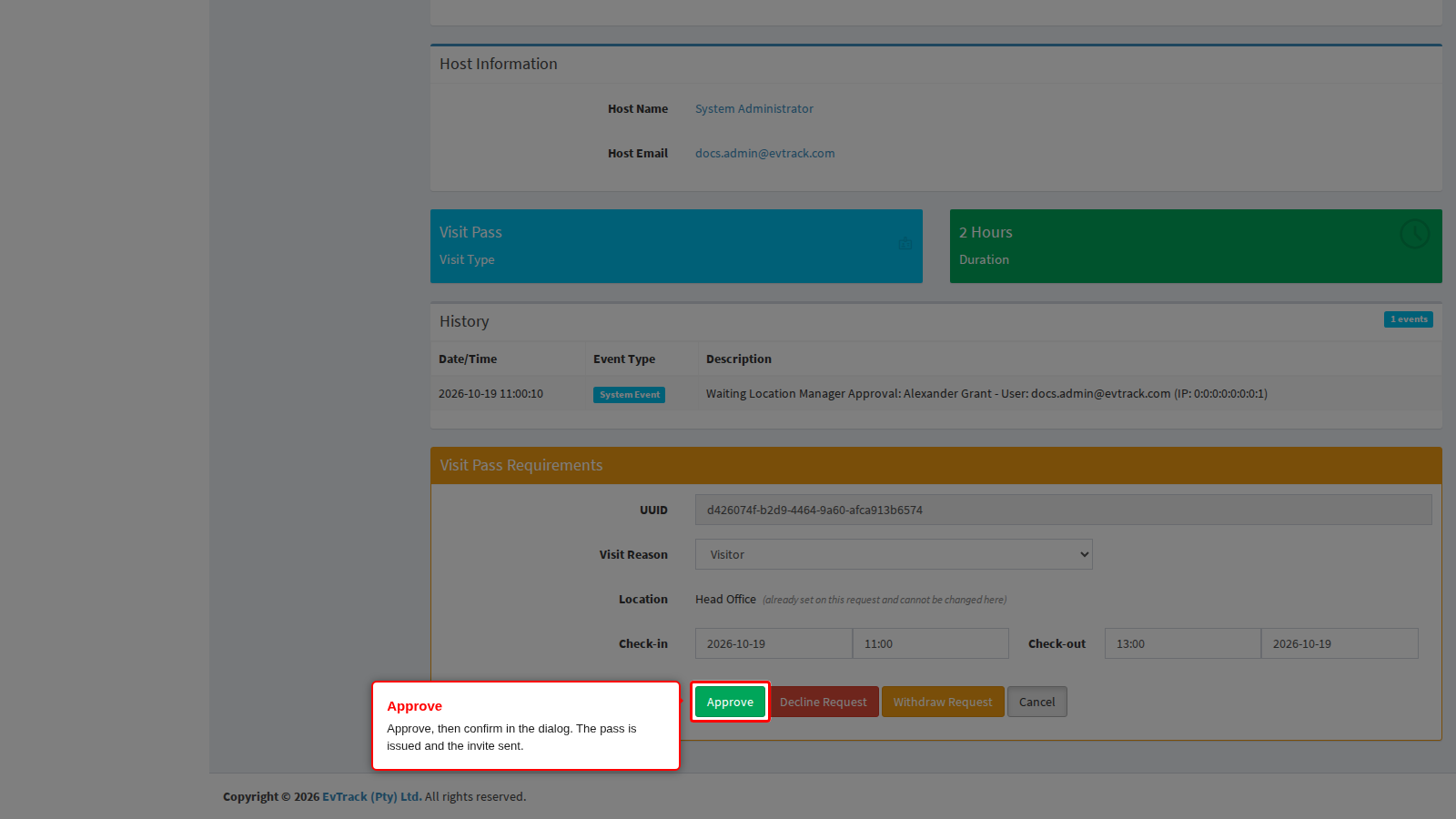
To refuse the request instead, click Decline Request and complete the decline page.
Check it worked
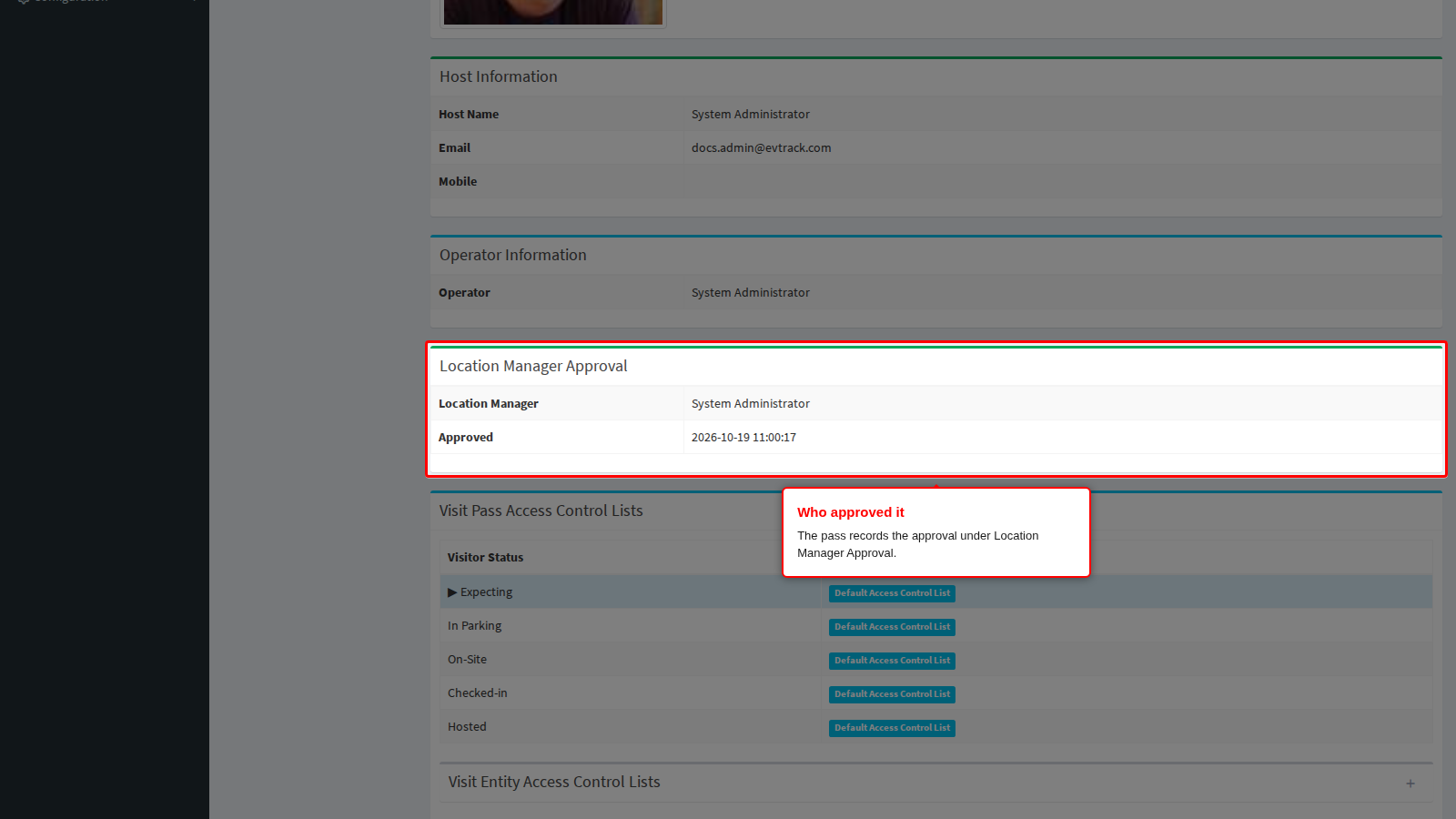
Approving issues the visit pass and sends the invite to the visitor on the channels you have enabled. EvTrack opens the new pass (a user who cannot share passes returns to the list instead), and the request leaves the Registration list. Open the visit’s details: the Location Manager Approval section names the administrator who approved it and when.
If you added a manager instead, ask them to look under Manager Review in their own Registration list: they were not emailed about a request that was already waiting.