Create login accounts for a list of staff in one run, each with the role that decides what they can do, from a spreadsheet and an optional set of photos. It takes about fifteen minutes, most of it spent filling in the file.
Before you start
- Your account can add users.
- The role the new staff should hold exists, see Roles. An import gives every user in the file the same role, so split your staff into one file per role.
- You have the staff list in a spreadsheet you can save as CSV or Excel. For photos, have one JPEG or PNG per person, see Preparing a Photo ZIP.
Steps
Step 1: Open the user import
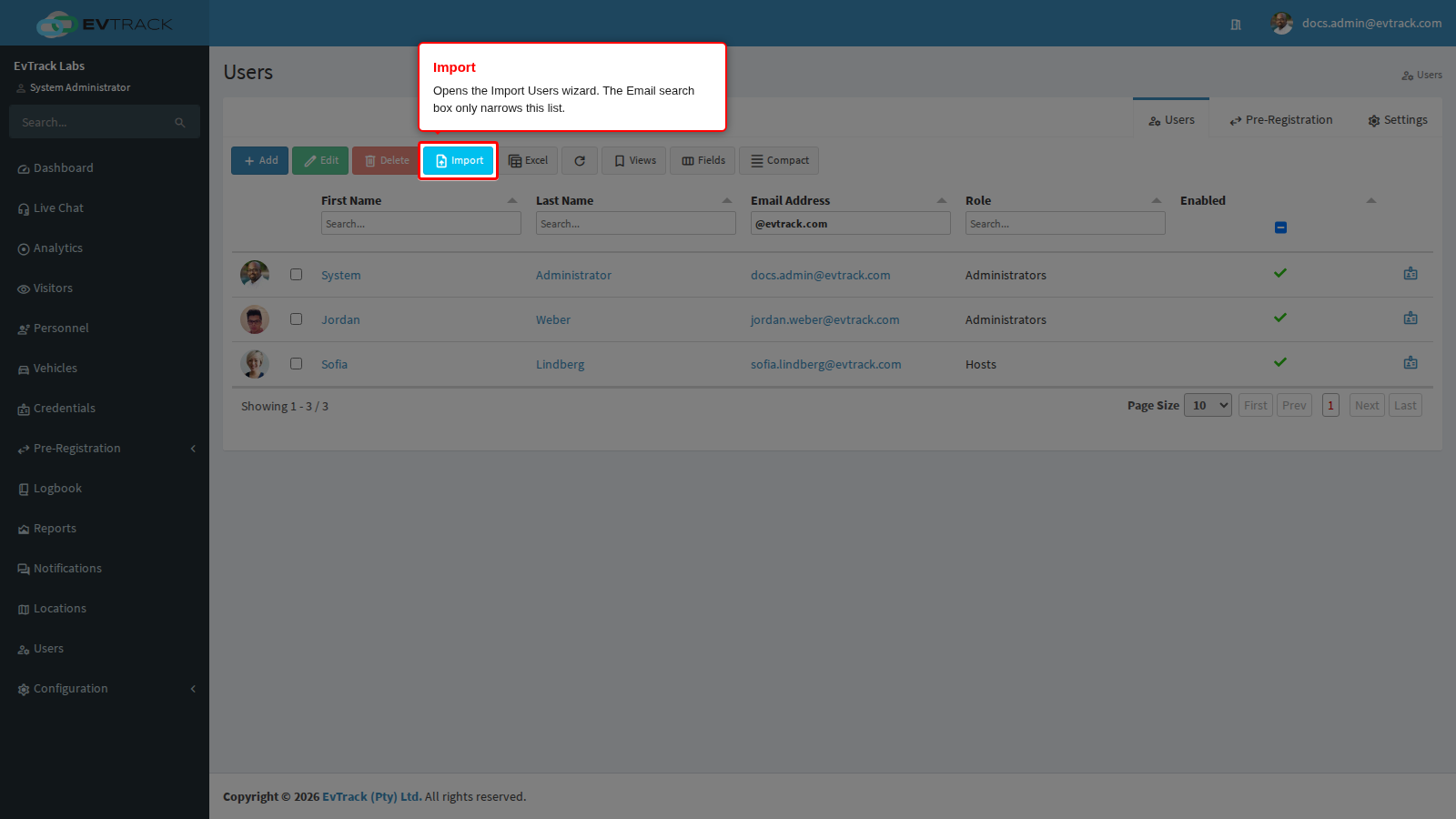
Click Users in the sidebar, then click Import above the user list. The Import Users wizard opens.
Step 2: Download the template and fill it in
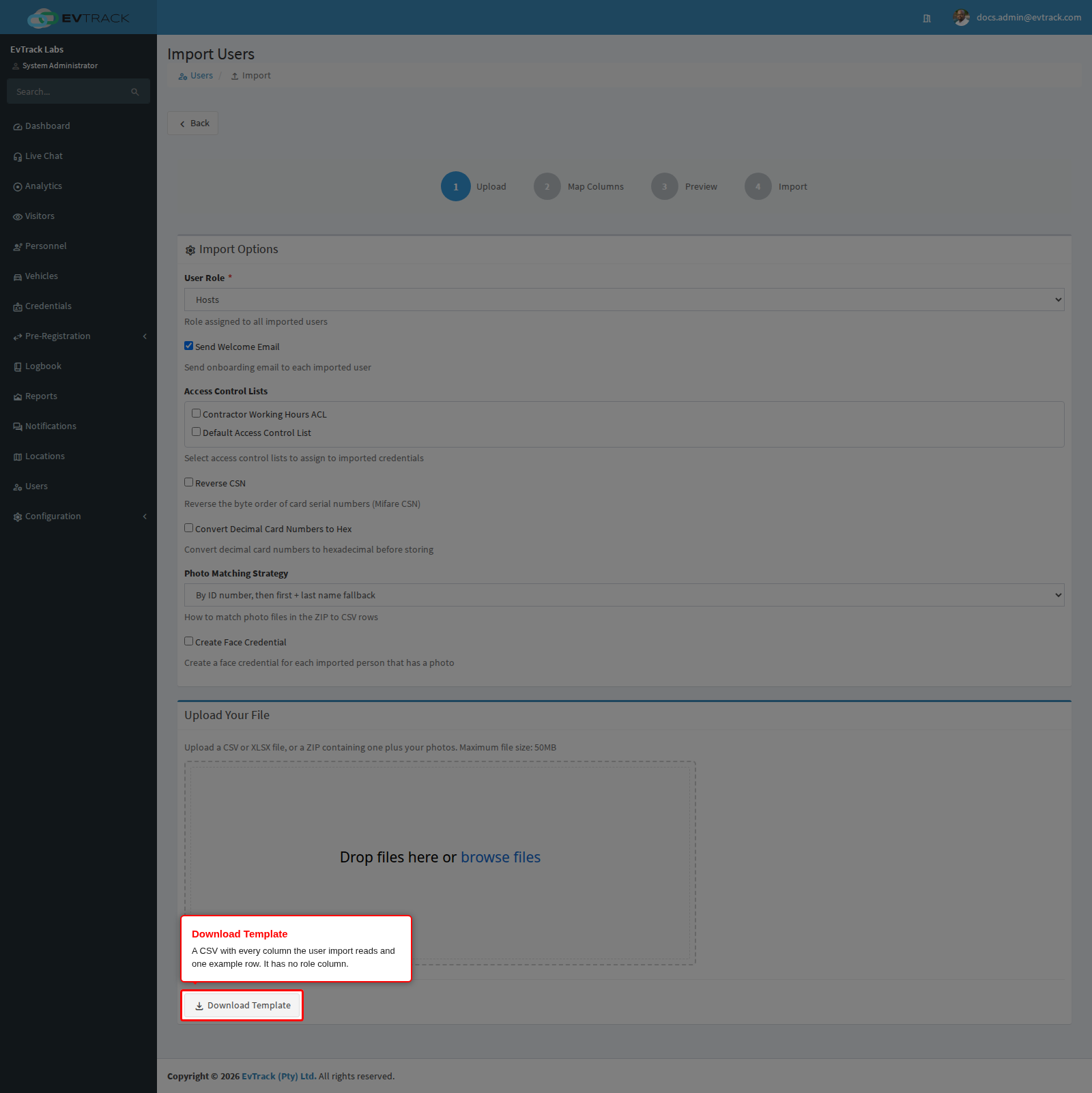
Click Download Template. The file has the header row and one example row for Alexander Grant. Replace the example row with your staff, one row per person, and keep the header row as it is.
- First Name must be filled on every row.
- Give everyone their own Email address. Depending on how your system is set up, Email is either required or becomes the person’s username.
- Organisation, Department, Group and Location are matched by name. A name that does not exist yet is created.
- Photo File names each person’s photo file in the ZIP, for example
nadia-petersen.jpg. Leave it empty for someone without a photo. - There is no role column. The role comes from the next step.
Step 3: Choose the role
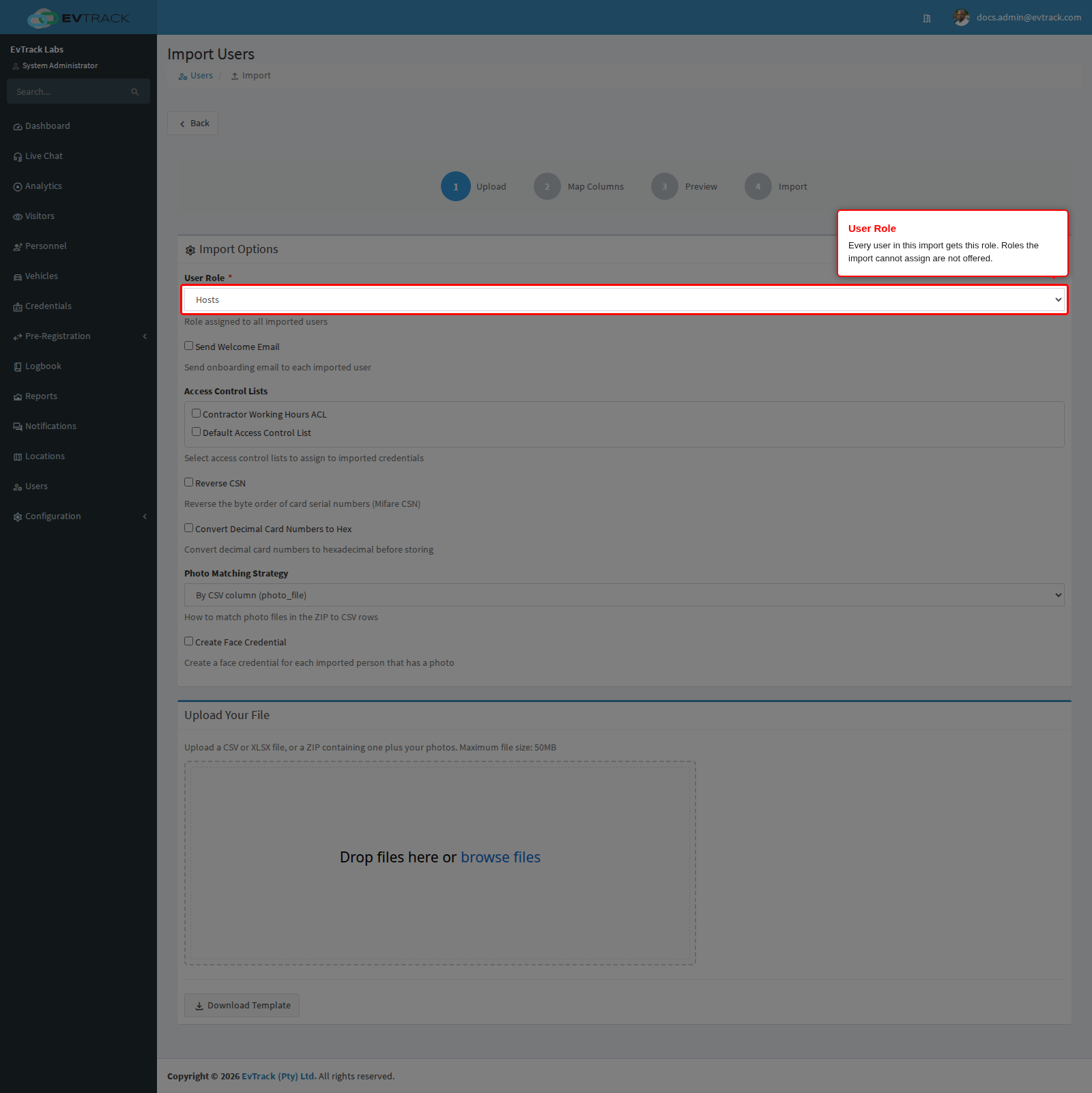
Under Import Options, pick the role in User Role. Every user in this file gets it. The list starts on the role marked Is Default, as long as an import may give that role.
- The list shows only roles an import is allowed to give. Roles that grant administrator access or access to sensitive visitor data are left out, as described under If it didn’t work below.
- Send Welcome Email is ticked at first. It sends each new user the onboarding email so they can log in, see Onboarding Emails. Clear it if you will send login details another way.
- If your file carries photos, set Photo Matching Strategy to By CSV column (photo_file) so each row uses the file named in its Photo File column.
Step 4: Upload the file
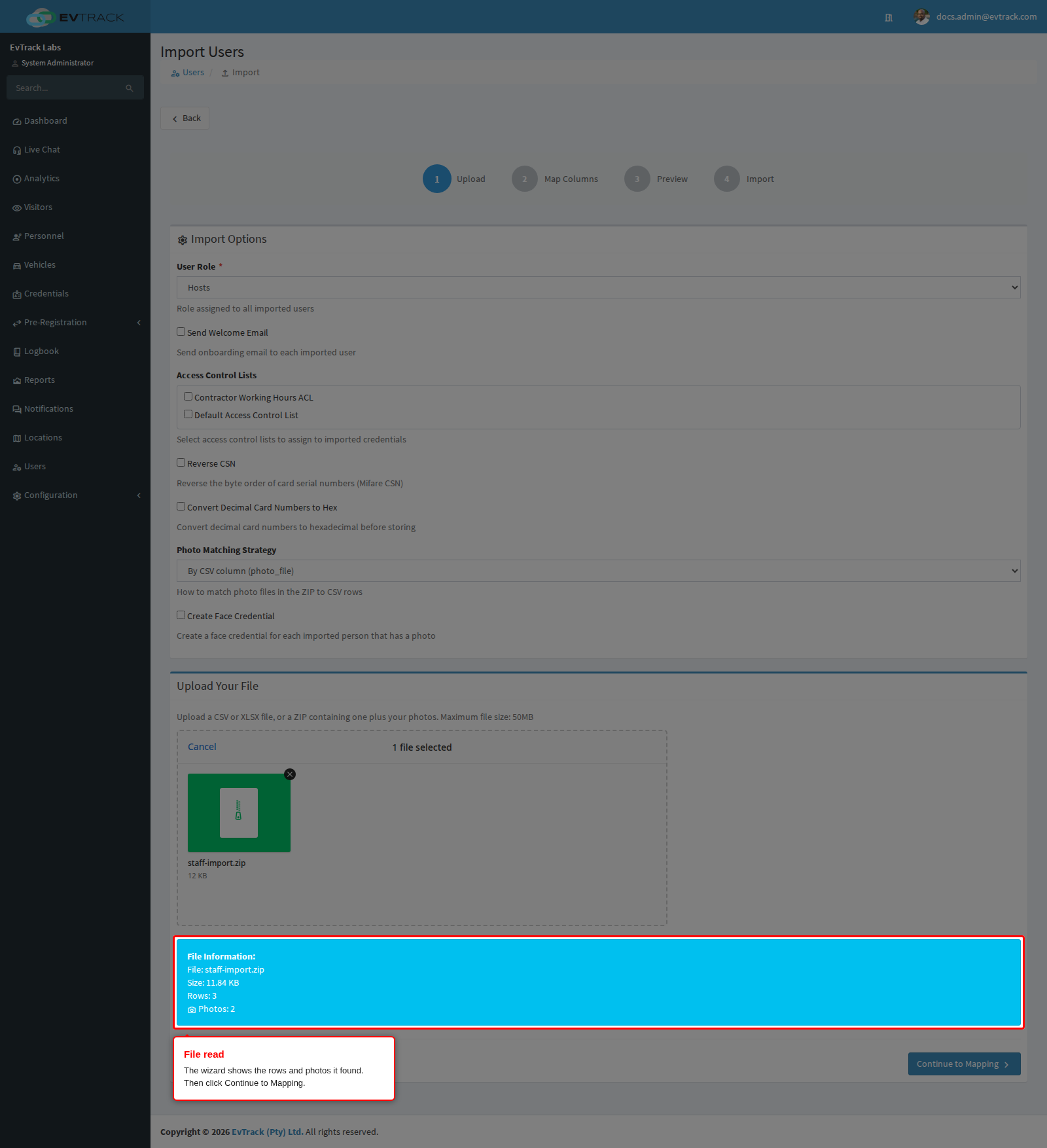
Drop the file into the upload area, or click it to browse. With photos, upload one ZIP that holds the spreadsheet and the photo files. The wizard shows how many rows, and how many photos, it found. Click Continue to Mapping.
Step 5: Check the columns and start the import
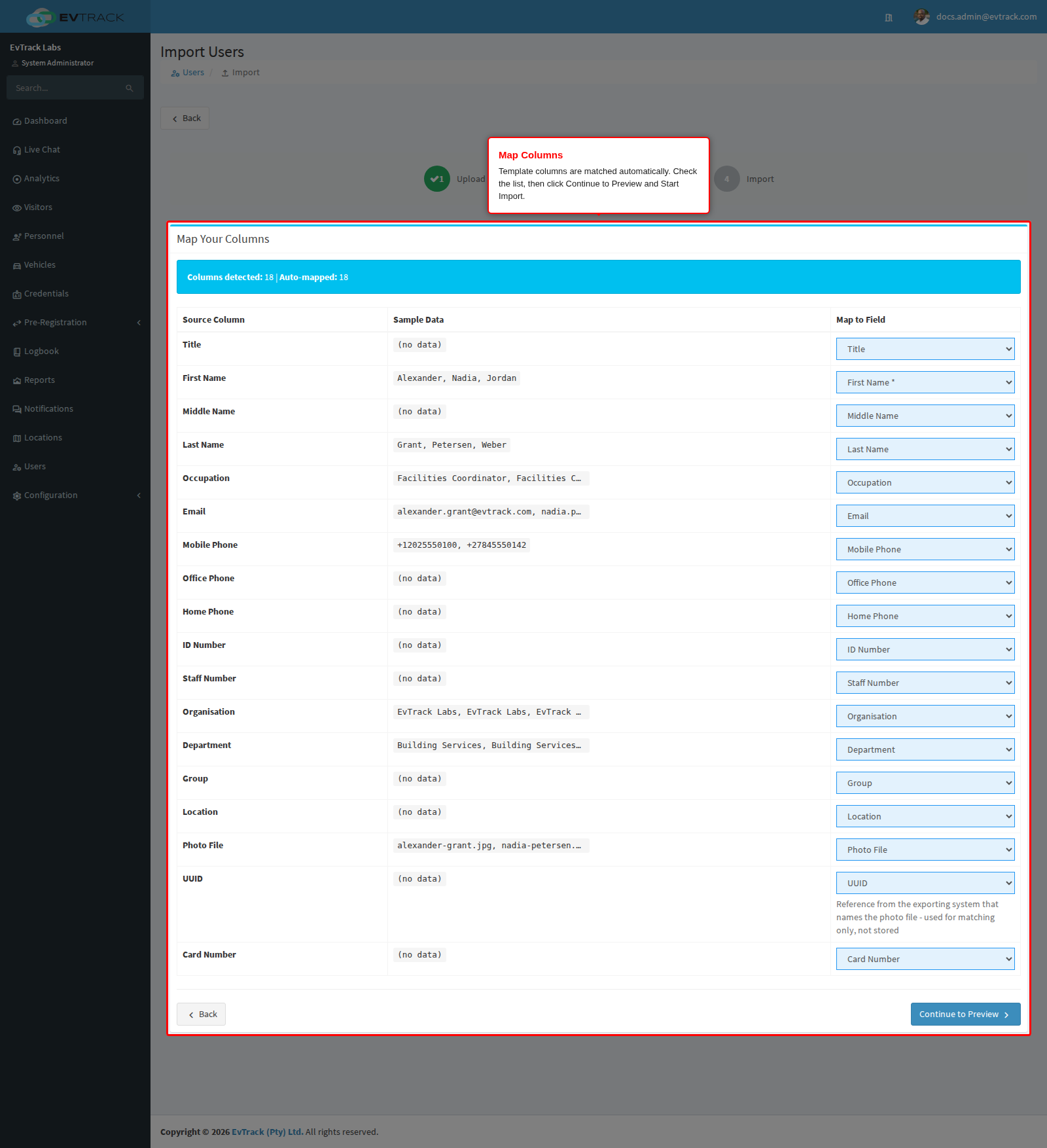
On Map Columns, every template column is matched to its field automatically. If you renamed or added a column, pick its field in the list next to it, or leave it on – Skip this column –. Click Continue to Preview, check the rows, and click Start Import.
Check it worked
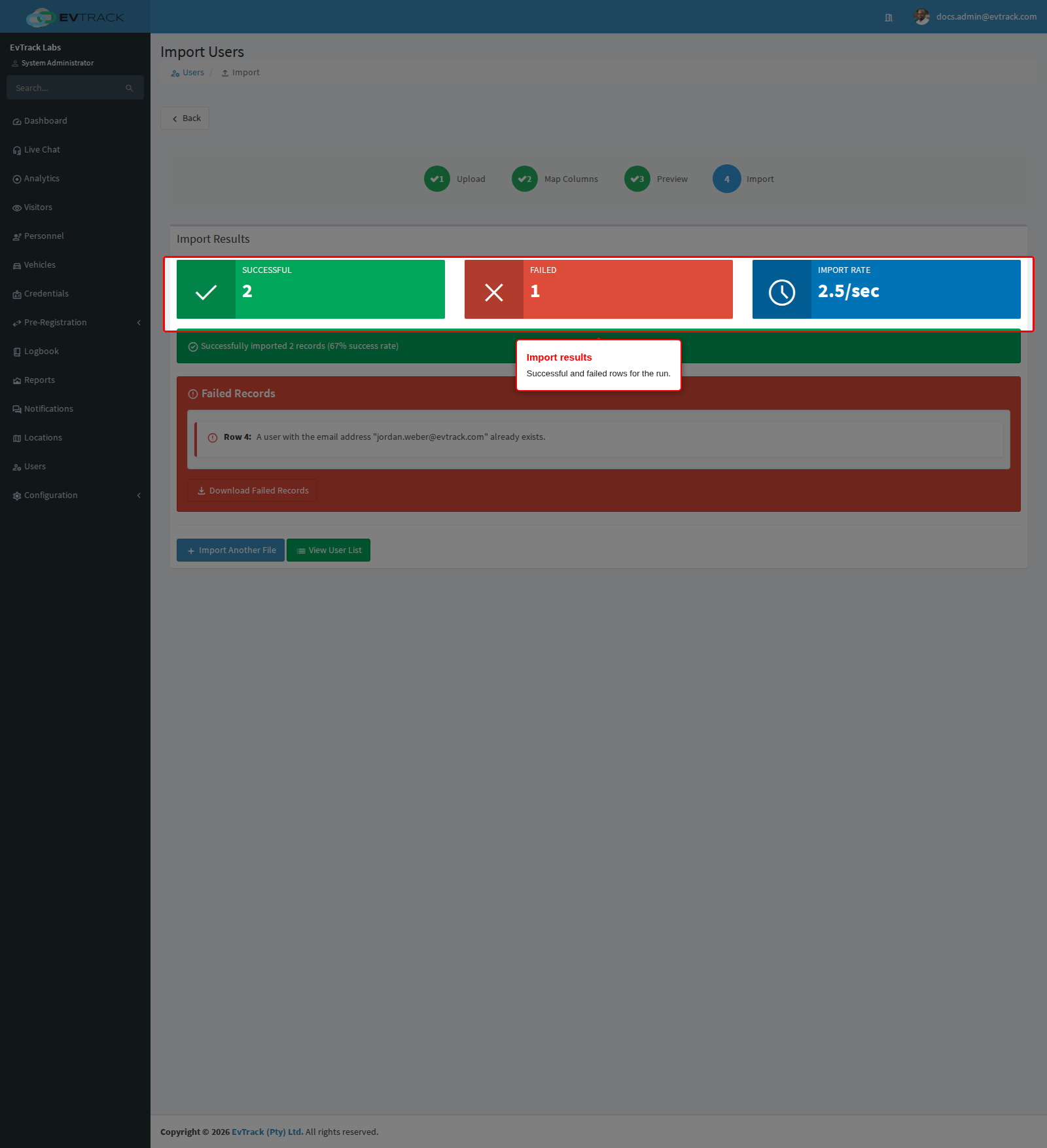
The wizard ends on a summary with Successful, Failed and Import Rate. Each row is imported on its own, so a failed row never holds up the others. Failed rows are listed below the summary with their row number and the reason, and Download Failed Records gives you all of them in a file you can correct and upload again, see Importing Data.
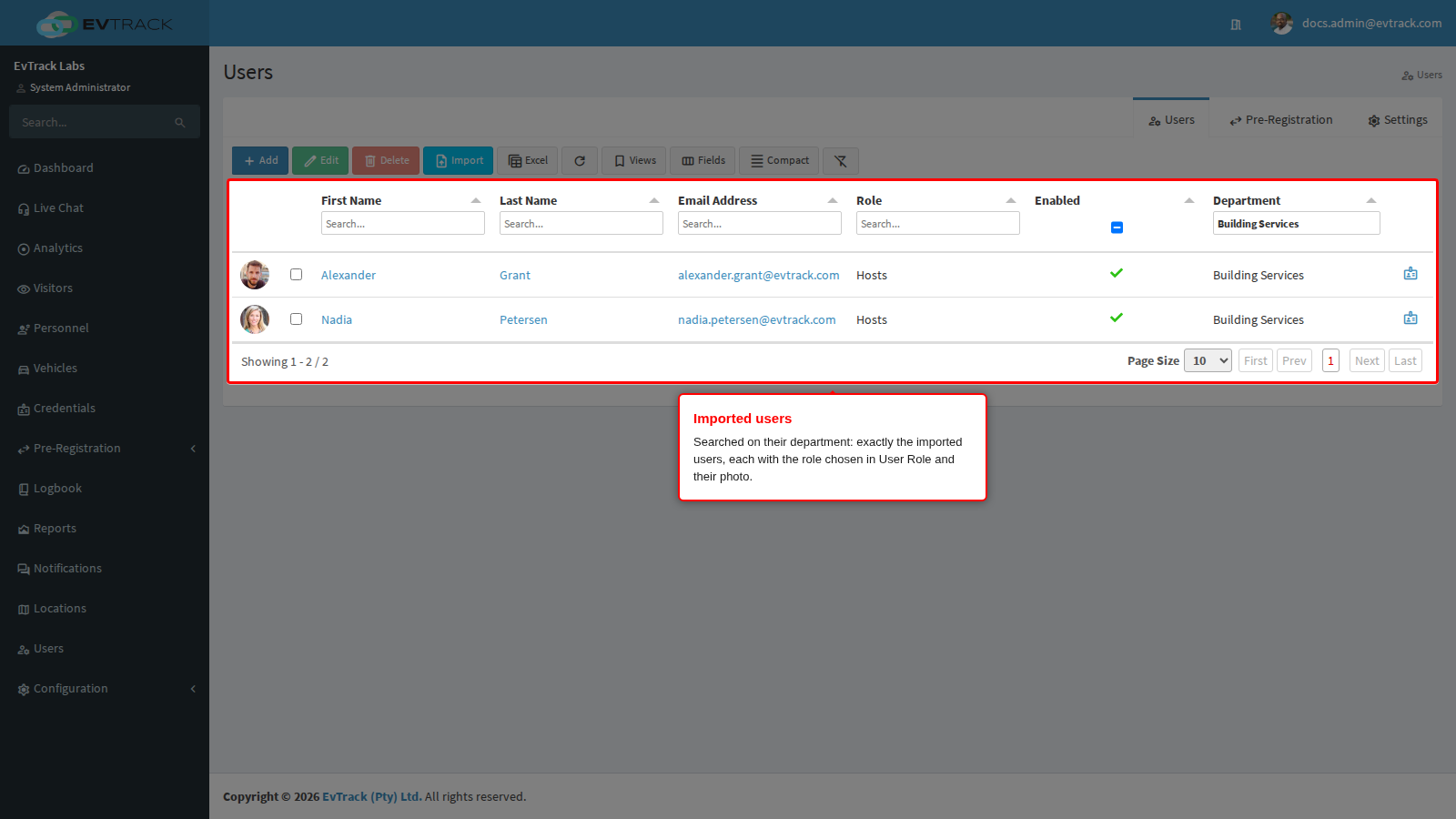
Click View User List. The new users are in the list with the role you chose in the Role column, and their photos beside their names. Each account is enabled and has a generated password. To list only them, search a column they share, such as their department: tick Department under Fields above the list, then type the department into the search box under it.
A user whose photo could not be matched is still created and counted as successful, with no warning. If someone has no photo, check that Photo Matching Strategy is By CSV column (photo_file) and that their Photo File value matches a file name in the ZIP (letter case does not matter), then add the photo on the user’s Profile tab.
If it didn’t work
-
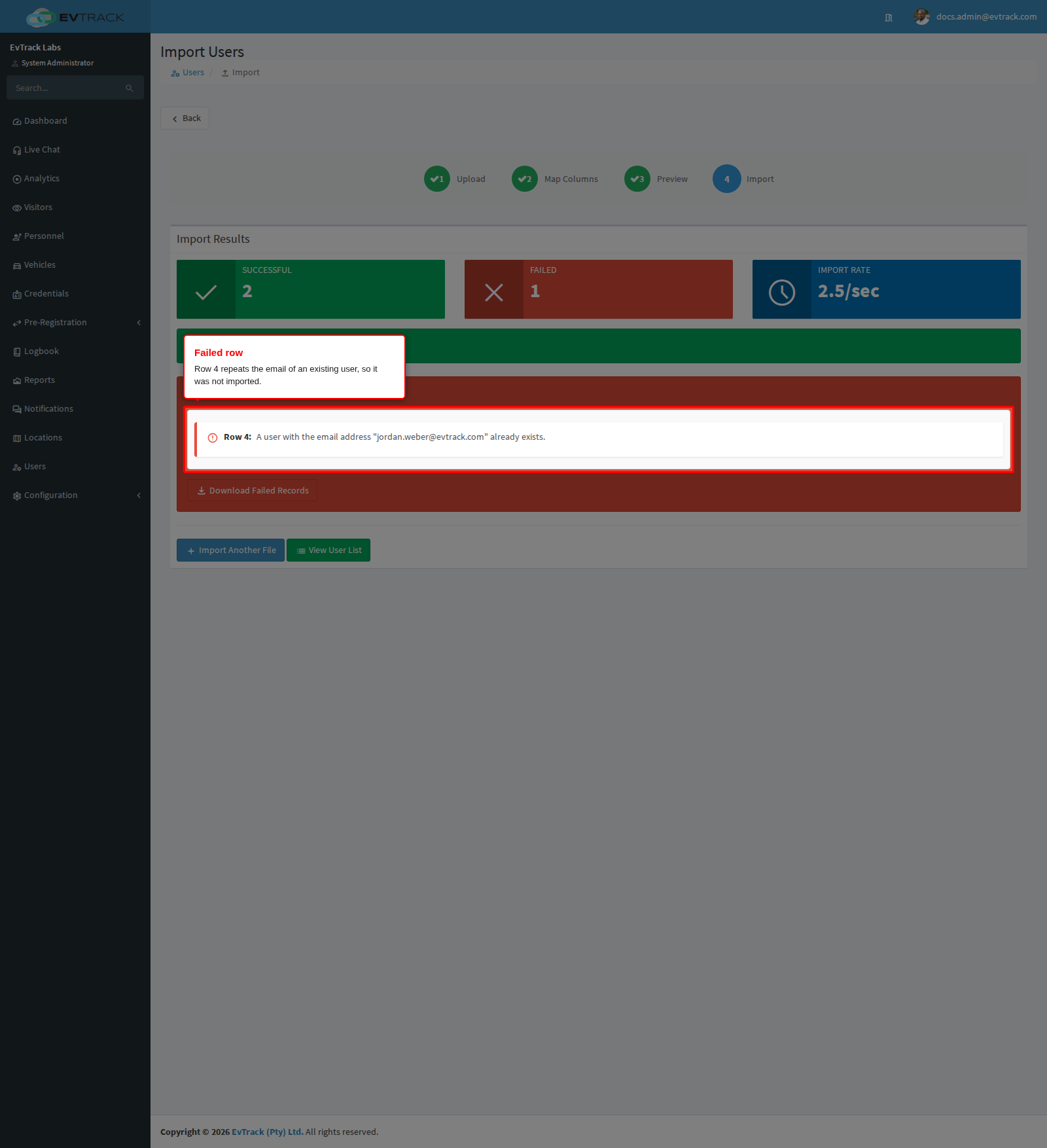
A row failed with “A user with the email address … already exists.” Someone already has an account with that email address. The row was not imported. If it is the same person, they need no new account. Otherwise correct the address in the downloaded failed rows and upload them again. A username that is already taken gives “A user with the username … already exists.” instead.
- The users did not get the role you wanted. Check each of these:
- The role is not in User Role. The import never gives a role that grants administrator access or access to sensitive visitor data (viewing all visitors, the system-wide logbook, event search or reports). On a new system that leaves out Administrators, Receptionists and Power Users. A role that holds a permission your own role cannot give is left out too. Import the staff with another role, then give each person the role one at a time: open the user, choose the role on the Profile tab and save. That asks you to confirm by retyping the person’s email address, see Roles.
- You added a Role column. A column headed “Role” is matched to Occupation, because the role always comes from User Role. The values were saved as each person’s occupation.
- Rows failed with a “required” message. Check each of these:
- “First Name is required”. The file’s first-name column has a header the wizard did not recognise, so it stayed on – Skip this column –. Start again and, on Map Columns, pick First Name for that column, or rename the header to match the template.
- “Valid email address is required”. Your system needs an email address on every user. Fill in Email for each row, or check that the email column is mapped to Email on Map Columns.
- New organisations or departments appeared after a failed import. A row creates any organisation, department, group or location it names, even when the row itself then fails. After a run with failures, look through those lists under Configuration > User & Personnel Settings for names you did not mean to add, see Organisations.