Put a FrontDesk kiosk into service at a new site so that it shows that site’s own logo and company name and checks visitors in from the first day. It takes about twenty minutes, plus the time to install the app on the tablet. The example adds the kiosk “How-to Kiosk” at the site Training Center.
Before you start
- You can add locations and devices, edit locations and settings, and edit access control points and access control lists.
- You have an Android tablet on a network that can reach your EvTrack server, with its clock within 60 seconds of the server’s clock, see Set Up Kiosk and Guard Devices.
- On an onsite server, the App Base URL is an address the tablet can reach, not localhost, see App Base URL.
- You have the site’s logo as a PNG or JPEG of at most 256 KB.
Steps
Step 1: Add the site as a location
Select Locations in the sidebar, click Add, type the Location Name (here Training Center) and click Save. Only the name is required. The list shows “Added: Location - ‘Training Center’” and the new row.
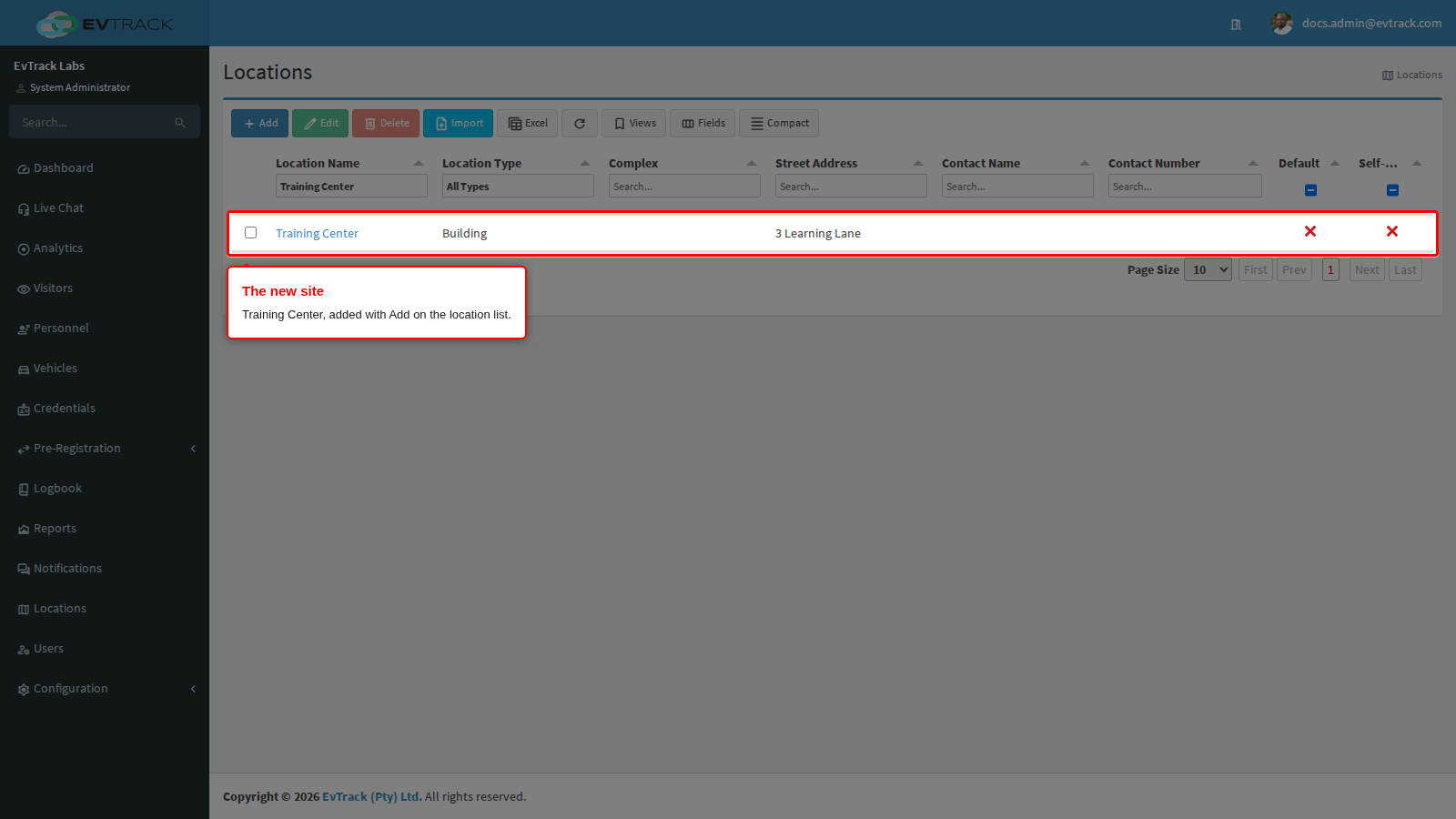
A new location follows every global setting until you change one of its tabs, so kiosks there would still show the global logo and company name. The next two steps change that. The Add form is described in Find and Add Locations.
Step 2: Give the location its kiosk logo
Open Training Center from the list and click Kiosk App. Untick Use global kiosk logo, drop the site’s logo into the uploader and click Save. The tab shows the stored logo.
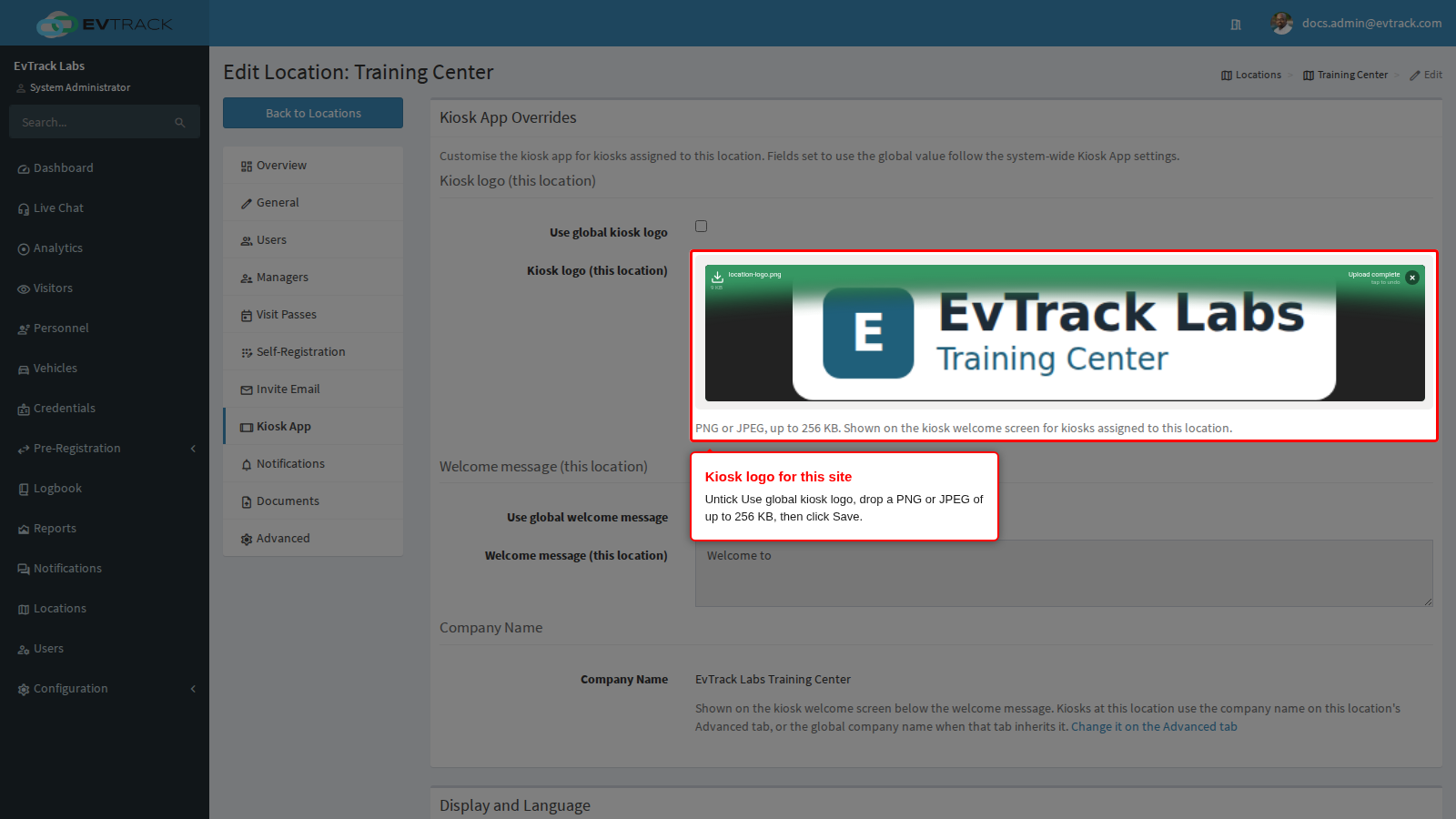
- An unticked box with no logo uploaded silently uses the global logo.
- The same tab holds the welcome message, colour scheme, language, phone country code and kiosk field list for the site, see Location Kiosk App.
Step 3: Set the company name the kiosk shows
Click Advanced. In the first row of Visitor Invite Settings, untick Inherited and type the Company Name (here EvTrack Labs Training Center), then click Save.
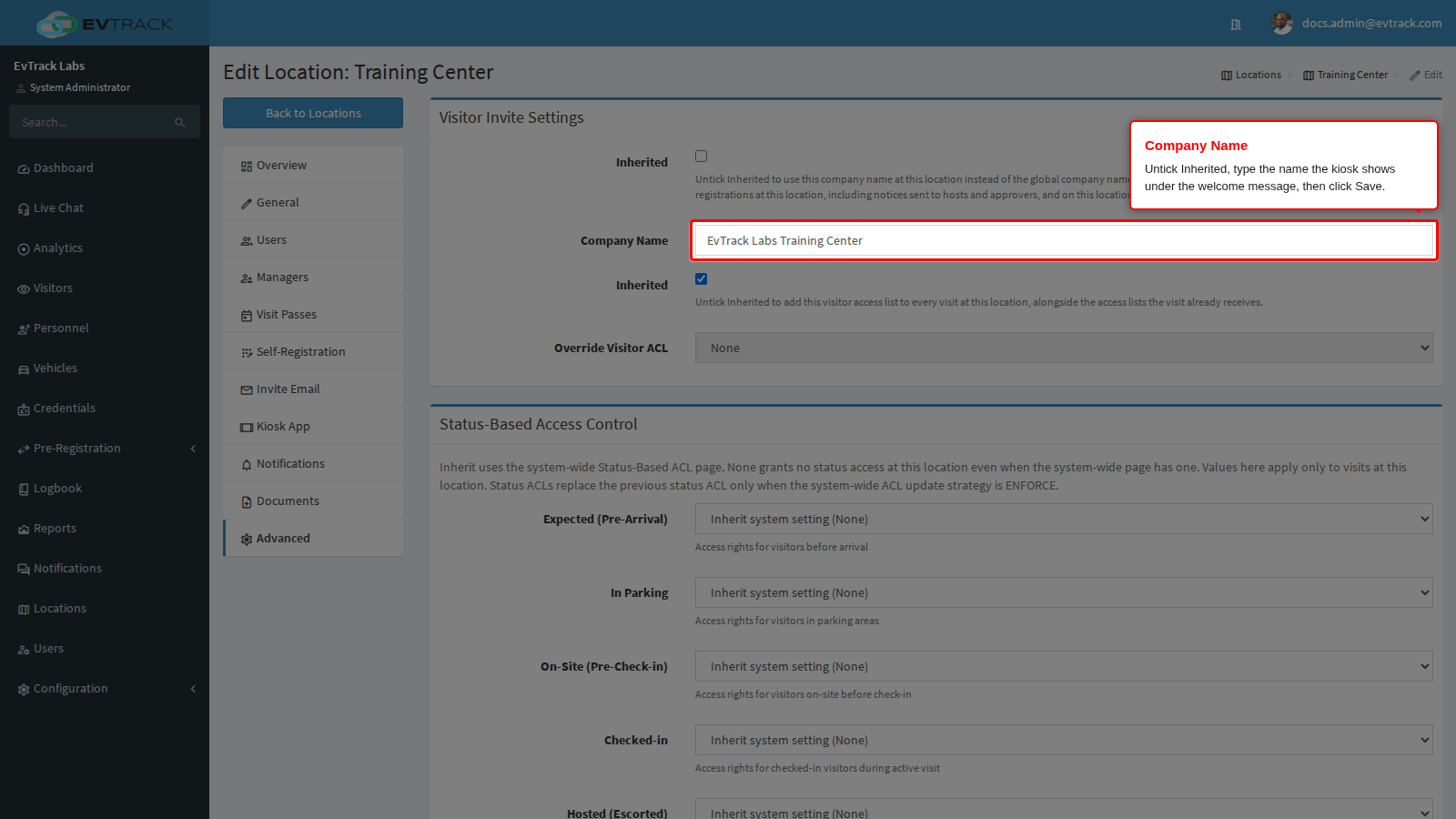
- The name must be 6 to 200 characters on one line, using letters, digits, spaces and / . , - ‘ ( ) & : ; @ ? ! only.
- The same name replaces the global company name in the emails and SMS messages about visits at this site.
- Leave the second row’s Inherited tick alone: a company name does not need an access control list. See Location Advanced Settings.
Step 4: Register the kiosk at the location
Go to Configuration > Access Control Settings > Devices, click Add and choose EvTrack FrontDesk. Name the device after where it stands, choose the new site in Location, keep Enabled ticked and click Save. The full form is described in Register the Device and Get Its Key.
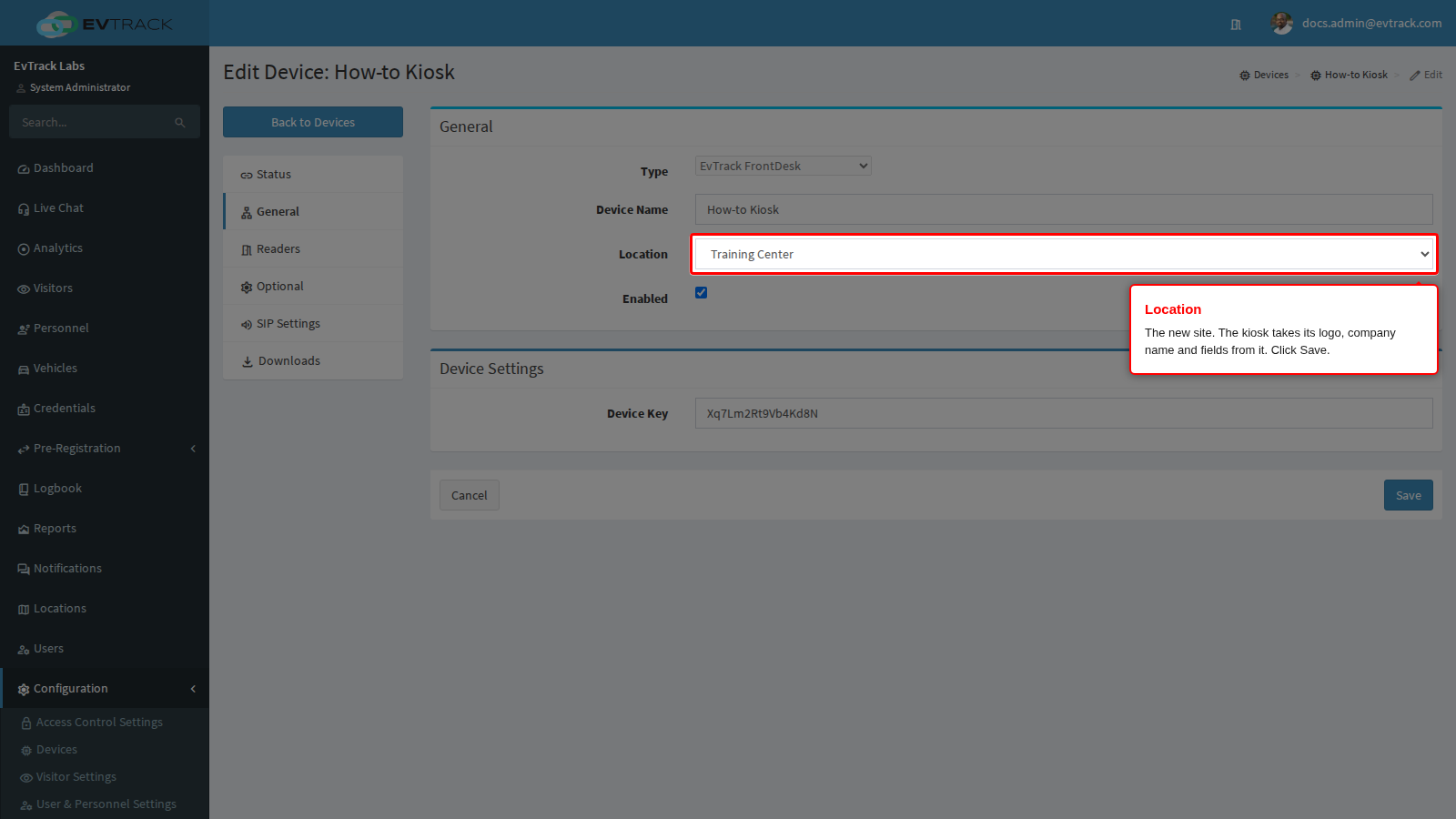
The kiosk takes its logo, company name and fields from this Location, never from where the tablet stands. To move an existing kiosk to the site instead, open its device record, choose the site in Location on the General panel and click Save.
Step 5: Bind the kiosk’s reader to an access control point
Saving the device gave it two virtual readers, Input 1 and Input 2. Go to Configuration > Access Control Settings > Access Control Points, open the point the kiosk should use (or add one for the site) and click Readers. Under Configure IN Readers, choose one of the kiosk’s readers and click Add Reader.
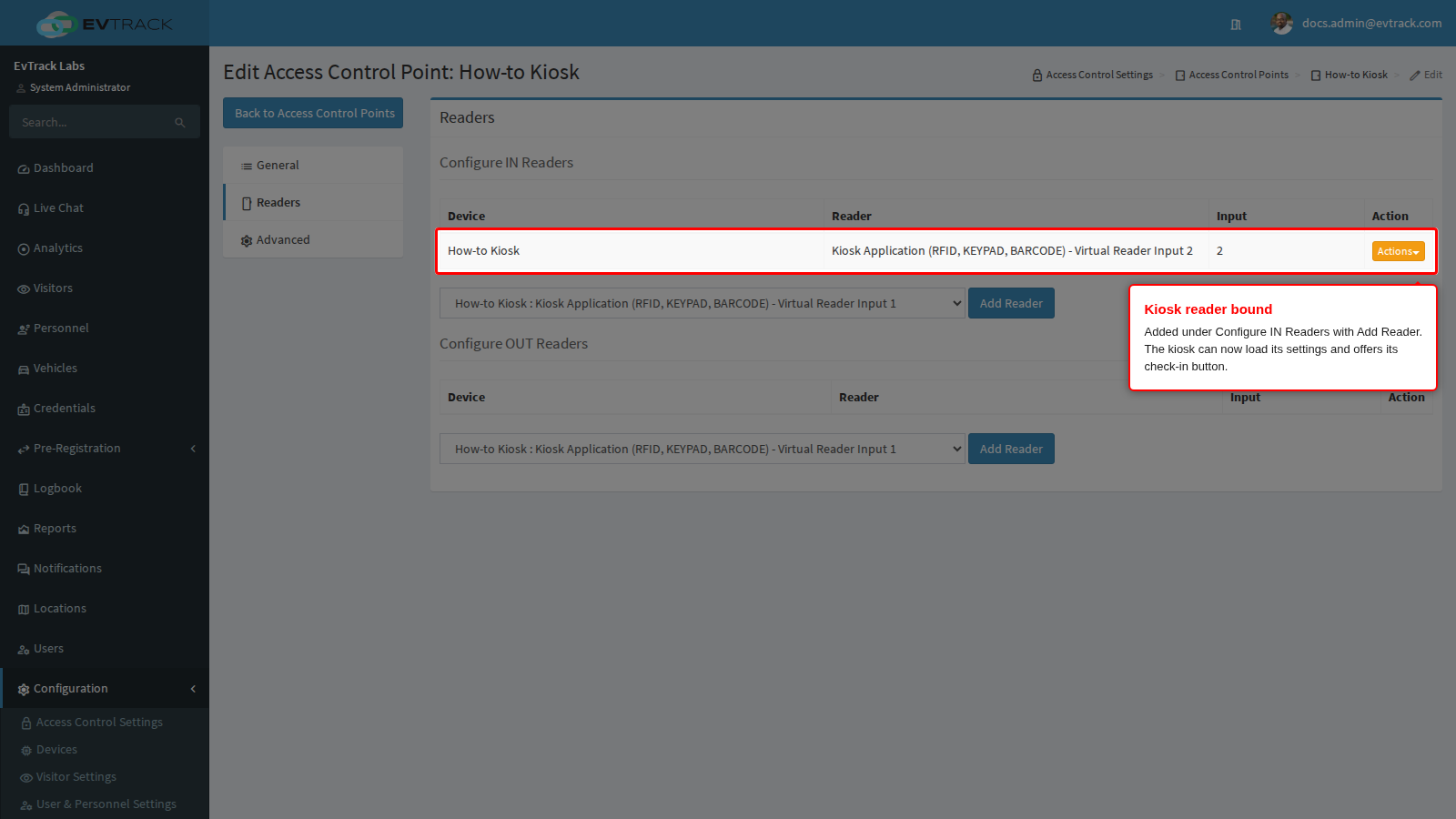
- Until one of its readers is bound to a point, the kiosk cannot load its settings.
- The entry reader gives the kiosk its check-in button. To let visitors check out at the kiosk too, add the other reader under Configure OUT Readers: the kiosk then also shows an OUT button.
- A reader belongs to one point at a time. See Access Control Points.
Step 6: Put the point on the Default Access Control List
By default every visitor pass is issued onto the Default Access Control List (the Access Control List setting under Configuration > Visitor Settings > Visit Pass). If the kiosk uses the shipped Default Access Control Point, it is already on that list: skip this step. Otherwise open the list under Configuration > Access Control Settings > Access Control Lists, click Access Rules, click Add, choose the kiosk’s point and a schedule (the built-in “24/7 All Day” works for a first setup) and click Save.
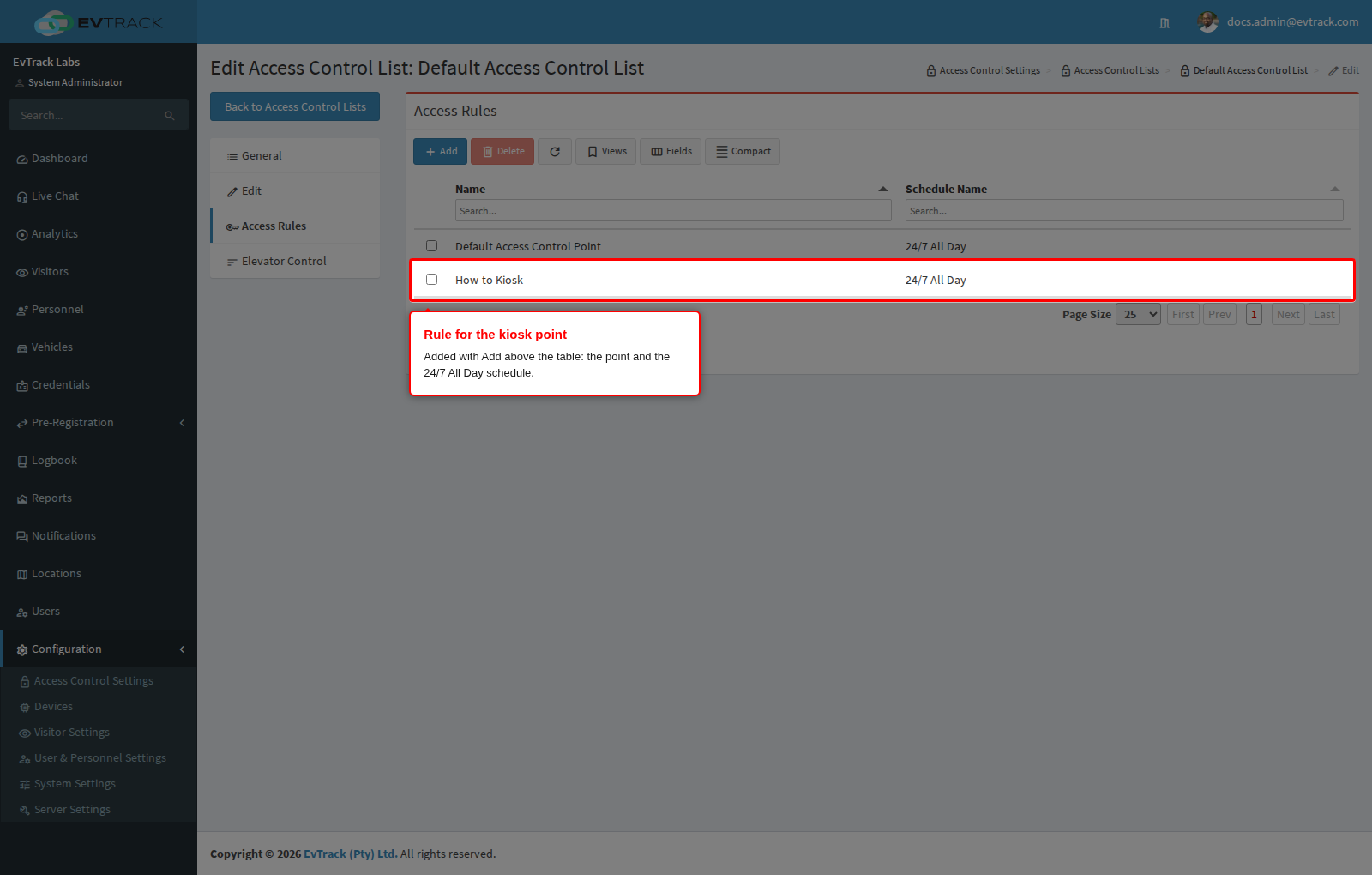
Without this rule, visitor passes are refused at the kiosk. The walk-through with every screen is Step 8 of Set Up Kiosk and Guard Devices.
Step 7: Pair the tablet with the device key
Open the device record again and click General. The Device Key under Device Settings is the eight letters the app asks for.
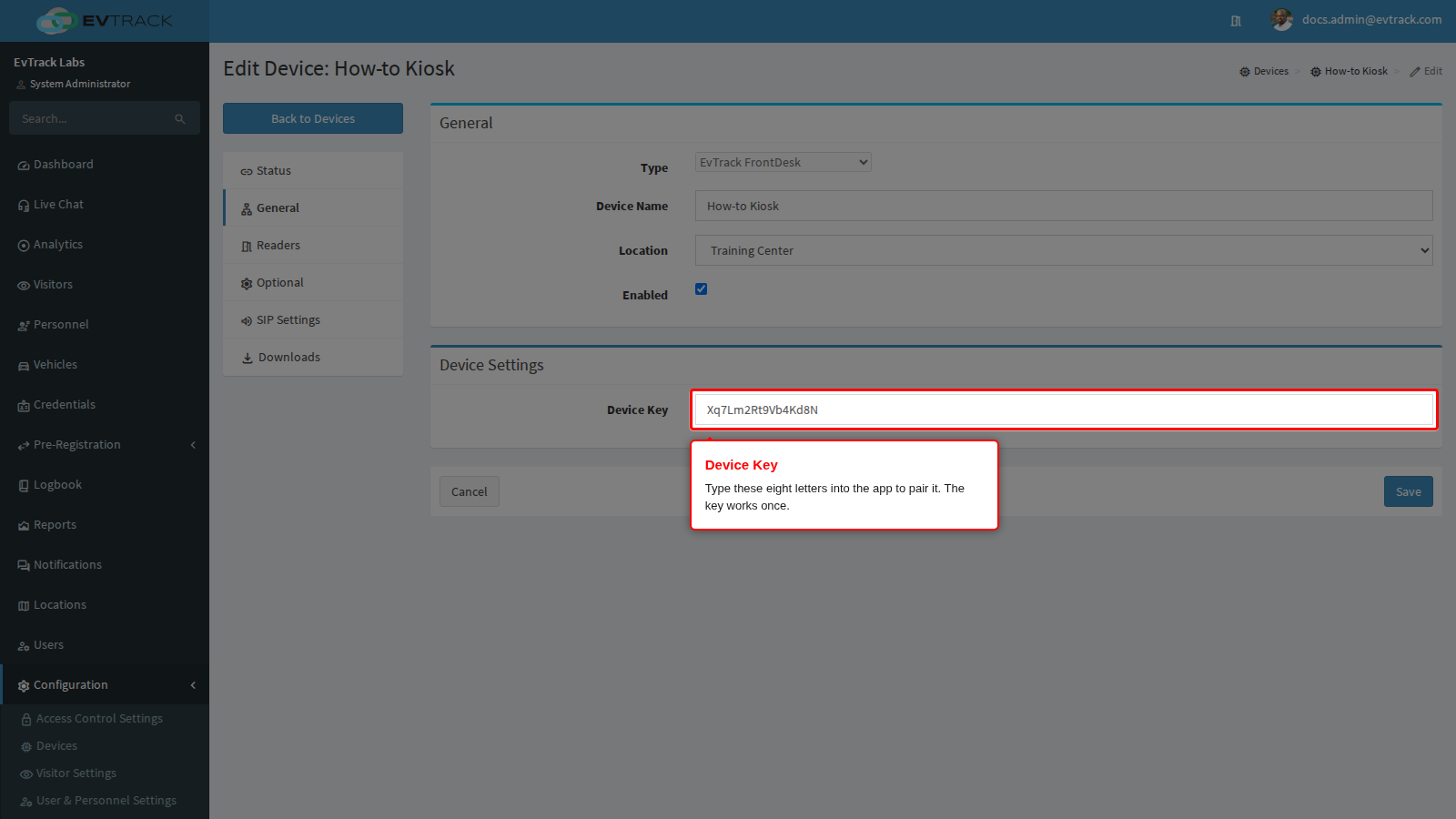
Install the app from the device record’s Downloads panel, open it, enter your server address and this key, and tap PAIR DEVICE. The steps on the tablet, and what each pairing message means, are in Install and Pair the App.
The key works once. As soon as the tablet pairs, the server replaces it, and the General panel shows the next key.
Check it worked
The tablet leaves the pairing screen and opens its welcome screen with the Training Center logo, “Welcome to” (or your welcome message) and, on the line below, “EvTrack Labs Training Center”. The device name shows at the bottom, and the check-in button is offered. The app reads its settings again every five minutes and at every start, so later changes to the site’s tabs reach it within a few minutes.
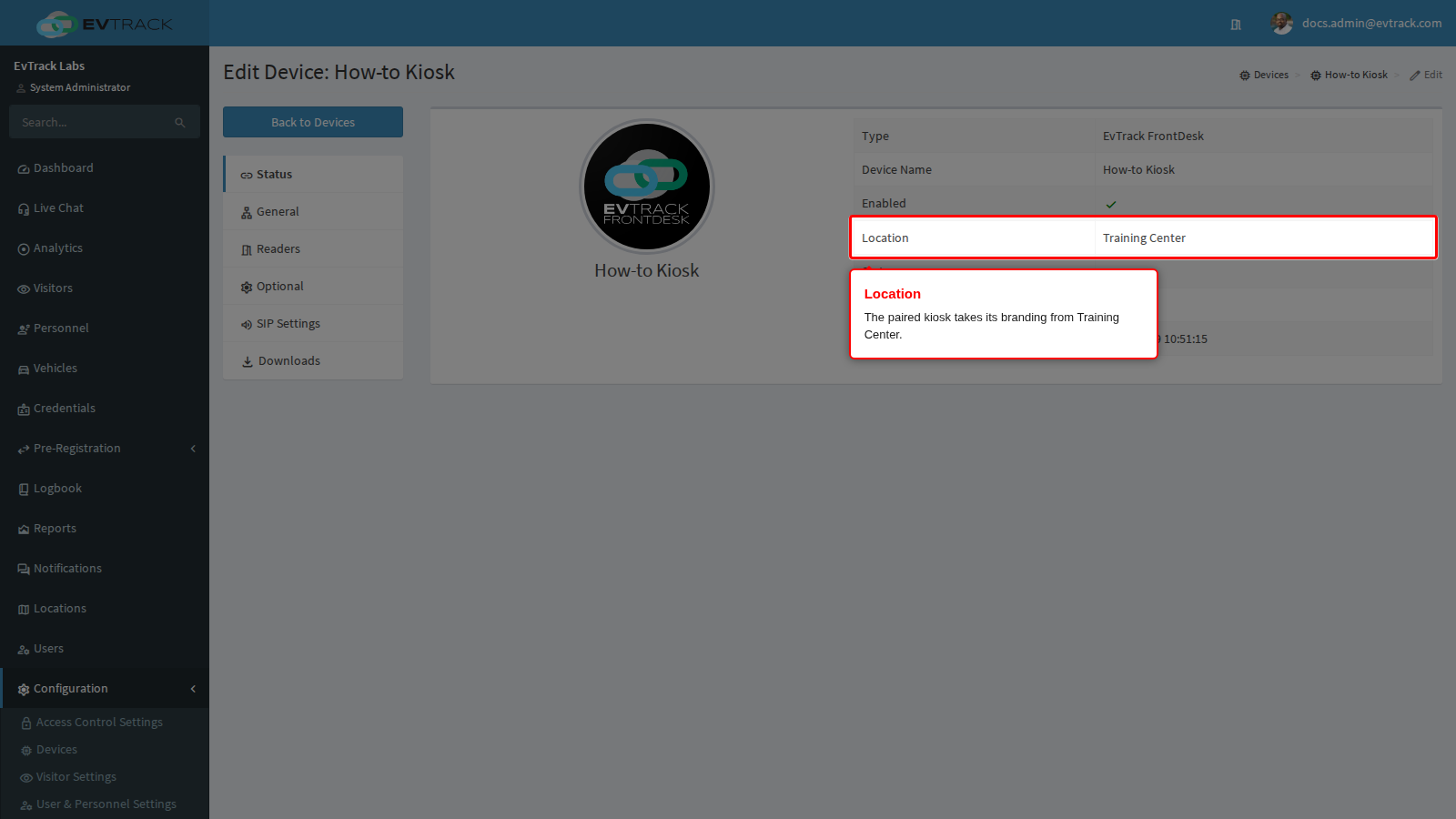
In the web application, open the device record. The Location row of the Status panel shows Training Center, the site the kiosk takes its branding from.
If it didn’t work
- The device save is refused.
- “The Device ‘…’ connection failed: Please change the Application Base HTTP URL to the external IP/Network Address that is reachable from the device…” means the server’s App Base URL still starts with localhost or 127.0.0.1. Correct it, see App Base URL, then save again.
- “Error! Unable to add the device to the system! Please confirm that you have free licenses available.” means the server’s licence is not valid, or an onsite licence has no free advanced-device seat (a kiosk uses one; only enabled devices count). Check the licence status and Device Advance Type Count in the licence usage, see Server Settings. Fix the licence, delete or disable a device you no longer use, or ask your supplier for more seats.
- The tablet says “Invalid Device Key, please enter in a valid key and try again”. The key was mistyped, was already used by an earlier pairing, or the device is not enabled. Read the current key on the device’s General panel, make sure Enabled is ticked, and pair again.
- After pairing, the tablet shows “Configuration Error” and “No Access Control Points are configured, please check your configuration”. None of the kiosk’s readers is bound to an access control point. Do Step 5, then tap OK on the tablet: it tries again.
- The kiosk shows another site’s logo or company name. Check the Location on the device’s Status panel first, then follow The Kiosk Shows the Wrong Logo or Company Name.