This page takes a tablet from nothing to a paired EvTrack FrontDesk kiosk: download the app package from the device record, install it, and pair it with the device key.
Before you start:
- The device record exists, see Register the Device and Get Its Key. This page uses the kiosk “Lobby Kiosk” at Head Office.
- The tablet can reach the server’s App Base URL, and its clock is within 60 seconds of the server’s, see Troubleshooting and Knowledge Base.
- You can allow installs from outside the app store on the tablet (Android).
Step 1: Open the device record
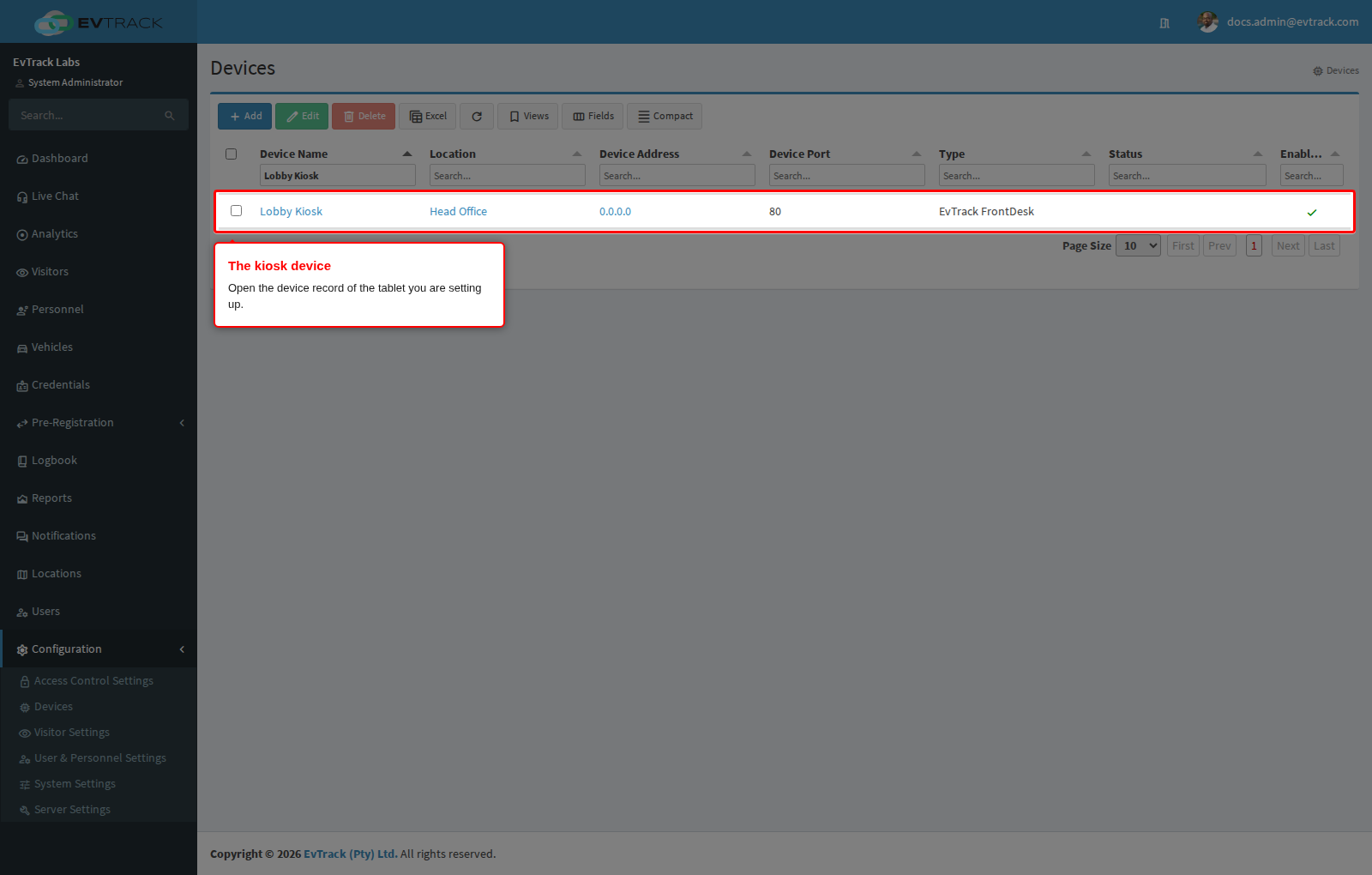
Go to Configuration > Access Control Settings > Devices and click the row of the device you are setting up.
Step 2: Open Downloads
Click Downloads. The panel loads the first time you open it.
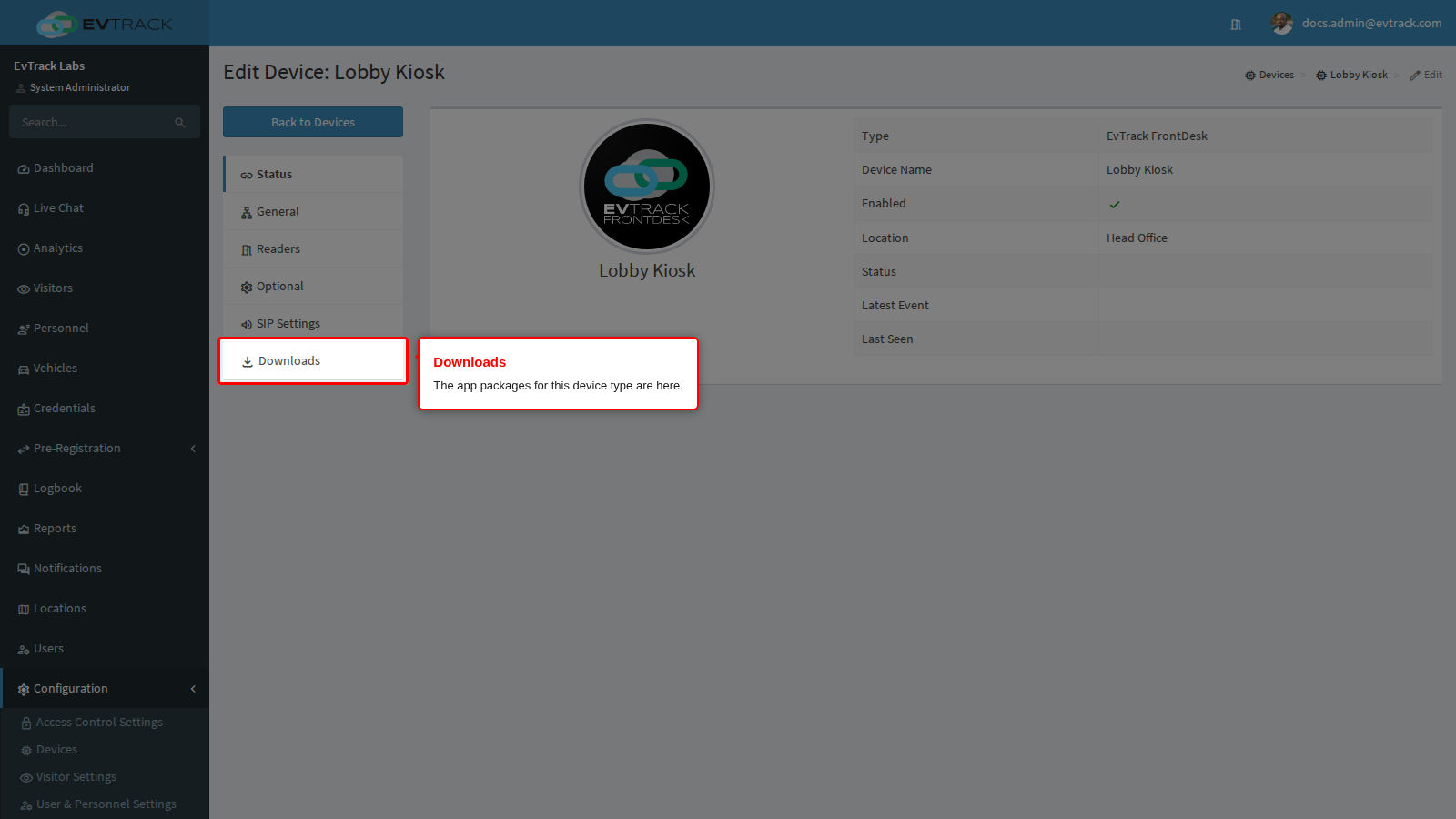
The tab is offered only on EvTrack FrontDesk and EvTrack Guard device records.
Step 3: Choose the package
A kiosk record offers two apps:
- EvTrack FrontDesk (Kiosk) is the standard app.
- EvTrack FrontDesk Emirates ID (Kiosk) is for kiosks with an Emirates ID reader attached. Use it only with a reader.
Each app lists its Latest Releases row (the stable release) and, where one exists, a Beta Releases row. Each row has a download button and a QR Code button. Install the stable release at a live reception desk, and keep beta builds for testing. The version numbers in the screenshots are examples.
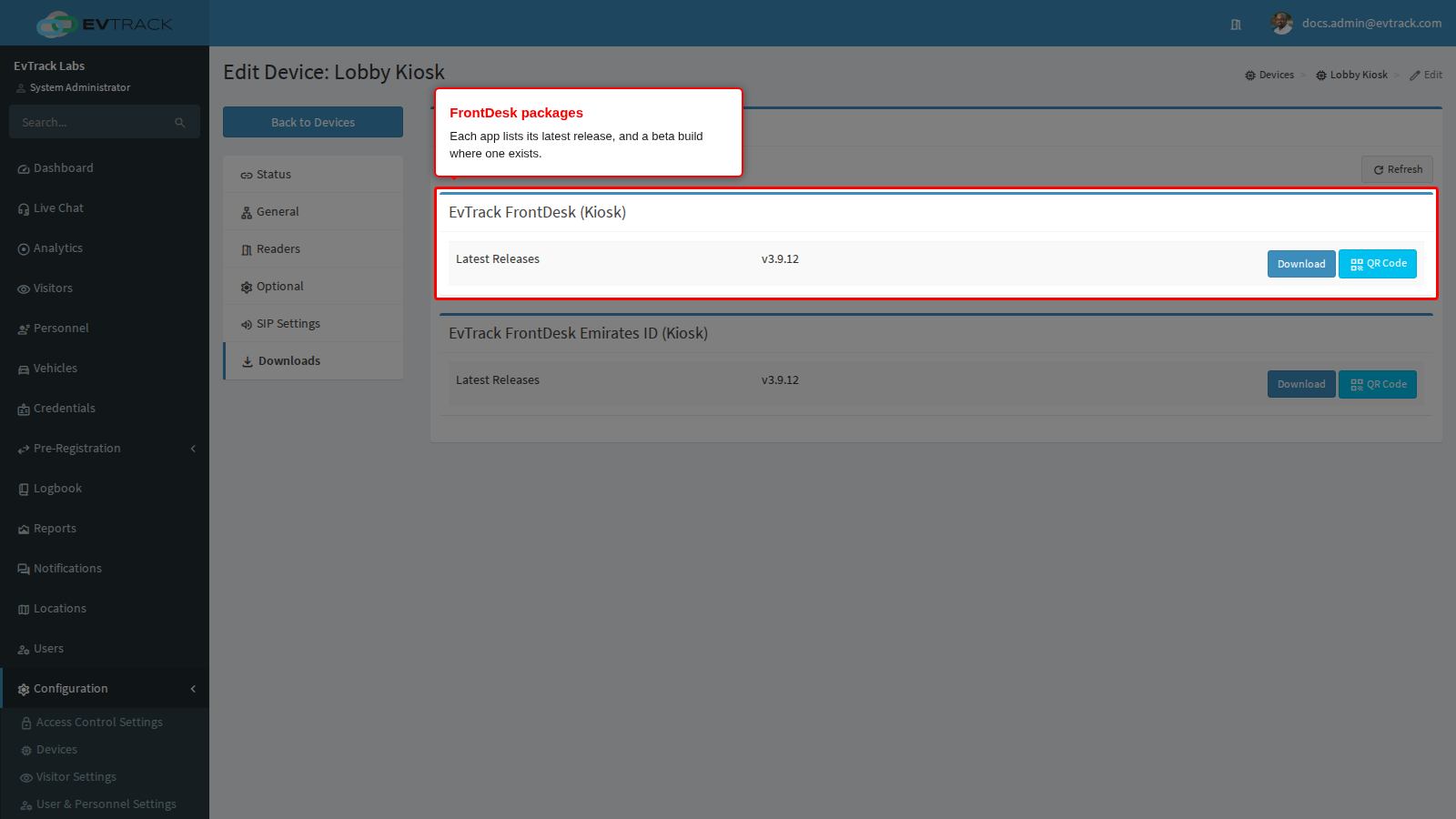
The list comes from the licensing portal through your server. If the server has no internet access or no valid licence, the panel says so and offers Refresh.
Step 4: Get it onto the tablet
Either:
-
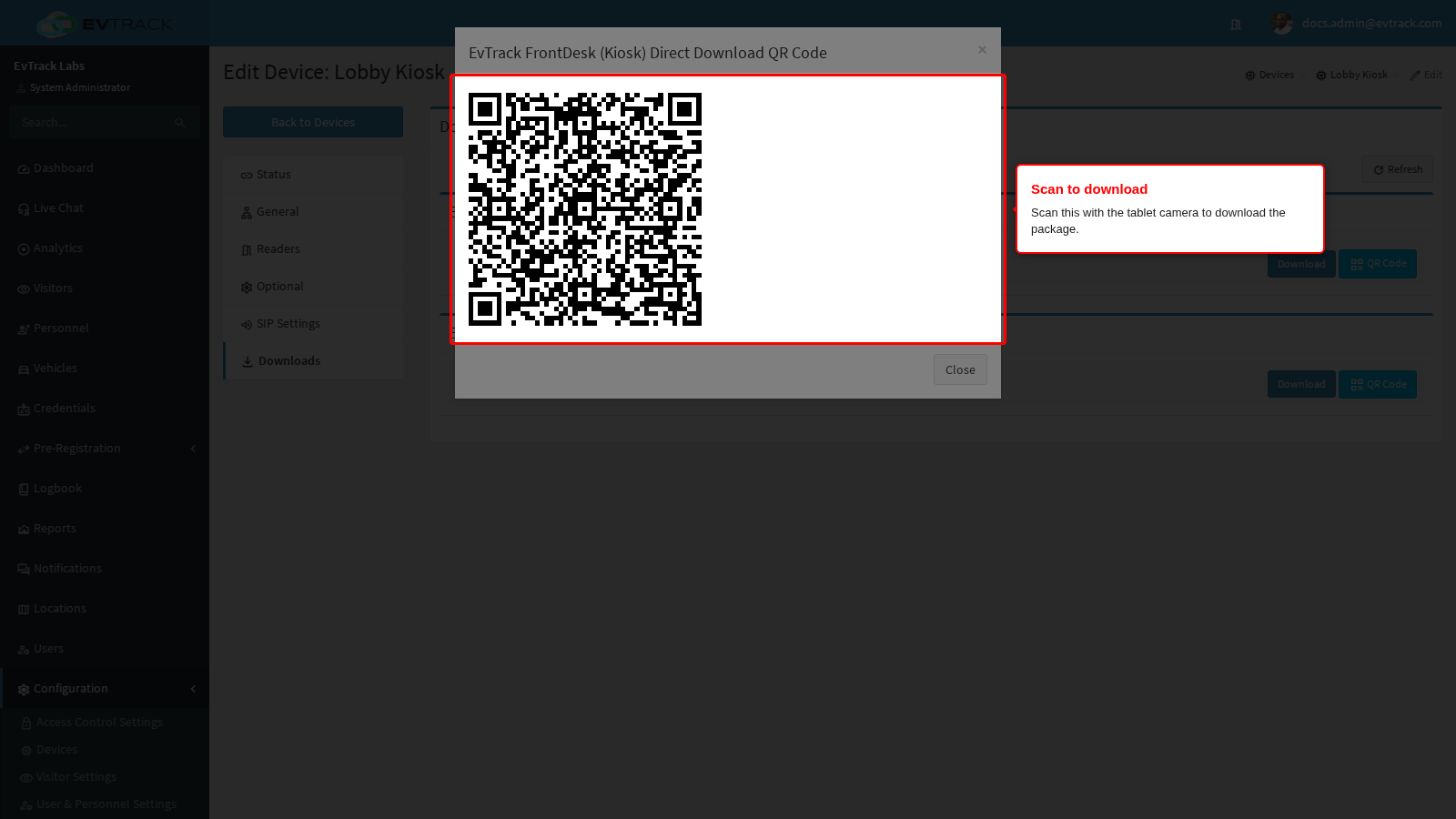
Click QR Code beside the package.
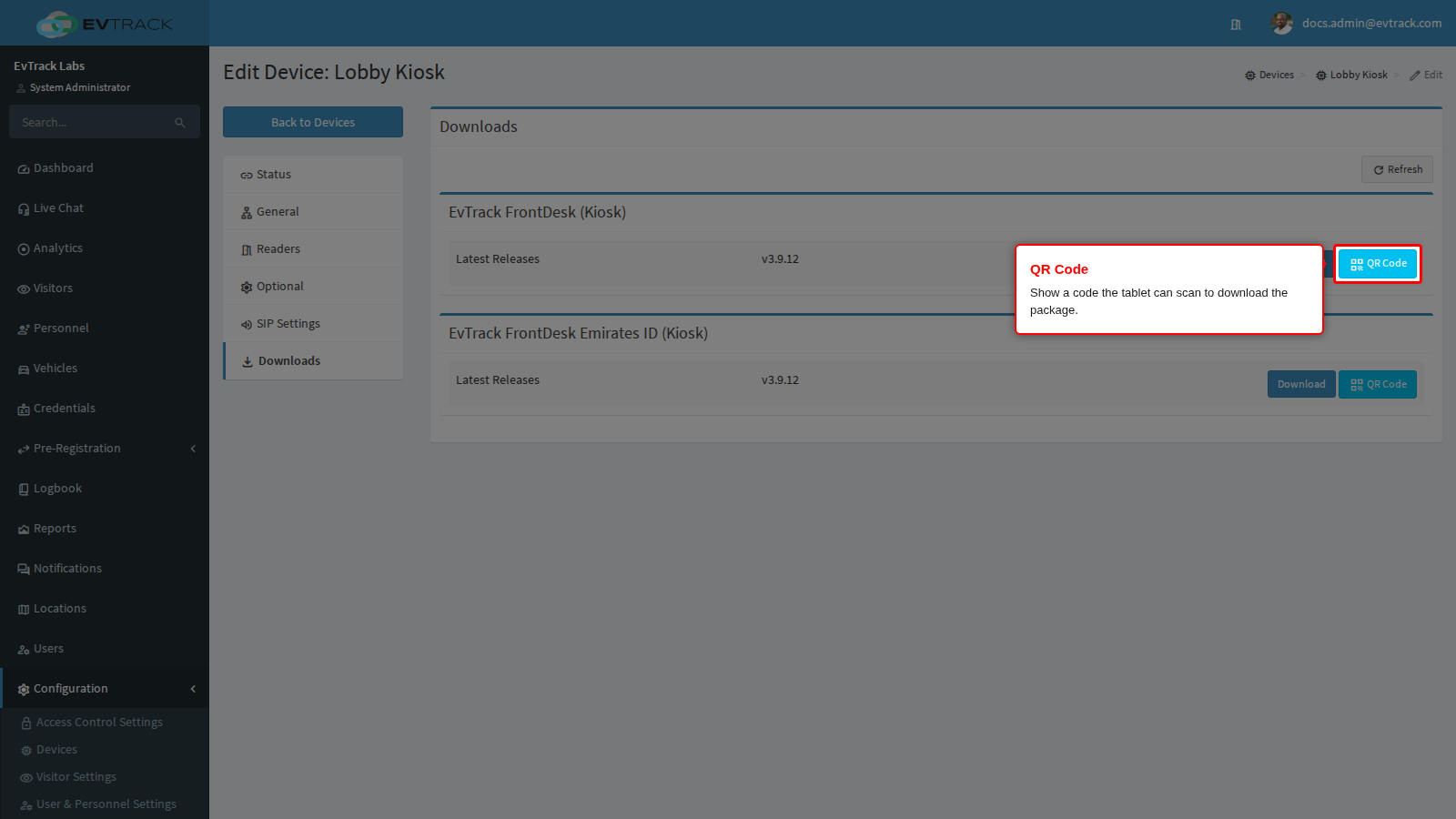
The Direct Download QR Code window opens. Scan it with the tablet camera and the tablet downloads the package.
-
Or click the download button on a computer and copy the package to the tablet, for example over USB.
The QR code is only a download link. It is not the device key.
Step 5: Install it
Open the downloaded package from the tablet’s downloads or its file manager.

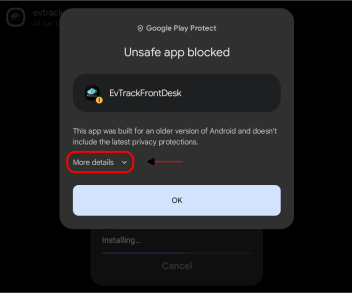
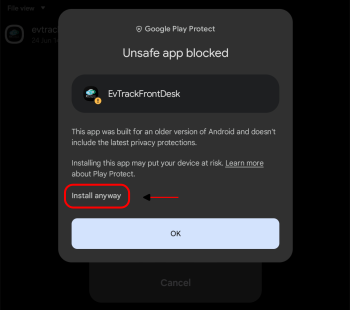
Android warns about installing from an unknown source. Allow installs for the browser or file manager that downloaded the package when asked. If the install warning appears, tap More details.
Then tap Install anyway.
Step 6: Open the app
Open EvTrackFrontDesk from the home screen.
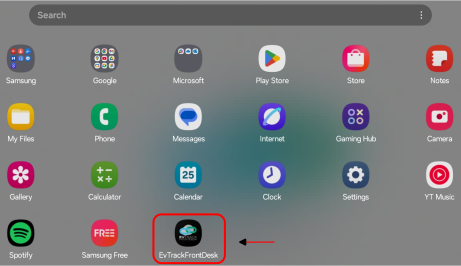
The first time the app opens it asks for its permissions, all at once, before the pairing screen. Allow every request, because the app needs them to function:
- Camera, for document scanning, visitor photos, QR codes and live chat video.
- Microphone, for live chat.
- Nearby devices (Bluetooth), for Bluetooth badge printers. Android 12 and newer ask for it; on Android 11 and older it is granted at install with no prompt. The Emirates ID build does not ask for it.
- Files and media, which the registration screens still require.
The app does not ask for location. If a request is refused, the app shows “Please allow the requested permissions to continue” and carries on after ten seconds without them.
Step 7: Pair
The app opens on Device Pairing Setup with the message “This device is not authorised”.
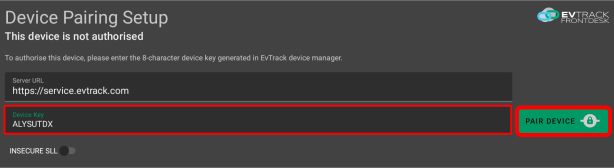
- Enter the server address: the
https://address the tablet reaches the server at, the App Base URL. -
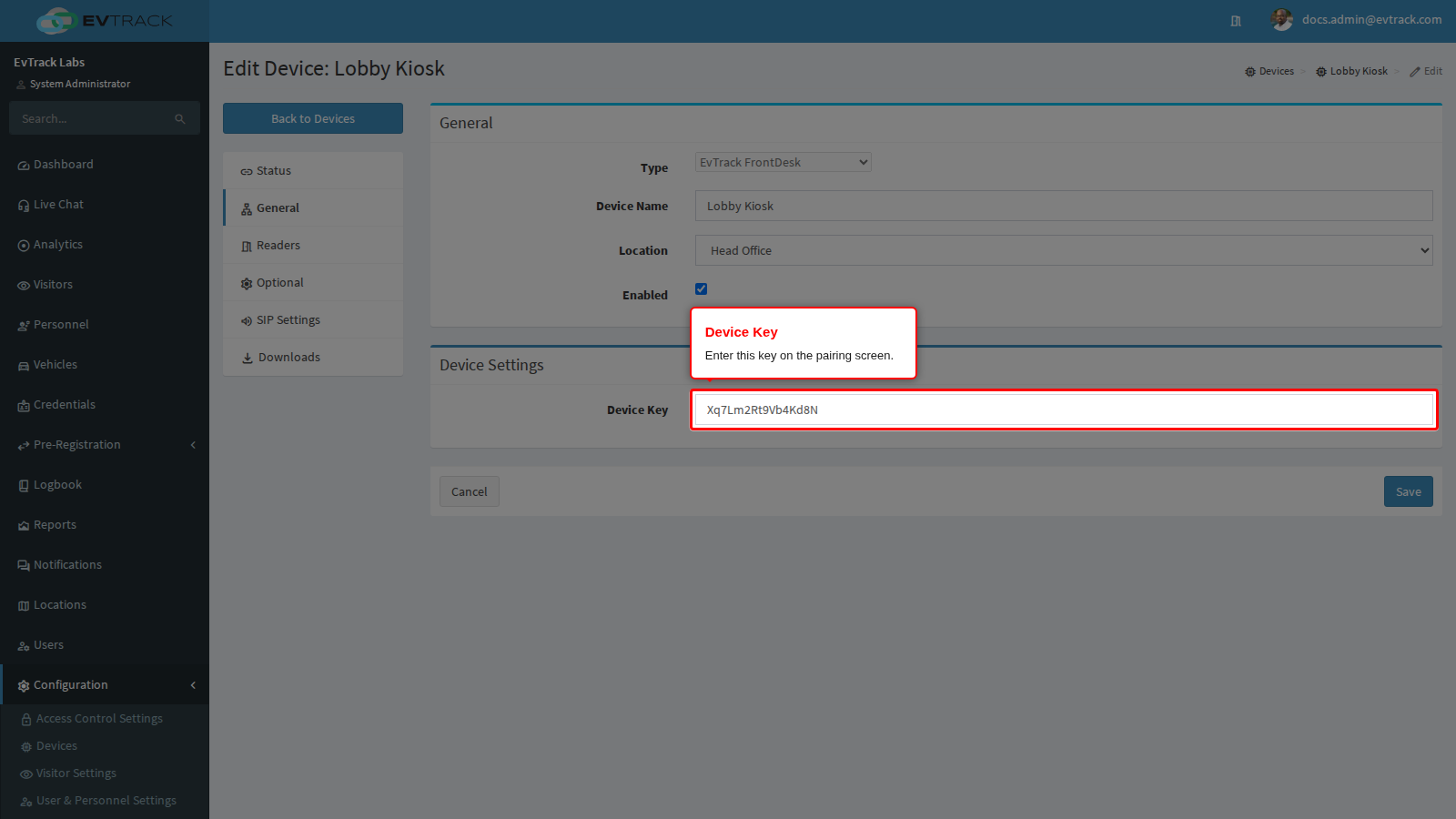
Enter the 8-letter Device Key from the General panel of the device record.
- Switch on INSECURE SSL only if your server uses a certificate the tablet cannot verify, see Insecure SSL and Certificate Pinning.
- Tap PAIR DEVICE. The button is available once the address looks valid and all eight letters of the key are entered.
End state: the app leaves the pairing screen and, once one of the kiosk’s readers is bound to an access control point (see below), opens its welcome screen. The device record shows the kiosk as connected, and the key on General has changed because each key works once. Pairing does not create an access control point. The device record has two virtual readers, Input 1 and Input 2, from the moment it is saved: bind one as an entry reader of an access control point (the kiosk then offers its check-in button) and, if visitors check out at the kiosk, the other as an exit reader (the kiosk then offers its OUT button for check-out), see Access Control Points. Until a reader is bound, the app shows “Configuration Error” instead of its welcome screen.
Step 8: Lock the tablet to the app
Pin the app with Android screen pinning, or use your device-management kiosk mode, so visitors cannot leave it. The kiosk also has its own Kiosk Lockdown Mode, covered under Device Options: Printer, Cameras and Lockdown.
When pairing fails
| The app says | What it means | What to do |
|---|---|---|
| Valid HTTP Server URL Required | The server address is not a valid web address. | Correct the address. |
| Unable to connect the service, please check the URL and try again | The server could not be reached, or the tablet refused its certificate. | Check the address and the network. For a certificate the tablet cannot verify, see Insecure SSL and Certificate Pinning. |
| Invalid Device Key, please enter in a valid key and try again | The key is wrong, was already used, or belongs to a device record that is disabled. The server gives the same answer for all three. | Read the current key on the General panel of the device record and make sure Enabled is ticked. |
| Invalid Server Configuration. Please ensure that the timezone settings on both the server and the kiosk are correct… | The tablet’s clock is more than 60 seconds away from the server’s (see Pairing Fails with Invalid Server Configuration). | Correct the tablet’s date, time and time zone, then pair again with the new key on General. The server has already used the old key. |
| Too many requests. Please try again in N seconds. | Too many pairing attempts in a short time. | Wait the number of seconds shown, then try again. |
See Troubleshooting and Knowledge Base for more.
Next
Configure what the kiosk does: see Configure the Kiosk.