Make every visitor who registers at the FrontDesk kiosk scan an ID card, driver’s licence or passport and take a photo before their check-in goes through, with the photo and a copy of the document kept on the visitor record. It takes about ten minutes.
Before you start
- You can edit visitor settings.
- At least one FrontDesk kiosk is paired, see Kiosk and Guard Devices, and its readers are bound to an access control point, see Access Control Points. Until they are, the kiosk cannot load its settings. That access control point must also have a rule on the Default Access Control List, or visitor passes are refused there.
- The kiosk can read a document: with its own camera, or with a document or 2D barcode scanner attached to it.
- A copy of an identity document is personal data. Make sure your privacy notice covers keeping it, see Privacy Consent.
Steps
Step 1: Turn on document scanning
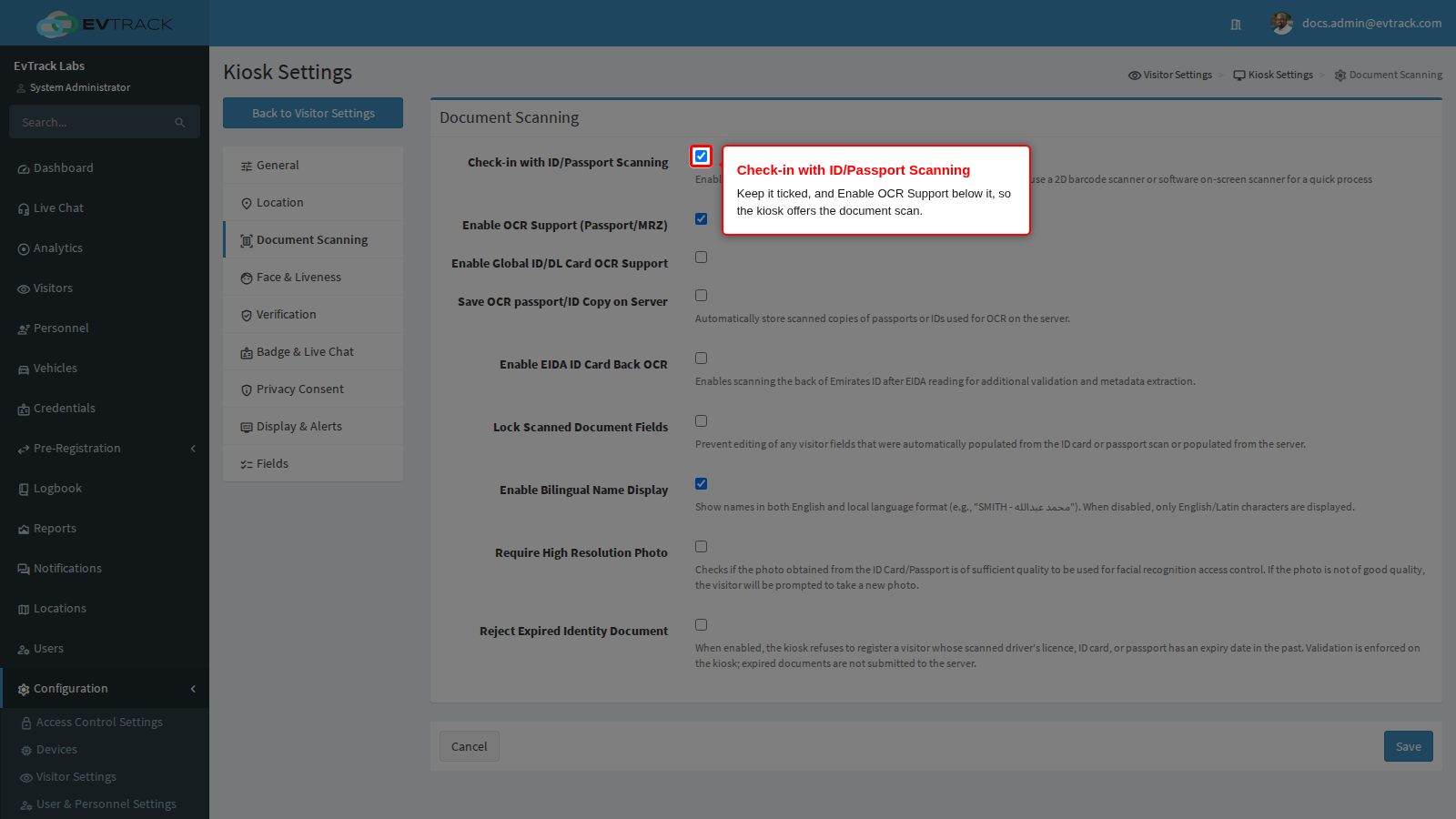
Go to Configuration > Visitor Settings, click the Kiosk tile and choose Document Scanning in the kiosk menu. Make sure Check-in with ID/Passport Scanning and Enable OCR Support (Passport/MRZ) below it are both ticked. Both are on by default.
- Check-in with ID/Passport Scanning shows the visitor a choice of ways to identify themselves before check-in, with the ID Card or Passport tile among them.
- Enable OCR Support (Passport/MRZ) lets the kiosk read the document with its own camera. A kiosk with a scanner attached reads with the scanner instead.
Step 2: Keep a copy of the document and save
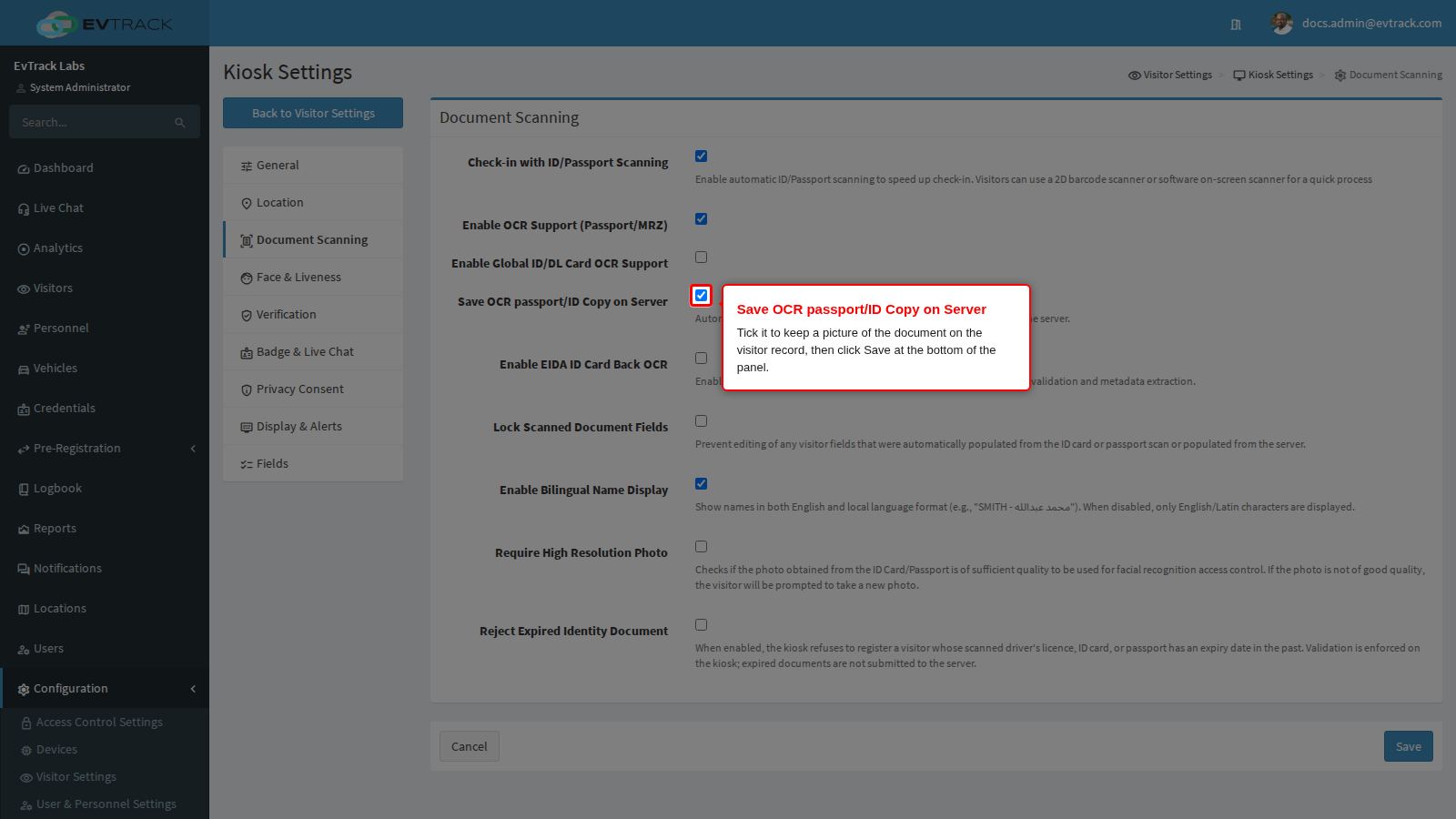
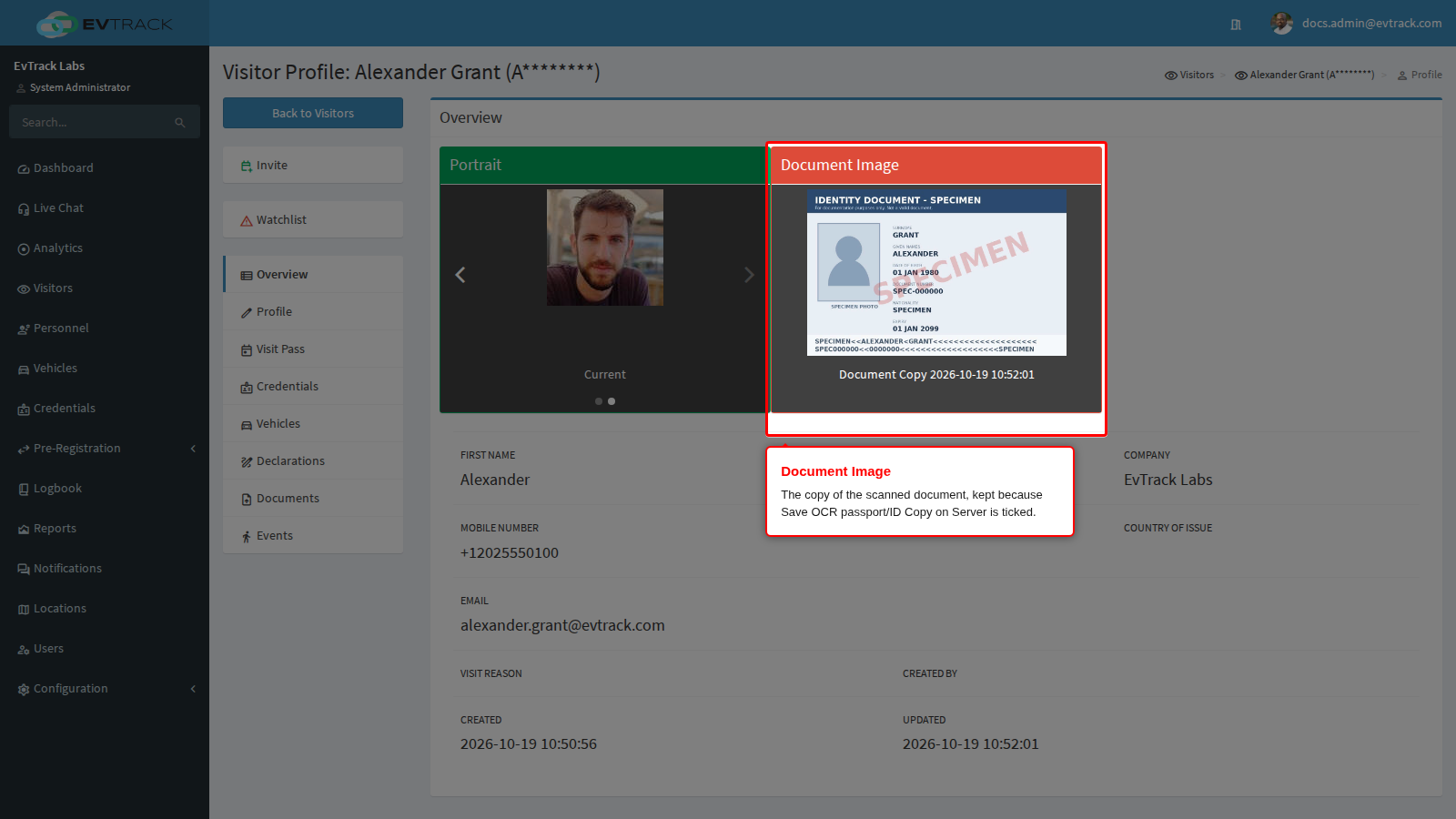
On the same panel, tick Save OCR passport/ID Copy on Server, then click Save at the bottom of the panel. When the kiosk reads the document with its camera, or with a document scanner that supplies a picture, it then sends that picture with the check-in, and it is kept on the visitor record. With it clear, the kiosk reads the details off the document and discards the picture. A document read from its barcode, or an Emirates ID card read, gives no picture to keep.
Step 3: Make the document mandatory
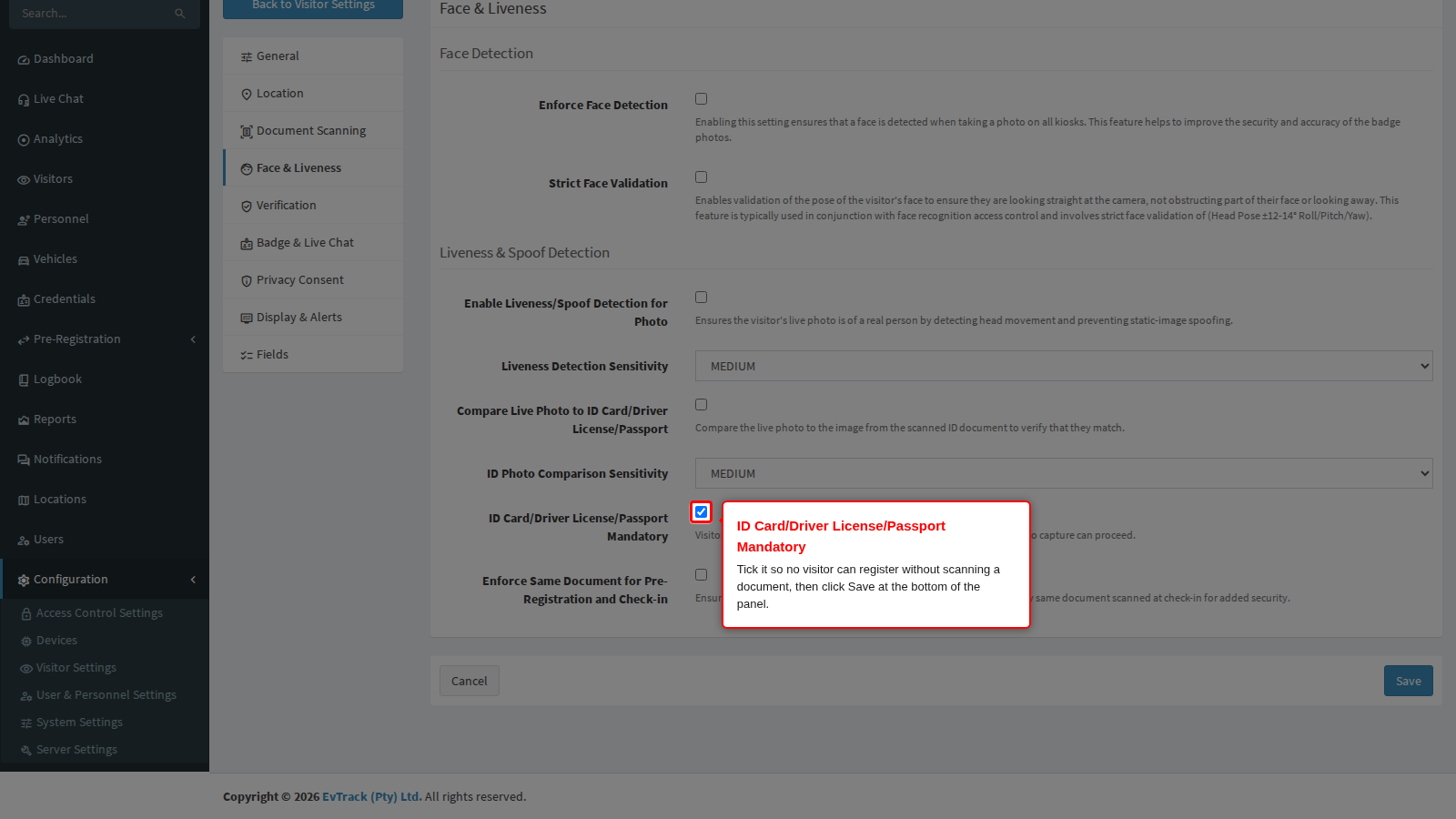
Choose Face & Liveness in the kiosk menu, tick ID Card/Driver License/Passport Mandatory and click Save at the bottom of the panel.
For visitors who register at the kiosk, this removes every way round the scan at check-in:
- the button on the choice screen that goes to manual check-in;
- the I do not have a ID/Passport button on the document screen (I do not have a license on a kiosk with a 2D barcode scanner);
- the buttons on the QR code and one-time PIN screens that let a visitor register instead.
A visitor without a document can only go back to the welcome screen. Check-out is not affected.
Visitors who check in with the QR code or one-time PIN from an invitation are not asked for a document: the kiosk checks them in from the invitation. Only when the kiosk needs more details from them does it send them through registration, and then the same choice screen without a way round the scan. Enforce Same Document for Pre-Registration and Check-in does not change this: it checks that a document the visitor scans matches the pre-registration, but does not make an invitation holder scan one.
Kiosks running FrontDesk 2.35 or earlier still show the buttons that skip the scan, such as I do not have a ID/Passport on the document screen, until the FrontDesk app is updated, so on those kiosks a visitor can still skip the scan.
The other options on this panel, such as comparing the photo with the document, are described in Face and Liveness.
Step 4: Ask for a photo
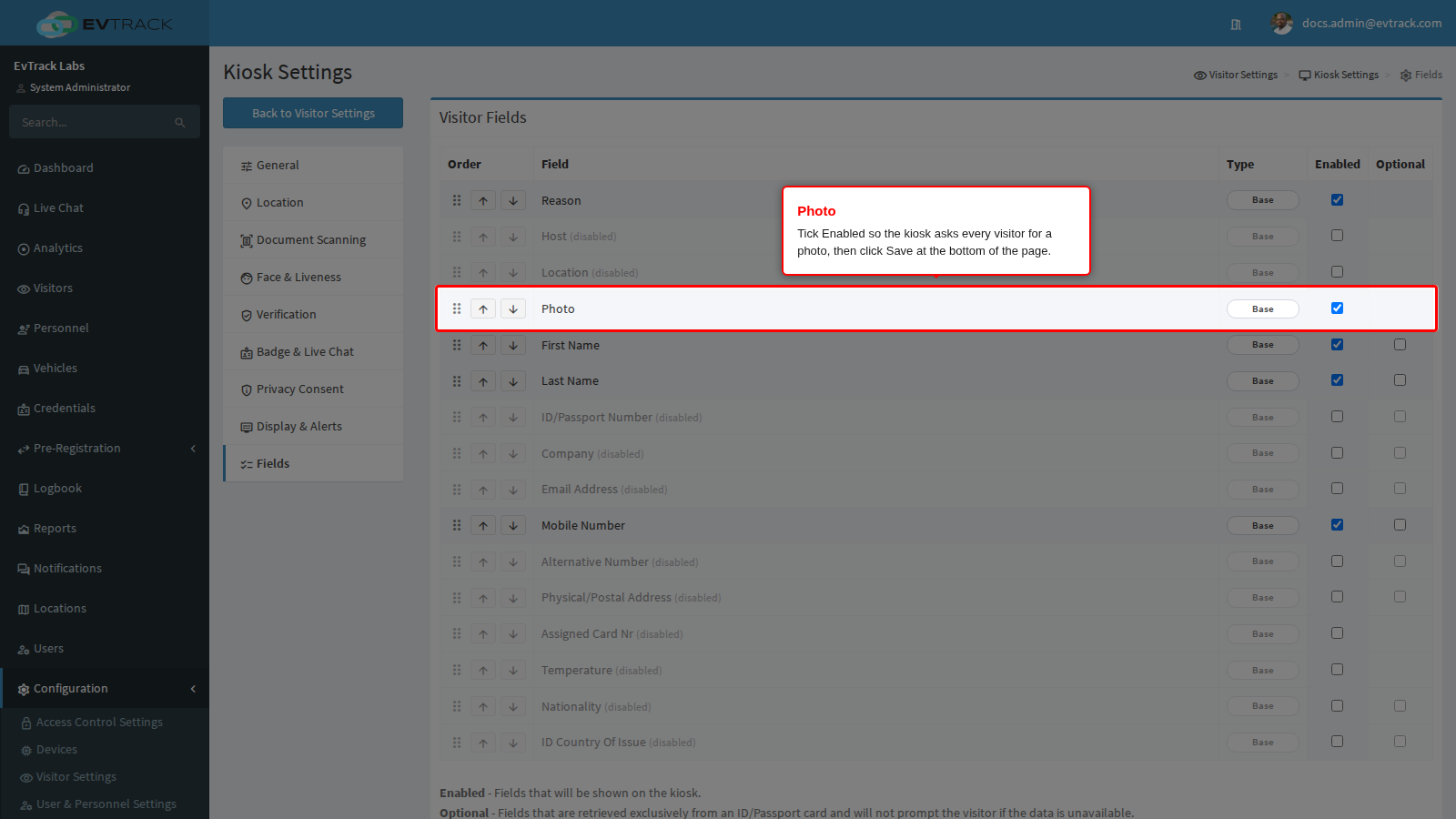
Choose Fields in the kiosk menu. Tick Enabled on the Photo row and click Save at the bottom of the page. Photo has no Optional box, so once it is ticked every visitor who registers at the kiosk is asked for a photo and cannot continue without one.
- When the scanned document carries a portrait, the kiosk can use it as the photo and skip the camera. To make every visitor take a fresh photo, tick Require High Resolution Photo on the Document Scanning panel and save.
- Paired kiosks pick up all four changes within five minutes, or at once when the FrontDesk app restarts.
Check it worked
Touch the check-in button on the kiosk. The kiosk shows its choice of ways to identify, with the ID Card or Passport tile and no button for manual check-in. Choose ID Card or Passport: the camera screen asks the visitor to hold the document with the data facing the back camera, and there is no I do not have a ID/Passport button, only the back button. Once the document is read, its details can fill the form (Automatic Form Population on the General panel), and the kiosk asks for the photo.
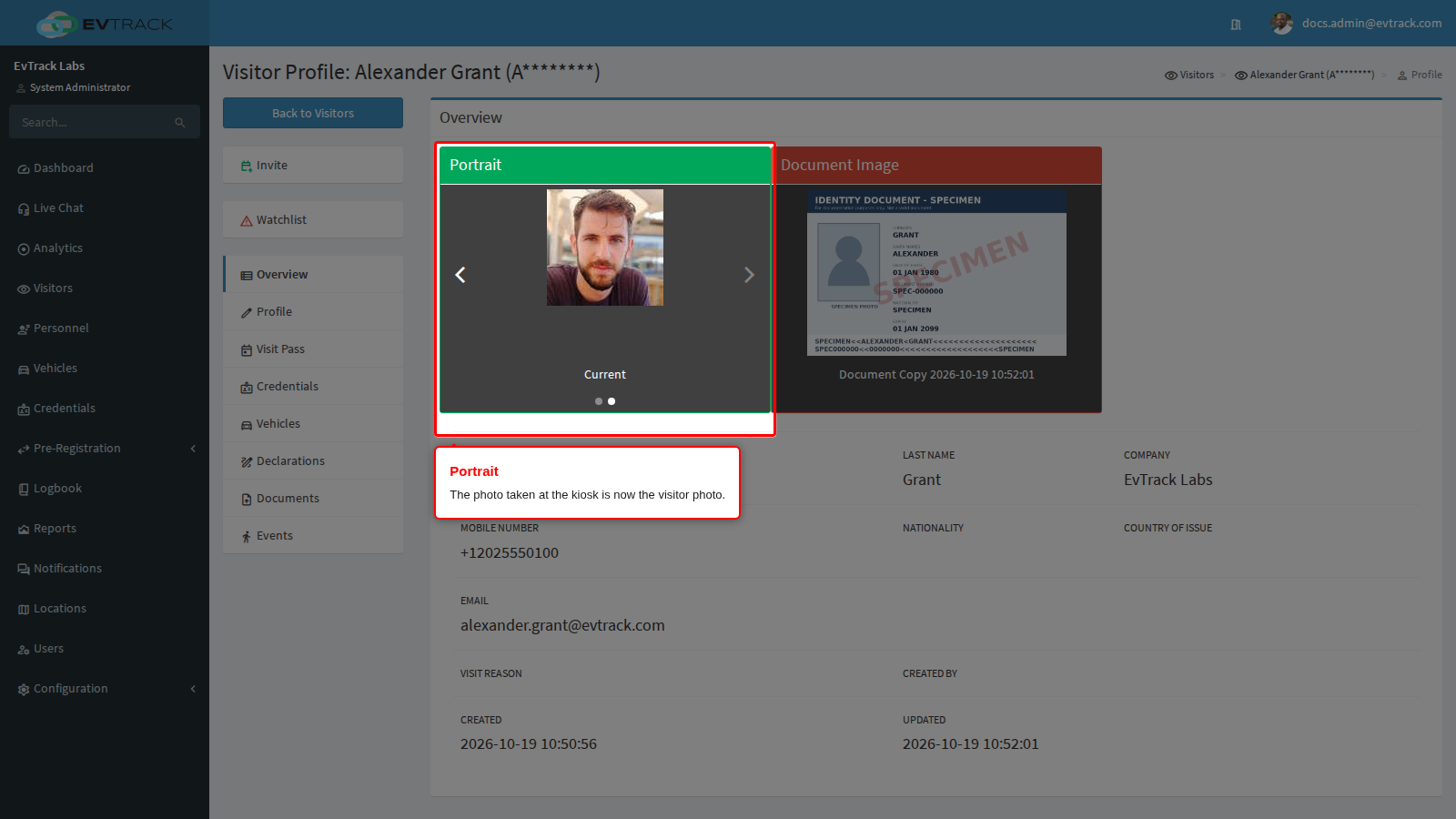
Then, in the web application, open Visitors, filter by the visitor’s last name and click the visitor. The Overview tab shows the photo taken at the kiosk in the Portrait box.
Next to it, the Document Image box shows the copy of the document the visitor scanned.
If it didn’t work
- Visitors can still register without scanning a document. Check each of these in turn:
- The visitor checked in with an invitation’s QR code or one-time PIN. Invitation holders are not asked for a document unless the kiosk needs more details from them, see Step 3.
- The kiosk runs FrontDesk 2.35 or earlier and still shows the buttons that skip the scan. Update the FrontDesk app.
- The kiosk has not refreshed yet. It reads its settings every five minutes while it can reach the server, and at every app start. Wait, or restart the FrontDesk app.
- Check-in with ID/Passport Scanning is clear, or Enable OCR Support (Passport/MRZ) is clear on a kiosk with no scanner attached. The kiosk then never offers the scan: it goes straight to the QR code screen, the PIN screen or the registration form. Tick both, see Step 1.
- The kiosk does not ask for a photo.
- Photo is not ticked on Kiosk > Fields. Setting Photo to Required under Required Fields Settings does not change the kiosk: only the kiosk’s own list does.
- The kiosk’s location keeps its own field list. Open Locations, edit the kiosk’s location and choose the Kiosk App tab: if Use global kiosk fields is clear, tick Photo in that location’s list, see Location Overrides.
- The document’s portrait was used as the photo. Tick Require High Resolution Photo on the Document Scanning panel.
- The visitor record has no Document Image.
- Save OCR passport/ID Copy on Server was clear when the visitor scanned the document. Tick it and save; it applies to scans from then on.
- The document was read from its barcode with a 2D barcode scanner, or was an Emirates ID card. Those reads supply the details but no picture, so there is nothing to keep. Only a camera read, or a document scanner that supplies a picture, leaves a Document Image.
- Saving Face & Liveness is refused with “Turn on Check-in with ID/Passport Scanning on the Document Scanning page first. With ID Card/Driver License/Passport Mandatory on, every visitor must scan a document, which the kiosk cannot offer while scanning is off.” Tick Check-in with ID/Passport Scanning on the Document Scanning panel and save it first, then save Face & Liveness again. For the same reason, the Document Scanning panel refuses to turn scanning off while ID Card/Driver License/Passport Mandatory is ticked.