Make every visitor who registers at the FrontDesk kiosk read your non-disclosure agreement (NDA) and sign it on the screen before their check-in goes through, with the signed copy kept on record. It takes about ten minutes.
Before you start
- You can edit visitor settings.
- At least one FrontDesk kiosk is paired, see Kiosk and Guard Devices, and its readers are bound to an access control point, see Access Control Points. Until they are, the kiosk cannot load its settings. That access control point must also have a rule on the Default Access Control List, or visitor passes are refused there.
- You have the wording of your NDA.
Steps
Step 1: Open Agreements and click Add
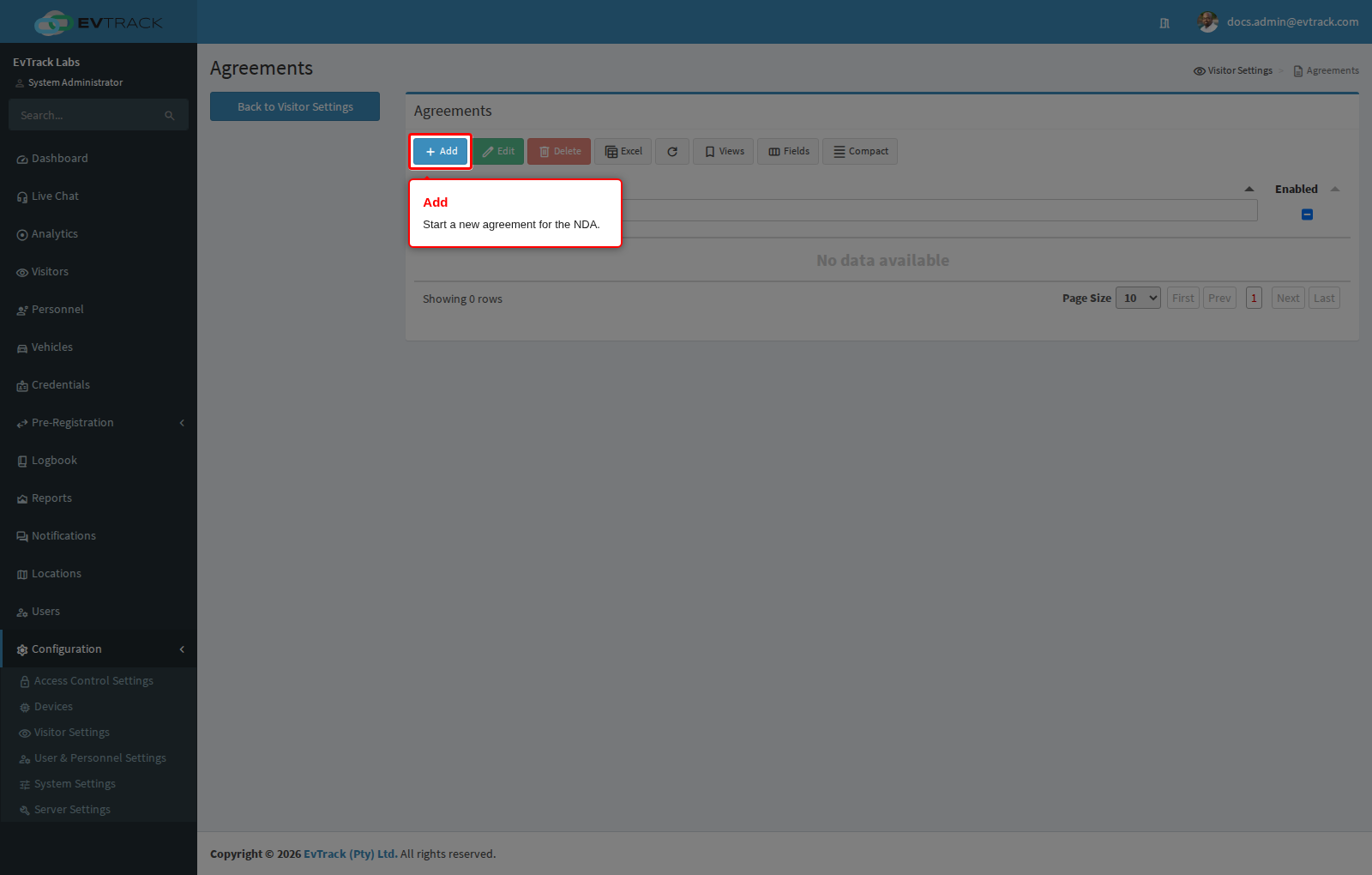
Go to Configuration > Visitor Settings > Agreements and click Add above the table.
Step 2: Write the NDA
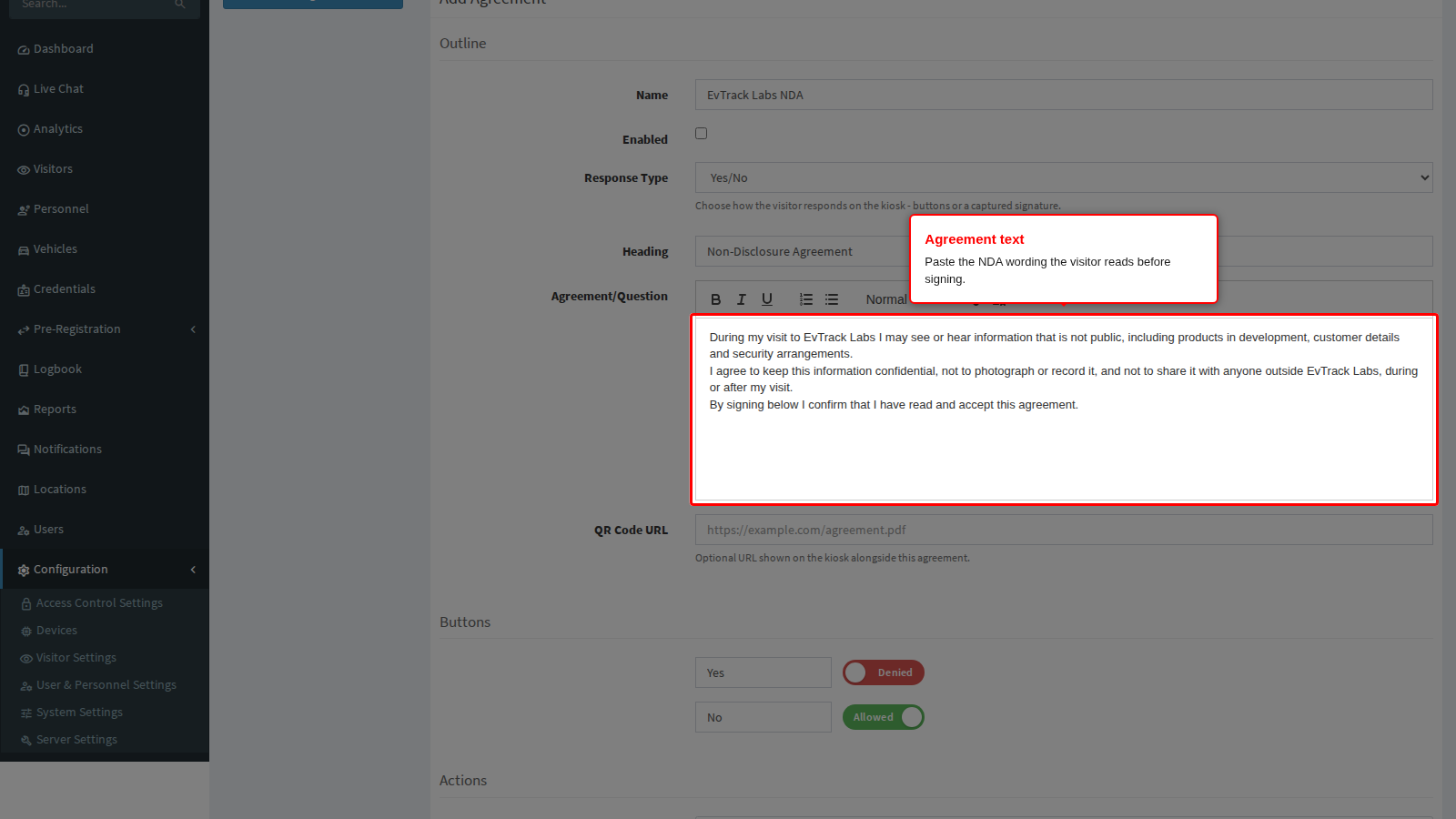
Fill in three fields:
- Name: the name you will pick the agreement by later, for example “EvTrack Labs NDA”. Visitors never see it, and two agreements cannot share it.
- Heading: the title the visitor sees above the text, 5 to 100 characters, for example “Non-Disclosure Agreement”.
- Agreement/Question: the NDA itself. Paste or type it into the editor. The limit is 5000 characters, and the formatting the editor stores (paragraphs, bold, lists) counts towards it.
Step 3: Set the Response Type to Signature
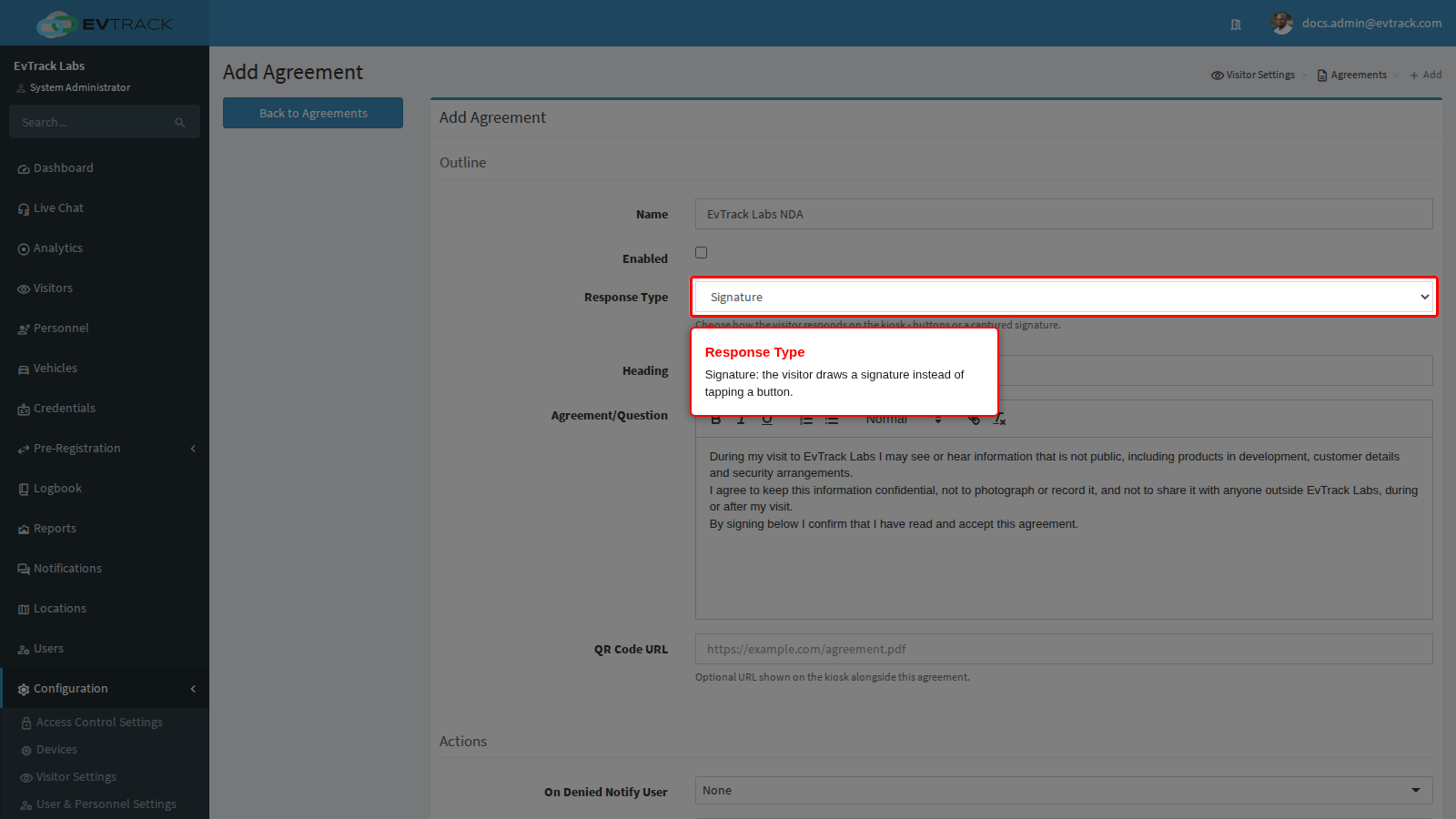
Choose Signature in Response Type. The visitor now draws a signature on the screen instead of tapping a button, and the Buttons section disappears from the form because a signature needs none.
Step 4: Tick Enabled and save
A new agreement starts with Enabled clear. Tick it, then click Save at the bottom of the form.
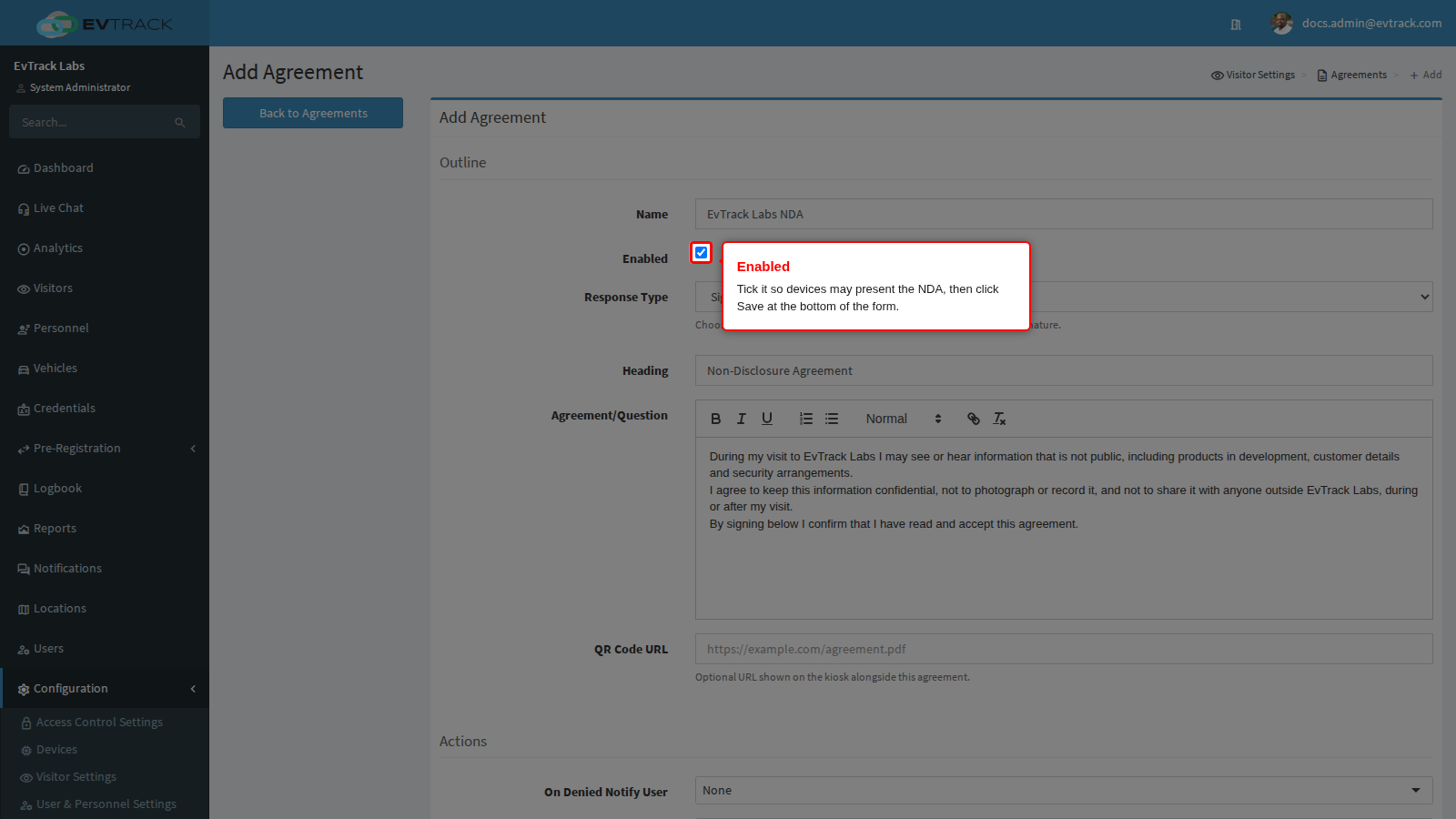
Enabled allows devices to present the NDA, but on its own it does not put the NDA on any kiosk; the next step does that. If you clear Enabled later, every kiosk and guard device stops presenting the NDA, and the records already signed are kept.
Step 5: Put the NDA on the kiosk
Go to Configuration > Visitor Settings, click the Kiosk tile and choose Fields in the kiosk menu. Every agreement is a row of the table with the type Agreement. Tick Enabled on the EvTrack Labs NDA row, drag the row to the point in the form where the visitor should sign, and click Save at the bottom of the page.
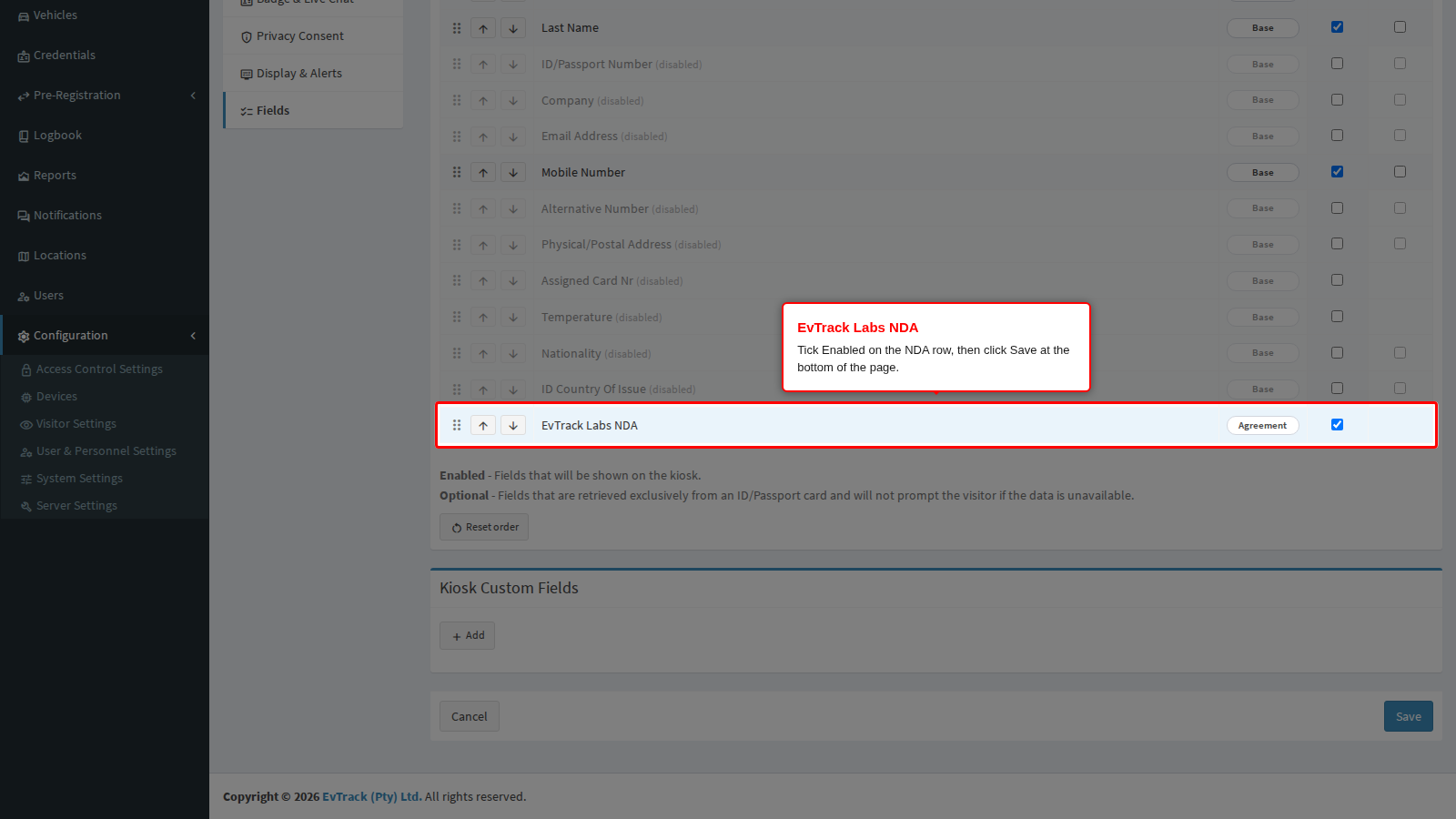
Paired kiosks pick the change up within five minutes, or at once when the FrontDesk app restarts. The rest of this table is described in Fields and Required Fields.
Check it worked
Register a test visitor at the kiosk. When the visitor reaches the NDA, the kiosk shows its heading and text, a box marked Sign here and a Clear button. NEXT remains greyed out until the visitor signs. If the text is longer than the screen, a Scroll down button shows first and NEXT appears once the visitor reaches the end.
Then, in the web application, open Visitors and click the Declaration Records tab. The visitor’s check-in appears as a new row, newest first.
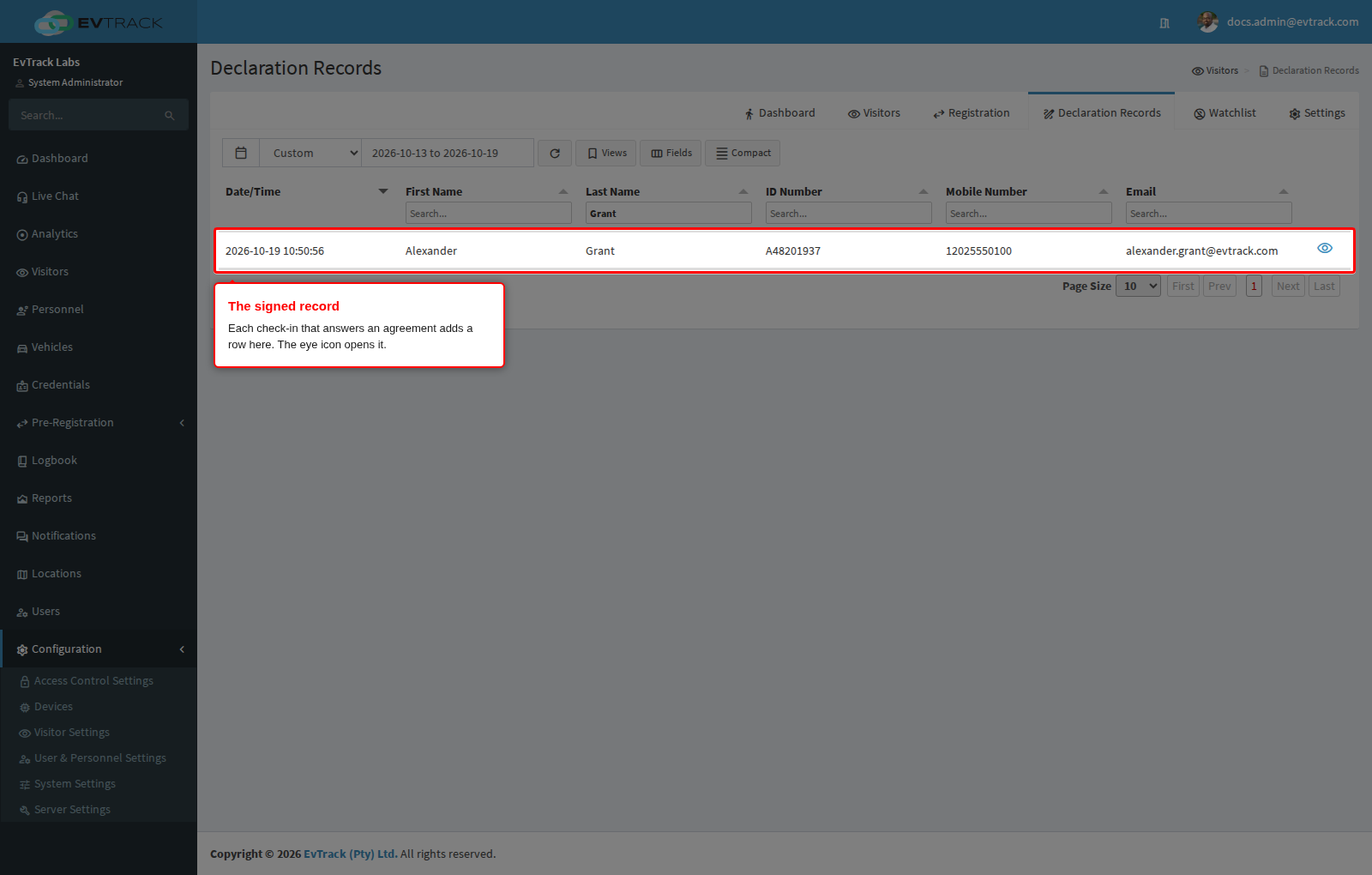
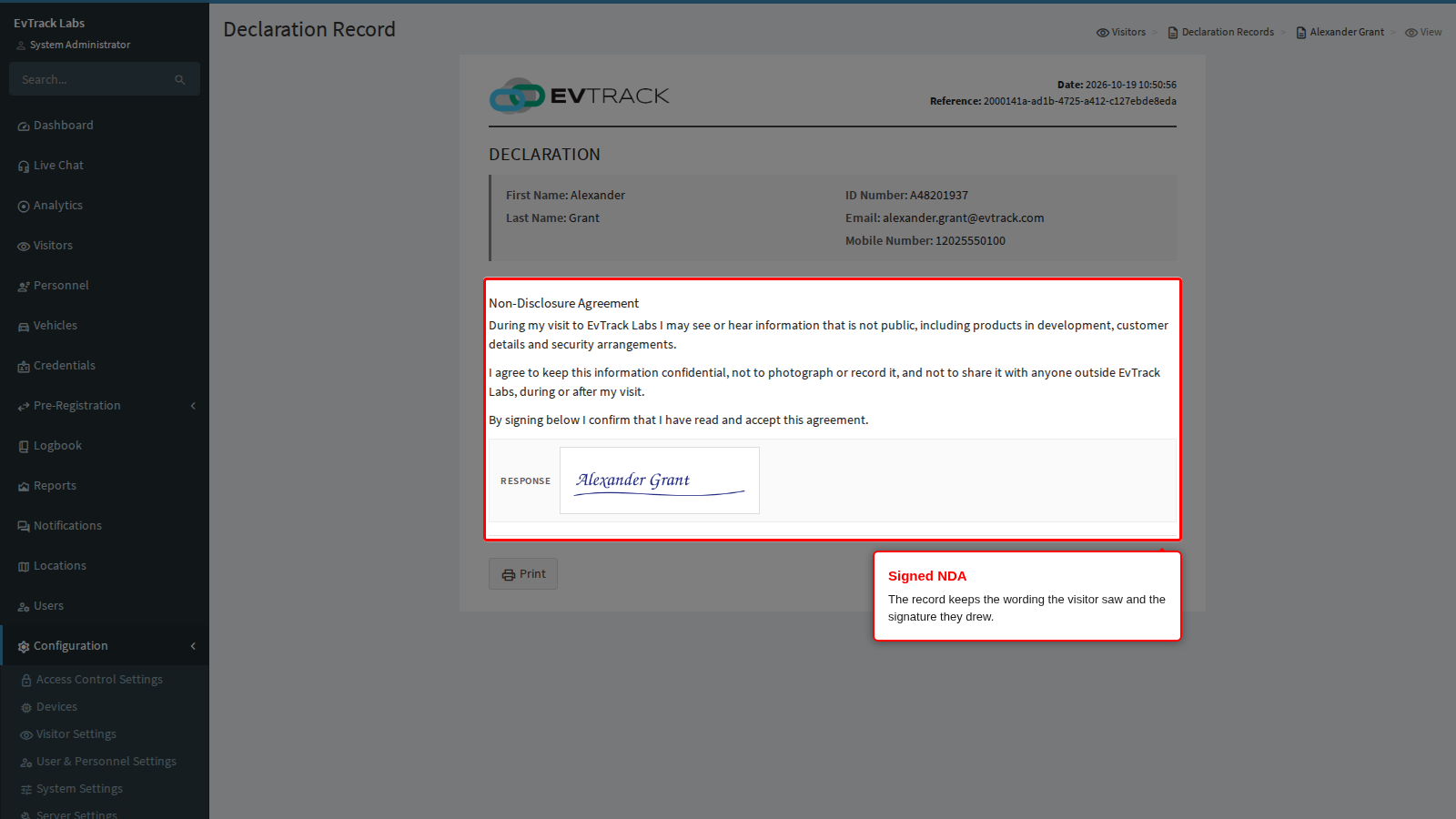
Click the eye icon at the end of the row. The record shows the visitor’s details, the NDA wording as the visitor saw it, and the signature they drew. The Print button below it prints the record.
If it didn’t work
- The kiosk never shows the NDA. Check each of these in turn:
- Enabled is not ticked on the agreement. Open it under Agreements, tick Enabled and save.
- The NDA is not ticked on Kiosk > Fields. Tick its Enabled box there and save.
- The kiosk’s location keeps its own field list. Open Locations, edit the kiosk’s location and choose the Kiosk App tab: if Use global kiosk fields is clear, that location’s list applies instead, so make sure the NDA is ticked there, see Location Overrides.
- The kiosk has not refreshed yet. It reads its settings every five minutes while it can reach the server, and at every app start. Wait, or restart the FrontDesk app.
- After the visitor finishes, the kiosk shows “Access Denied” and “Secondary Screening Required. Please consult the Security Supervisor”. The server received the check-in without a signature for an NDA it requires, usually because the tablet was still working from settings it read before you switched the NDA on. The check-in is refused and the kiosk reloads its settings straight away, so the visitor can start again and will be asked to sign. A refusal also triggers the agreement’s On Denied Notify User and On Denied Add to Watchlist actions when you have set them.