Give visitors a link (or a QR code) to your site’s registration form, so they enter their own details before they arrive and you only approve the request. You switch the public form on, publish the link for a location, and share it. It takes about ten minutes.
Before you start
- You can change Visitor Settings and edit locations. The location’s Self-Registration tab needs “Configuration: Location - Edit/View” and “Configuration: System Settings - View” to open, and the matching “Save” permissions to save, see Location Self-Registration.
- Decide what the form asks for. Under Configuration > Visitor Settings, click the Self-Registration tile and open the Required Fields tab. The form shows only the fields ticked there, and the visitor must fill in every field it shows, including the terms box when Require Terms and Conditions Field is ticked. A location can replace that list with its own when its Use Global Required Fields box is cleared. See Self-Registration Settings.
- Email delivery works. Out of the box the visitor first proves their email address with a code that EvTrack emails to them. On an on-site system the mail server is set up under Email Server (SMTP and MS Graph).
Steps
Step 1: Switch the public form on
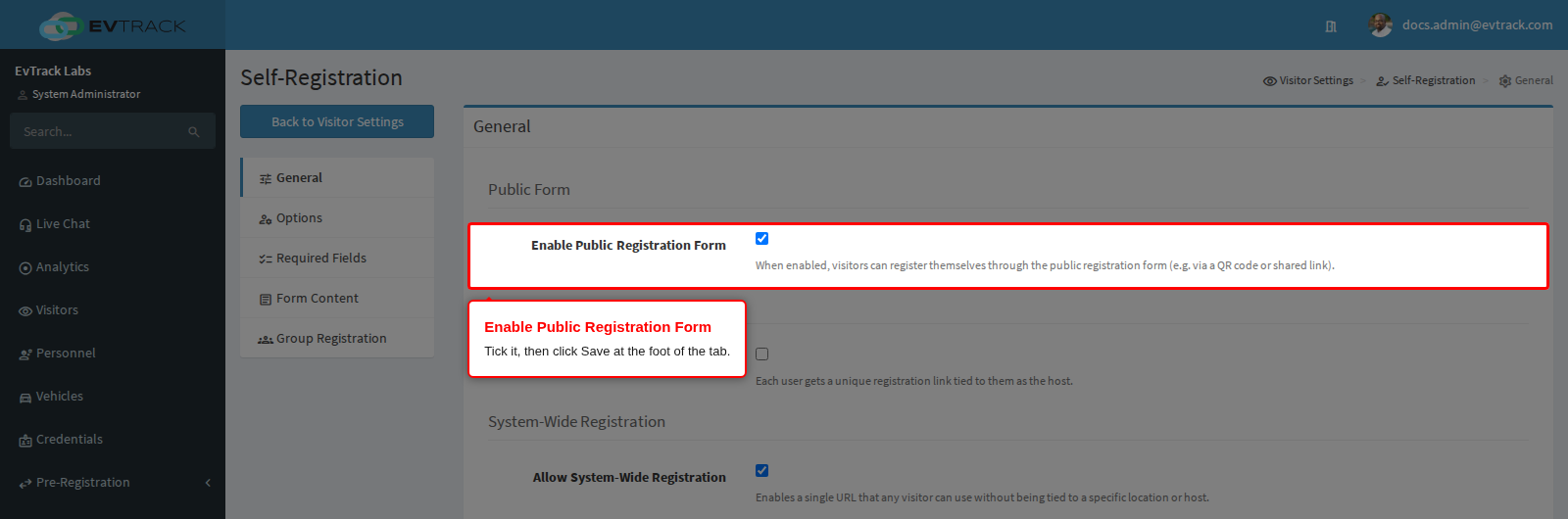
Under Configuration > Visitor Settings, click the Self-Registration tile. On the General tab, tick Enable Public Registration Form in the Public Form section and click Save at the foot of the tab. A new system starts with it off, and while it is off every registration link is refused.
Step 2: Turn on the location’s link
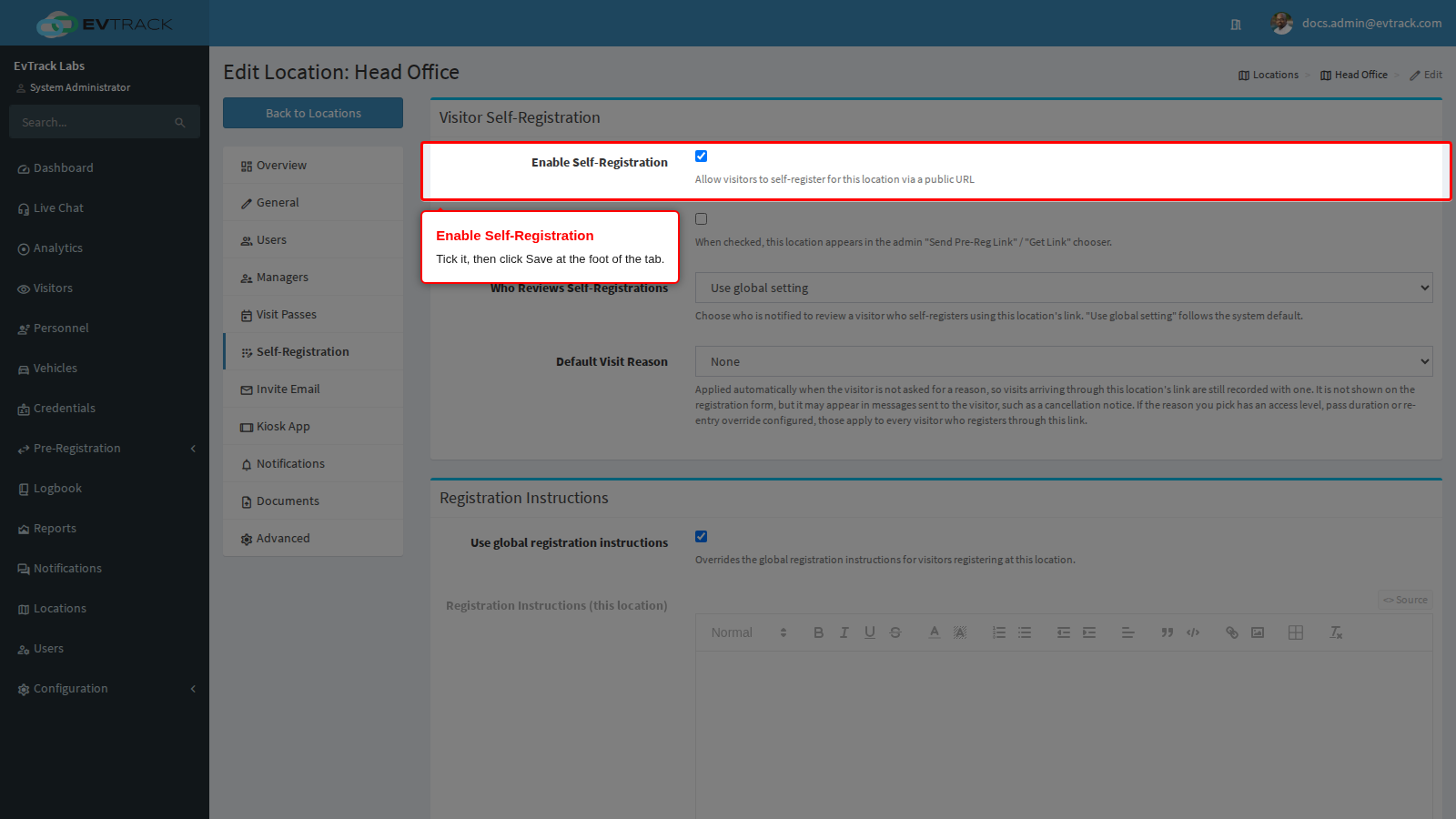
Select Locations, open the location the visitors are coming to and click Self-Registration in the menu on the left. Tick Enable Self-Registration and click Save at the foot of the tab.
- A visitor who uses this link registers for this location.
- Who Reviews Self-Registrations, on the same tab, decides who is told about a new request from this link.
Step 3: Share the link
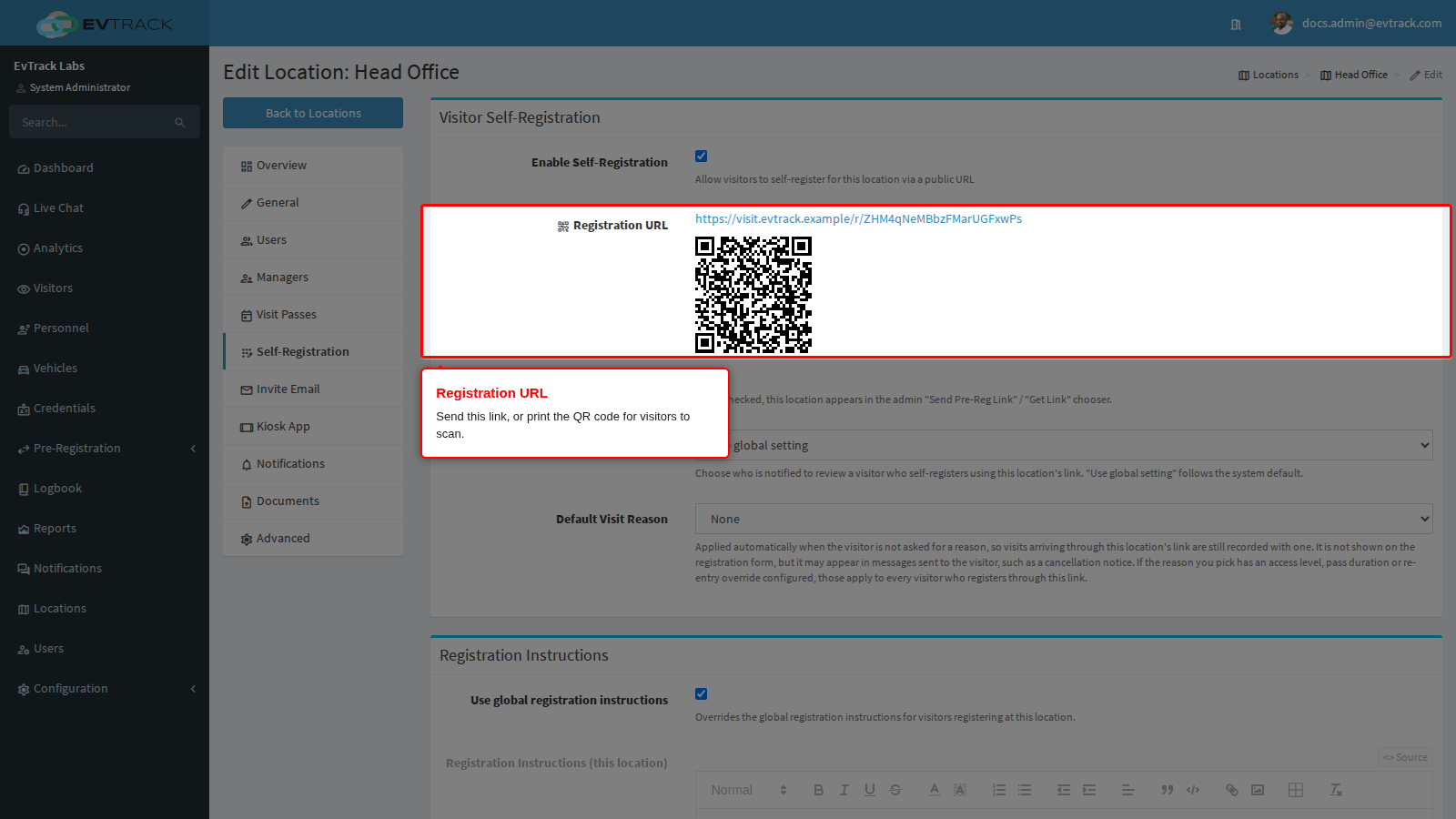
Open the location’s Self-Registration tab again. Below Enable Self-Registration is now a Registration URL row with the link and a QR code for it. Copy the link into an email or a web page, or print the QR code for visitors to scan. The link starts with your system’s web address (on an on-site system the App Base URL), so visitors must be able to reach that address.
Check it worked
Open the link yourself in a private browser window, as a visitor would. EvTrack asks for an email address and sends a code to it; after the code is entered the registration form opens. If register-on-behalf or group registration is switched on for this location, the visitor first chooses who they are registering.
The visitor fills in the form and clicks Register. The capture below is the whole public page as Alexander Grant sees it. It names the location (“Visiting: Head Office”), shows the location’s own logo if it has one and otherwise the global logo, and asks only for the fields ticked on the Required Fields tab.
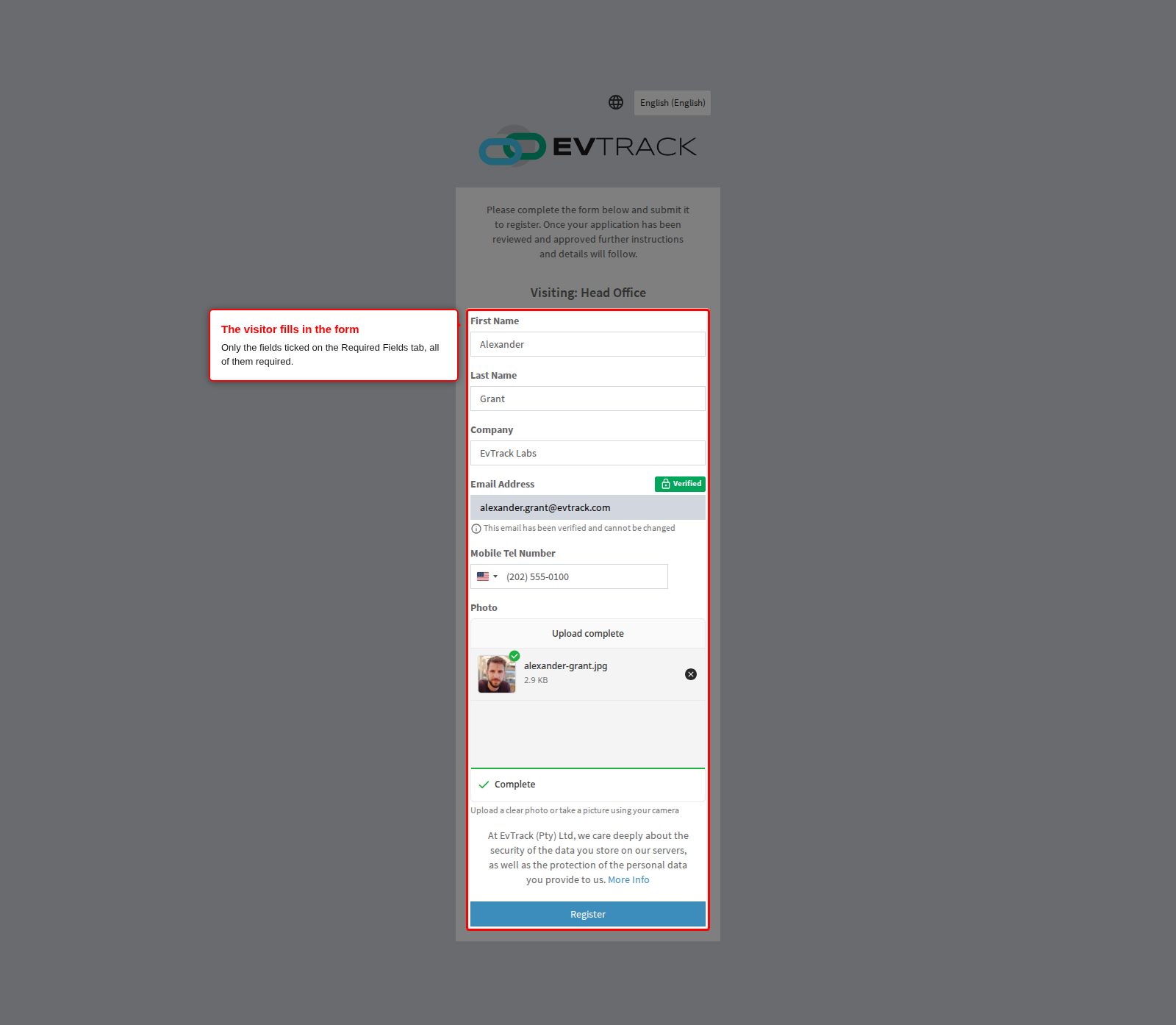
The visitor then sees “Registration Submitted” and “Your visitor registration request has been submitted and is being reviewed.”, or the success message set for the location or the system.
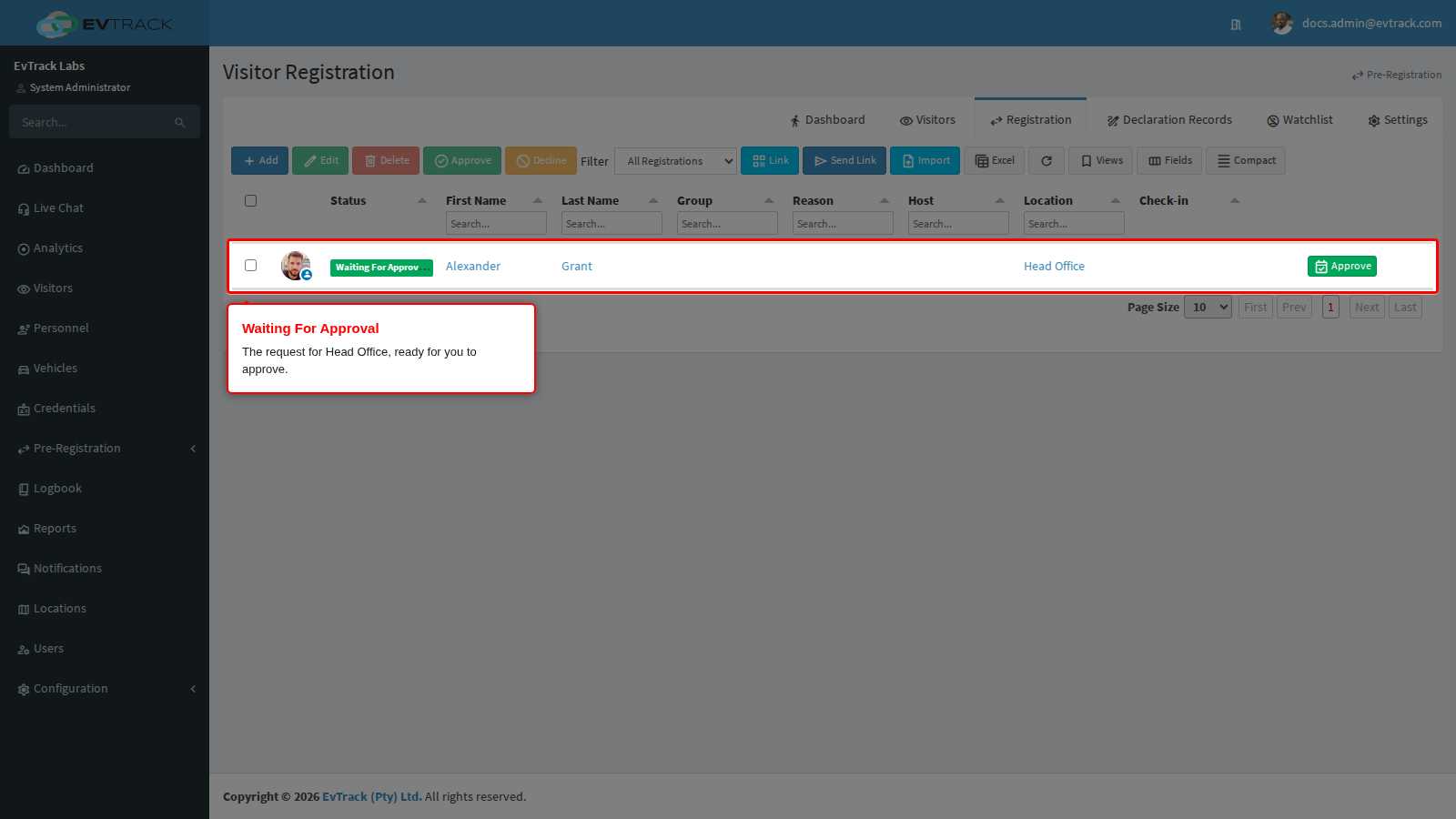
In the web application, select Visitors and click the Registration tab. The request is listed with the location, as Waiting For Approval, and its Approve button opens the page where you check the details and approve or decline it, see Visitor Registration.
If it didn’t work
- The visitor sees “This feature has been disabled by the system administrator.” The form is switched off. Tick Enable Public Registration Form (Step 1) and the location’s Enable Self-Registration (Step 2), and save each tab. A personal link or the system-wide link is refused the same way while Allow Per-User Registration Links or Allow System-Wide Registration, on the same General tab, is clear; tick the one for the link you shared and click Save.
- The visitor sees “The Visitor Registration ID could not be found. Please check and confirm that the URL is correct.” The link is incomplete or names a location that no longer exists. Copy the link again from the location’s Registration URL row and send it in full.
- Register returns the visitor to the form with “Required Fields are Missing. Please make sure all the fields are completed.” Every field on the form is required. The visitor completes them all; to ask for less, clear the boxes you do not need on the Required Fields tab and click Save.
- The visitor is told “A duplicate registration with the email address (…) already exists and is already waiting for approval.” The same person already has a request waiting for this location. Approve or decline that request in the Registration list first.
- The request shows another status instead of Waiting For Approval.
- Waiting Location Manager Approval: the location has Require Manager Approval ticked on its Advanced tab, so its managers are emailed the request (or, when none of them can act, the system’s administrators) and one of them approves it. See Approval Workflow and Location Advanced Settings.
- Require Host Approval: compliance checks are switched on, so the request goes on to compliance review, as described in Approval Workflow.
For more causes and how to check each one, see The registration link is unavailable.