Have a compliance officer check every contractor’s paperwork, such as an insurance certificate or a safety induction, before the visit is approved, and turn down a request whose document has expired. You add the officer, switch the compliance check on, let operators attach documents to registrations, and send each request to the officer. It takes about fifteen minutes.
EvTrack records each document’s Expires Date so the officer can see it next to the file. It does not refuse an expired document on its own: the officer reads the date and decides.
Before you start
- You can change Visitor Settings, and you can add and process visitor registrations.
- The officer already has a user account with a valid email address. See Add a User.
- You have the contractor’s document as a PDF, JPG, PNG, DOCX or XLSX file of up to 10 MB, and you know its expiry date.
- Brief reception first: while the compliance check is on, a walk-in registered from the Visitors Dashboard is not admitted on the spot. It is held until a compliance officer approves it, see Walk-in Registration.
Steps
Step 1: Add the compliance officer
Go to Configuration > Visitor Settings, click the Compliance tile and choose Officers in the menu on the left. Click Add, choose the department in Type, for example Health and Safety, start typing the officer’s name in User and pick them, then click Add User. Click Save at the foot of the page.
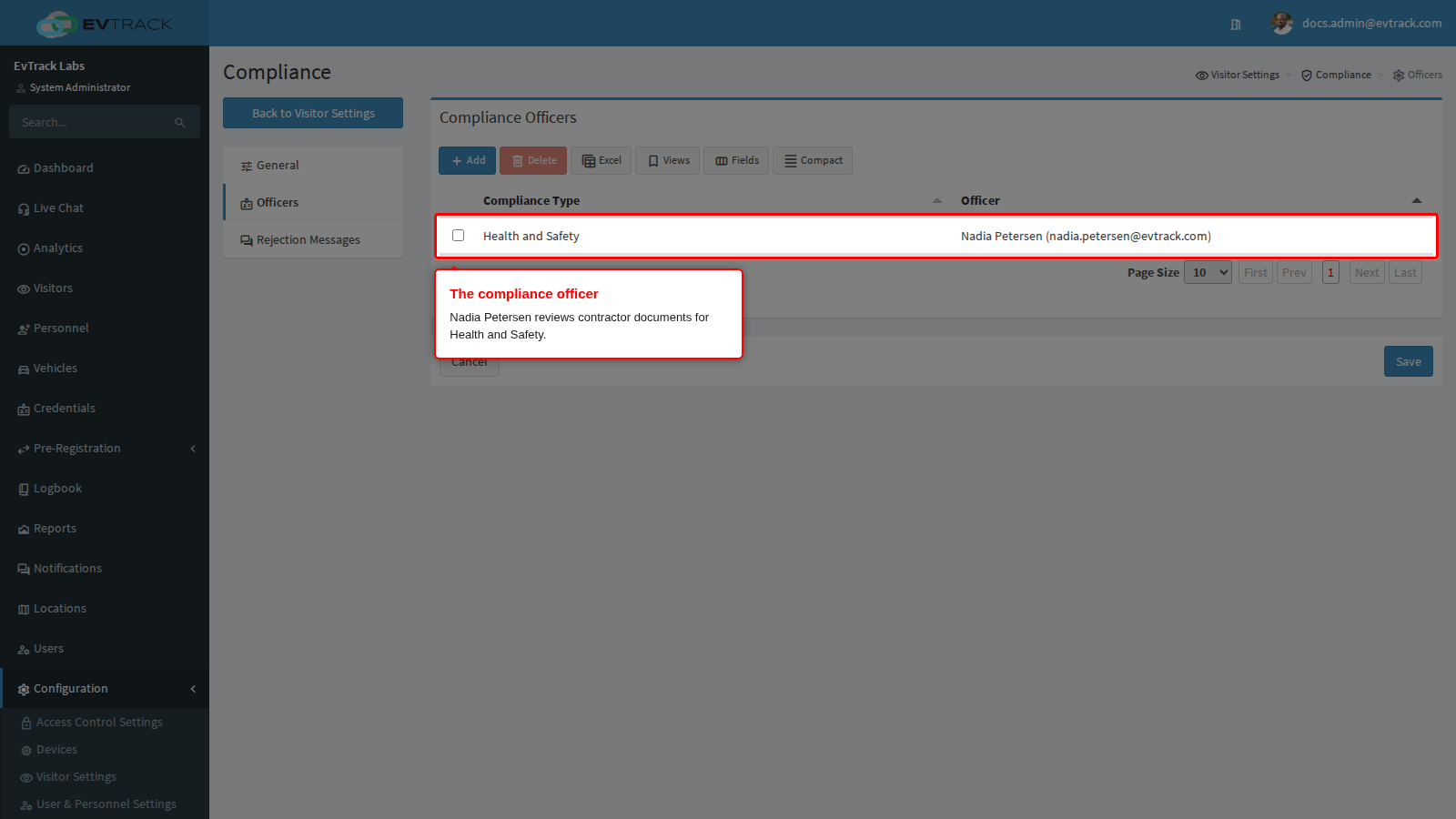
Add the officer before you switch the check on. With nobody on this list, requests wait in a queue that nobody is told about and nobody can clear.
Step 2: Switch the compliance check on
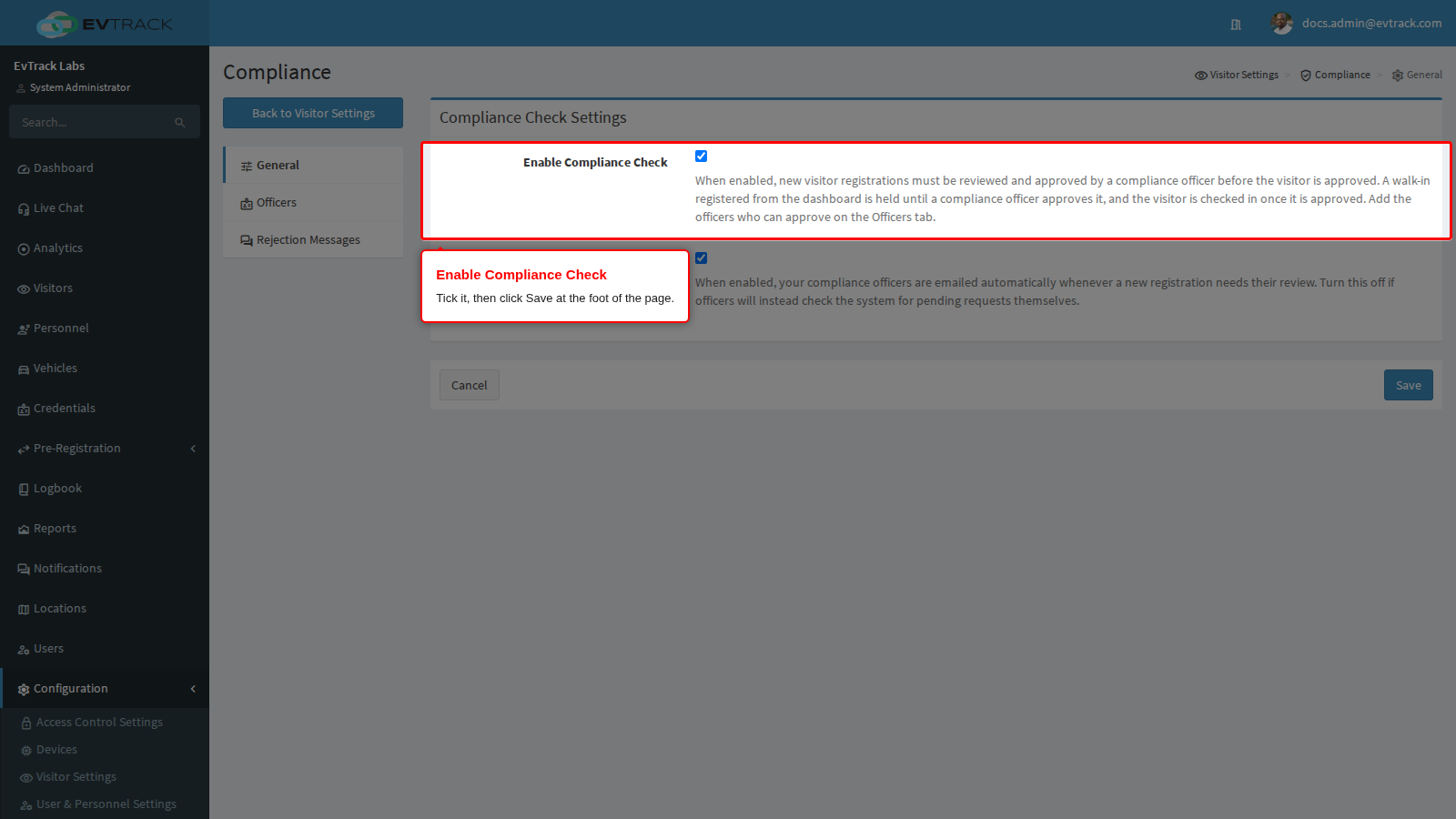
Choose General in the same menu, tick Enable Compliance Check and click Save.
- Leave Email Compliance Officers New Requests ticked, so the officer is emailed whenever a request needs review.
Step 3: Show supporting documents on registrations
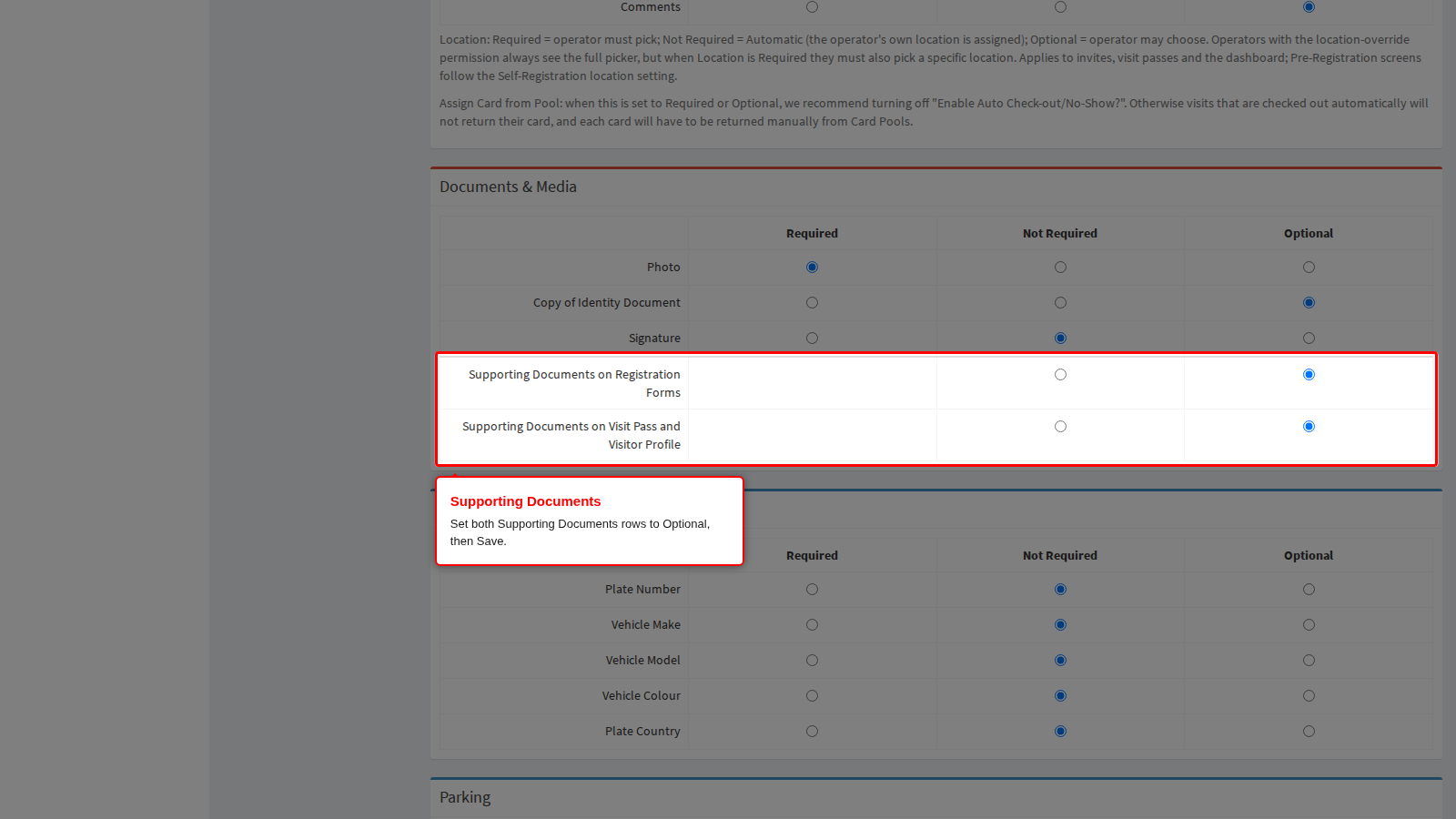
Go back to Visitor Settings, click the Required Fields tile and find the Documents & Media section. Set both rows to Optional and click Save:
- Supporting Documents on Registration Forms shows the upload panel on the registration screens, including the screen the officer reviews.
- Supporting Documents on Visit Pass and Visitor Profile shows the documents on the visit pass once the request is approved.
Step 4: Register the contractor and attach the document
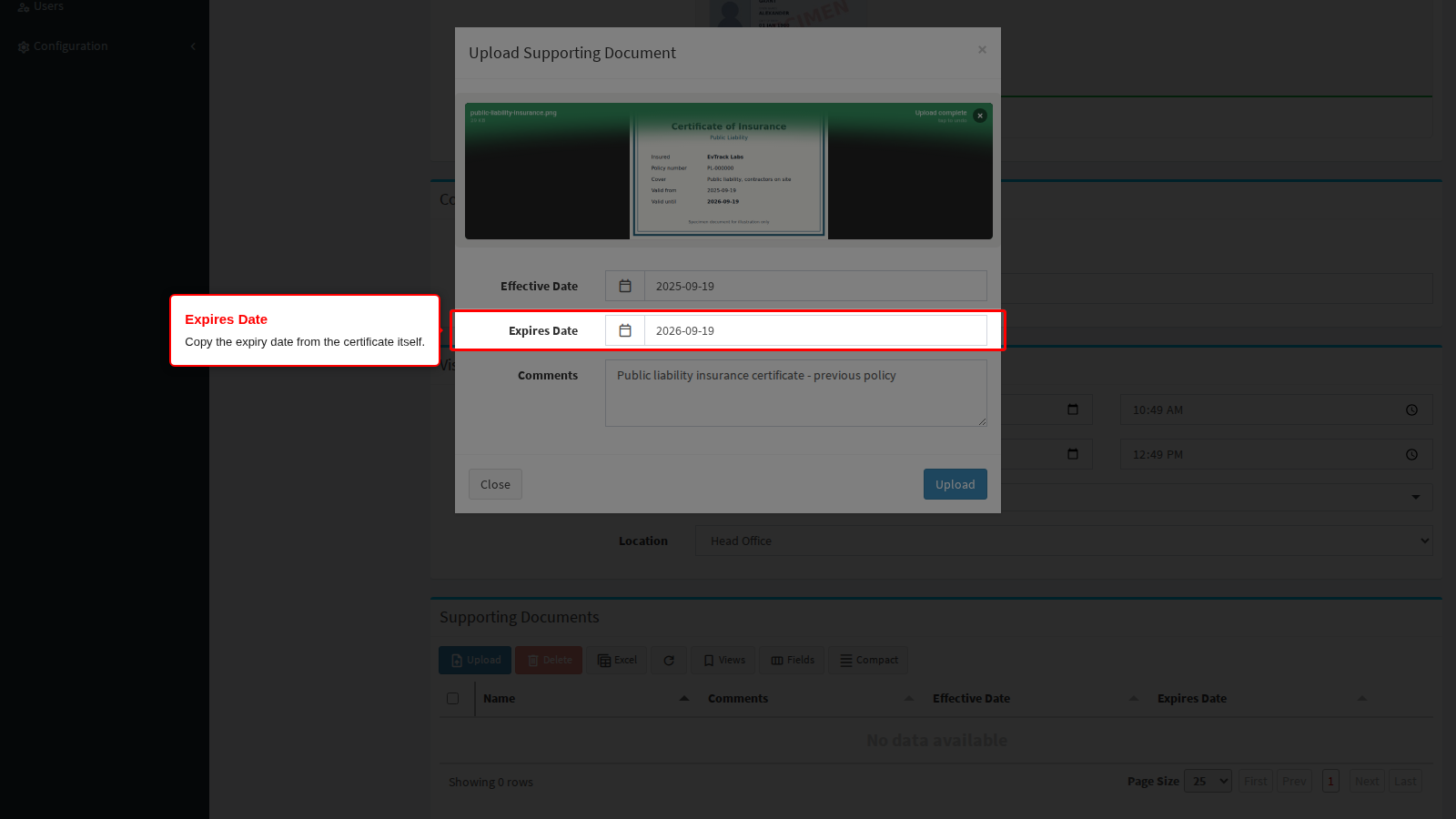
Select Visitors, click the Registration tab and click Add. Fill in the contractor’s details and choose the Location. In the Supporting Documents panel below the form, click Upload, attach the file and fill in the dialog:
- Effective Date: the date the document was issued.
- Expires Date: the expiry date printed on the document. This is the date the officer checks.
- Comments: what the document is, for example “Public liability insurance certificate”.
Click Upload in the dialog, then Create Registration at the foot of the form.
Attach the document to the registration itself: a document stored on the visitor’s own Documents tab is not shown on the screen the officer reviews. If the document arrives later, upload it in the same panel on the request’s processing screen.
Step 5: Send the request for compliance review
In the Registration list, open the contractor’s request. Check the visit details (Visit Reason, Location, Check-in and Check-out), then click Submit for Compliance Review and confirm.
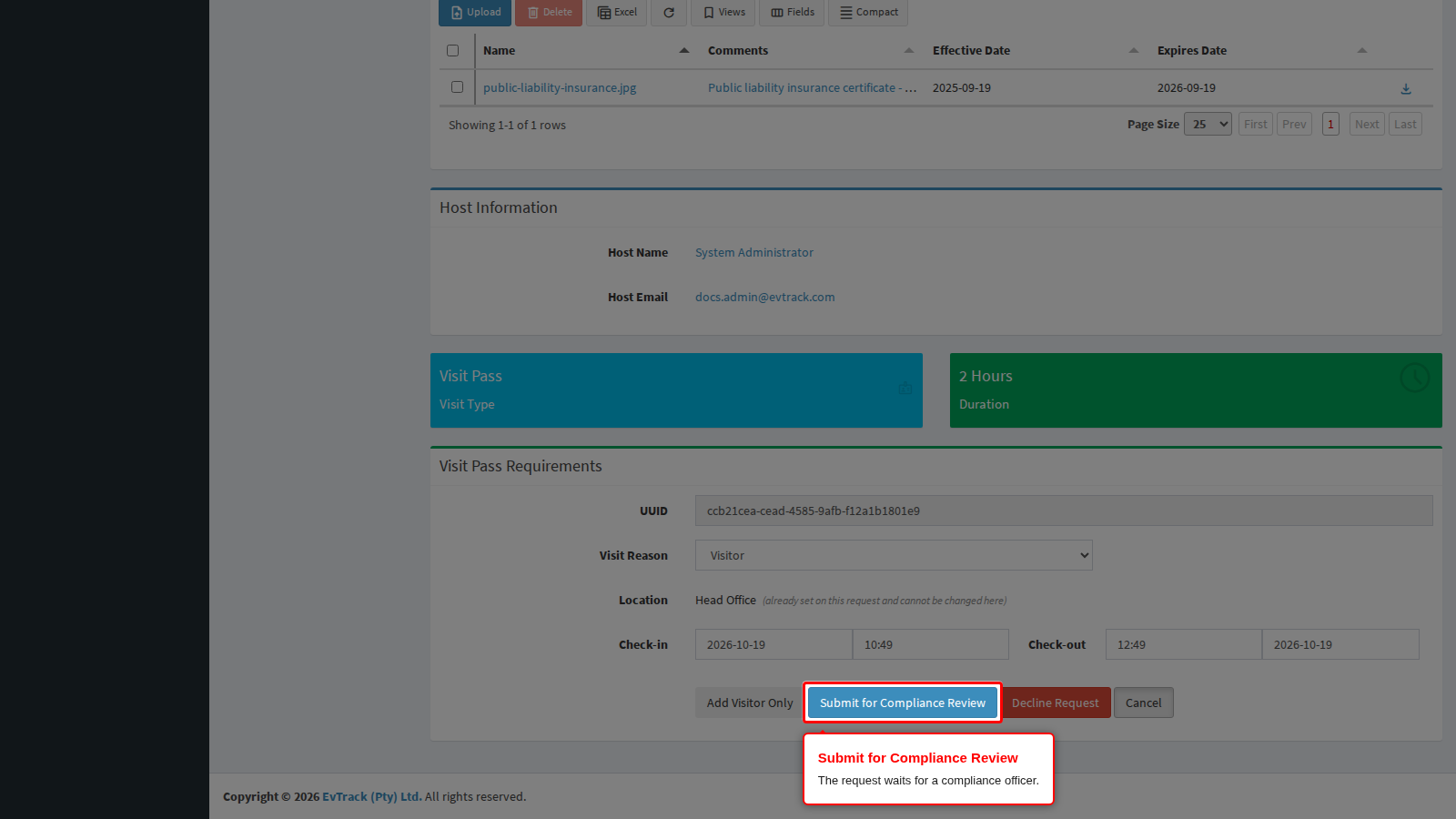
The request now waits as Under Compliance Review. Only a compliance officer can approve it from here.
Step 6: The officer checks the document
The officer opens the request from the Registration list. The Compliance Requests filter shows only the requests waiting for them. The Supporting Documents panel lists every document with its Effective Date and Expires Date. Click the file name to open the document itself.
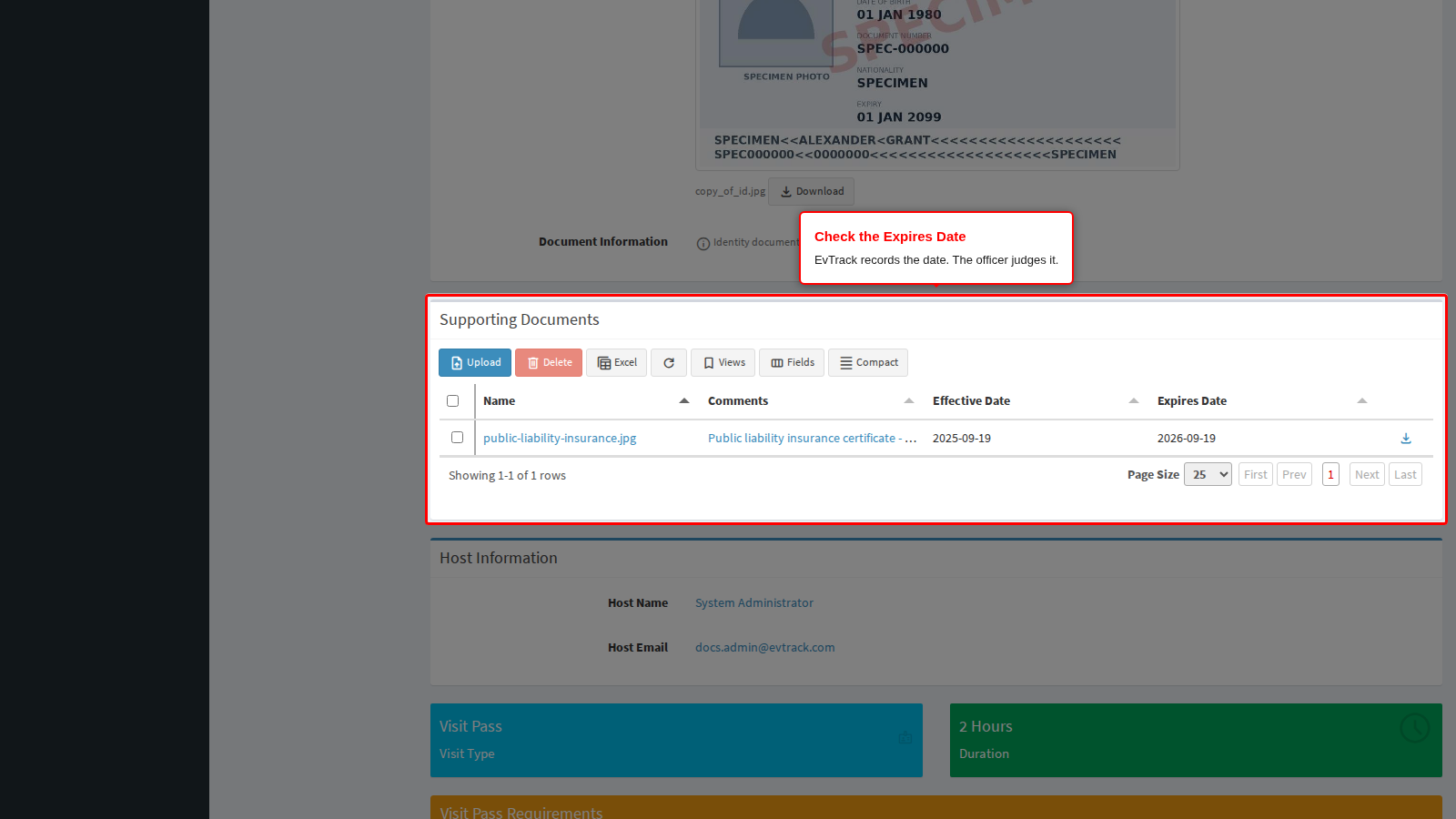
Compare the Expires Date with the visit date. EvTrack does not do this for you.
Step 7: Decline a request whose document has expired
Click Decline Request. In Decline Reason, choose Expired Documents: it fills the message, which you can edit to say what the contractor should send instead. Choose who is told in Notify Option, then click Decline and Send Email.
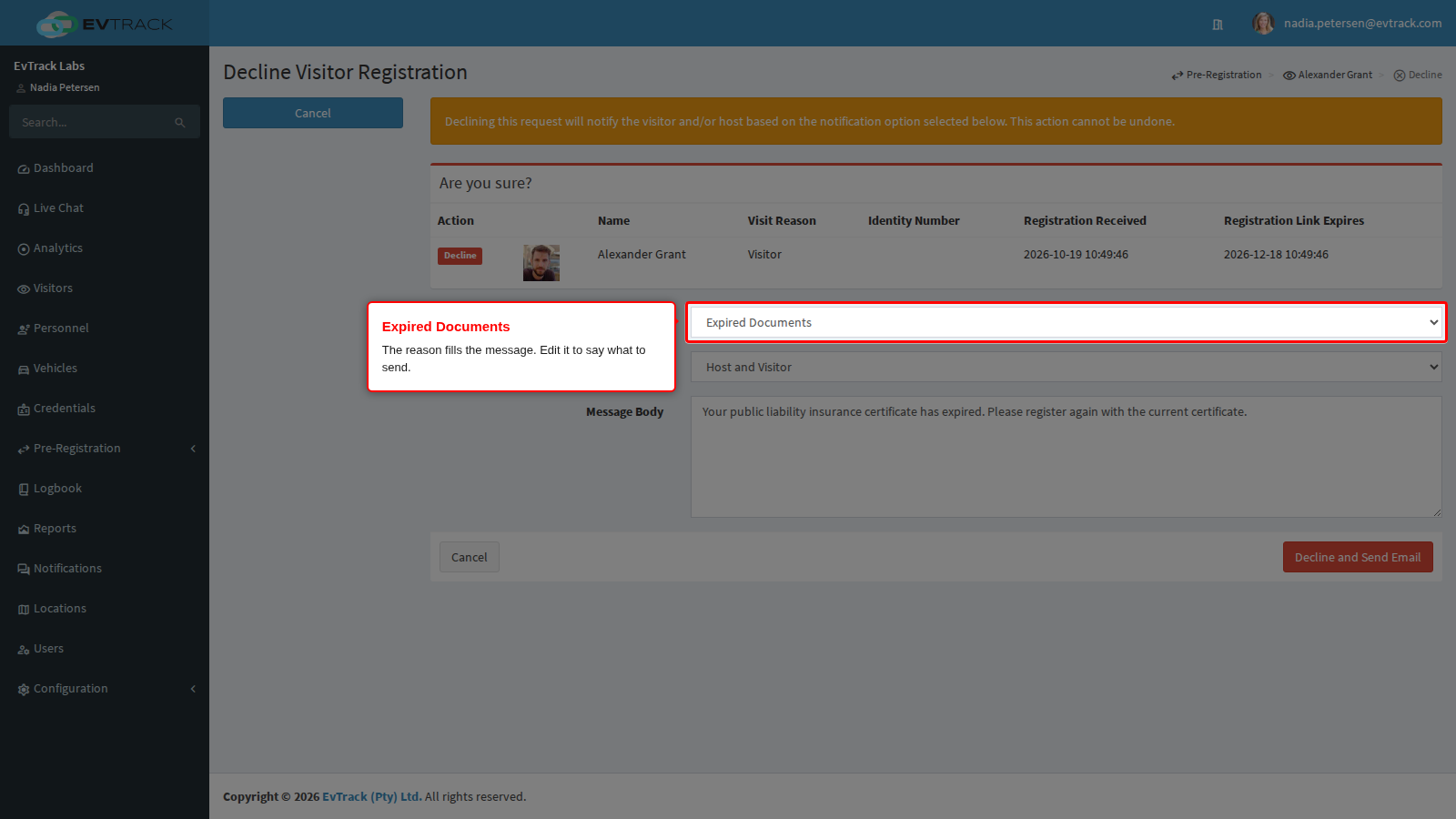
When the document is current, the officer clicks Verify Compliance and Invite instead and confirms.
Check it worked
A declined request leaves the Registration list: no visit is created and no pass is issued. The contractor, the host or both receive your message, as chosen in Notify Option. When the contractor sends a current document, register them again and repeat from Step 4.
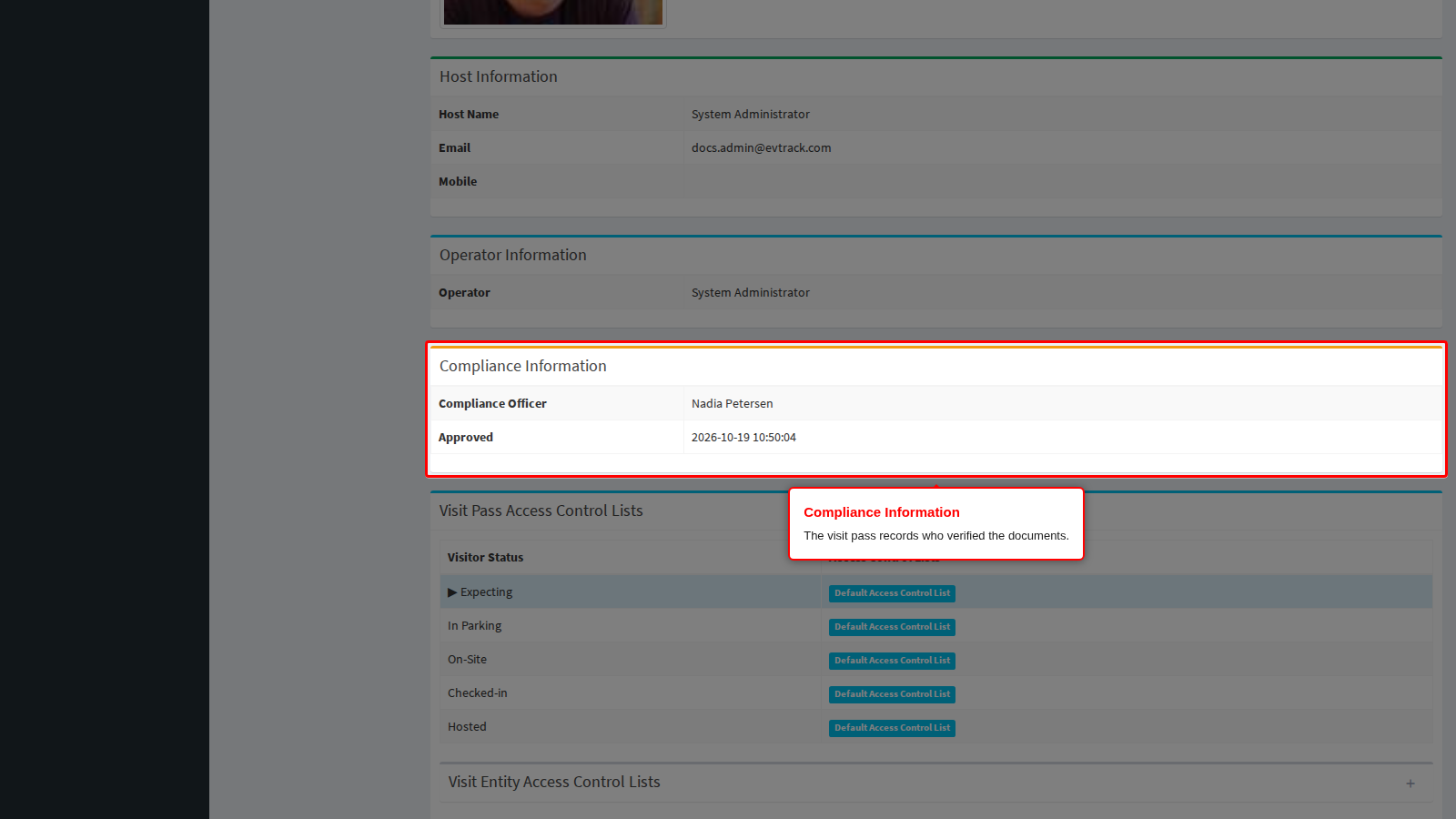
An approved request becomes a visit with its pass, sent to the contractor. Open the contractor’s visitor record, choose the Visit Pass tab and choose View Details on the new pass: the Compliance Information panel names the officer who verified the documents, and the Supporting Documents panel holds the documents that came with the request.
If it didn’t work
- The request is not sent to the officer.
- The processing screen shows Approve and Invite instead of Submit for Compliance Review: the compliance check is off. Tick Enable Compliance Check and save (Step 2).
- It shows Submit for Manager Review: the location requires manager approval and has a manager assigned (a manager switched on, or a delegate inside its dates). The location manager reviews the request first, and it reaches the officer only after the manager approves. See Approval Workflow.
- Requests wait and nobody acts on them. The officer list is empty, or the officer has no valid email address on their user record. Fill the Officers page (Step 1) and check the officer’s email address.
- The officer sees no document.
- There is no Supporting Documents panel: Supporting Documents on Registration Forms is set to Not Required. Set it to Optional and save (Step 3).
- The panel is empty: the document was stored on the visitor’s own Documents tab instead of the registration. Open the request and upload the document in its own Supporting Documents panel, which the processing screen also shows.
- An expired document was approved. EvTrack records the Expires Date but never refuses a document because of it, and it does not compare the date with the visit. The officer must check the date before clicking Verify Compliance and Invite.