Any detail of a user account - contact details, role, photo, validity window - can be changed from the user’s edit page.
Before you start: you need user administration rights. Changes take effect immediately on save; a logged-in user keeps their current session.
Step 1: Find the user
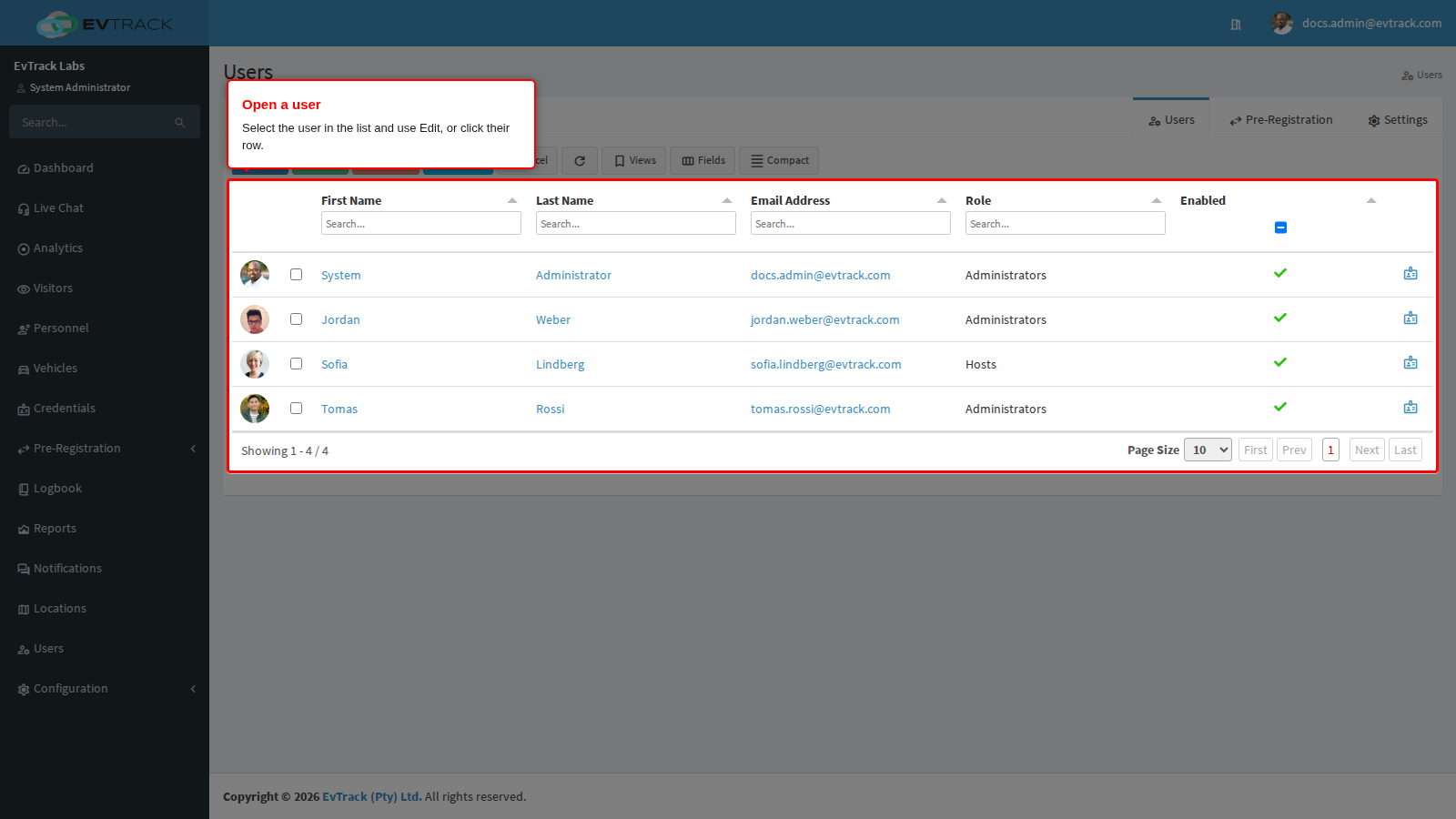
Click Users in the sidebar to open the user list. Find the user - the column headers filter as you type - then select their row and click Edit (or click the row) to open their record.
Step 2: Open the Profile tab
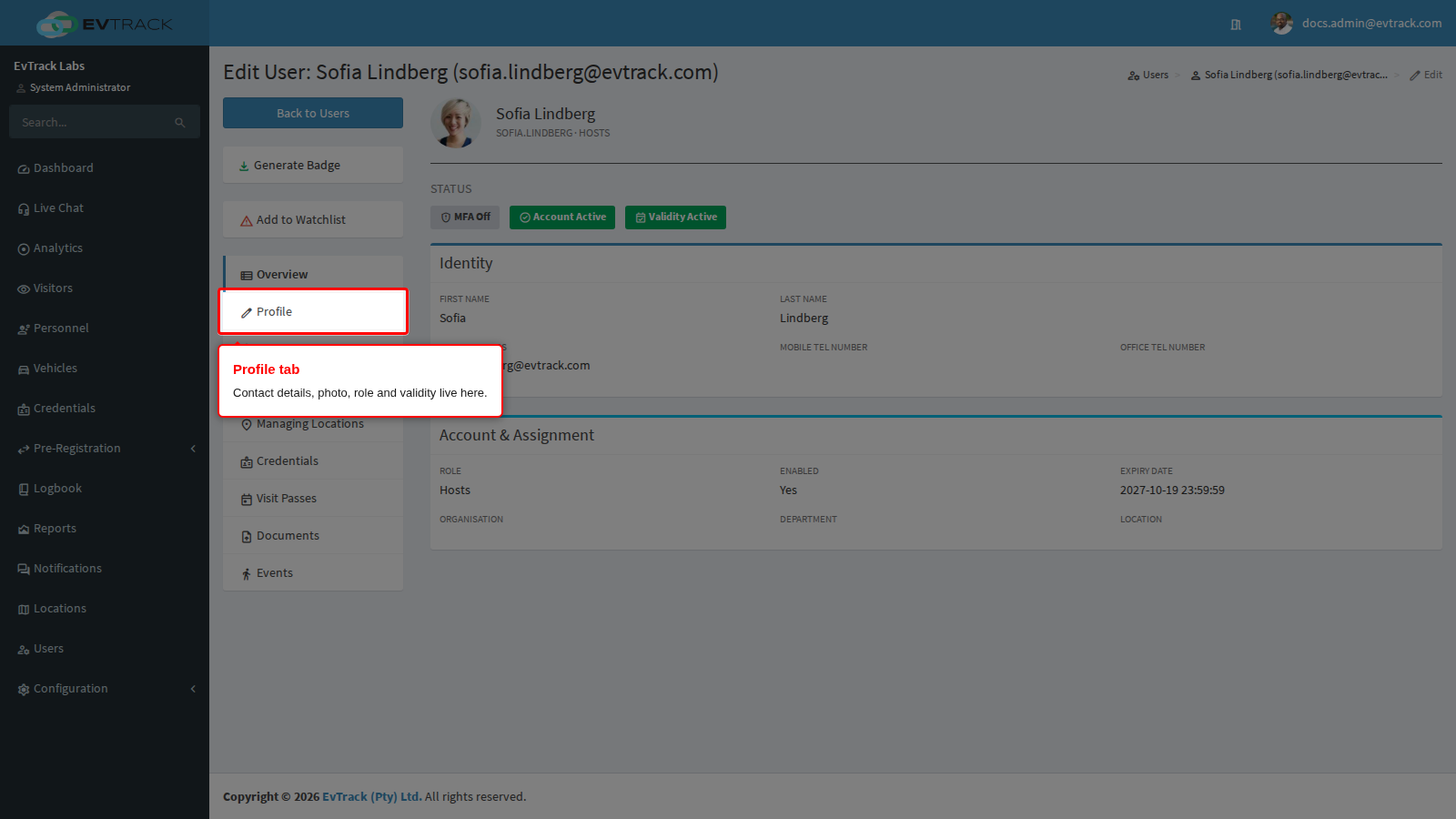
The edit page opens on the user’s tabs. Click Profile - contact details, the profile photo, role and the validity window all live here. Other tabs hold the user’s credentials, documents and history.
Step 3: Change the details
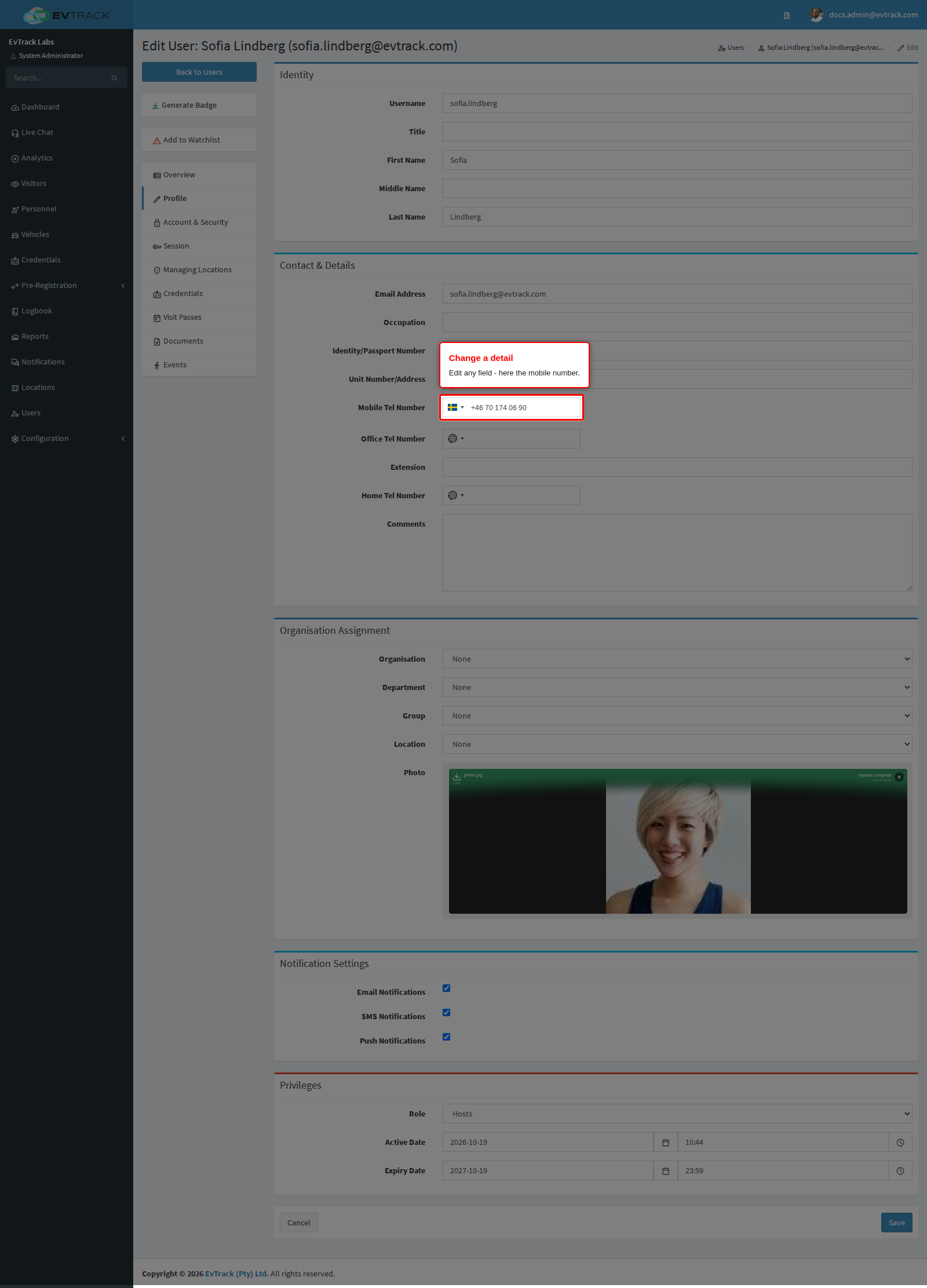
Edit any field. Here the mobile number is updated - the same applies to names, email, role or the photo.
Step 4: Save
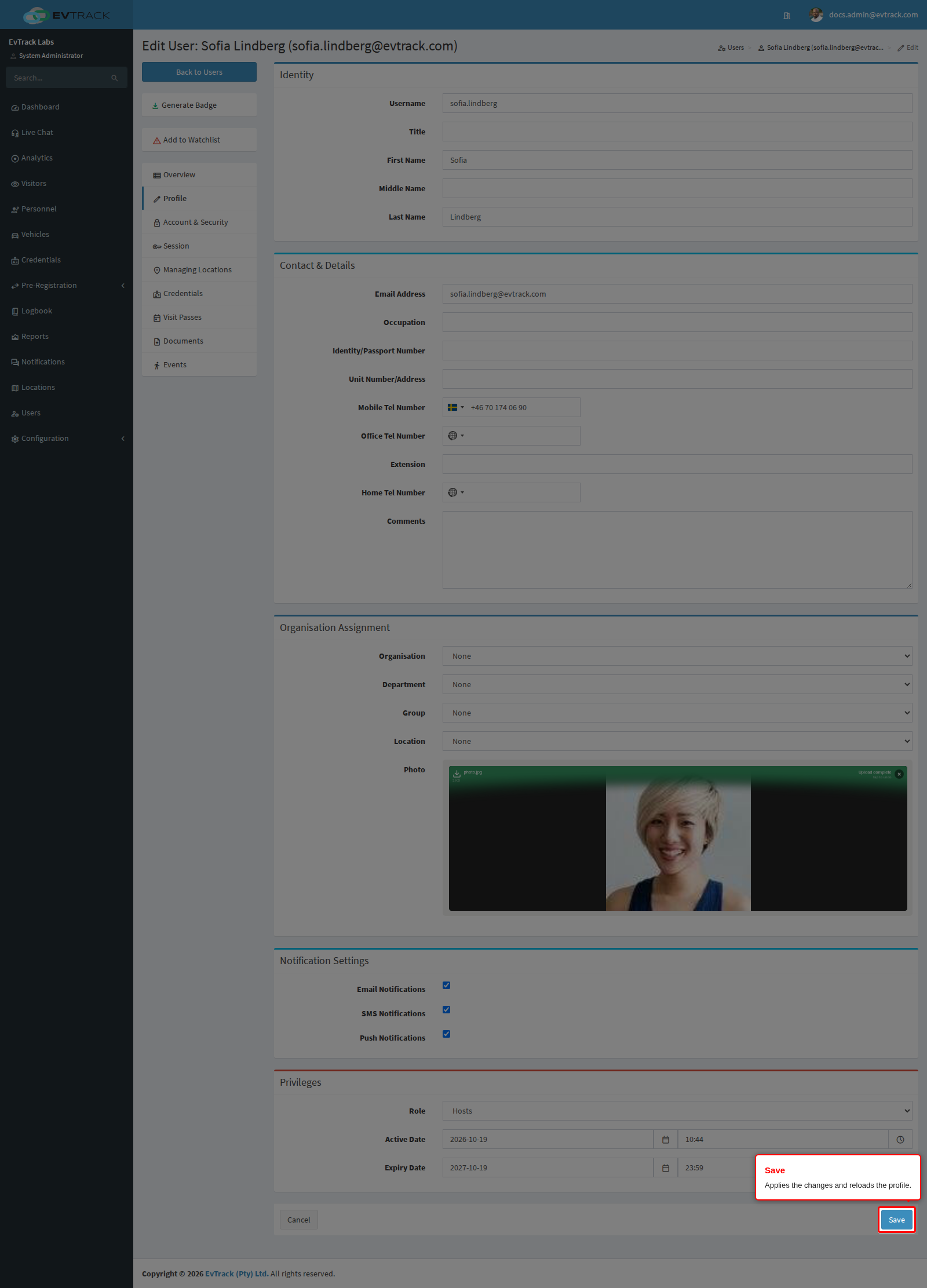
Click Save. The page reloads with the updated details; if a value is invalid the form re-opens with the problem highlighted. You should see the new value in place after the reload.
Update the user’s credentials with new dates
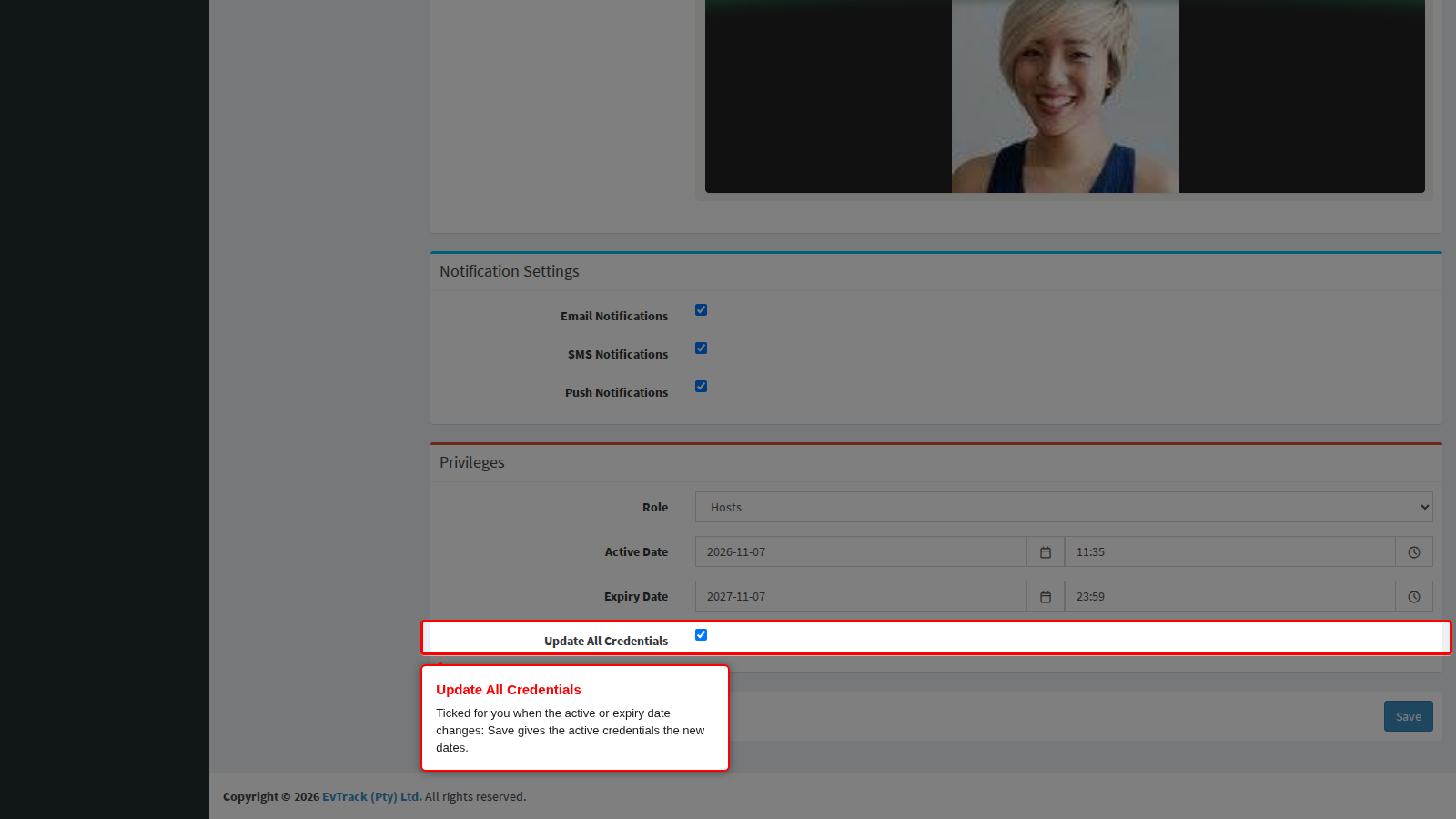
When you change the user’s Active Date or Expiry Date, the Update All Credentials box below the dates is ticked for you. Leave it ticked and click Save to give the user’s active credentials the new dates; each credential keeps its access control lists. Untick it to change only the user’s own dates. Expired, lost, stolen or disabled credentials are not changed. The box is shown only to administrators whose role may edit credentials.
Notes
- Changing the validity window can update the user’s credentials too - see User Validity and Credential Expiry.
- Changing the email address affects where notifications and approval requests go. The email address and username must remain unique; a clash is shown on the field.
- When User accounts is ticked under Validation (Duplicate Staff and Personnel Detection), a change that makes the user match another user, for example the same mobile or ID number, opens a Possible duplicate found panel above the form instead of saving. Open the other user, or cancel.
- Date Of Birth is optional. It is stored encrypted and is used only for duplicate checks that compare name and date of birth.
- A changed role applies at the user’s next page load.
- Moving someone onto an administrator role, or onto a role that can view all visitors, opens a confirmation page before the change is stored: retype the person’s email address and confirm, exactly as when adding a user. Cancel leaves the account unchanged.
See also: Add a User and Delete a User.