Open Reports in the sidebar to export visitor, personnel, vehicle, event and system data for a period. Pick what to report on, narrow it down, choose the file format and generate it.
Generate a report
-
Choose the Type - the area of the system to report on: Area, Visitors, Organisational, Vehicles, Events or System. The Report list underneath changes to the reports available for that type.
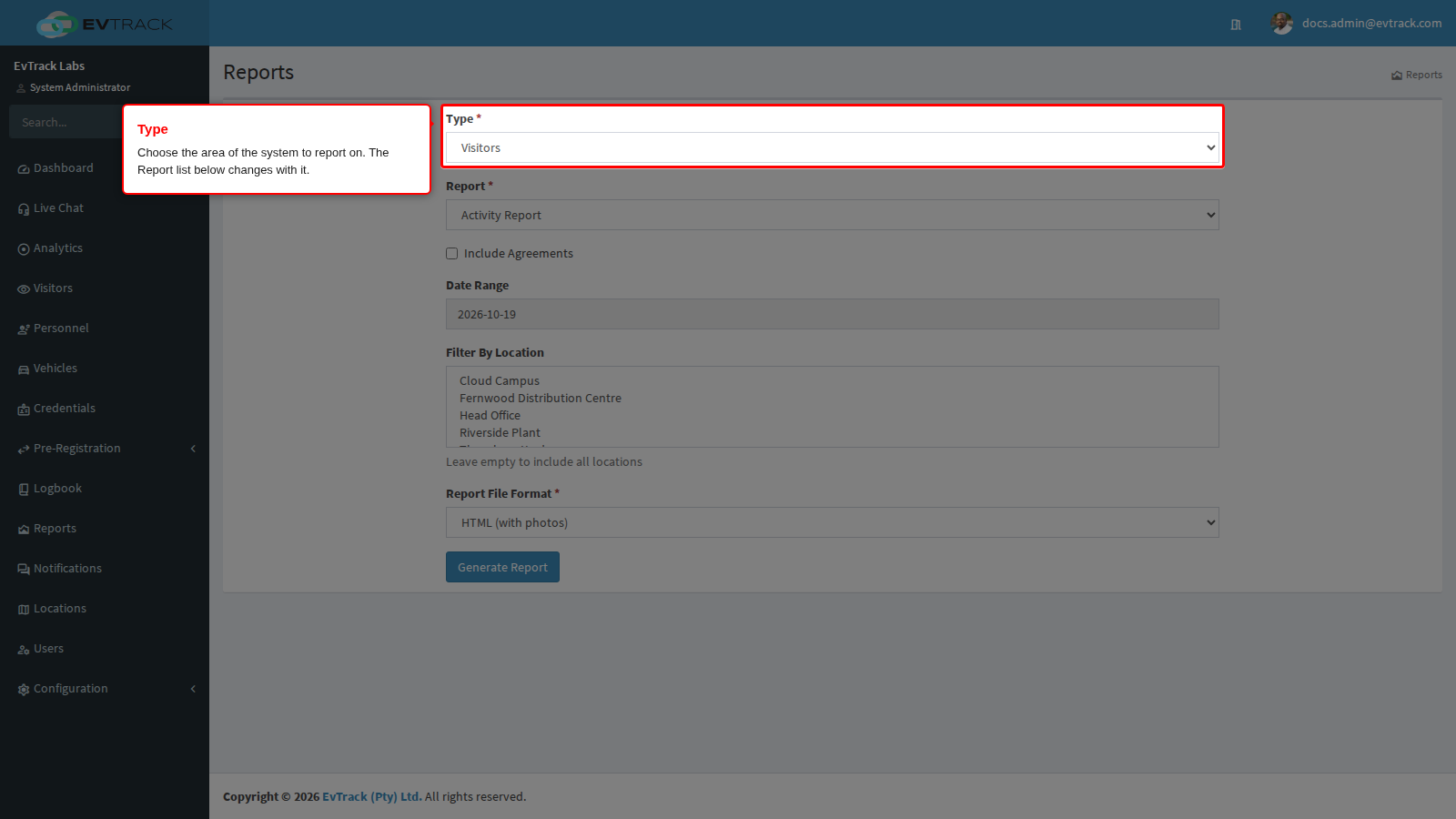
- Choose the Report, then fill in the filters it shows. Most reports ask for a Date Range; some also offer filters such as Filter By Location or Filter By Access Control Point. Leave a location filter empty to include all locations.
-
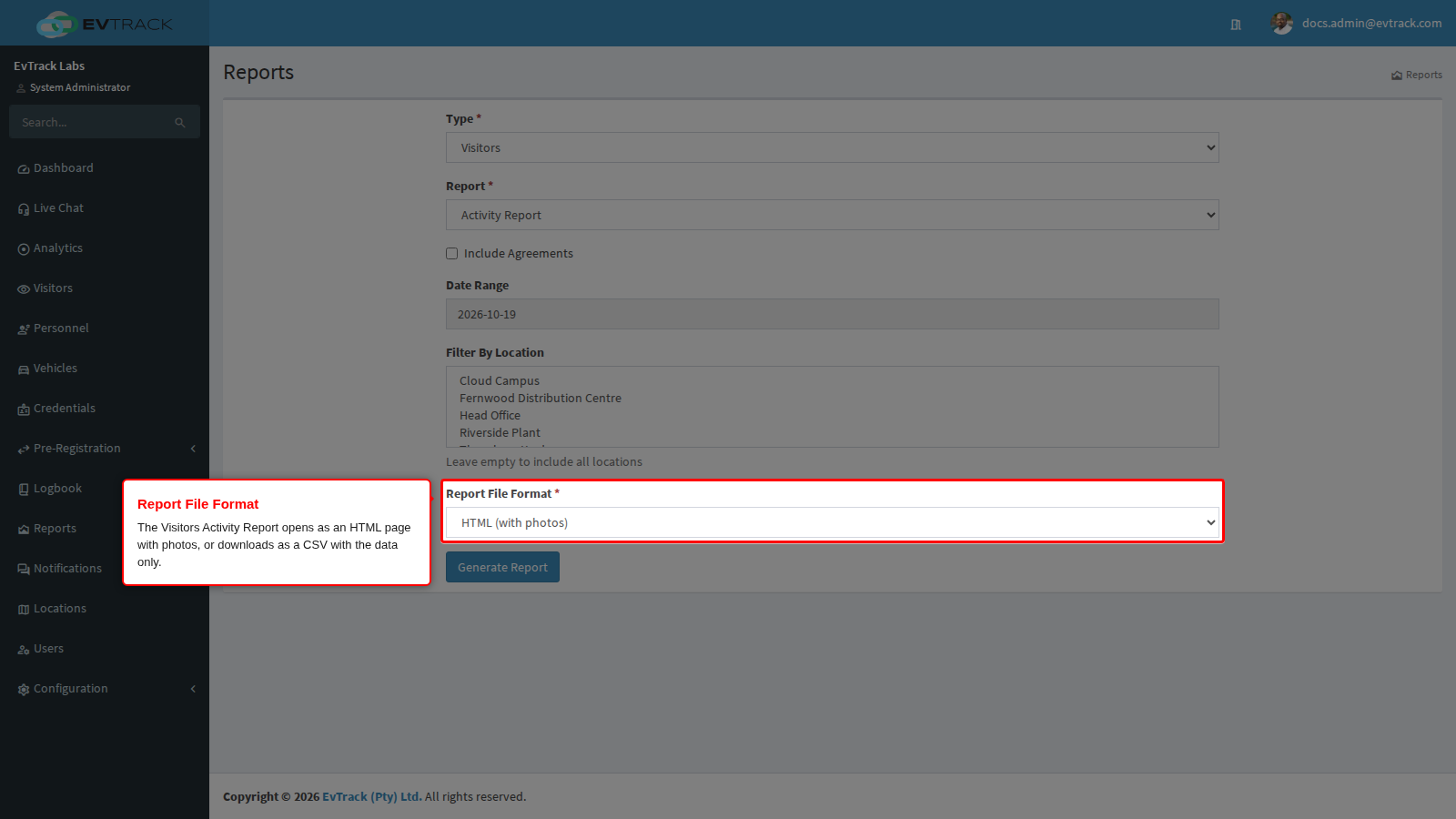
Check the Report File Format. The Visitors > Activity Report is the only report with a choice: HTML (with photos) opens a printable page that includes visitor photos, while CSV (data only) downloads the same data as a spreadsheet file without photos.
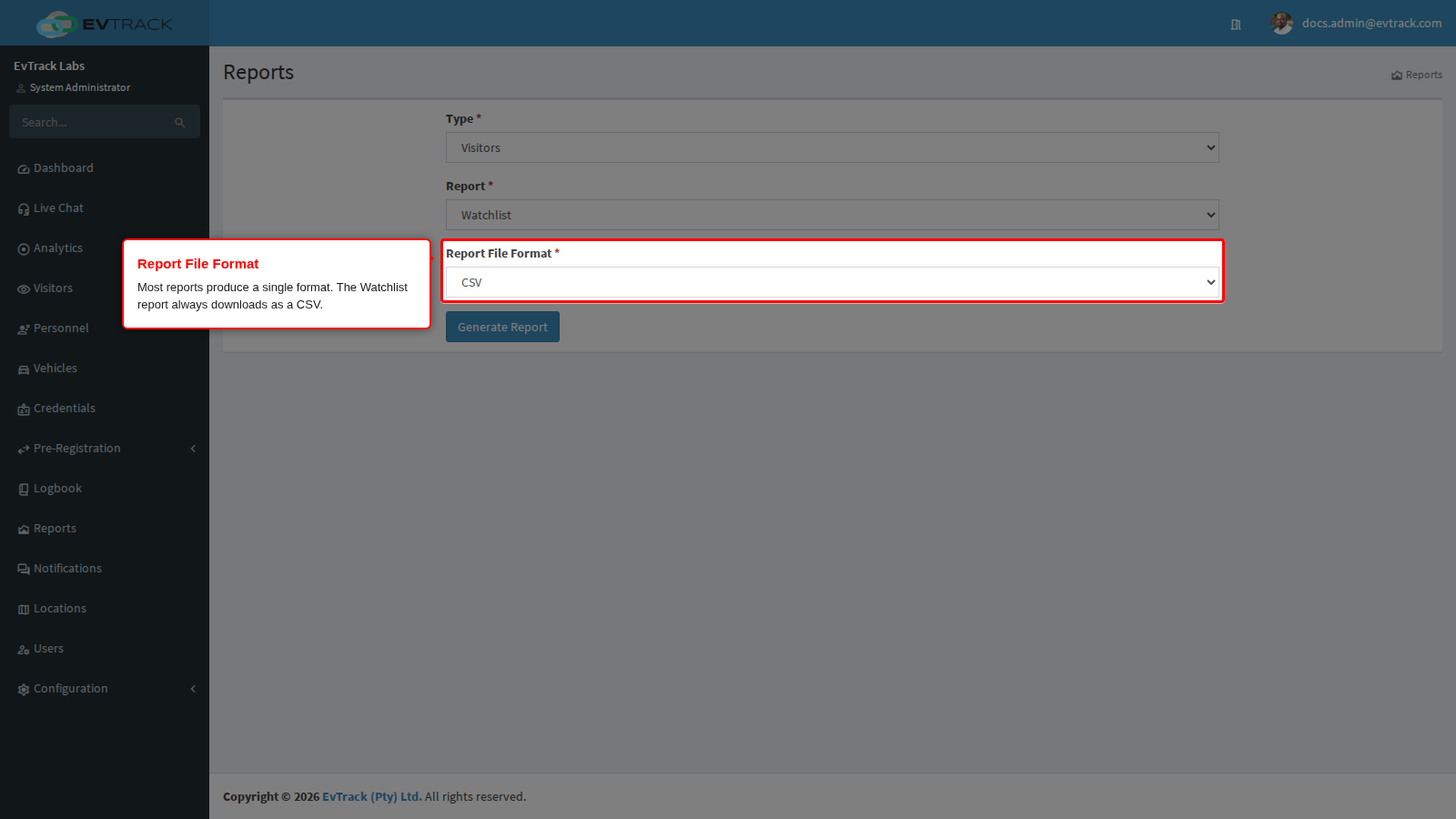
Every other report produces one format, so its Report File Format list offers just that one. The Watchlist report, for example, always downloads as a CSV.
-
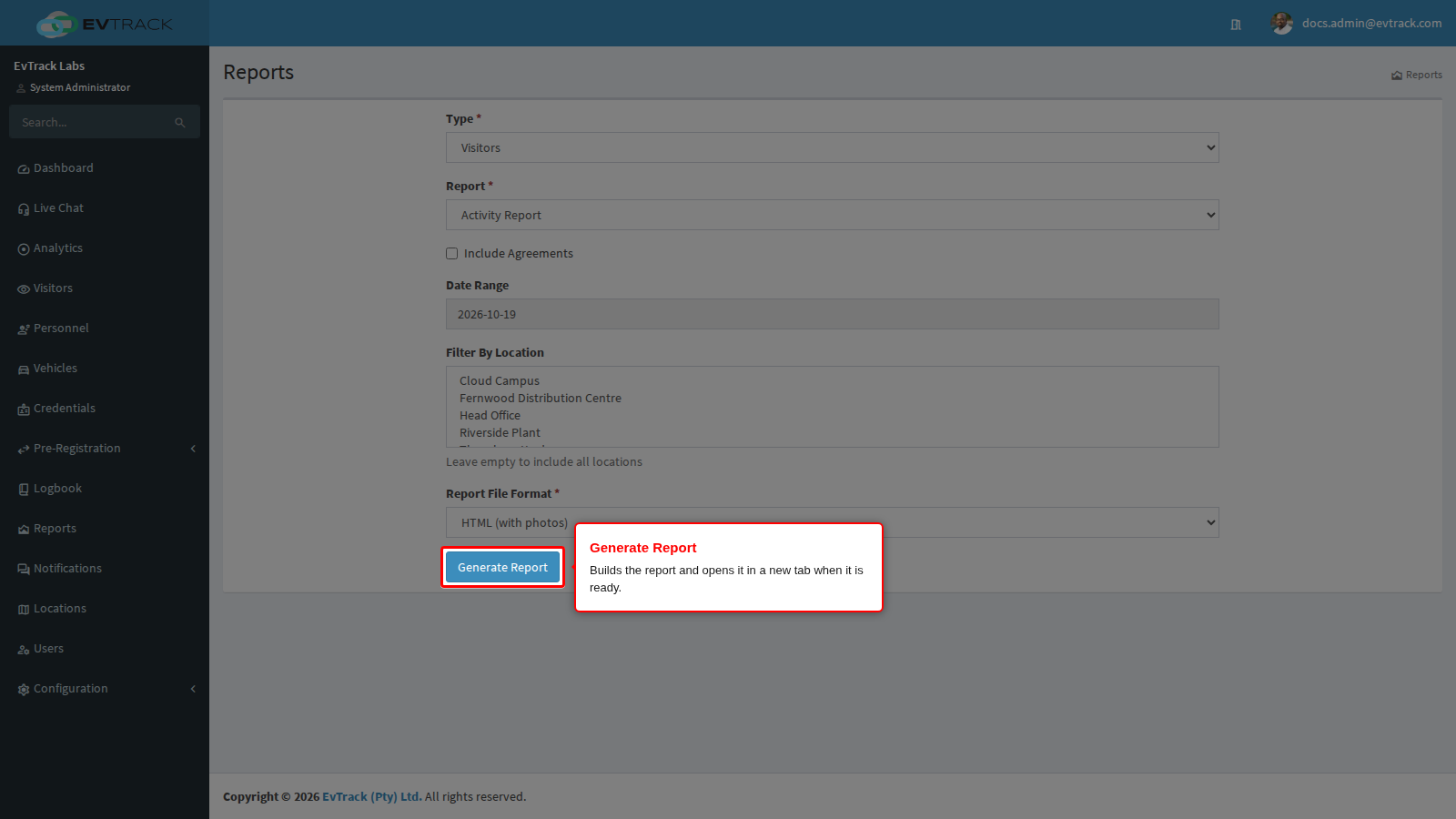
Click Generate Report. Keep the browser window open while the report is collected; when it is ready it opens in a new tab.
File format per report
| Type | Report | File format |
|---|---|---|
| Visitors | Activity Report | HTML (with photos) or CSV (data only) |
| Visitors | Agreement Exceptions | XLSX |
| Visitors | Watchlist | CSV |
| Visitors | Temporary Visitor Permit | CSV |
| Organisational | Activity Report | XLSX |
| Organisational | Personnel List | CSV |
| Organisational | Time Attendance Report | XLSX |
| Organisational | Compliance Report | XLSX |
| Vehicles | Vehicle Exception - Not Checked-out, Vehicle Exception - Not Checked-in, Vehicle List | CSV |
| Events | List, Activity Report (Users and Personnel Only) | CSV |
| System | Audit Report, Credential List, Events | CSV |
| Area | Presence Report | CSV |
A very large Credential List is delivered as a ZIP file containing the CSV.
Need a PDF?
Reports are not generated as PDF files. To keep a PDF copy, generate the HTML (with photos) version of the Activity Report and use your browser’s Print > Save as PDF, or open a CSV or XLSX report in your spreadsheet program and export it from there.
See also: Report Settings for the time and attendance rules the Time Attendance Report uses.