Choose which doors a visitor’s pass opens, then let visitors through with the QR code from their invitation or with a loan card from a card pool that reception hands over at check-in. It takes about fifteen minutes.
Before you start
- You can edit visitor settings and access control settings.
- Each door visitors may use is an access control point with its reader bound to it, see Access Control Points. For QR codes, the reader at the door must read QR codes.
- For loan cards: the cards are in a card pool marked Can be assigned to a visitor, see Card Pools, and Assign Card from Pool is set to Required or Optional under Required Fields.
Steps
Step 1: Build a list for your visitor doors
Go to Configuration > Access Control Settings > Access Control Lists, click Add, name the list (for example “Head Office Visitor Doors”) and click Save. Open the list, click Access Rules, click Add, choose the door’s access control point and a schedule, and click Add in the dialog.
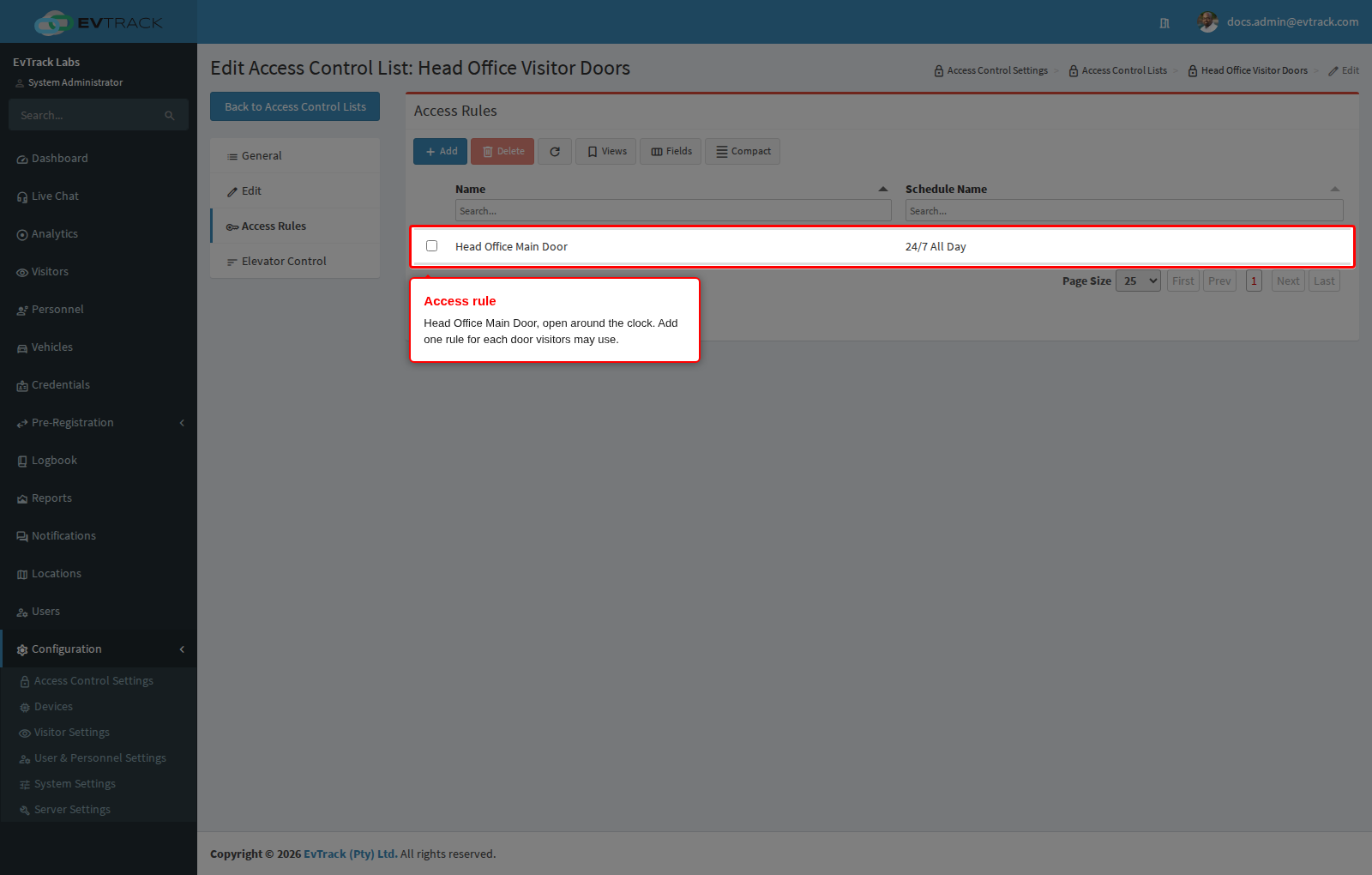
- Add one rule for each door visitors may use. A list with no rules opens nothing.
- The schedule decides when the door opens for the list. The built-in 24/7 All Day opens it around the clock; a stricter schedule refuses visitors outside its hours.
Step 2: Give every visitor pass this list
Go to Configuration > Visitor Settings, click the Visit Pass tile and open the General panel. Under Default Visitor Invite Settings, choose your list in Access Control List and click Save at the bottom of the panel.
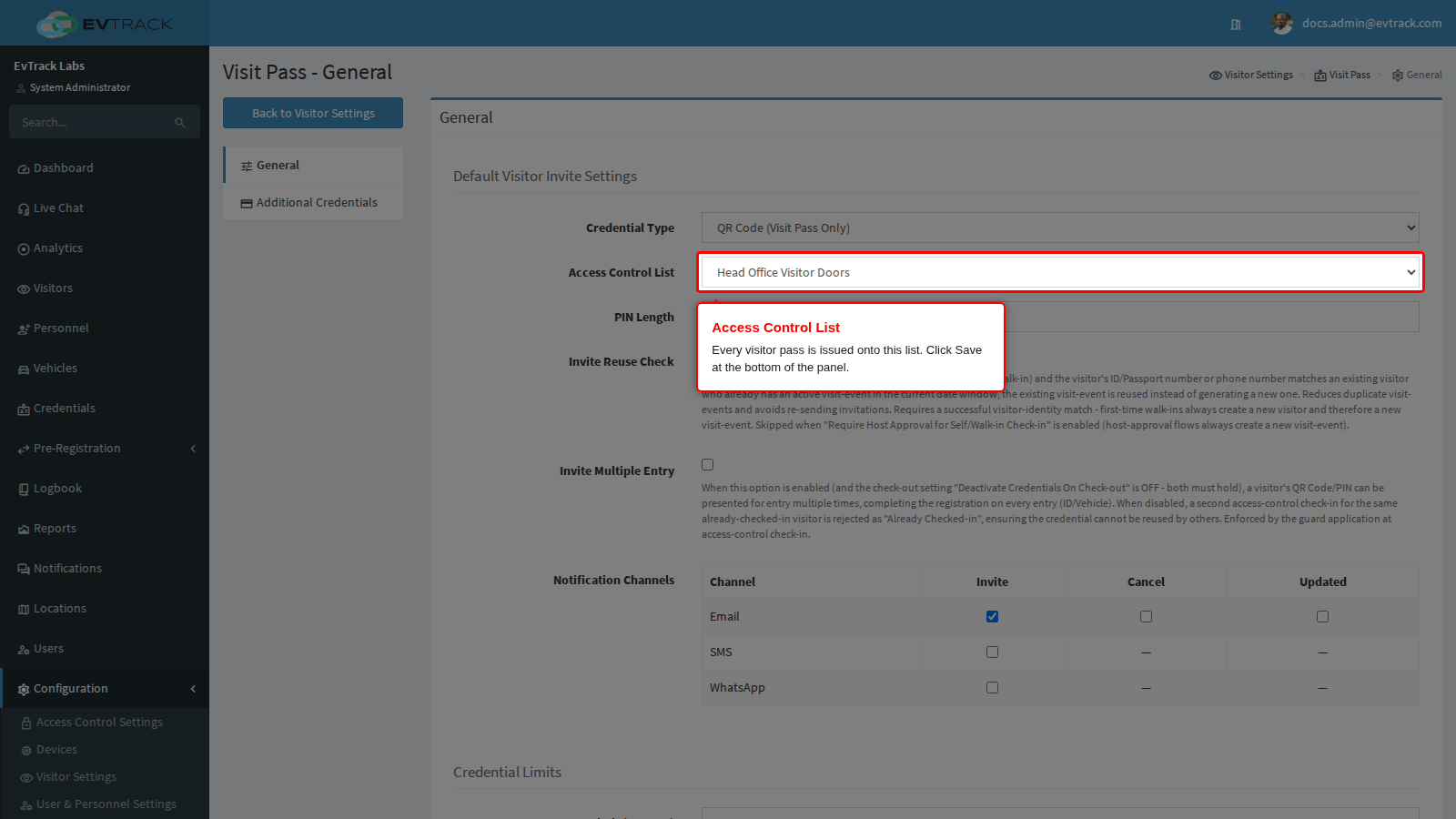
- Every visitor pass is issued onto this one list, whatever the credential is: QR code, PIN or card. Rules on a location, a visit reason or a visit status can add more lists, see Status-Based Access.
- A pass gets only one list from this setting. If the list it named before opened other doors, for example your kiosk’s access control point, add those doors to your new list as well.
- Visits that are already booked pick up the new list the next time their status changes or they are edited, unless ACL Update Strategy on the same panel is MANUAL.
Step 3: Give the visitor a QR code or a card
QR code: there is nothing to set. Credential Type on the same panel is QR Code (Visit Pass Only) by default, so every invitation carries one. The visitor opens the code from the link in their invitation email, or in the mobile app, and holds it up to the door’s QR reader. While Static QR Code (Email/SMS) is off, a code opened from the email link or the app is replaced once its expiry period passes, so a forwarded screenshot stops working; see “QR code delivery and expiry” in Visit Pass Settings.
Loan card: on the Visitors Dashboard, click the visit’s row and click the green Check-in button. On the confirmation page, choose the card you hand over in Assign Card and click Confirm.
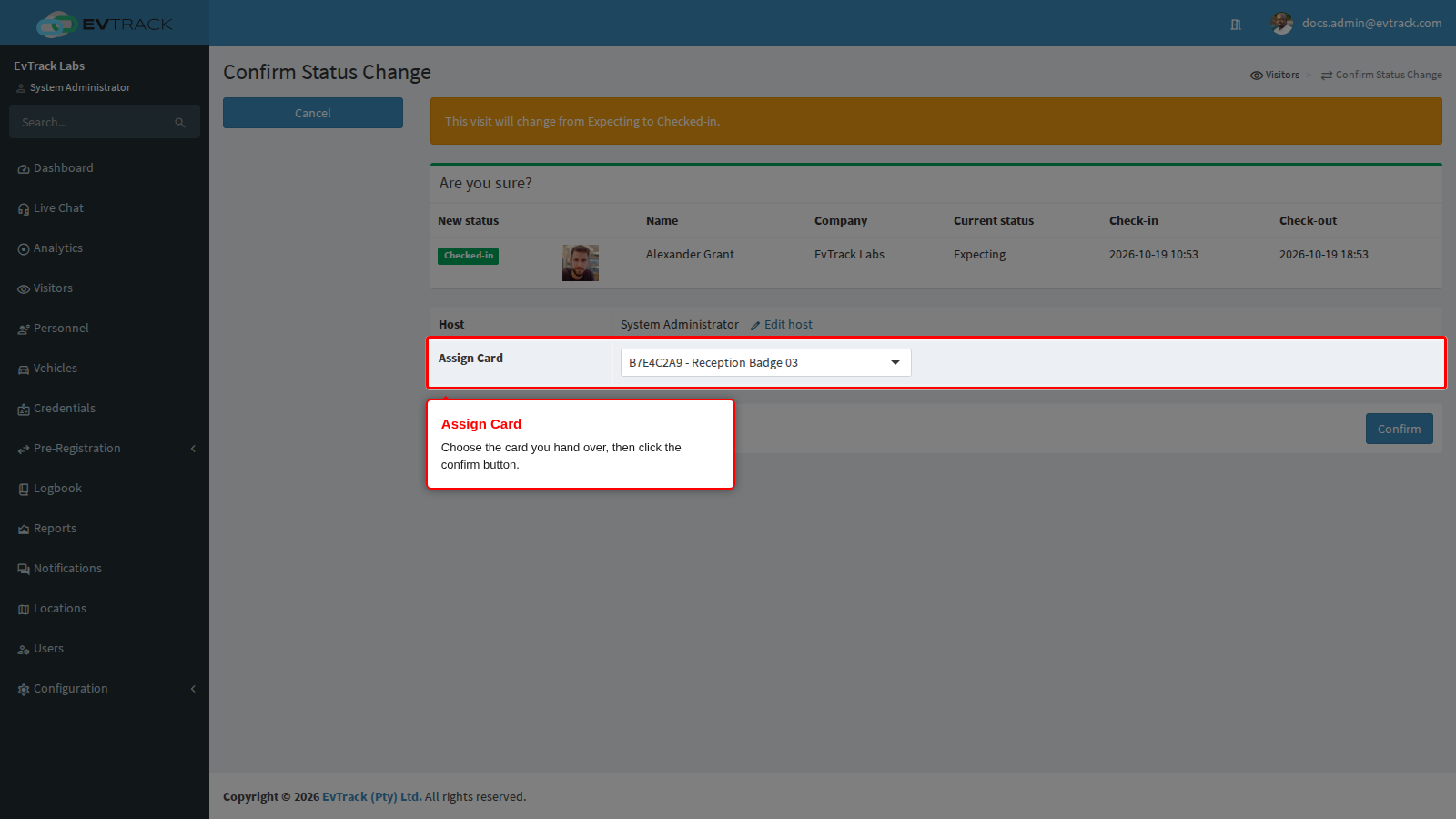
- The card opens the same doors as the visitor’s pass for as long as the visitor holds it. It stops opening them when it is returned, when it is swapped for another card, and at check-out.
- This depends on Issue assigned cards as door credentials under Check-out Settings, which is on by default. With it off, the card is only recorded on the visit and opens nothing.
Step 4: Check the list on the visitor’s credential
Click Visitors in the sidebar, open the visitor and click the Credentials tab. The loan card is listed as its own credential, with its card number, next to the visit pass. Click it and choose the Access Control Lists tab: your list is ticked.
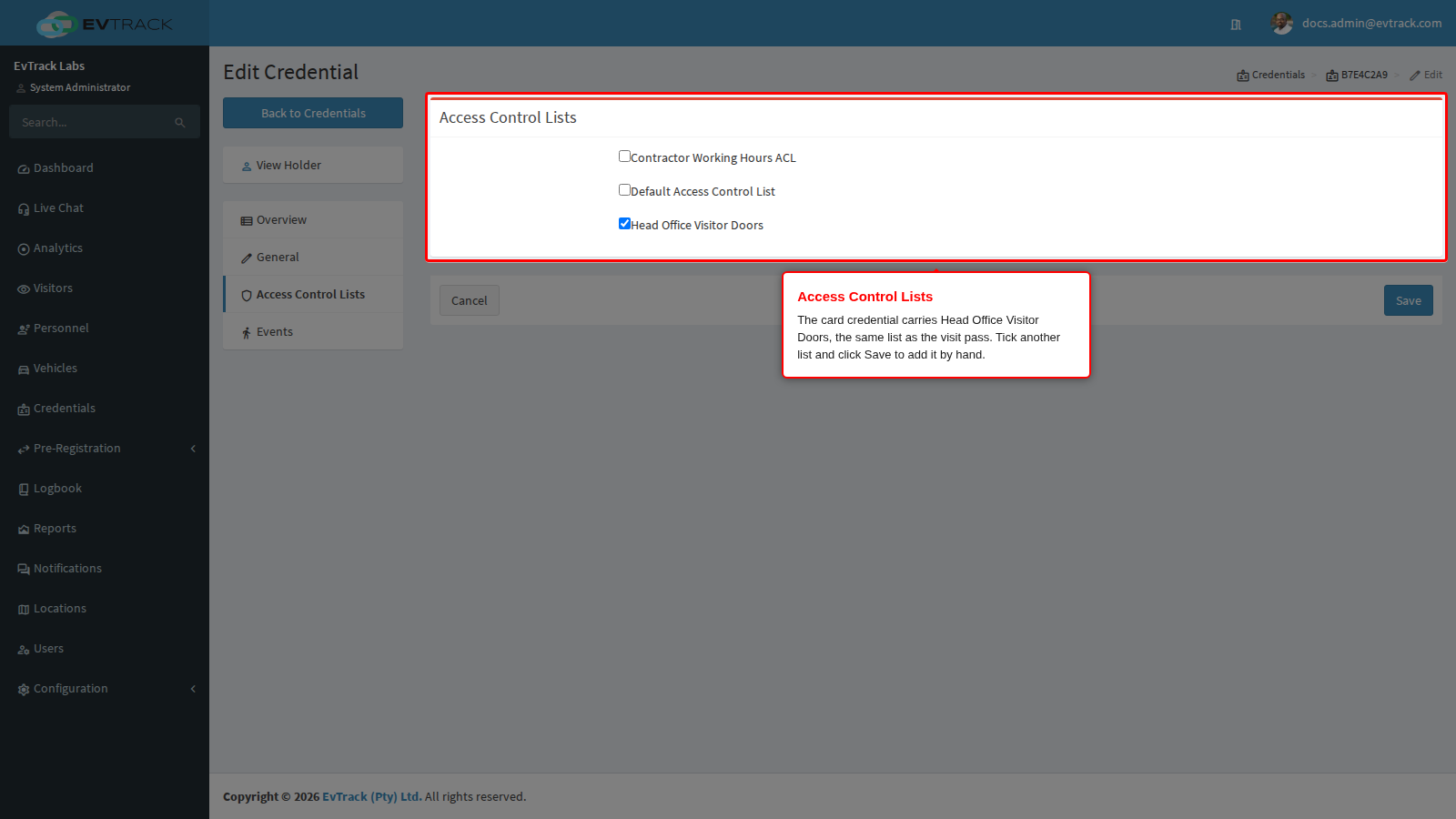
To let this one visitor through more doors, tick another list here and click Save. With ACL Update Strategy on ENFORCE, a list ticked by hand is replaced the next time the visit’s lists are worked out again, see Visit Pass Settings.
Check it worked
The visitor presents the card, or their QR code, at the door’s reader and the door opens. A plain door reader shows the visitor nothing either way, so check the record: open the visitor, click the Events tab and choose Access Granted in the filter at the top of the Type column. A granted entry shows a green IN badge under Type, the card number under Card#, and the door in Description.
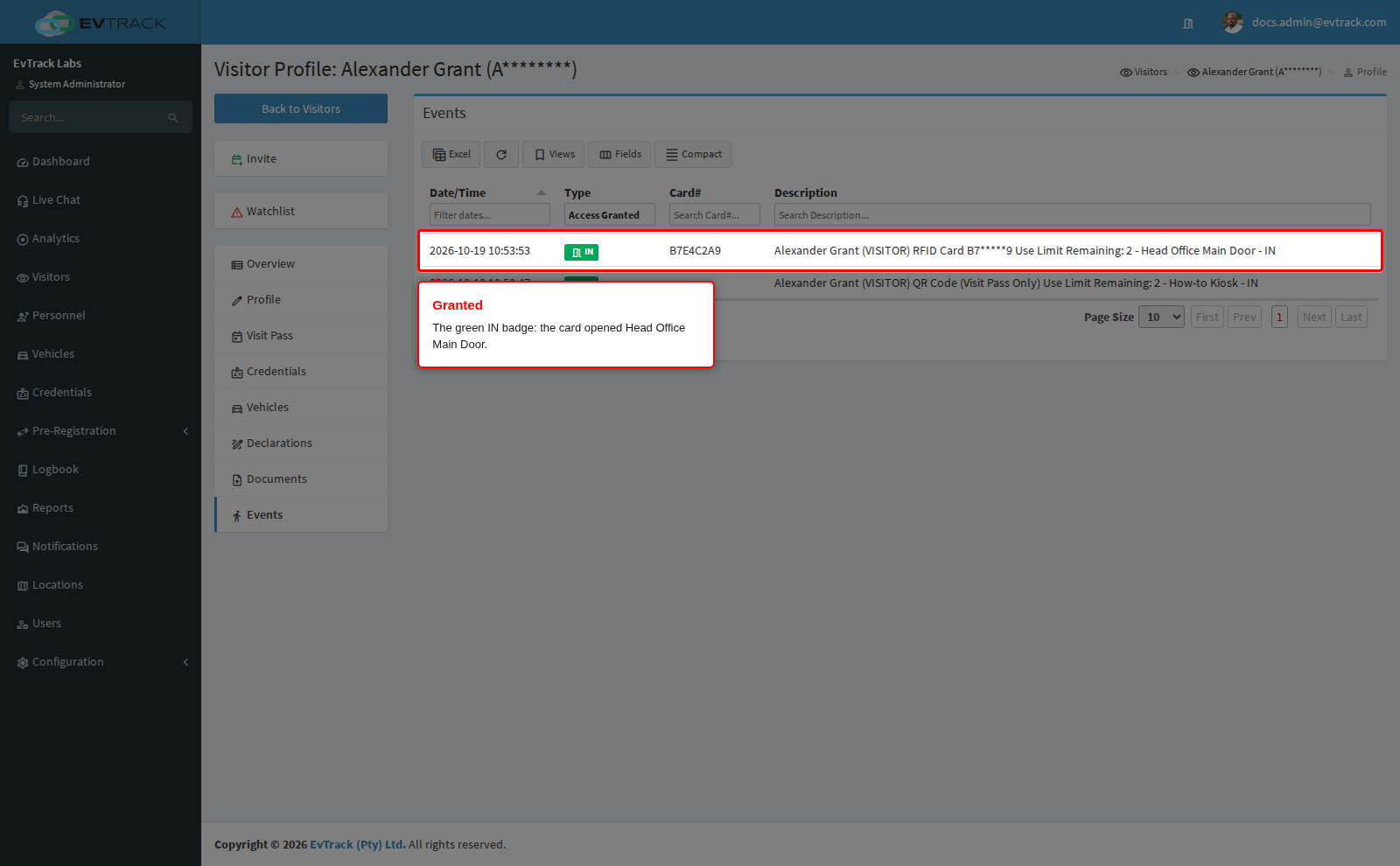
At the end of the visit, check the visitor out and tick the box to return the card, see Check-in and Check-out. The card goes back to its pool and no longer opens the door.
If it didn’t work
- The door refuses the card and the QR code.
- The door is not on the list, or the rule’s schedule does not cover the time. Open the list, click Access Rules and check the access control point and the schedule, see “Why was this person denied?” in Access Control Lists.
- The visit was booked before you chose the list in Step 2. Open the visitor’s credential and tick the list on its Access Control Lists tab, or change the visit’s status so its lists are worked out again. With ACL Update Strategy on MANUAL, a status change keeps the old lists, so tick the list by hand.
- Access Control List is set to None, so passes get no list unless the visit’s location, the host’s location, the visit reason, the visit status or parking adds one. Choose your list on Visit Pass > General, see Visit Pass Settings.
- Only the card is refused.
- Issue assigned cards as door credentials is off. Switch it on under Check-out Settings, then change the visit’s status or edit the visit so the card is issued.
- The card was recorded in the wrong number base, so the number stored is not the number the reader sends. Check Card Number Format on the card, see Card Pools.
- The card was returned, or swapped for another card. A returned card opens nothing until it is assigned again.
- Assign Card offers no cards. The pool is not Enabled, is not marked Can be assigned to a visitor, or belongs to another location, or all its cards are out. See Card Pools.
For more causes and how to check each one, see The door does not open.