Personnel are the people who work at your sites - employees, contractors and staff who host visitors, hold credentials and appear in access reports.
Step 1: Open the Personnel list
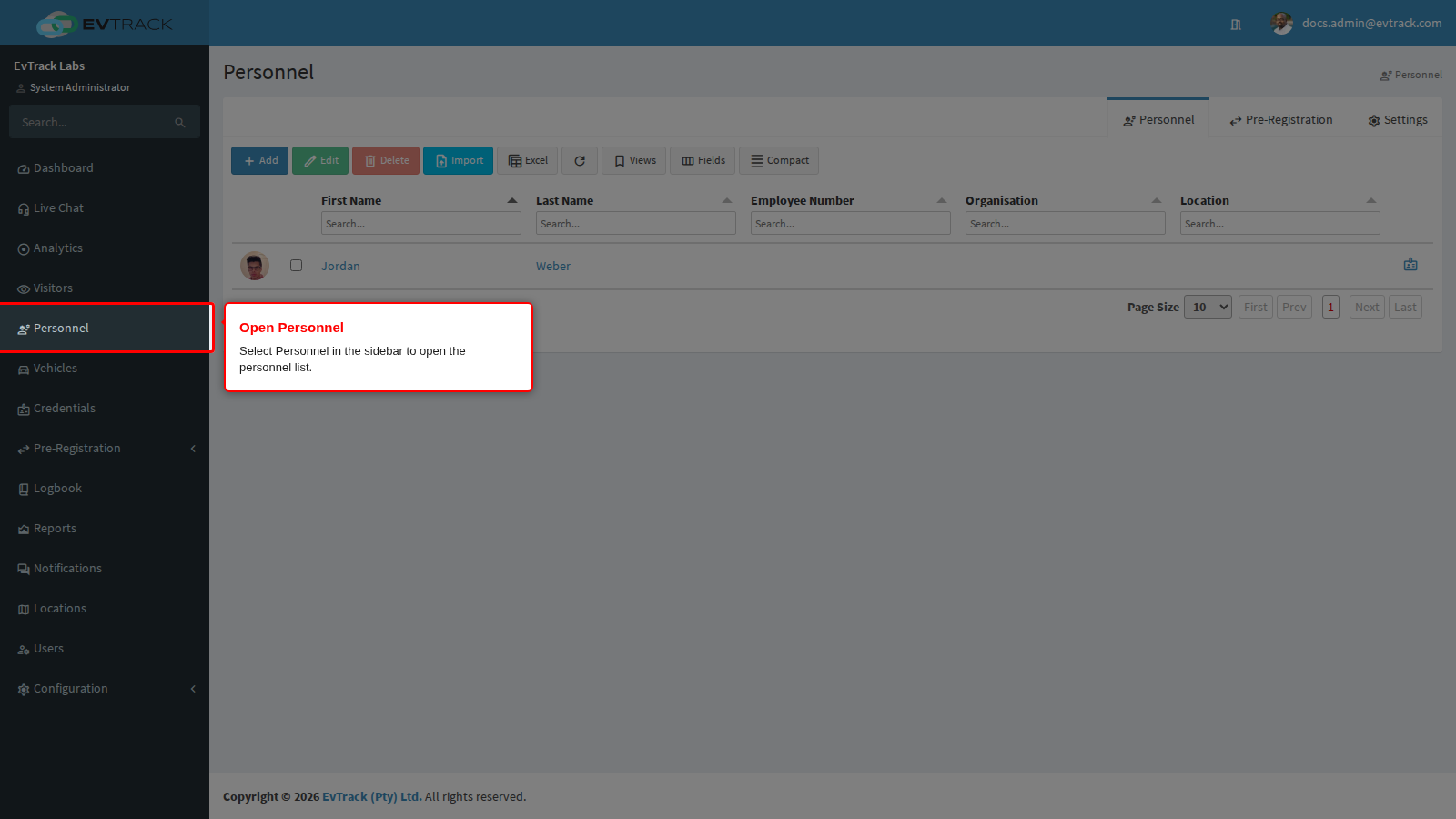
Select Personnel in the sidebar. The personnel list opens, showing every person already on record with a toolbar above the table.
Step 2: Click Add
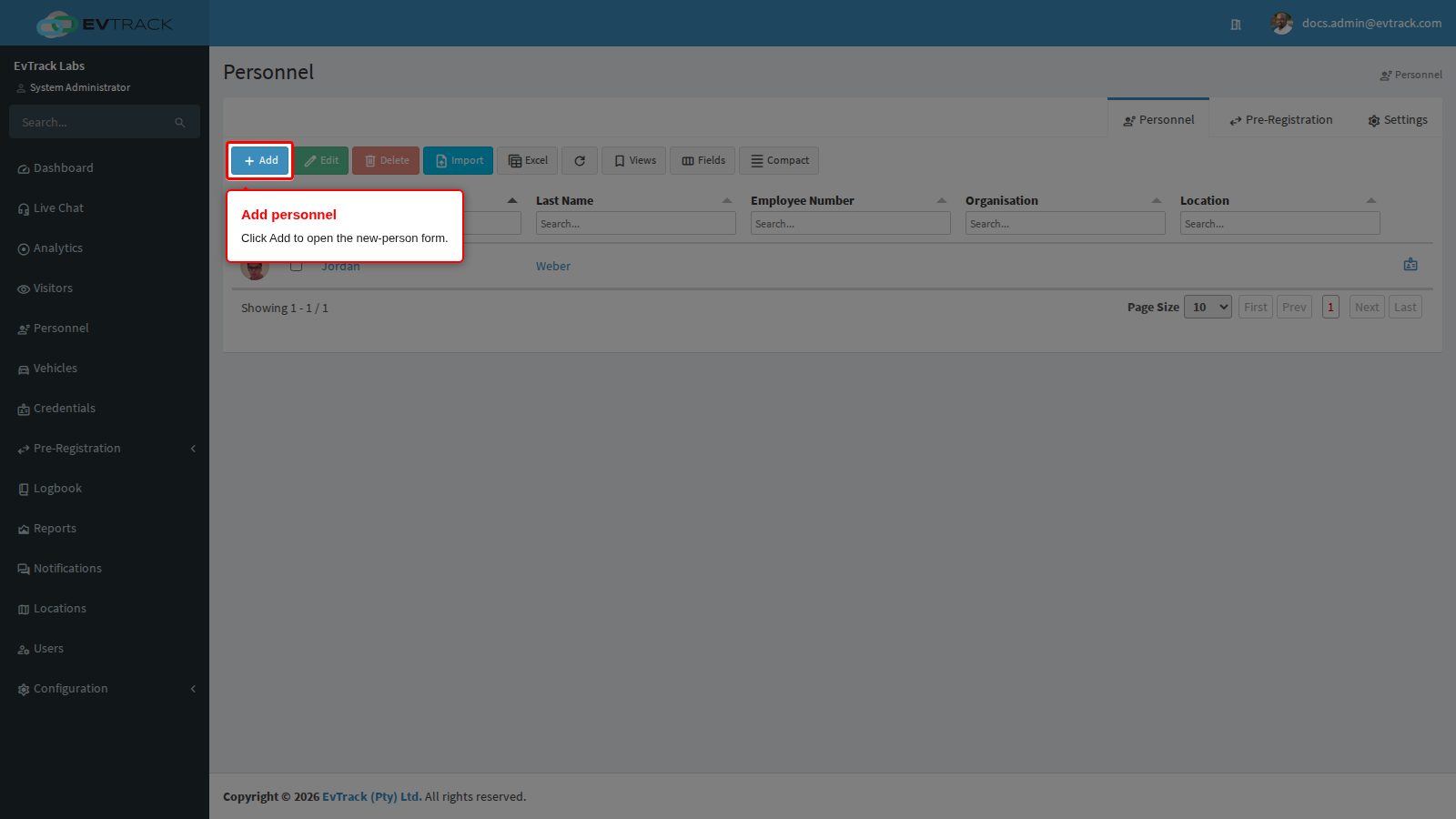
Click the Add button in the toolbar. The new-person form opens.
Step 3: Fill in the person’s details
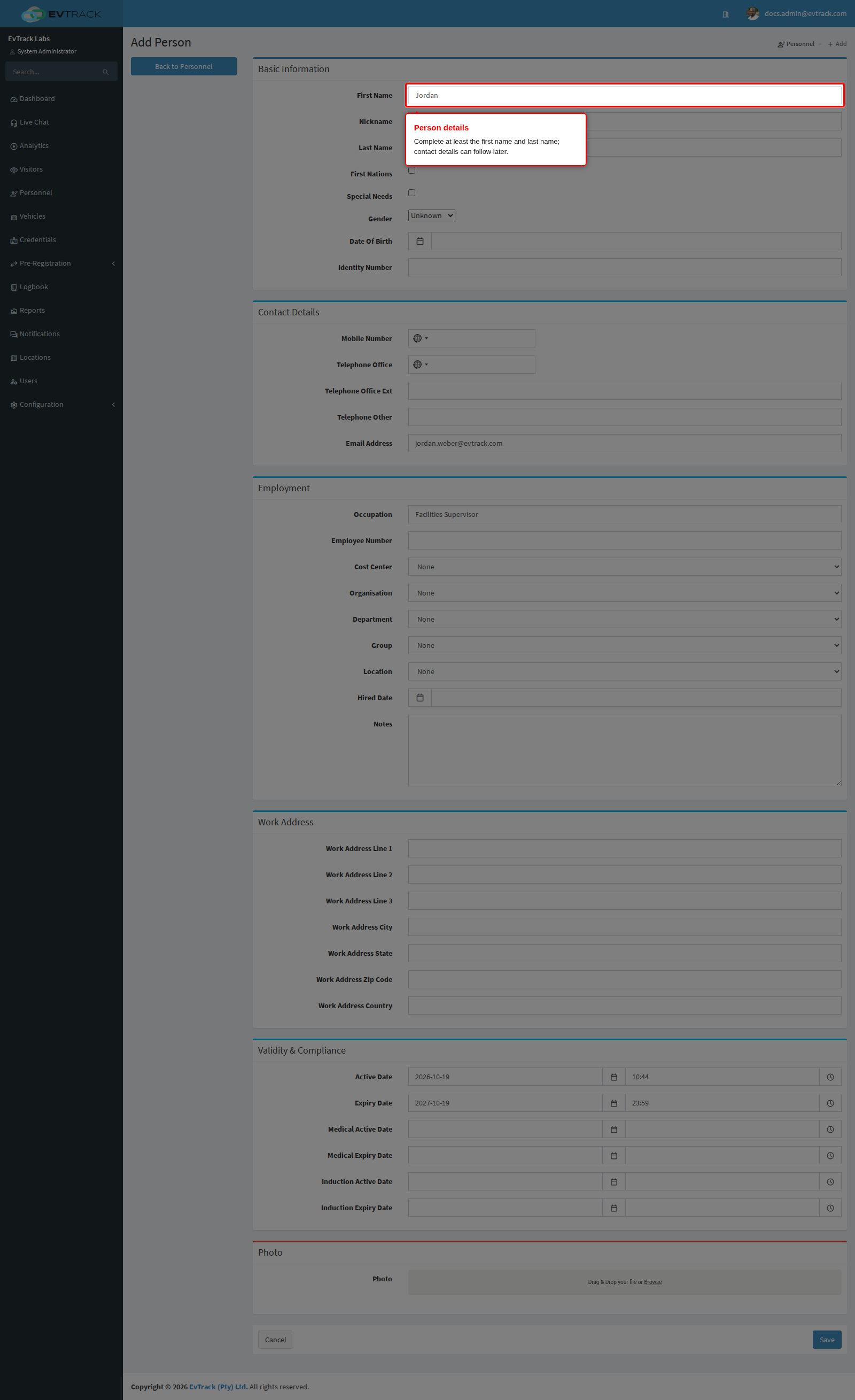
Complete the person’s details - First Name, Last Name and contact information. Organisation, department and cost-center assignments can also be captured here or added later. Click Save - the person’s record opens on the Edit Person page.
Step 4: Upload a profile photo
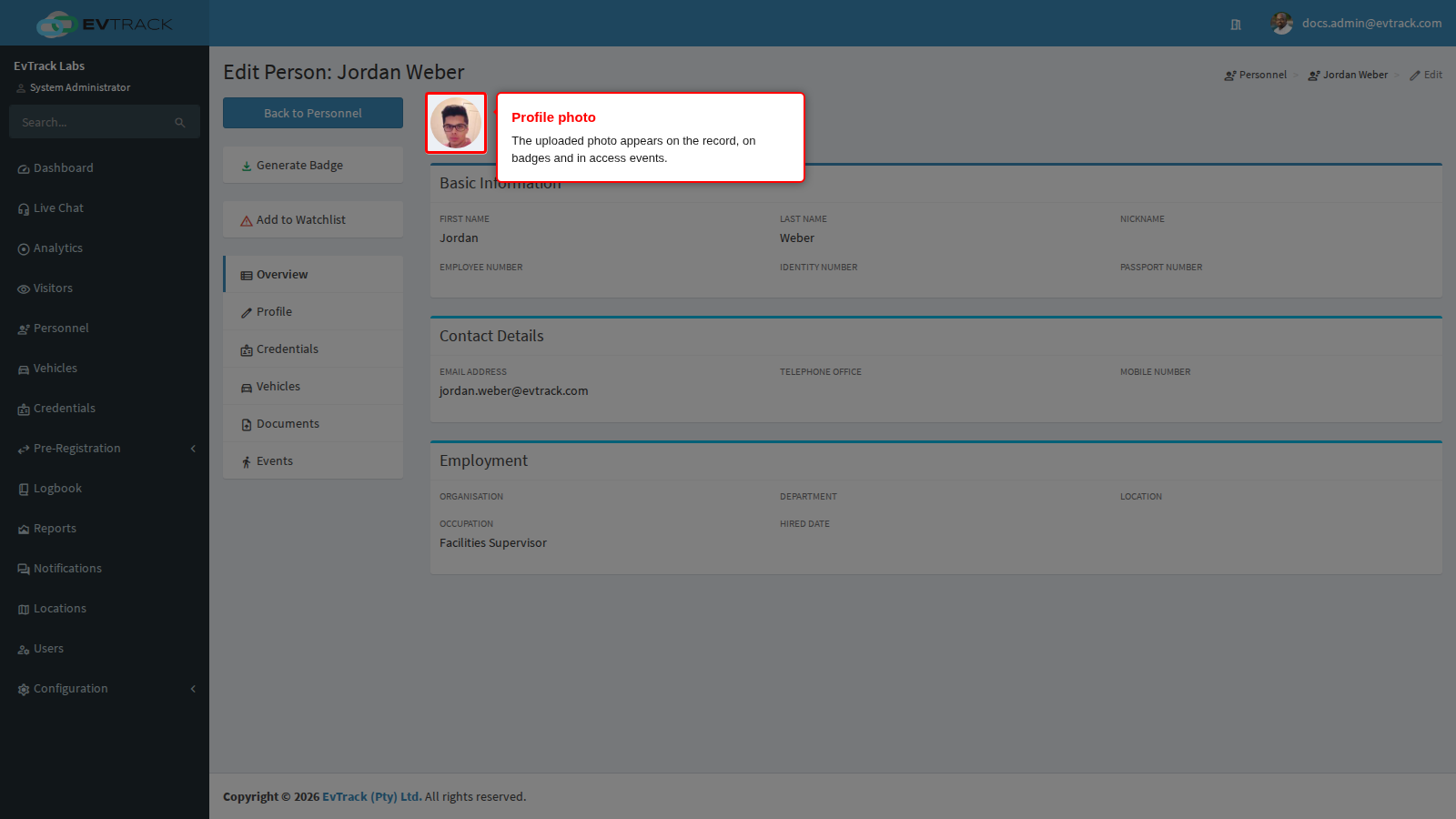
On the person’s record, open the Profile tab and upload a photo - drag and drop a file or browse, then click Save again to store it. The photo now appears on the person’s record, and is used on badges and in access events.
If the person is already on record
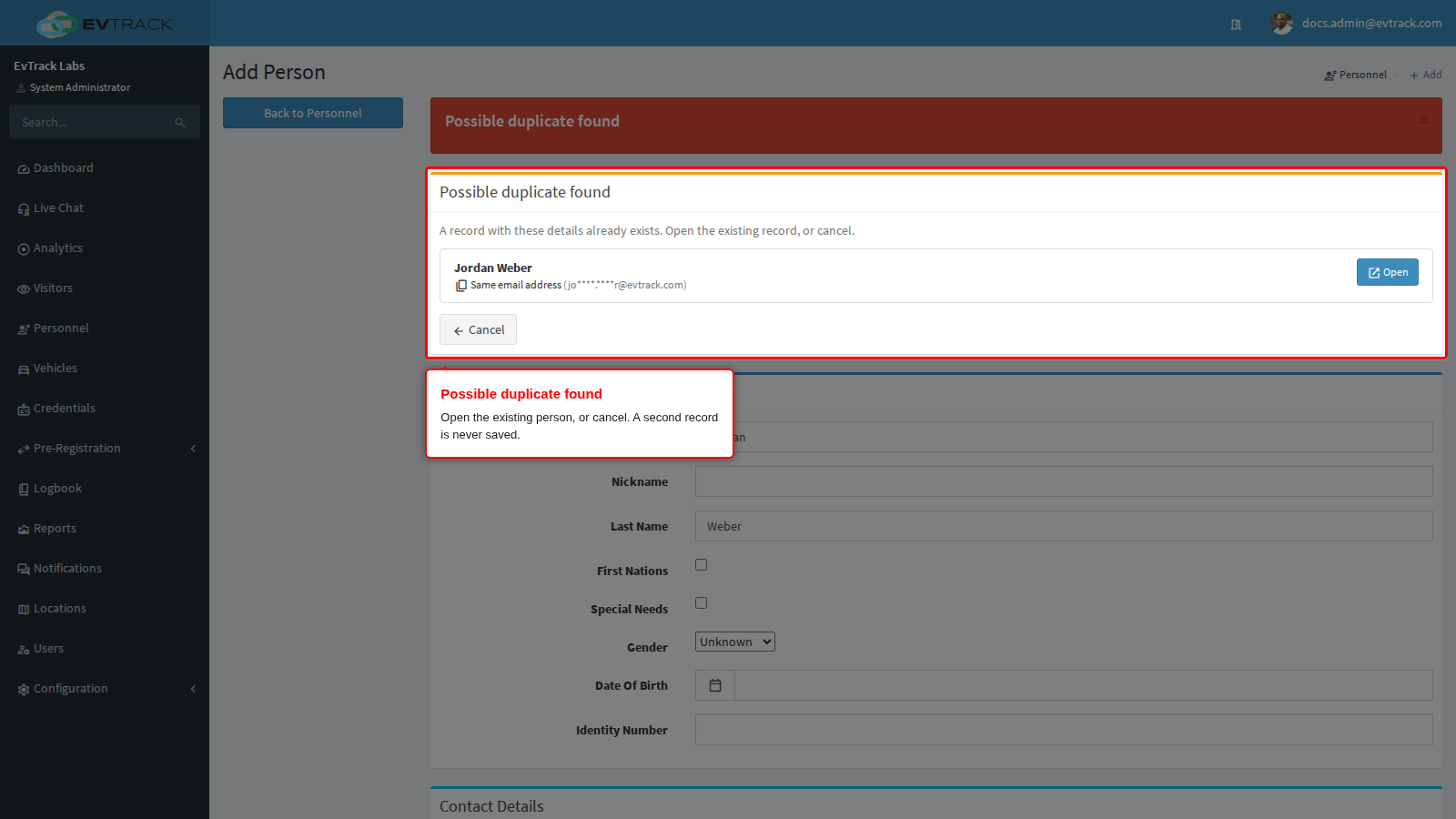
When the details you save match a person already on record, nothing is saved. A Possible duplicate found panel opens above the form instead, listing each matching person with the field that matched (the same email address, mobile number, ID number or staff ID number, for example) and a masked hint. The details you typed remain in the form.
- Click Open to go to the existing person and update them there.
- Click Cancel to go back to the Personnel list.
There is no option to save a second record for the same person. If you may not open the matching record, the panel shows only the field that matched and “The matching record is not available to you.”, never the person’s name. Which fields count as a match is set under Validation in the Duplicate Staff and Personnel Detection panel.
Note: People can also register themselves. When the public self-registration form is enabled (Configuration > User & Personnel Settings > User Registration), new personnel submit their own details online and the request appears under Pre-Registration in the sidebar, where an administrator converts it into a personnel record with the form pre-populated from the request.