Integration & Installation Manual
EvTrack Visitor Management with the Impro Access Portal (V5), through an EvTrack Connect agent.
1. Introduction
The Impro integration connects EvTrack to the Impro Access Portal through an EvTrack Connect agent installed near the Portal. EvTrack credentials (cards, QR codes and PINs) become Impro tagholders and tags, with the access groups their access control lists map to. When the Portal allows a read at a mapped door, the agent sends it back to EvTrack as a read on an EvTrack virtual reader.
The agent connects out to EvTrack, so EvTrack never needs a network route to the Portal and no inbound port has to be opened on the Portal’s network.
2. Prerequisites
- Impro Access Portal V5.
- A Portal user for the agent. Do not use the Portal’s default administrator login on a customer site: create a user for the agent.
- Free API sessions on the Portal licence. Each API login uses one session (a full licence allows 10). Each agent uses two.
- The EvTrack Connect agent installed on a computer that can reach the Portal. See Install an EvTrack Connect Agent.
3. Impro Portal Setup
Do this once for each Portal, before the agent is connected.
3.1 API access
The agent logs in to the Portal’s API with a Portal user and password. Create a Portal user for the agent and keep its password: you enter both in EvTrack in section 4.2, not in the agent’s dashboard.
Each API login uses one of the sessions on the Portal licence, and the Portal frees a session only when the client logs out. A full licence allows 10 sessions, a Visitor Management licence 2 and a Time & Attendance licence 1. The agent logs out when it is done. Any other tool that uses the same Portal user must log out too: once every session is taken, the Portal refuses every API login, even while its own web pages keep working.
3.2 Network
From the computer that runs the agent, the Portal must be reachable on these ports:
| Port | Use | EvTrack setting |
|---|---|---|
| 443 | The Portal’s REST API. With the Portal’s own self-signed certificate, set SSL/TLS Mode to HTTPS No Verify. | Impro Portal Host and REST Port |
| 10010 | The live-transaction socket. Card, QR code and PIN reads arrive here. | Event Socket Port |
API Connection chooses which API the agent sends its requests (searches and updates) over:
| API Connection | Uses | Secured by | Speed |
|---|---|---|---|
| HTTP (default) | The REST API on the REST Port | SSL/TLS Mode | about 1 second per request |
| TCP | The socket API on the Event Socket Port | Encrypted event socket (api.secure) | about 75 milliseconds per request |
The agent uses the event socket either way, because live reads arrive only on a socket. With TCP it opens a second connection on the same port for its requests, so an agent always uses two of the licence’s API sessions.
Encrypted event socket (api.secure) must match the Portal’s api.secure setting, which is on by default. The encryption uses the Portal’s fixed, published key, so it does not keep the traffic secret: keep the socket on a trusted network segment between the agent and the Portal.
3.3 The Evtrack › uuid user field
The agent stores each person’s EvTrack identifier in a custom user field, so the tagholder’s ID Number remains free for the person’s real identity number. Add the field once:
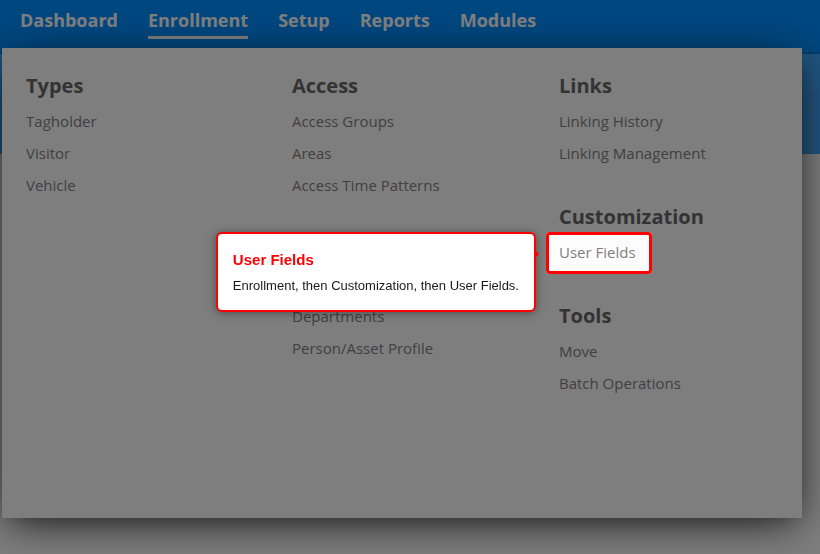
1. In the Portal, open Enrollment, then Customization, and select User Fields.
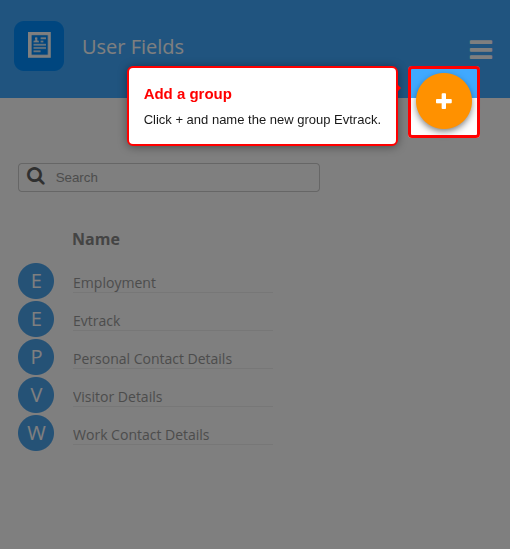
2. Click the orange + to add a new group, and name it Evtrack.
3. Open the group’s Fields tab and click ADD FIELD.
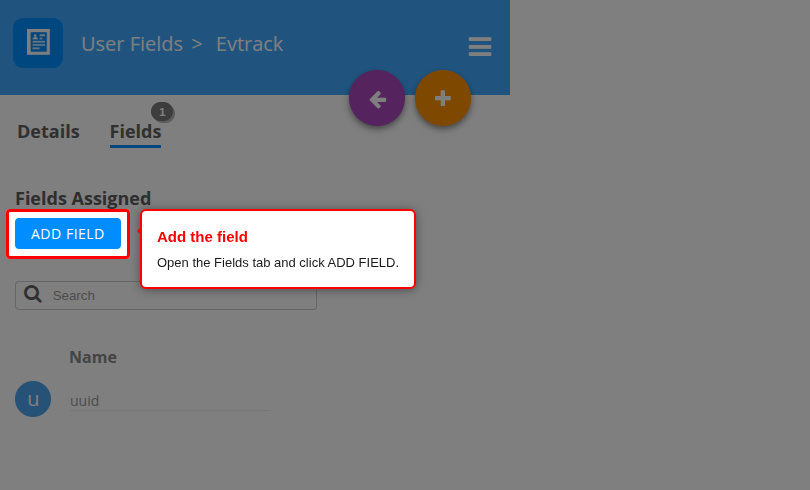
4. Name the field uuid and leave its other settings at their defaults (Single line of text). Save with the green tick. The field then shows under Fields Assigned.
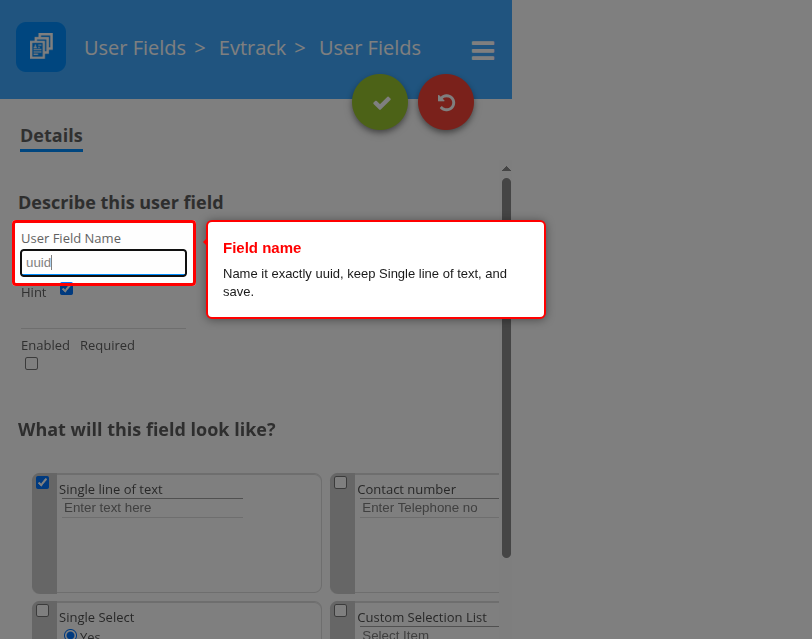
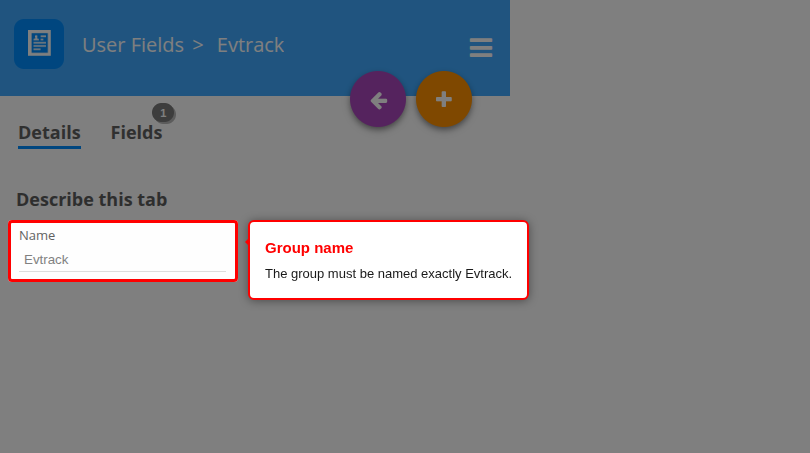
Use exactly these names, Evtrack for the group and uuid for the field: the agent finds the field by its names, so the same setup works on any Portal.
The agent does not create the field itself. The Portal’s API can create the group and the field, but cannot add the field to the Tagholder and Visitor profiles, so a field created that way would not show on tagholders. This one-time step does both.
If the field is missing, Test Connection in EvTrack still succeeds, because the connection itself works, but EvTrack records a system error that the Portal has no custom field Evtrack › uuid, with these steps. Creating a tagholder then fails with the same message before anything is written to the Portal.
Once the field exists, each tagholder the agent creates carries:
| Portal field | Value |
|---|---|
| Evtrack › uuid | The person’s EvTrack identifier. The agent finds the tagholder by this value. |
| ID Number | The person’s identity or passport number from EvTrack: the visitor’s identity number, else the credential’s ID number, else the employee number. The Portal does not accept an empty ID Number, so a person without one gets a short EvTrack identifier until a real number is recorded. |
3.4 Access groups and doors
In Impro, the access group decides which doors open. EvTrack access control lists are mapped to Impro access groups in the integration’s configuration (section 4.3), so check that every access group you will map grants the doors it should. A group whose area has no doors allows nothing, and the door then denies the tag with Denied Location.
Doors are mapped to EvTrack virtual readers in the same configuration. The agent forwards only the reads the Portal allowed: a denied read never reaches EvTrack.
4. EvTrack Configuration
4.1 Add the app and pair the agent
Add an EvTrack Connect app and pair it with the agent as described in EvTrack Connect Agent. The agent identifies itself as Impro Access Portal.
Create the virtual reader devices for your Impro doors under Devices before you configure the app, so they can be mapped and permitted.
4.2 Connection
Open the app’s Connection tab and fill in how the agent reaches the Portal.
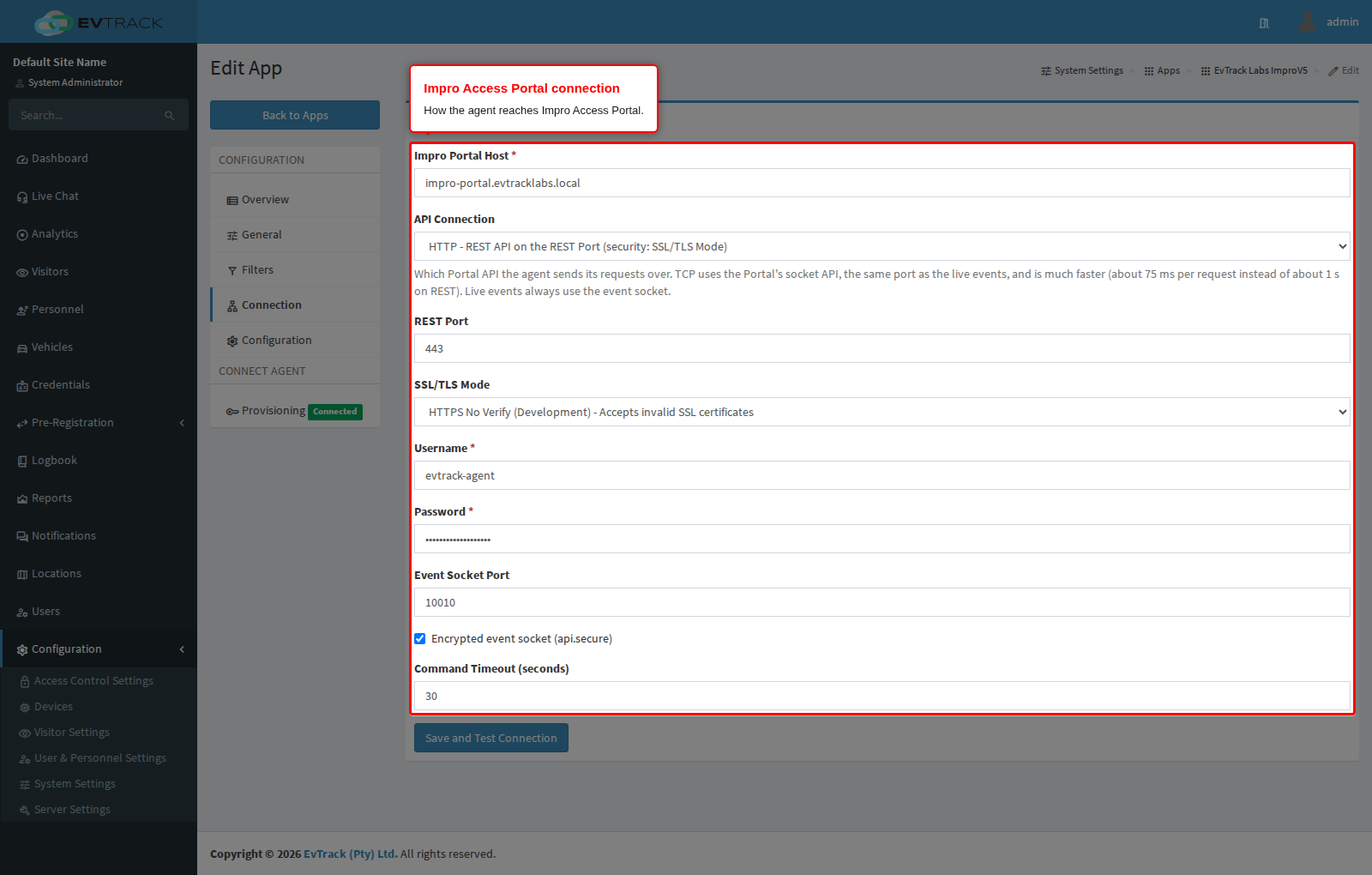
| Setting | What to enter |
|---|---|
| Impro Portal Host | The Portal server’s host name or IP address, without https:// or a path. A port on the host (for example portal.example.com:8443) overrides the REST Port. |
| API Connection | HTTP (the REST API) or TCP (the socket API, faster). See section 3.2. |
| REST Port | The Portal’s REST API port, usually 443. Not used with TCP. |
| SSL/TLS Mode | HTTPS Strict when the Portal has a trusted certificate, HTTPS No Verify for the Portal’s own self-signed certificate. Not used with TCP. |
| Username and Password | The Portal user created for the agent in section 3.1. The password shows as dots once saved. |
| Event Socket Port | The Portal’s live-transaction socket port, usually 10010. |
| Encrypted event socket (api.secure) | Ticked when the Portal’s api.secure setting is on, which is the default. |
| Command Timeout (seconds) | How long the agent waits for the Portal to answer a request. The default, 30, suits most sites. |
Click Save and Test Connection. The agent, not EvTrack, connects to the Portal with these settings.
4.3 Configuration
Open the Configuration tab. Its lists are read from the Portal, so they fill only once the connection works.
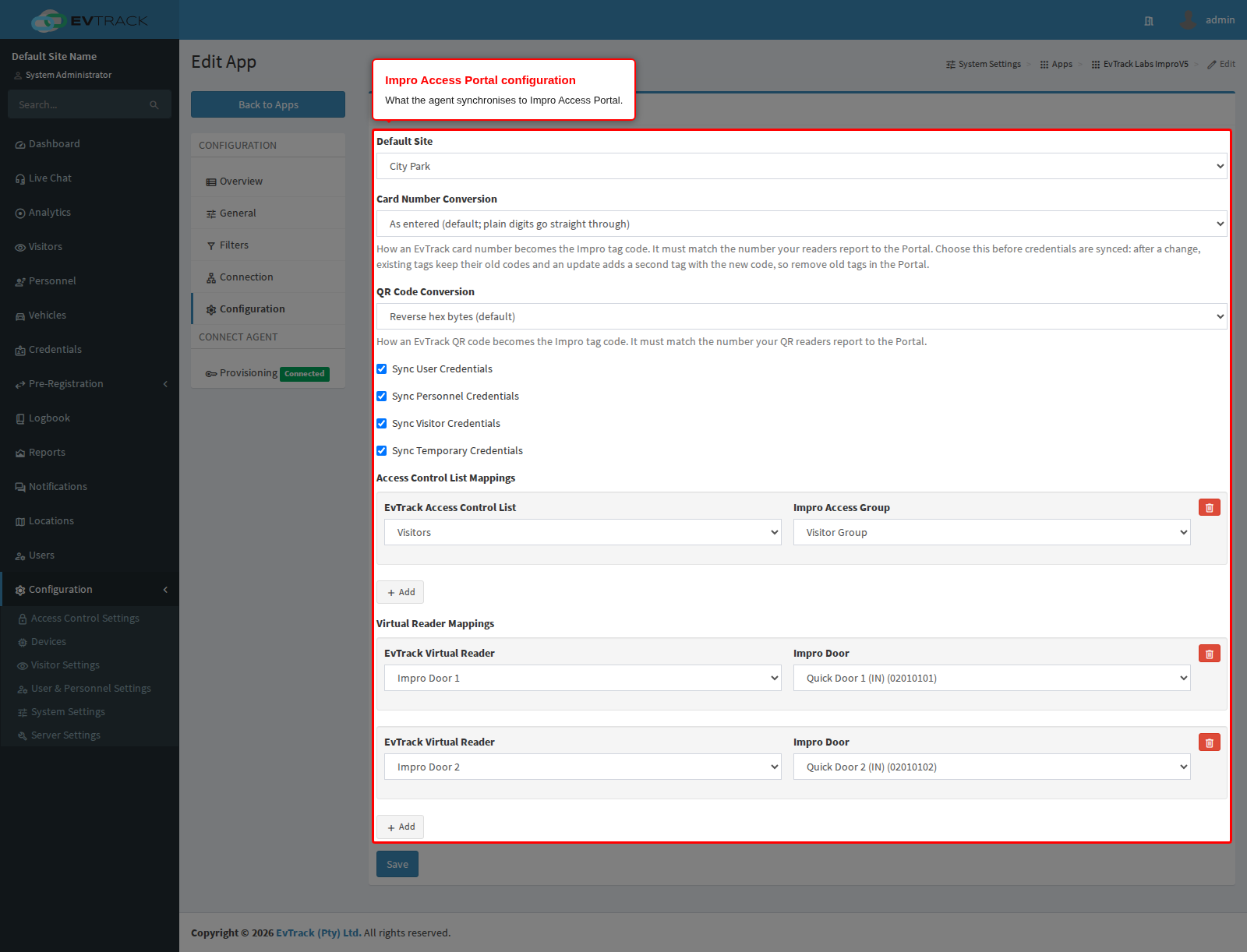
- Default Site: the Portal site new tagholders are created in.
- Card Number Conversion: how an EvTrack card number becomes the Impro tag code. The default, As entered, sends the number as it was entered in EvTrack. It must match the number your readers report to the Portal. Choose it before the first sync: after a change, existing tags keep their old codes and the next update adds a second tag with the new code, so remove the old tags in the Portal.
- QR Code Conversion: how an EvTrack QR code becomes the Impro tag code. The default, Reverse hex bytes, matches how Impro QR code readers report a code.
- Sync User / Personnel / Visitor / Temporary Credentials: which credential owners the agent writes to the Portal. For a type that is not ticked, the agent skips every create, update and delete, and Sync Now leaves it out.
Then add the mappings with Add and click Save:
- Access Control List Mappings: each EvTrack access control list and the Impro access group it grants. A credential with that access control list gets the access group on its tagholder. A credential whose access control lists are not mapped gets a tagholder and a tag, but no access.
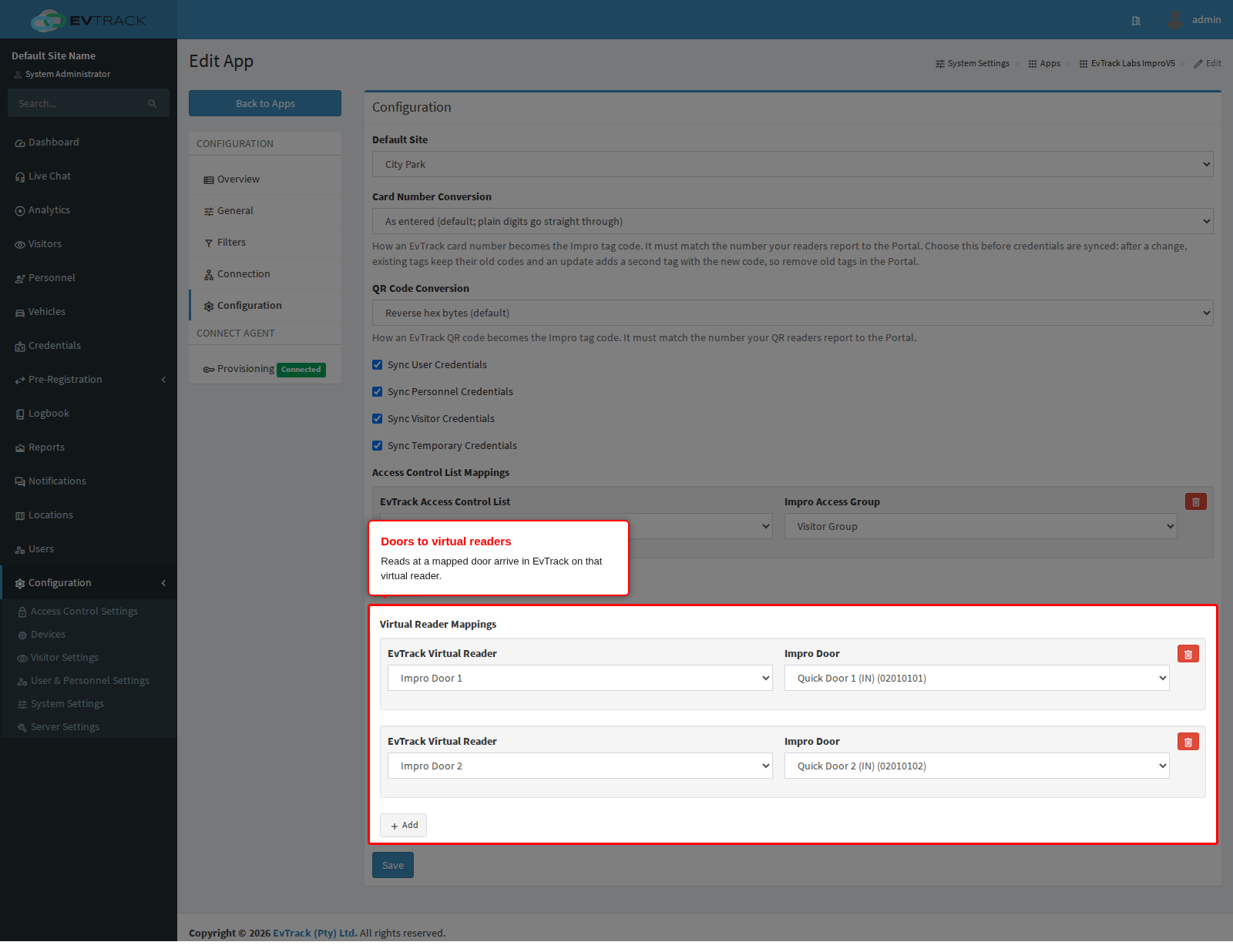
- Virtual Reader Mappings: each EvTrack virtual reader and the Impro door it stands for. Allowed reads at that door arrive in EvTrack as reads on that virtual reader.
4.4 Filters: permitted virtual readers
Open the Filters tab and, under Permitted virtual readers, tick every virtual reader you mapped to an Impro door, then click Save.
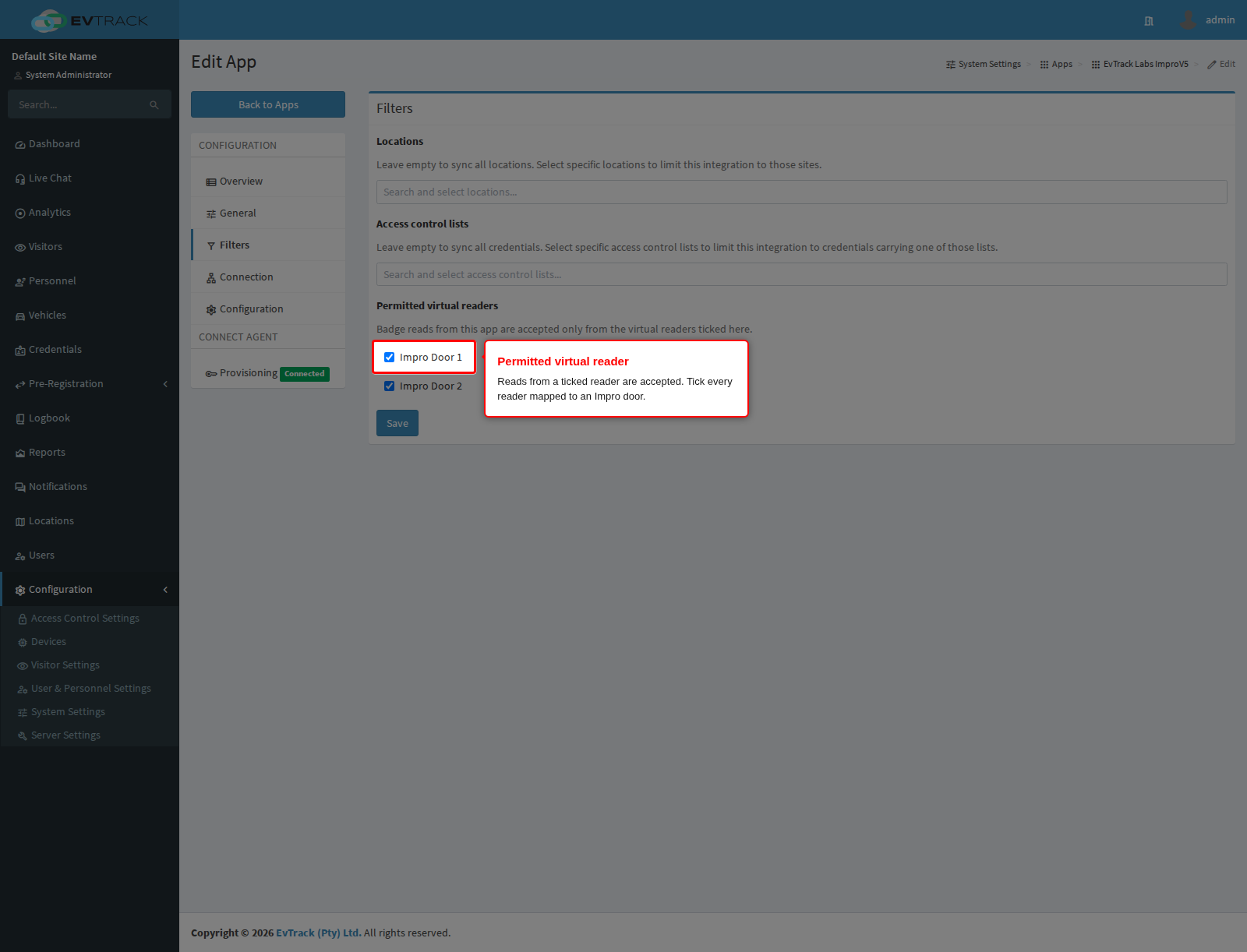
Reads from a reader that is not ticked are ignored, even when its door is mapped. EvTrack records each refusal as a Badge read ignored system event, naming the reader and the app, at most one a minute for each reader. See EvTrack Connect Agent for more about permitted virtual readers.
4.5 Check the connection
Open the app’s Overview tab. The Connect Agent row shows Connected with a recent last connected time, Agent Version shows the agent’s software version, and Integration Version shows the Portal version the agent read from the Portal.
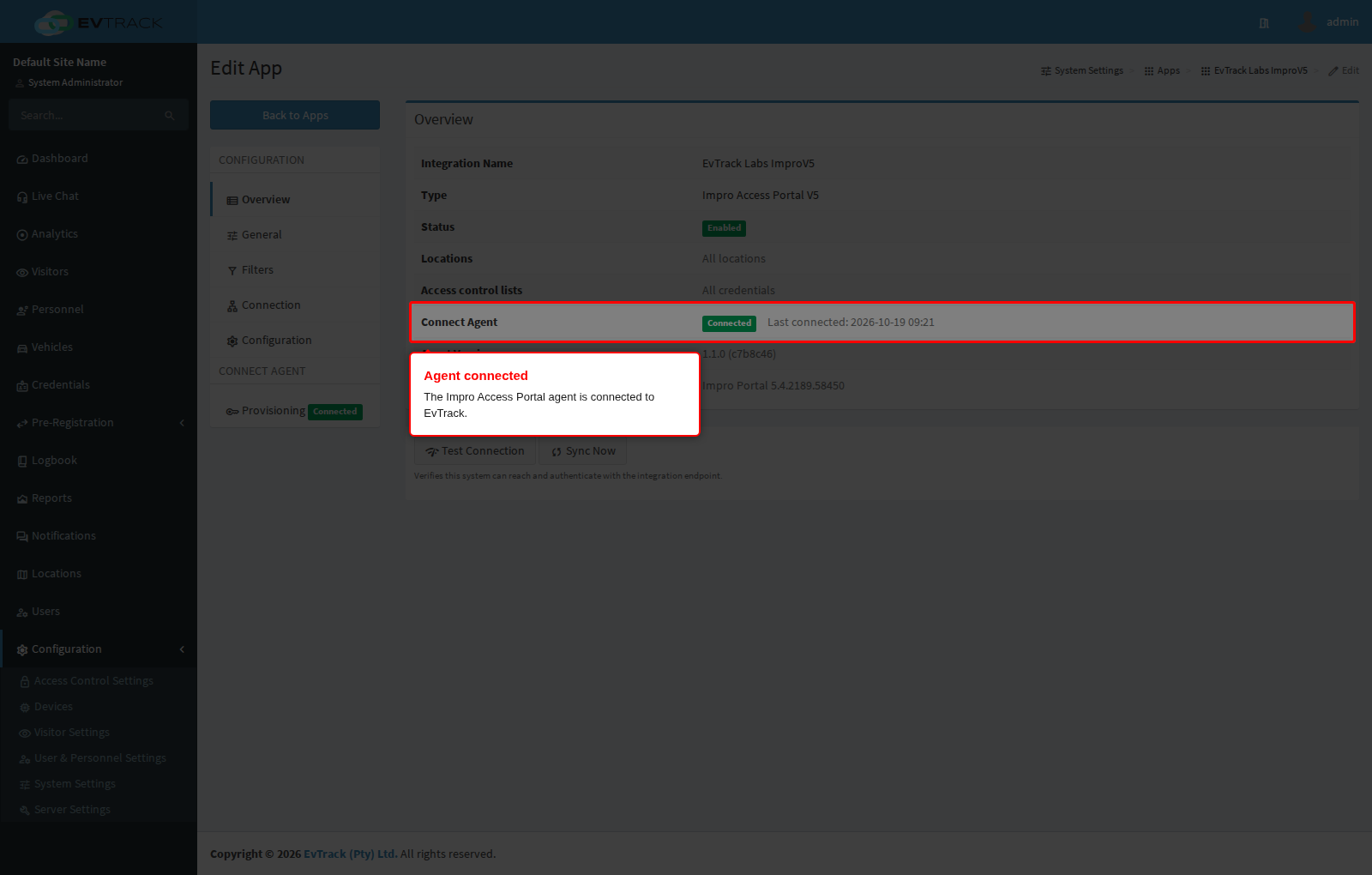
Click Test Connection: it succeeds without an Evtrack › uuid system error. Then click Sync Now to push the existing credentials to the Portal.
5. Testing
1. Create a visitor with a QR code in EvTrack, with an access control list you mapped in section 4.3.
2. In the Portal, find the visitor’s tagholder. Check that it has a tag, the access group you mapped, and the Evtrack › uuid field filled in.
3. Present the QR code at a mapped door. The read shows in EvTrack on the virtual reader mapped to that door.
If the read does not show in EvTrack, check the events list for a Badge read ignored event and tick the reader on the app’s Filters tab (section 4.4). If the door denies the QR code, check the access group’s doors in the Portal (section 3.4) and the QR Code Conversion setting (section 4.3).