Fixes for the most common problems on an onsite EvTrack server running on Windows.
How do I restart the EvTrack service?
Some changes, such as email server settings or edits to application.properties, only take effect after a restart.
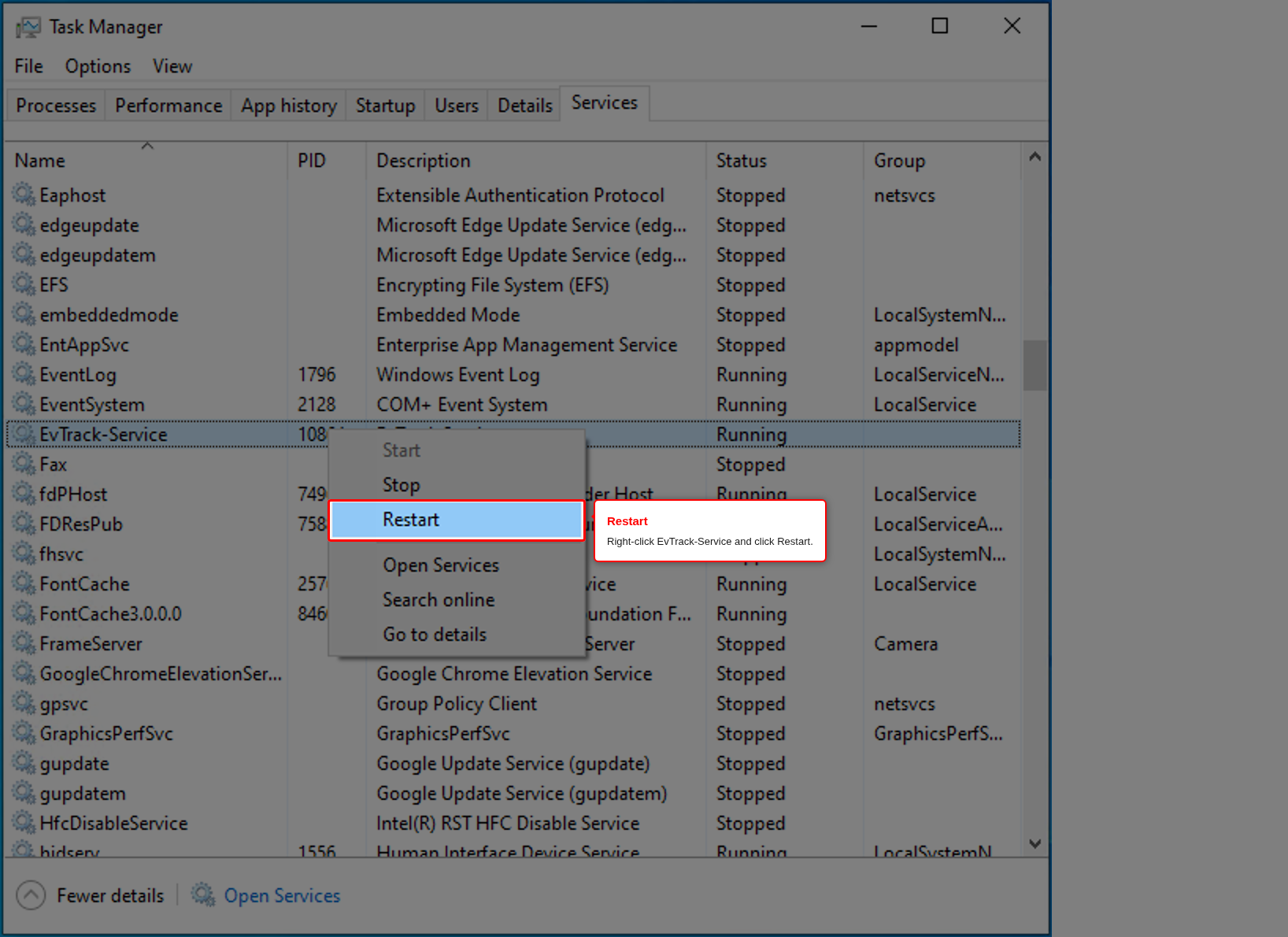
Open Task Manager, go to the Services tab, right-click EvTrack-Service and click Restart.
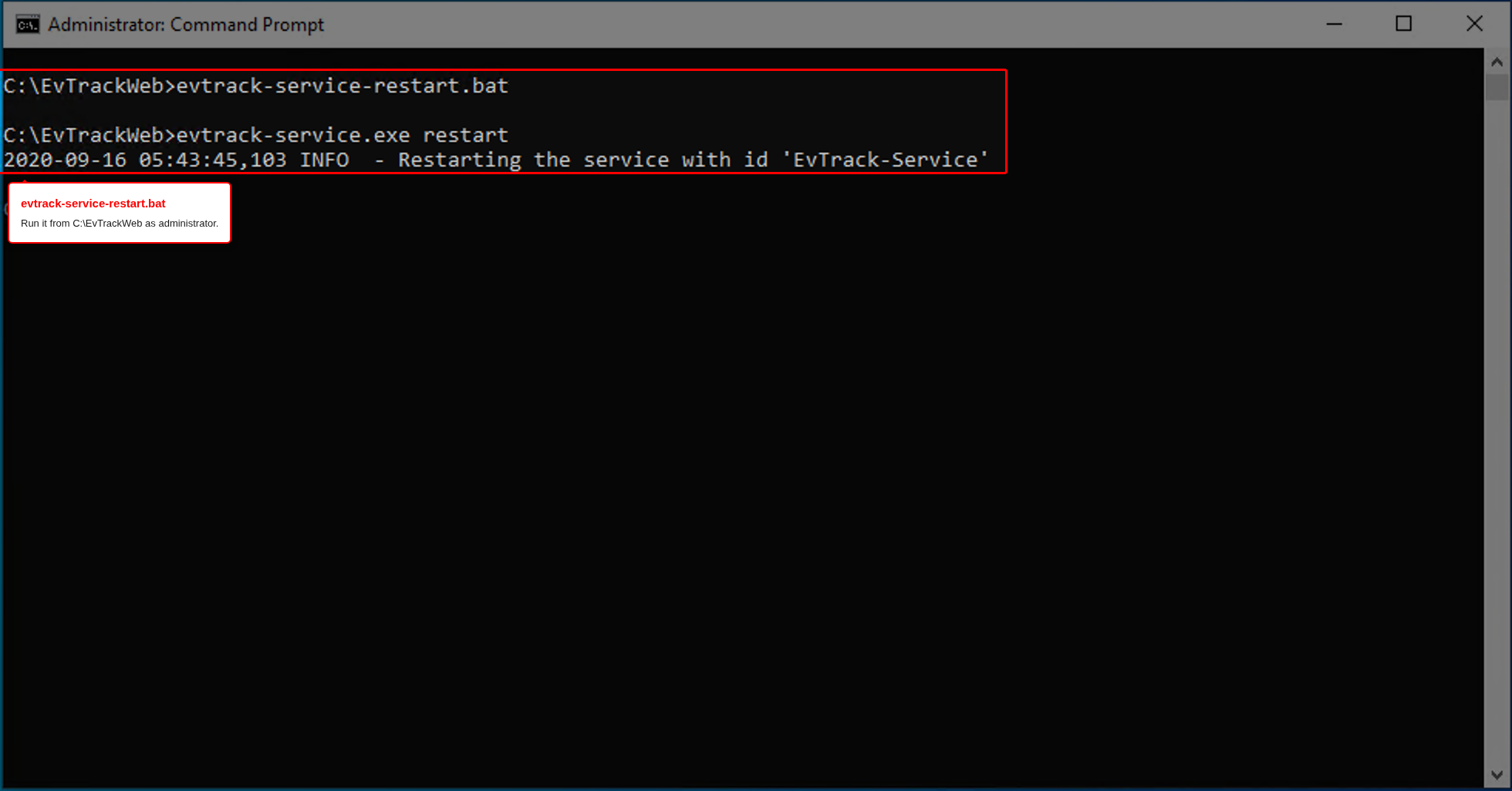
Or open a Command Prompt as administrator and run:
cd C:\EvTrackWeb
evtrack-service-restart.bat
The other scripts in C:\EvTrackWeb work the same way: evtrack-service-start.bat, evtrack-service-stop.bat and evtrack-service-status.bat.
The EvTrack service will not start, or stops again after a minute
The service log files are in C:\EvTrackWeb, in the files whose names start with evtrack-service and end in .log. Open the newest one in Notepad++ and look near the end for the first error. The usual causes are:
- Java is missing or the wrong version. In a new Command Prompt,
java -versionmust report version 17. The service looks for Java on the system PATH, so ifjavais not recognised, reinstall Zulu 17 with Add to PATH selected (see Server Installation). Access denied for user: the database username or password inapplication.propertiesdoes not match the account created in MariaDB. Correct it, save, and start the service again.Communications link failureorConnection refused: MariaDB is not running. Start the MariaDB service inservices.mscand check it is set to start automatically.Unknown database 'evtrack': the database was never created. Create it as described in Server Installation, Step 2.Port 5443 was already in use: another program, or a second copy of EvTrack, is using the port. Stop it, or find it withnetstat -ano | findstr :5443in a Command Prompt.
The service restarts itself automatically 30 seconds after a failure, so a configuration problem shows as a service that keeps stopping and starting.
The server works on the server itself but not from other computers
- Check that Windows Firewall allows TCP port 5443.
- Check that the other computer can reach the server at all: in a Command Prompt on that computer, run
ping <server-address>. - Use the server’s network name or IP address in the browser, not
localhost.localhostalways means the computer you are sitting at.
The web interface is slow and EvTrack Guard times out or shows offline
Check that the server can look up the names of the computers and devices that connect to it (reverse DNS). When a lookup has to time out, every request waits for it.
- Make sure every LAN IP address that connects to the server has a valid reverse DNS entry on your DNS server.
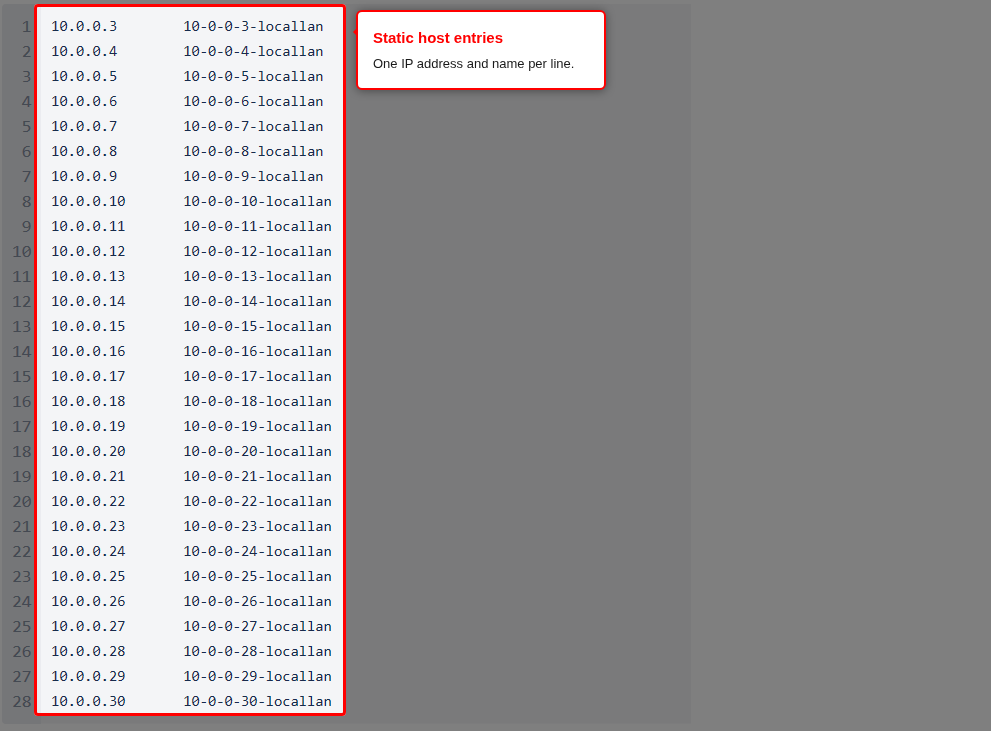
- If you cannot change DNS, add static entries for those addresses to the server’s hosts file,
C:\Windows\System32\drivers\etc\hosts(edit it in Notepad++ run as administrator), one address and name per line: