Book a visit for a visitor before they arrive, so they receive an email with their QR code and show it when they arrive. You choose the host, the site and the time on the visitor’s profile, and EvTrack sends the invitation. It takes about five minutes.
Before you start
- Your role can create visit passes, otherwise the visitor’s profile has no Invite entry. To make someone else the host, your role must also be allowed to assign a host.
- The visitor is on record with their email address, see Add Visitor. The host is a system user.
- Under Configuration > Visitor Settings, click the Visit Pass tile. On the General panel, Credential Type is QR Code (Visit Pass Only), which is the default, and the Email box is ticked in the Invite column of Notification Channels. A new system starts with that box ticked; a system upgraded from an older version keeps the value it had, so check it, and if you tick it click Save. Credential Type decides what every invitation from the web application carries (a QR code, or a PIN for keypads); the invite form has no choice of its own. See Visit Pass Settings.
- Email delivery works. On an on-site system the mail server is set up under Email Server (SMTP and MS Graph).
Steps
Step 1: Open the visitor and click Invite
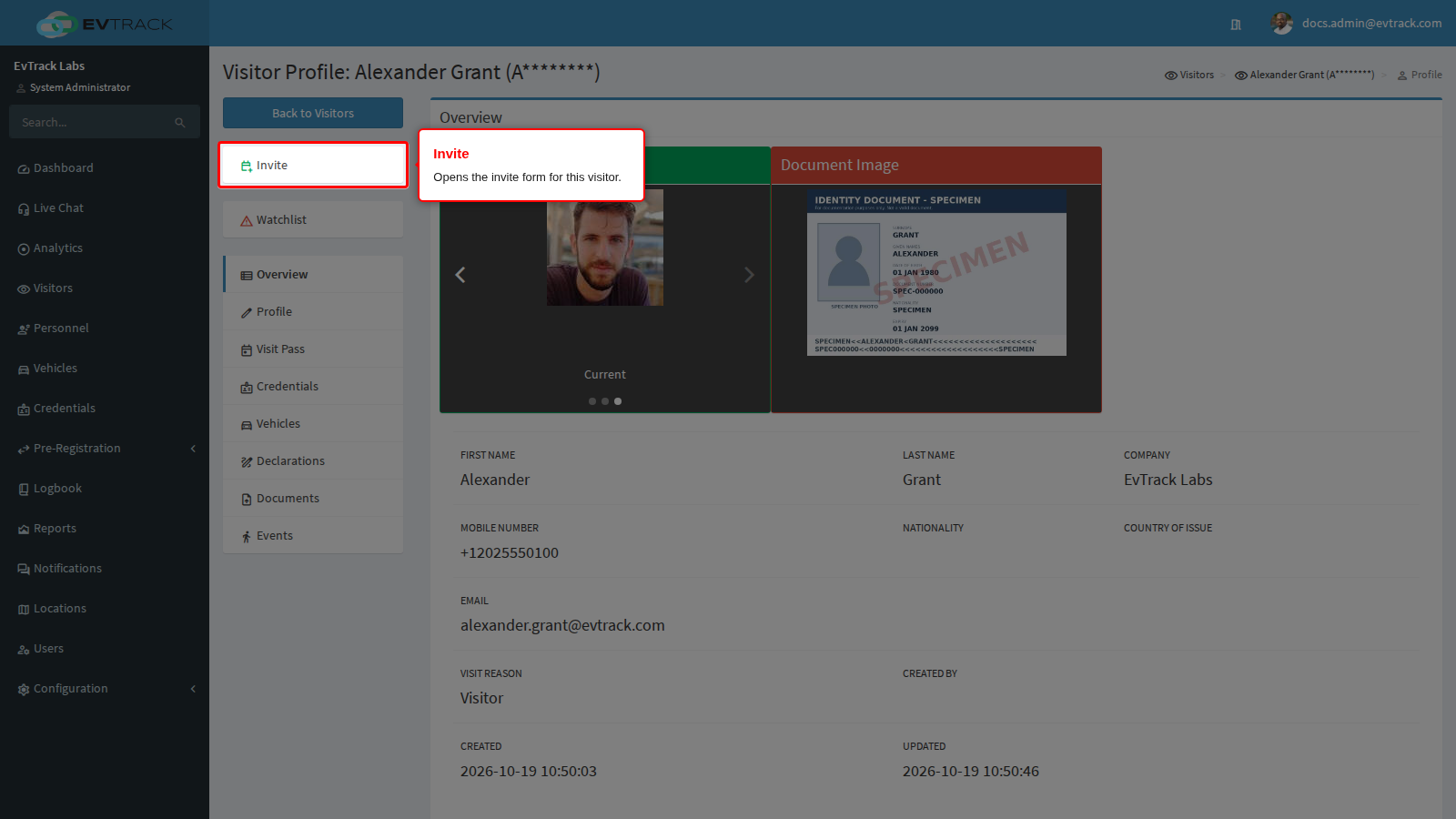
Select Visitors in the sidebar, find the visitor in the list and click their row to open the profile. Click Invite at the top of the menu on the left.
Step 2: Fill in the visit
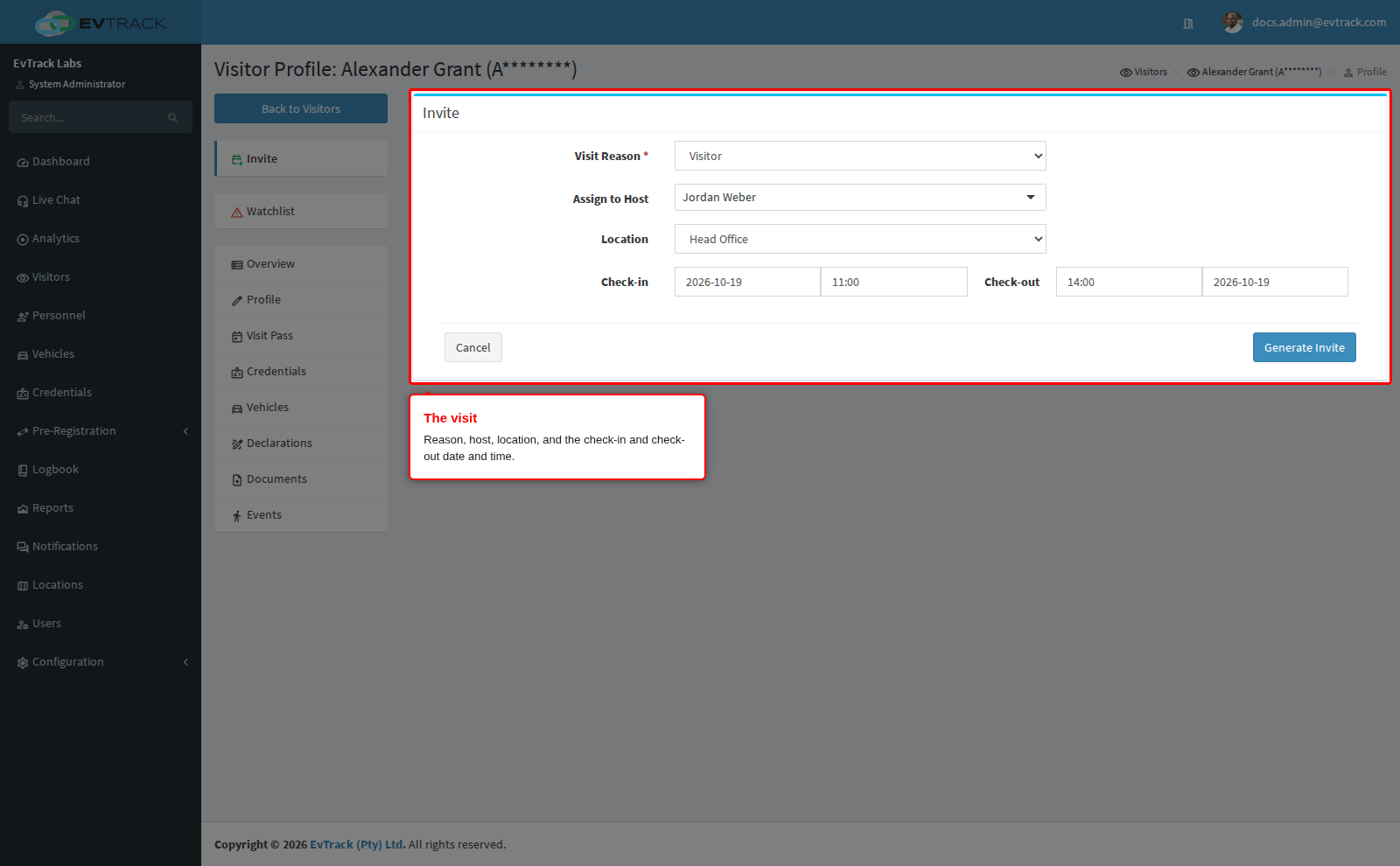
The Invite form opens. Fill it in:
- Visit Reason: shown only when your visitor field settings ask for it. When it is required, the list has no None option.
- Assign to Host: type part of the host’s name and pick them. If you leave it, you are the host.
- Location: the site the visitor is coming to. Pick one under Direct Approval. A location under Requires Manager Review sends the request to its manager instead of issuing the QR code, see “If it didn’t work” below.
- Check-in and Check-out: the date and time the visit starts and ends. The QR code works only in this window, widened by the Early Check-in Period and Late Check-out Period on the Visit Pass General panel. Check-in cannot be more than 15 minutes in the past, and the visit cannot be longer than the maximum visit length set on the Visit Pass General panel (two days unless you change it).
Step 3: Click Generate Invite
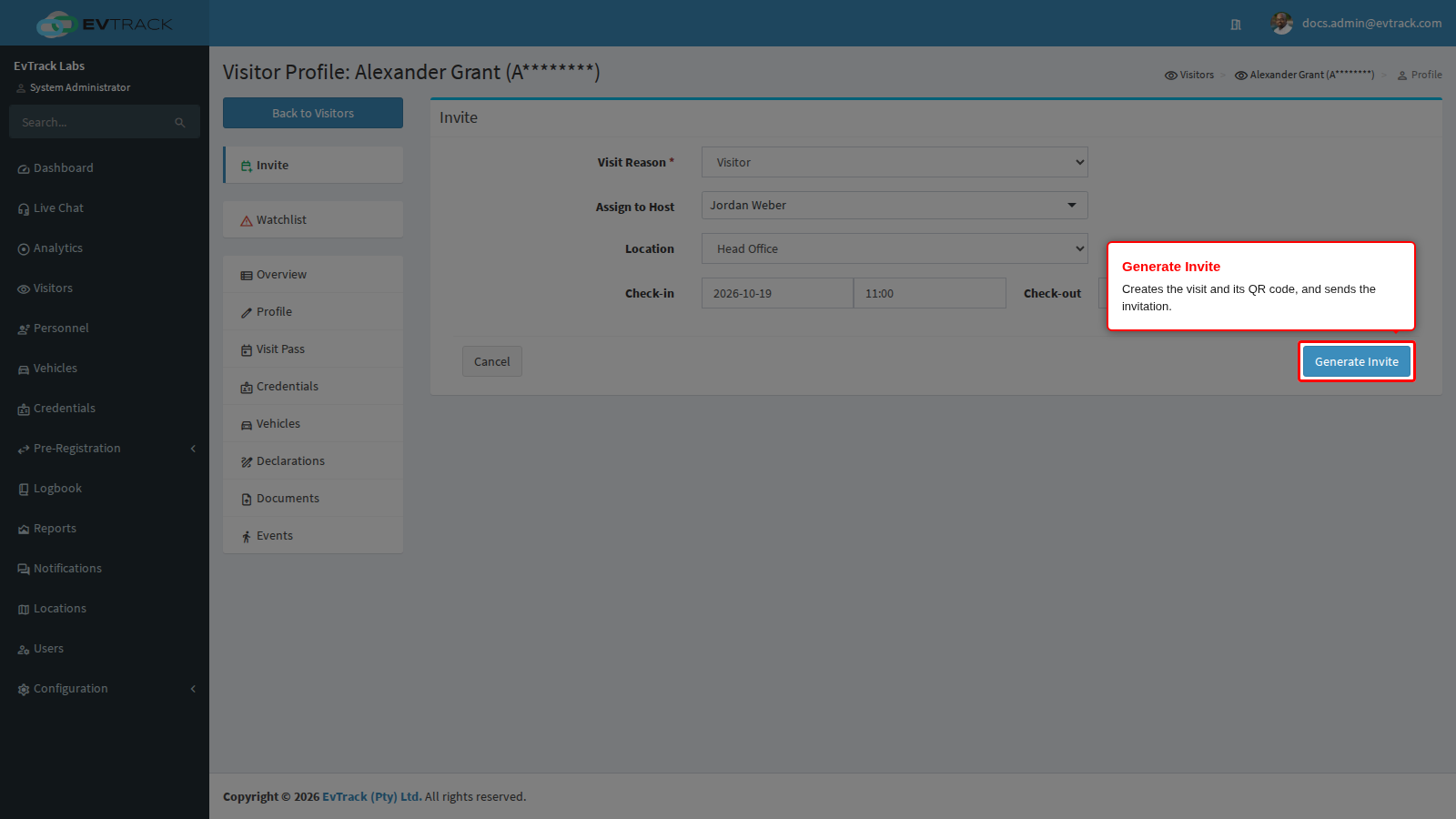
Click Generate Invite at the bottom of the form. EvTrack creates the visit with its QR code and sends the invitation email. The Share Visitor Pass page opens with “Visit Pass was successfully generated.”; it is described in Invite Visitor.
Check it worked
The visitor receives the invitation email. It greets them by name, names your company and the host, and says “Your QR Code is valid from” with the start and end of the visit. Below that are the QR code, a Get QR Code button and the same link to copy into a browser. The subject and wording come from Visitor Email Settings.
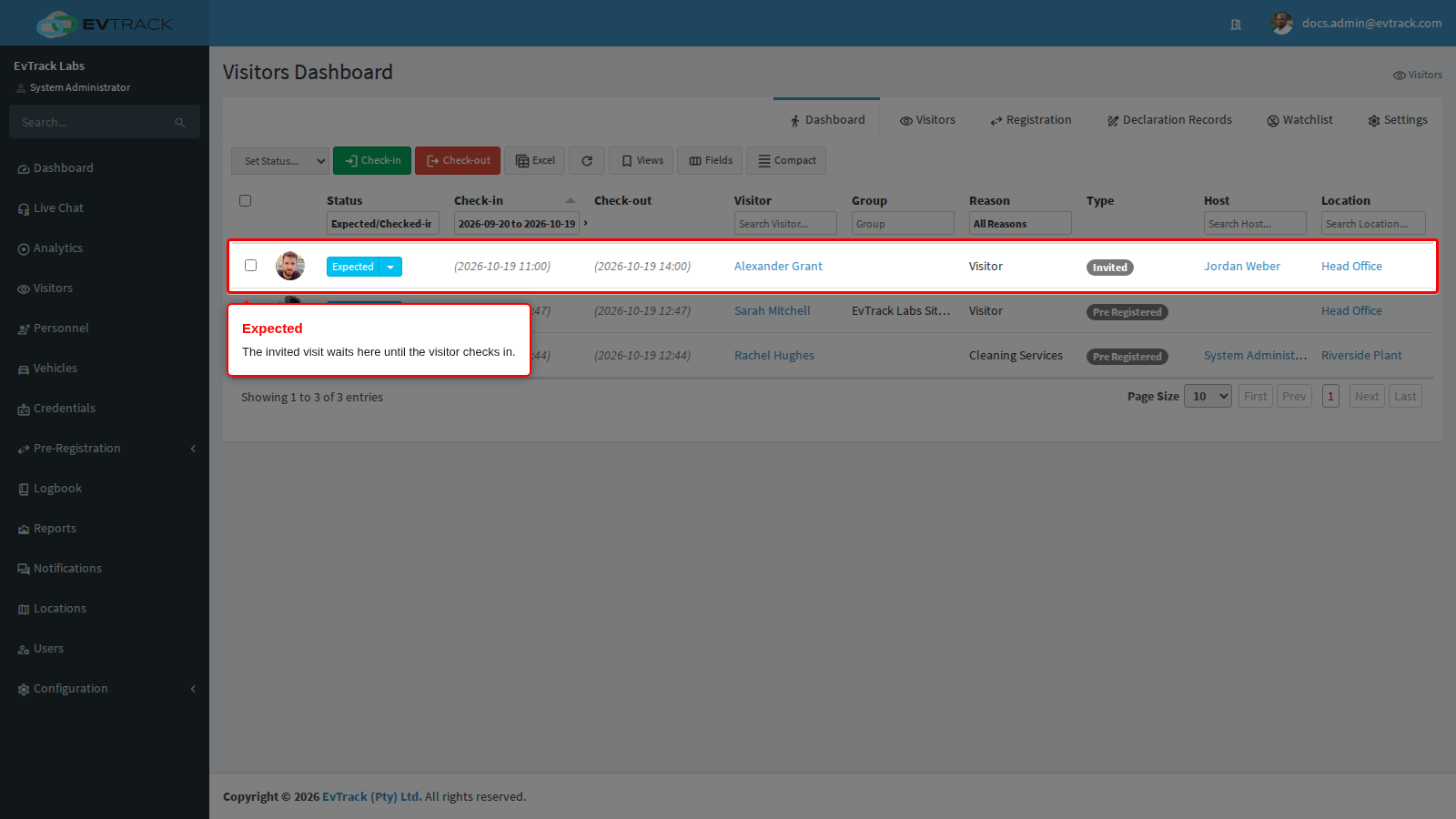
In the web application, open Visitors and click the Dashboard tab. The visit is listed as Expected, of type Invited, with the visitor, the host and the location. The dashboard opens on visits from the last 30 days up to today, so for a visit on a later day move the Check-in date range in the column header, see The Visitor Dashboard.
The email as it reaches the visitor’s inbox:
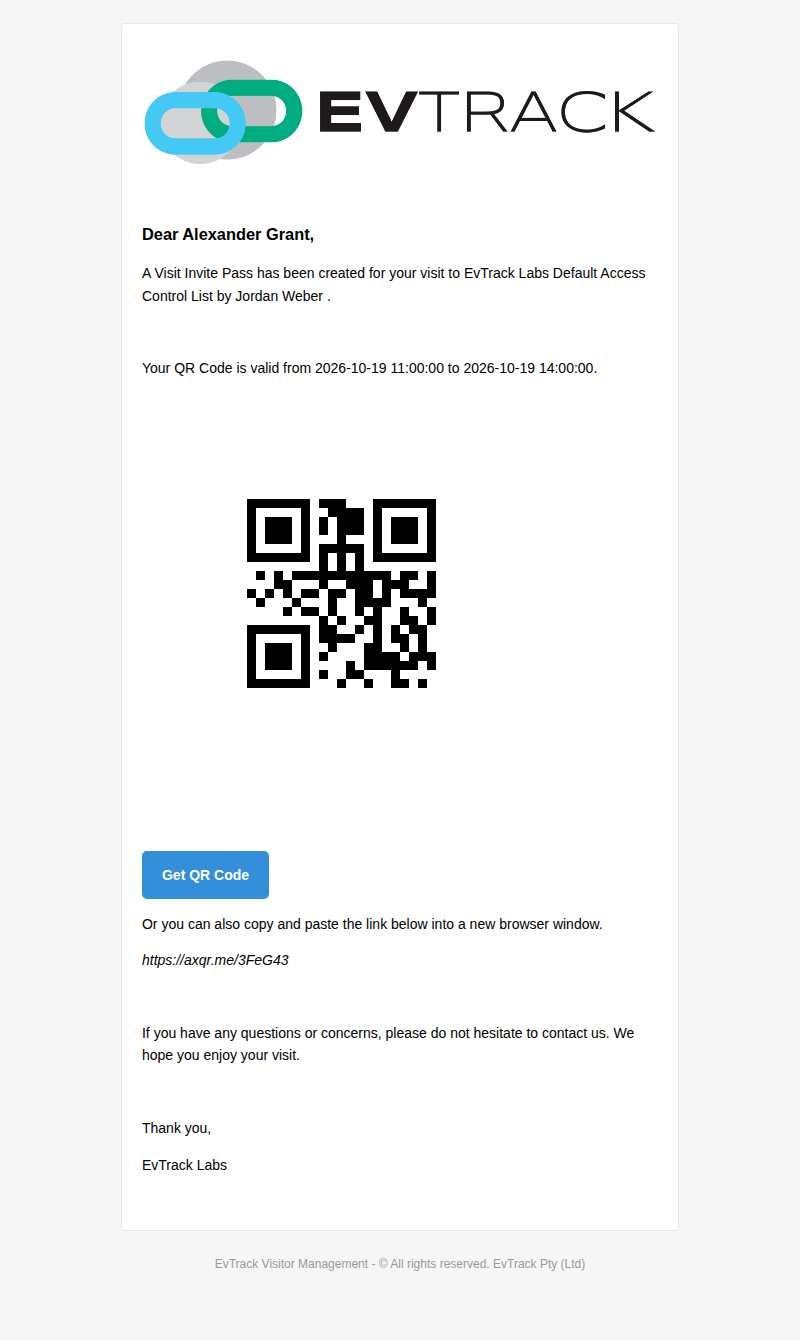
On a new system Static Visit Pass Invite QR Code is ticked under Configuration > System Settings > Security, so the email carries a fixed image of the QR code that never changes. If you clear it (the more secure choice), the image and the link are fetched from EvTrack each time the visitor opens them and the code is renewed as it ages, see Security. A system upgraded from an older version keeps the setting it had.
If it didn’t work
- The visitor receives no email. Check each of these in turn:
- The Email box in the Invite column of Notification Channels is clear. Tick it on the Visit Pass General panel and save, then invite the visitor again.
- Credential Type is set to an ID, MVL or LPR credential. Invitations are emailed only for a QR code or a PIN. Set it back to QR Code (Visit Pass Only), save, and invite the visitor again.
- The visitor’s profile has no valid email address. Add it on the Profile tab and invite them again.
- Generate Invite returns you to the form with a message.
- “Check-in time cannot be in the past.”: the check-in time is more than 15 minutes ago. Pick a later time.
- “The duration between the Check-in and Check-out date/time is too great.”: the visit is longer than the maximum visit length set on the Visit Pass General panel. Shorten the visit or raise that limit.
- The Invite form is replaced by “Error! - The maximum number of valid credentials has been reached.” The visitor already holds as many active credentials as the Max Valid Credential Limit allows (10 unless you change it). Cancel the visits they no longer need, which removes those visits’ credentials, or raise the limit on the Visit Pass General panel.
- A message says the invitation “has been submitted for location manager review” or “has been submitted to compliance officers for review”. The location requires manager approval, or compliance checks are switched on, so the request waits for a decision and no QR invitation is sent until it is approved. See Approval Workflow and Location Managers, or pick a location under Direct Approval.
For more causes and how to check each one, see The visitor did not receive their invite.