Use this page when a user (an operator, host or administrator) reports that EvTrack will not let them log in. An administrator can usually find the reason and fix it in a few minutes.
Symptom
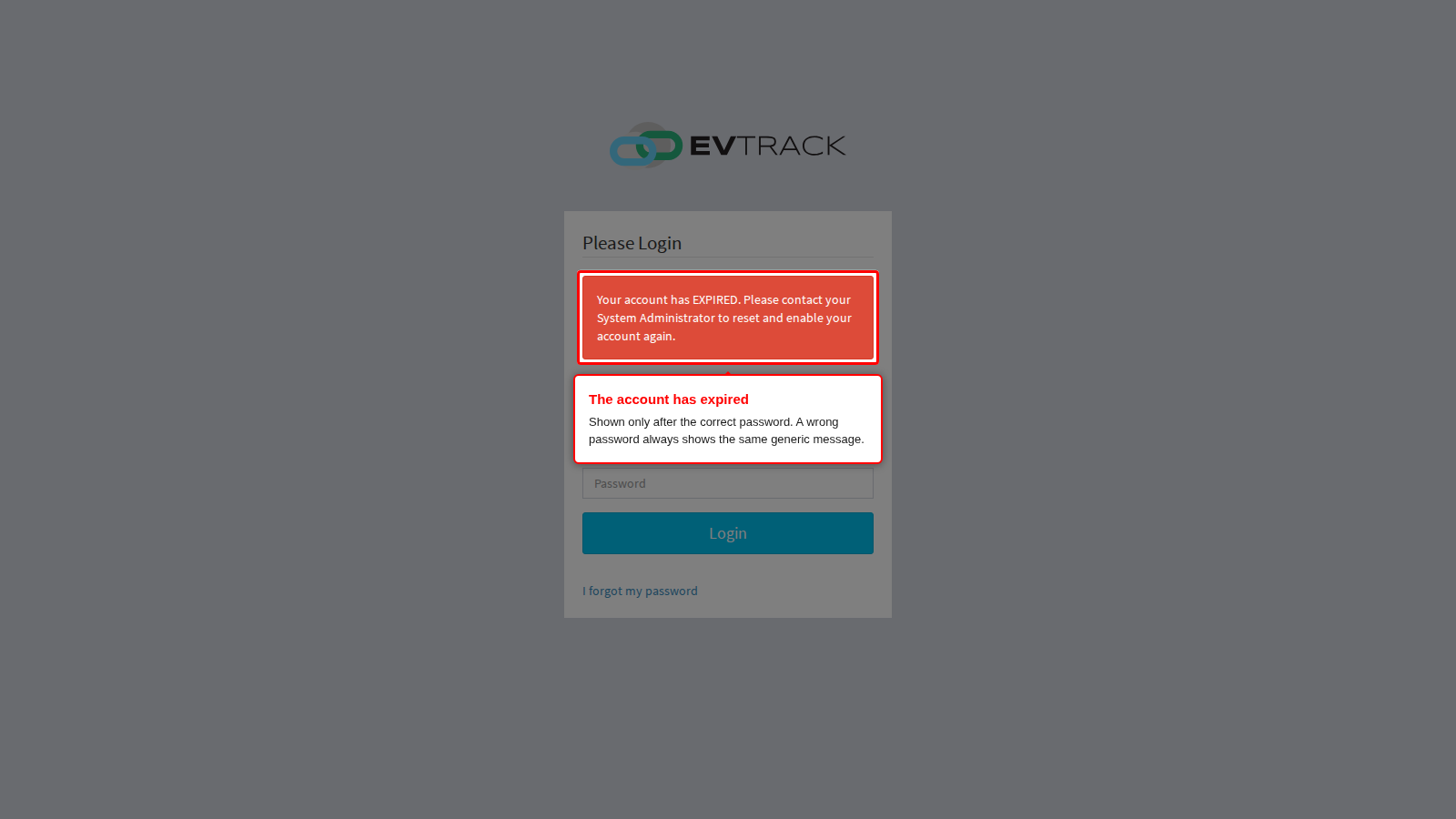
The user enters their email address or username and their password, clicks Login, and the login page opens again with a red message instead of the dashboard. In the example below, the user’s account has expired.
What it means
EvTrack checks the password first. Only when the password is correct does it check the account itself. That check passes only when the account is enabled and the current time is inside the user’s Active Date and Expiry Date. When a check fails, the login page names the reason. A failed login is not saved as an event that you can open in EvTrack, so start from the message the user sees and the user’s own record.
Why it happens
- The password or the username is wrong. The message is “Username or password is incorrect. Please provide valid username or password.” EvTrack shows this same message for every wrong password, and for a username or email address it does not know, even when the account is also disabled or expired. So this message does not tell you the account is fine. Open the user’s Account & Security tab and read the Account status row:
- “Active - user can log in”: the account is usable, so the password or the username is the problem. On the same tab, under Password reset, click Reset. EvTrack generates a new password and emails it to the user. Alternatively, type one under Set a new password and click Save. Users can also reset their own password with I forgot my password under the login form.
- Any other text: the account itself is blocked. See the causes below.
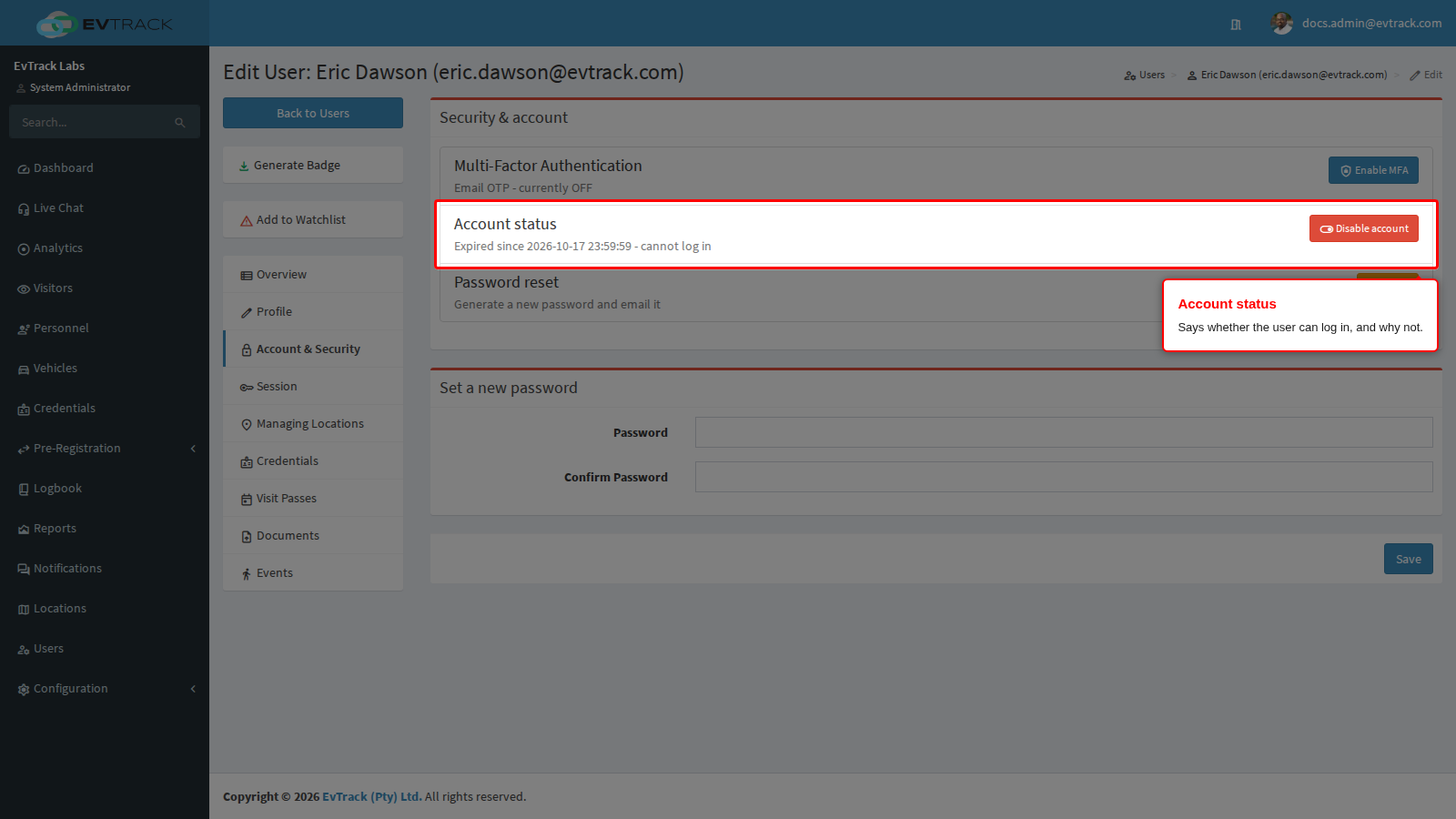
- The account has expired. The user’s Expiry Date has passed. The message is “Your account has EXPIRED. Please contact your System Administrator to reset and enable your account again.” The Account status row reads “Expired since” followed by that date and time. This is the example fixed below.
- The account is not active yet. The user’s Active Date is still in the future. The message is “Your account is not active yet. Please contact your administrator.” The Account status row reads “Not active until” followed by that date and time. The account starts working by itself on that date. To let the user in sooner, change the Active Date on the Profile tab and click Save.
- The account is disabled. The message is “Your account has been DISABLED. Please contact your System Administrator to reset and enable your account.” The Account status row reads “Disabled - cannot log in”. Click Enable account on that row.
- Too many attempts in a short time. EvTrack has no account lockout and no lockout setting. It limits how fast logins can be tried, counted per network address and per network address and username. Each login try uses up one of ten attempts for the network address and the username, and a wrong password uses up three more. So after four wrong passwords in a row the next try shows the page “429-We are sorry: you have sent too many requests to us recently.”, and five attempts come back every minute (enough for about one wrong password a minute). There is nothing to unlock: wait a minute or two, then try again with the correct password. Everyone behind the same network address shares one count. The limits are server settings,
evtrack.security.login-throttle.capacityandevtrack.security.login-throttle.refill-tokens-per-minute(10 and 5 by default). - The user cannot get past the code step. When Multi-Factor Authentication is on for a user, the Two-Factor Authentication page asks for a 6-digit code after the correct password. EvTrack emails the code to the user’s email address. It expires in 10 minutes, and Resend Code sends a new one. A wrong or late code shows “Invalid or expired OTP. Please try again.”, and a failed email shows “We could not send the verification code. Please click Resend Code to try again.” If the user cannot read that mailbox (for example, a lost phone), correct their Email on the Profile tab, or click Disable MFA on their Account & Security tab and confirm. Click Enable MFA again once they have access. You cannot turn off MFA on your own account.
- Your system logs in through SSO (SAML). There is then no password form: users log in with the Login with button for your identity provider, and passwords are reset there, not in EvTrack. “No user profile found. Please contact your administrator to set up your account.” means no EvTrack user matches the user’s identity, and new users are not created automatically. “Access restricted. Your account is currently disabled or restricted.” is the same message for a disabled, expired and not-yet-active account. Read the user’s Account status row to see which, then fix it as described above. See SAML SSO Configuration.
The user’s Overview tab shows the same facts under Status: MFA on or off, Account active or disabled, and Validity active, not yet active or expired.
Fix it now
The example below fixes an expired account. The user’s Expiry Date passed two days ago.
Step 1: Read the user’s account status
Open Users in the sidebar, find the user and click their name, then open the Account & Security tab. The Account status row says why the user cannot log in. Here it reads “Expired since” with the date and time the account expired.
Step 2: Give the account a new Expiry Date
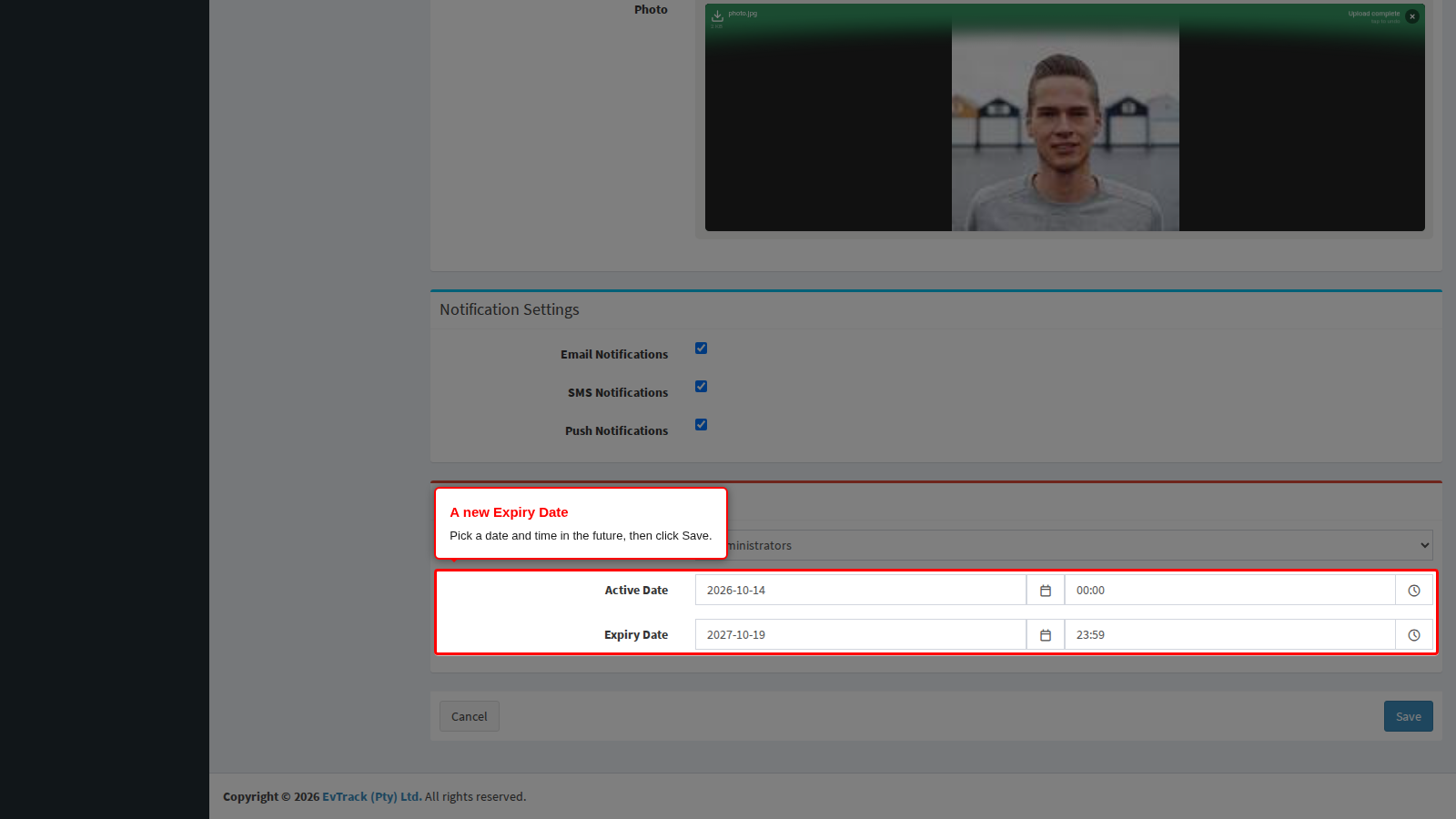
Open the Profile tab. Under Expiry Date, pick a date and time in the future. The Expiry Date must be after the Active Date. Click Save.
Check it worked
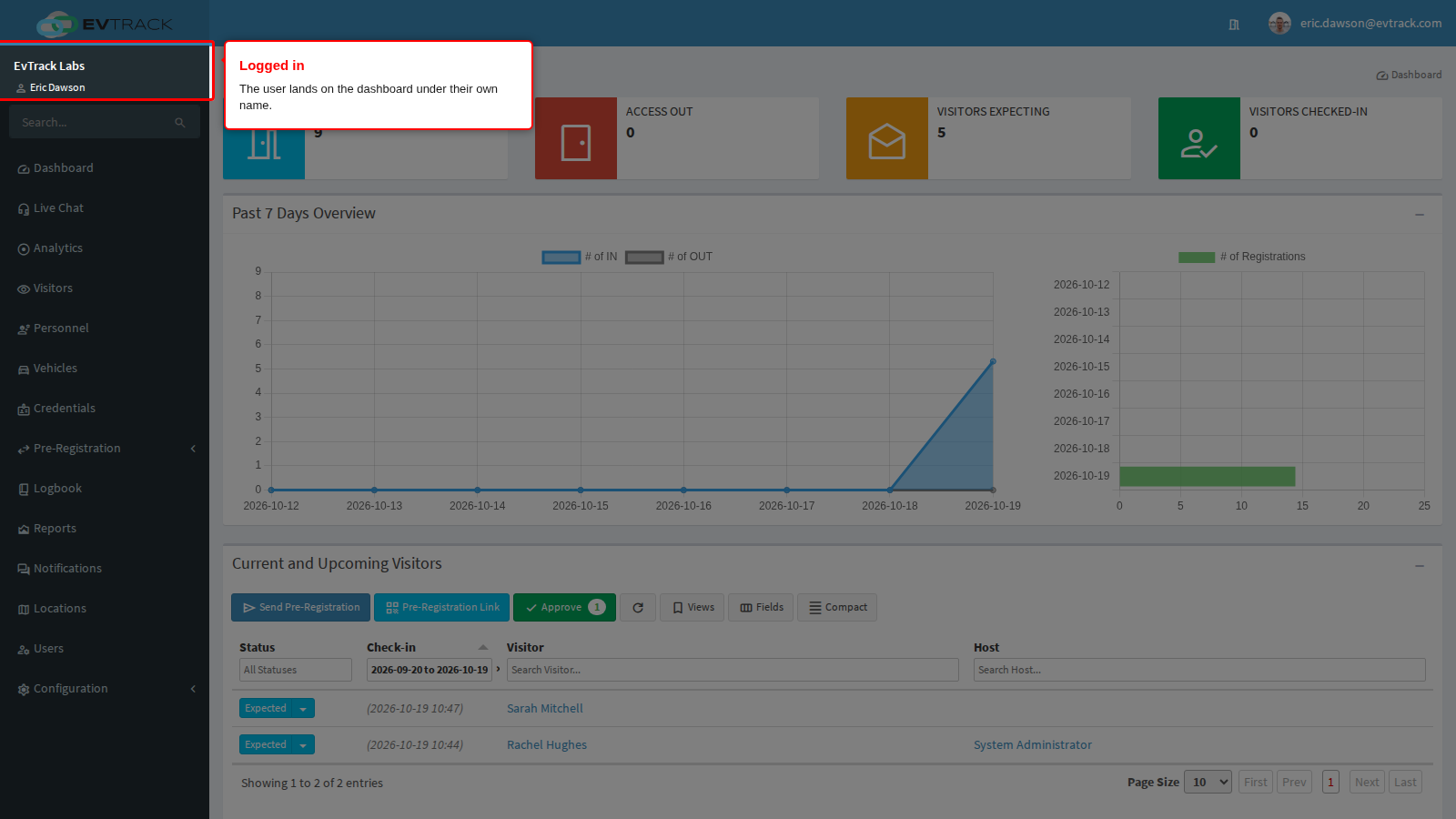
Open the Account & Security tab again: the Account status row now reads “Active - user can log in”. Ask the user to log in again with the same password. They land on the dashboard under their own name.
For more about the Active Date and Expiry Date, see User Validity and Credential Expiry.