Use this page when an invited visitor scans their invitation QR code, or types their PIN, at a FrontDesk kiosk and the kiosk does not check them in. An operator who can edit visit passes can usually fix it in about five minutes.
Symptom
The visitor presents the QR code or PIN from their invitation, and instead of “Thank you!” with the check-in confirmation, the kiosk shows one of these screens. Each one points to a different cause, so note which one the visitor saw:
- “Visit not started”: “Your visit starts at … Please try again from that time, or speak to the reception desk if you need help.” The invitation is real, but its Check-in time has not come yet.
- “No active visit”: “We could not find an active visit linked to this scan. Please speak to the reception desk if you need help.” The invitation’s Check-out time has passed.
- “No visit found”: “We could not find a valid visit for this scan. Your visit may have expired, may already be complete, or may not be valid at this location. …” The code matches no visit the kiosk can use.
- “Please note” with “You have already been checked out and the event has been finalised.” The invitation was already used.
On “Visit not started”, “No visit found” and “Please note”, the kiosk may also offer a Register button (“You can register for a new visit below.”). A visitor who registers there gets a new visit, separate from the invitation. On “Visit not started”, fix the invitation instead, as shown below.
What it means
The kiosk sends the code to EvTrack, which looks it up among the visitor passes valid at the access control point the kiosk’s reader is bound to, and then checks the visit it belongs to. When the visitor scans an ID card or passport instead, EvTrack first looks for the visitor’s visits by the document number and checks in the visit whose access lists cover this kiosk. If the access lists cover more than one, it picks the visit at the kiosk’s own location. Nothing is wrong with the kiosk or the code reader: EvTrack found a reason not to check the visitor in, and the kiosk shows that reason. The visit is not changed by the refused attempt.
Why it happens
-
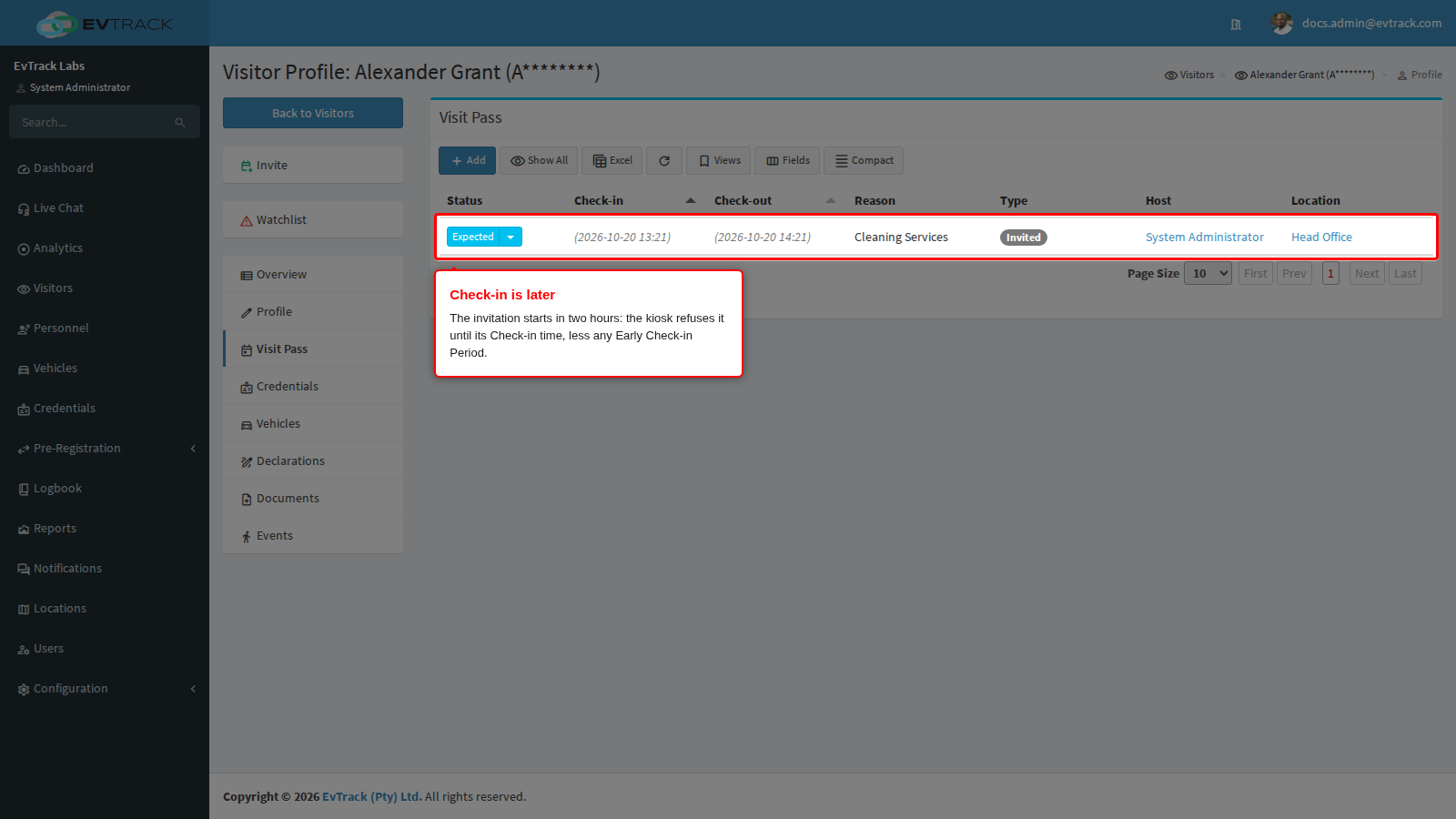
The visitor is early. The invitation’s Check-in time is later than now. EvTrack accepts the code only from the Check-in time, or earlier by the Early Check-in Period that was set under Configuration > Visitor Settings > Visit Pass when the invitation was sent. The kiosk shows “Visit not started” with the time from which it accepts the code: the Check-in time, less any Early Check-in Period. On the visitor’s Visit Pass tab, the visit reads Expected with the later Check-in time:
- The invitation has ended. Its Check-out time has passed (plus any Late Check-out Period), so the kiosk shows “No active visit”. While Enable Auto Check-out/No-Show? is on (the default, see Check-out Settings), EvTrack marks an invitation nobody used as No Show within five minutes of its Check-out time. A No Show visit can no longer be edited: opening it shows “This visit has already been finalized or cancelled”. Send the visitor a new invitation, see Invite a Visitor.
- The invitation was cancelled. Cancelling a visit removes its QR code and PIN, so the kiosk shows “No visit found”. Send a new invitation.
- The code is not this system’s. A mistyped PIN, or a QR code from another invitation email or another system, matches nothing, and the kiosk shows “No visit found”. Check the invitation the visitor received.
- The invitation does not cover this kiosk. The visit’s access lists, which come from its location, must include the access control point the kiosk’s reader is bound to. An invitation for another location that uses its own access list is turned away with “No visit found” at this kiosk.
- The visitor scanned an ID card and has no visit at this kiosk. The visitor has a visit at another location, but none whose access lists cover this kiosk, so the kiosk does not check them in on the other visit. If walk-ins are switched on, it offers to register a new visit instead. To check them in on the visit at this location, invite them to this location, or make sure their visit’s access lists include this kiosk’s access control point. A check-in found from an ID card or passport is marked “found by ID/Passport” on the visitor’s Events tab.
- The invitation was already used. The visitor checked in and was checked out on this invitation, so the kiosk shows “You have already been checked out and the event has been finalised.” Send a new invitation, or see the Re-Check-in settings on Check-out Settings. A visitor who has already checked in on it and not checked out sees “Thank you!” with “You are already checked in!” instead: nothing needs fixing.
For how an invitation is sent and when its code works, see Pre-register a visitor and send a QR invite.
Fix it now
The example below fixes the first cause: Alexander Grant arrives two hours before his invitation’s Check-in time, and reception lets him in now by moving the Check-in time.
Step 1: Open the invitation’s Edit Visit Pass page
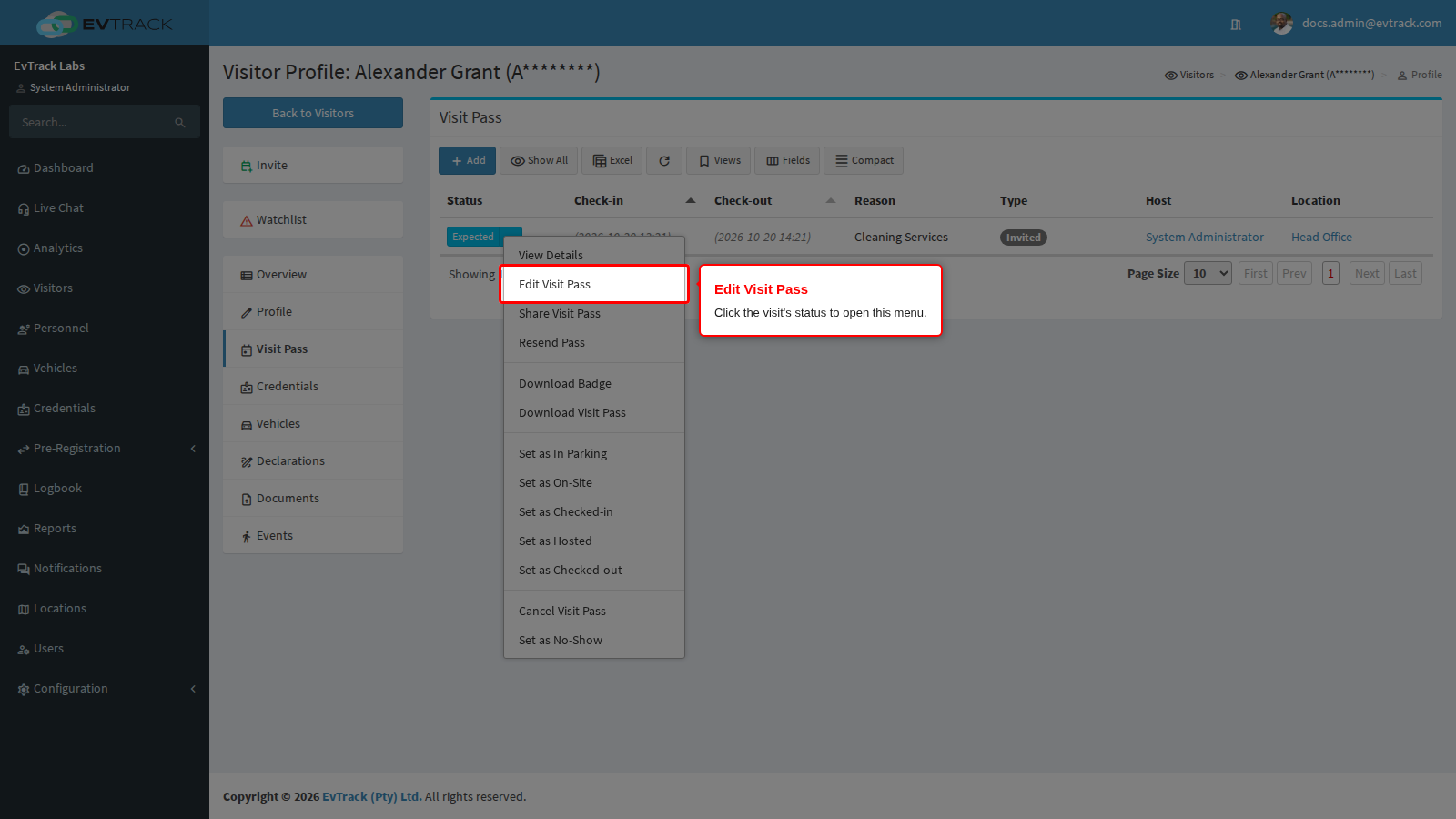
Open Visitors, open the visitor and choose the Visit Pass tab. Click the status of the visit (Expected) and choose Edit Visit Pass. The same menu is on the visit’s status on the Visitors Dashboard.
Step 2: Move the Check-in time earlier and save
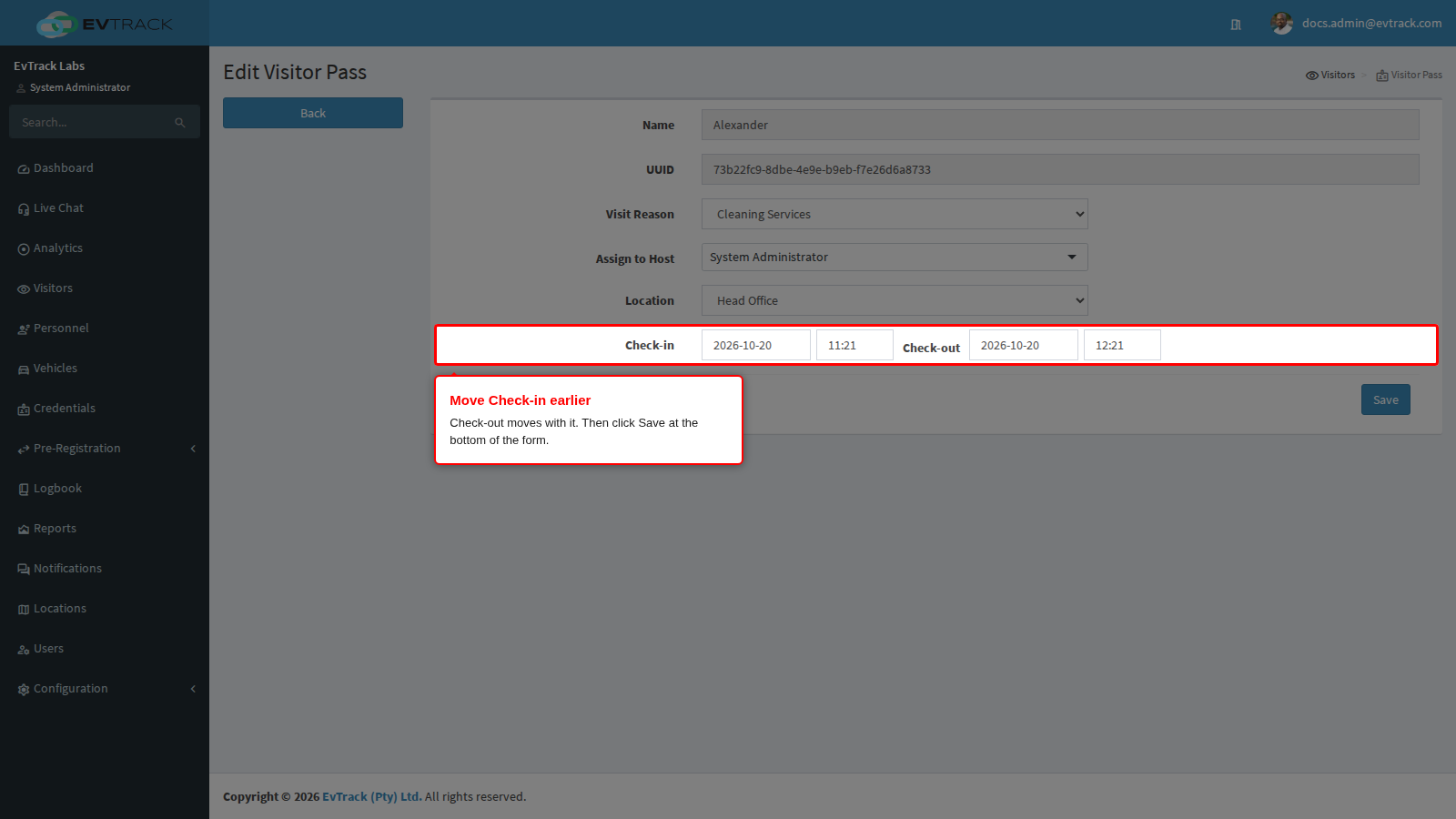
On Edit Visitor Pass, set Check-in to now. Check-out moves with it and keeps the same length of visit; change it too if the visitor should leave at the original time. Then click Save at the bottom of the form.
- EvTrack keeps the invitation’s QR code and PIN, so the visitor uses the same code.
- The save is refused with “Check-out time must be in the future.” when the Check-out time has passed, and with “The duration between the Check-in and Check-out date/time is too great…” when the visit is longer than the longest visit allowed under Configuration > Visitor Settings > Visit Pass.
- If many visitors arrive a little early, set an Early Check-in Period under Configuration > Visitor Settings > Visit Pass, see Visit Pass Settings. It applies to invitations sent after you change it; invitations already sent keep their times until you edit them as above.
Check it worked
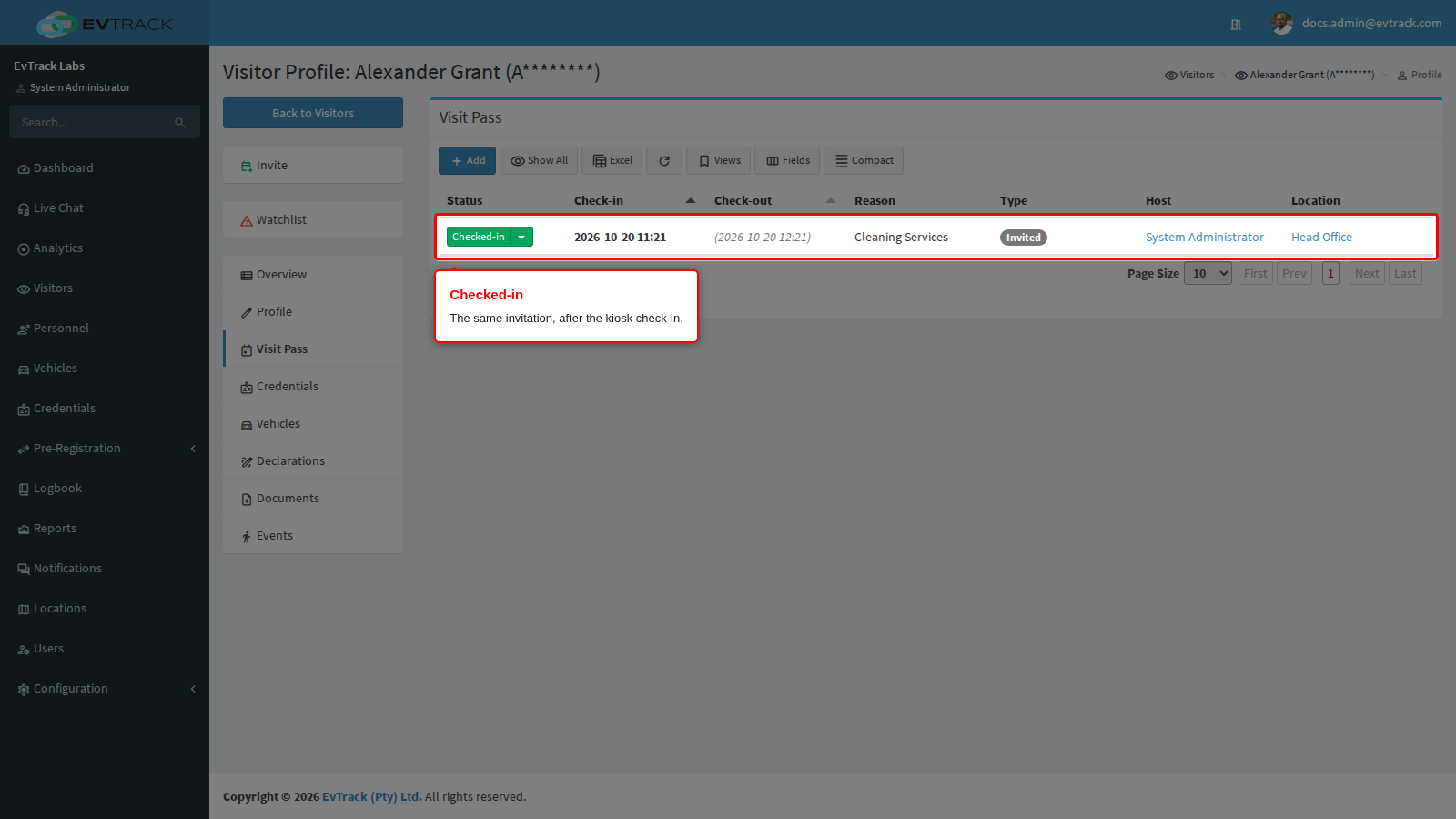
The page returns to the visitor’s profile with “Visit Pass was successfully updated.” Ask the visitor to scan the same QR code, or type the same PIN, at the kiosk again. The kiosk now finds the invitation. With Direction Requiring Visitor Registration with Visitor PIN / QR / ID Card (Configuration > Visitor Settings > Kiosk > General) at IN, the shipped setting, or BOTH, it first shows “We require more information from you” with the invitation details; the visitor taps PROCEED, then follows the kiosk’s registration screens, which can start with a choice to scan an ID card. With NONE or OUT, the kiosk shows “Thank you!” with the check-in confirmation at once. Either way the same invitation is checked in, and the visit on the Visit Pass tab reads Checked-in: