Have EvTrack email the host as soon as their visitor arrives, so nobody has to phone reception to ask. It takes about five minutes.
Before you start
- You can edit visitor settings and users.
- Outgoing email works, see Server Settings.
- The host is a user with their own single email address on their profile, for example
jordan.weber@evtrack.com. An address with a display name, or a list of addresses, is not used. - The visit names its host. A visit with no host sends no arrival notice.
Arrival notices go out by email, SMS or push to the host’s mobile app. Email is off on a new system and push is on. WhatsApp is not one of the channels: it only sends invitations and visit passes to visitors. A Microsoft Teams integration can also tell hosts in Teams, see “If it didn’t work”.
Steps
Step 1: Switch on email to hosts
Go to Configuration > Visitor Settings > Host Notifications and tick Notify Host via Email.
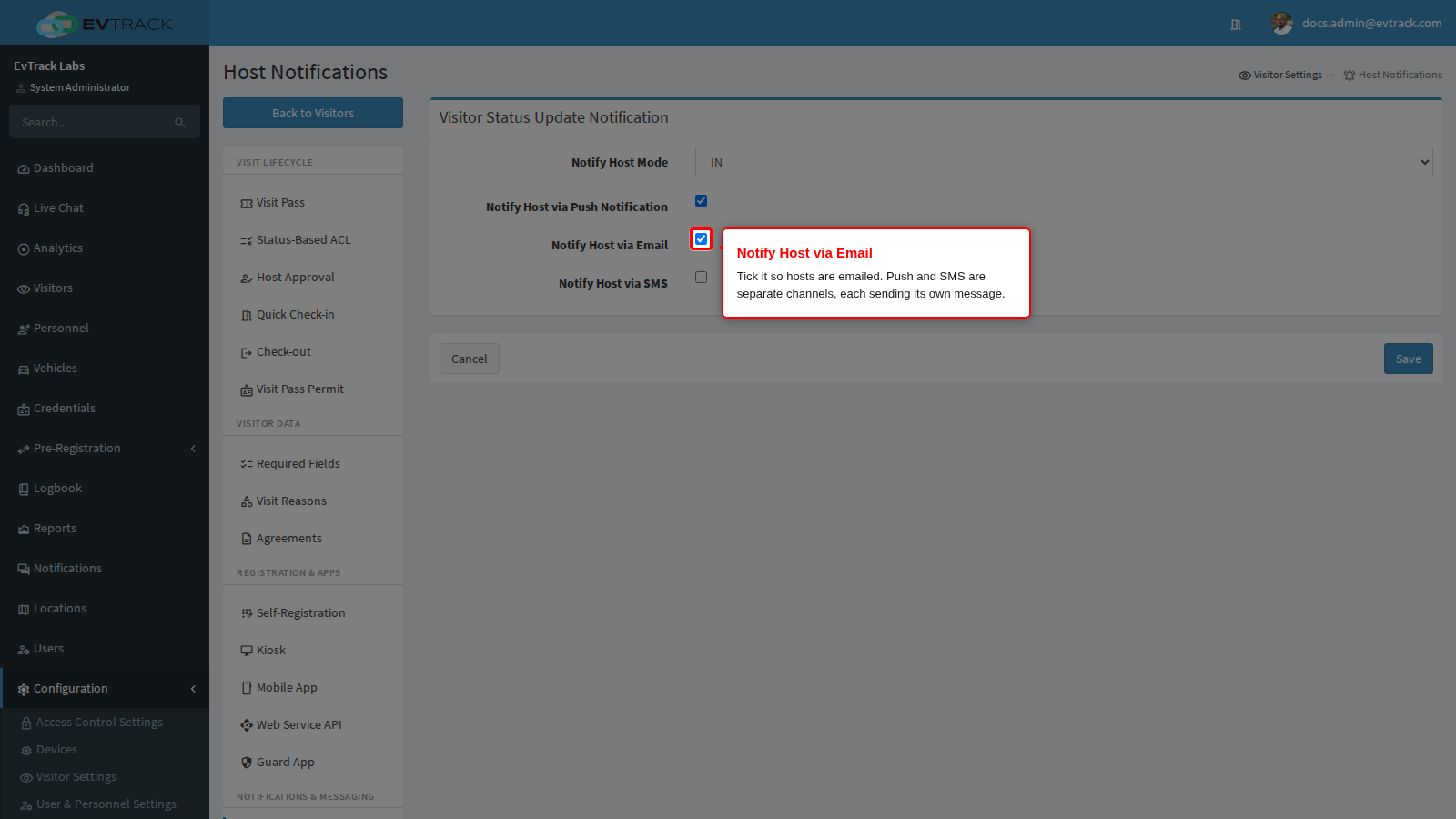
- Notify Host via Push Notification and Notify Host via SMS sit beside it. Each channel you tick sends its own message, so a host with two channels gets two messages per arrival.
- SMS also needs a working SMS gateway and a mobile number on the host’s profile.
Step 2: Choose IN and save
Set Notify Host Mode to IN, then click Save at the bottom of the panel.
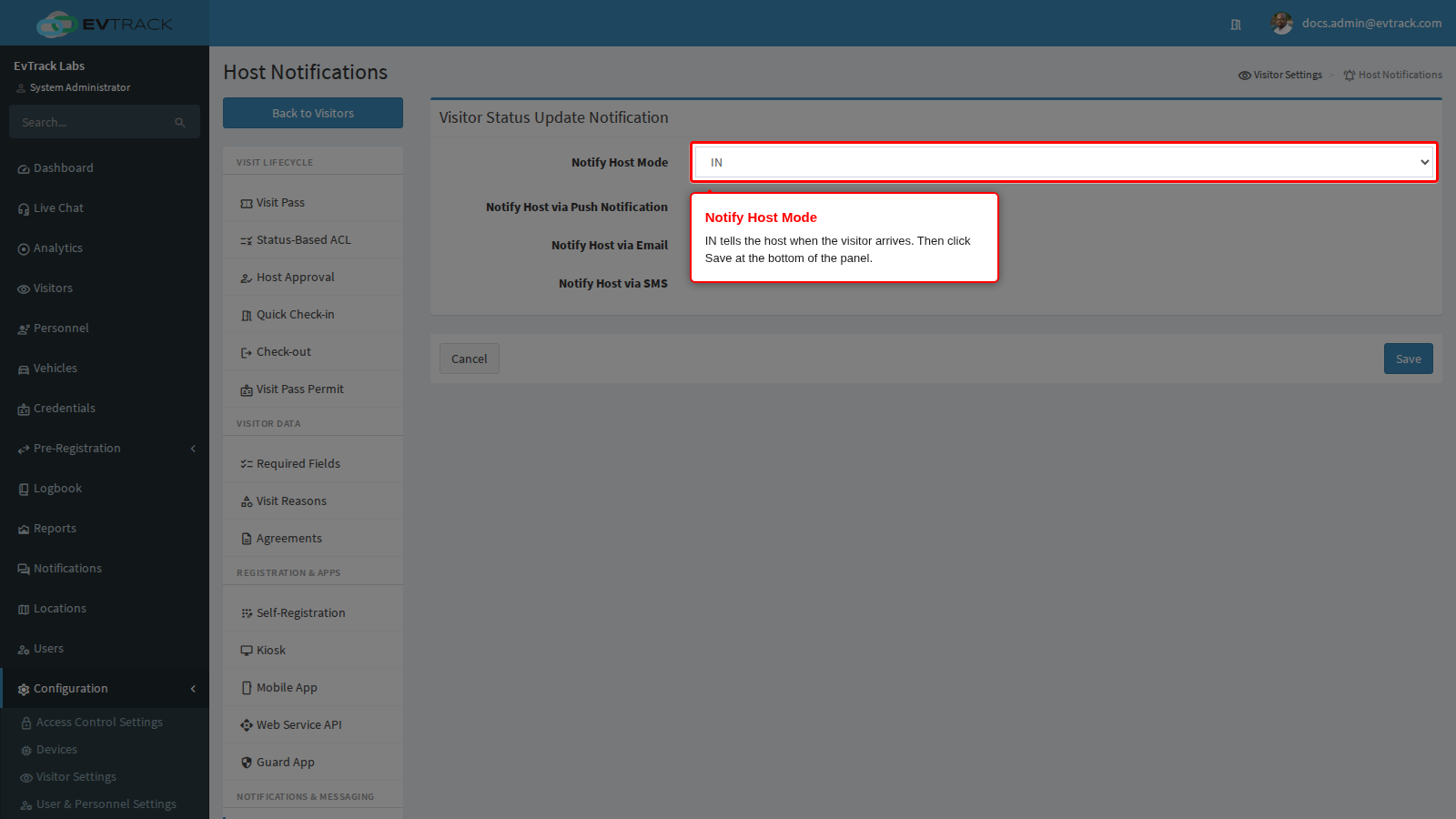
- IN tells the host when the visitor arrives. A visitor moved to In Parking, On Site or Hosted also counts as an arrival.
- OUT tells the host when the visitor leaves; moves to In Parking, On Site or Hosted still notify the host. BOTH tells them either way.
- These settings apply to every location. There is no location-level switch for host arrival notices.
Step 3: Check the host’s own preference
Open Users, open the host and choose the Profile tab. Under Notification Settings, Email Notifications must be ticked. Click Save if you changed it.
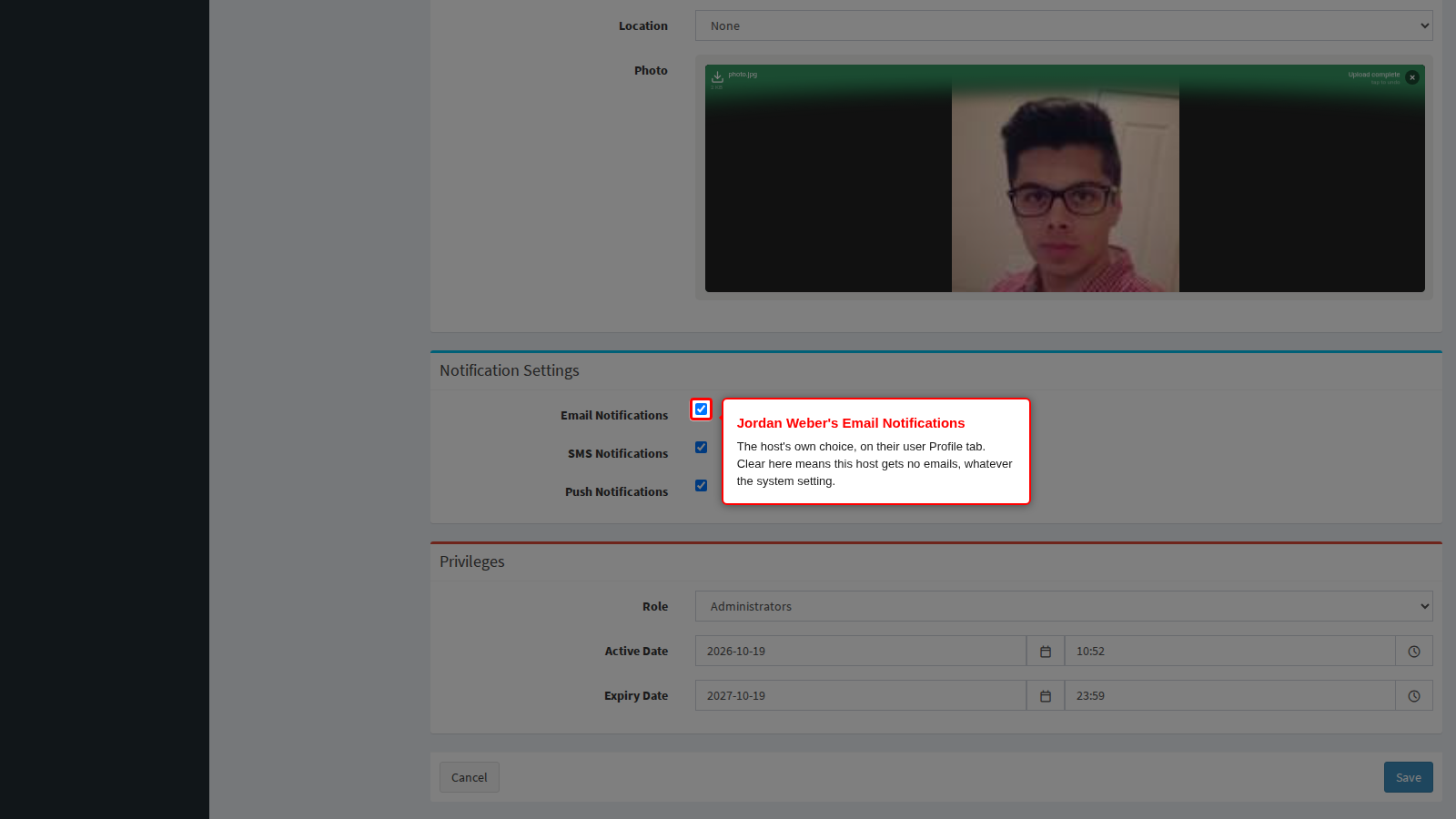
A new user starts with all three channels ticked. The host’s choice and the system setting must both be on before a message is sent.
Check it worked
To test it, open the Visitors Dashboard, select a visit that names the host, click Check-in and confirm. Shortly afterwards the host receives an email that greets them by name and says the visitor has arrived, with the visitor’s company and visit reason. A check-in done in the web application shows Web Interface as the place; a reader or kiosk check-in normally shows its access control point instead.
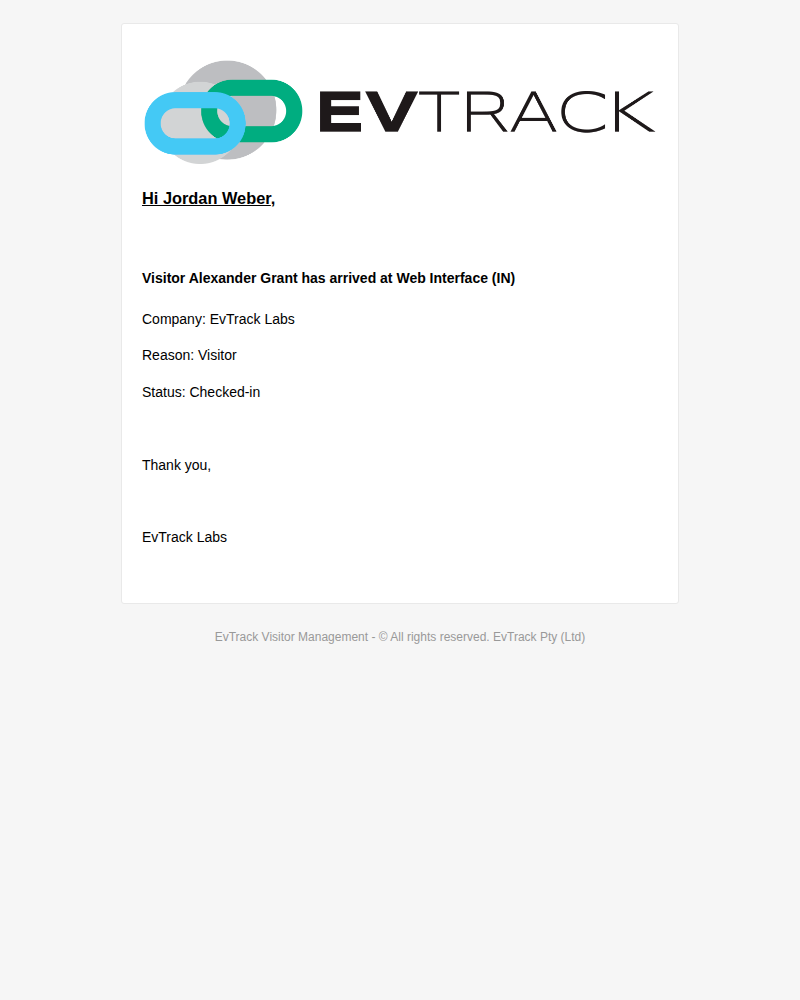
You can change the subject and wording on Configuration > Visitor Settings > Visitor Emails > Host Notifications, see Host Notification Settings.
If it didn’t work
- Nobody gets an email.
- Notify Host via Email is clear, or Notify Host Mode is OUT. Fix both on Host Notifications and save.
- The mail server is not sending. Check Server Settings.
- One host gets nothing while others do.
- Email Notifications is clear on that host’s Profile tab. Tick it and save.
- The host’s email is empty, or holds a display name or more than one address. Enter one plain address.
- The host’s account is disabled, has expired or is not active yet. Such a host gets no notice on any channel, and the system records the missed notice as an error event. Enable the account or correct its dates.
- The host is told in Teams at one location but not at another. The Microsoft Teams integration can be limited to chosen locations, and it sends nothing for visits elsewhere. Open the Teams integration under Configuration > System Settings > Apps, choose its Filters tab and add the location, or clear the filter so it covers every location. The location’s own Notifications tab does not help here: it covers visit pass and credential notices only.
For more causes and how to check each one, see The host was not notified.