The Microsoft Teams integration notifies your staff in Teams about visitor activity and pending approvals. Each notification arrives as an activity feed item (the bell icon in Teams) with a deep link into EvTrack - not a chat message - so hosts see who arrived without leaving Teams.
Prerequisites
- A Microsoft Entra app registration with a client secret and the application permission TeamsActivity.Send, granted admin consent. If staff email addresses differ from their Microsoft login names, also consent User.ReadBasic.All and switch on the email-resolution option below.
- A Teams administrator who can upload the EvTrack app package to your organisation’s app catalogue and assign it to staff with an app setup policy. Notifications can only reach people who have the EvTrack Teams app installed.
- The system base URL configured under system settings, so notification links open your EvTrack.
Step 1: Add the integration
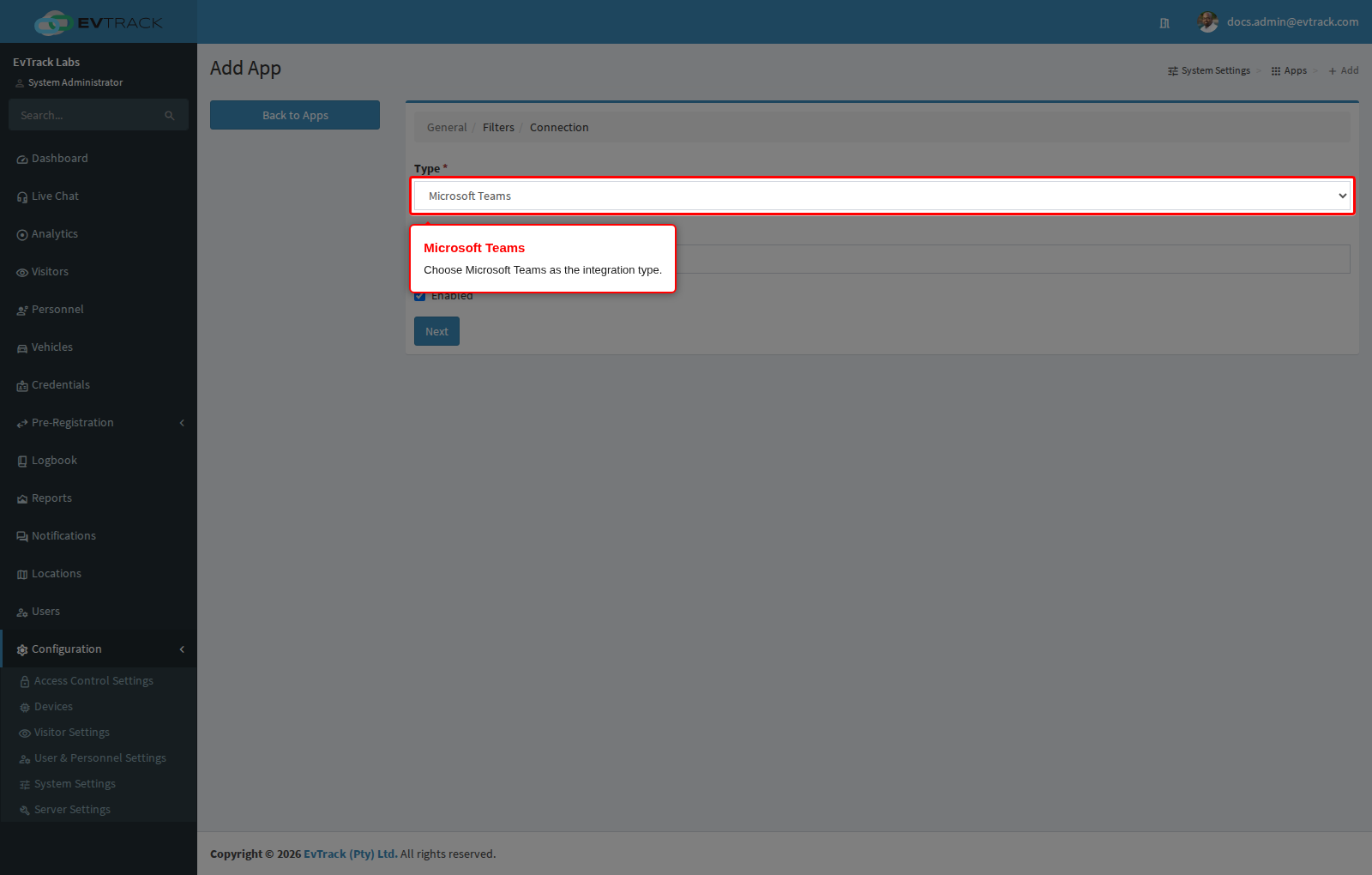
Open Configuration > System Settings > Apps and click Add, then choose Microsoft Teams from the integration catalogue.
Step 2: Connect to Microsoft Graph
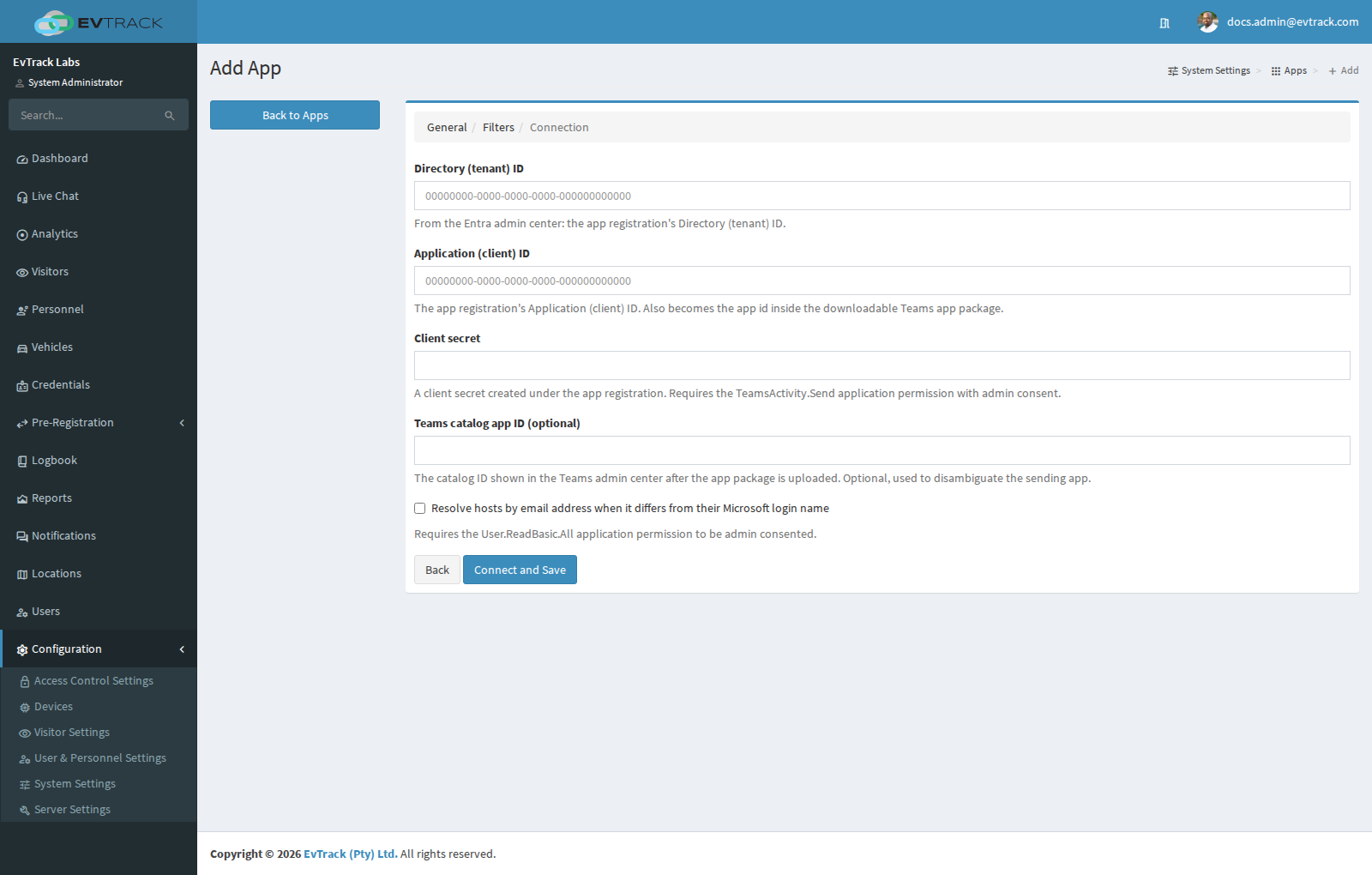
Enter the app registration’s Directory (tenant) ID, Application (client) ID and client secret. The optional Teams catalog app ID (shown in the Teams admin center after you upload the package) identifies the sending app. Switch on Resolve hosts by email address when it differs from their Microsoft login name only when your staff email addresses are not their Microsoft login names - it needs the extra directory permission listed above.
Use Test Connection after saving: it verifies the credentials, and when email resolution is on it also verifies the directory-read permission.
Step 3: Install the Teams app for your staff
Open the saved integration and click Download Teams app package. Your Teams administrator uploads the zip in the Teams admin center (Teams apps > Manage apps > Upload new app) and assigns it to staff via an app setup policy. A notification to someone without the app installed is refused by Microsoft and the integration shows a sync error until the app is assigned.
Step 4: Choose events and messages
The configuration section lists a checkbox and a message template per event:
- Visit events notify the visit’s host: created, check-in, on site, in parking, hosted, check-out, updated, no show, cancelled and denied. Check-in, on site, in parking and check-out start enabled.
- Reminder events notify whoever the reminder is addressed to - hosts, users, location managers, compliance officers or administrators: overdue registration approvals, the pending-registrations digest, the upcoming-visits digest, expiring credentials and expiring user accounts. The two registration-approval events start enabled.
Message templates use merge tags such as ${name}, ${location} and ${reminder_subject} (each field’s help text lists its tags). Teams shows the first 150 characters of the message. A mistyped tag appears literally in the notification so the mistake is visible rather than silently dropped.
Note: Teams is an additional channel. Email, SMS and push notifications are never delayed or replaced by a Teams delivery, and a Teams failure never affects them - it marks the integration with a sync error for you to investigate.