Make every walk-in visitor who registers at a FrontDesk kiosk wait for the host they name to approve the visit, by email or in the mobile app, before the check-in goes through. It takes about ten minutes.
Before you start
- You can edit visitor settings.
- At least one FrontDesk kiosk is paired, see Kiosk and Guard Devices, and its readers are bound to an access control point, see Access Control Points. Until they are, the kiosk cannot load its settings. That access control point must also have a rule on the Default Access Control List, or visitor passes are refused there.
- Every host your visitors may name is a user who is enabled, inside their Active Date and Expiry Date, and has one plain email address on their user record. A host who has the EvTrack mobile app is also asked there.
Host approval applies to visitors who register at the kiosk. A visitor who checks in with a valid invitation QR code or PIN was already invited by their host and is not asked again.
Steps
Step 1: Turn on Require Host Approval for Self/Walk-in Check-in
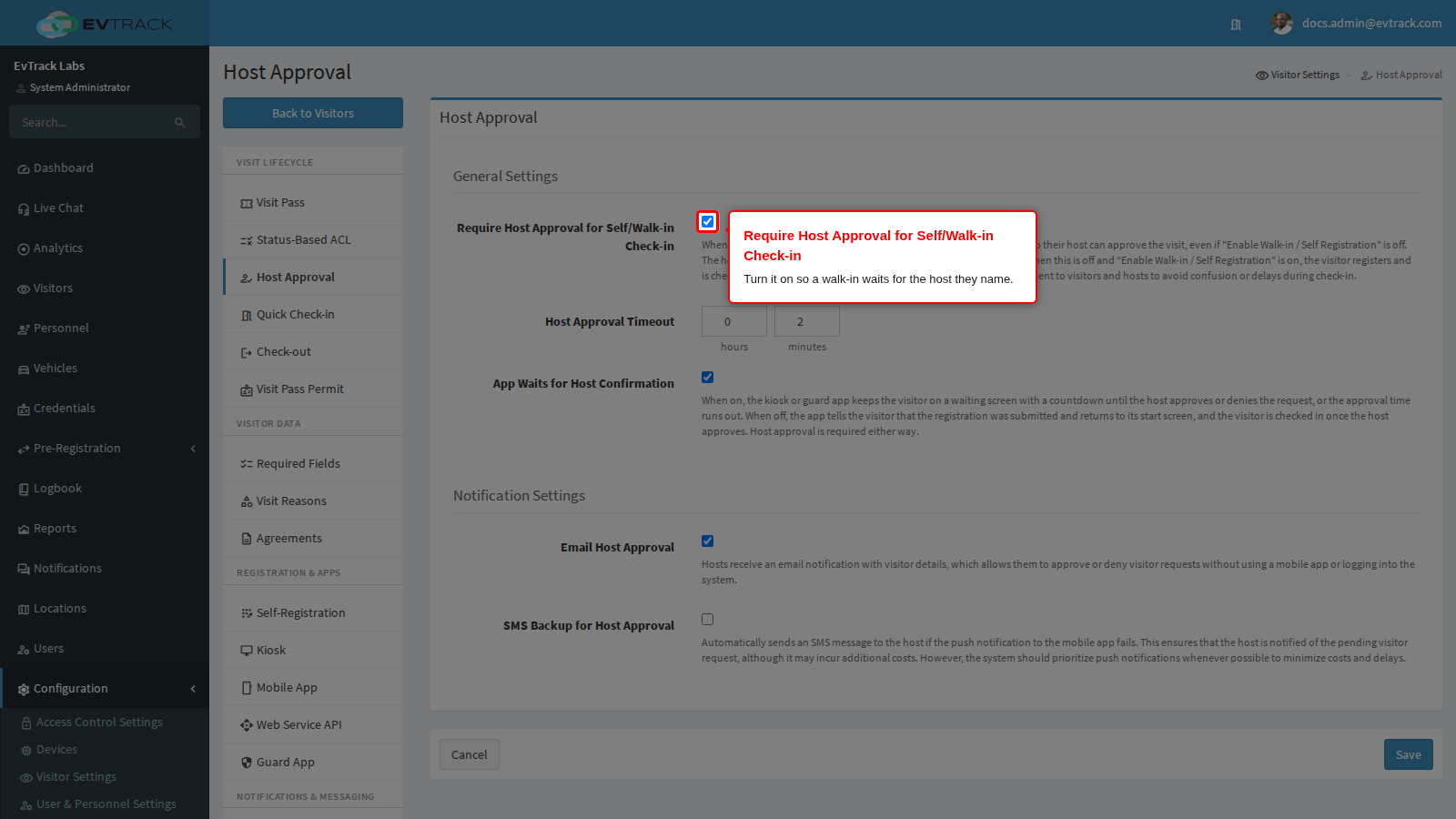
Go to Configuration > Visitor Settings and click the Host Approval tile. Turn on Require Host Approval for Self/Walk-in Check-in. The kiosk then offers walk-in visitors the registration form even when walk-in registration is switched off on the kiosk, because the visitor must say who they are and who they are visiting.
Check the other settings on the panel while you are there:
- Host Approval Timeout: how long the host has to answer. The default is two minutes. When it runs out, the visitor is not checked in.
- App Waits for Host Confirmation: keep it on so the kiosk holds the visitor on a waiting screen until the host answers. With it off, the kiosk tells the visitor the registration was submitted and returns to its start screen, and the visitor is checked in when the host approves. The host must approve either way.
- Email Host Approval: keep it on so the host is emailed an approval link and can answer without the mobile app. SMS Backup for Host Approval also texts the host, but only when the mobile app cannot be reached and the host has a mobile number.
Step 2: Save the Host Approval panel
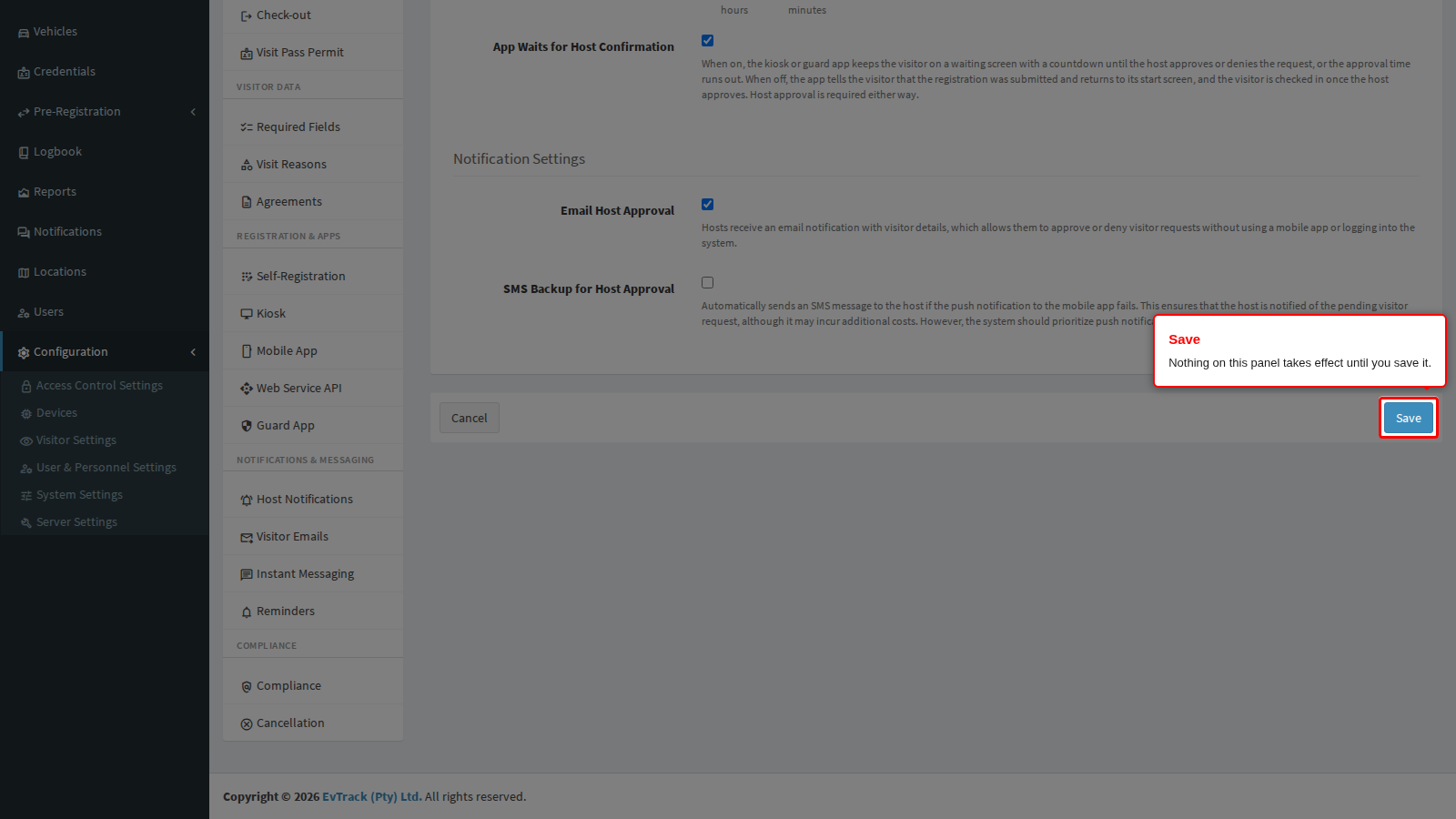
Click Save at the bottom of the panel.
Step 3: Ask for the host on the kiosk
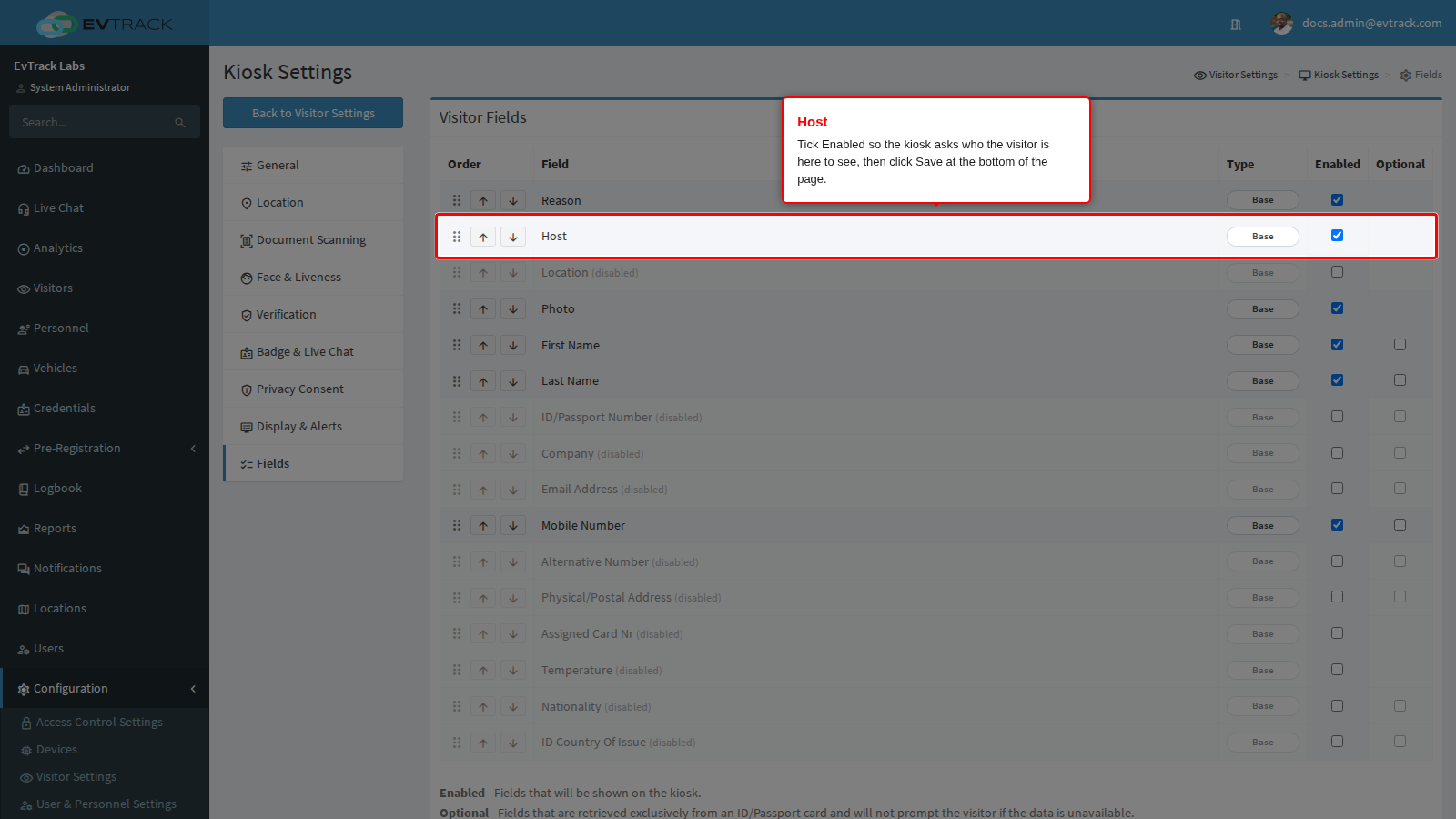
Go back to Configuration > Visitor Settings, click the Kiosk tile and choose Fields in the kiosk menu. Tick Enabled on the Host row and click Save at the bottom of the page. The kiosk now asks each visitor to pick their host from a list of enabled users, and does not continue until they do.
Paired kiosks pick the changes up within five minutes, or at once when the FrontDesk app restarts.
Check it worked
Register a test visitor at the kiosk and name a host. The kiosk first shows a Host approval needed screen that says “You need to register so your host can approve your visit”, then the registration form. After the visitor submits it, the kiosk shows “Contacting your Host, please wait.” with a countdown (“Time remaining 01:59”).
The host receives an email with the subject “Approve/Deny: Visitor” and the visitor’s name. It says which access control point the visitor is waiting at and lists their name, surname, reason and company as the visitor entered them.
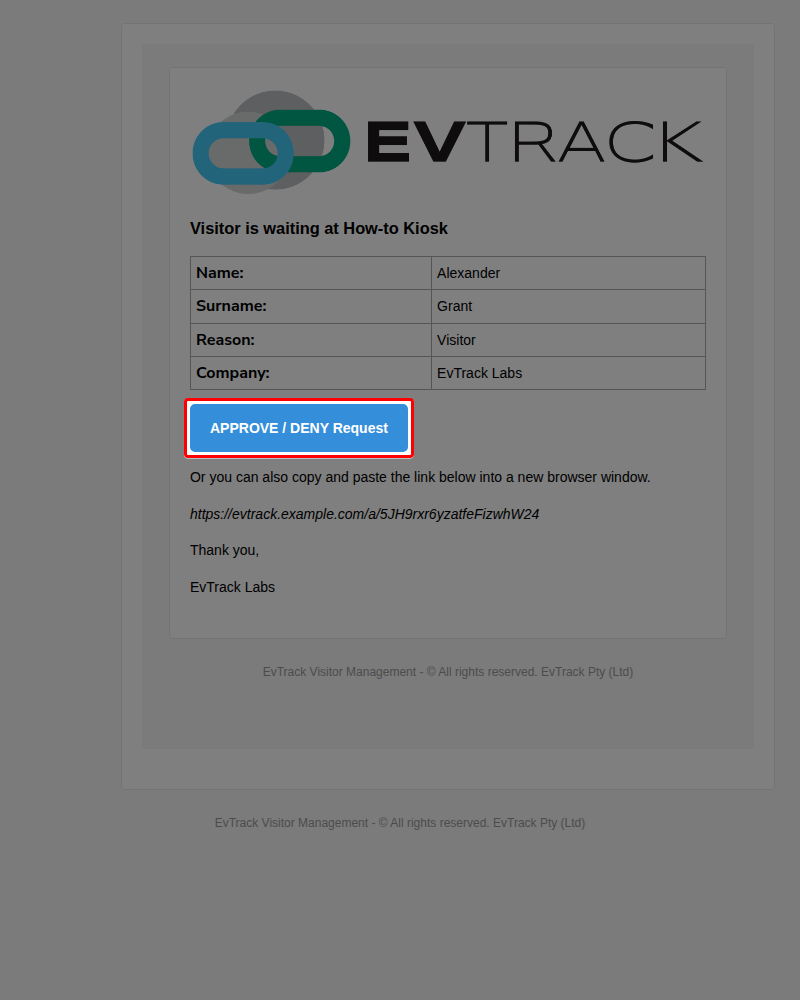
The host clicks APPROVE / DENY Request. No login is needed: the page shows the visitor’s details with an Approve and a Deny button. After Approve, the page says “The visitor has been approved and is granted access.”, and the kiosk shows “Thank you!”, tells the visitor they are checked in, and prints a badge when badge printing is on. After Deny, the kiosk shows “Access Denied” and the visitor is not checked in.
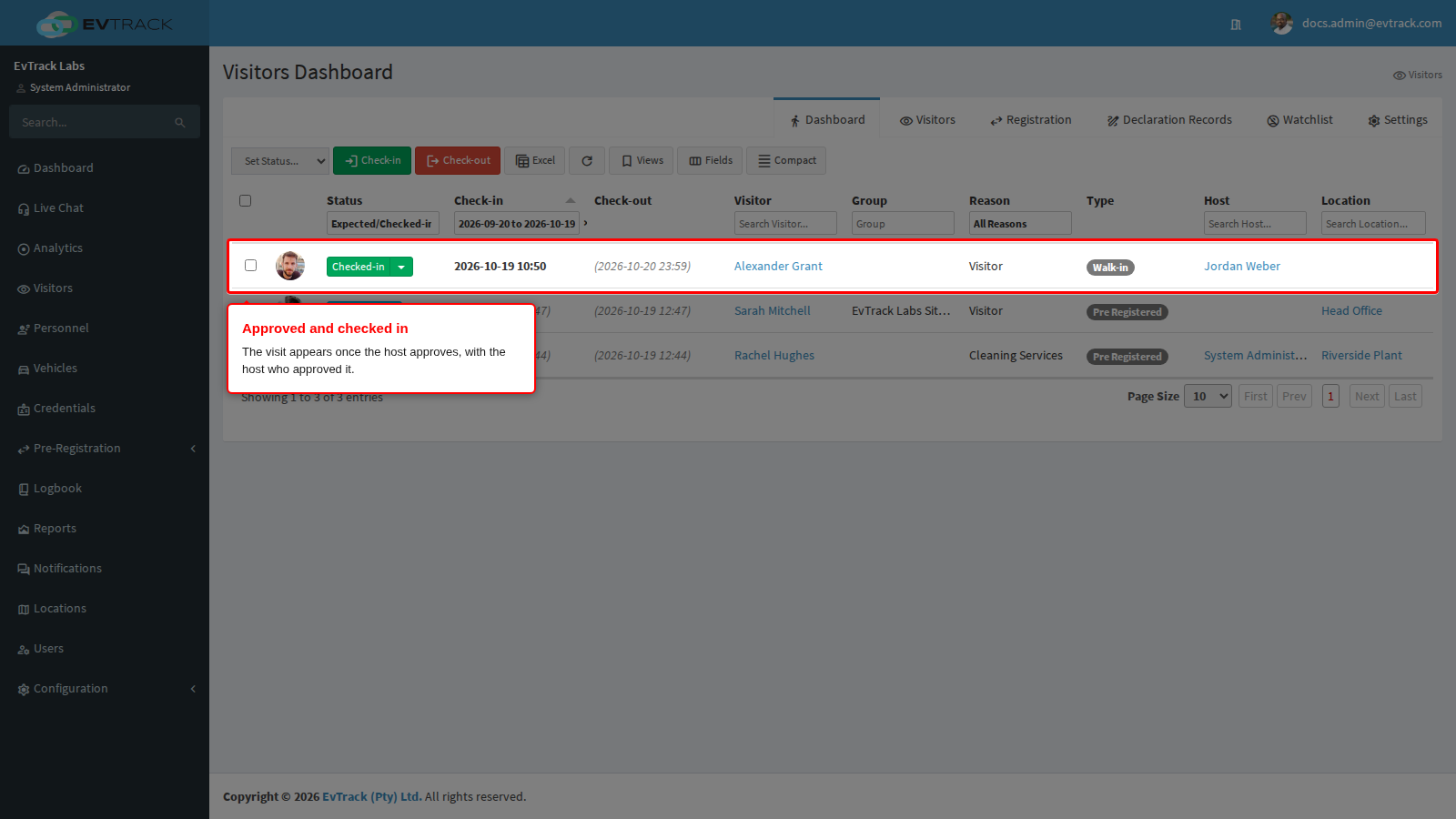
Then, in the web application, open Visitors. The visitor is checked in and appears on the Visitors Dashboard with the host who approved the visit.
If it didn’t work
- The kiosk shows “Timeout” and “The host did not respond. Please try again later.” within seconds of the visitor submitting. No channel could reach the host, so the request ends at once. Check the host’s user record:
- The user must be enabled and inside their Active Date and Expiry Date. A disabled, expired or not yet active user is asked on no channel at all. See User Validity and Credential Expiry.
- The email address must be one plain address, with no display name and no list of addresses, and Email Host Approval must be on. Without a usable email, only the mobile app (and SMS, when SMS Backup for Host Approval is on and the host has a mobile number) can reach the host.
- The kiosk shows “Timeout” after the full countdown. The host did not answer within the Host Approval Timeout. If the host opens the email link later, the page says “The Transaction ID has expired. If the problem persists, contact your system administrator.” The visitor has to register again. Raise the timeout if your hosts need longer.
- The kiosk shows “Host Approval Required - Error No Host User Specified”. The visitor was not asked for a host. Tick Enabled on the Host row of Kiosk > Fields and save. If the kiosk’s location keeps its own field list (Use global kiosk fields clear on the location’s Kiosk App tab), tick Host there instead, see Location Overrides.
- The host is missing from the kiosk’s host list. The list shows enabled users only. Enable the user, then wait for the kiosk to refresh its settings or restart the FrontDesk app.
Related
- Host Approval settings
- Host Approval
- Fields and Required Fields
- Reception Host Approval, the separate gate for walk-ins that are checked in from the Visitors Dashboard
- Make visitors sign an NDA on the kiosk
- Require an ID scan or photo at kiosk check-in
- Print visitor badges from the kiosk