The watchlist screens everyone entering the system against lists of flagged identities - banned contractors, barred former staff, security alerts. A match also refuses check-in, including visits that were issued before the entry was added. This page covers the full watchlist lifecycle and shows how a match surfaces.
Before you start: you need an account with watchlist administration rights, and the identity details (name, ID or passport number) of the people to flag.
Step 1: Open the Watchlist
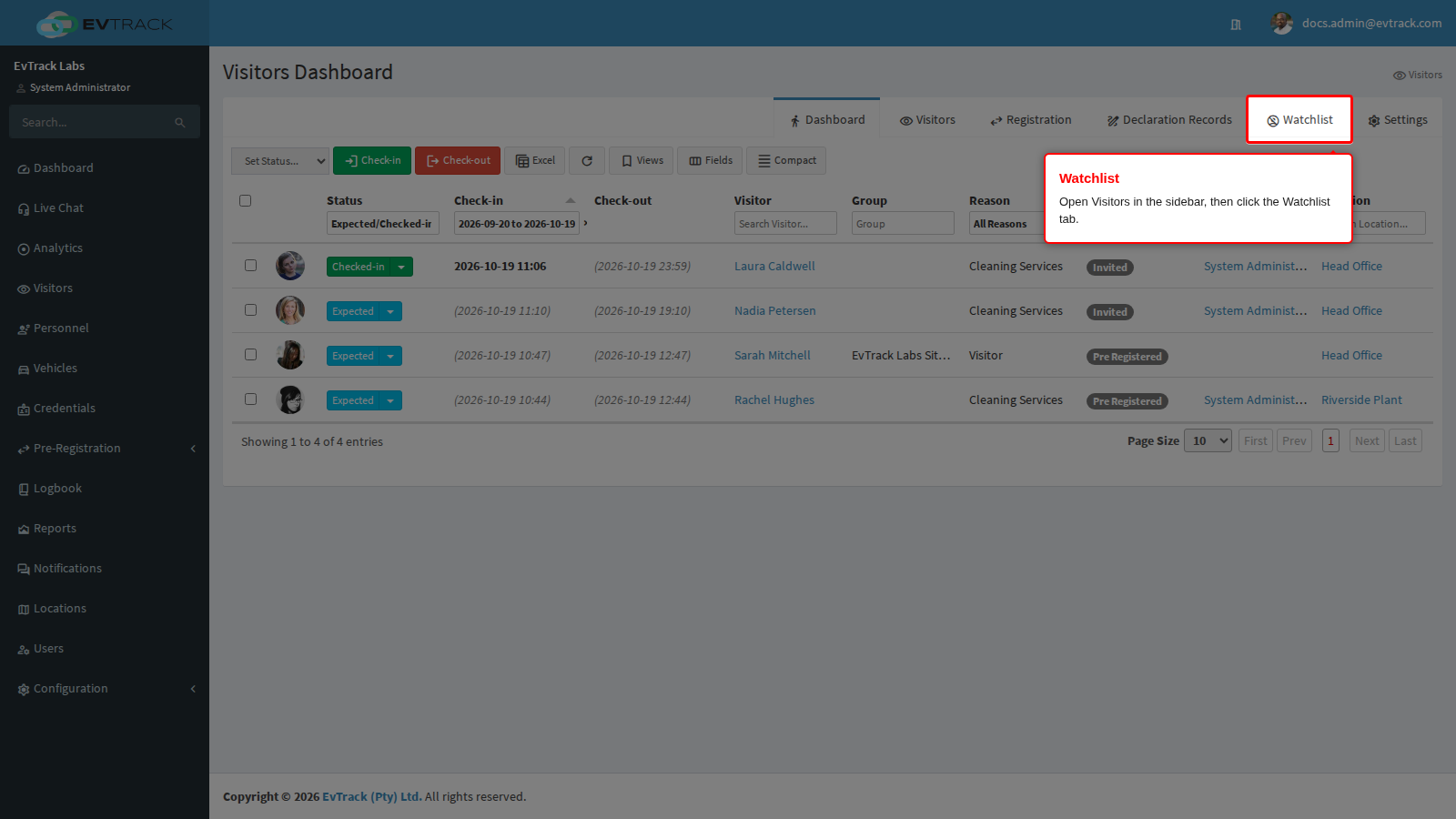
In the left sidebar click Visitors, then click the Watchlist tab at the top right of the page. The watchlist page opens.
Step 2: Review your watchlists
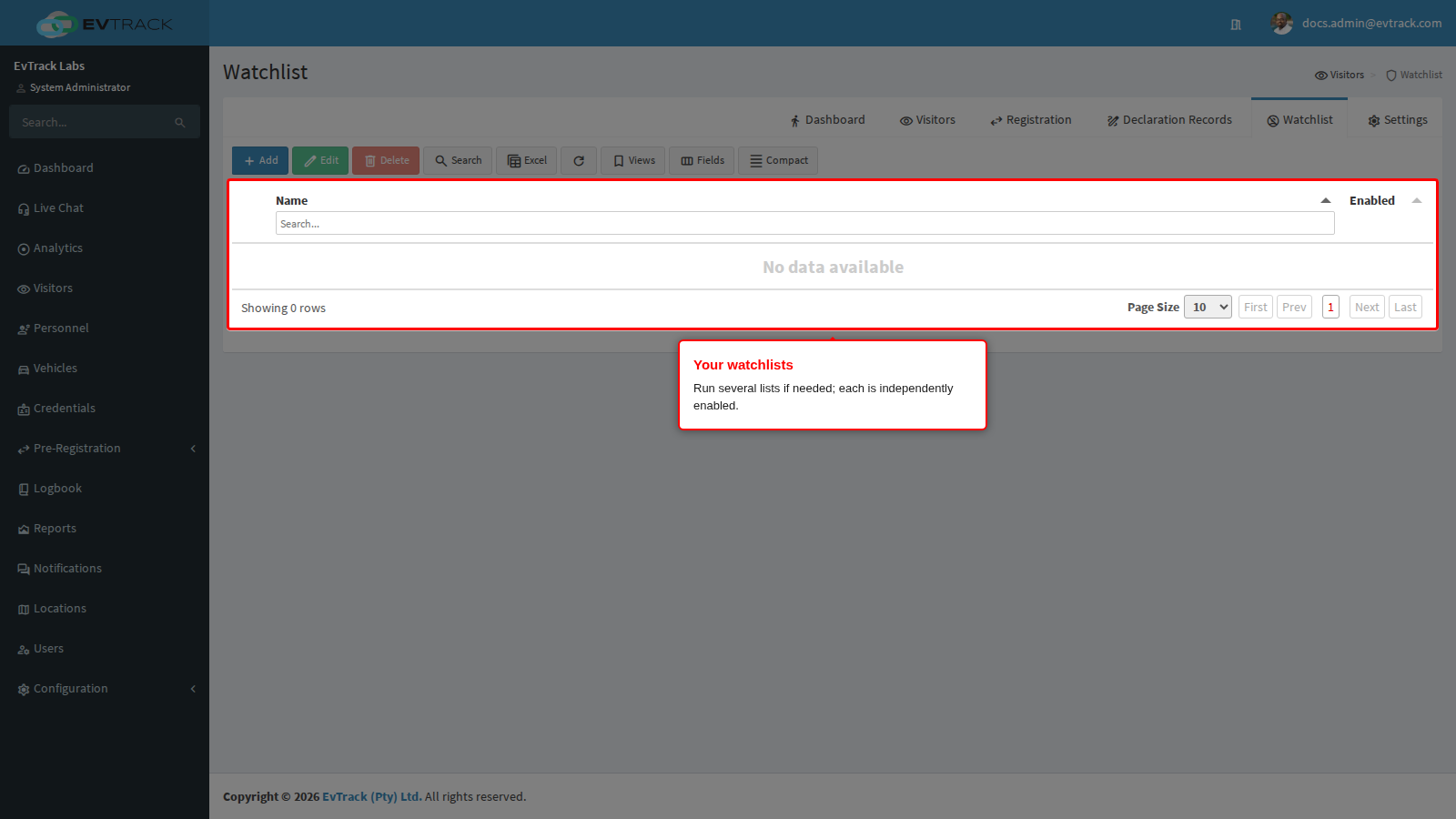
The table lists your watchlists - you can run several (for example one per site or category), each independently enabled.
Step 3: Click Add
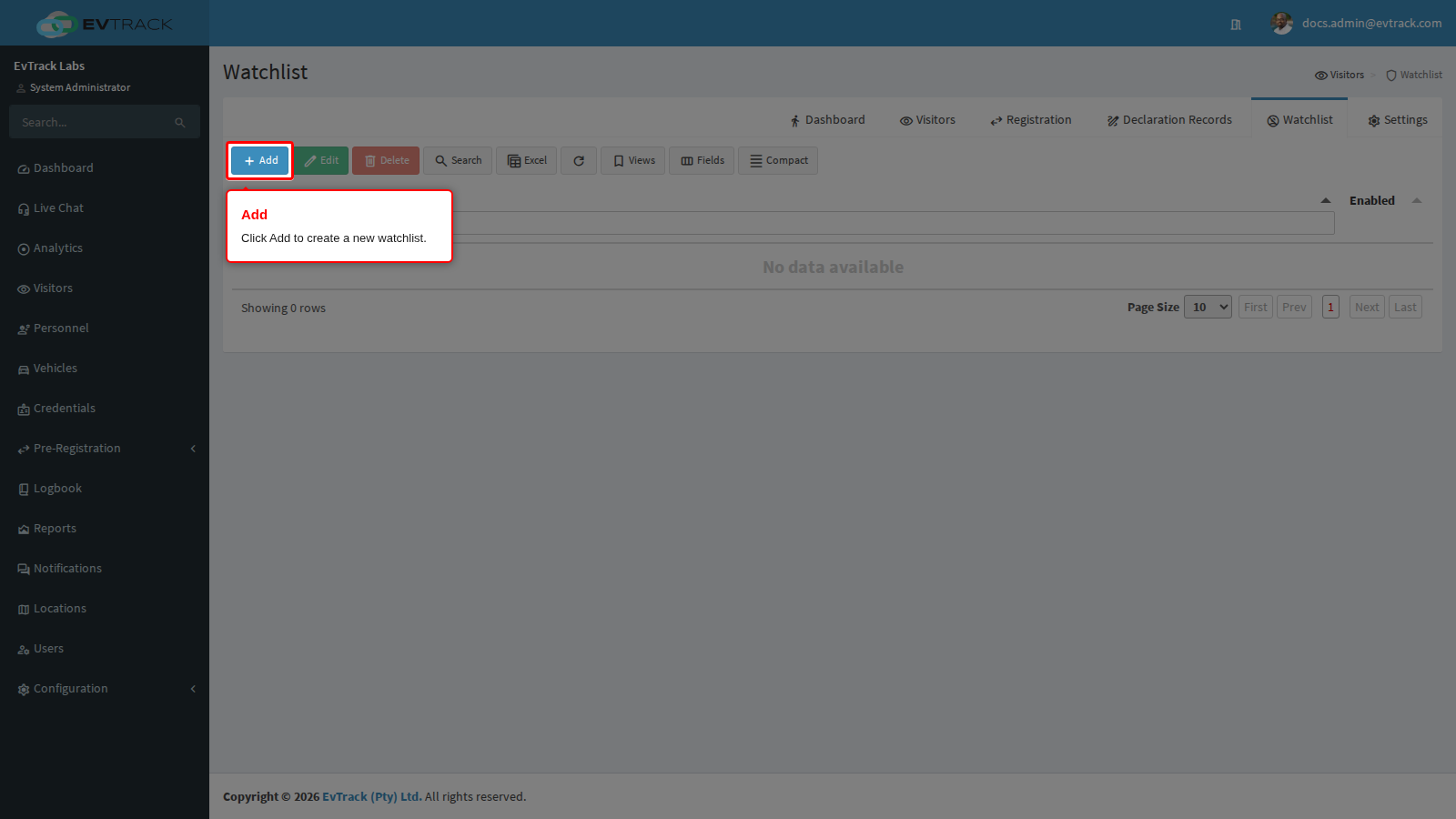
Click the Add button above the table. The new watchlist form opens.
Step 4: Create the watchlist
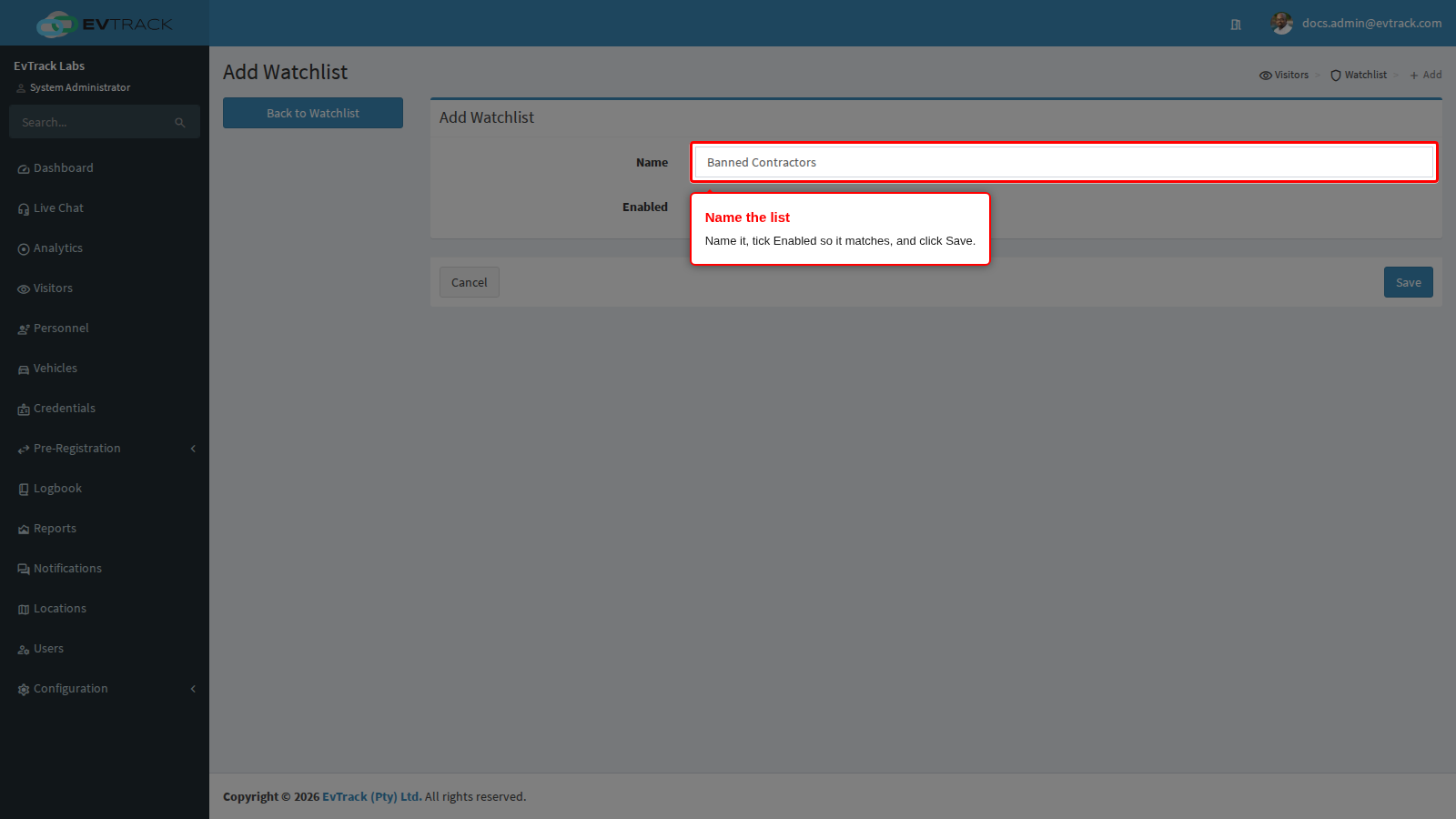
Give the list a name, tick Enabled, and click Save. A disabled list keeps its entries but stops matching. You are returned to the watchlist with a success message.
Step 5: Open the entries table
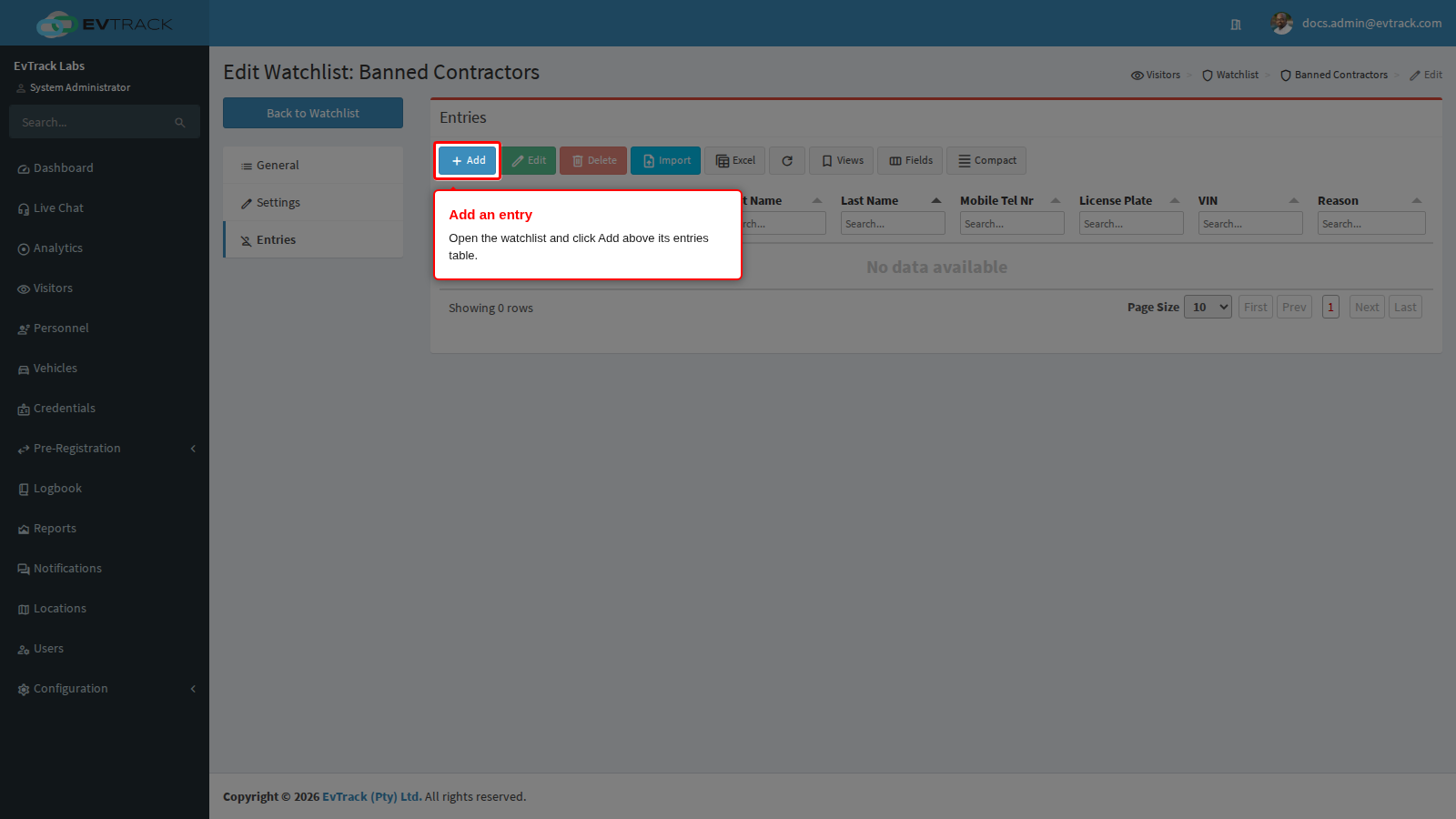
Open the watchlist from the list (click its name, or select its row and click Edit). Its entries table shows every flagged identity; click Add above the table to add one. Entries can also be bulk-loaded from a spreadsheet with the Import button (see the import wizard).
Step 6: Add the entry
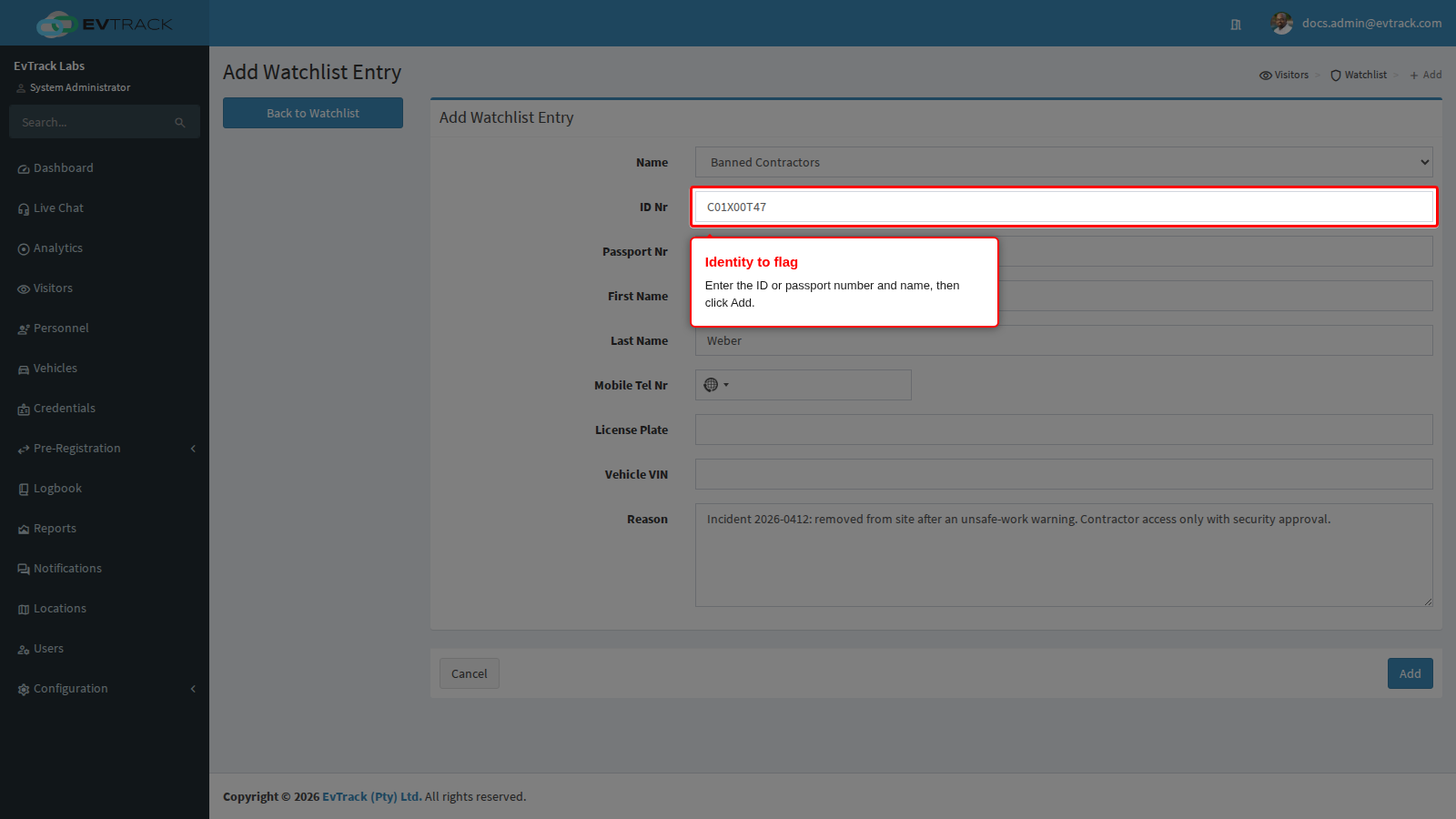
Each entry is an identity to flag - enter the first name, last name and ID/passport number, then click Add.
When the person already has booked visits
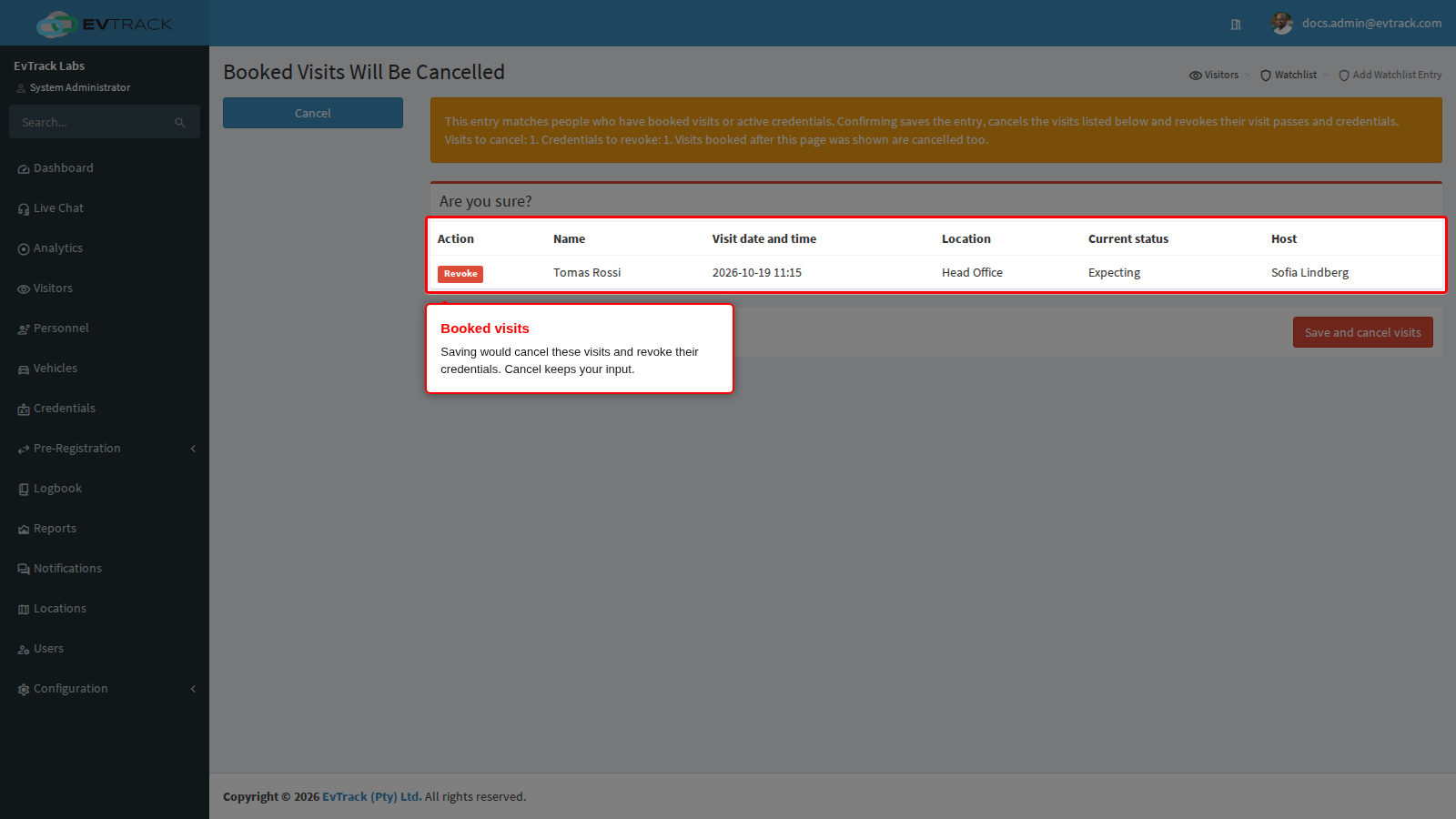
If the entry matches someone who already has a booked visit, an invitation or an active credential, clicking Add (or Save when you edit an entry) does not save it straight away. The Booked Visits Will Be Cancelled page opens and lists every affected visit with the visitor’s name, the visit date and time, the location, the current status and the host, marked Revoke in the Action column. A person with active credentials but no booked visit gets a row whose status reads Active credentials: and the number of credentials.
- Save and cancel visits saves the entry, cancels the listed visits and revokes their credentials.
- A visitor who is checked in now is not cancelled: their row reads Currently on site - credentials revoked, visit remains open, and you check them out yourself. A card they hold from a card pool is returned to its pool when you save, and stops opening doors.
- A cancelled visit that holds a card which is not returned automatically reads Card … still assigned - return it.
- Cancel returns to the entry form with your details kept, and nothing is saved.
Entries added by an import, by an agreement’s On Denied Add to Watchlist action or through the web service API never open this page, and switching a disabled watchlist back on does not open it either. None of these cancels booked visits: visits booked before them remain valid, and the person can check in with them, until you cancel them yourself from the Visitors Dashboard.
For the whole task, from the entry to the cancelled visits, see Stop a person from visiting.
Step 7: Confirm the entry
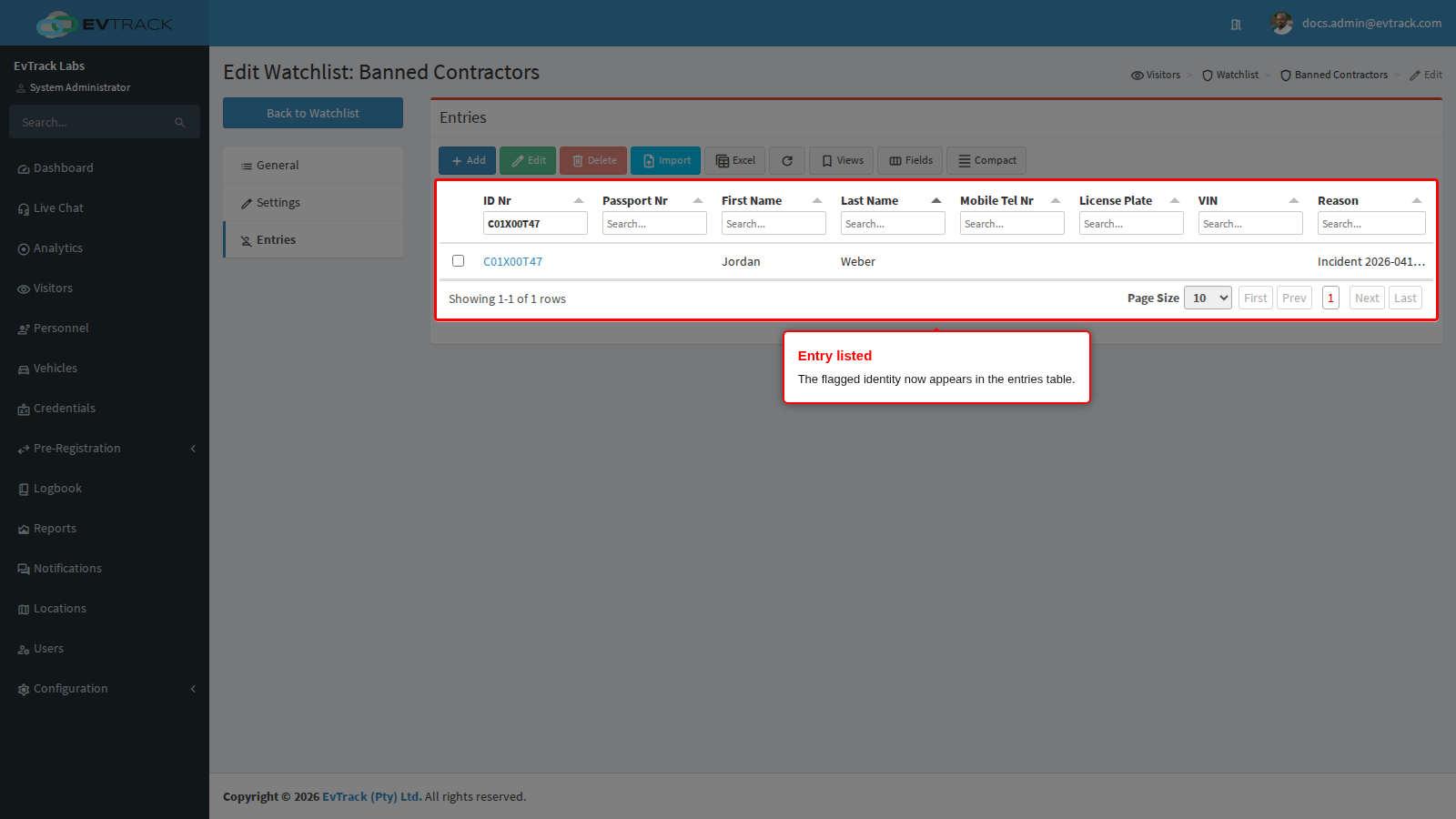
Back on the watchlist, the entry appears in the entries table. Matching is live from this moment.
Step 8: How matches surface
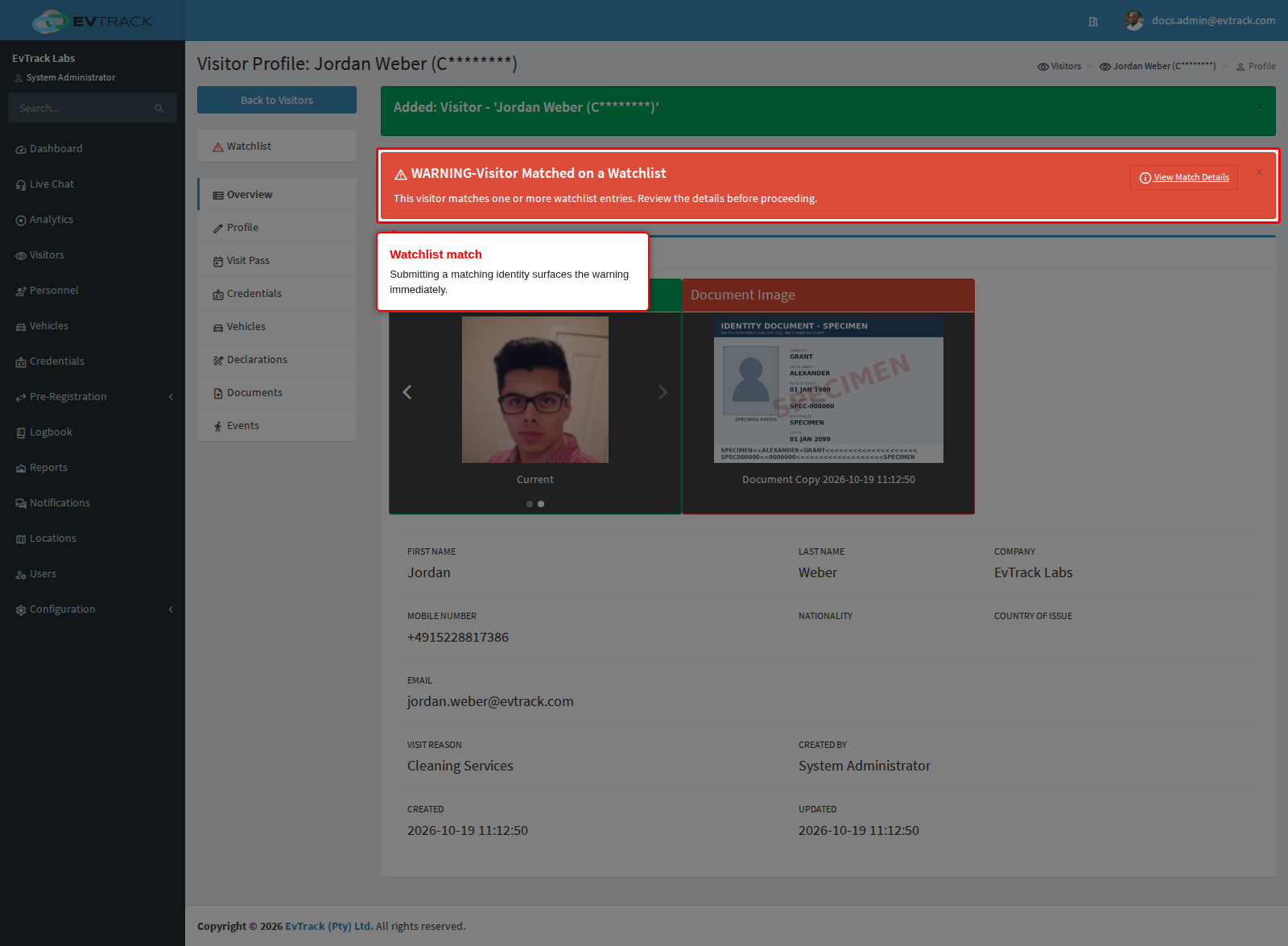
Screening runs whenever a person is registered, invited, or checked in as a walk-in from the Check-in dialog on the Visitors Dashboard. Adding a visitor whose details match an entry immediately shows the watchlist warning on their record:
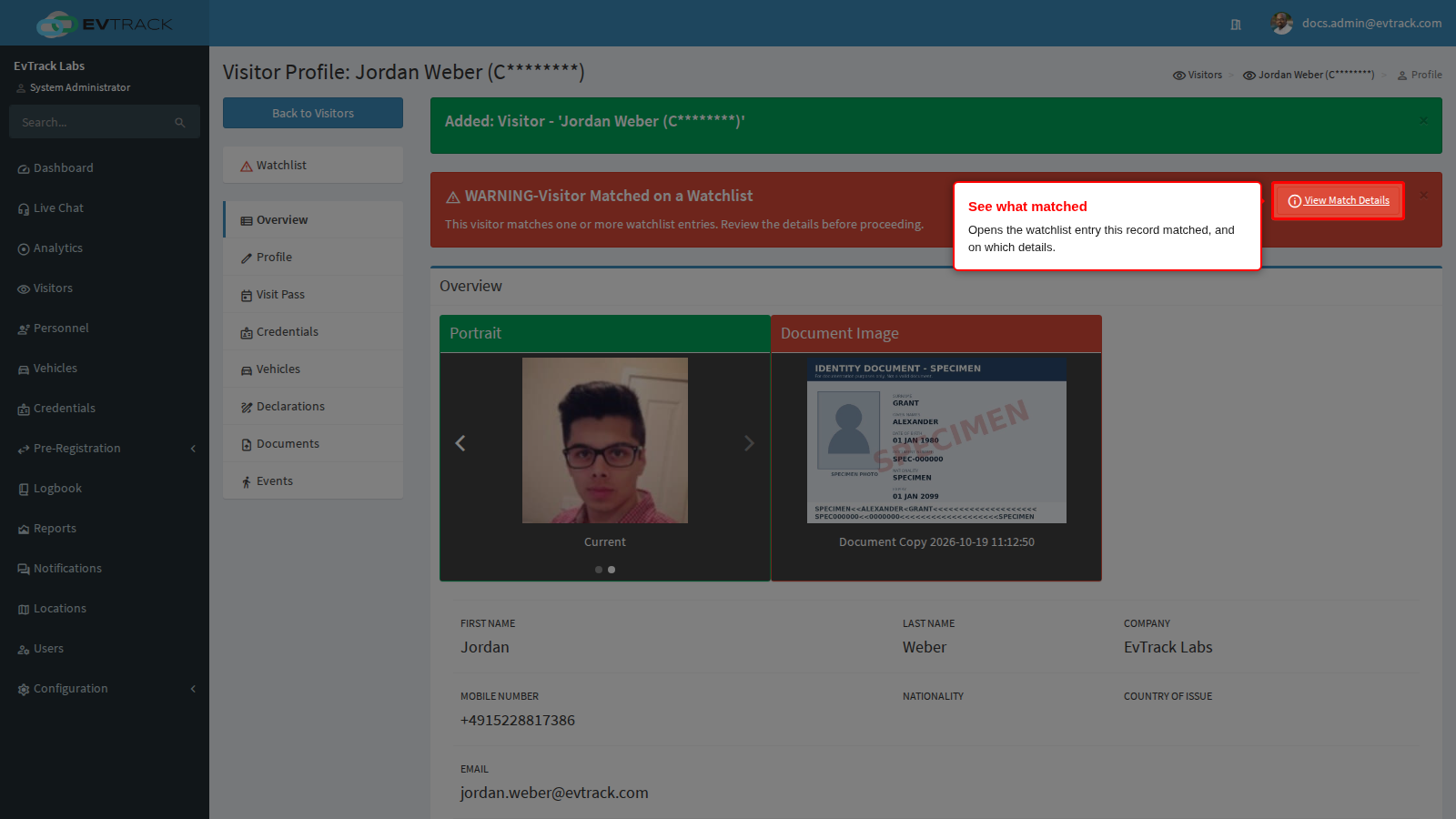
To see exactly what matched, click View Match Details on the warning. The button appears only for accounts that may open watchlists (Watchlist Management: Watchlist - Edit/View); everyone else sees the warning alone.
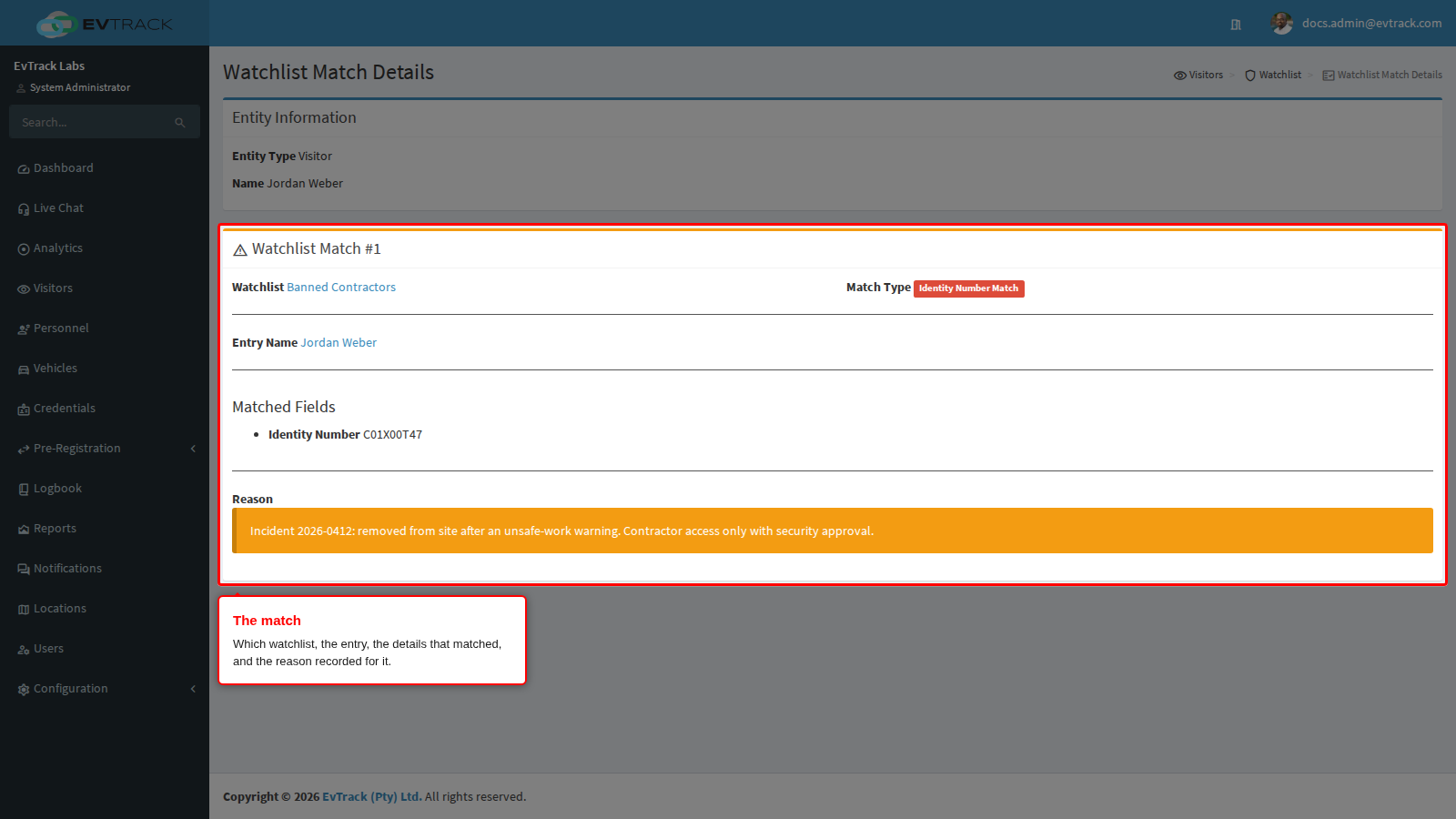
Watchlist Match Details shows one panel per match: the Watchlist it came from, the Match Type (for example Identity Number Match, Mobile Number Match or Name Match (First + Last), which is used only when the record has no ID number), the Entry Name, the Matched Fields with their values, and the Reason recorded on the entry. Use it to decide whether this is the same person before you act, then click Back to Entity. The same button appears wherever a match is flagged: on visitor, vehicle, person and user records, and on a registration request waiting to be processed.
Step 9: Change the watchlist itself
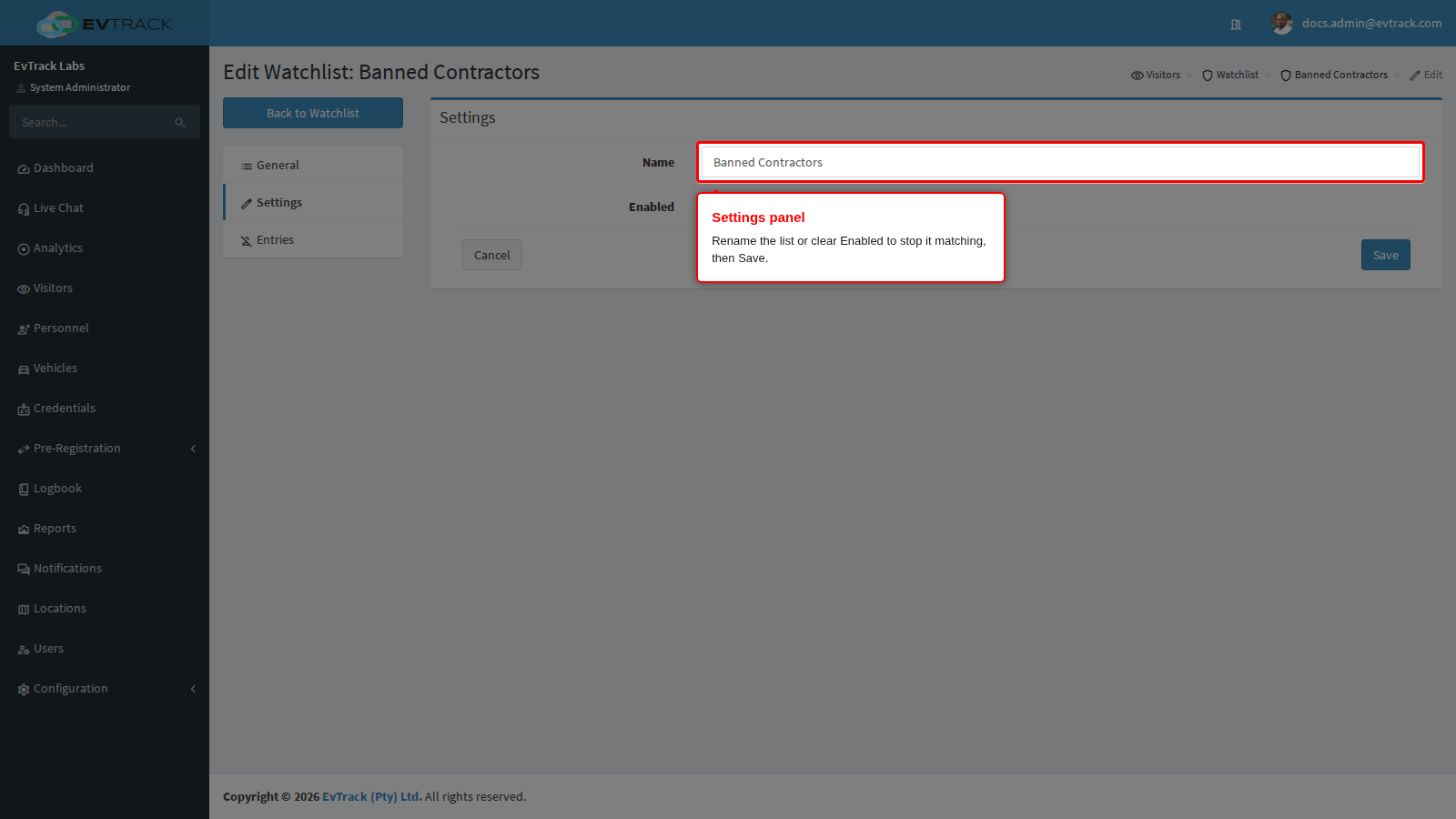
Open the watchlist again from the list and click Settings in the panel menu on the left. This is the only panel that changes the list itself, and it holds two things: the Watchlist Name and the Enabled tick. General, the panel it opens on, is a read-only summary showing the name, the date it was created and whether it is enabled.
Clearing Enabled is the safe alternative to deleting: the list keeps every entry but stops screening, so you can switch it back on later without re-loading anything. Change what you need and click Save.
Step 10: Select an entry to edit it
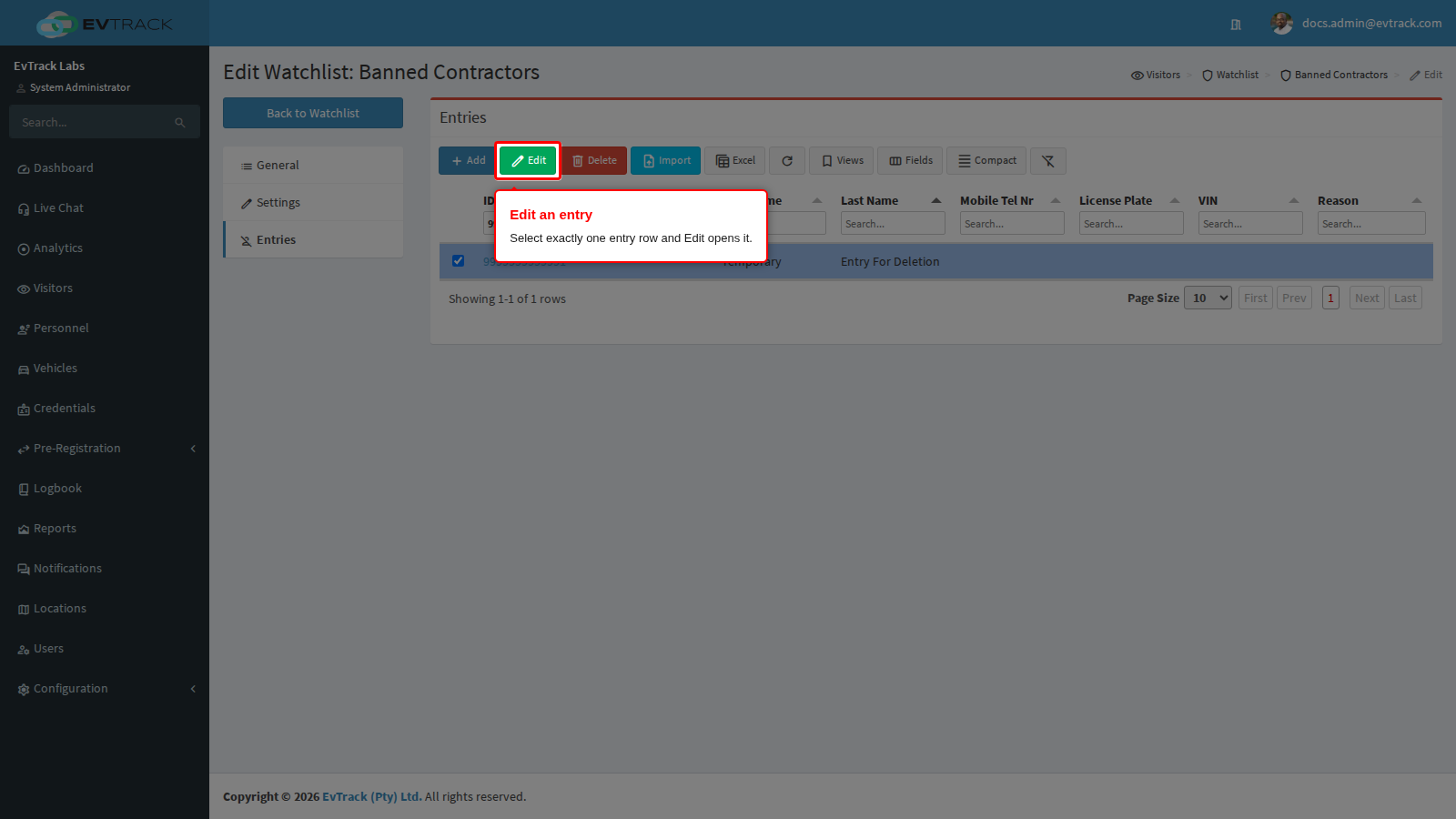
On the Entries panel, click the row of the entry you want to change. The toolbar Edit and Delete buttons above the entries table remain greyed out until exactly one entry row is selected. Click Edit (clicking the entry’s ID number in the table does the same thing).
Step 11: Change the entry
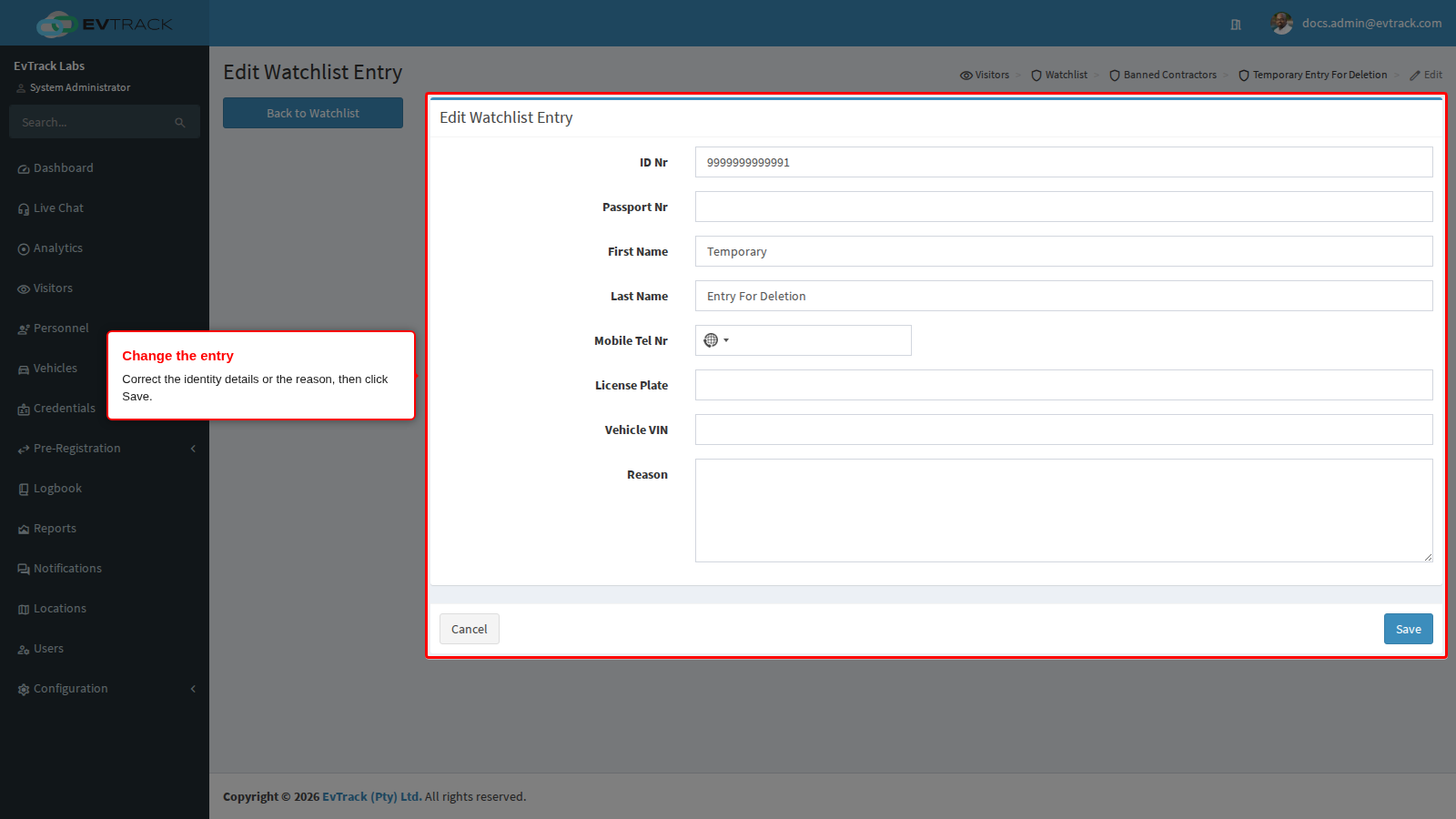
The entry form holds everything screening compares against: ID Number, Passport Number, First Name, Last Name, Mobile, Vehicle License Plate, VIN and a free-text Reason. Correct a mistyped ID number here, or add the plate of a vehicle the same person now uses.
Change what you need and click Save. Screening uses the new details from that moment.
Step 12: Select an entry to delete it
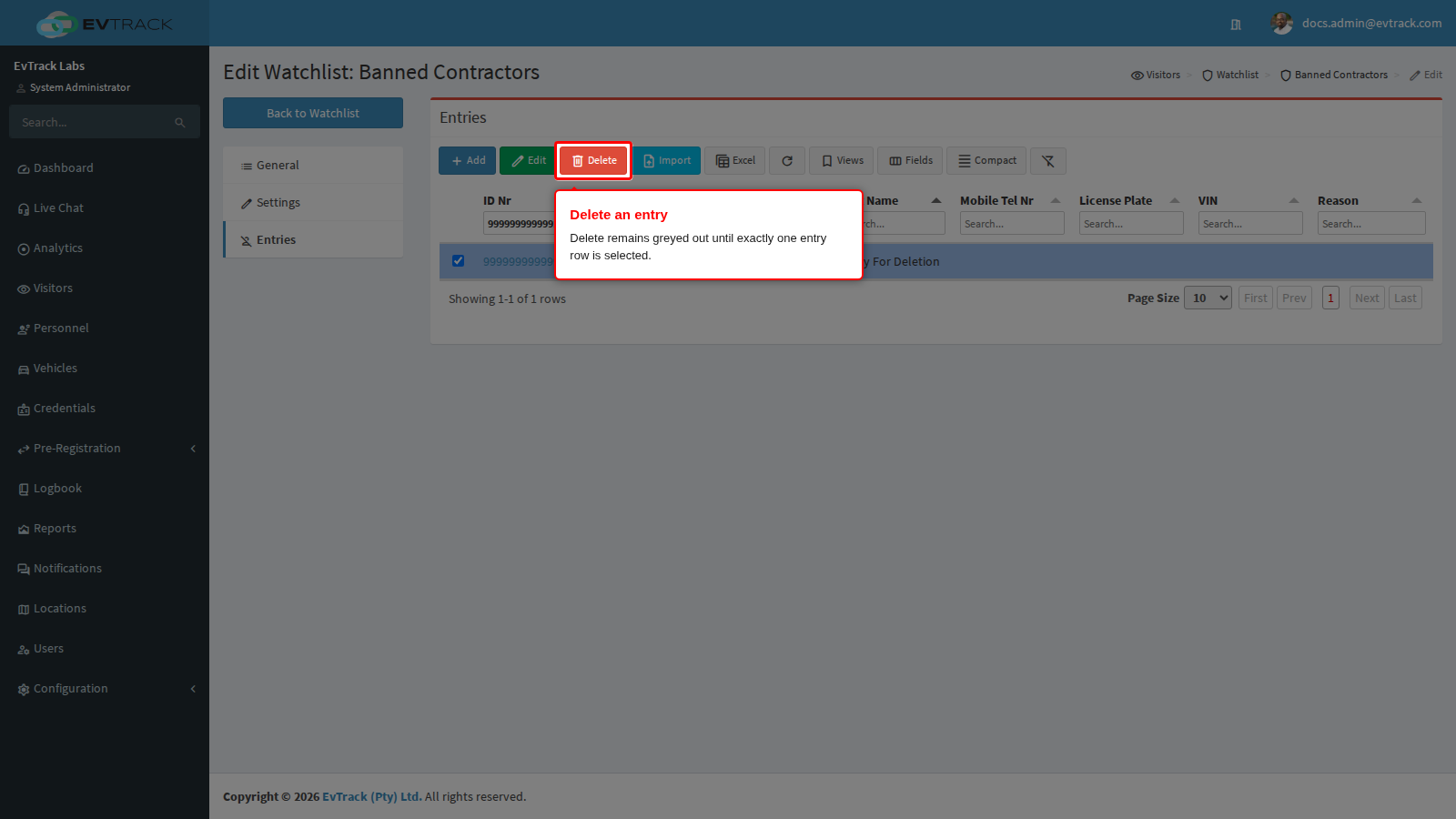
To unflag an identity, select its row on the Entries panel and click Delete. Like Edit, the button only becomes active with exactly one entry row selected.
Step 13: Confirm the entry deletion
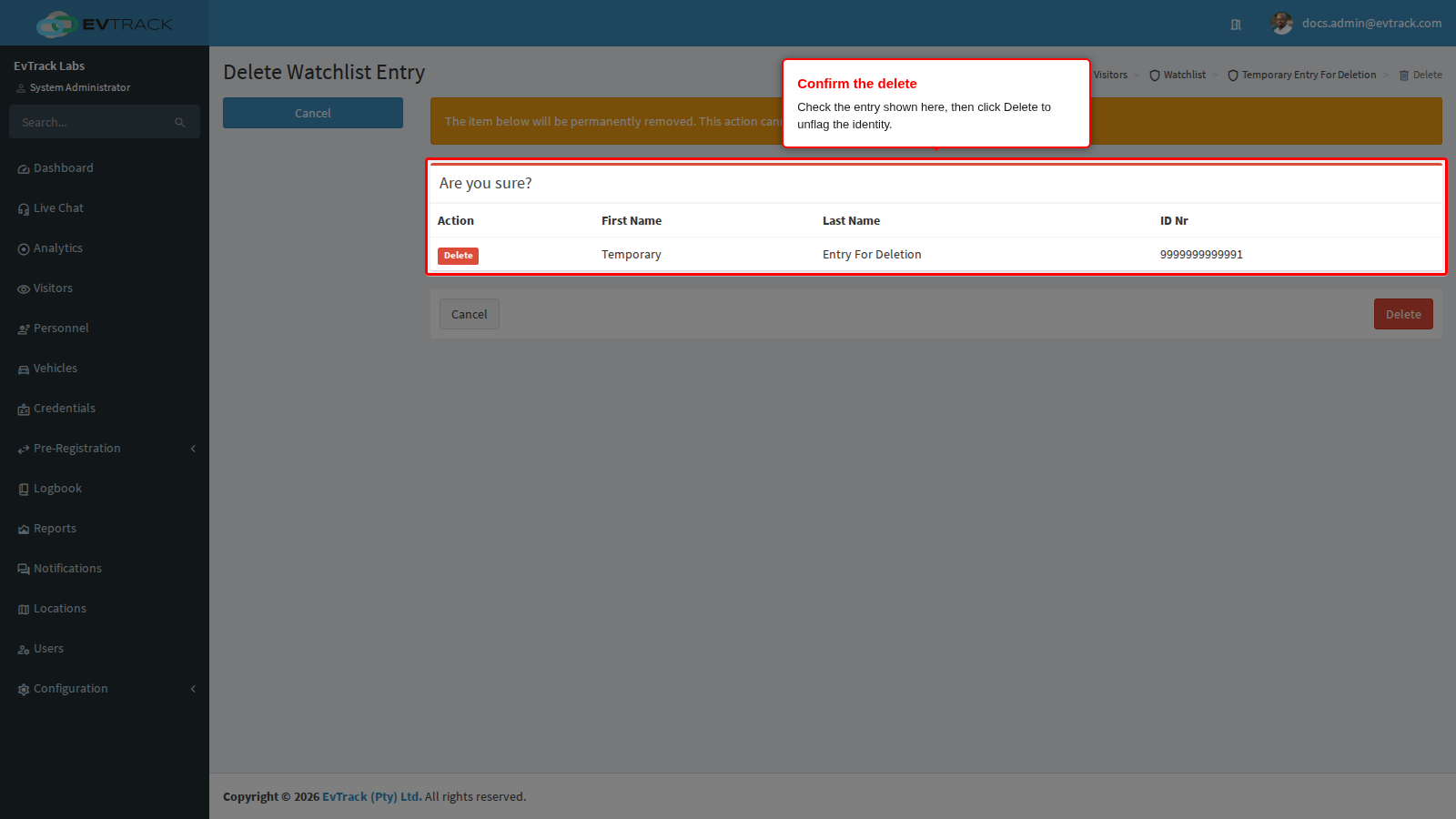
A confirmation page opens showing the entry so you can check you picked the right one. Click Delete to remove it, or Cancel to leave it alone. Deletion is permanent - there is no undo, and the entry has to be re-added by hand or re-imported. From that moment the identity is no longer flagged and passes screening normally. Nothing blocks an entry from being deleted.
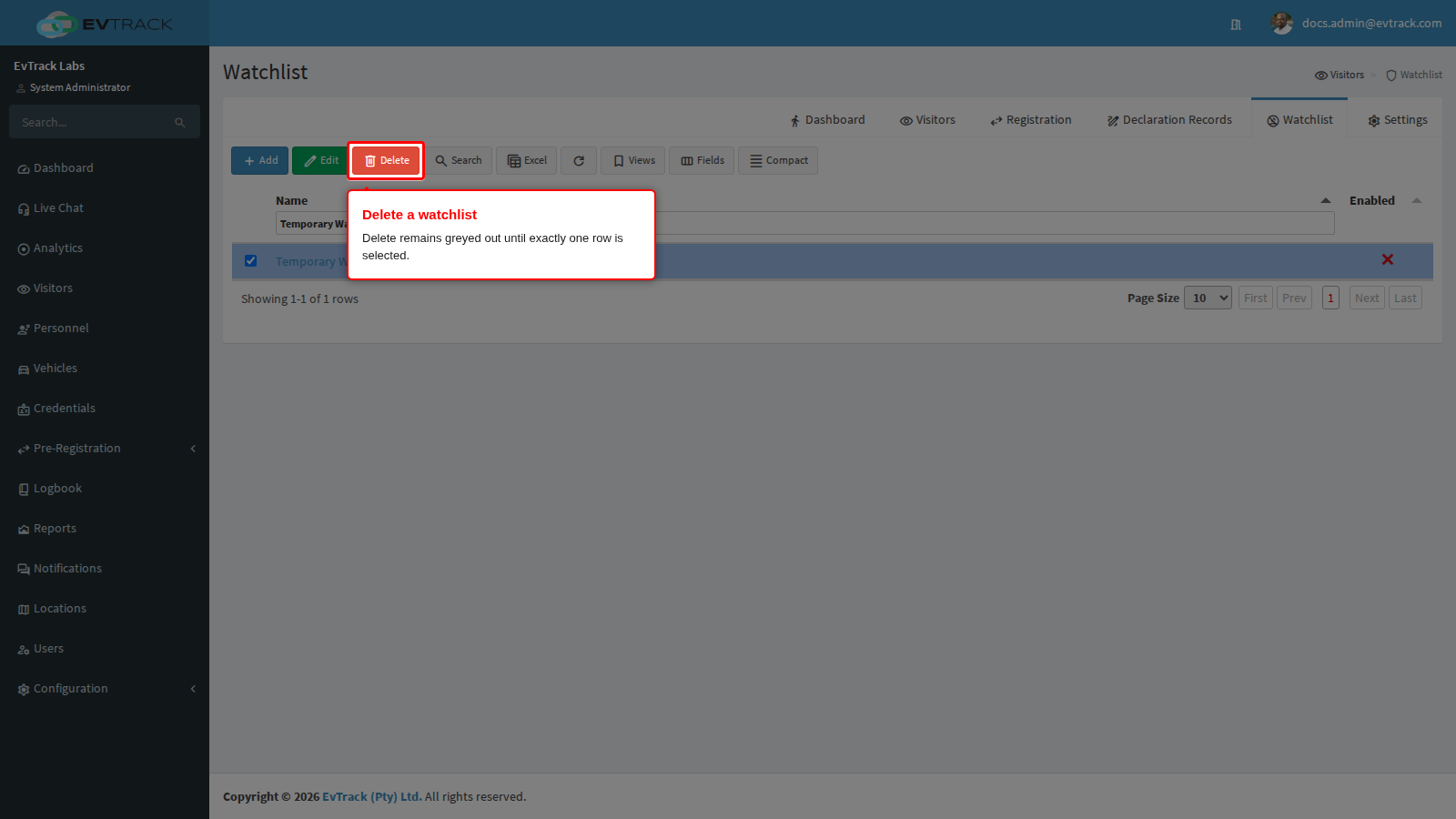
Step 14: Select a watchlist to delete it
To remove a whole watchlist, go back to the watchlist table, select its row and click Delete. Like Edit, the button only becomes active with exactly one row selected. In the example below a disposable list, “Temporary Watchlist for deletion”, is being removed.
Step 15: Confirm the watchlist deletion
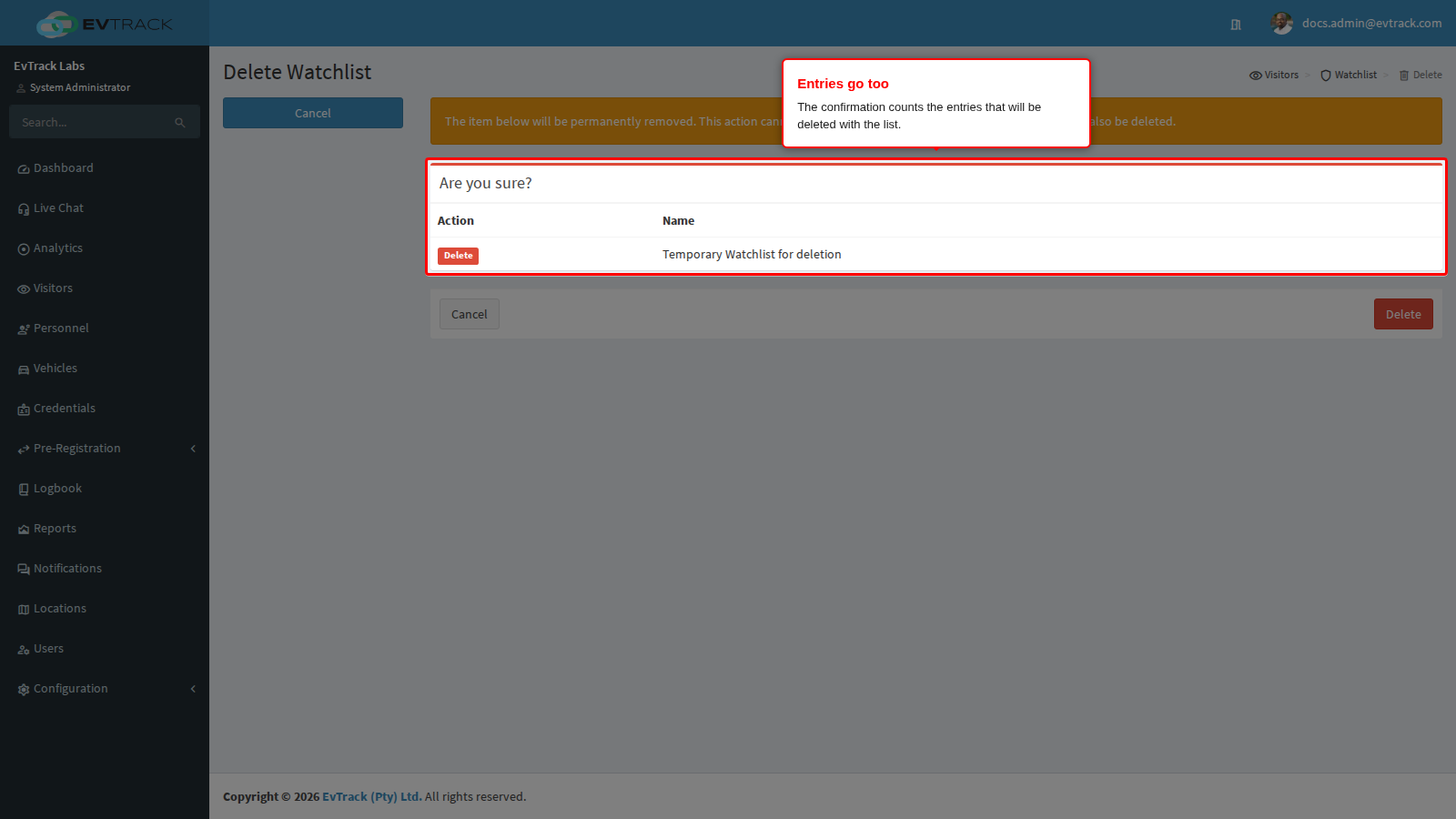
A confirmation page opens showing the list’s reference and name. If the list still holds entries, it also warns how many entries will be deleted with it - deleting a list deletes every identity on it, not just the list.
Click Delete to remove it, or Cancel (or Back to Watchlist) to leave it alone. Deletion is permanent - there is no undo and no recycle bin. Nothing blocks a watchlist from being deleted, so if you may need the entries again, clear Enabled on the Settings panel instead (step 9) or export the entries first.
Step 16: Confirm the result
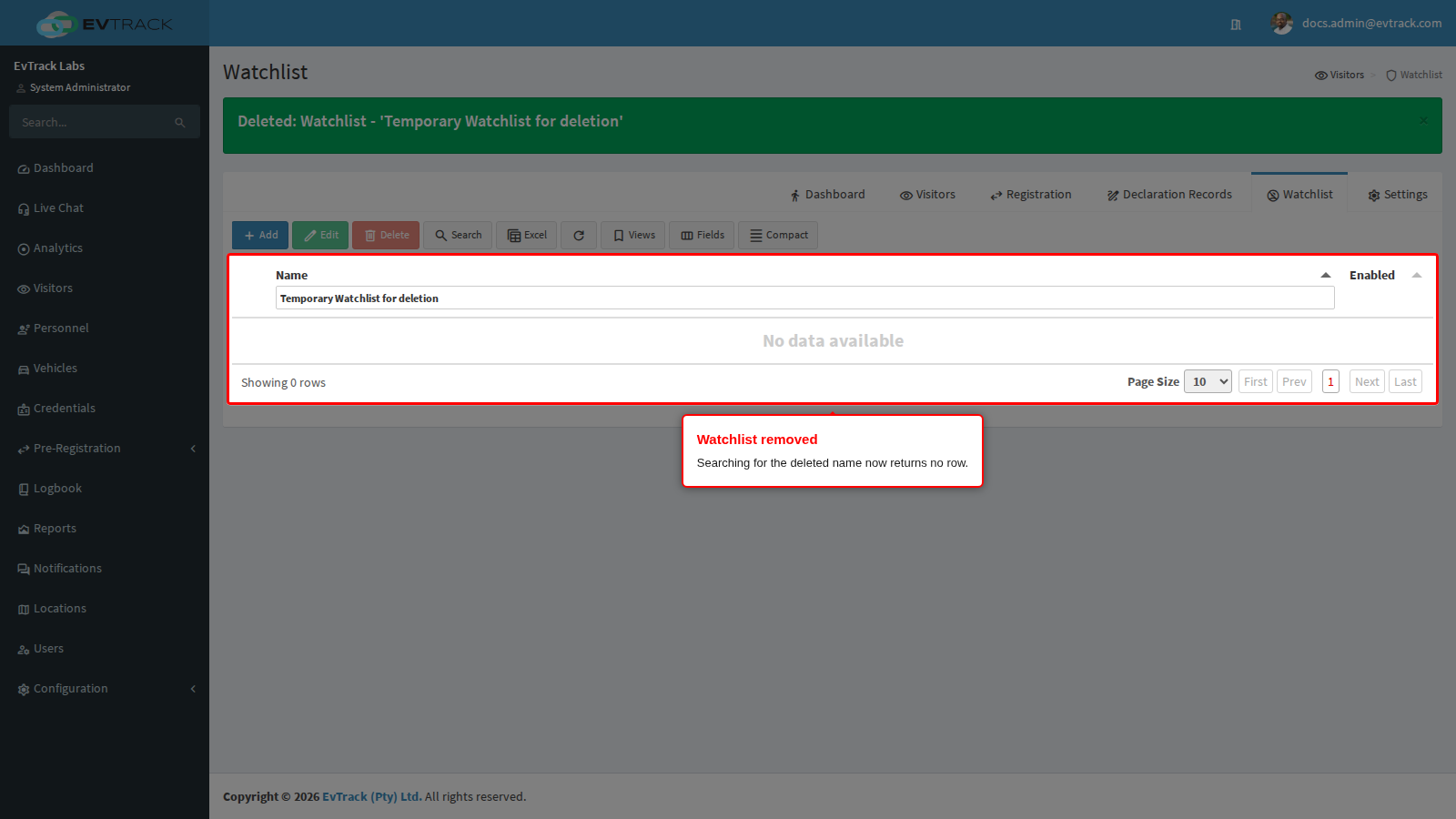
You return to the table with a success message and the list is gone: search for its name and no row is found. The identities it held are no longer screened by any other list.
Screening across the system
The same screening applies across entity types:
- Visitors - on add, on self-registration and when processing registration requests (including each group member in a group registration)
- Personnel and users - person and user profiles carry an Add to Watchlist quick action, and their identities are screened the same way
- At the checkpoint - a FrontDesk kiosk or the Guard app refuses to register a matched identity, and a walk-in check-in from the Check-in dialog on the Visitors Dashboard is refused. A visit that was already booked is screened again at check-in (a fresh check-in after check-out included) and when it arrives at an entry reader, and a match refuses it; saving an entry also cancels the person’s booked visits so their credentials stop working
A match blocks in some places and flags in others, and there is no override. A matched visitor cannot be invited, a walk-in at the kiosk is refused, a registration request with a match can only be declined, and a check-in of a visit that already exists is refused; a visitor record added by an operator on the Add Visitor page is saved with the watchlist warning shown, flagged for review. If a match is a mistake (a common name), correct or delete the entry. View Match Details (Step 8) shows which list and entry matched, so a false positive can be recognised before anyone acts.