Register a whole group, such as a contractor crew, a delegation or a school class, as one request: a group leader who answers the visit details once, and the members who come with them. You switch group registration on, check that the location allows it, then register the leader and add the members in the web application. It takes about ten minutes.
Before you start
- You can change Visitor Settings and edit locations.
- You can add and edit visitor registrations. Adding members needs the add right; editing and removing them needs the edit right.
- You know the group’s location, and you have each member’s details. Photos and identity document copies can be uploaded as you add each person.
- To let the group leader register the group themselves through a link instead, see Group Pre-Registration.
Steps
Step 1: Switch group registration on
Under Configuration > Visitor Settings, click the Self-Registration tile and open the Group Registration tab. Tick Enable Group Registration. A new system starts with it off.
- Further down the same tab, Group Member Required Fields decides what each member must give, for example first name, last name, identity number, mobile number, photo and identity document copy. While group registration is on, at least two identifying fields must remain ticked.
Click Save at the foot of the tab.
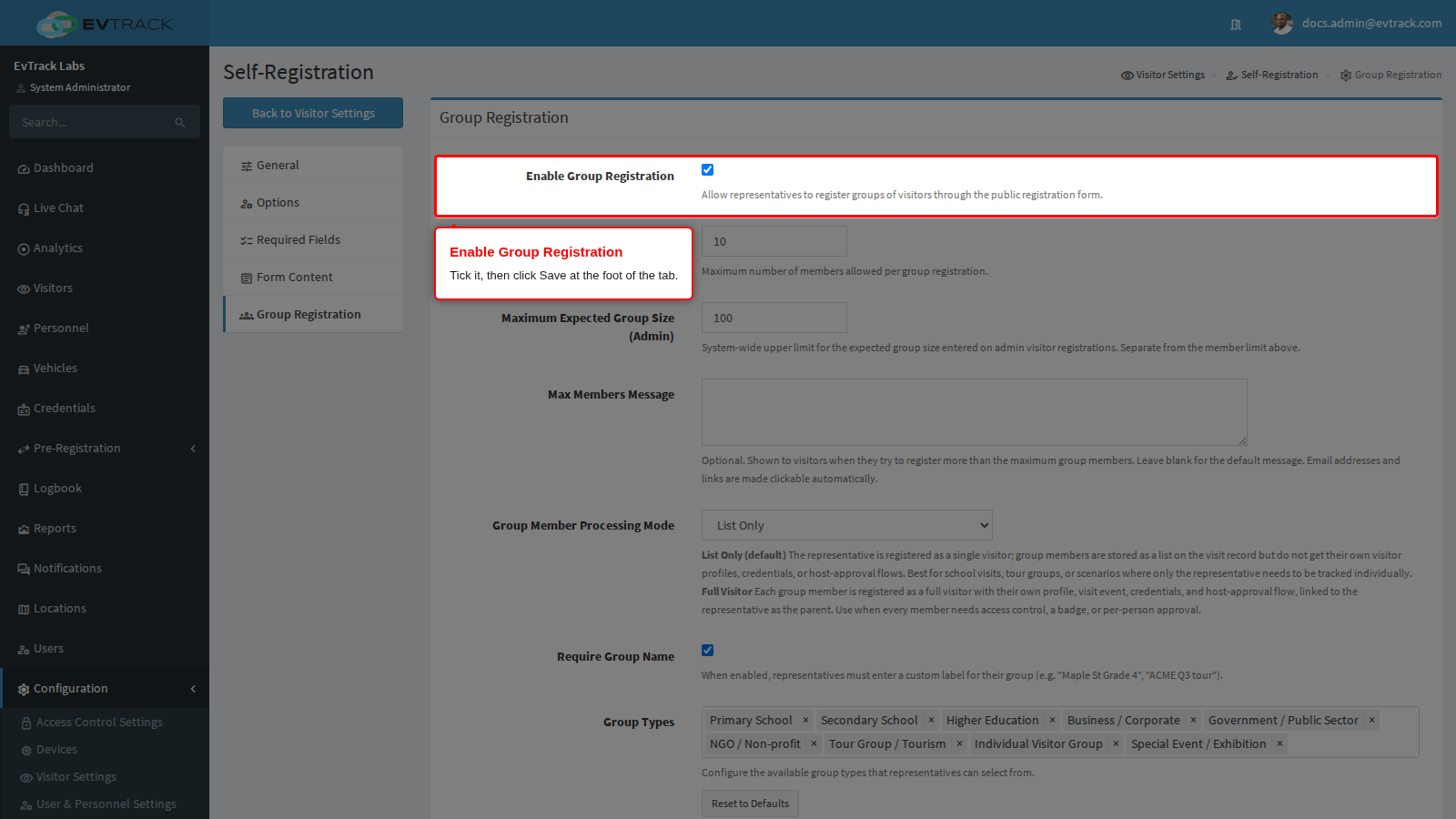
The other options on this tab, such as the maximum group size and the group types, are described in Group Pre-Registration.
Step 2: Check that the location follows the global setting
Select Locations, open the location the group is coming to and click Self-Registration in the menu on the left. In the Group Registration panel, make sure Use global group registration settings is ticked, and click Save at the foot of the tab if you changed it.
- Ticked, the location allows groups whenever group registration is on globally.
- Cleared, the location uses its own group settings instead, and allows groups only when its own Enable Group Registration box is ticked.
- A location whose group settings were never changed follows the global settings.
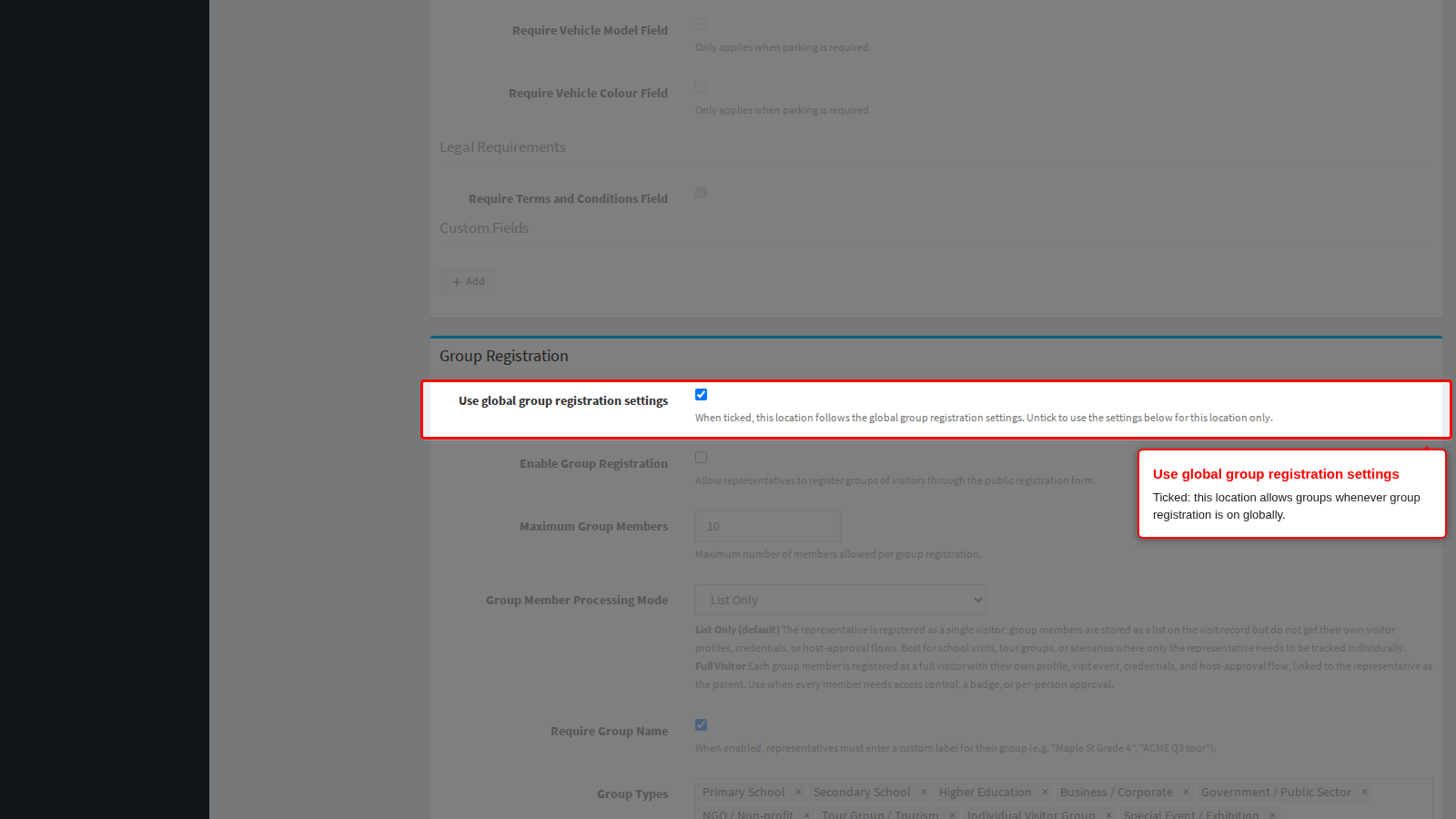
To give one location its own group limits or member fields, see Location Self-Registration.
Step 3: Register the group leader
Select Visitors, click the Registration tab and click Add above the list. Fill in the group leader’s details as for any visitor and choose the group’s Location. In the Group Leader panel at the top of the form:
- Tick This visitor is a group leader.
- Group Name: the name you will recognise the group by, for example “EvTrack Labs Install Crew”.
- Group Type: choose one from the list, for example Business / Corporate.
Click Create Registration at the foot of the form. You return to the Registration list with “Visitor Registration created successfully”.
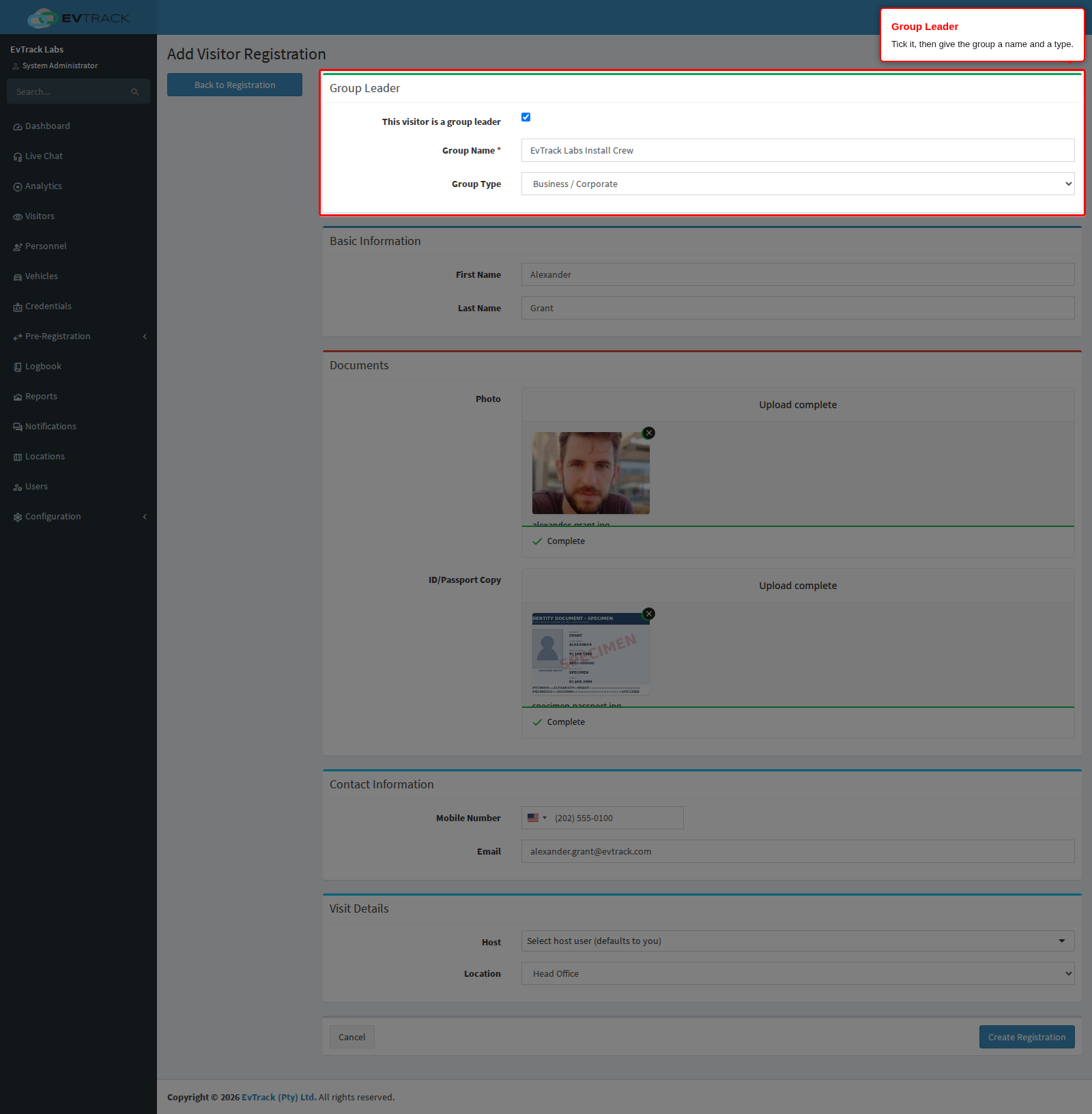
The leader answers the visit questions for the whole group: the host, the location, the reason for the visit and the visit times are taken from the leader for every member.
Step 4: Add the members
In the Registration list, select the leader’s row and click Edit in the toolbar. The form now has a Group Members panel. Click Add Member, fill in the member’s details, upload their photo and identity document copy, and click Add Member at the foot of the form. Fields marked with a red asterisk are required.
You return to the leader’s registration with the member in the table. Repeat for each member. Members so far counts the members against the largest group allowed.
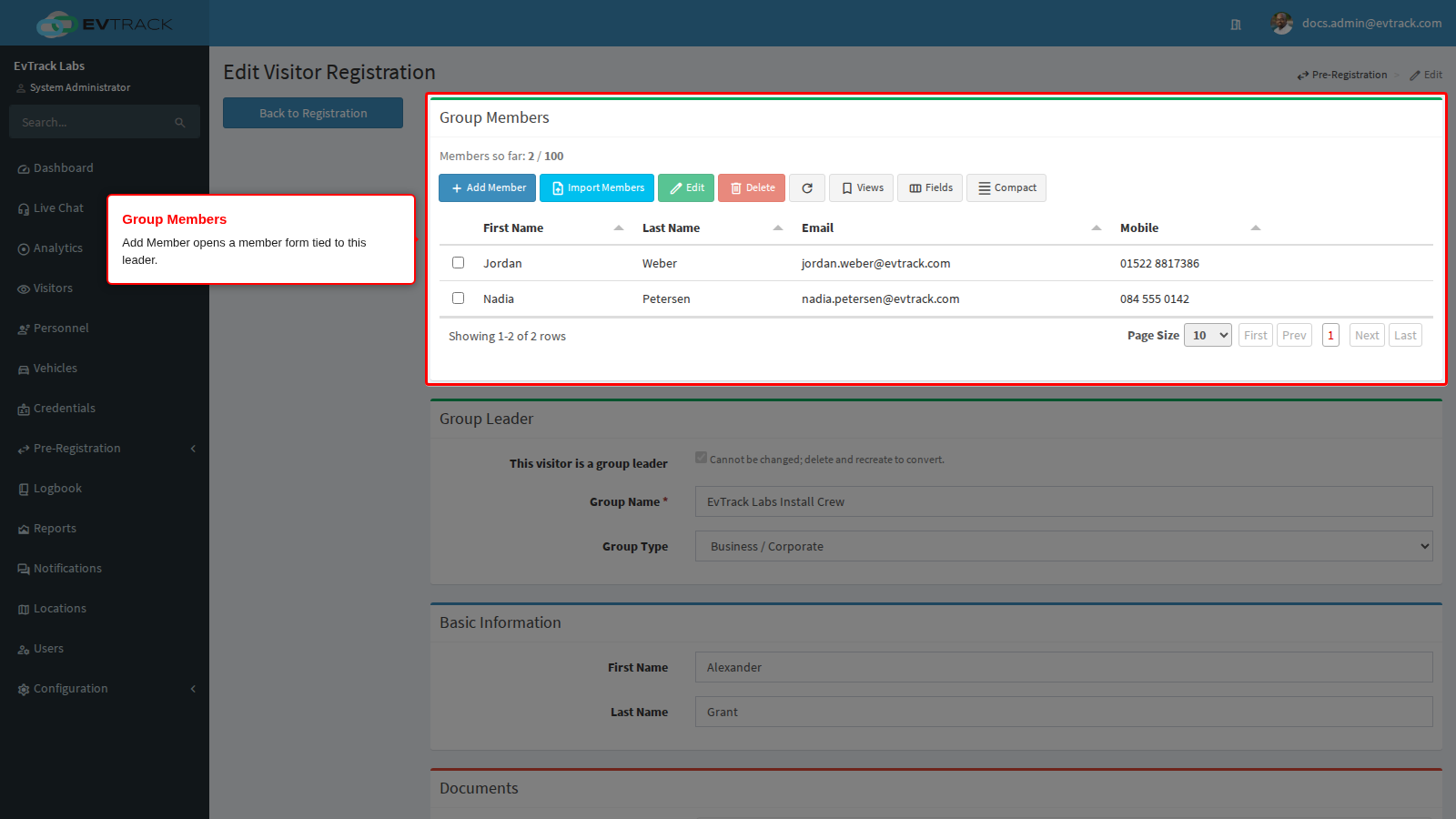
For a large crew, Import Members loads everyone from a spreadsheet instead, see Managing Group Registrations (Admin).
Check it worked
Open Visitors and the Registration tab. The group is one row for the leader: the badge after the first name counts the leader and the members (3 for a leader with two members), and the Group column shows the group name.
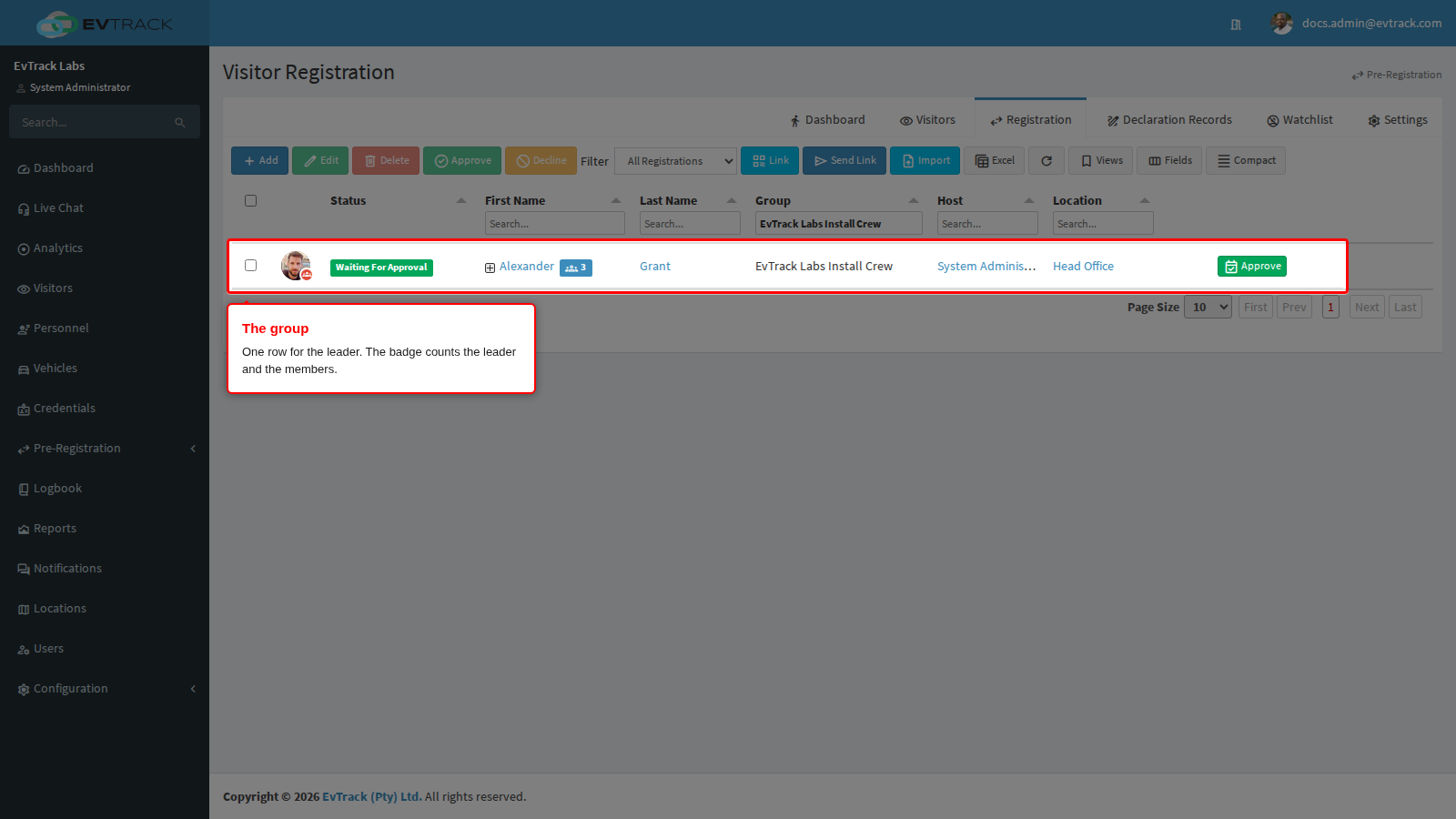
Saving the group in the web application sends no registration email, and the group waits as Waiting For Approval (or Require Host Approval when compliance checks are on). Approve it through the leader’s row: approving the leader approves every member with them, as described in Approval Workflow.
If it didn’t work
- The Add form has no Group Leader panel. Group registration is off. Tick Enable Group Registration on the Group Registration tab and save (Step 1). While the global setting is off, only an operator who manages a location with Enable Self-Registration ticked and its own group registration switched on sees the panel.
- Save refuses the leader with “Group registration is not enabled for the registration’s location (Head Office). Enable group registration on that location, or change the registration’s location to one that has it enabled.” The location keeps its own group settings and has group registration off there, or it follows the global settings while the global setting is off. Either tick Use global group registration settings on the location (Step 2) with group registration on globally, or clear it and tick the location’s own Enable Group Registration, then save. The same message stops approval of a group whose location does not allow groups.
- Add Member returns the form with “This field is required” under a field. The field is required for members: fill it in, or upload the photo or document copy, and click Add Member again. To ask members for less, clear the field under Group Member Required Fields and save.
- A member field you ticked has no red asterisk. The web application requires a member field only when every place that has group registration on asks for it: the global list, and the list of each location that has Enable Self-Registration ticked and keeps its own group settings with group registration on. Tick the field on those locations as well, or let them follow the global settings.