Every tablet that runs the FrontDesk app needs its own device record. The record holds the one-time key the app pairs with and the location the kiosk belongs to. This page registers a kiosk called “Lobby Kiosk” at Head Office and shows where to read its key.
Before you start:
- You need permission to add devices, and to edit devices so you can read the key afterwards.
- The App Base URL must be an address the tablet can reach, not localhost, see App Base URL.
- The locations the kiosk will serve must already exist.
Step 1: Open Devices
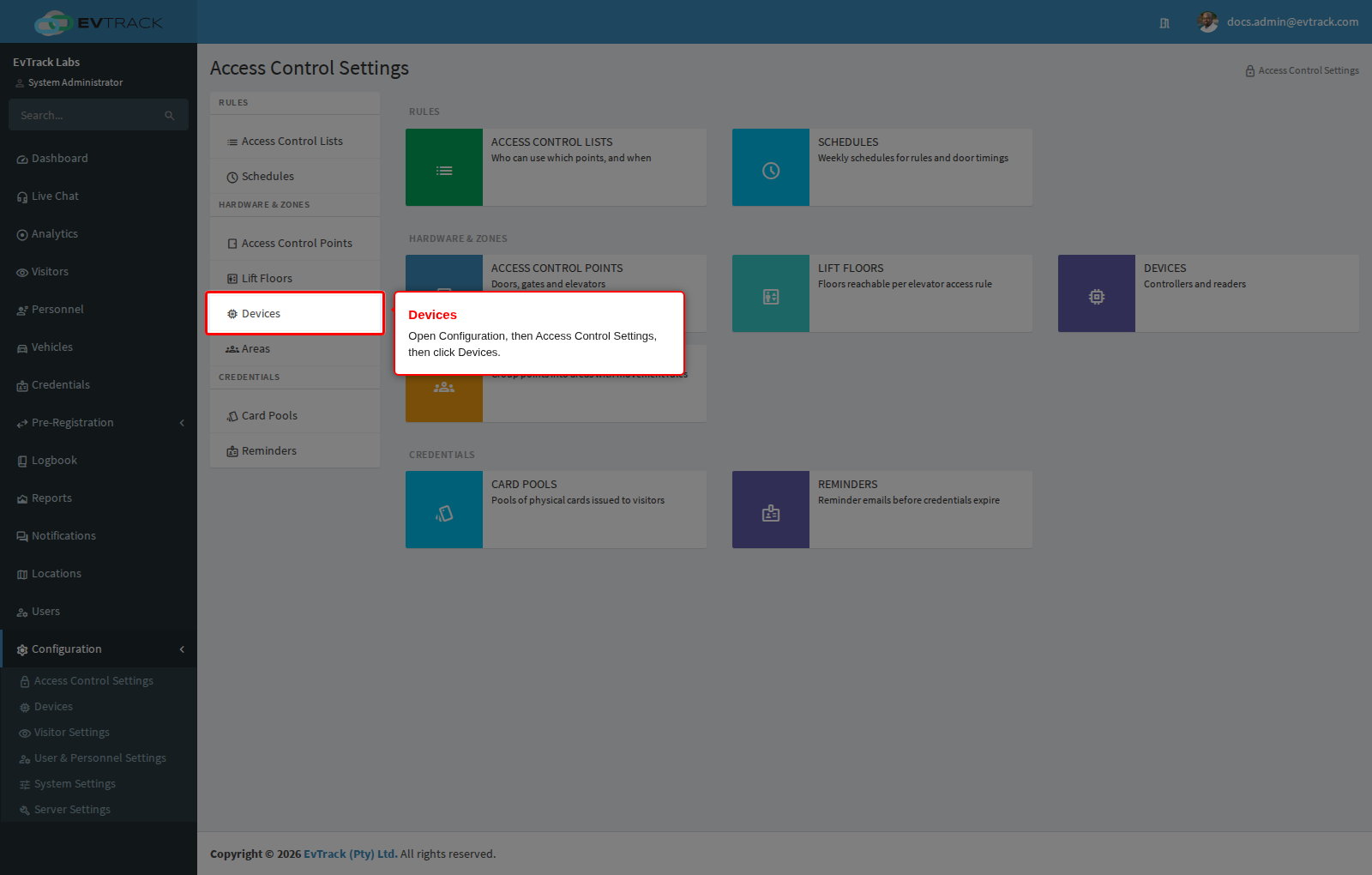
Go to Configuration > Access Control Settings and click Devices.
Step 2: Click Add
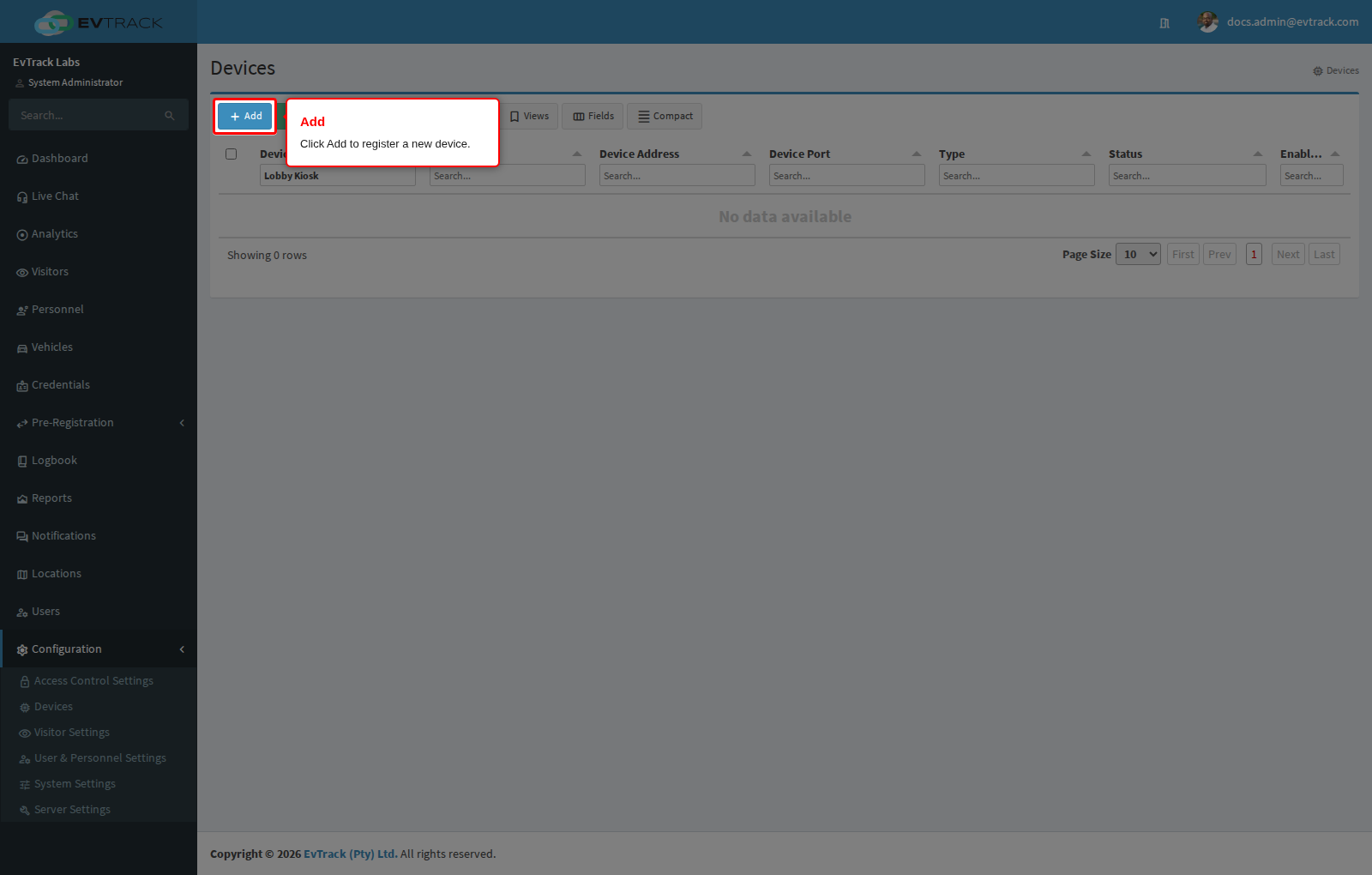
Click Add on the device list toolbar.
Step 3: Choose EvTrack FrontDesk
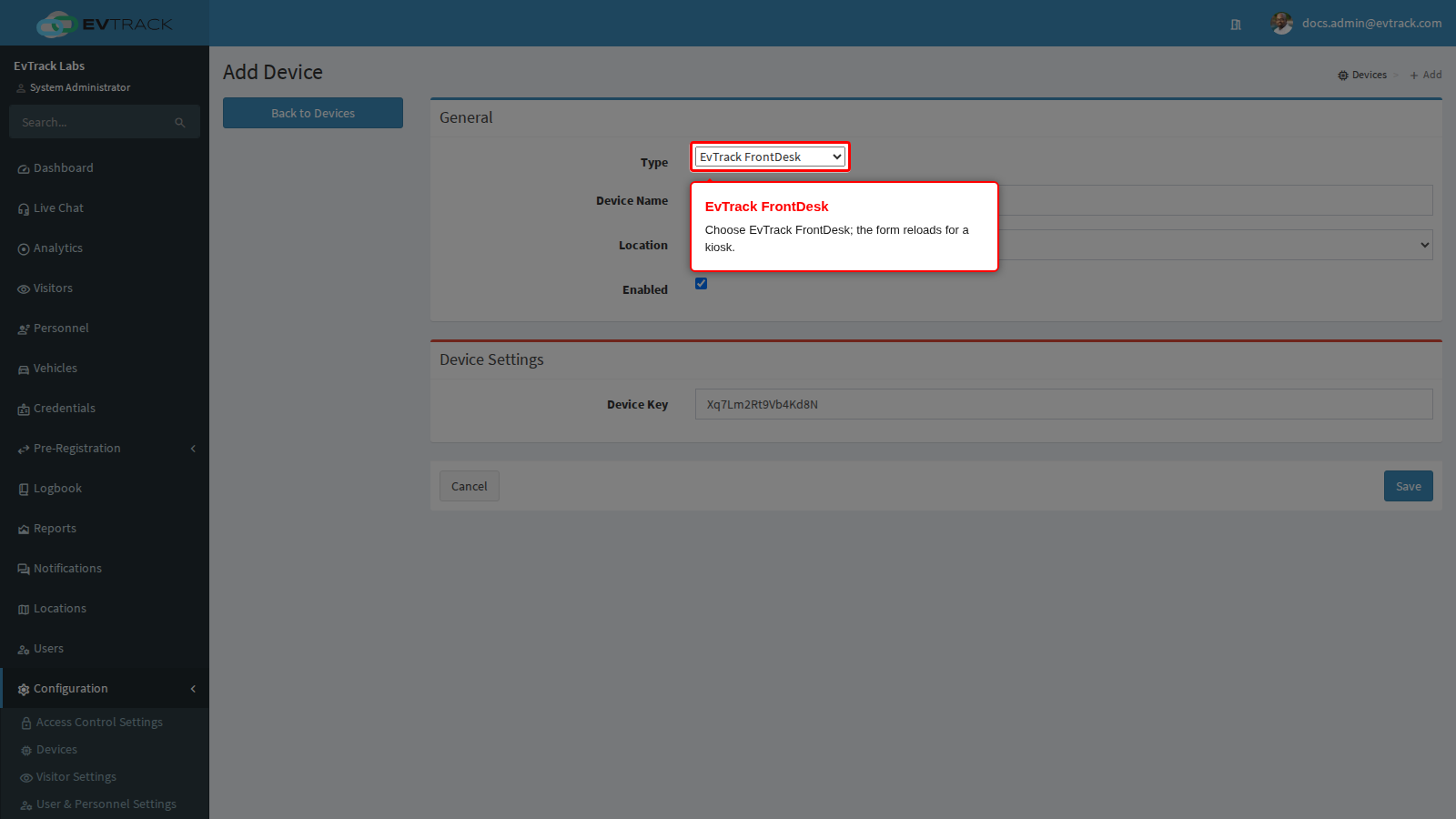
Set the Type to EvTrack FrontDesk. The form reloads for a kiosk. It asks for no network address, port or credentials.
Step 4: Name the device
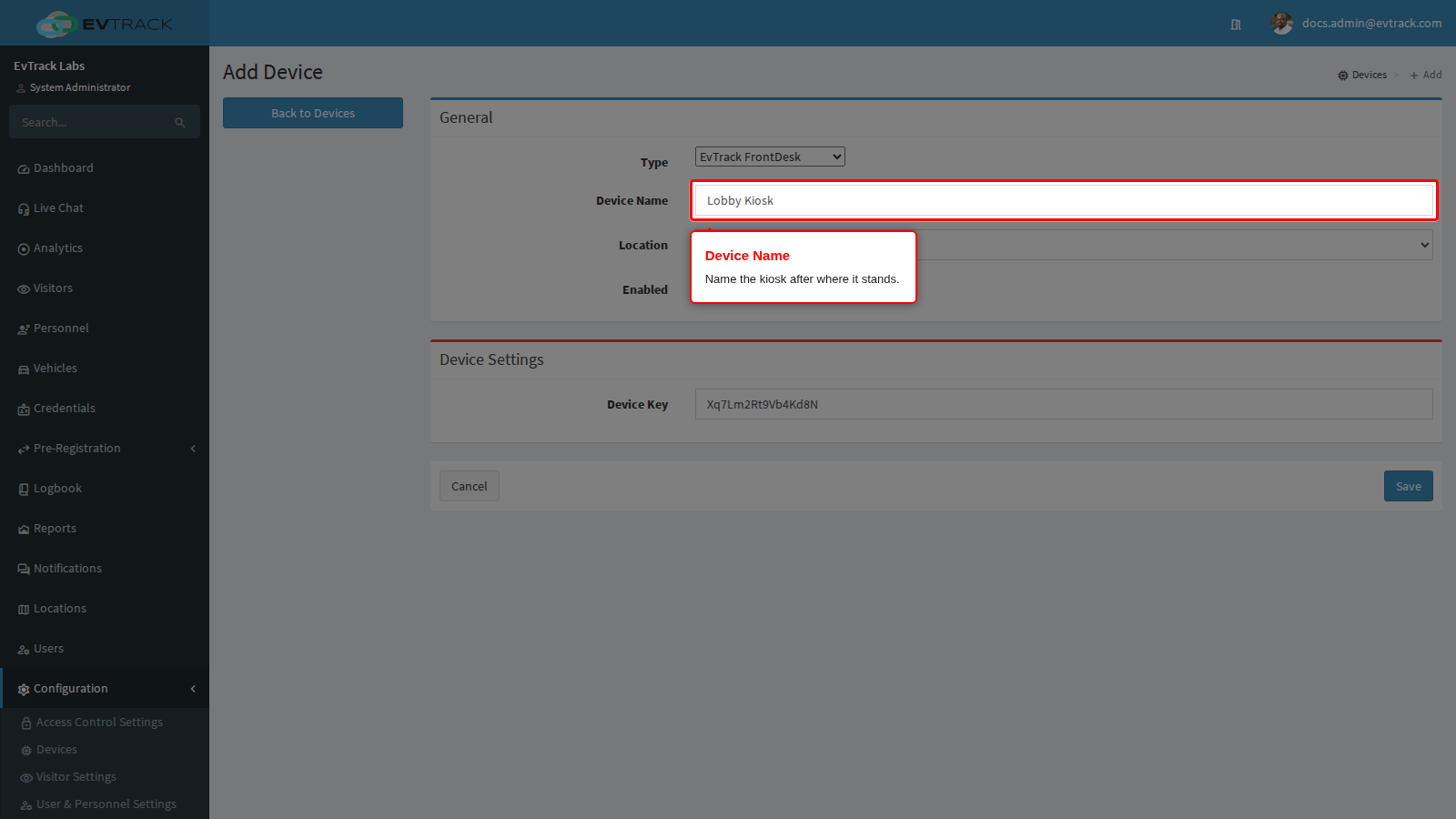
Type a Device Name. Name it after where it stands, for example “Lobby Kiosk”. The name is required.
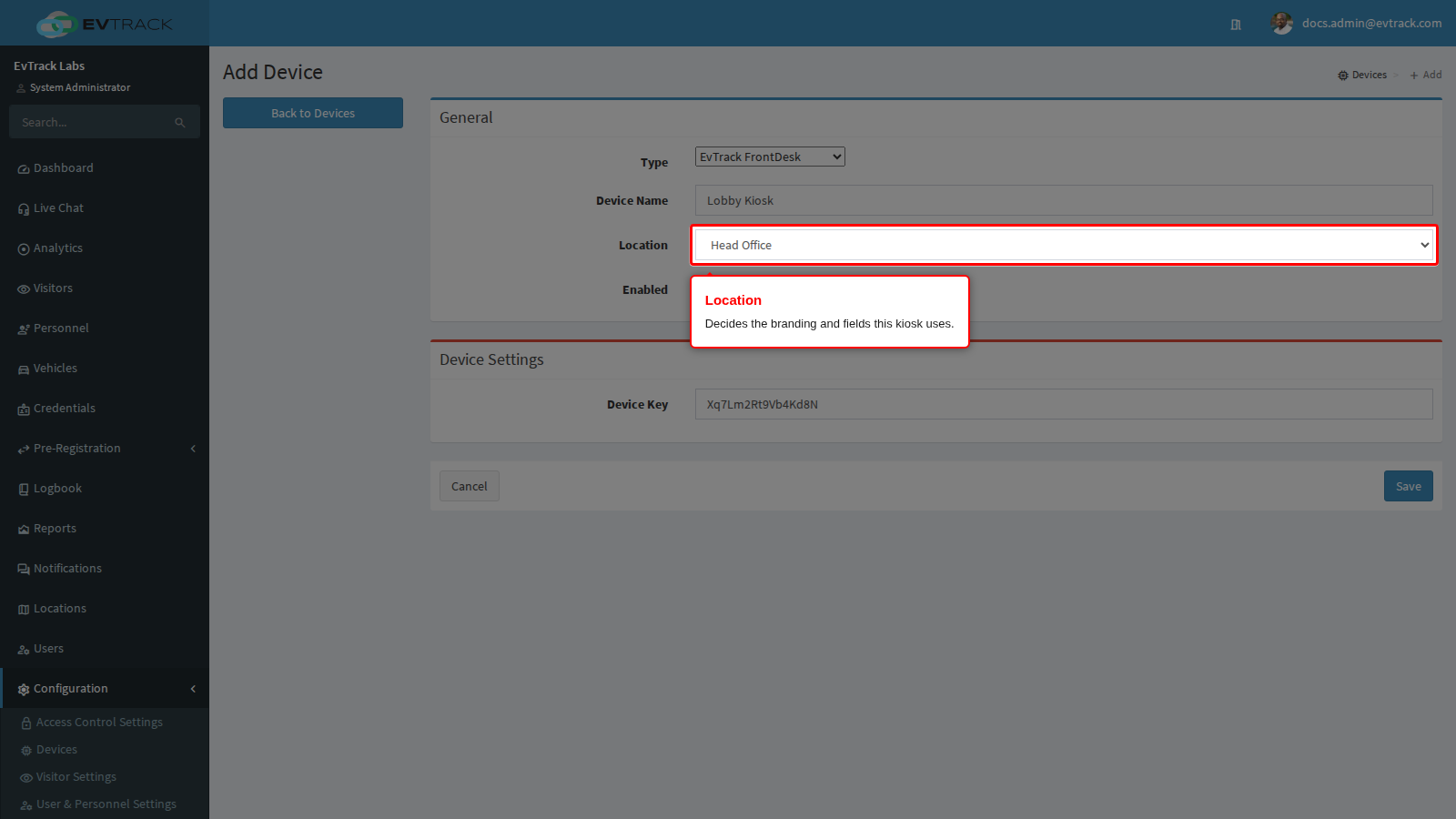
Step 5: Choose its location
Pick the Location the kiosk serves, here Head Office. The location decides which kiosk logo, welcome message and company name the tablet shows, which kiosk field list it uses, and, when Inherit Kiosk Device Location is on, where its registrations are filed. None means the global settings apply.
A wrong Location is the usual cause of a kiosk showing another site’s logo, see The Kiosk Shows the Wrong Logo or Company Name.
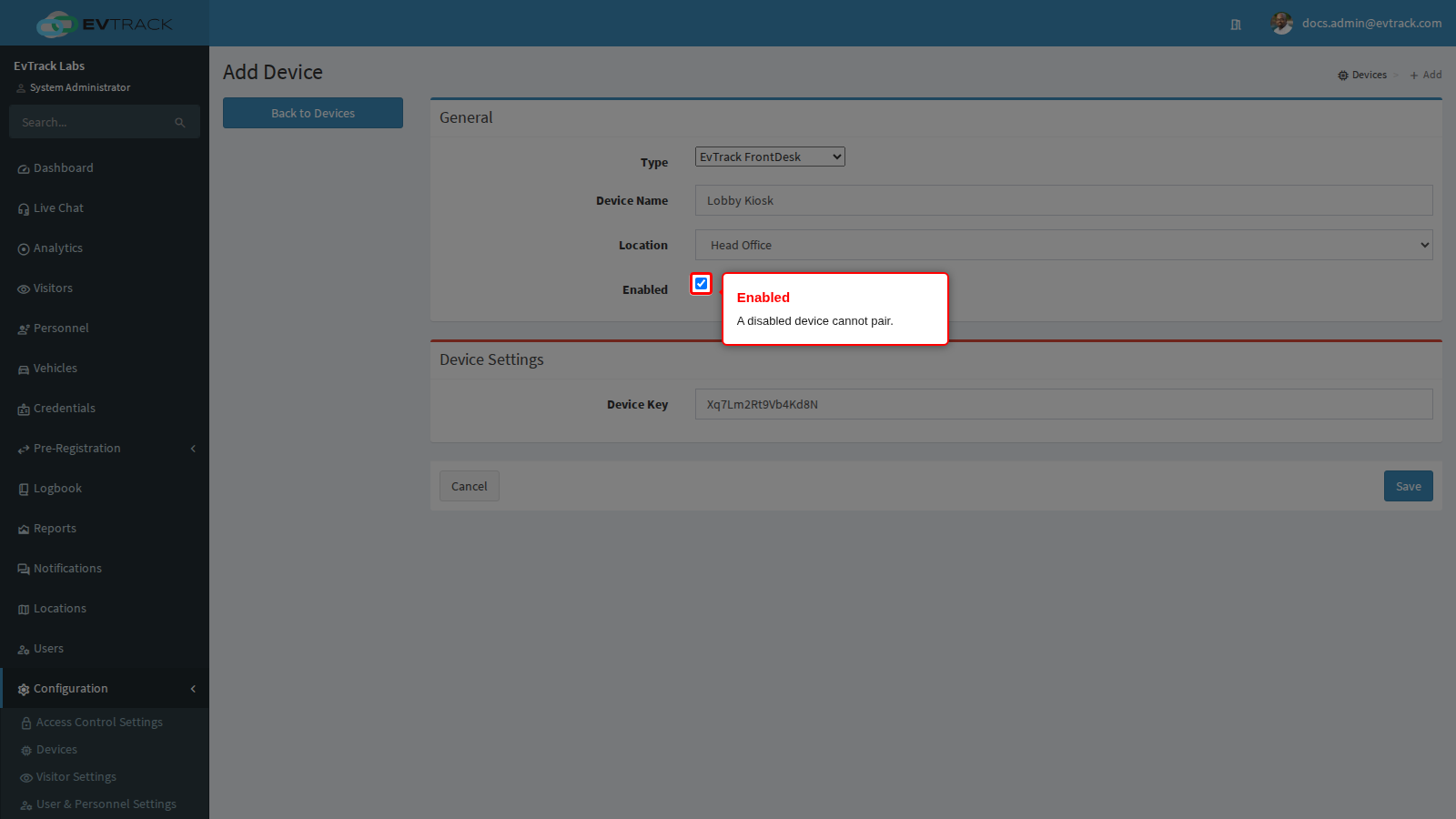
Step 6: Leave it enabled
Keep Enabled ticked. The server refuses to pair a disabled device.
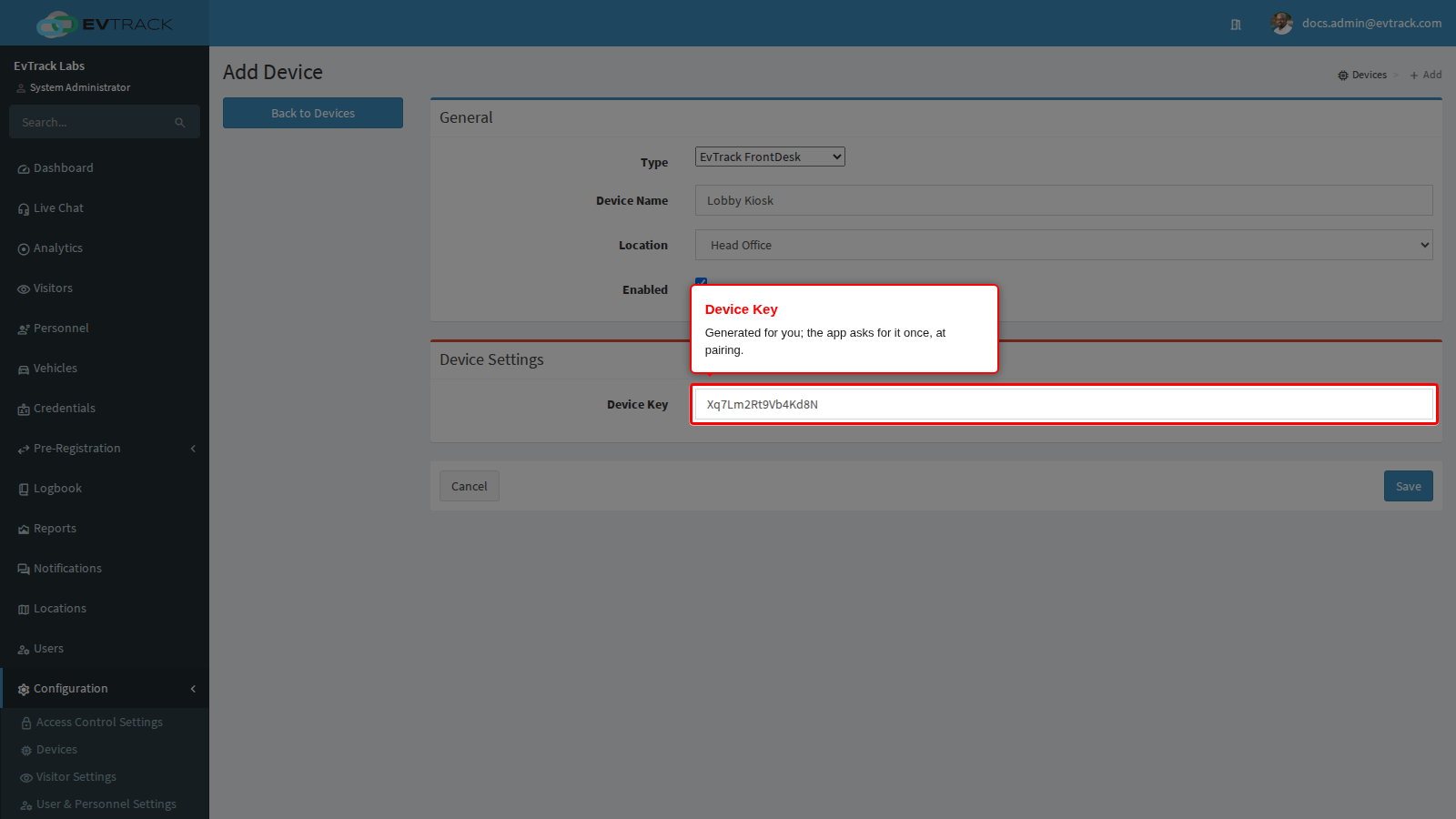
Step 7: Note the device key
The Device Key is generated for you when the Add form opens: eight capital letters. You can type your own instead. The app asks for this key once, when it pairs.
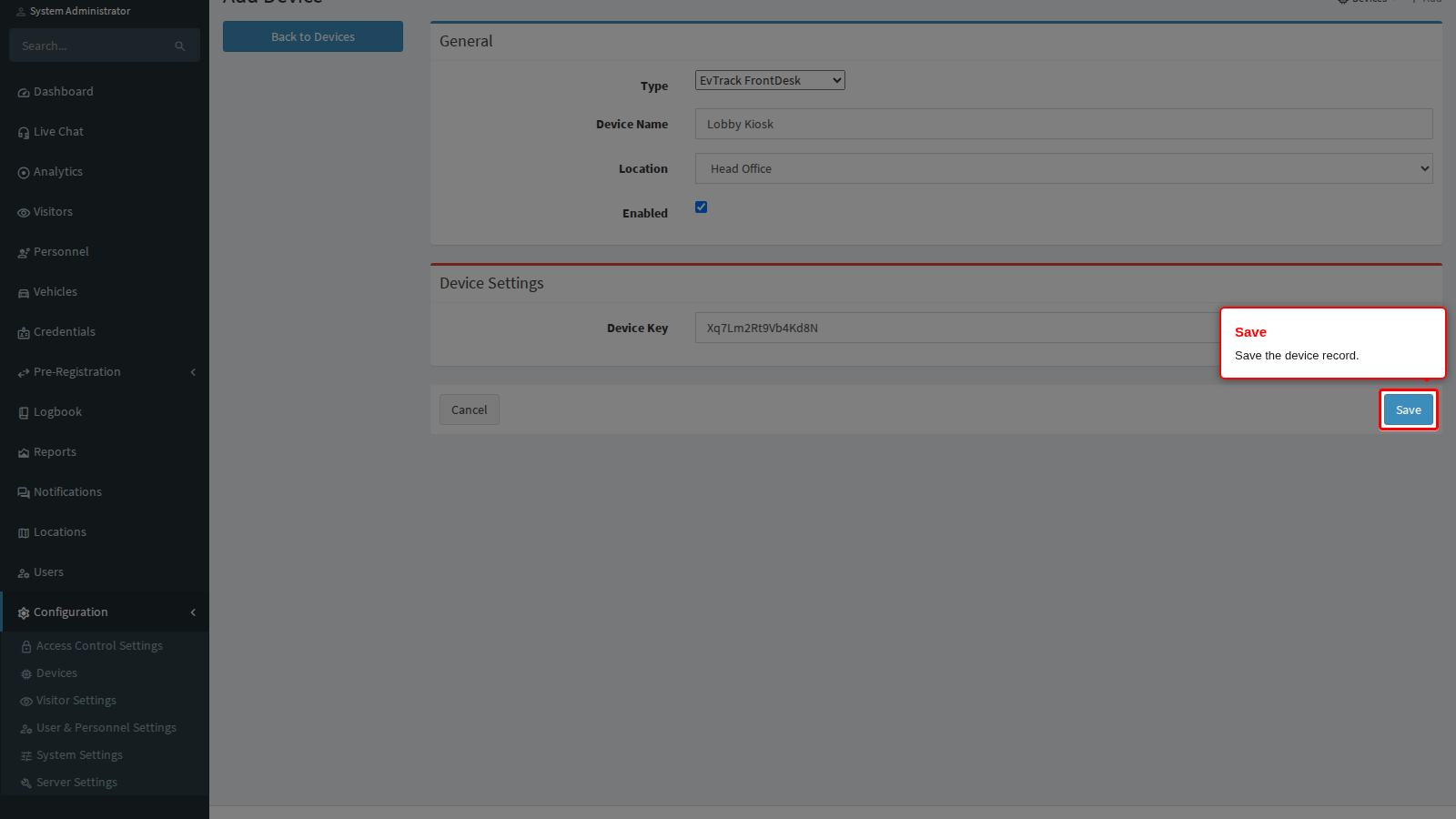
Step 8: Save
Click Save.
If the save is refused with “Please change the Application Base HTTP URL to the external IP/Network Address that is reachable from the device…”, the server’s App Base URL still points at localhost or 127.0.0.1. Correct it first, see App Base URL, then save again.
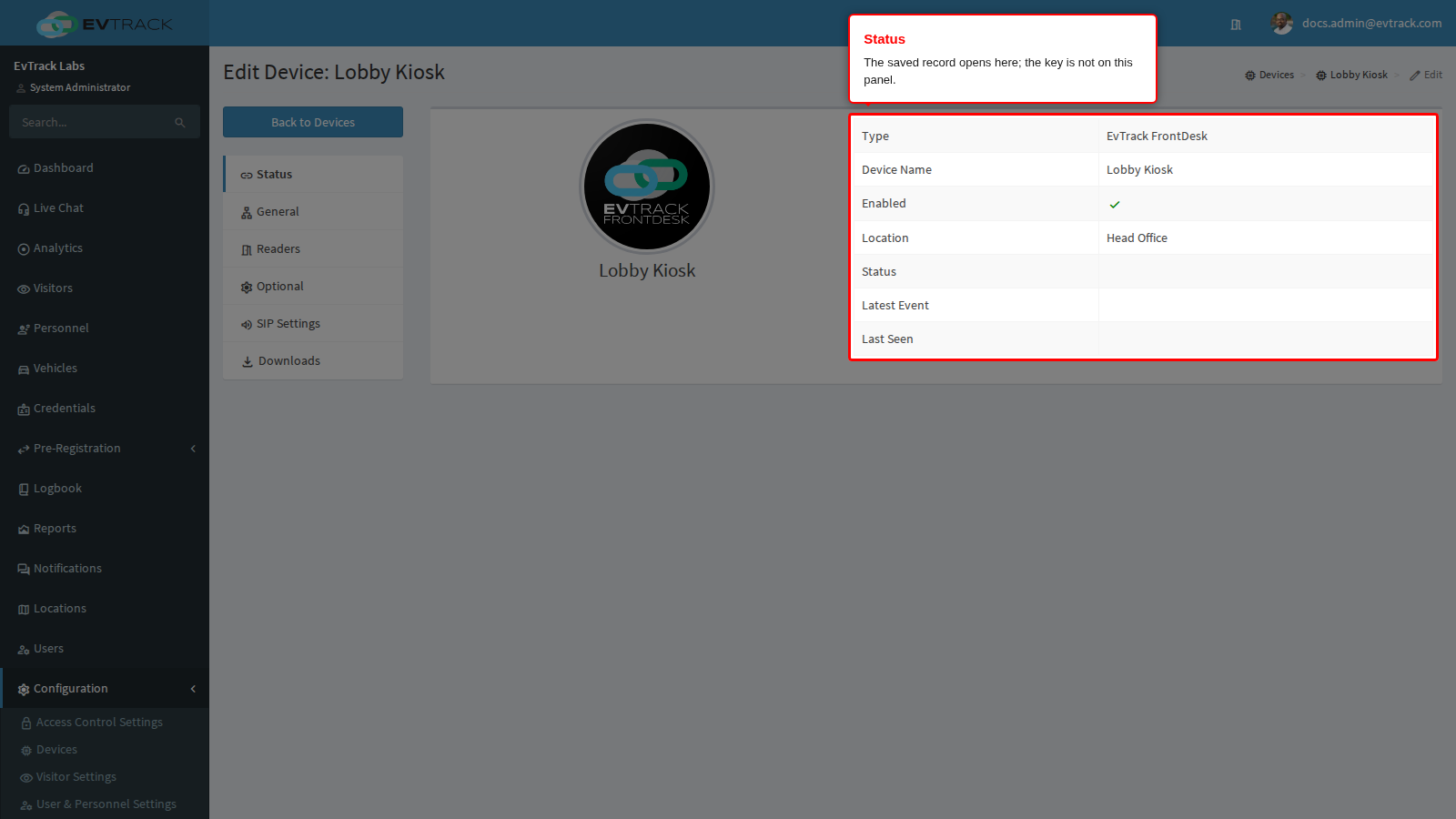
End state: the saved record opens on the Status panel. It shows the type EvTrack FrontDesk, the name, a tick for enabled, and the location Head Office. The status, latest event and last seen remain empty until a tablet pairs. The key is not on this panel.
Step 9: Read the key on the General panel
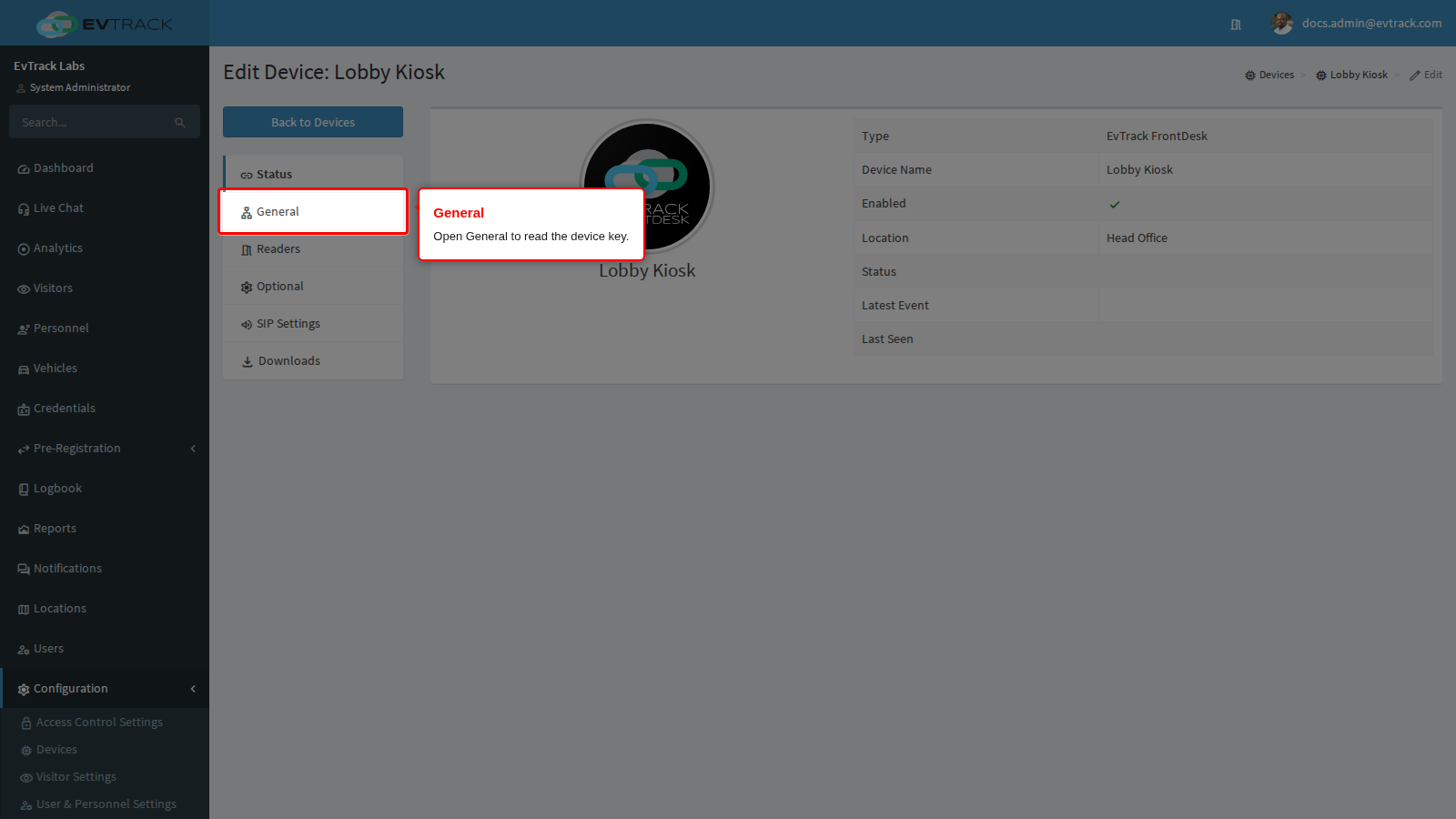
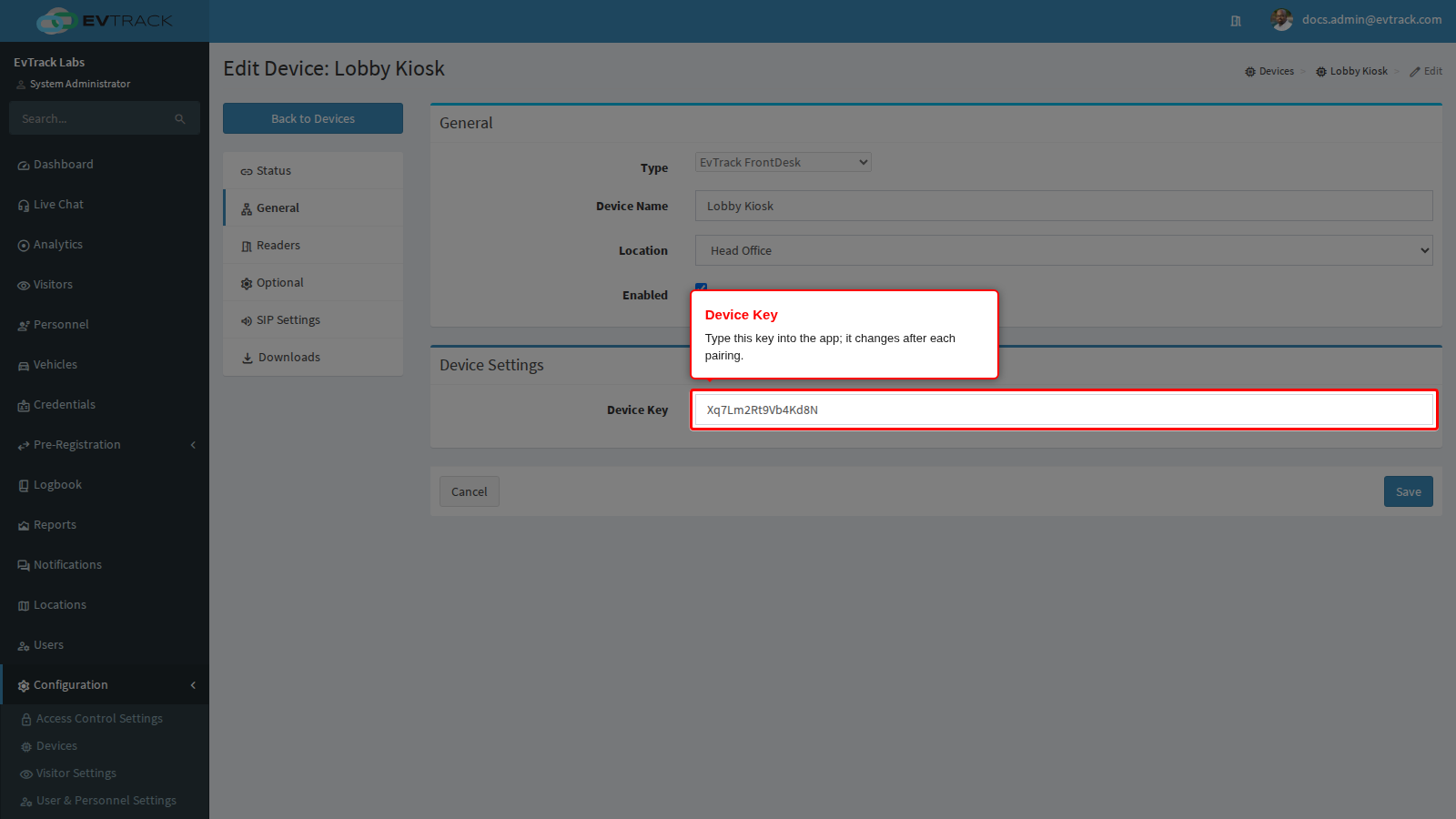
Click General. The key is under Device Settings > Device Key.
About the device key
- The key is single-use. When a tablet pairs successfully, the server immediately replaces the key with a new one and issues new signing keys.
- The General panel always shows the next key, the one the next pairing needs. There is no regenerate button.
- There is no QR code for the key. The QR code on the Downloads panel is for downloading the app package.
- To pair the same tablet again, clear the app’s data and enter the key now shown on General, see Clear App Data.
- To move a tablet to another device record, clear the app’s data and pair with that record’s key.