Add a visitor when you will invite them yourself, or when a walk-in arrives at reception without a registration. The visitor record is a person: it holds their details, photo and documents and is reused for every later visit. Adding the record does not invite anyone or issue a pass; that is the next step, Invite Visitor.
You will need: the visitor’s name, email address and mobile number, and their ID or passport number. The pass is sent to the email address, so check it before saving.
Step 1: Open the Visitors list
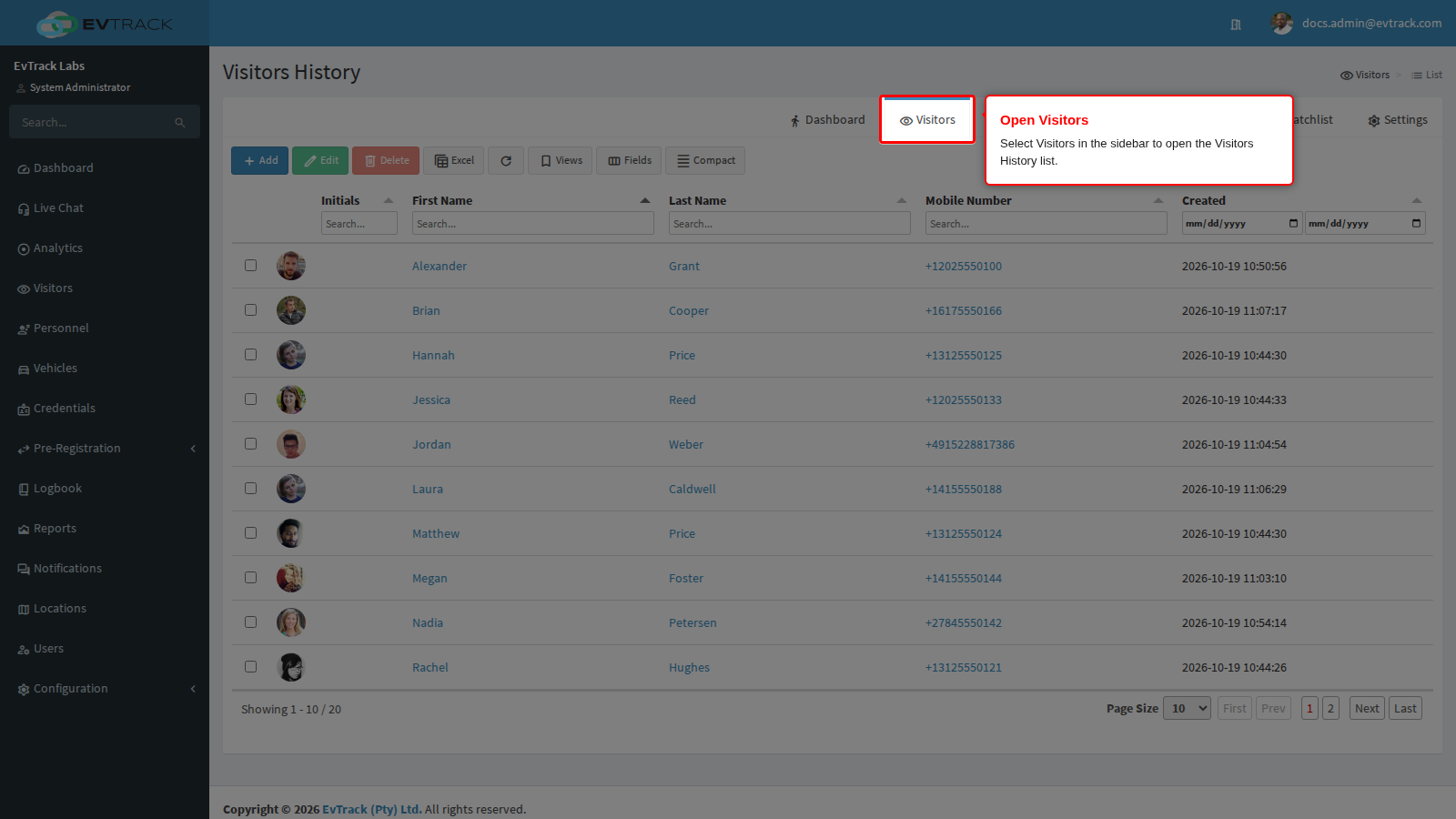
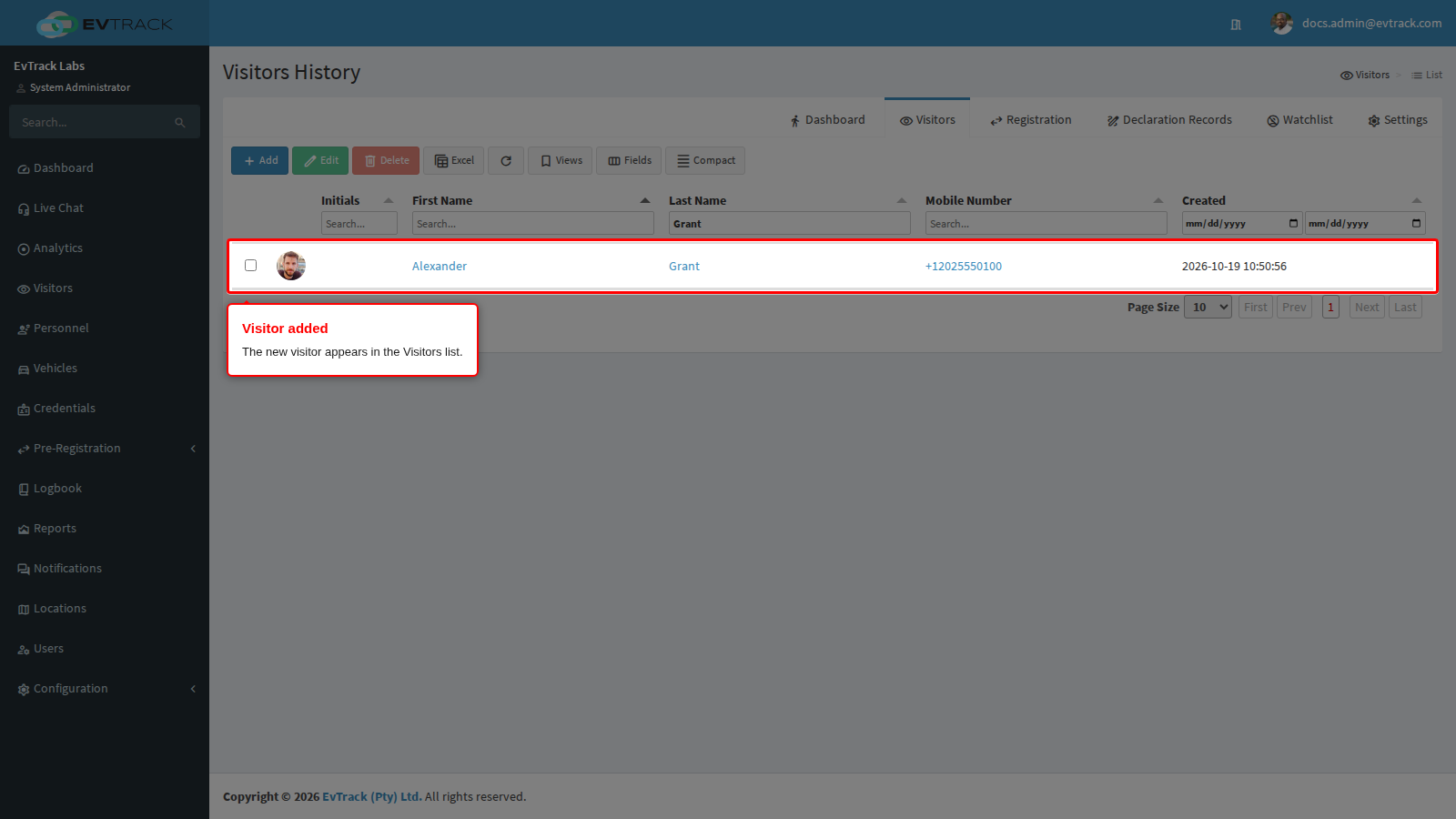
Log in and select Visitors in the sidebar - the Visitors History list opens. It shows all visitors on record, with filters in each column header to narrow the results.
Step 2: Click the Add button
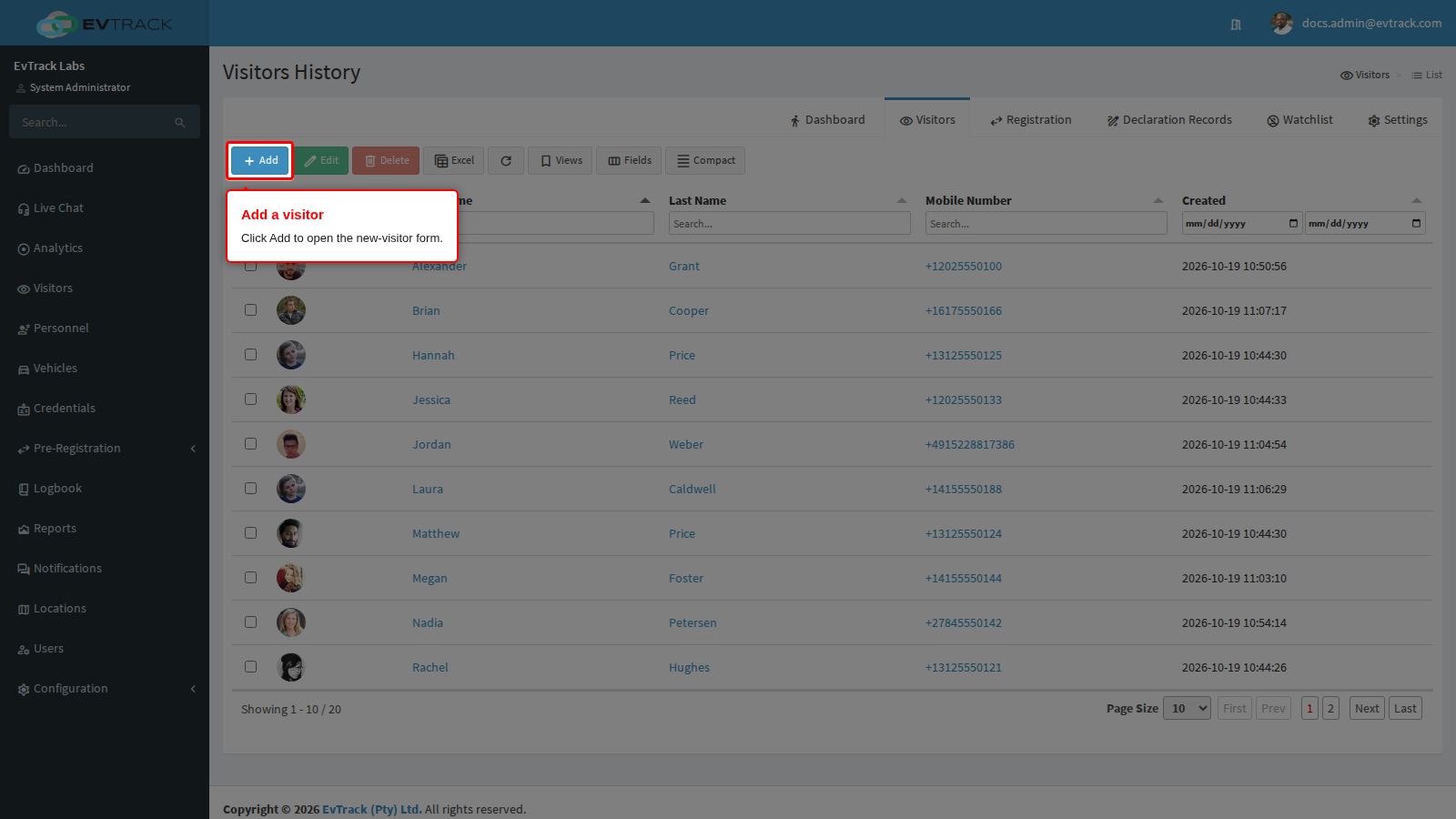
Click the Add button in the toolbar above the list to open the new-visitor form.
Step 3: Fill in the visitor’s details
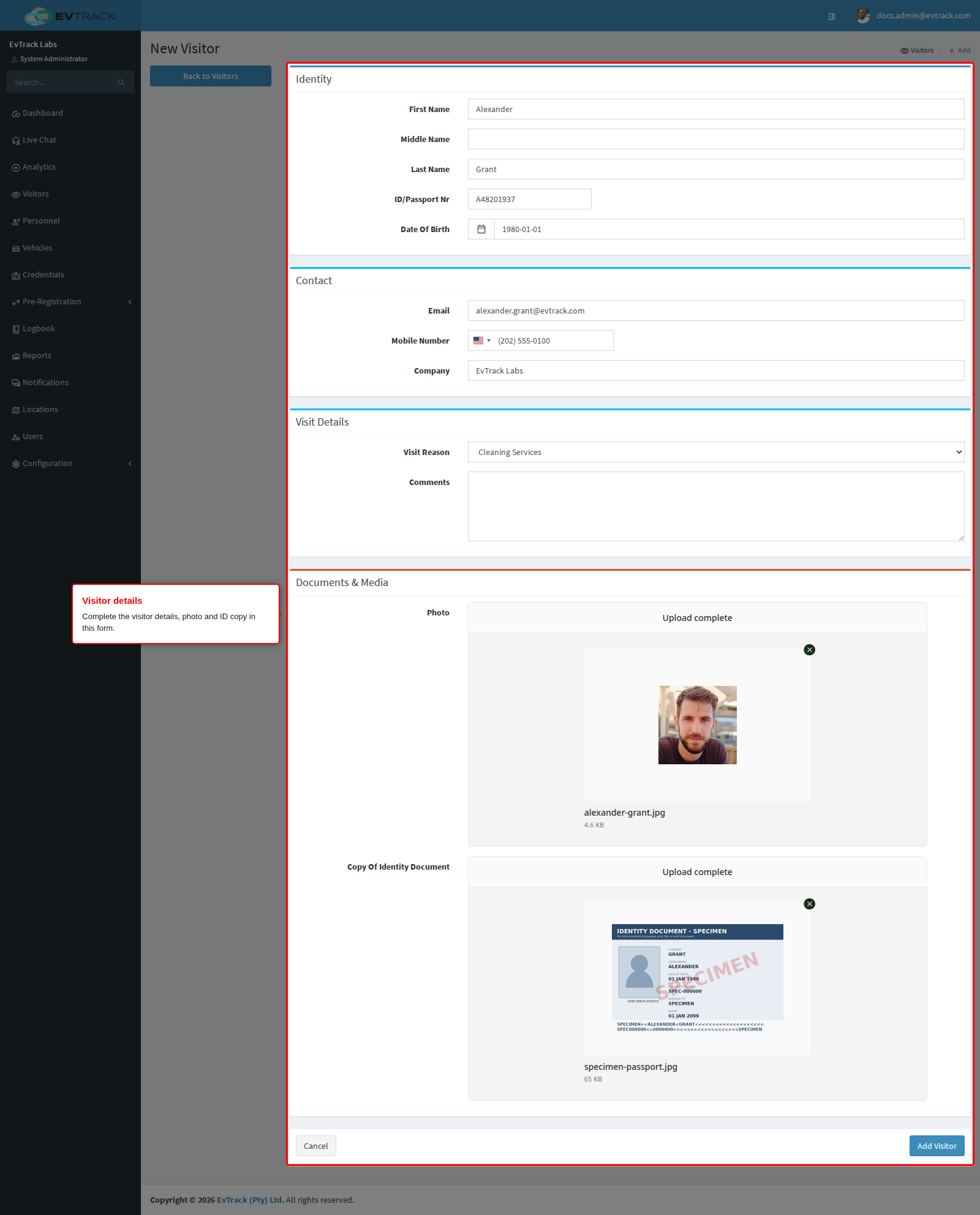
Complete the visitor’s details. The form is grouped into Identity, Contact, Visit Details and Documents & Media. By default First Name, Last Name, ID Number, Date Of Birth, Email, Mobile Number and Visit Reason are required; your administrator can make any field required, optional or hidden under Required Fields, and a section with no visible fields is left out.
Note: the ID number must be between 6 and 20 alphanumeric characters.
Upload the visitor’s Photo (drag and drop a file, browse, or capture from a camera) and, if your policy requires it, the Copy Of Identity Document. Use a clear, front-facing head-and-shoulders photo: it is printed on the badge and, where face readers are used, it becomes the visitor’s face credential.
Step 4: Save the visitor
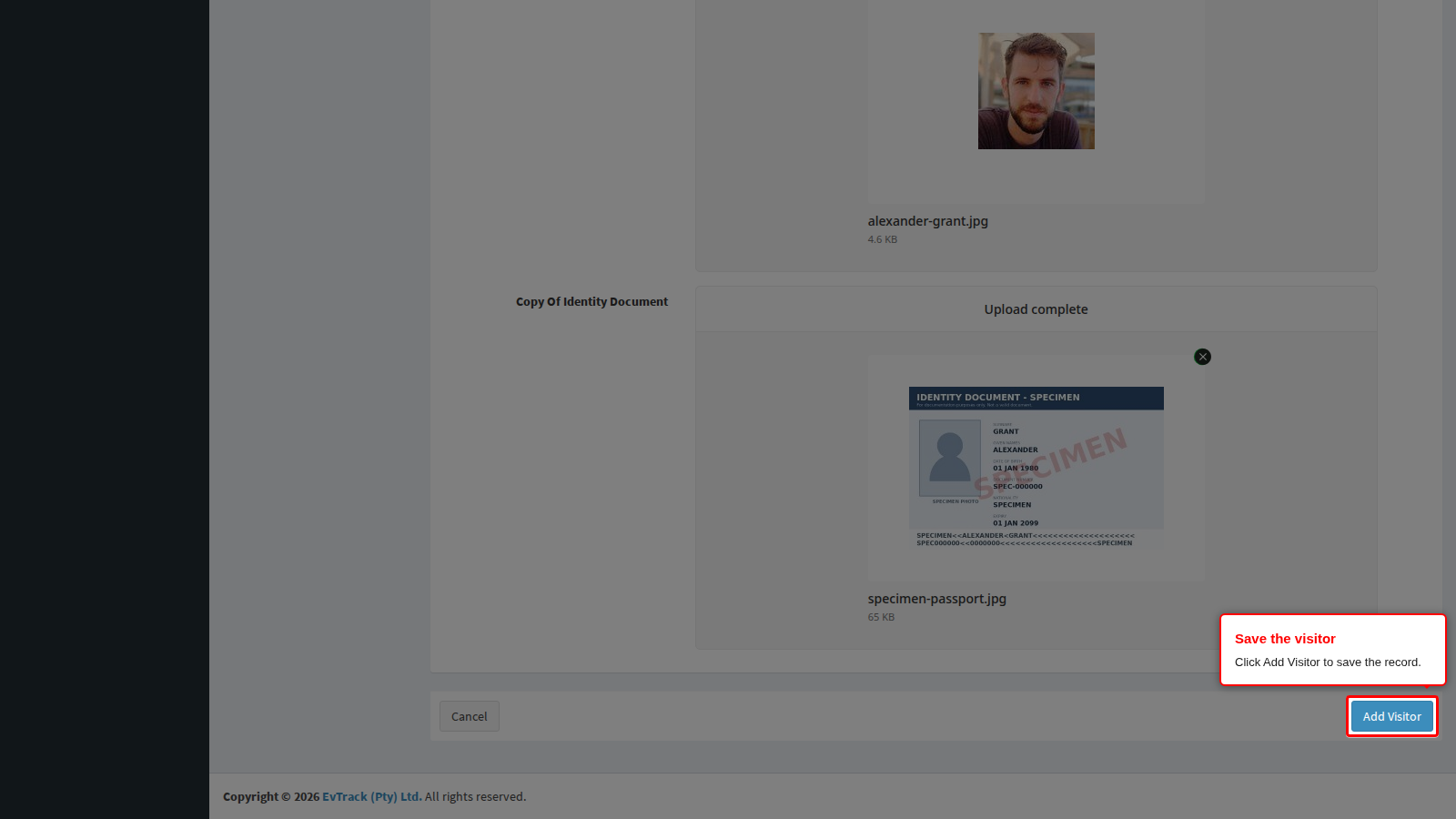
Click the Add Visitor button at the bottom of the form.
Step 5: Review the visitor’s profile
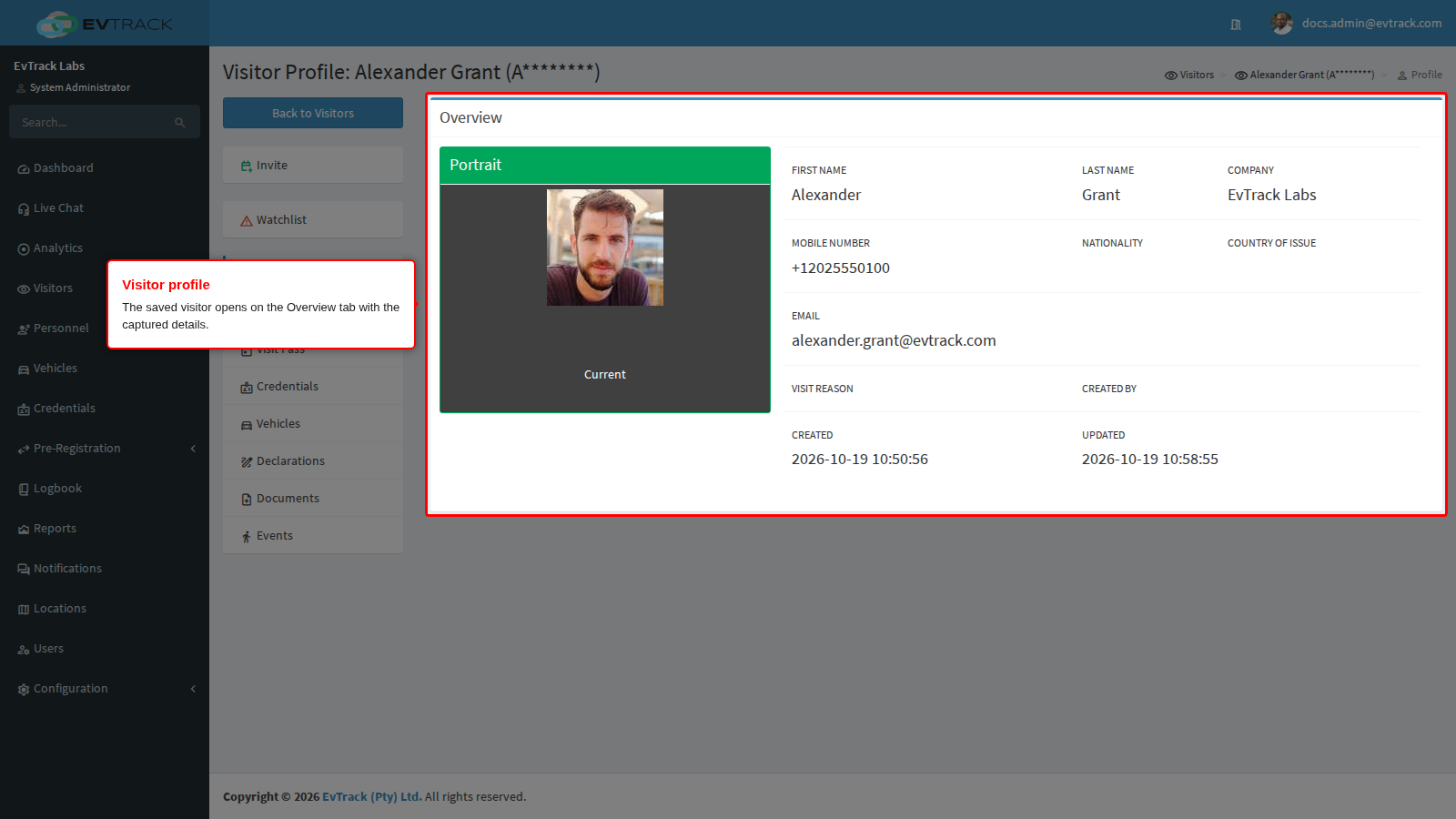
A confirmation banner appears and the visitor’s profile opens on the Overview tab, showing the badge photo and the captured details. From the profile you can issue a visit pass, manage credentials, vehicles, declarations and documents, review the visitor’s events, send an invitation, or add the visitor to the watchlist.
Step 6: Confirm the visitor appears in the list
The new visitor now appears in the Visitors list and can be checked in, invited, or issued a visit pass.
Next: invite the visitor
The visitor now exists but has no visit. Open Invite on their profile to create the visit and send the pass - see Invite Visitor, or the whole flow in Journey: You Enter the Visitor’s Details.
Troubleshooting: “Visitor with the same mobile number already exists”
Returning visitors are matched on ID/passport number first (falling back to first name, last name and date of birth when the ID number is blank); a matching email address or mobile number flags a duplicate on its own. The match strategy, email/mobile matching and phonetic name matching are configured under Configuration > System Settings > Validation.
If saving fails with a “Visitor with the same mobile number already exists” error, a visitor record with that mobile number is already on file - find it in the Visitors list and update it instead of creating a duplicate.