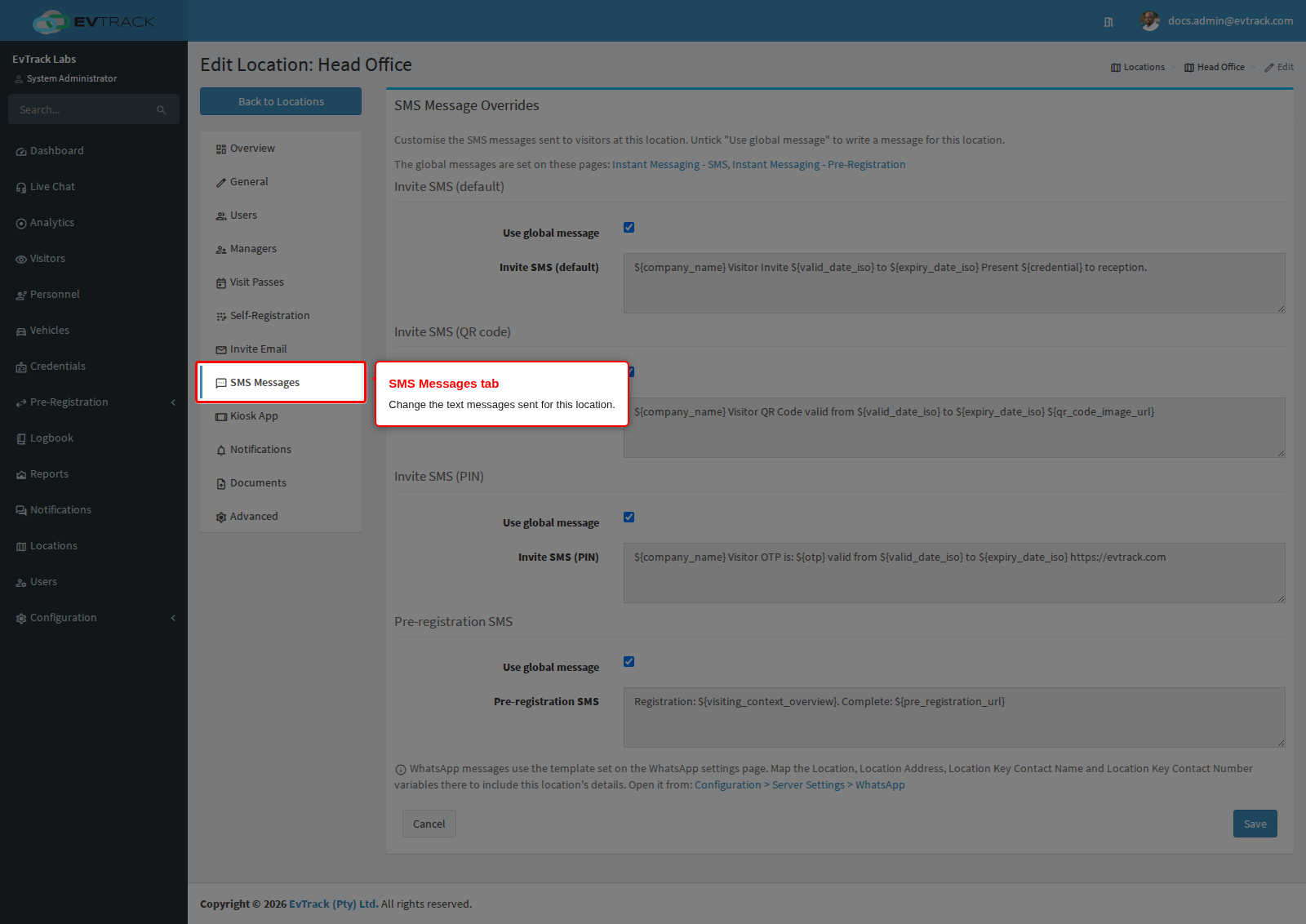
The SMS Messages tab holds the panel SMS Message Overrides. Use it to word the text messages for visitors invited to or pre-registered at this location differently from the rest of the system: the invitation SMS (default, QR code and PIN versions) and the pre-registration SMS. Each message starts on Use global message, so the location sends the global message until you untick a box.
Who can use this tab: to see it, “Configuration: Location - Edit/View” and “Configuration: System Settings - View”; to save it, “Configuration: Location - Save” and “Configuration: System Settings - Save”.
Step 1: Open the SMS Messages tab
Open the location from the location list and click SMS Messages in the menu on the left.
Step 2: See the global message
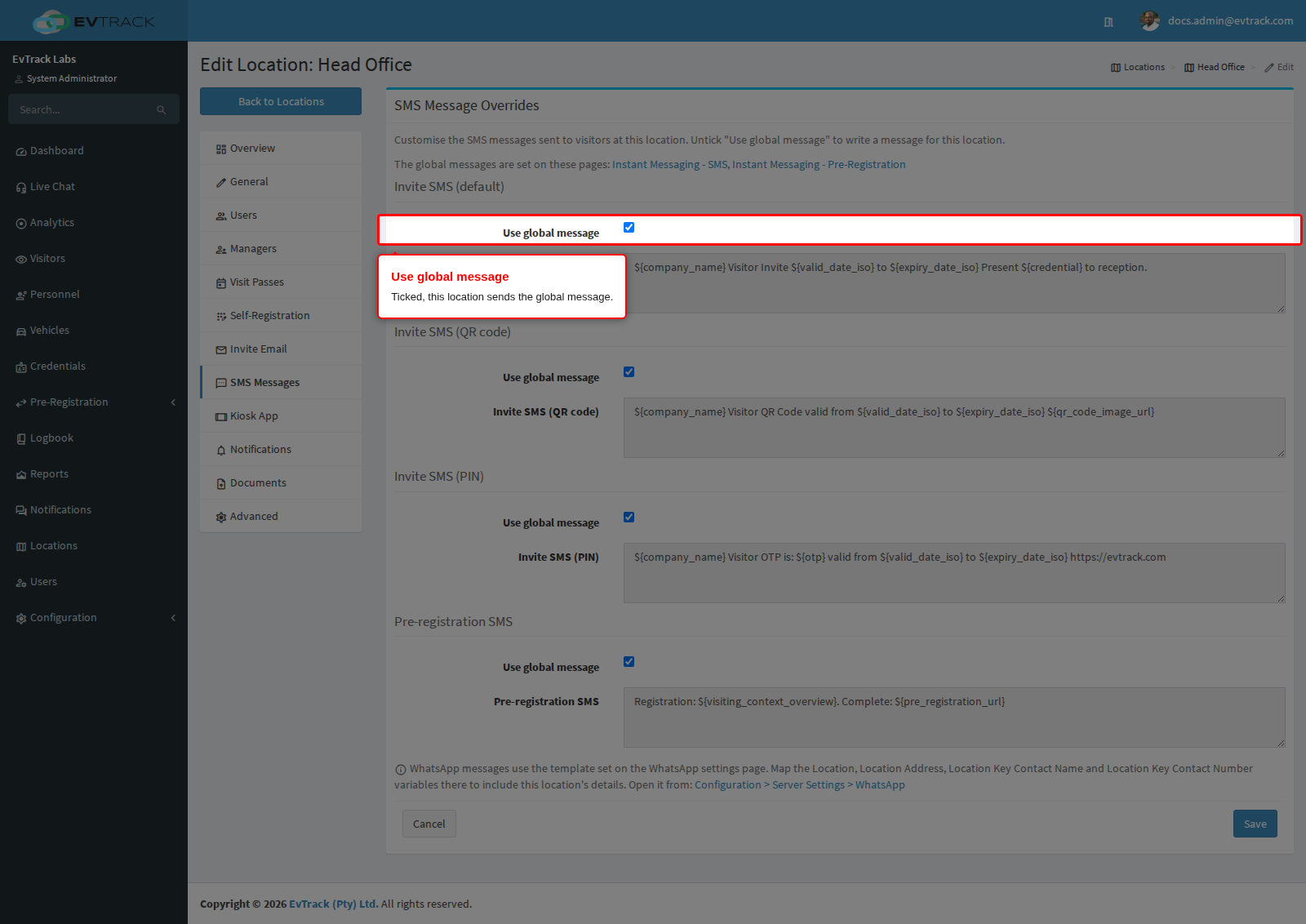
Use global message is ticked by default. The message below it is the global message, shown read-only. The panel links to the Instant Messaging pages where the global messages are written.
Step 3: Write the default invitation SMS
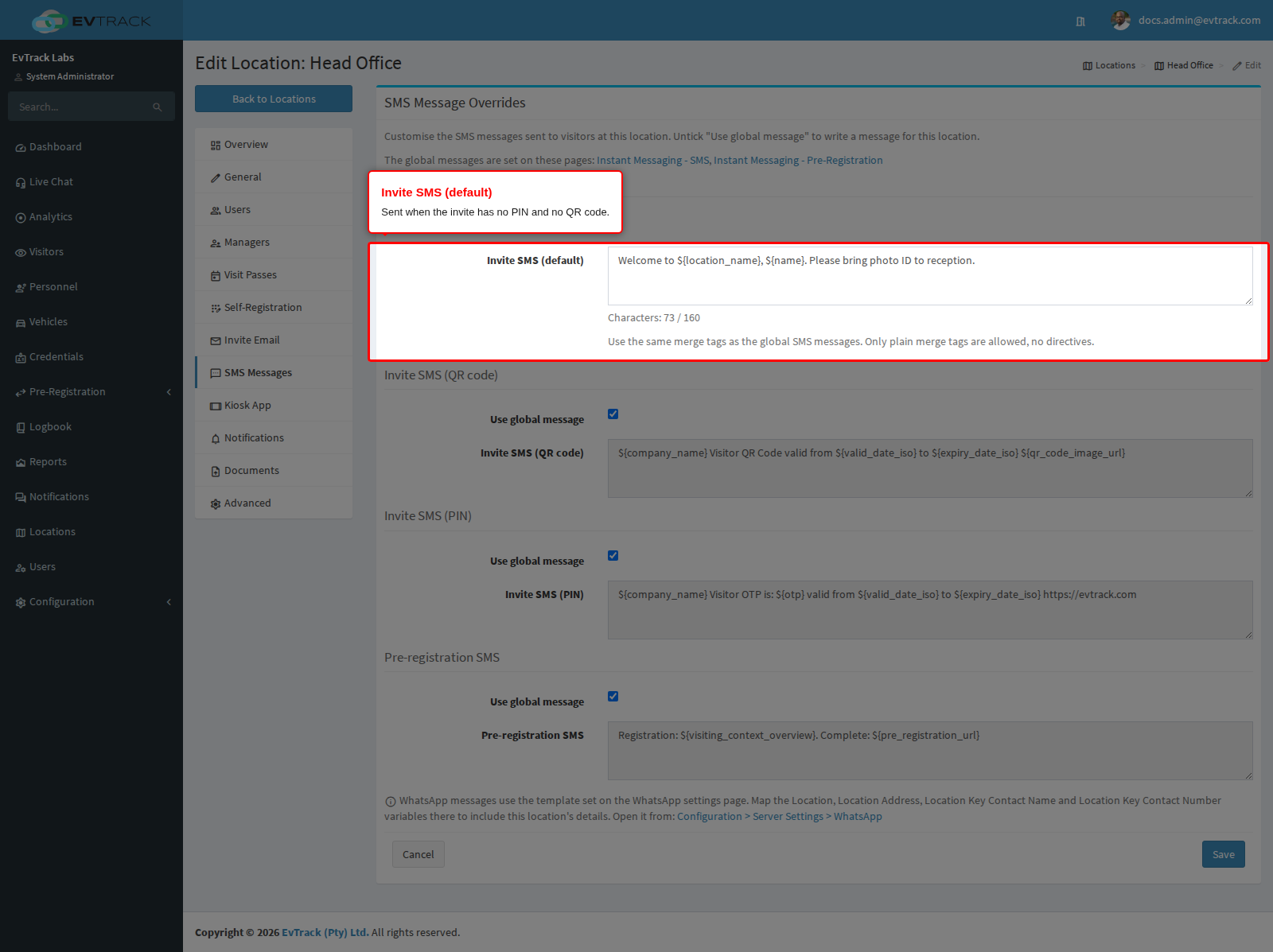
Untick Use global message to write the invitation text used when the invite has no PIN and no QR code. A character counter shows how much of the allowance you have used. Use the same merge tags as the global messages, for example the location name. Only plain tags are allowed; template commands and functions are rejected when you save.
Step 4: Write the QR code invitation SMS
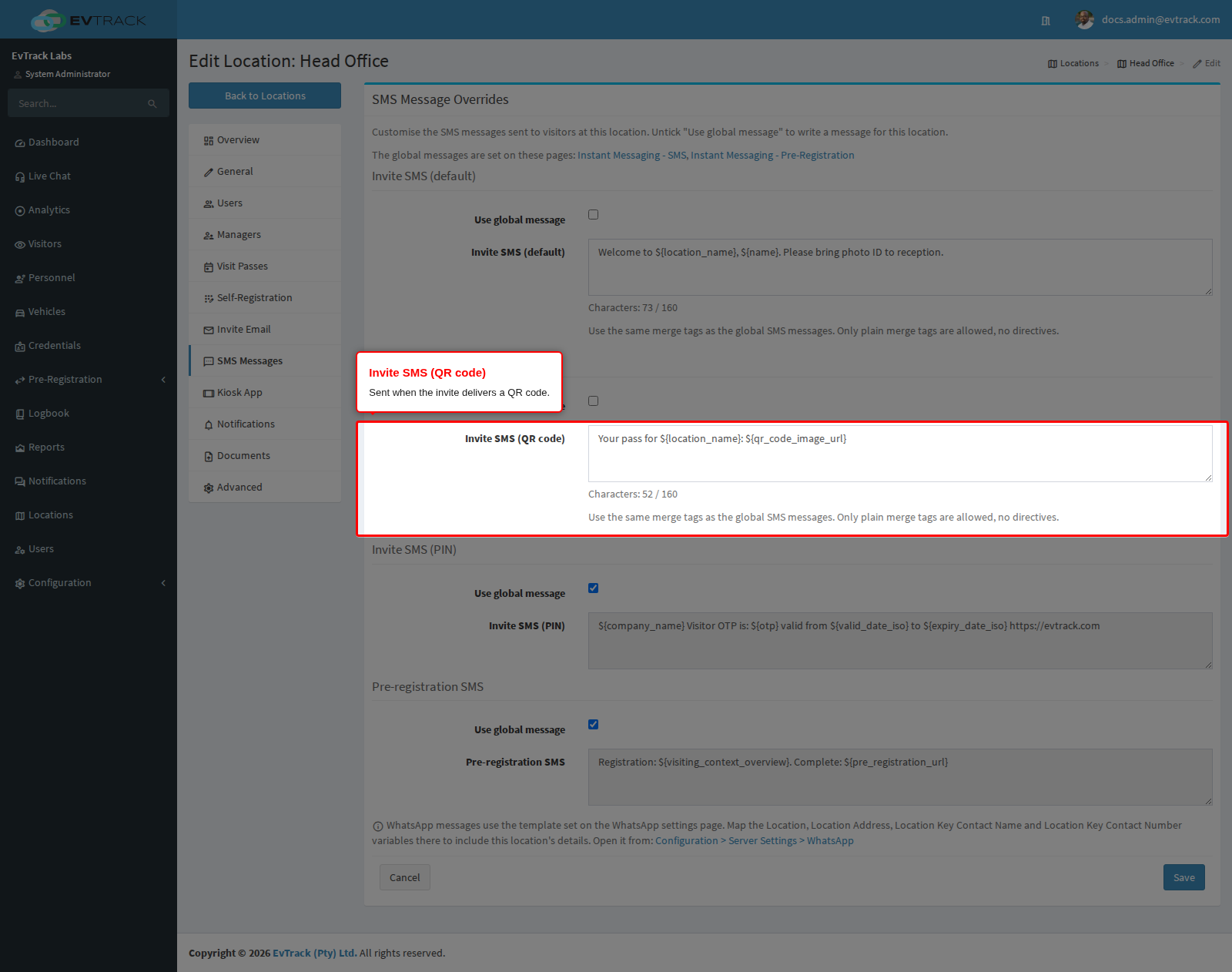
The QR code message is used when the invitation delivers a QR code. Keep the QR code link tag in it, or the visitor receives no code.
Step 5: Write the PIN invitation SMS
The PIN message is used when the visitor’s credential is a PIN. Keep the PIN tag in it, or the visitor receives no code.
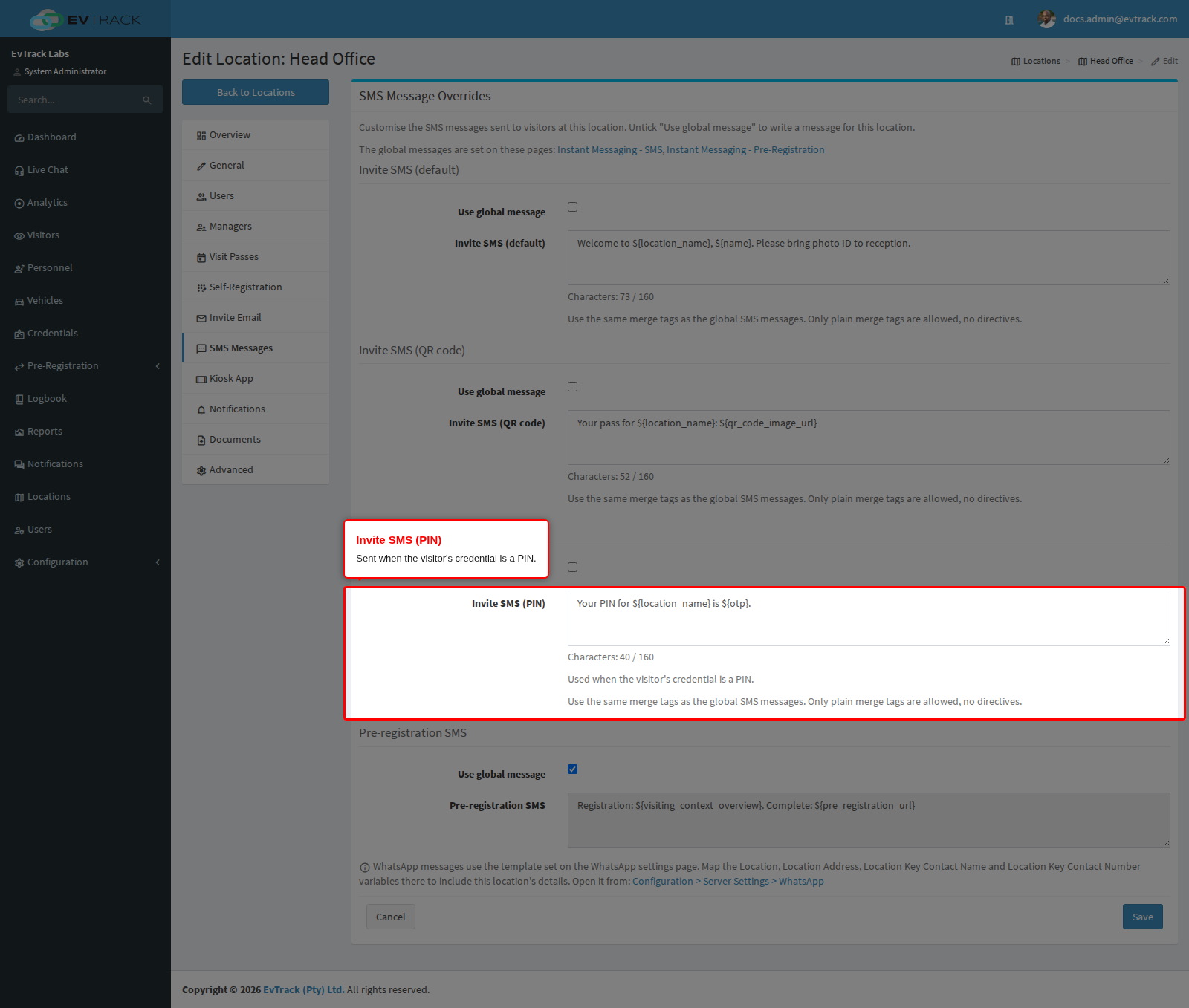
Step 6: Write the pre-registration SMS
The pre-registration message asks a visitor to complete their own details before arriving. Keep the registration link in it, or the visitor cannot register.
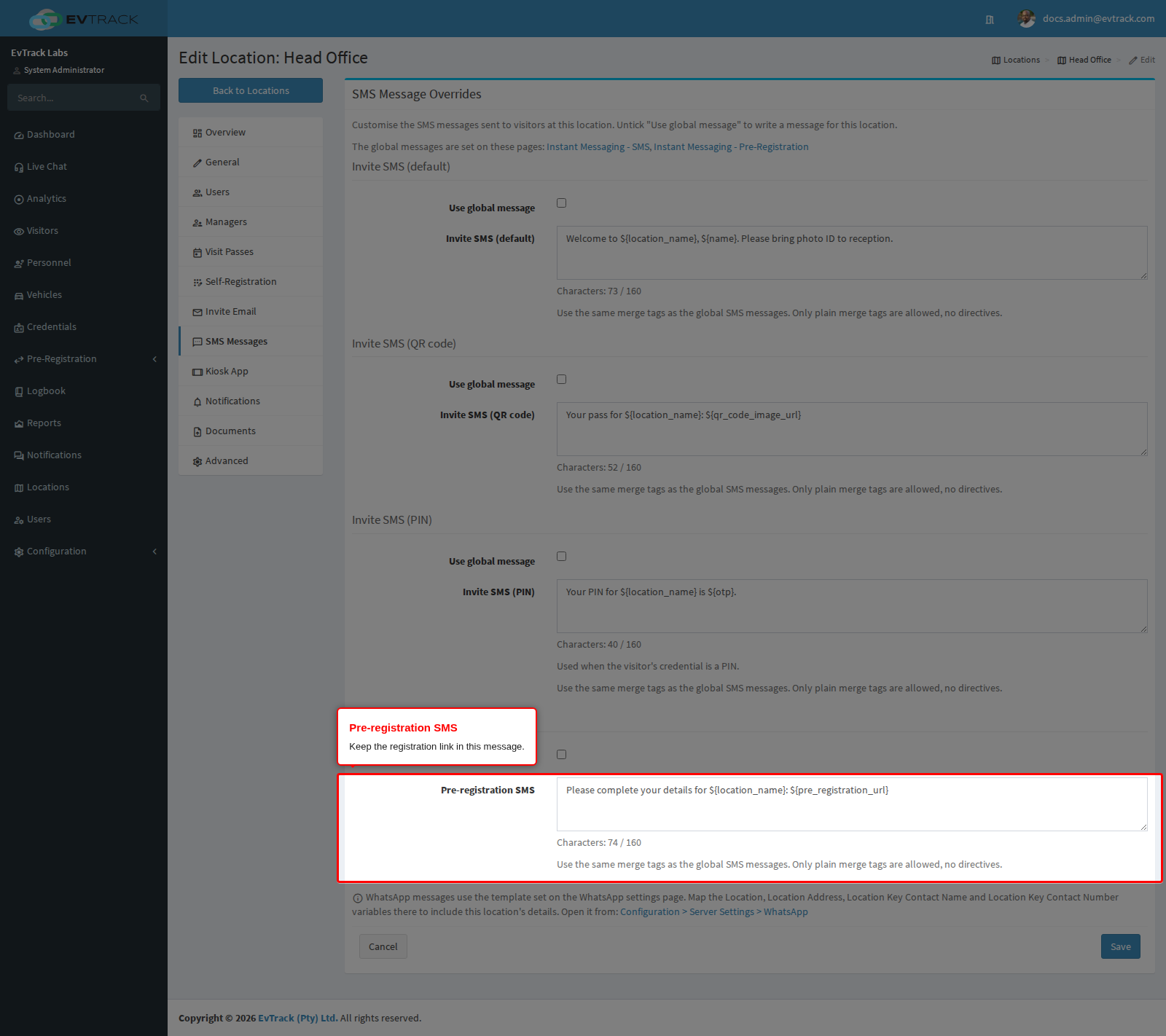
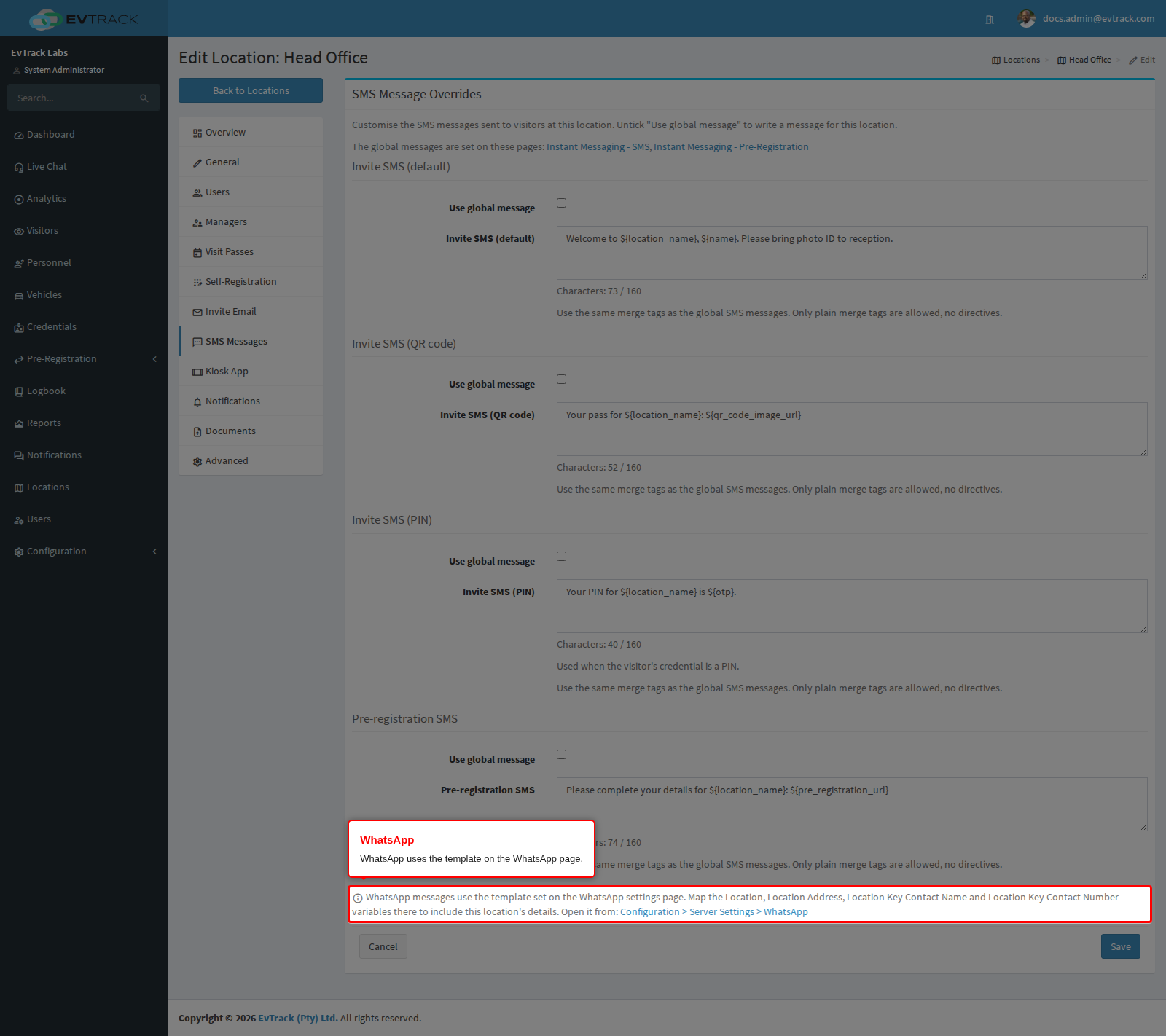
Step 7: Check the WhatsApp message
WhatsApp messages do not use these boxes. They use the template set on the WhatsApp settings page under Configuration, Server Settings, WhatsApp. Map the location variables there to include this location’s details.
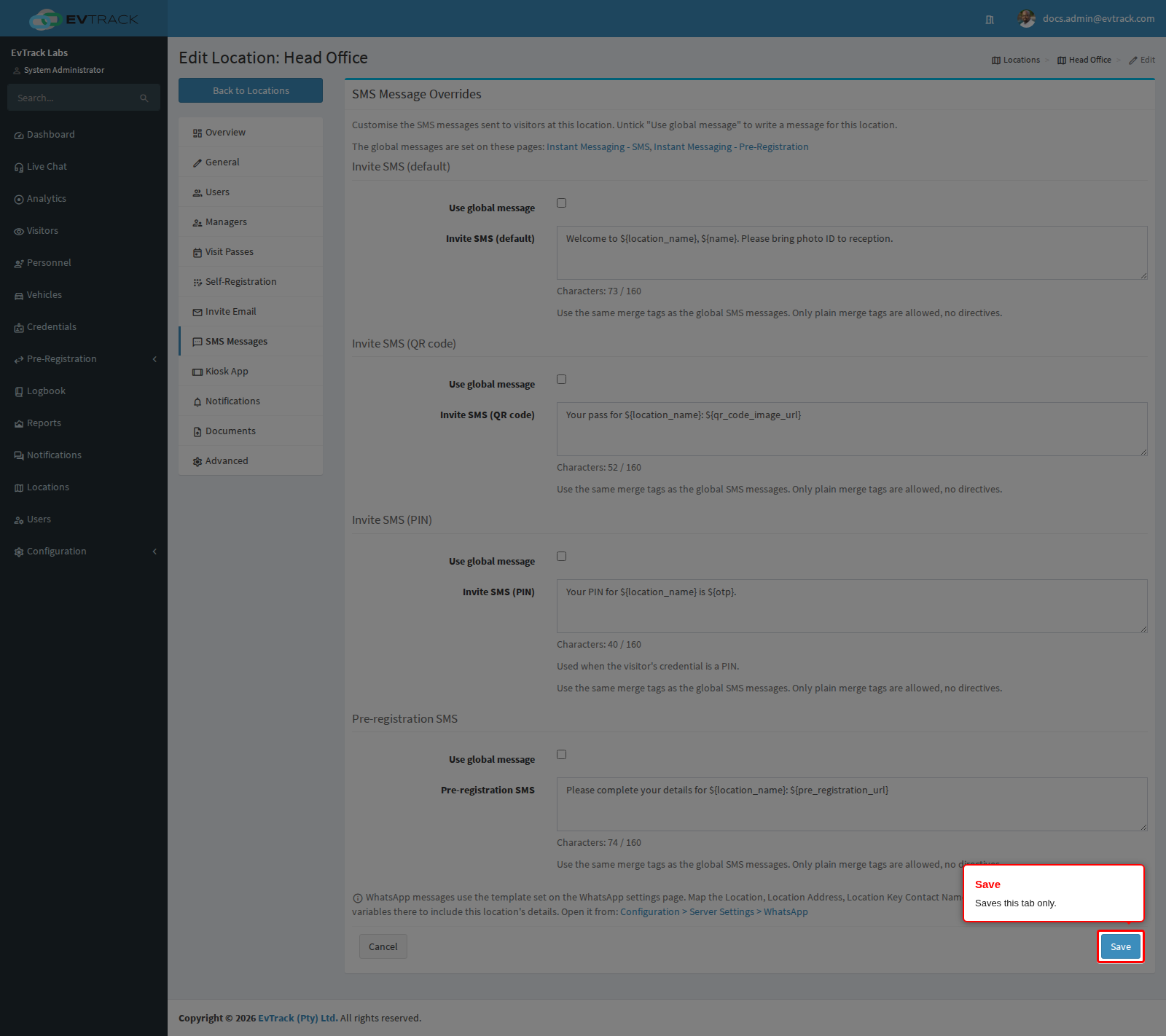
Step 8: Save
Click Save to store this tab only. If you untick Use global message and leave the box empty, the global message is sent, so a visitor never receives a blank text.
End state: visitors registering at this location receive the wording you wrote, and every other location keeps sending the global messages.
Re-ticking Use global message. Ticking the box again and saving switches the location back to the global message. The text you wrote is kept, so you can untick the box later and carry on editing it.
What next
- Instant Messaging Settings for the global messages these overrides replace.
- Location Invite Email for the email equivalent of this tab.
- Merge Tags for the full placeholder reference.