Use this page when an event in the Logbook starts with “[Device clock wrong: …]”, or when Latest Events shows an Error that a device’s clock is wrong. Nothing is lost: EvTrack kept every event. The fix is on the device, and usually takes a few minutes for an operator who can edit devices.
Symptom
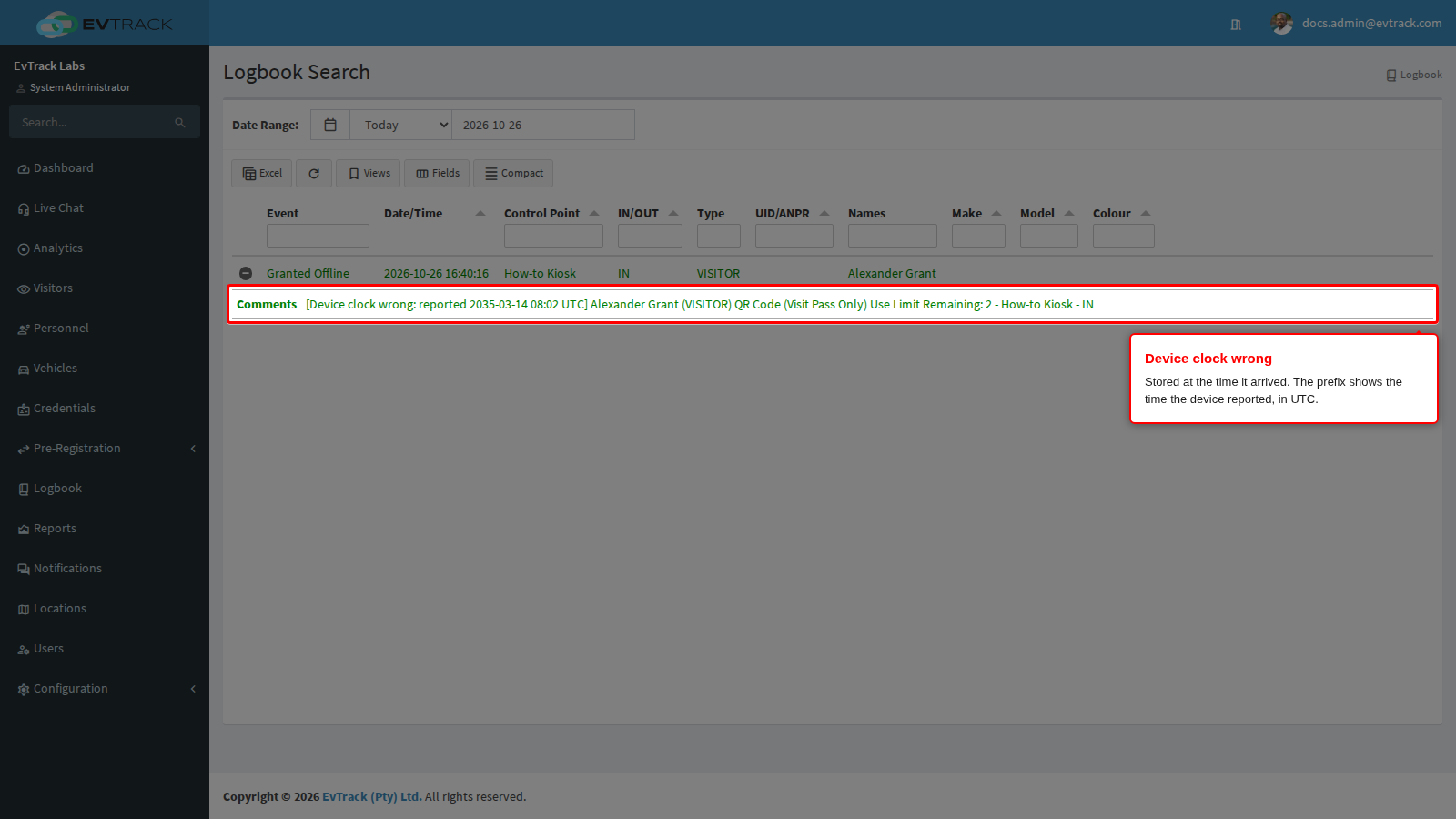
Open Logbook from the left sidebar. The Comments of an event start with the time the device reported, in UTC. When the table is too wide for the screen, Comments is folded under the row: click the round button at the start of the row to open it.
[Device clock wrong: reported 2035-03-14 08:02 UTC] Alexander Grant ...
The same text appears in Latest Events, in reports and in the event data sent to your integrations. In the example below, the How-to Kiosk sent a check-in it had queued while it was offline, and the kiosk’s clock read 2035.
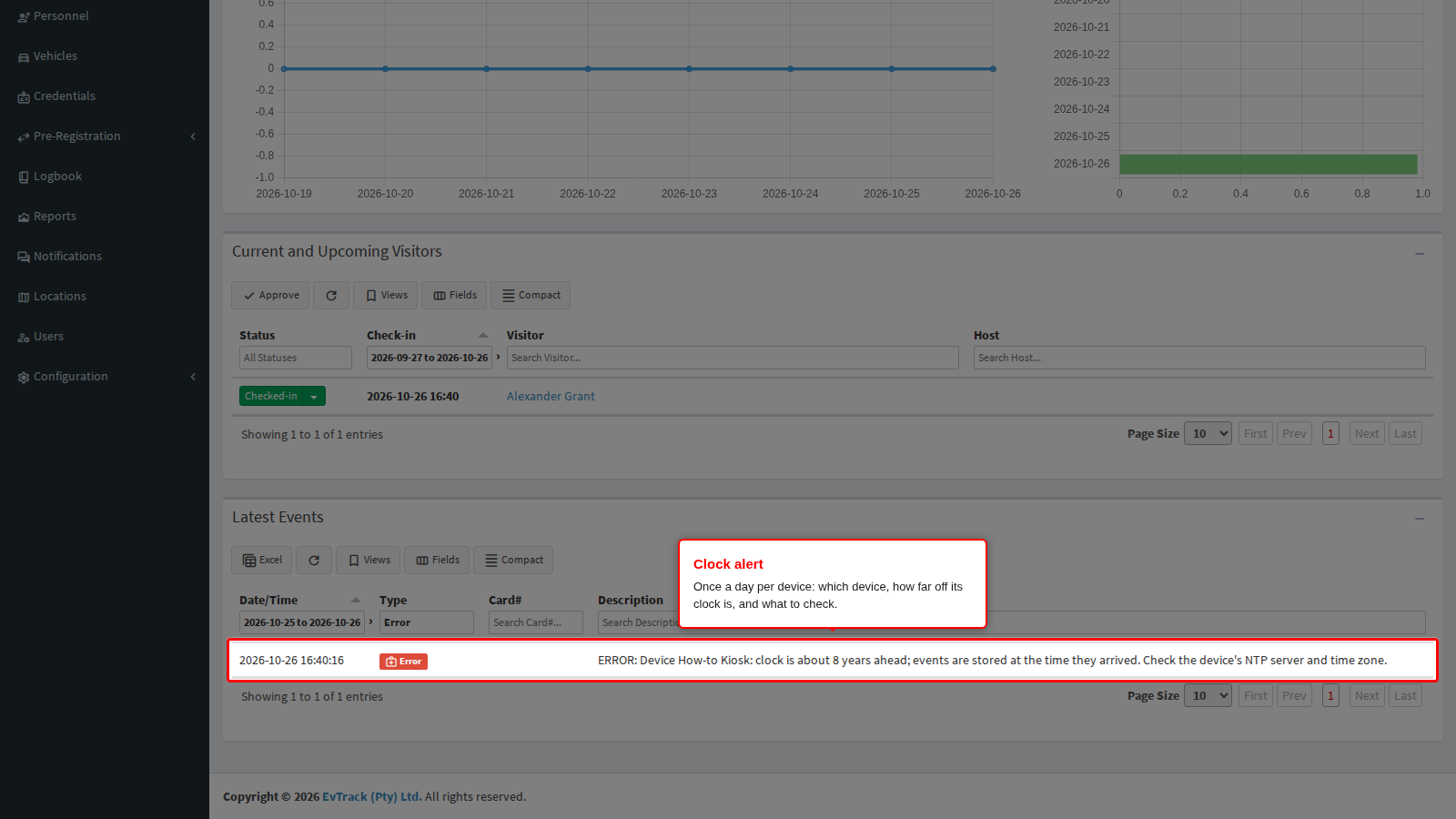
Once a day for each device, EvTrack also records an Error. Open the Dashboard (the first entry in the left sidebar) and, in the Latest Events panel, set the Type filter to Error. The description names the device, says how far off its clock is, and what to check:
“ERROR: Device How-to Kiosk: clock is about 8 years ahead; events are stored at the time they arrived. Check the device’s NTP server and time zone.”
The clock can also be “behind”, and the size is given in minutes, hours, days or years.
What it means
The device sent a time that cannot be right: more than 30 minutes ahead of the EvTrack server, or more than one year behind it. EvTrack does not use that time. It keeps the event and stores it at the time it arrived, so the event appears in the right place in the Logbook, in reports, in time and attendance and in anti-passback. The prefix keeps the time the device reported, so you can always see that the time was corrected.
A device whose clock is only a few minutes off is not flagged: its times are used as they are.
Until the clock is fixed, every new event from that device gets the prefix, and the Error comes back once a day. When a door device sends its stored events again after it reconnects, EvTrack recognises the ones it already has and does not store them twice.
Why it happens
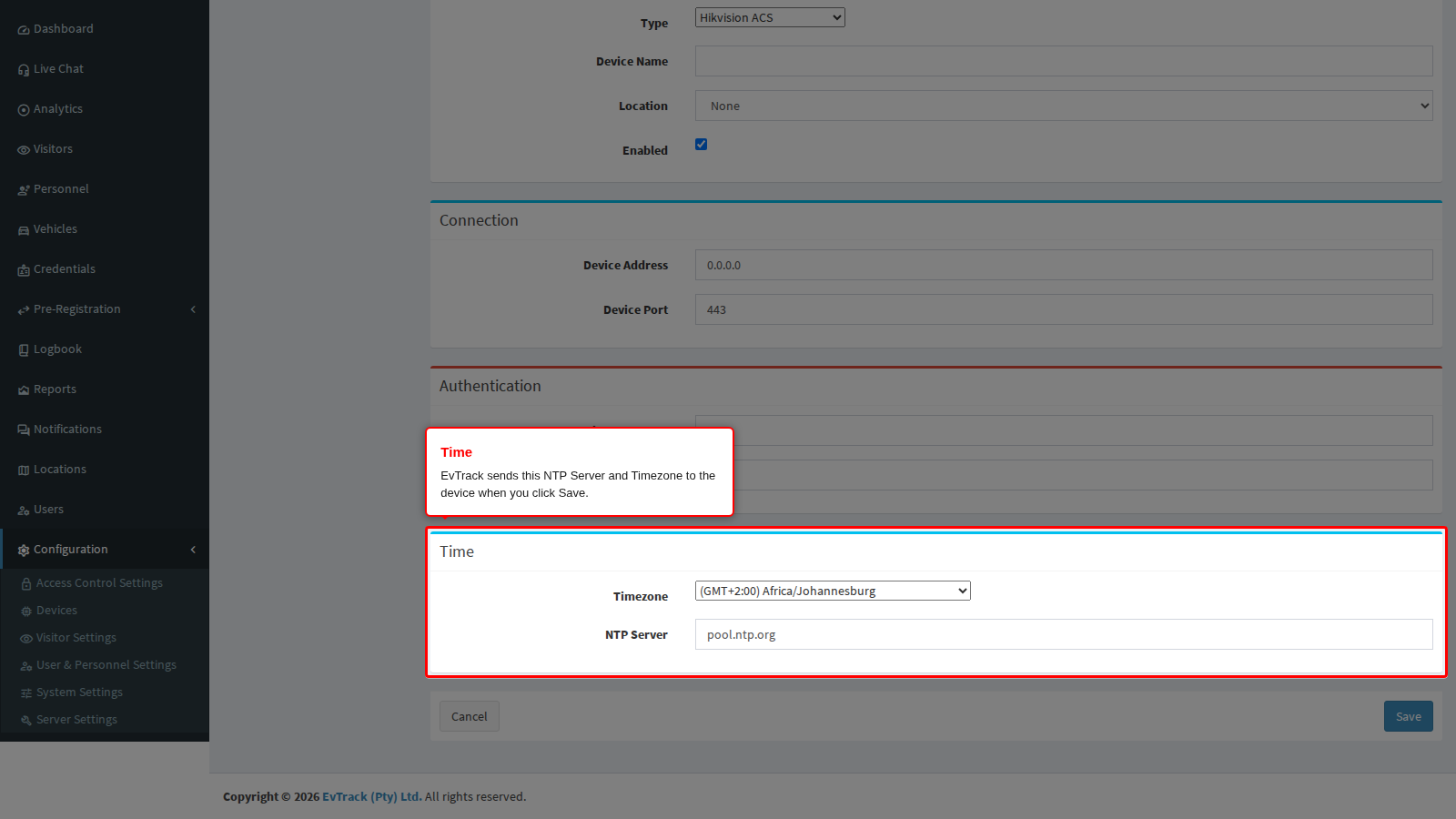
- The device cannot reach its time server. Hikvision, Dahua and Akuvox devices get their NTP Server and Timezone from EvTrack, from the Time panel of the device. EvTrack sends both to the device, so a wrong clock on these devices usually means the device cannot reach the NTP server: the network blocks NTP (UDP port 123), the server name does not resolve on the device’s network, or that network has no internet access.
- The clock was reset. After a power cut, a device with a flat clock battery can start with its clock at 1970 or 2000. Its events then show the clock as many years behind.
- The time zone is wrong. A device set to the wrong time zone can run hours ahead.
- The time was set by hand. A FrontDesk kiosk or an EvTrack Guard handset uses the date and time of the tablet or phone it runs on. When that time was set by hand, the check-ins it queues while offline carry the wrong time. That is the case in the example above.
- The server’s clock is wrong. When every device is flagged at the same time, the clock to check is the EvTrack server’s own. This applies to a server you host yourself.
Fix it now
Step 1: Find the device
The Error names the device. In the Logbook, the Control Point column shows where the flagged events came from.
Step 2: Set the NTP server and time zone
For a Hikvision, Dahua or Akuvox device, open Configuration > Access Control Settings > Devices, select the device and click Edit (see Edit a Device). On the General tab, the Time panel holds:
- Timezone: the time zone where the device is installed.
- NTP Server: a time server the device can reach. A time server on your own network is the most reliable choice.
Click Save at the bottom of the tab. EvTrack sends both settings to the device. The same Time panel is on the Add page when you add one of these devices, as in the capture below.
Then make sure the device can reach that NTP server: allow UDP port 123 from the device’s network to the server, and check that the device can resolve the server’s name.
For other devices, set the time server and time zone on the device’s own configuration page.
For a FrontDesk kiosk or an EvTrack Guard handset, open the tablet’s or phone’s settings and turn on automatic date and time and automatic time zone.
Step 3: Replace the clock battery if the clock keeps resetting
If the clock goes back to 1970 or 2000 after every power cut, the device’s clock battery needs replacing. Until then, a working NTP server sets the clock again shortly after the device starts.
Check it worked
Wait for the device’s next event, for example the next card or face read. Its description in the Logbook no longer starts with “[Device clock wrong: …]”, and the Error does not come back the next day.
Events that were already stored with the prefix keep it. They are already at the right time, so there is nothing to correct.
Prevent it
- Give every device a reachable NTP server, ideally one on your own network.
- After a power cut, look at Latest Events with the Type filter set to Error: a device whose clock reset shows up there on its first event.
- On a self-hosted server, the limits can be changed with the settings
evtrack.device.clock.max-ahead-minutes(default 30) andevtrack.device.clock.max-behind-days(default 365). They apply to the whole system.