The public user registration link lets new users and personnel register themselves. When Enable Register On Behalf is switched on, the person who opens the link can also register other people, for example a contractor representative registering a team of workers. This page follows one such registration from the public link to the administrator’s review. The switches are on the User Registration settings page.
Step 1: Verify and choose who is registering
The person opening the link first proves their own email address (or mobile number) with a one-time code. With Enable Register On Behalf on, the next page asks “Who is completing this registration?”:
- I am registering myself opens the normal registration form.
- On behalf of someone else asks for the registrar’s own name, phone number and role (HR, Manager, Contractor representative or Other). The email or mobile number they verified is shown read-only.
In the example below Alexander Grant registers workers as a contractor representative.
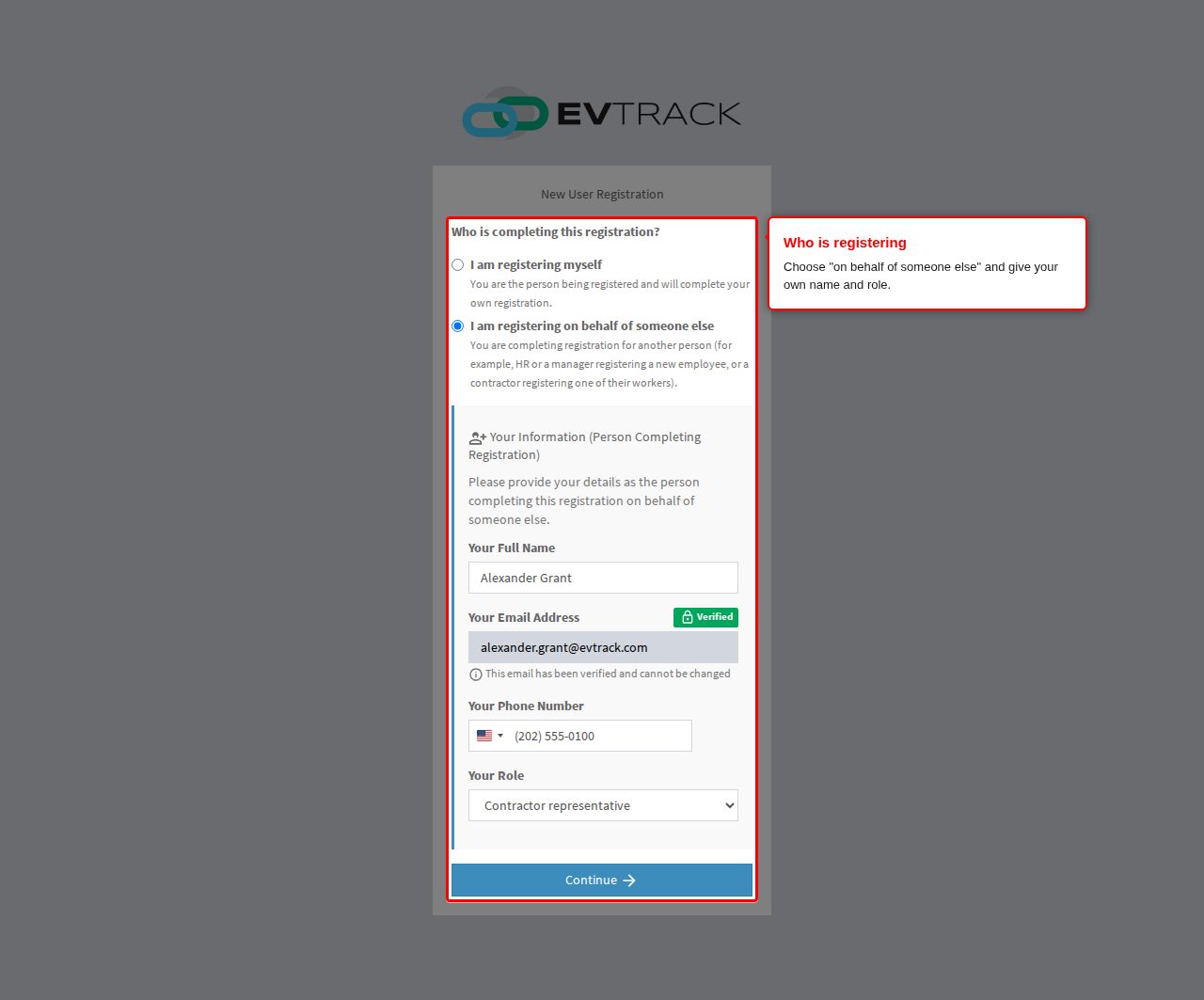
When Enable Register On Behalf is off, step 1 is not shown and the verified person goes straight to the registration form for themselves.
Step 2: Enter the other person’s details
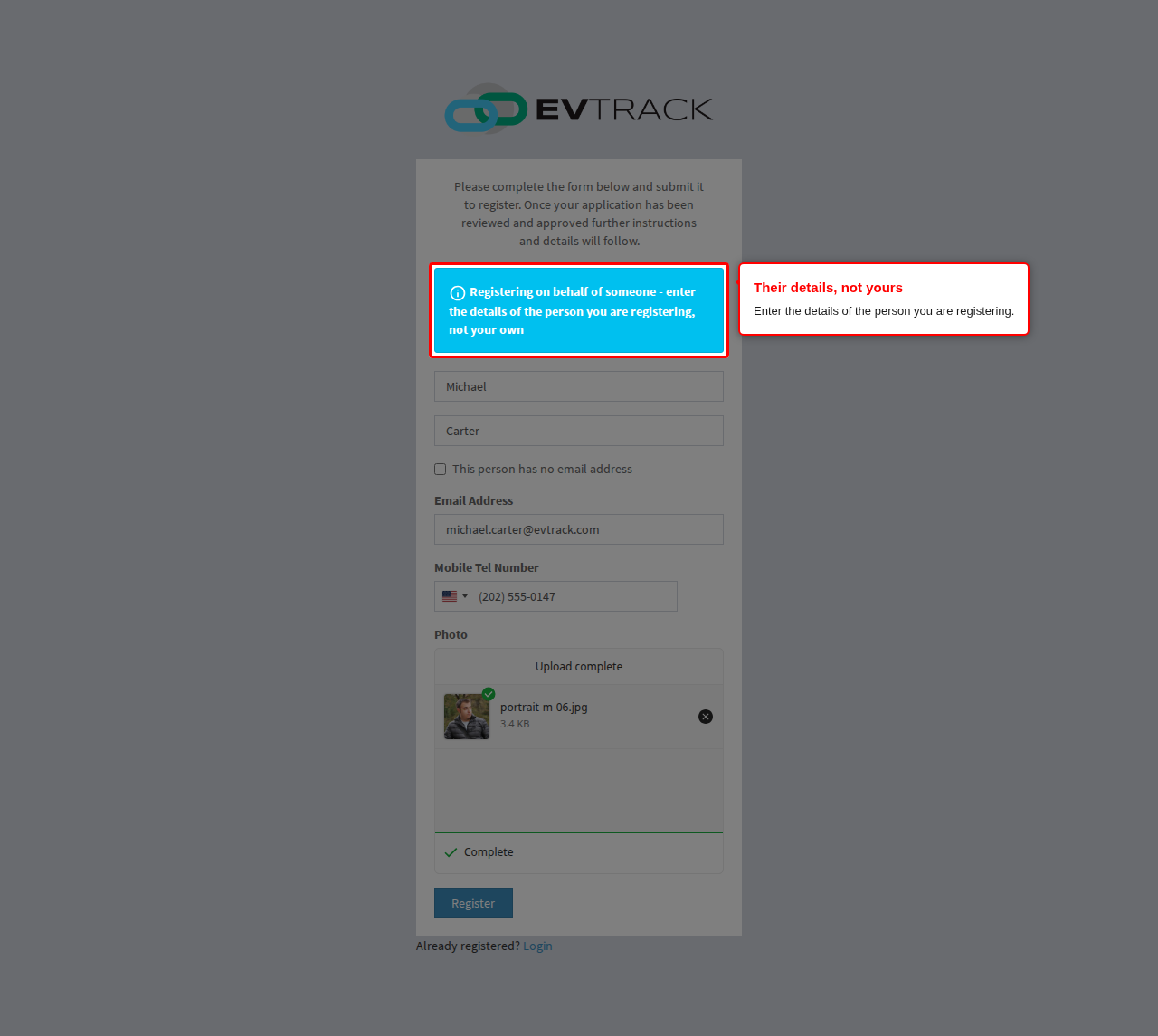
The form now carries a banner reminding the registrar to enter the details of the person being registered, not their own. The fields and uploads are the ones ticked on the User Registration Fields page. The registrar cannot enter their own verified email or mobile number for the other person.
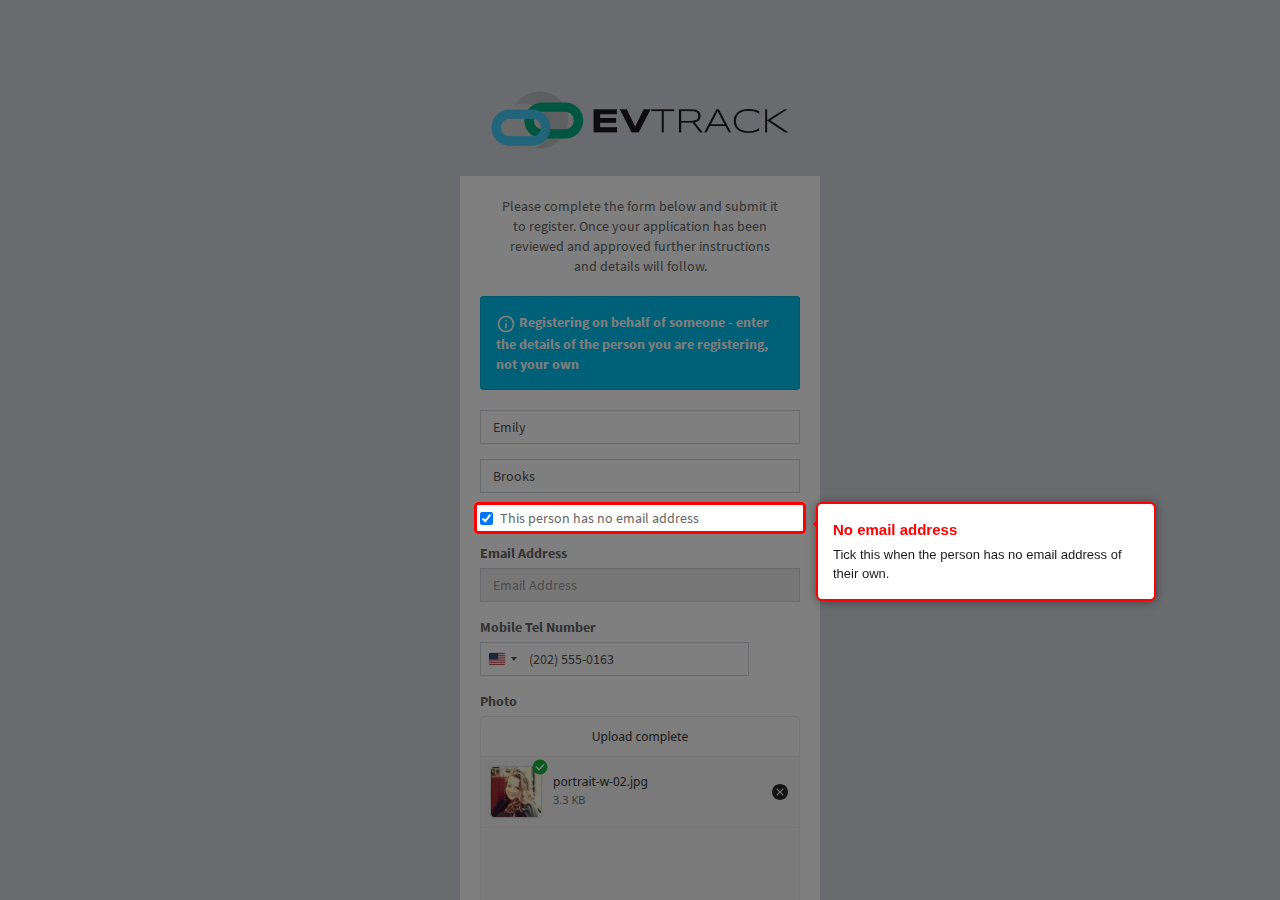
If Allow Skip Email (or Allow Skip Mobile Number) is switched on, the form offers “This person has no email address” (or “This person has no mobile number”). Ticking it clears the field and the registration is saved without it.
Step 3: Register another person or finish
After Register, the success page offers Register another person and Finish. Register another person opens an empty form in the same session, so the registrar does not have to verify again. Finish ends the session; the next registration through the link starts with a new code.
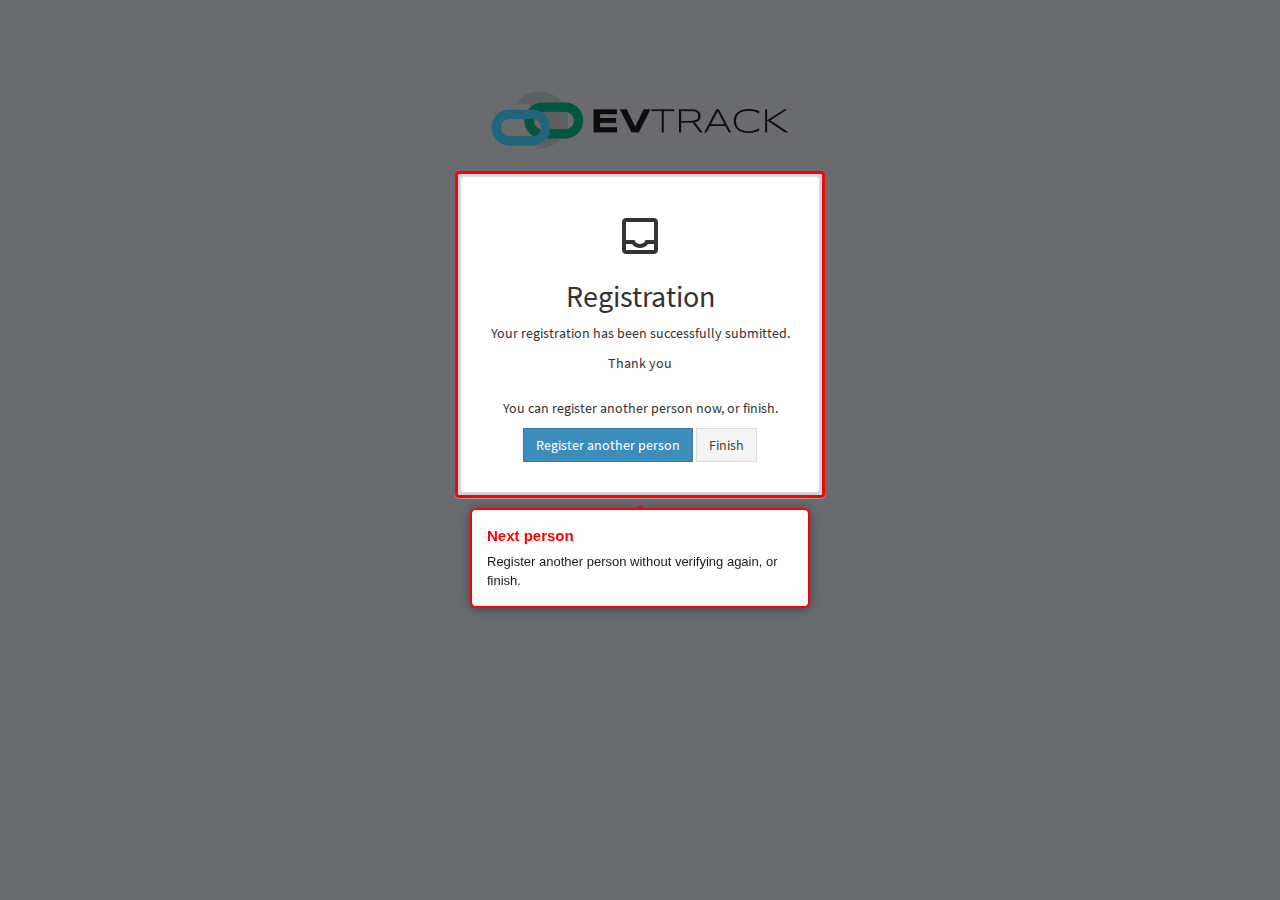
For security a session registers at most 10 people and lasts at most 2 hours from the code; after either limit the registrar verifies again.
Reviewing registrations made on behalf
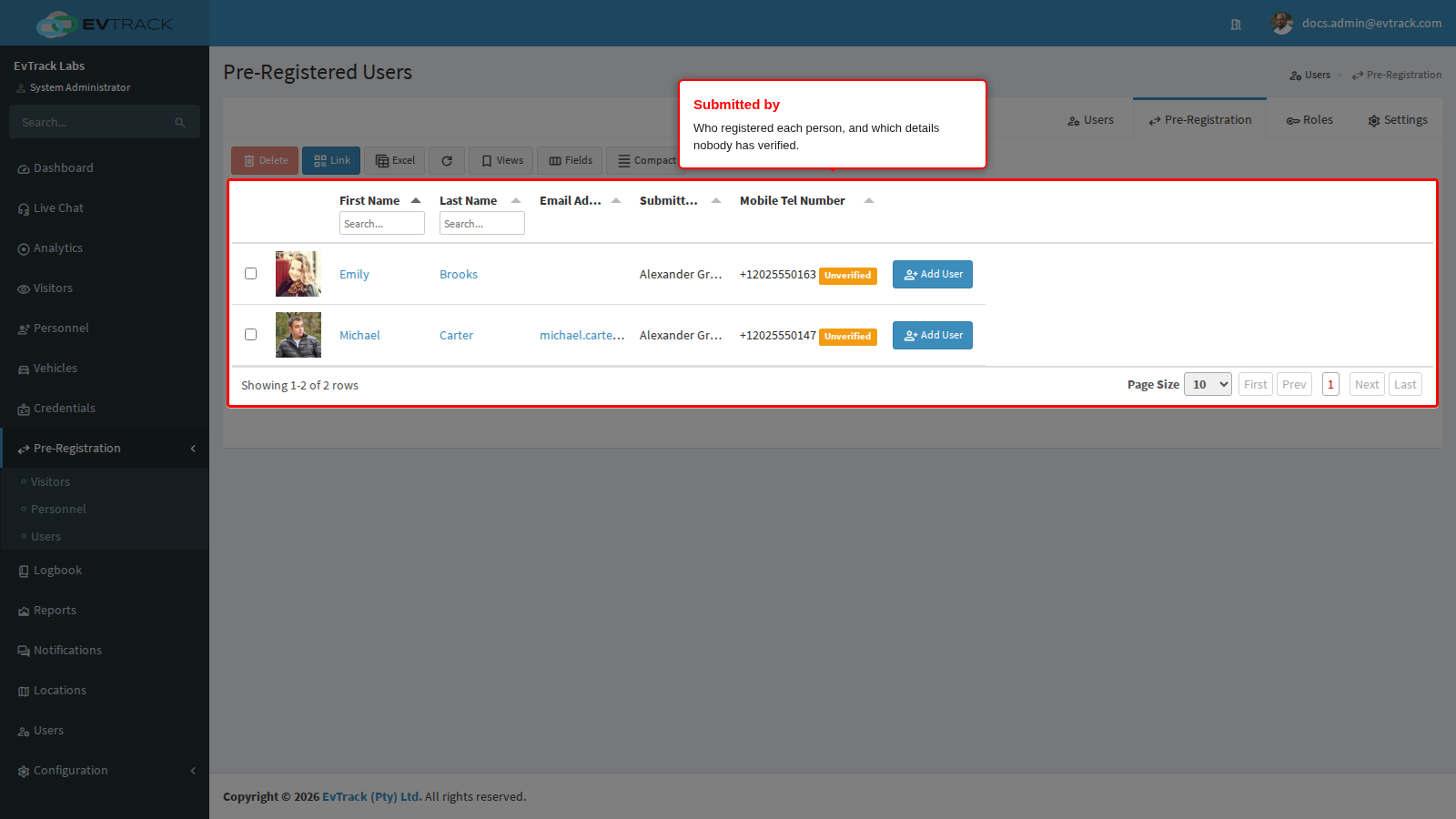
Registrations appear under Pre-Registration in the sidebar. The Submitted by column shows who registered each person and in which role, and an Unverified marker sits beside the email address and mobile number. The registrar typed those details for someone else, so nobody has proven they belong to the person: check them before you approve.
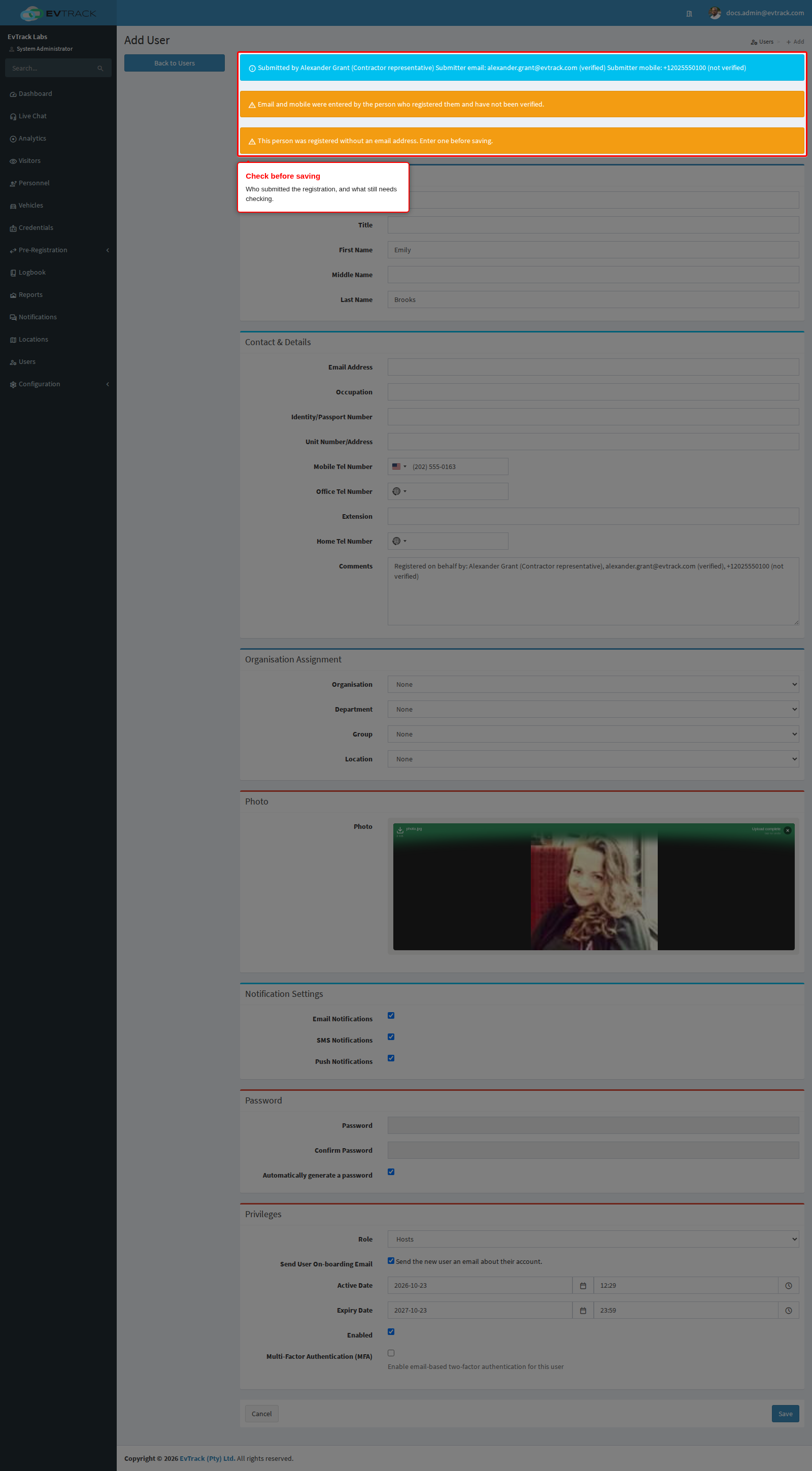
Click Add User on a row to create the user. The Add User page repeats who submitted the registration and whether the submitter’s mobile number was verified, warns that the contact details are unverified, and, when the person was registered without an email address, asks you to enter one before saving. The registration is removed from the list once the user is saved.
Notes
- Registering on behalf of someone does not check their email or mobile number. Confirm them with the person, for example by phone, before you give them access.
- If a registration made on behalf matches one that is already waiting for approval, the form asks the registrar to check the details. It does not say which detail matched.