List every visitor who is on site right now, hand a marshal a roll call for a zone, keep a copy as a spreadsheet, and check out everyone who is still listed at the end of the day. It takes about five minutes.
Before you start
- Your account can see visitors and can check visitors in and out from the dashboard. To see every visit, not only the ones you host, your role needs the View All Visitors privilege, or Share Visitors Between Users must be on, see Privacy.
- For a roll call of a zone (Step 2), the zone is set up as an area whose readers cover every way in and out, see Areas. Without areas, the dashboard list in Step 1 is your on-site list.
Steps
Step 1: Show everyone who is on site
Click Visitors in the sidebar, then the Dashboard tab. In the Status filter at the top of the status column, choose Checked-in.
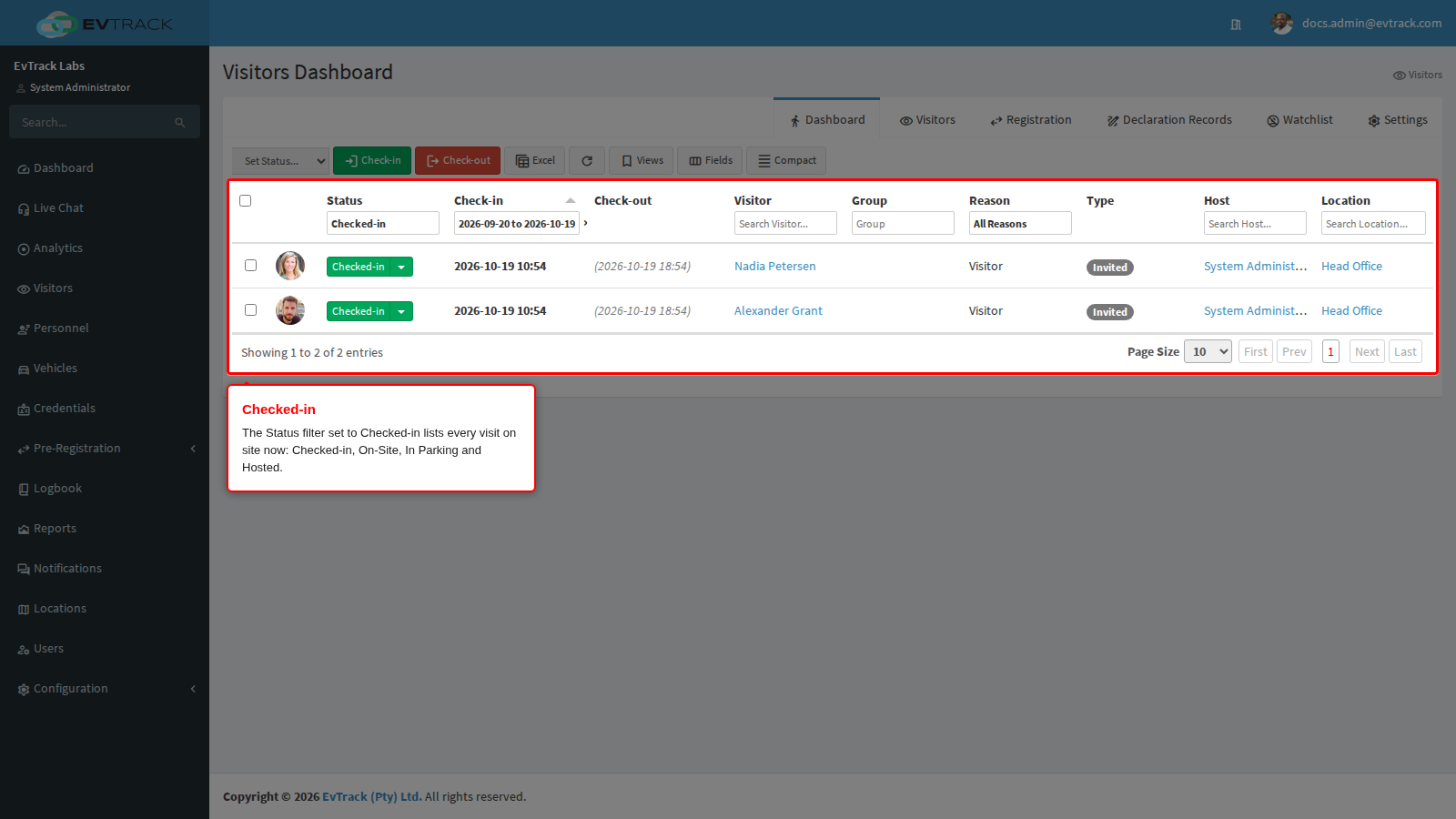
- Checked-in lists every visit that is on site now: Checked-in, On-Site, In Parking and Hosted. The default Expected/Checked-in view also mixes in visitors who have not arrived yet.
- A visit counts as on site whether reception checked it in or the visitor presented their pass at a reader. In this example Alexander Grant was checked in at reception and Nadia Petersen entered through a turnstile.
- The list loads once. Click the refresh button (the circular arrow) in the toolbar, or change a filter, to pick up arrivals since you opened it.
- The Check-in date filter still applies, and by default it covers the last 30 days up to today.
- The Location column shows where each visit is now. An access control point can move a visit to another location when the visitor passes it, if its Advanced panel sets Update Location on IN; choose No Location Update there unless you want that move.
Step 2: Take a roll call of a zone
Go to Configuration > Access Control Settings > Areas, click the area’s name and click Presence List in its menu. Click the refresh button (the circular arrow) above the list before you read it out.
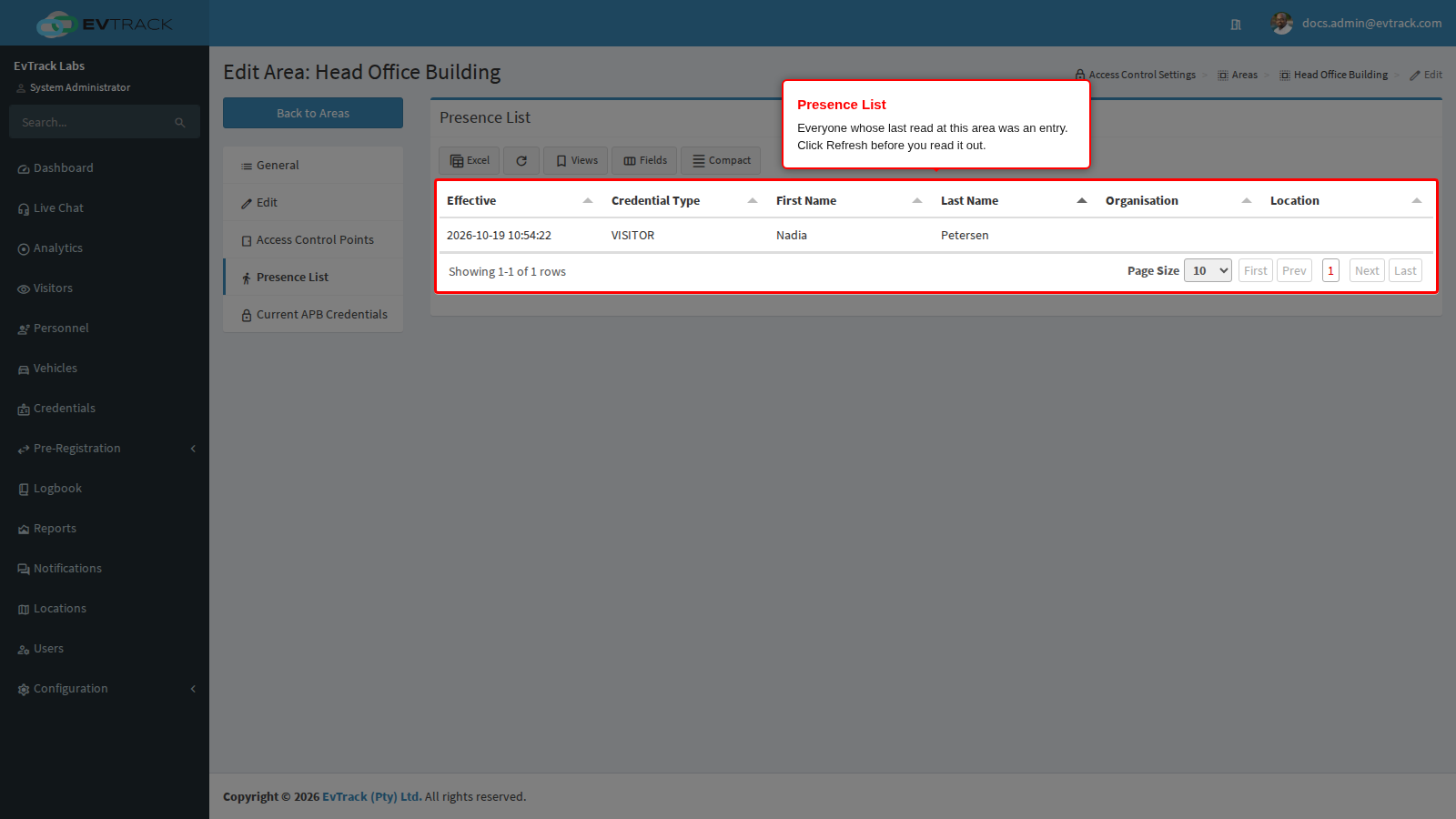
- The Presence List is built only from reader reads at the area’s access control points: a granted entry read puts a person on it, and an exit read or the area’s reset time takes them off.
- So it can differ from the dashboard. Here Nadia Petersen is on it because she entered through the area’s turnstile. Alexander Grant is not, because he was checked in at reception and never passed one of the area’s readers.
- A check-out at reception does not take anyone off the Presence List either. Use it for zones where every way in and out has a reader.
- Excel above the list downloads it for the marshal. The same list is also a CSV report: Reports, type Area, report Presence Report. For a whole site with several areas, repeat this for each area.
Step 3: Export the on-site list
Back on the dashboard, with the Checked-in filter still chosen, click Excel in the toolbar.
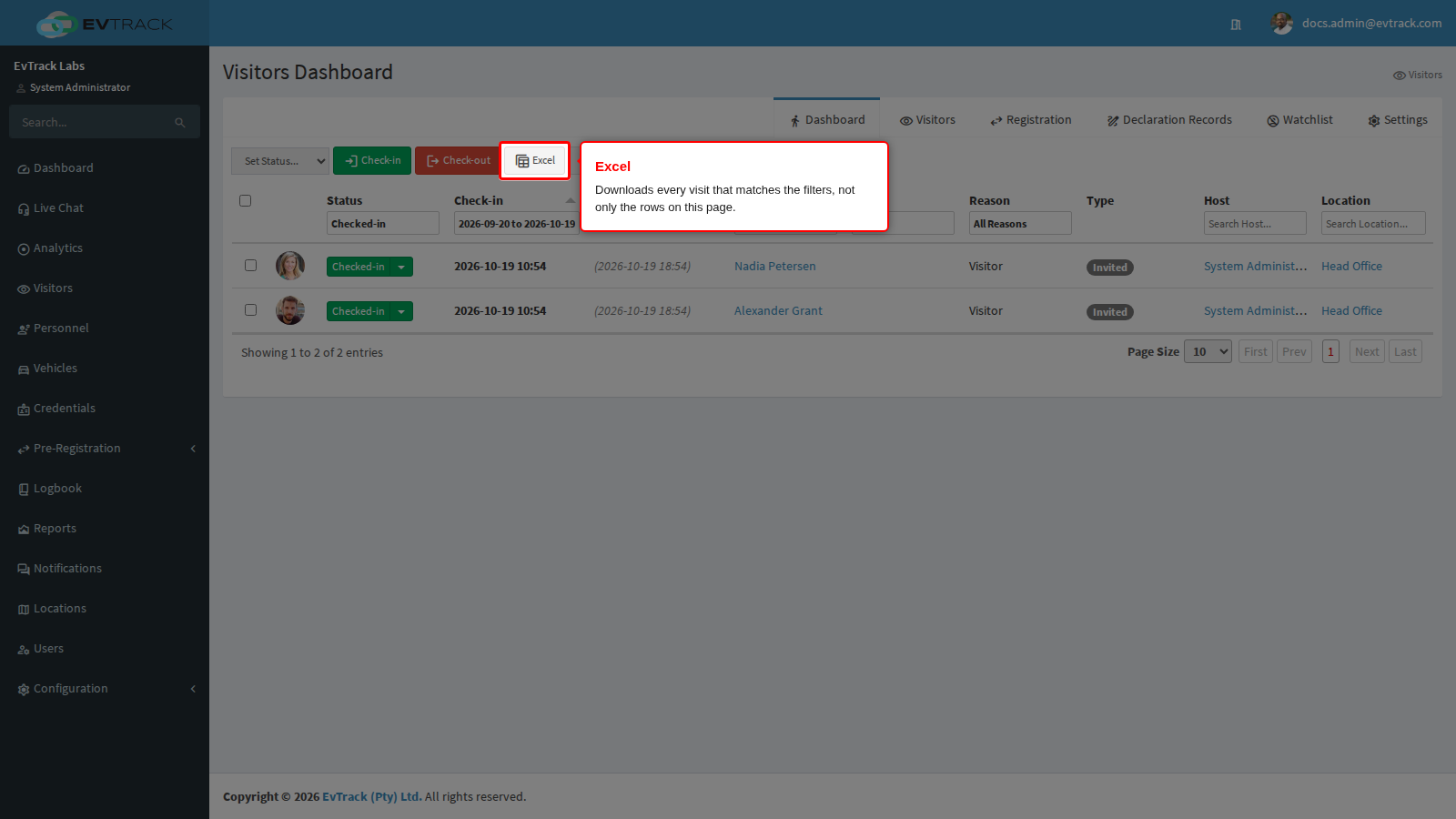
The spreadsheet holds every visit that matches your filters, on every page, not only the rows on screen. Its columns are status, check-in, check-out, visitor, group, reason, type, host and location.
Step 4: Check everyone out at the end of the day
At the end of the day, tick the visits that are still listed (the tick box in the header selects the whole page). You can change up to 50 visits at once; at a page size of 100, tick them in batches. In Set Status… at the left of the toolbar, choose Checked-out. The confirmation page lists every visit you selected and the status it moves to. Click Confirm.
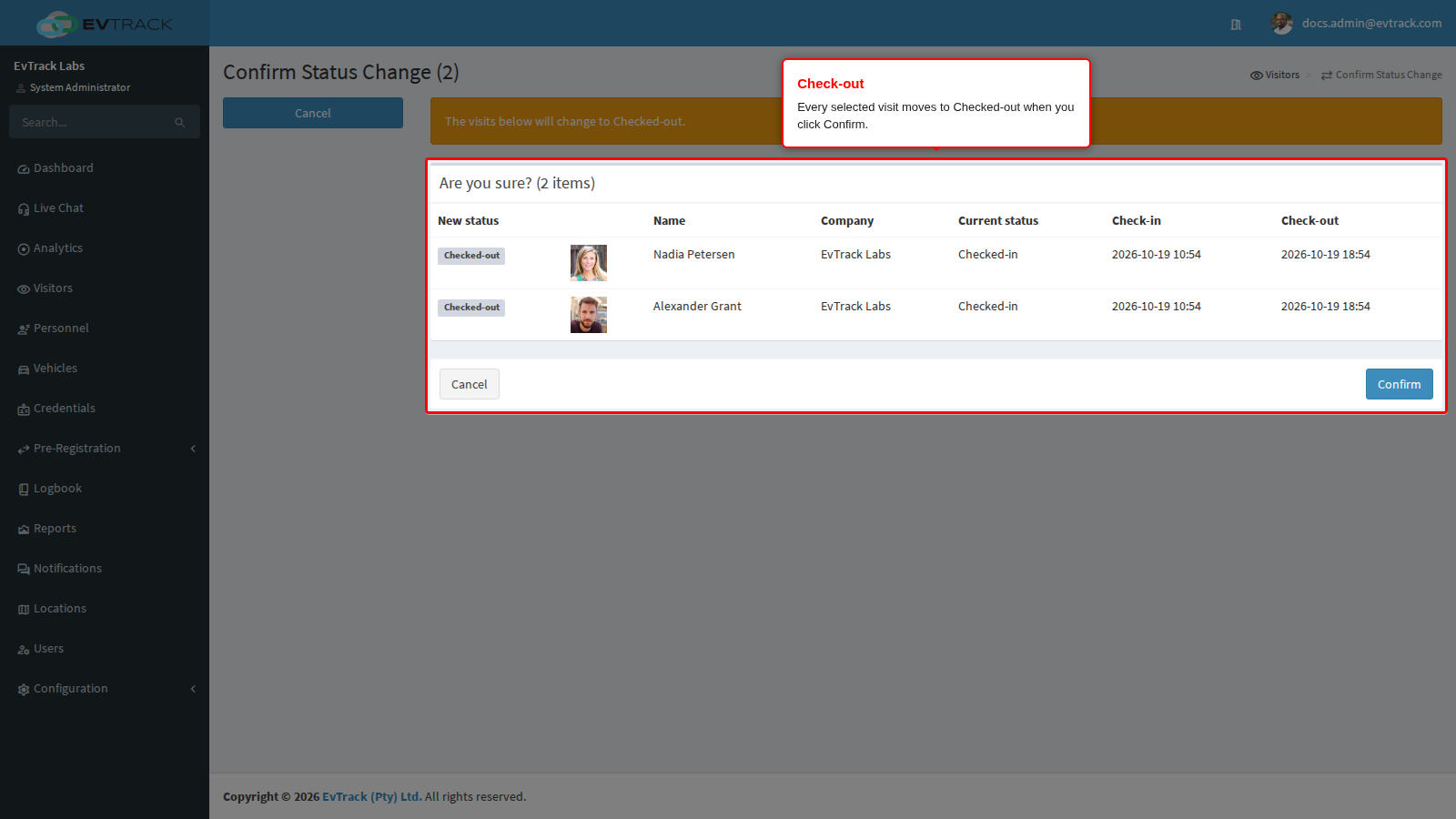
- A visit that is already finished is listed separately and left alone.
- To check out one visitor as they hand back their badge, use the red Check-out button instead, see Quick Check-out and Card Return.
- If you want visits nobody closed to be checked out automatically, switch on Enable Auto Check-out/No-Show?, see Check-out Settings.
Check it worked
You return to the dashboard with the message “2 visit(s) status updated successfully”. Choose Checked-in in the Status filter again: the list is empty, because nobody is on site any more.
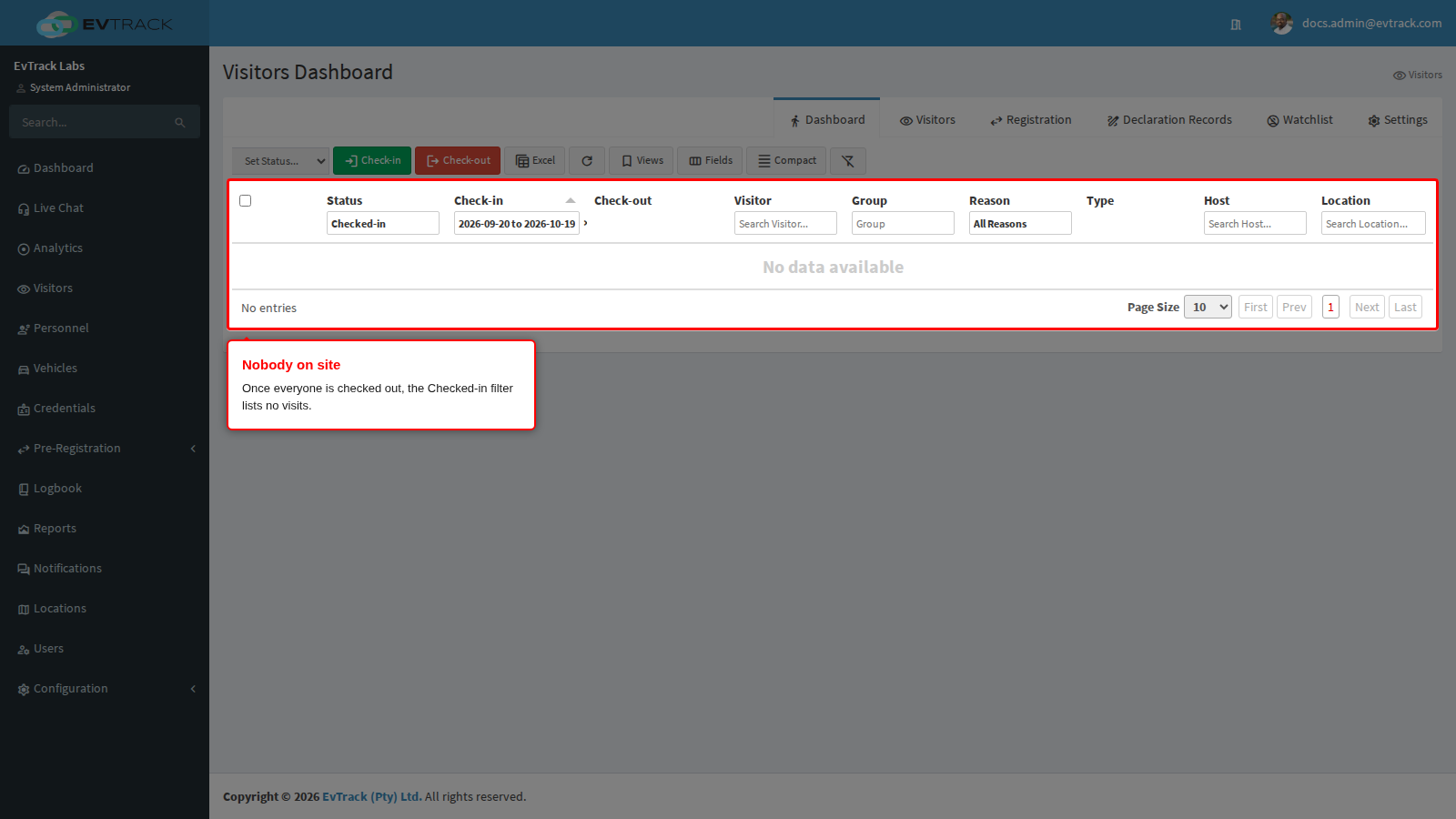
Choose Checked-out to see the closed visits with their check-in and check-out times. After a reload, the Visitors Checked-in counter on the main Dashboard is lower by the number of visits you checked out.
If it didn’t work
- Someone you know is on site is missing from the list.
- They checked in more than 30 days ago. The Check-in date filter covers the last 30 days by default. Pick an earlier from date (one range can span up to about a month).
- Another filter is set. A name typed under Visitor, Host or Location, or a starred view, hides every other visit. Clear the filters, or click Clear filters on the empty list.
- You see only the visits you host. Without the View All Visitors privilege, and with Share Visitors Between Users off, the dashboard lists only visits where you are the host. The Visitors Checked-in counter on the main Dashboard counts every visit on site, so a higher counter is a sign of this.
- The visit was closed automatically. With Enable Auto Check-out/No-Show? on, a visit that runs past its end time plus the Auto Check-out Delay (Hrs) is closed while the visitor may still be in the building. Choose Auto Checked-out in the Status filter to find it, and raise the delay if this keeps happening.
- A visitor presented their pass or ID at a reader, but the visit still reads Expected. A reader read and the visit’s status are two different records:
- Only a granted read changes the visit. A refused read is recorded in Latest Events on the main Dashboard as access denied and leaves the visit as it was.
- A granted read sets the status chosen in the access control point’s IN Direction Status Action (Checked-in unless someone changed it). Set to No Status Change, the read is logged and the visit remains Expected. Change it under Advanced on the point, see Access Control Points.
- The status is set a moment after the read. Refresh the dashboard.
- Someone who has left is still listed. Nothing recorded their departure: they did not pass an exit reader, or nobody checked them out. Check them out as in Step 4. If this is common, switch on automatic check-out, see Check-out Settings.
For more causes and how to check each one, see The door does not open.