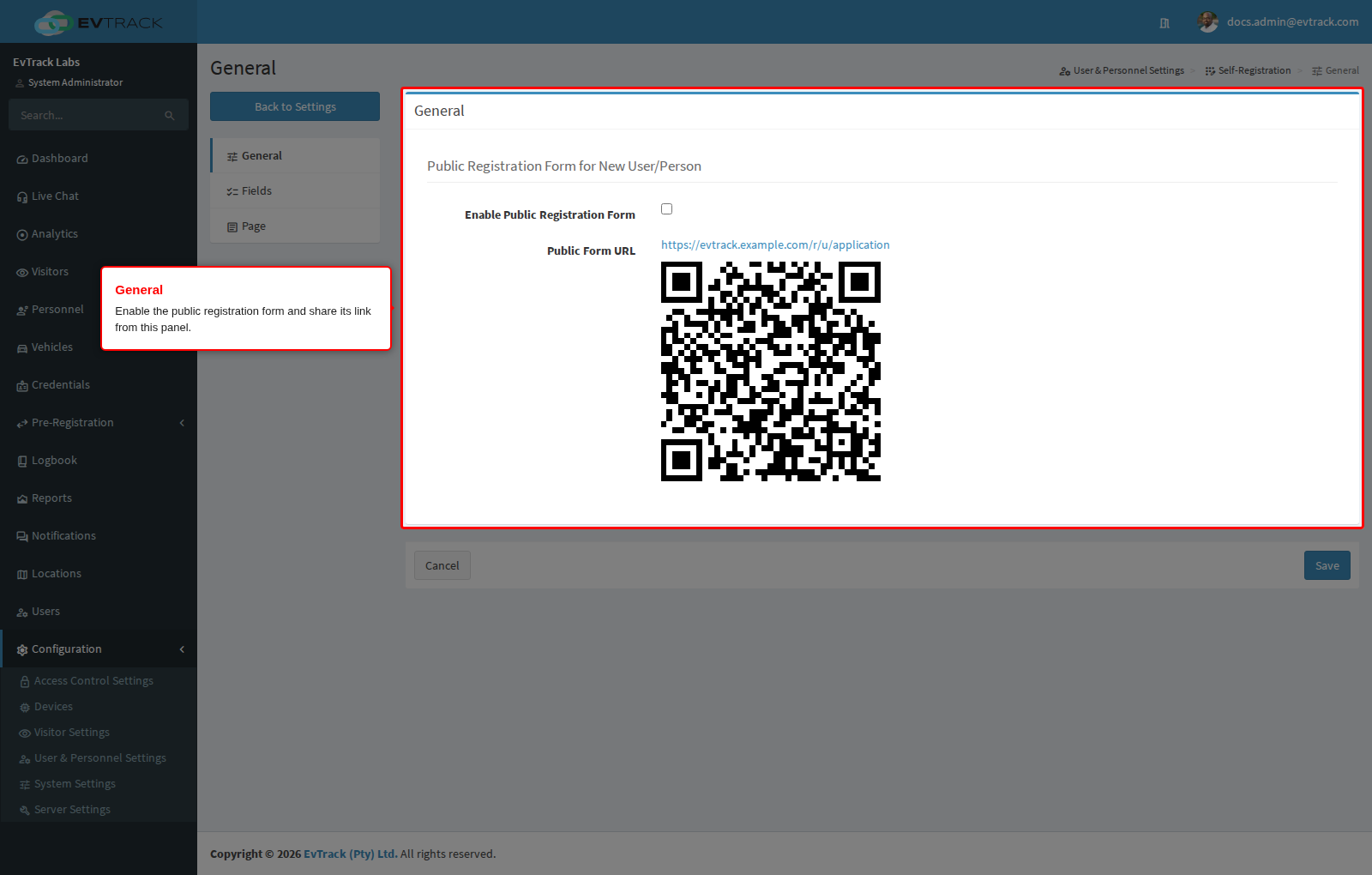
The User Registration page controls the public self-registration form that lets new users and personnel submit their own registration requests online. It switches the form on or off and gives you the public link and QR code to share. Open it via Configuration > User & Personnel Settings > Self-Registration (the General tab).
Settings
- Enable Public Registration Form - turns the public self-registration form on or off system-wide. Enable it when you want new users and personnel to register themselves; disable it to allow only administrator-created accounts.
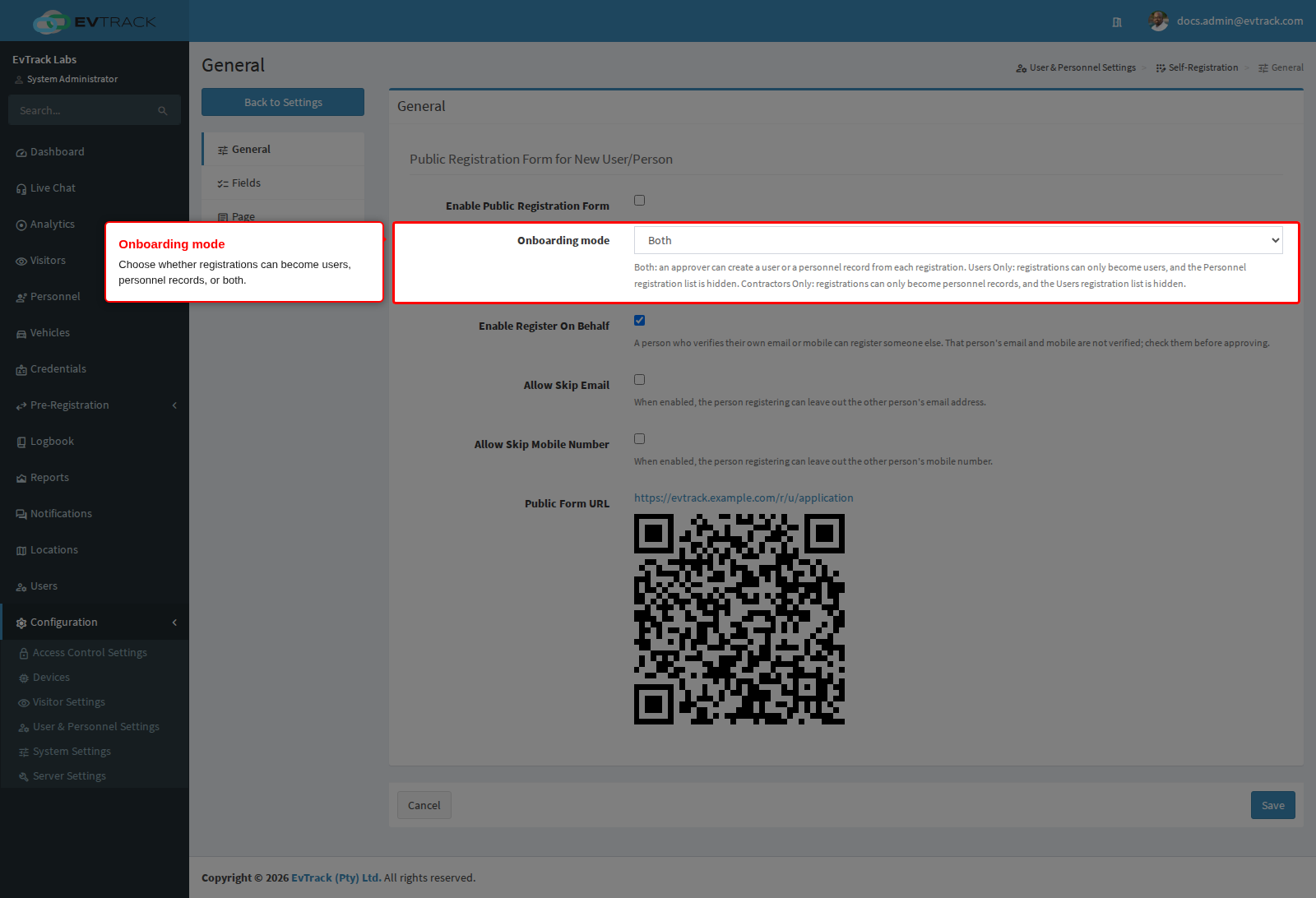
- Onboarding mode - decides what an approver can create from a registration: Both (a user or a personnel record, the default), Users Only or Contractors Only. It applies to the whole system and to every waiting registration, however it arrived (staff link, kiosk or on behalf). See Onboarding mode below.
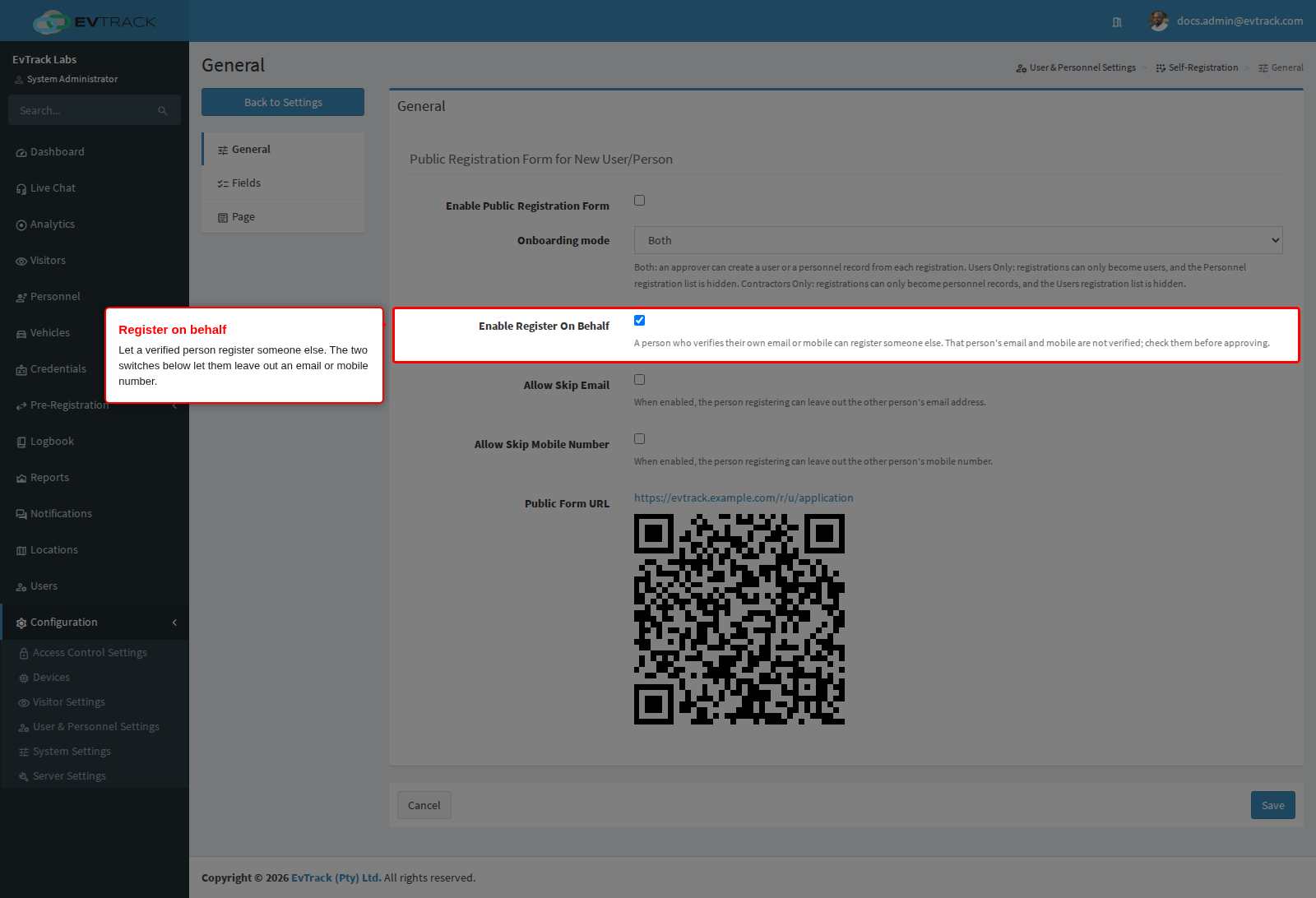
- Enable Register On Behalf - lets a person who has verified their own email or mobile number register someone else, for example a contractor representative registering their workers. They first choose “On behalf of someone else” and give their own name and role. The details they enter for the other person are not verified, so check them before approving. See User Self-Registration.
- Allow Skip Email - when registering on behalf of someone, the person registering may tick “This person has no email address” and leave the email out. You then enter an email address when you create the user.
- Allow Skip Mobile Number - the same for the mobile number: “This person has no mobile number”.
- Public Form URL - the link to the public registration form, displayed together with a scannable QR code. Copy the link or print the QR code and share it wherever new users should register; the URL is generated by the system and cannot be edited here.
Click Save to apply your changes, or Cancel to discard them.
Onboarding mode
Use this setting when your organisation brings in only one kind of staff through the public form.
- Both - each registration can become a user or a personnel record. Both Users and Personnel appear under Pre-Registration.
- Users Only - registrations can only become users. The Personnel entry under Pre-Registration and the Pre-registrations tab on the Personnel list are hidden, and the review page offers only Create user.
- Contractors Only - registrations can only become personnel records. The Users entry under Pre-Registration and the Pre-registrations tab on the Users list are hidden, and the review page offers only Create personnel.
An address on the hidden side takes you to the allowed side without an error message. If someone tries to create the hidden kind from a registration anyway, the system refuses and tells them which kind to create instead. The registration notice email links to the review page on the allowed side.
Switching the mode changes no data: registrations already waiting follow the current mode, so after a switch the ones that no longer fit appear on the other side’s list. Existing users and personnel are not affected.
Notes
- New registration requests are announced to the administrator by email. Before sharing the public form, make sure the Company Name on System Settings > General and the System admin notices email on Settings > Reminders > Notifications are both completed - if no admin notice address is configured, the system cannot notify anyone when a registration is submitted.
- Submitted requests appear under Pre-Registration in the sidebar, where an administrator converts each one into a new user or person. The add form is pre-populated with the submitted details, and the request is removed from the list once it has been processed.