How to install an EvTrack server on Windows from scratch: install the prerequisites, create the database, install EvTrack as a Windows service from the command prompt, then start it from Services and log in for the first time.
Before you start:
- A Windows Server (or Windows 10/11 for a test machine) where you have administrator rights.
- The EvTrack release zip from your EvTrack supplier, and your licence key.
- Enough memory: the EvTrack service runs Java with up to 3 GB of memory, on top of what MariaDB uses.
Overview
- Install the prerequisites: Java (Zulu 17) and MariaDB 10.11, plus Notepad++ as the editor
- Create the EvTrack database
- Copy the EvTrack files to
C:\EvTrackWeband enter the database password - Install EvTrack as a Windows service using the command prompt
- Open Services and start EvTrack
- Log in and enter your licence
- Continue with Windows Firewall and the rest of the Onsite Deployment pages
If your release zip contains a prerequisites folder, use the installers in it. Otherwise download them from the vendor links below.
Step 1: Install the prerequisites
Java (Azul Zulu 17)
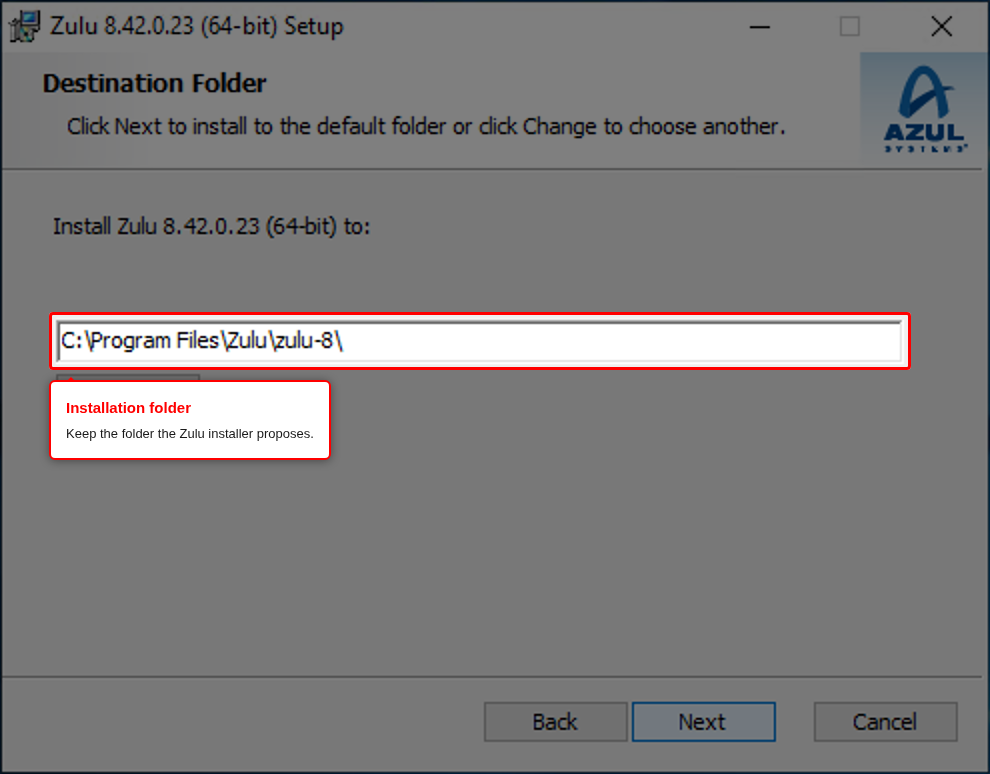
EvTrack needs Java 17. Download the Azul Zulu 17 Windows x64 .msi installer (JRE or JDK) from azul.com/downloads and run it.
- Keep the installation folder the installer proposes.
- On the Custom Setup screen make sure Add to PATH is selected (it is by default). The EvTrack service finds Java through the PATH, so the service will not start without it.
- Finish the installation.
To check, open a new Command Prompt and run java -version. It must report version 17. If it reports an older version, or says java is not recognised, fix the PATH before continuing.
MariaDB 10.11
Download MariaDB from mariadb.org/download: choose the newest 10.11 release (long-term support), Windows, x86_64 and the MSI Package, then run it.
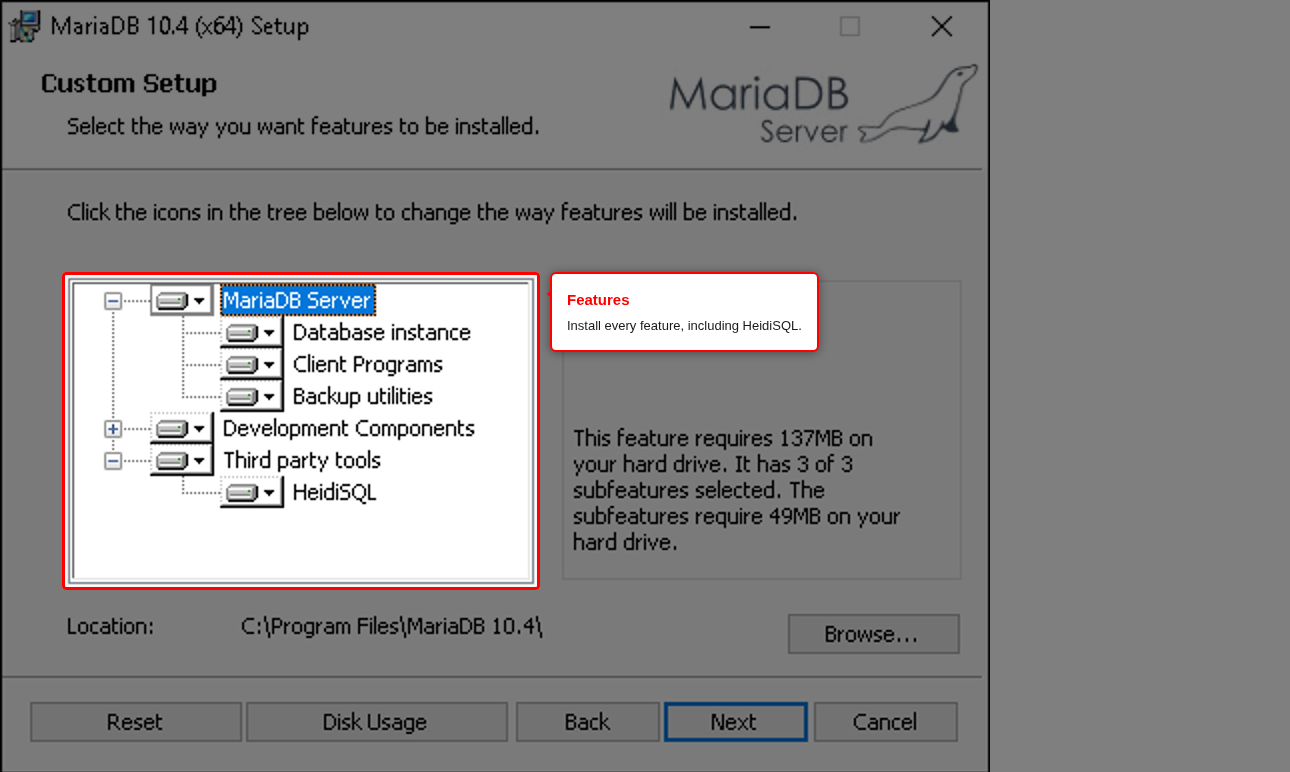
- Install all the features, including HeidiSQL (a graphical database tool).
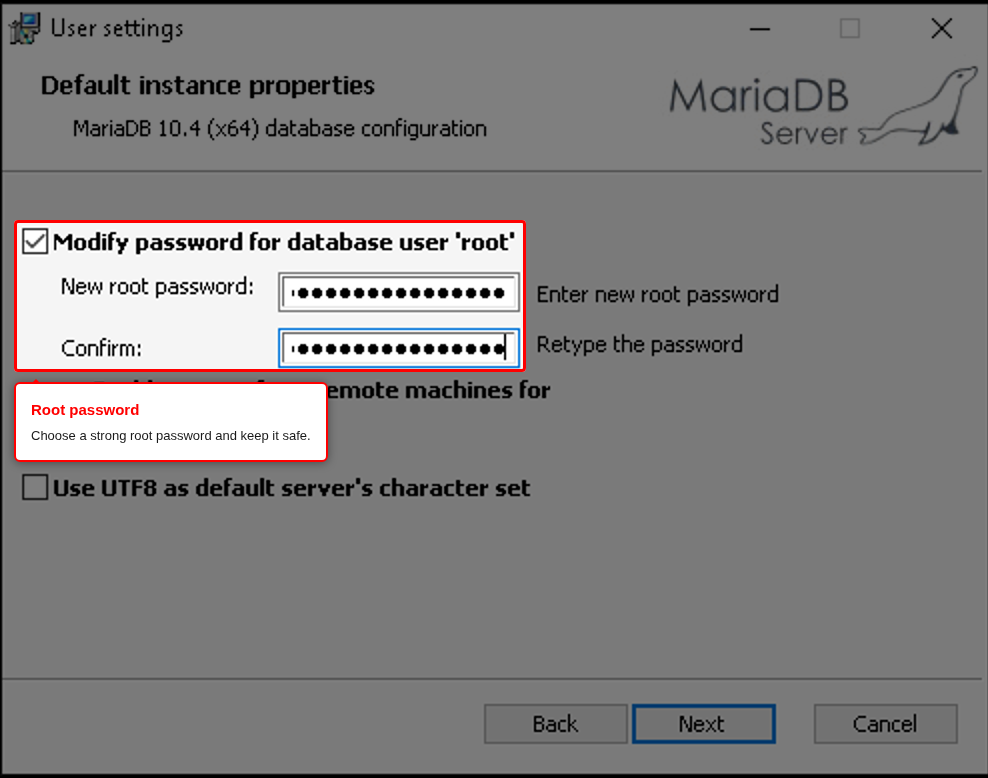
- Tick Modify password for database user ‘root’ and choose a strong root password. Write it down somewhere safe. Leave Enable access from remote machines for ‘root’ user unticked.
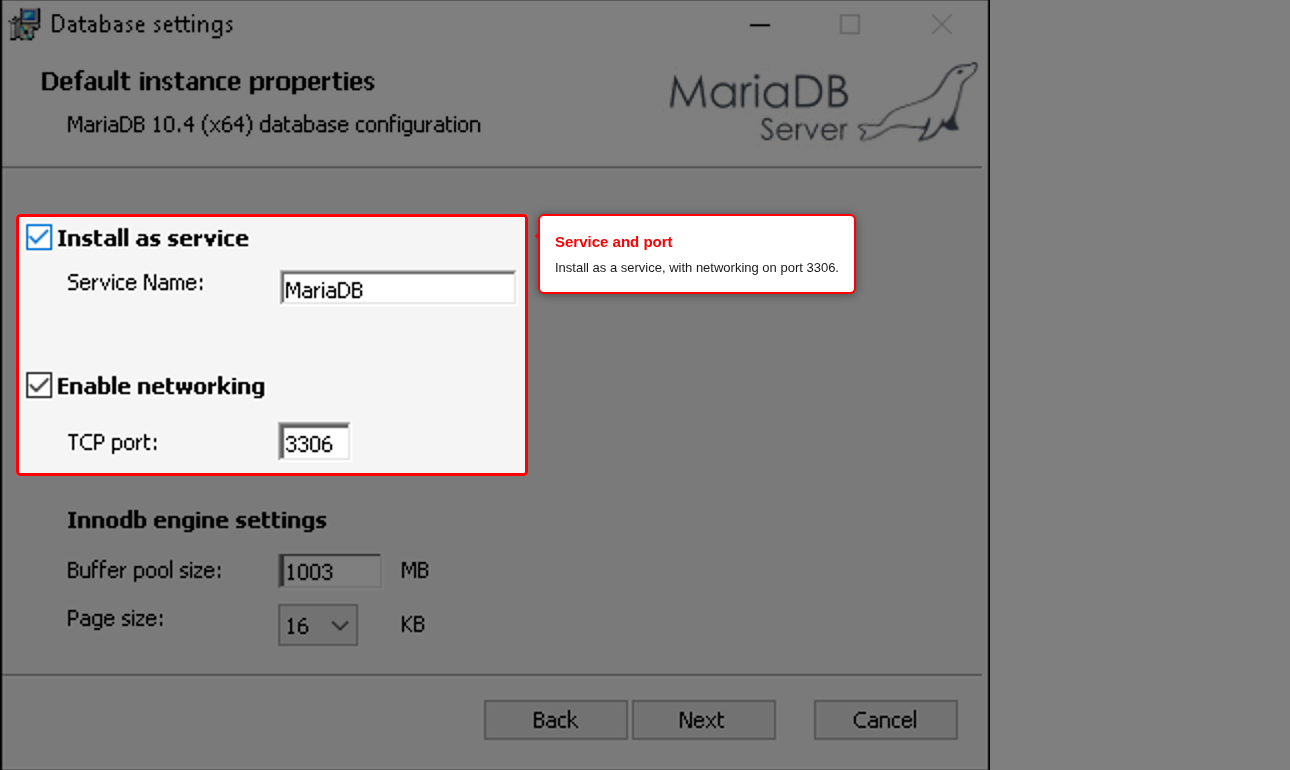
- Keep Install as service and Enable networking ticked, with TCP port 3306, then click Next and Install.
Notepad++ (recommended)
You will edit application.properties, a plain text settings file. We recommend Notepad++. Do not use Windows Notepad: it can save the file with a different encoding or line endings and break it.
Step 2: Create the EvTrack database
Open MySQL Client (MariaDB 10.11) from the Start menu and enter the root password, or open a query window in HeidiSQL.
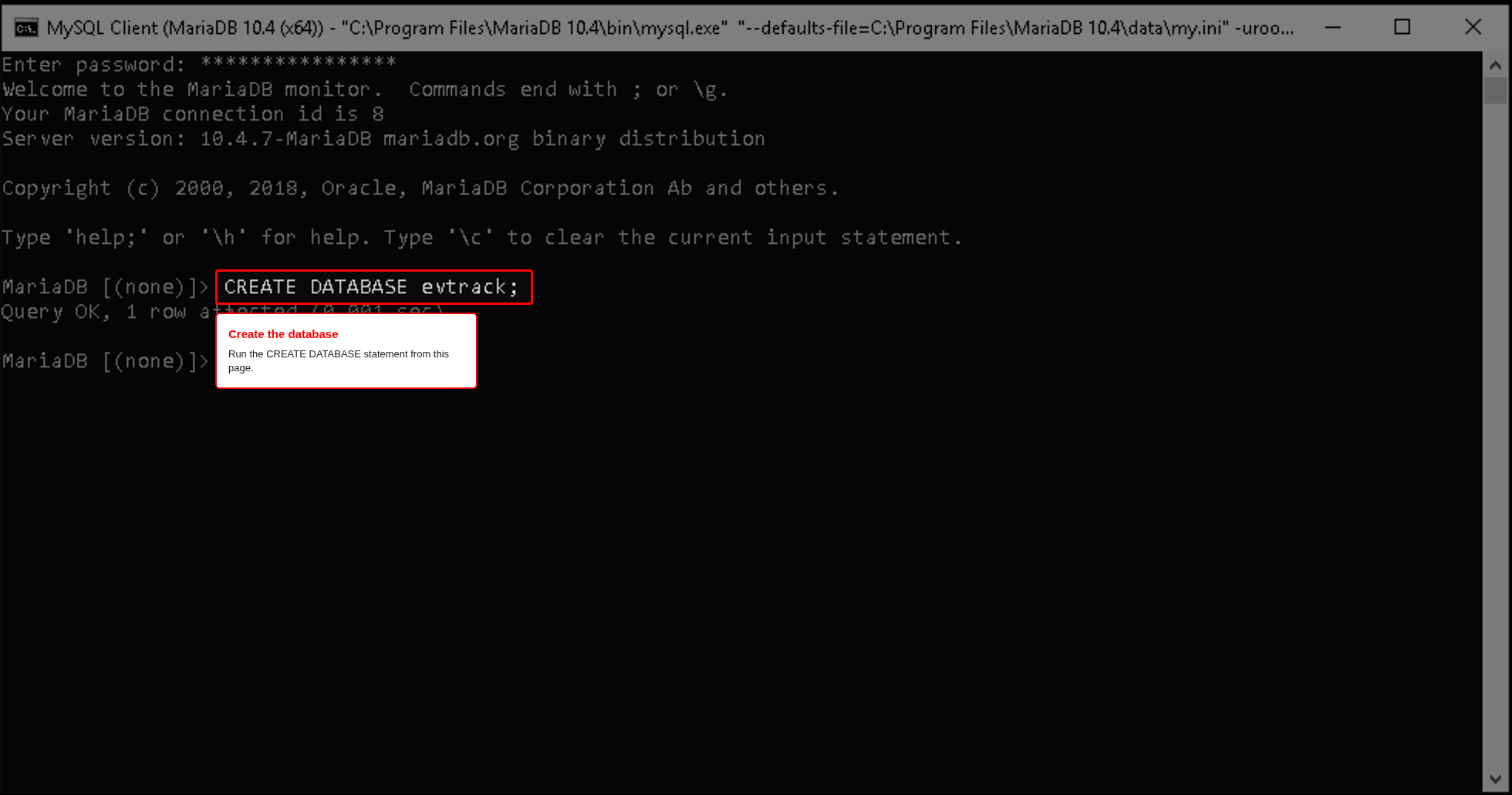
Recommended: a dedicated evtrack user. EvTrack connects with its own account, which can only reach the evtrack database. Replace choose-a-strong-password with a password of your own:
CREATE DATABASE evtrack CHARACTER SET utf8mb4 COLLATE utf8mb4_unicode_ci;
CREATE USER 'evtrack'@'localhost' IDENTIFIED BY 'choose-a-strong-password';
GRANT ALL PRIVILEGES ON evtrack.* TO 'evtrack'@'localhost';
FLUSH PRIVILEGES;
Quick option for a test machine: use root. Only create the database, and use root and the root password in Step 3:
CREATE DATABASE evtrack CHARACTER SET utf8mb4 COLLATE utf8mb4_unicode_ci;
Do not use root on a production server: it gives EvTrack full control over every database on the server.
Leave the database empty. EvTrack creates all its tables itself the first time it starts.
Step 3: Copy the EvTrack files and enter the database password
- Create the folder
C:\EvTrackWeb. - Extract the release zip and copy everything in it into
C:\EvTrackWeb.
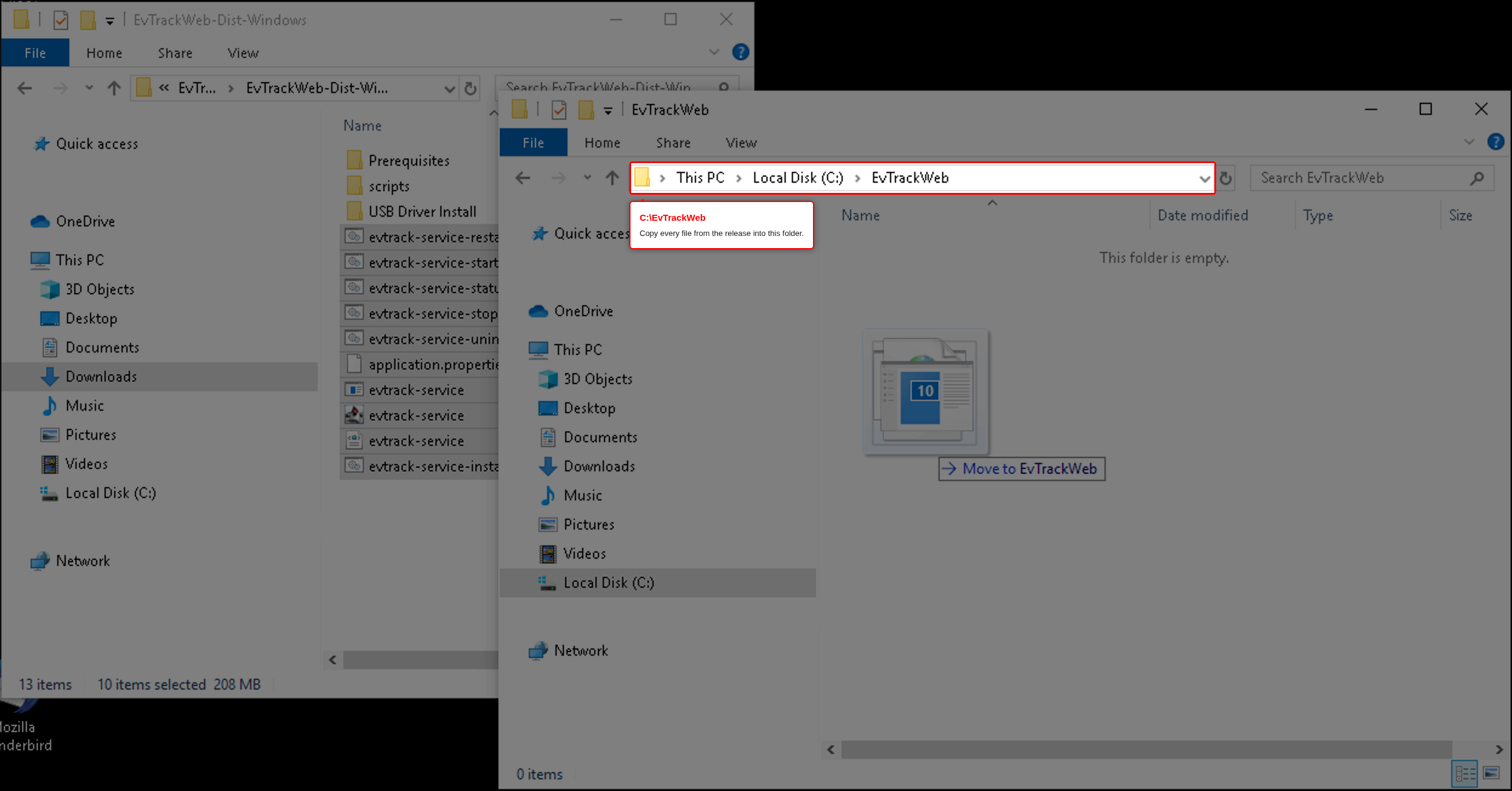
- Right-click
application.propertiesinC:\EvTrackWeband choose Edit with Notepad++.
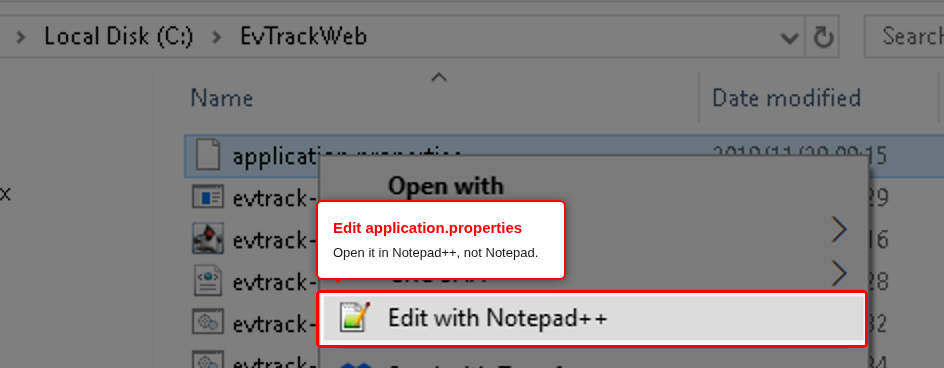
- Find the database lines and set the username and password you created in Step 2. Keep the text inside
${...}exactly as it is and change only the value after the colon:
spring.datasource.url=${SPRING_DATASOURCE_URL:jdbc:mysql://localhost:3306/evtrack}
spring.datasource.username=${SPRING_DATASOURCE_USERNAME:evtrack}
spring.datasource.password=${SPRING_DATASOURCE_PASSWORD:choose-a-strong-password}
If you used root in Step 2, put root in place of evtrack on the username line and the root password on the password line.
- Save the file.
Step 4: Install EvTrack using the command prompt
- Open the Start menu, type cmd, and choose Run as administrator for Command Prompt.
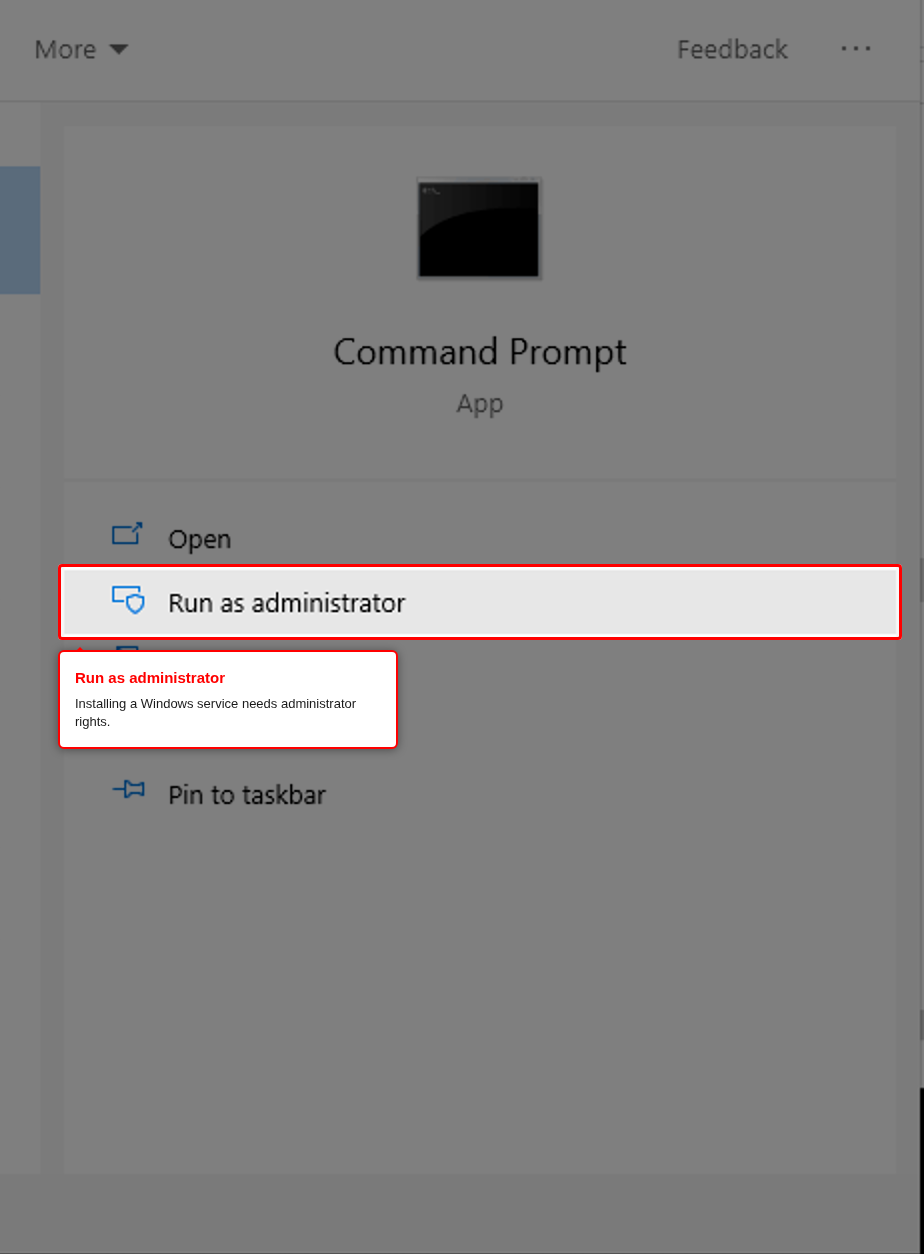
- Go to the EvTrack folder and run the install script:
cd C:\EvTrackWeb
evtrack-service-install.bat
The script registers a Windows service called EvTrack-Service (shown as EvTrack Service in Services), which starts automatically whenever Windows starts.
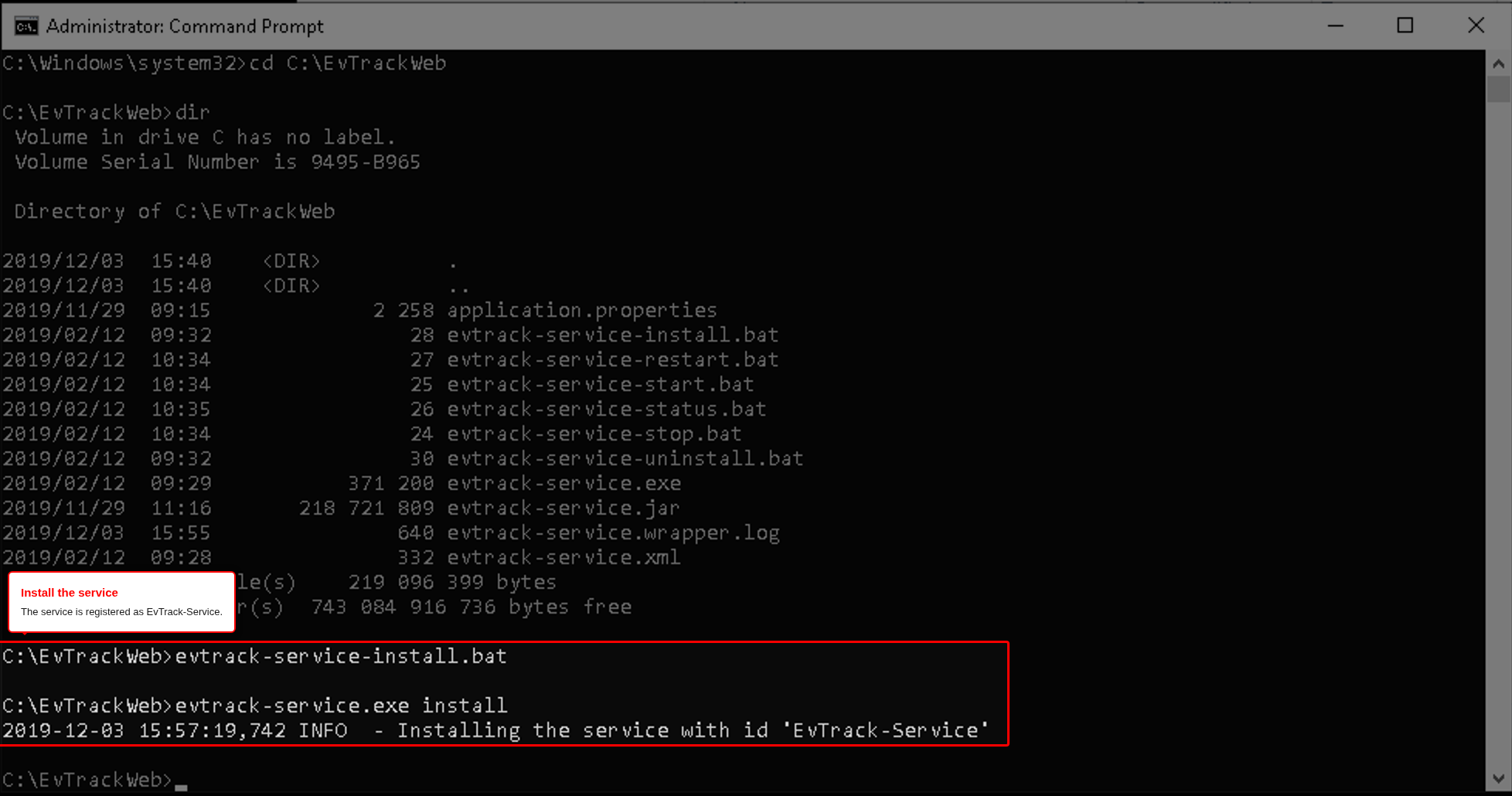
If you see an access-denied error, the Command Prompt is not running as administrator. Close it and repeat this step.
Step 5: Open Services and start EvTrack
- Press Windows + R, type
services.mscand press Enter. - Find EvTrack Service, right-click it and click Start.
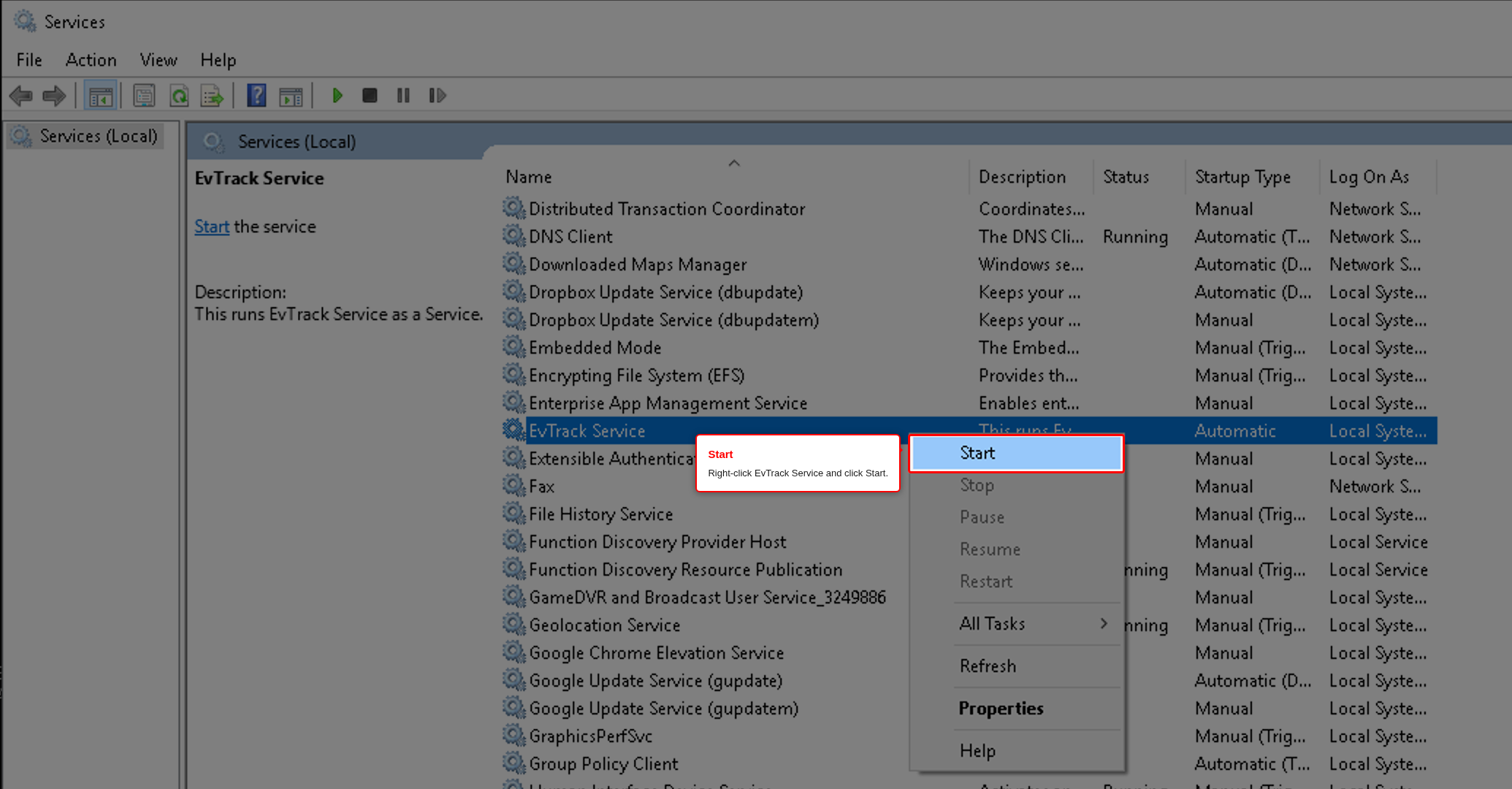
You can also start it from the same administrator Command Prompt with evtrack-service-start.bat.
The first start creates the database tables and takes a few minutes. If the service stops again on its own, see Troubleshooting.
Step 6: Log in and enter your licence
- On the server, open a browser at
http://localhost:5443. - Log in with the default administrator account: username admin, password password.
- Change that password straight away (see Edit a User).
- Open Configuration > Server Settings > License, paste your licence key and click Save. The Status must show OK. See the License section of Server Settings for what each licence field means.
Next steps
- Windows Firewall: let other computers, kiosks and mobile apps reach the server.
- HTTPS Configuration: install a certificate. Kiosk and mobile apps need a trusted HTTPS address.
- Application Base URL: set the address that links in emails and SMS messages point to.
- Email Server and SMS Gateways: set up message delivery.