How to upgrade an onsite EvTrack server on Windows to a new release: stop the service, back up, replace the program files, start the service and confirm the new version.
Before you start:
- You need administrator rights on the server and the new EvTrack release zip.
- Check your licence covers the new release. Open Configuration > Server Settings > License and look at SMA Expiry. A release built after that date is not covered and the licence will report it as invalid after the upgrade. Renew first if needed (see the License section of Server Settings).
- Plan a short outage. EvTrack is unavailable while the service is stopped, and the first start after an upgrade can take a few minutes while it updates the database.
Overview
- Stop the EvTrack service
- Back up the database and the EvTrack folder
- Replace the program files (keep your
application.properties) - Start the EvTrack service
- Confirm the new version
Step 1: Stop the EvTrack service
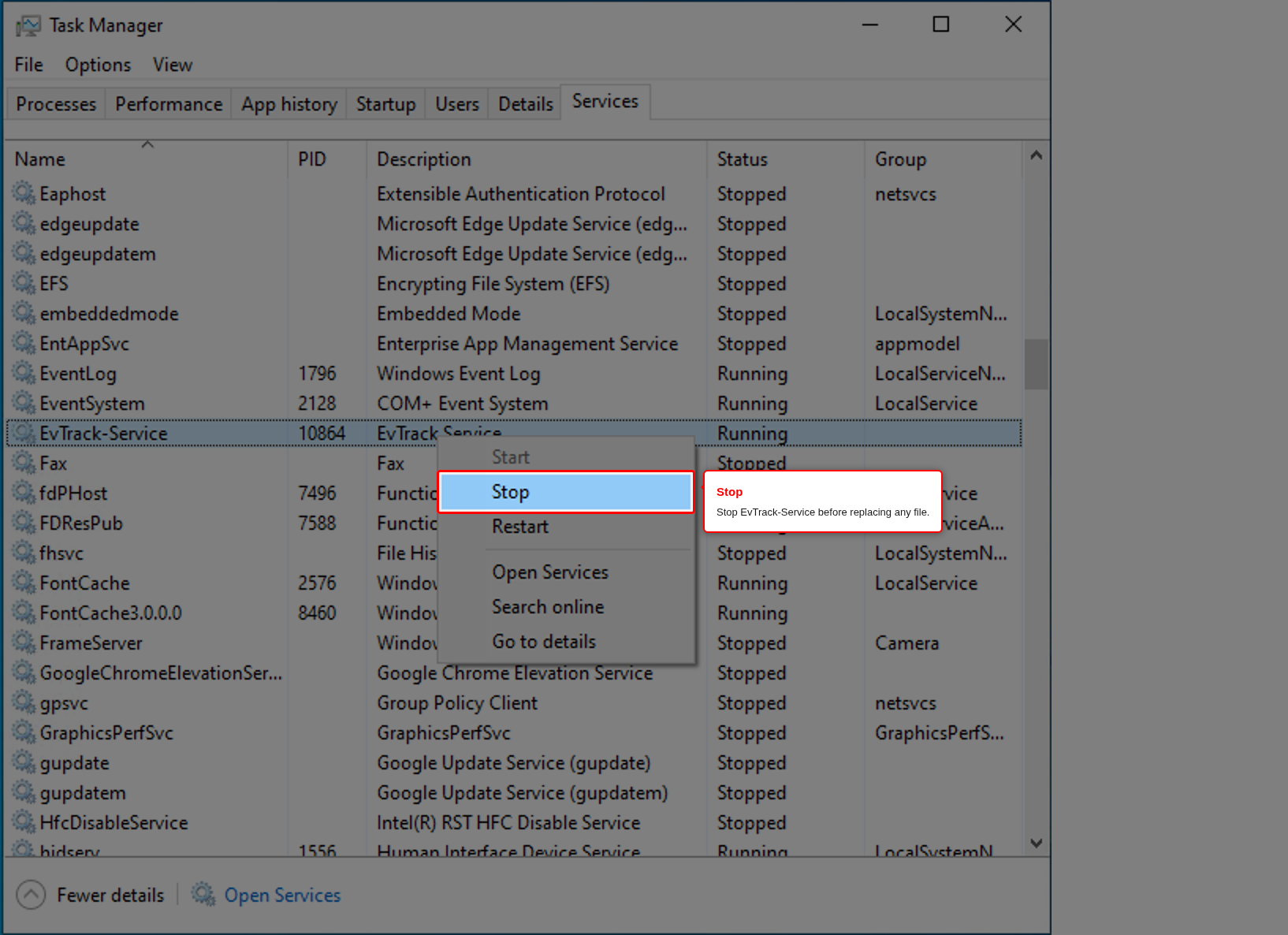
Open Task Manager, go to the Services tab, right-click EvTrack-Service and click Stop. You can also use Services (services.msc), or run evtrack-service-stop.bat from C:\EvTrackWeb in an administrator Command Prompt.
Step 2: Back up
Never skip this step. The new release updates the database structure the first time it starts, and the backup is the only way back.
- Back up the database. In a Command Prompt, run the following, adjusting the MariaDB folder to your installed version, and enter the root password when asked:
mkdir C:\EvTrackBackup
"C:\Program Files\MariaDB 10.11\bin\mariadb-dump.exe" -u root -p --single-transaction --routines evtrack > C:\EvTrackBackup\evtrack-before-upgrade.sql
- Copy the whole
C:\EvTrackWebfolder toC:\EvTrackBackup\EvTrackWeb. This keeps yourapplication.properties, certificate (keystore.p12) and the previous program version.
Step 3: Replace the program files
Extract the new release zip and copy its files into C:\EvTrackWeb. When Windows asks, choose Replace the file in the destination.
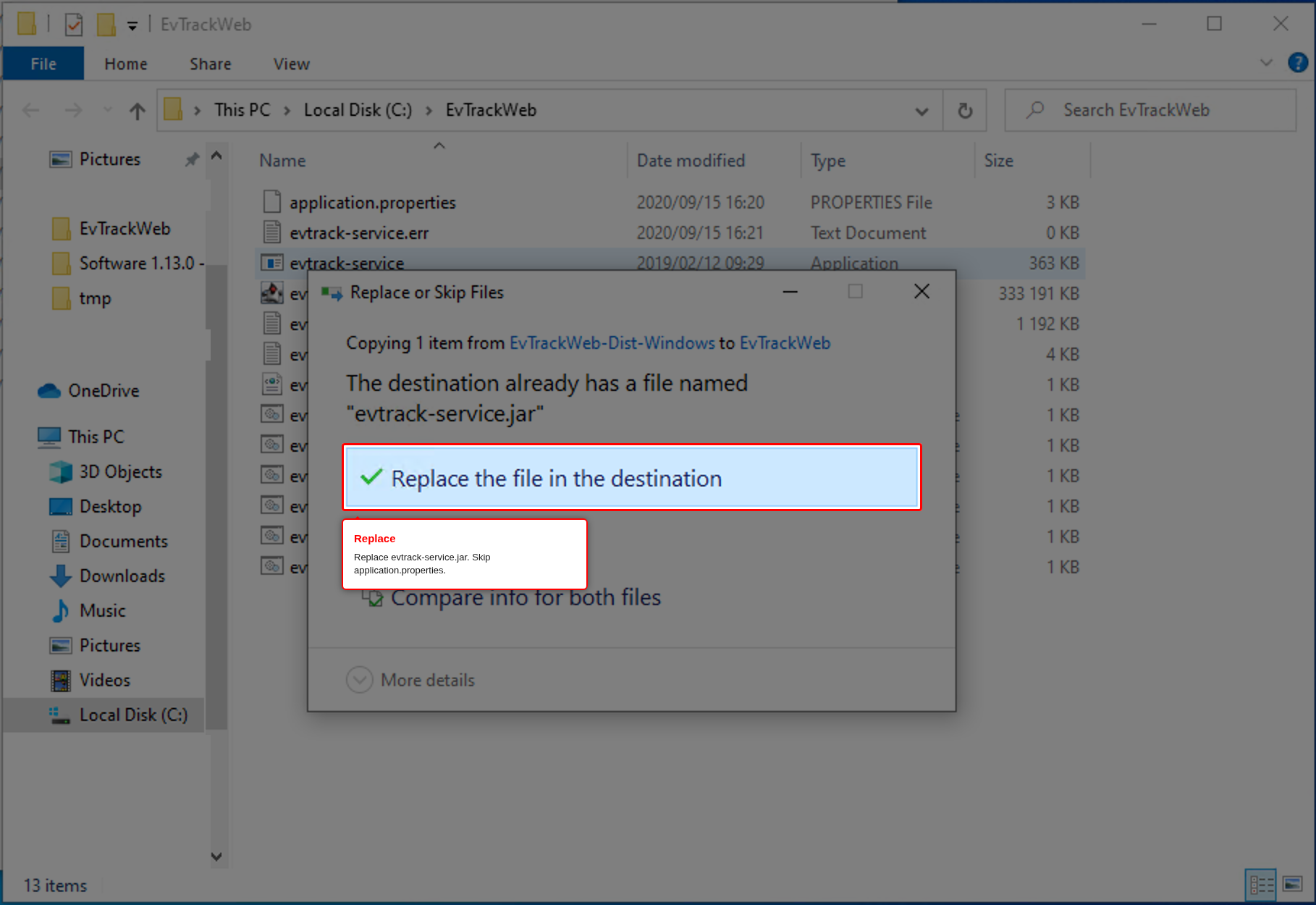
Do not replace your own application.properties or keystore.p12. They hold your database password, certificate and other settings. When Windows asks about these two files, choose Skip this file. The essential file to replace is evtrack-service.jar, which is the EvTrack program itself.
Step 4: Start the EvTrack service
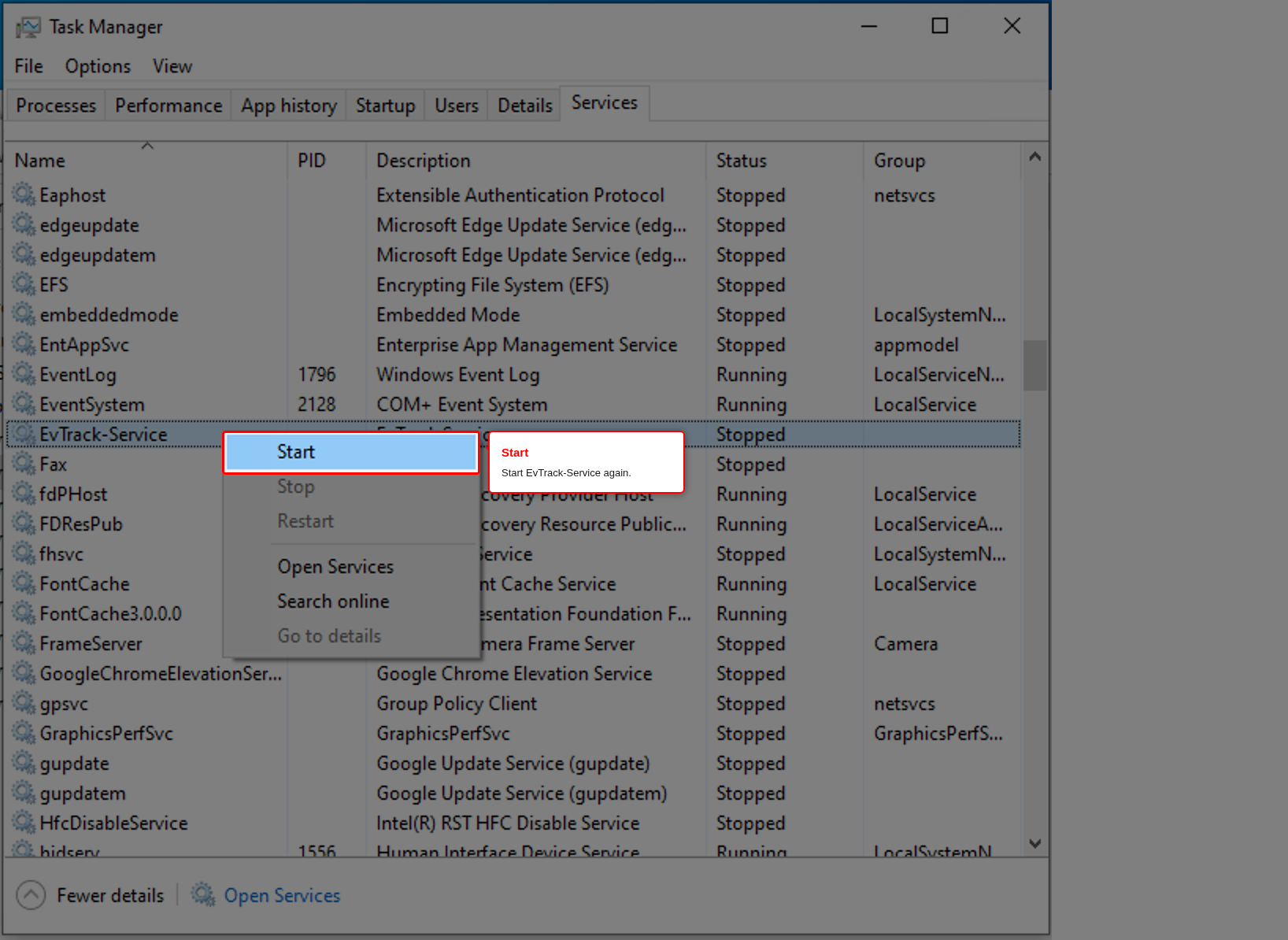
In Task Manager > Services, right-click EvTrack-Service and click Start (or run evtrack-service-start.bat as administrator).
Step 5: Confirm the upgrade
Log in, open Configuration > Server Settings > System Info and check that Version and Build Number show the new release (see the System Info section of Server Settings). Then check License still shows status OK.
If the service will not start or the page still shows the old version, see Troubleshooting.
Rolling back
If the new release does not work and you need the old one back:
- Stop the service.
- Restore the database from the backup. In the MySQL Client (as root), drop and recreate the database with
DROP DATABASE evtrack;andCREATE DATABASE evtrack CHARACTER SET utf8mb4 COLLATE utf8mb4_unicode_ci;, then load the backup from a Command Prompt:
"C:\Program Files\MariaDB 10.11\bin\mariadb.exe" -u root -p evtrack < C:\EvTrackBackup\evtrack-before-upgrade.sql
- Copy the files from
C:\EvTrackBackup\EvTrackWebback intoC:\EvTrackWeb. - Start the service.
Restore the database and the files together. The old program cannot run on a database that the new release has already updated.