The Screensaver panel of the kiosk settings decides what an idle kiosk shows: a slideshow or a black screen, when it starts, how long each slide is shown, and the hours when the screen is black. You can play one of the built-in slideshows or upload your own slides, for example a welcome message, the visitor Wi-Fi details or your site rules. The settings apply to every kiosk, and a location can play its own slideshow instead.
These settings are used by kiosks paired with a pairing code. The FrontDesk app (v2.x) ignores them.
Before you start:
- You can edit visitor settings.
- For your own slides: PNG, JPEG or WebP images of at most 2 MB each. A landscape image the shape of the kiosk screen, such as 1280 x 800, fills the screen best.
Step 1: Open Screensaver
Go to Configuration > Visitor Settings, click the Kiosk tile (the Kiosk Settings page gives the overview), and choose Screensaver in the kiosk menu on the left.
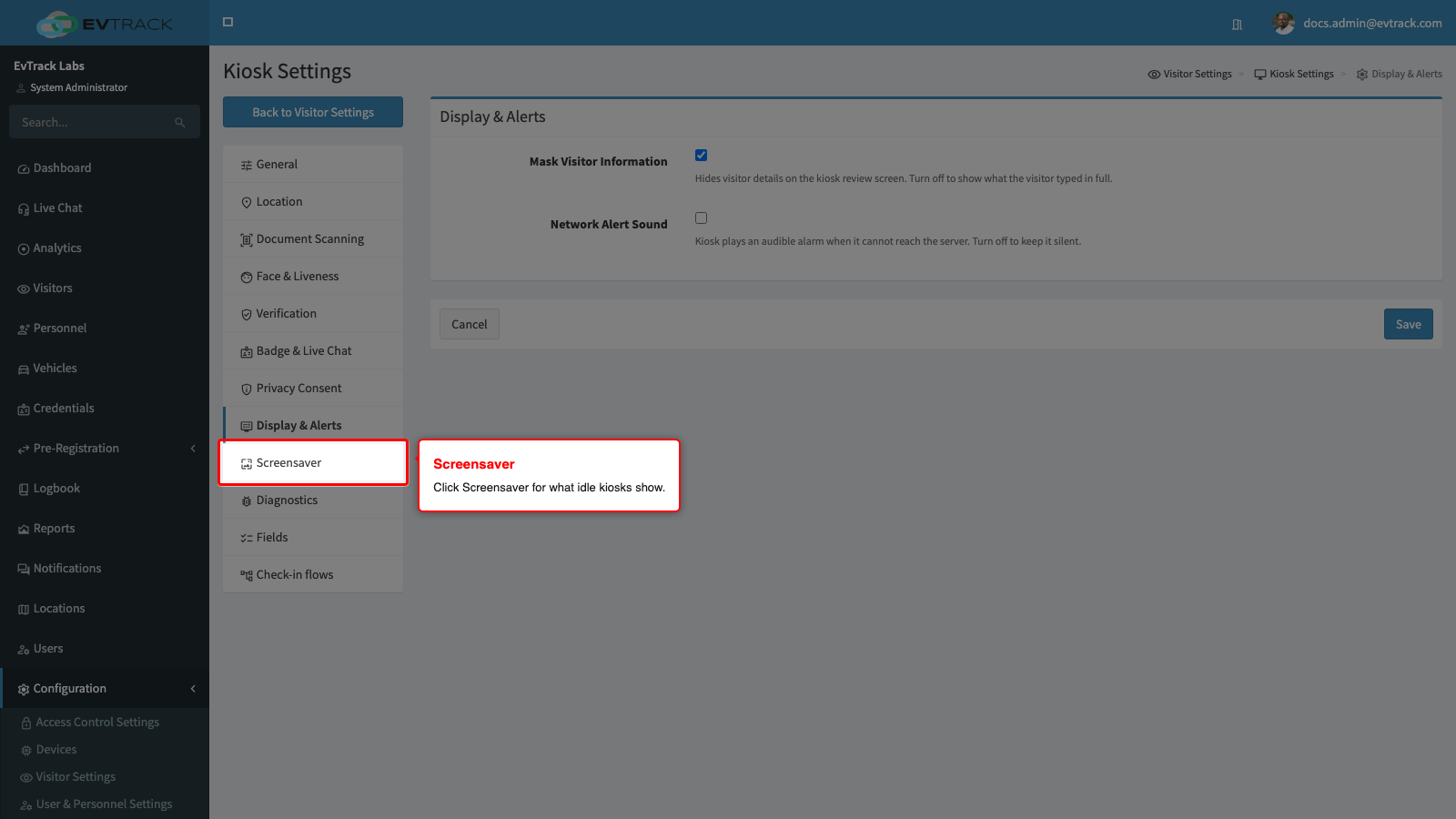
Screensaver
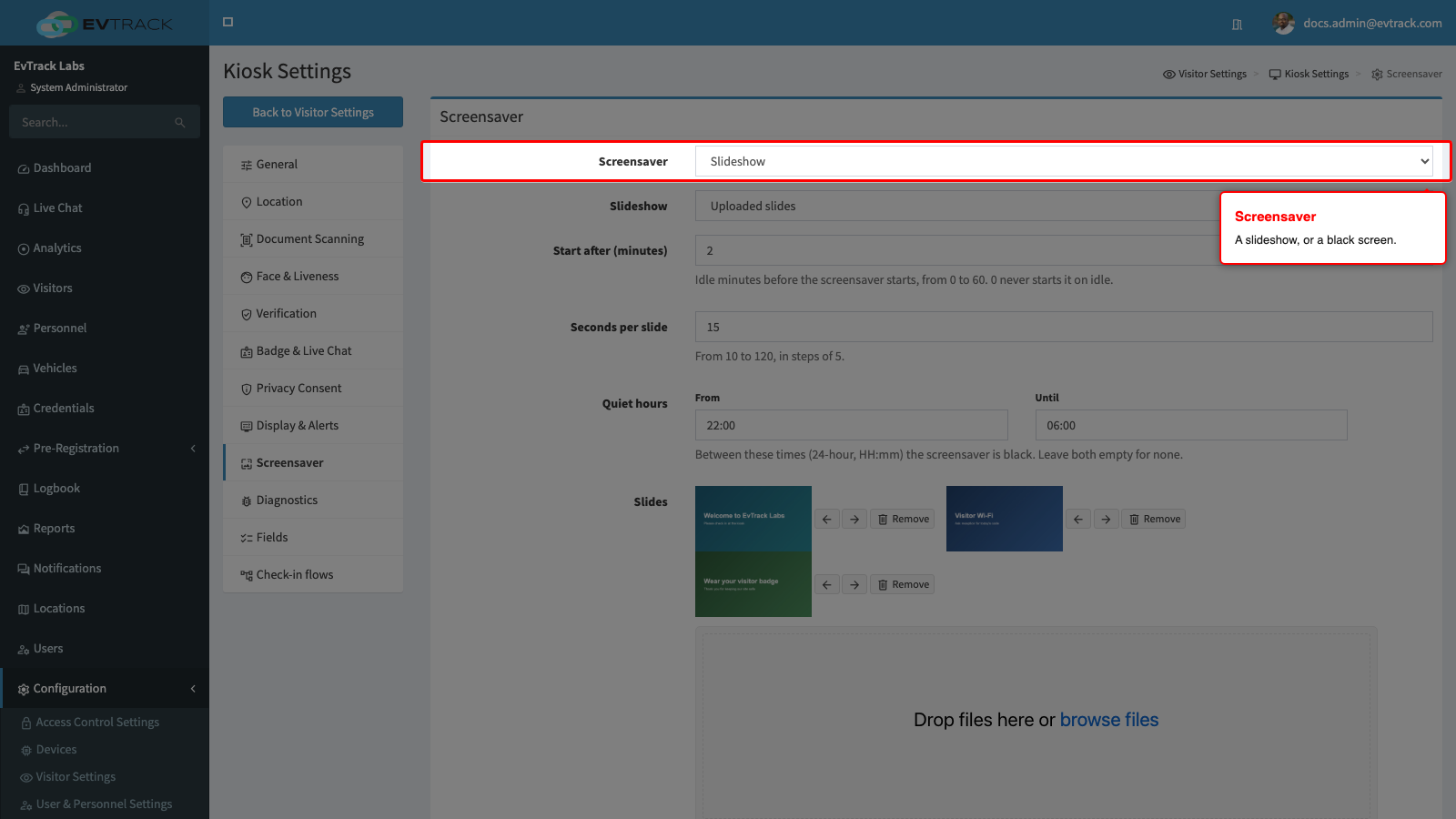
Slideshow (the default) plays the slideshow chosen below. Black screen turns the screen black instead, which saves power and suits a site where the kiosk should not draw attention.
Slideshow
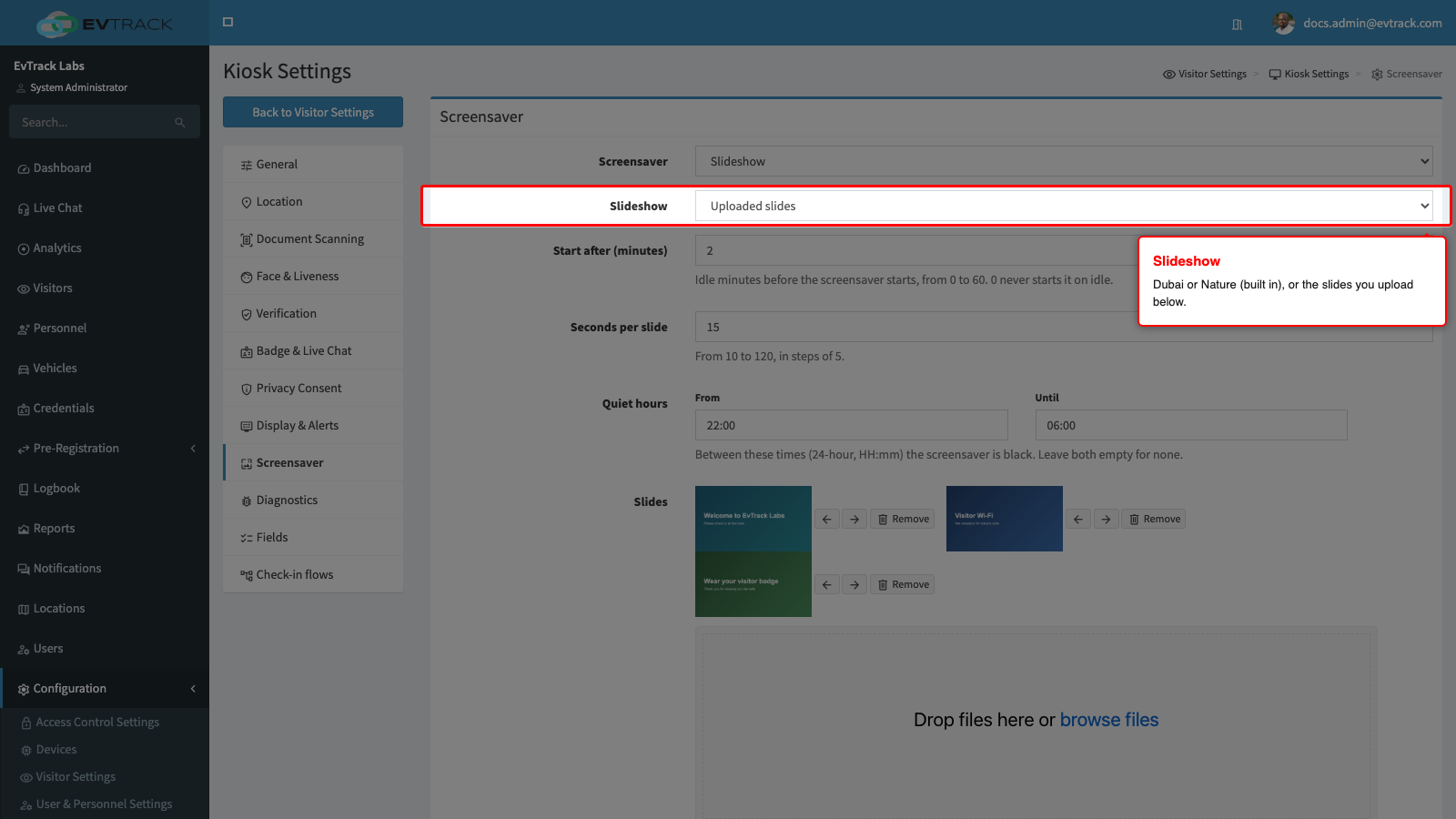
Which slides the kiosk plays:
- Dubai (built in): the default.
- Nature (built in).
- Uploaded slides: the slides you upload on this panel. While none are uploaded, kiosks play the Dubai slideshow.
Choosing a built-in slideshow keeps the uploaded slides. Choose Uploaded slides again to show them.
Start after (minutes)
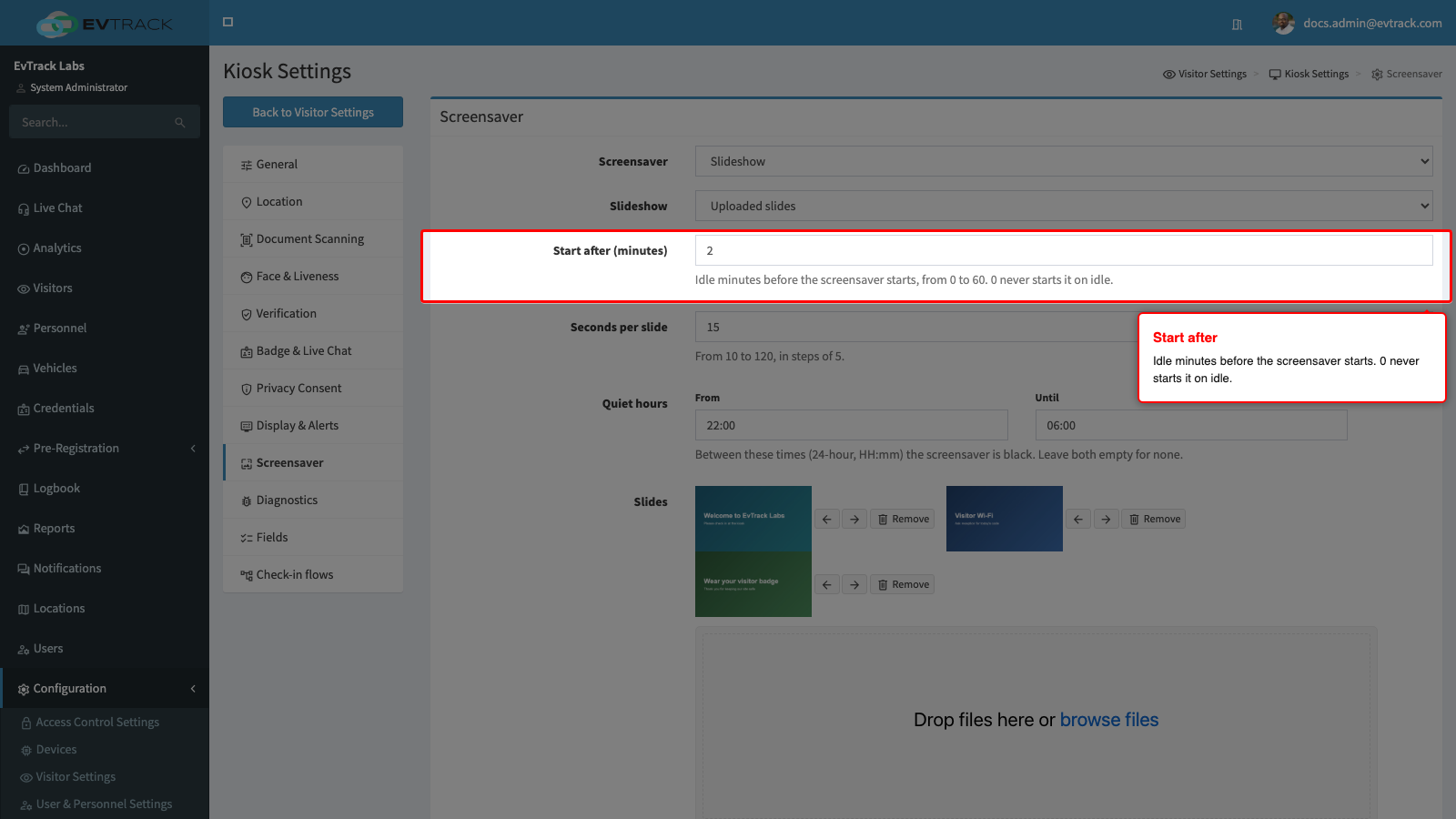
How many minutes the kiosk waits with nobody using it before the screensaver starts, from 0 to 60. The default is 2. With 0, the screensaver never starts on its own.
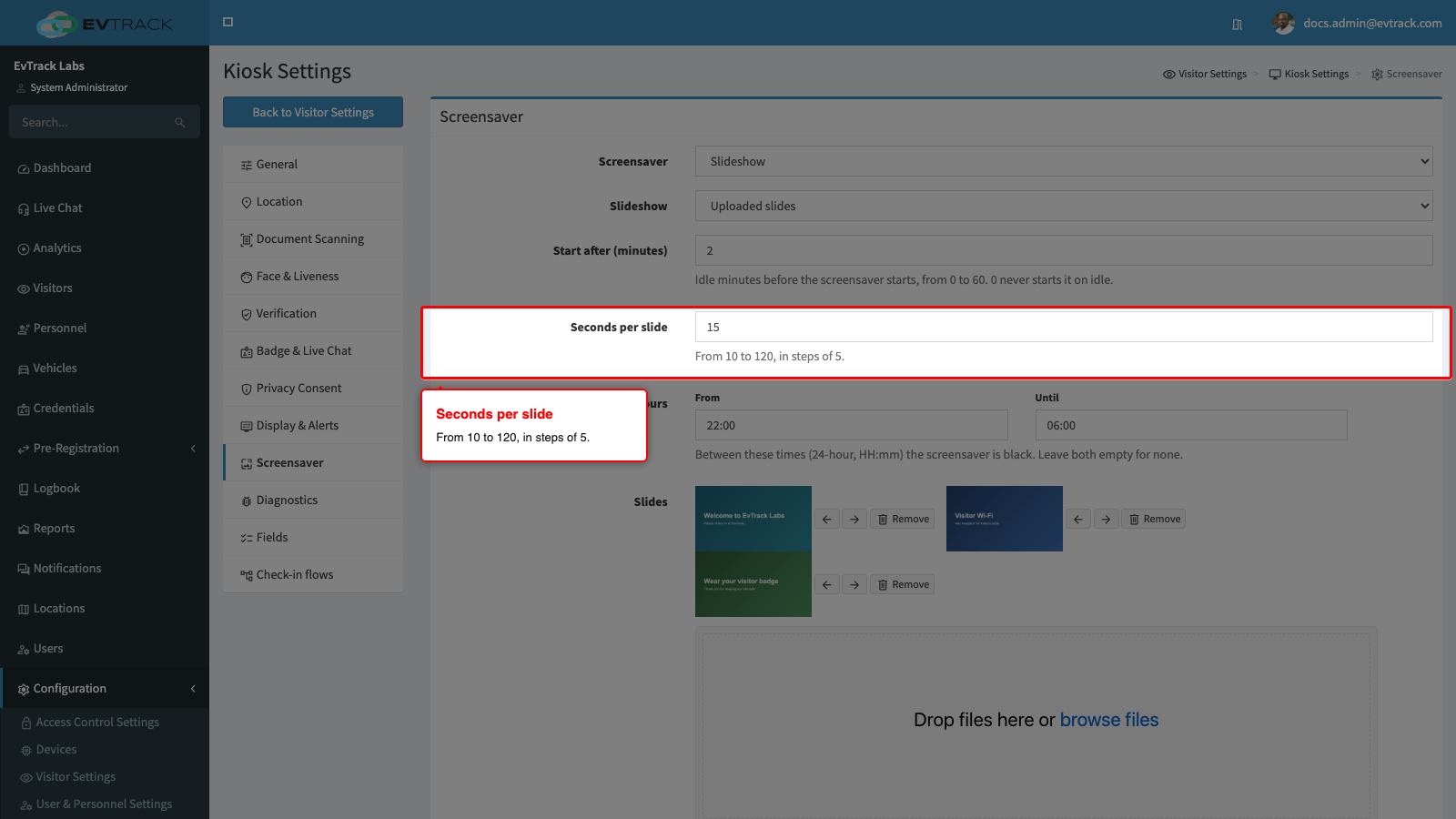
Seconds per slide
How long each slide is shown, from 10 to 120 seconds in steps of 5. The default is 20.
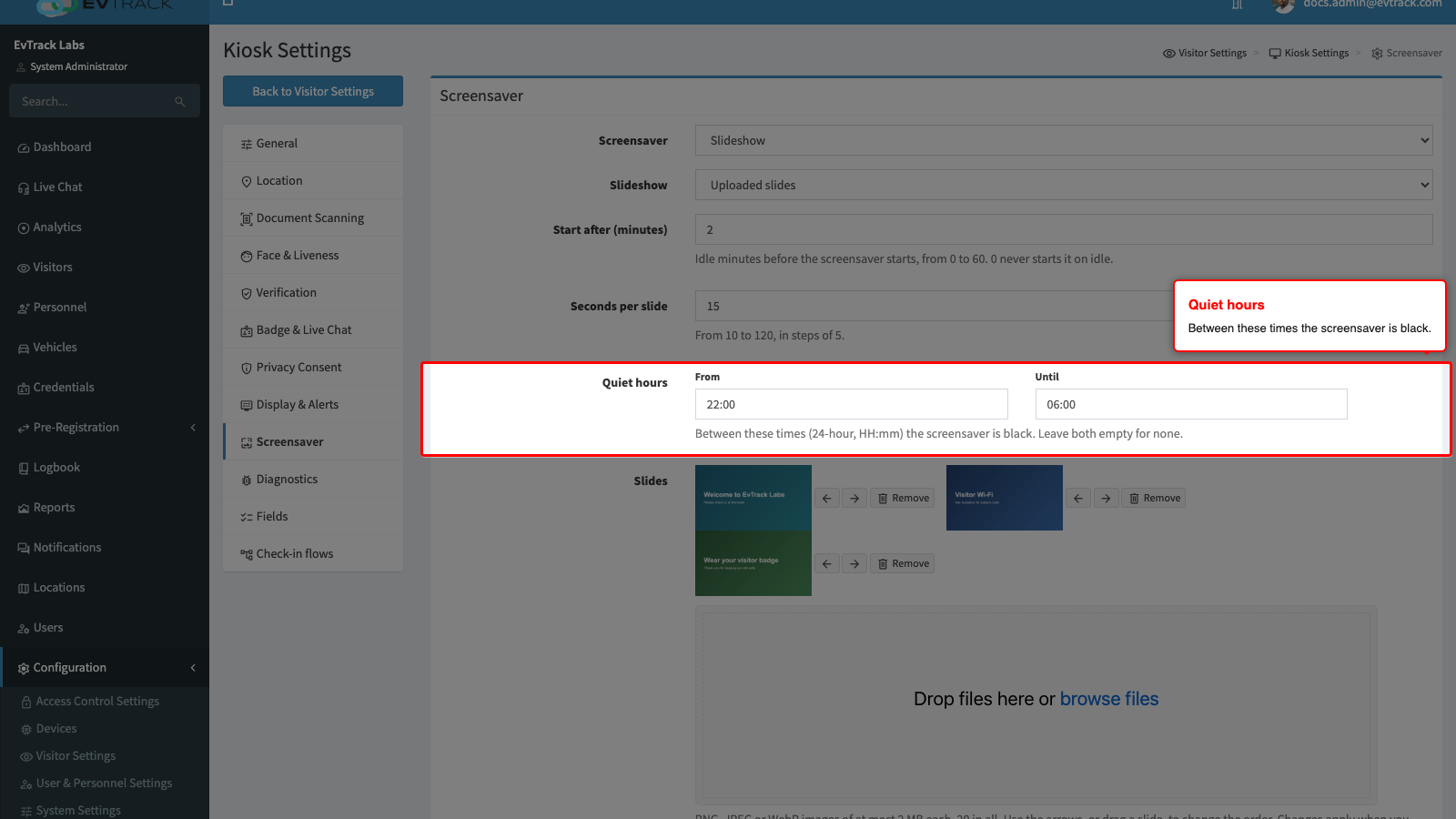
Quiet hours
Between the From and Until times the screensaver shows a black screen, whatever the mode. Enter both times in 24-hour form (HH:mm), for example 22:00 and 06:00 for the night. Leave both empty for no quiet hours.
Slides
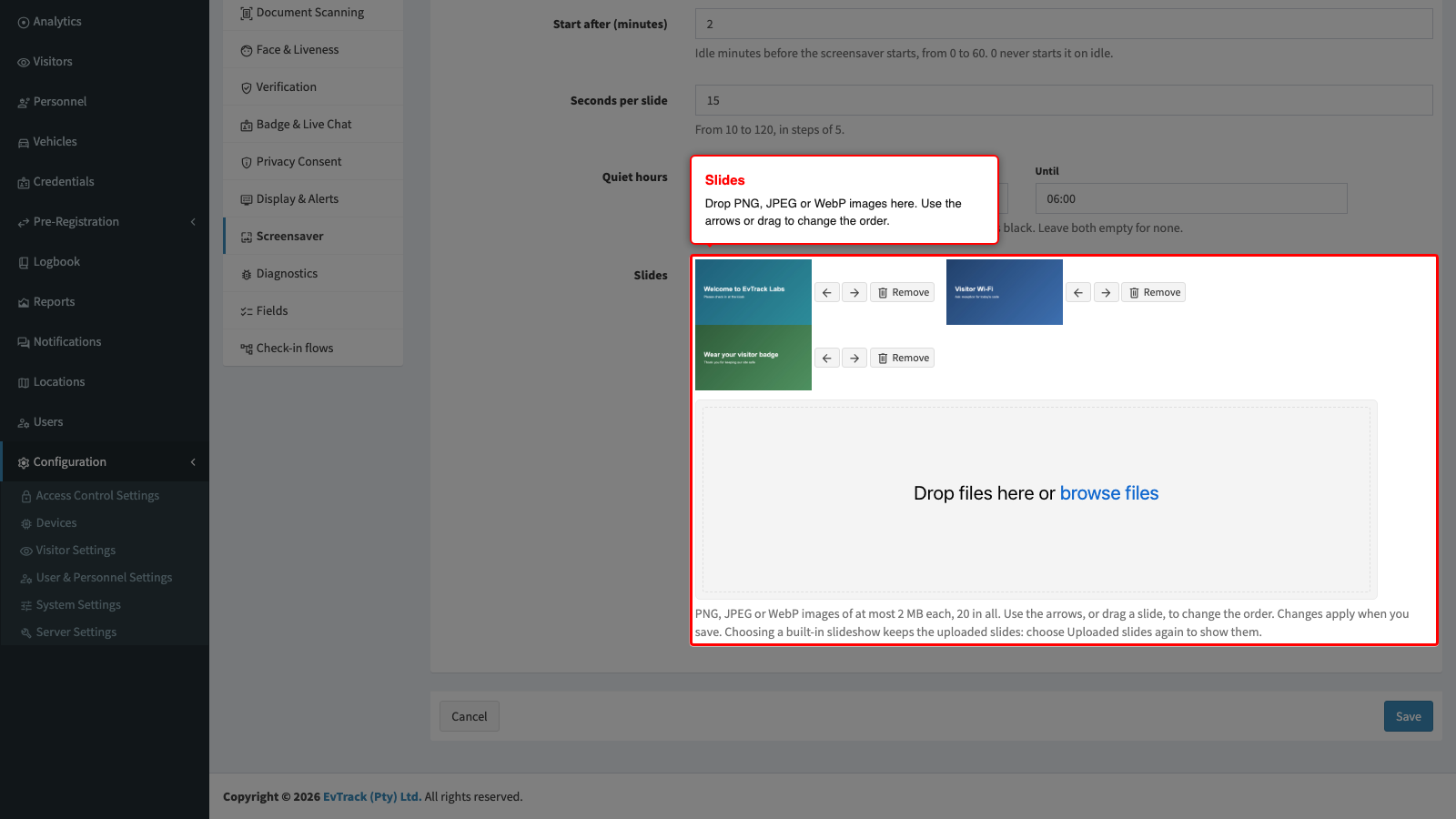
Drop images onto the uploader, or click it to choose them. Each image is uploaded as soon as you add it and appears in the list above the uploader. Use the arrows on a slide, or drag it, to change the order, and Remove to take it out. Nothing changes on the kiosks until you click Save.
The rules for a slide:
- PNG, JPEG or WebP only, at most 2 MB each. SVG images and animated WebP images are not accepted.
- At most 20 slides in a slideshow.
- Every slide is checked again when it is uploaded. A file that is not a real image of one of these types, or that is too large, is refused with a message under the list, for example “The file is not a PNG, JPEG or WebP image.” or “The file is empty or larger than 2 MB.”
- Uploads you do not save expire. If you wait too long before saving, the panel says “Some uploads expired before you saved. Upload them again.”
- If someone else saved the slideshow while you were editing it, your save keeps their new slides too. Slides they added are never removed by an older page.
Save
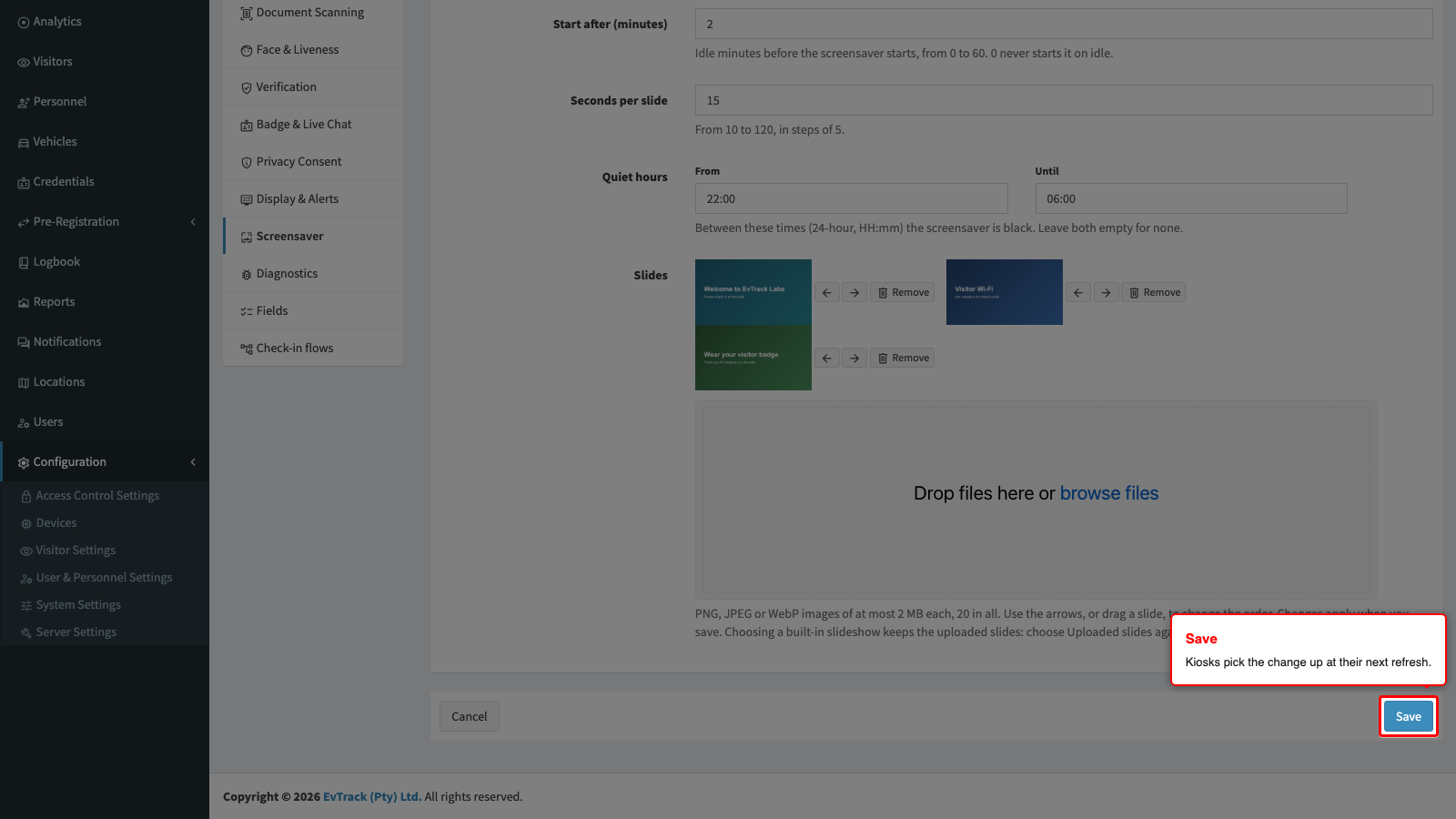
Click Save at the bottom of the panel. Paired kiosks pick the change up at their next refresh, within five minutes, or at once when the app restarts. A kiosk downloads only the slides it does not already have, keeps them, and plays them even while it is offline. Until a kiosk has every slide of a new set, it keeps playing the set it had.
A location’s own slideshow
A location can play its own slideshow on its kiosks. Open Locations, the location, then the Kiosk App tab, and untick Use the global slideshow under Screensaver slideshow (this location). Choose a built-in slideshow or Uploaded slides, and upload the slides for this location in the same way as above. Only the slideshow can be set for a location: the mode, the start time, the seconds per slide and the quiet hours always come from this panel. See Location Overrides.
A kiosk takes the slideshow of the location on its own device record. A kiosk whose device has no location plays the global slideshow.