The Personnel tab lists the personnel whose home location is this location, with how many it holds against its personnel limit, and lets you add, edit and delete them. Which location a person belongs to is the Location field on their Profile tab (see Edit Personnel): to move someone to or from this location, change it there.
Who can use this tab: users with “Personnel Management: People - List” or “Personnel: Manage personnel at managed locations” see the tab. The list shows only the personnel you may see anywhere else: a location manager sees the personnel of the locations they manage.
Step 1: Open the Personnel tab
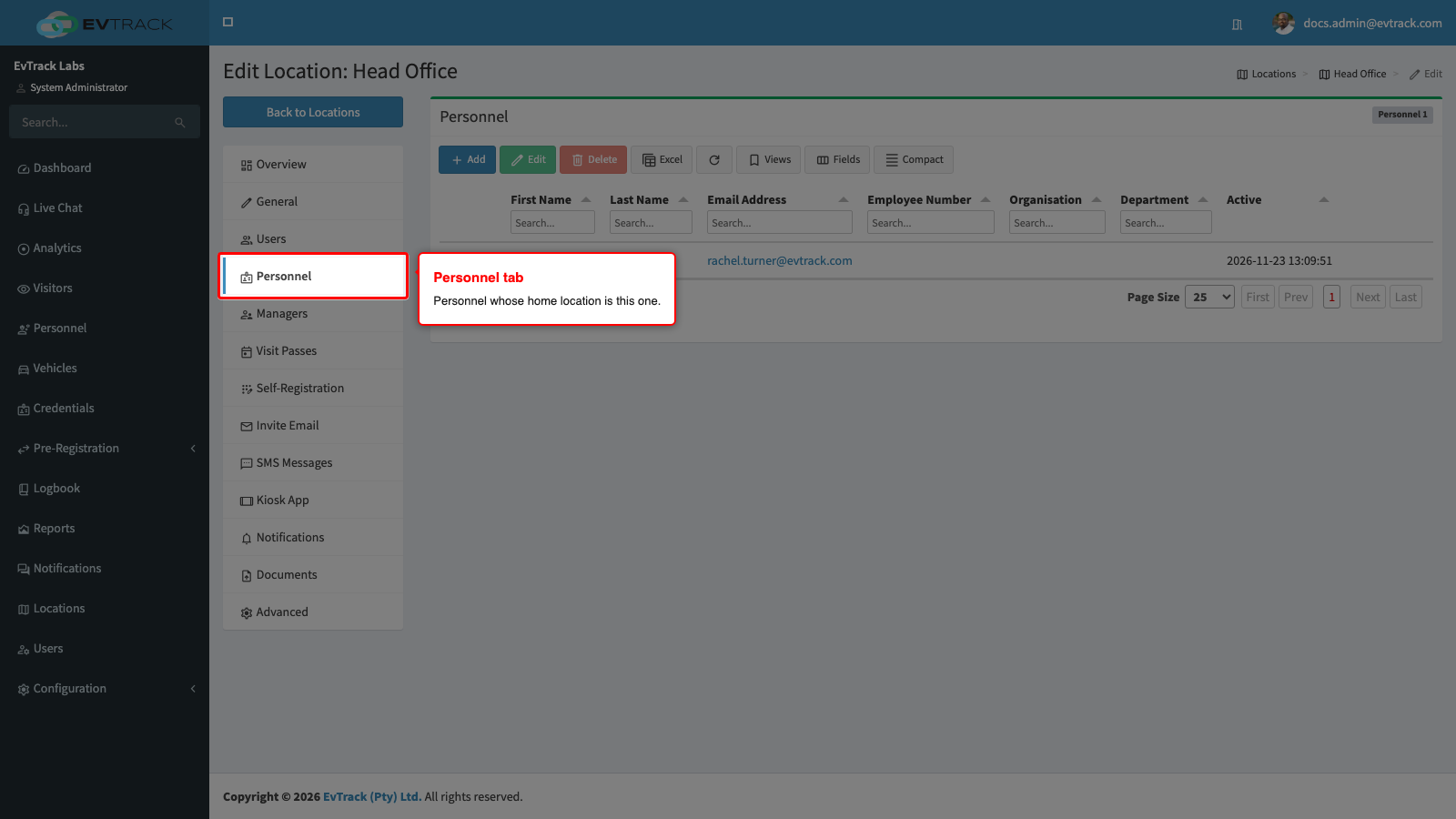
Open the location from the location list and click Personnel in the menu on the left, below Users.
Step 2: Read the list
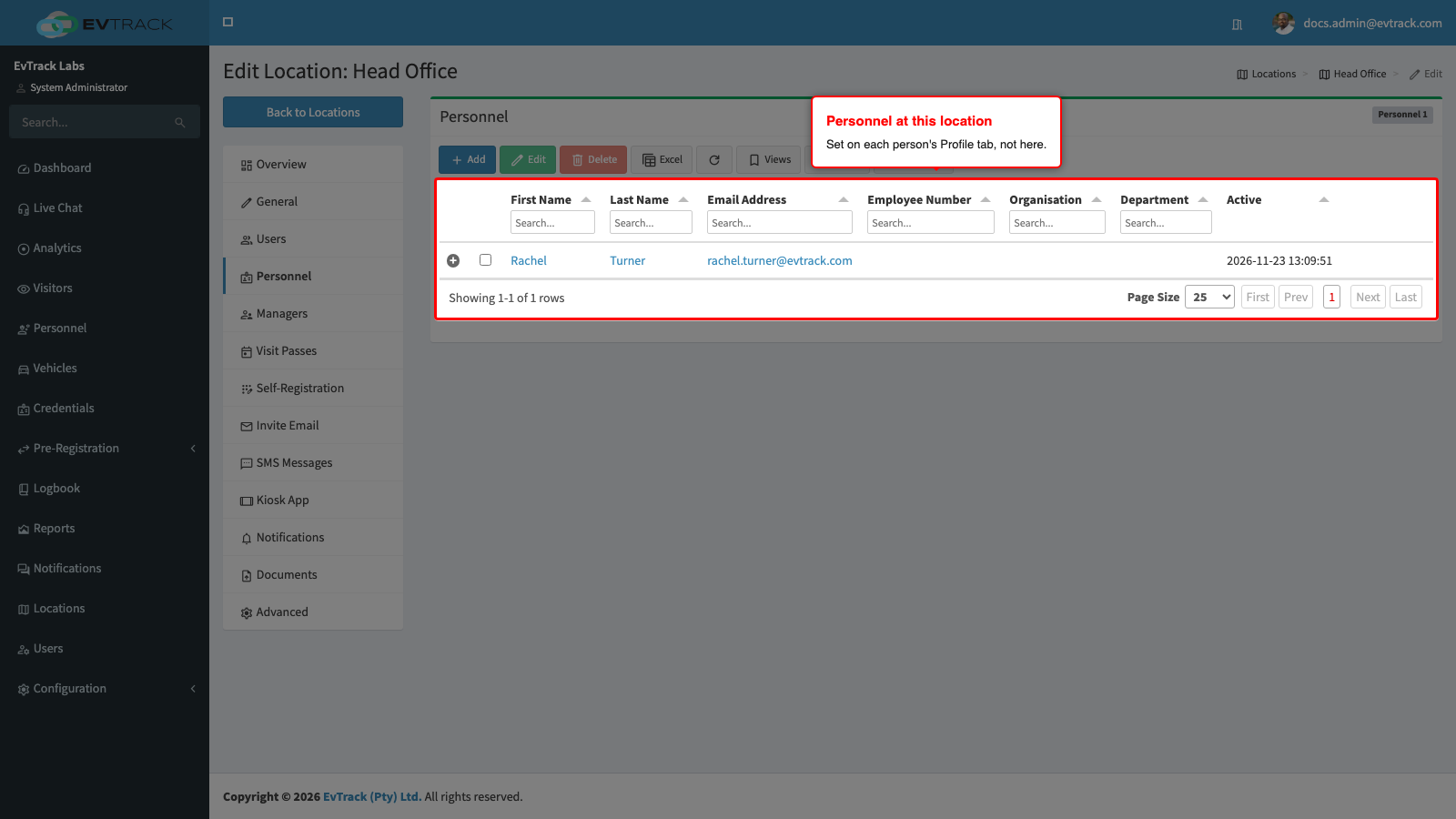
The table shows every person whose home location is this location, one row per person. The list loads when you first open the tab. Click a name, surname, email address or employee number to open that person.
Step 3: See how many places are taken
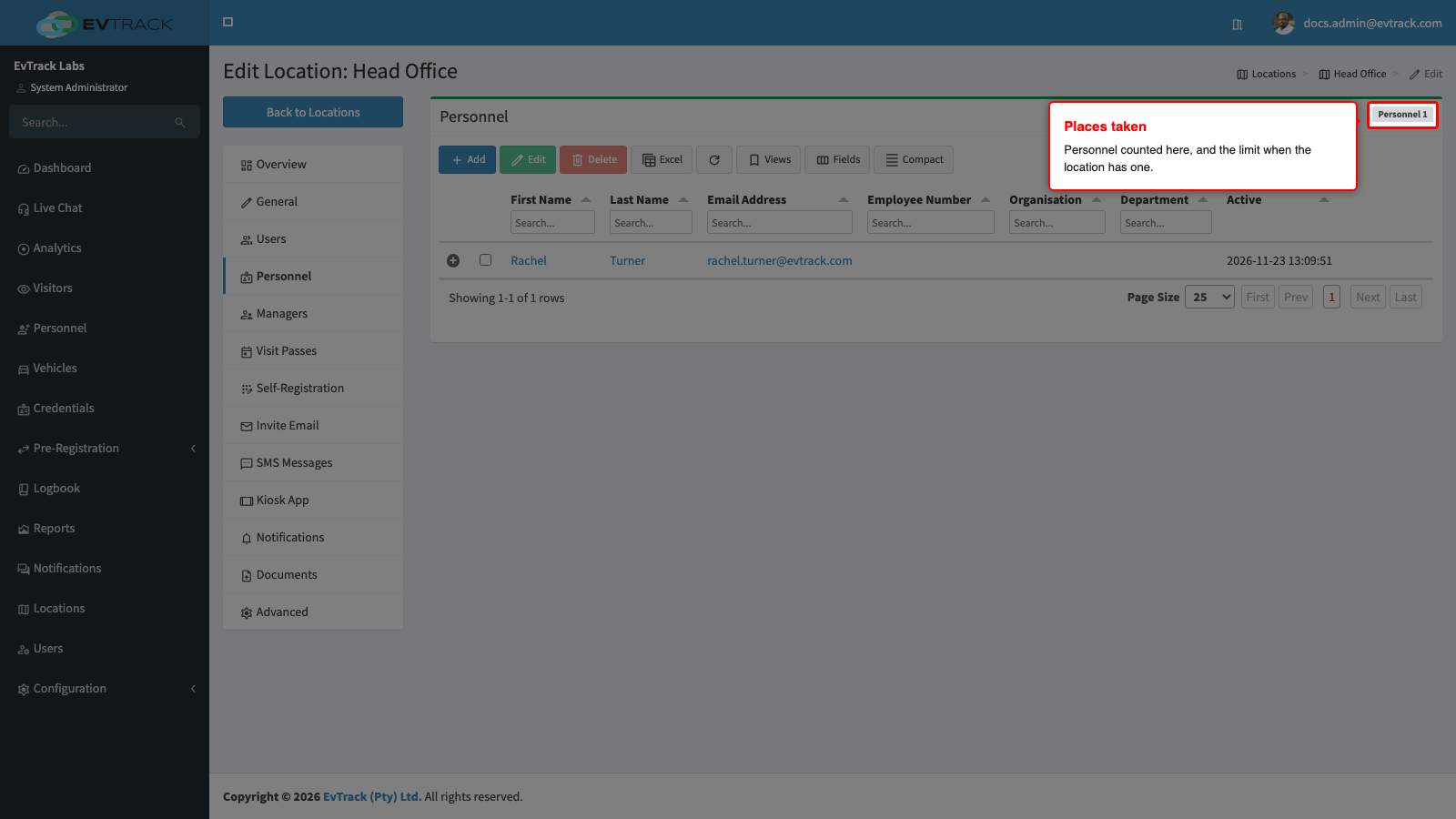
The label in the box header shows how many personnel places are taken: “Personnel 7 of 10” when the location has a personnel limit, or “Personnel 7” when it has none. A person counts while their status is empty, Active or On Leave, over their own active and expiry dates; Inactive, Retired and Terminated personnel are listed but not counted. The limit is set on the General tab, or comes from Location limits.
Step 4: Find the toolbar
The toolbar above the table holds Add, Edit, Delete, the Excel export and Refresh. Edit and Delete are greyed out until you select at least one row. Add is not shown when the location is full, or when you may not place a person at this location.
Step 5: Add a person to this location
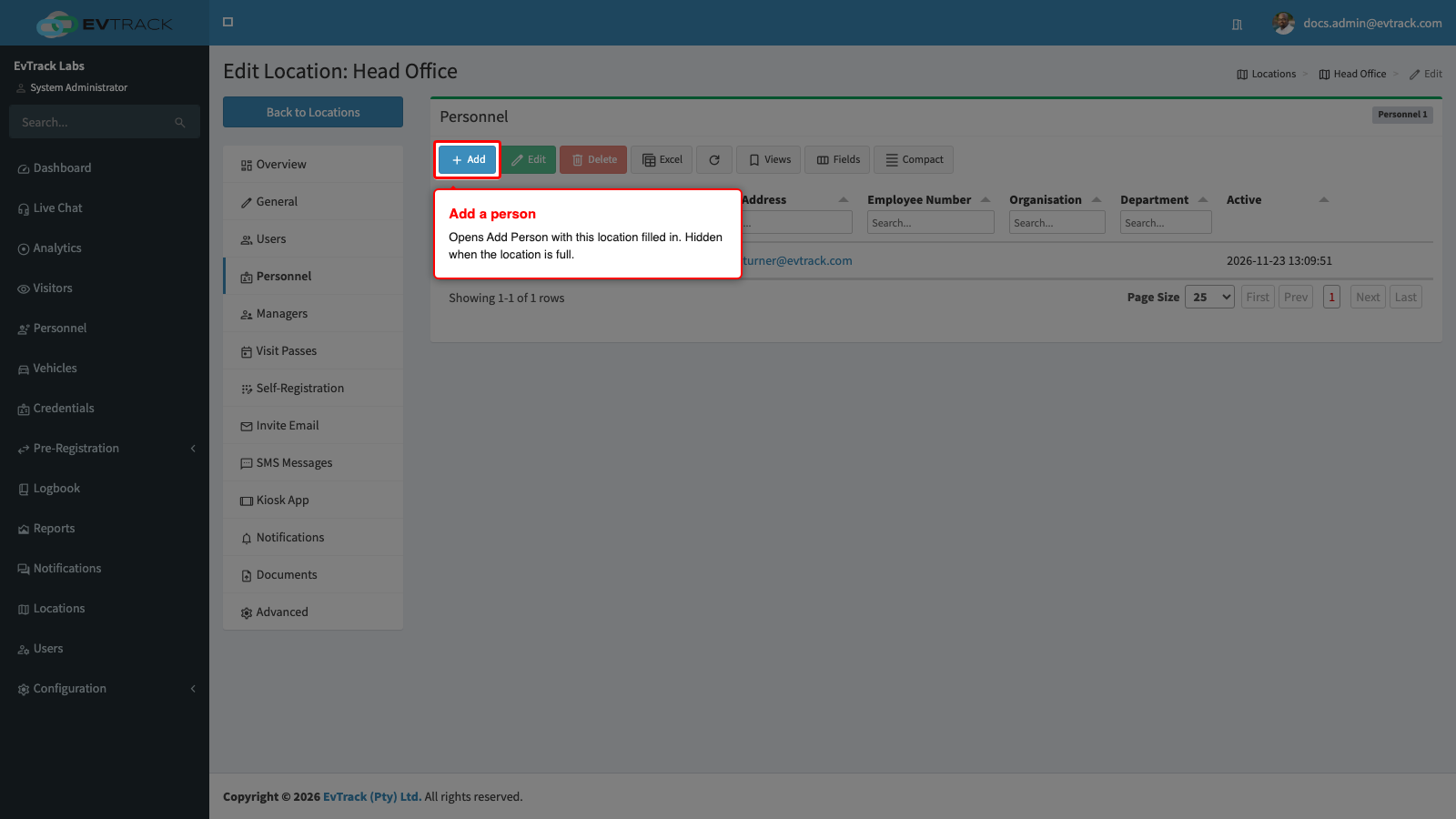
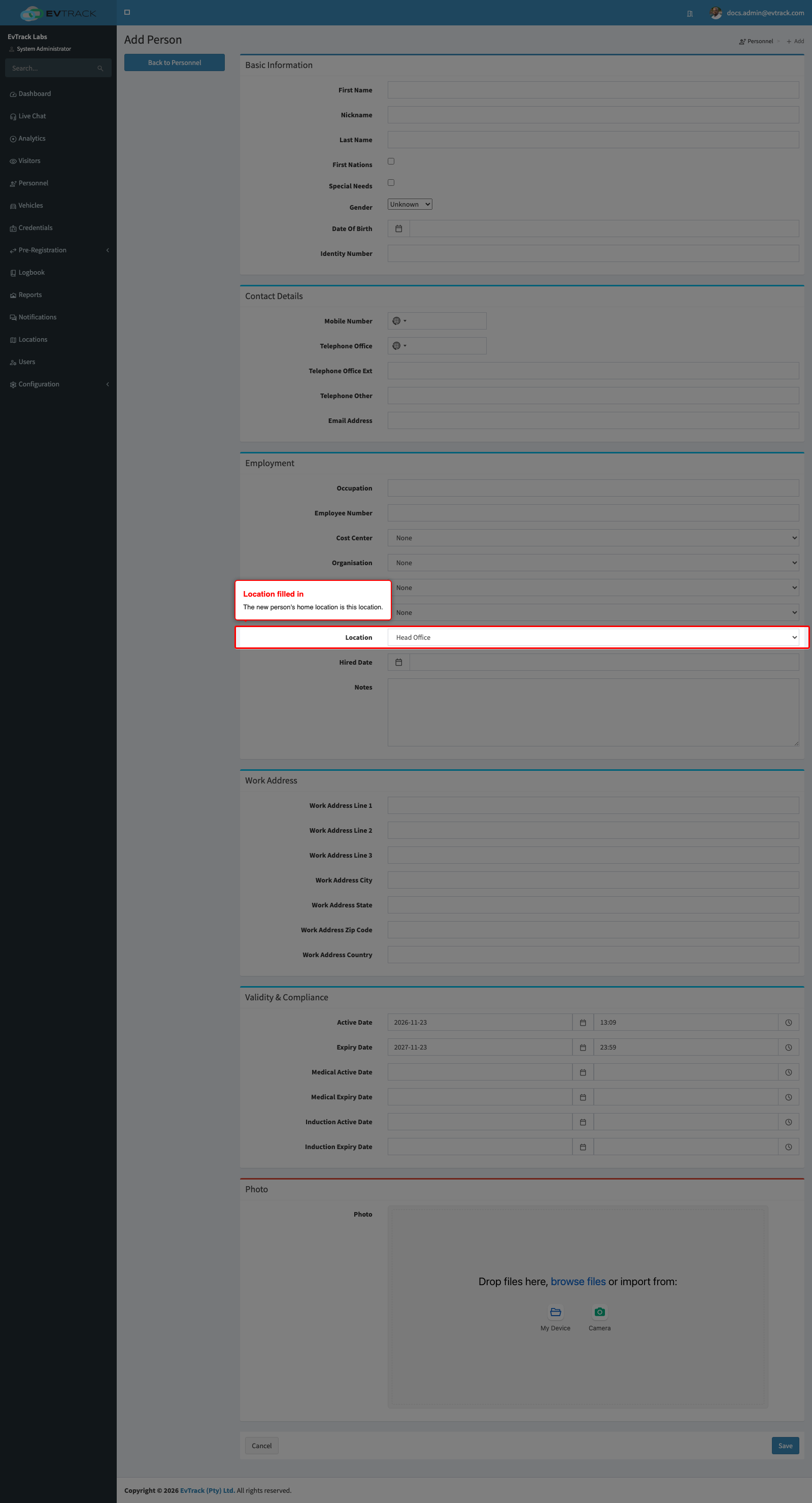
Click Add. The Add Person page opens with Location already set to this location. Fill in the rest of the person’s details and save as you would for any new person (see Add Personnel). Leaving the page without saving adds nobody. If the location filled up in the meantime, Save is refused with “
Options on this tab
| Column | What it shows |
|---|---|
| Name | The person’s first name, as a link to the person. |
| Surname | The person’s surname, as a link to the person. |
| The person’s email address, as a link to the person. | |
| Employee number | The person’s employee number, as a link to the person. |
| Organisation | The person’s organisation. |
| Department | The person’s department. |
| Active Date | When the person becomes active. |
| Expiry Date | When the person expires. |
The table shows 25 rows per page; you can change that to 10, 50 or 100. The text columns have a search filter under their heading.
| Toolbar button | What it does |
|---|---|
| Add | Opens Add Person with this location filled in. Hidden while the location is full. |
| Edit | With one row selected, opens that person. |
| Delete | Opens a confirmation page for the selected personnel (up to 200). Nothing is deleted until you confirm there. |
| Excel | Downloads the table as <location name> - Personnel.xlsx, for example Head Office - Personnel.xlsx. |
| Refresh | Reloads the list from the server. |