Location limits sets how many users, personnel and visitors a location may hold, for every location in the system. For each of the three it holds a Default, used by every location that has no limit of its own, and a Maximum that no location can go above. A location sets its own limit on its General tab.
Who can use this page: anyone with “Configuration: System Settings - View” can open it, but only an administrator can change it. Everyone else sees the numbers greyed out, with the note “Only an administrator can change these limits.” and no Save button.
Step 1: Open Location limits
Open Configuration > System Settings and click the Location limits tile in the General group, or Location limits in the settings sidebar.
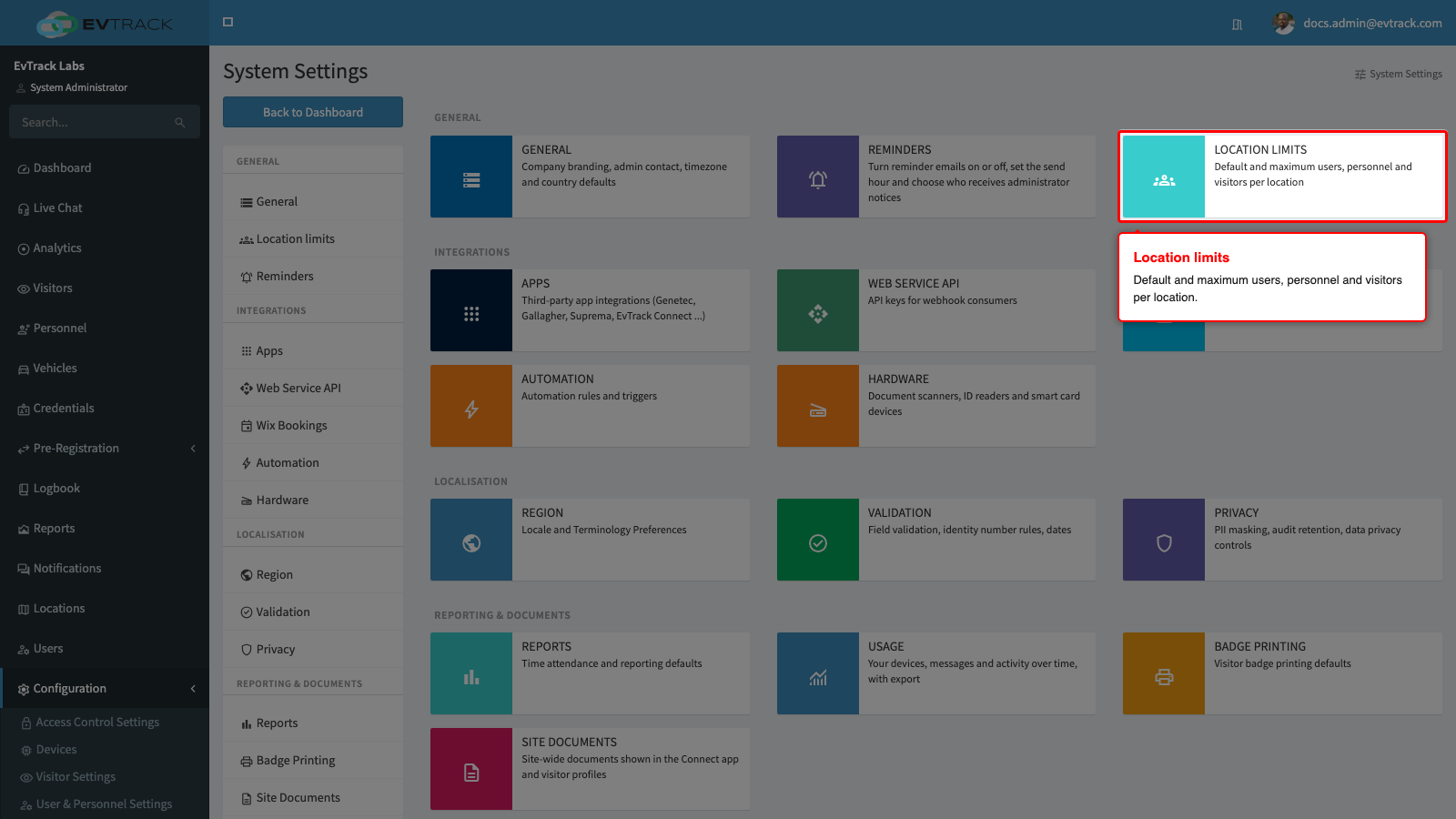
Step 2: Set the users per location
Default is the user limit of every location set to “Use system default”. Maximum bounds every location: a location’s own value cannot be above it, and a location with no own value and no default uses the maximum. Leave a field empty for no default, or no maximum. 0 is allowed and means nobody new can be added.
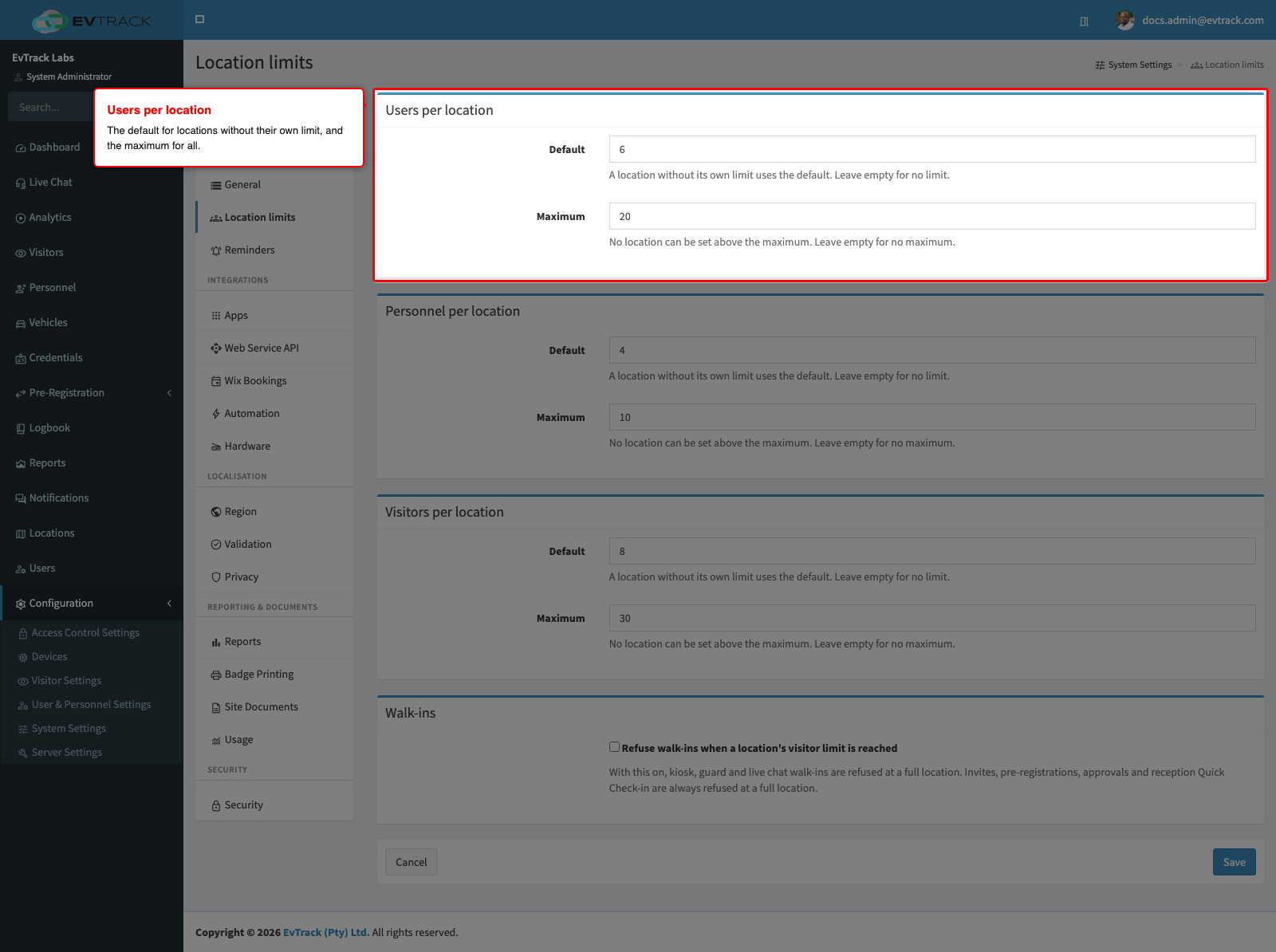
Step 3: Set the personnel per location
The same two numbers for personnel.
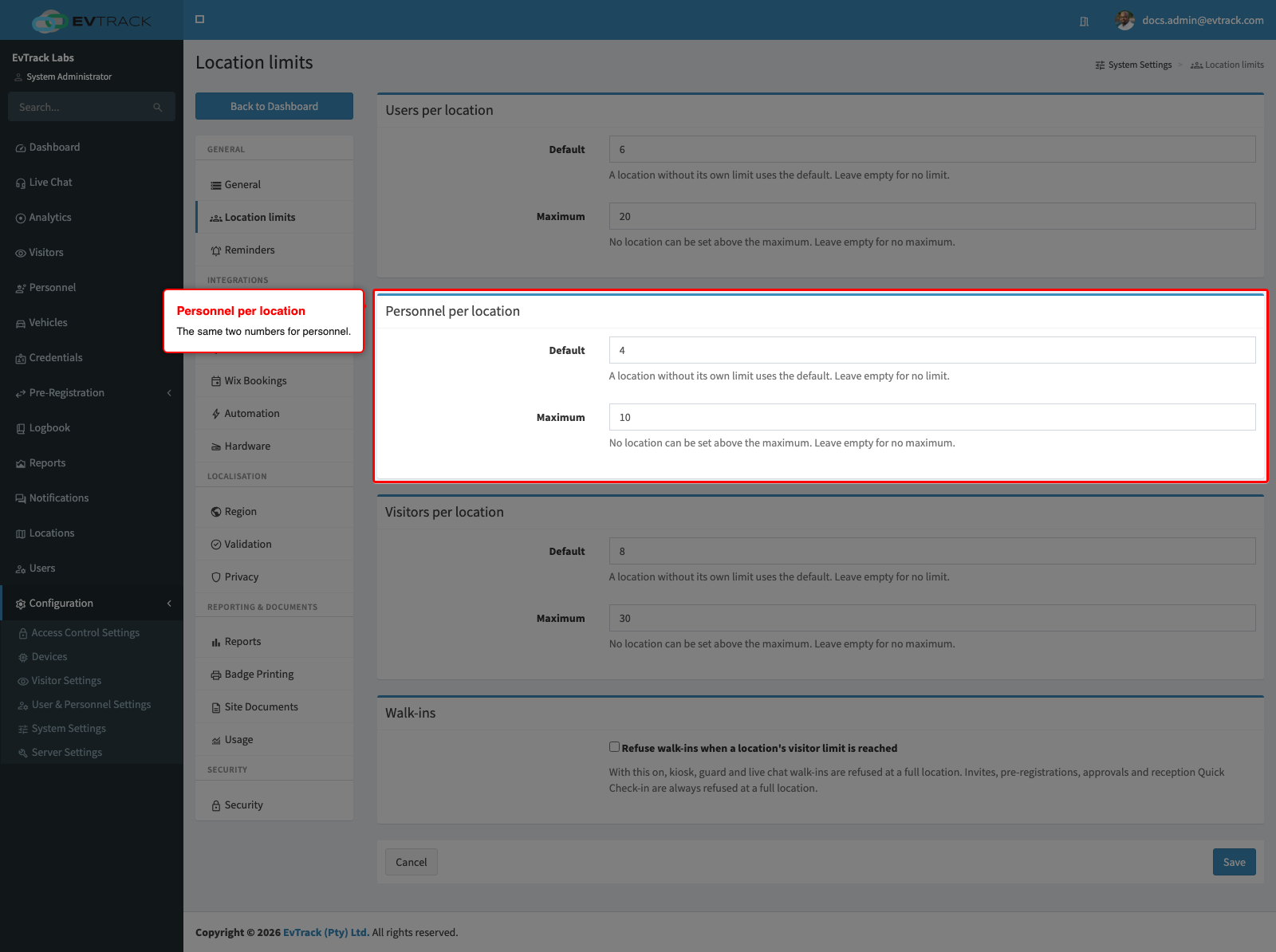
Step 4: Set the visitors per location
The same two numbers for visitors. A visitor limit is the number of visitors at the location at the same time, not the number of visits in a day.
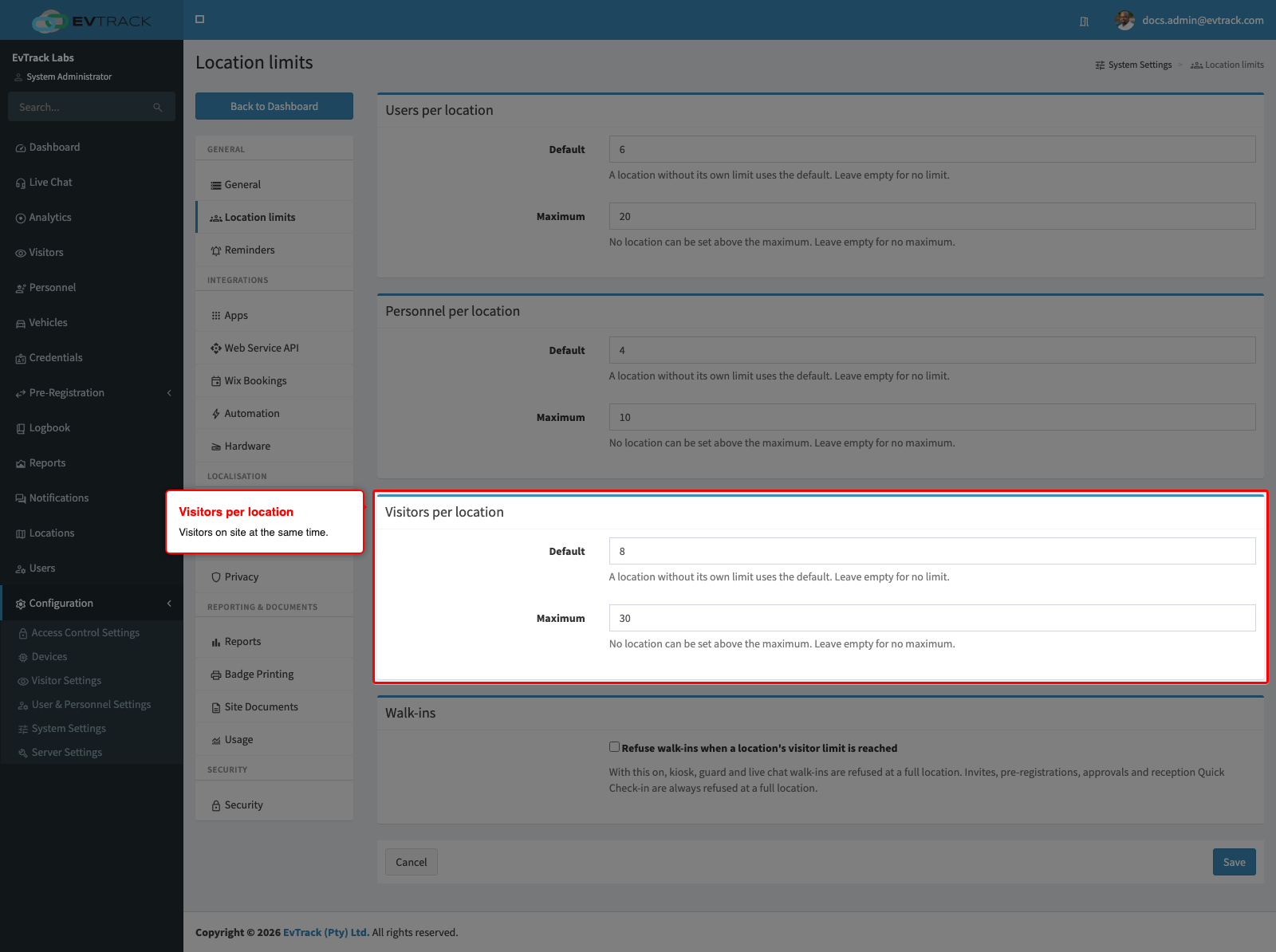
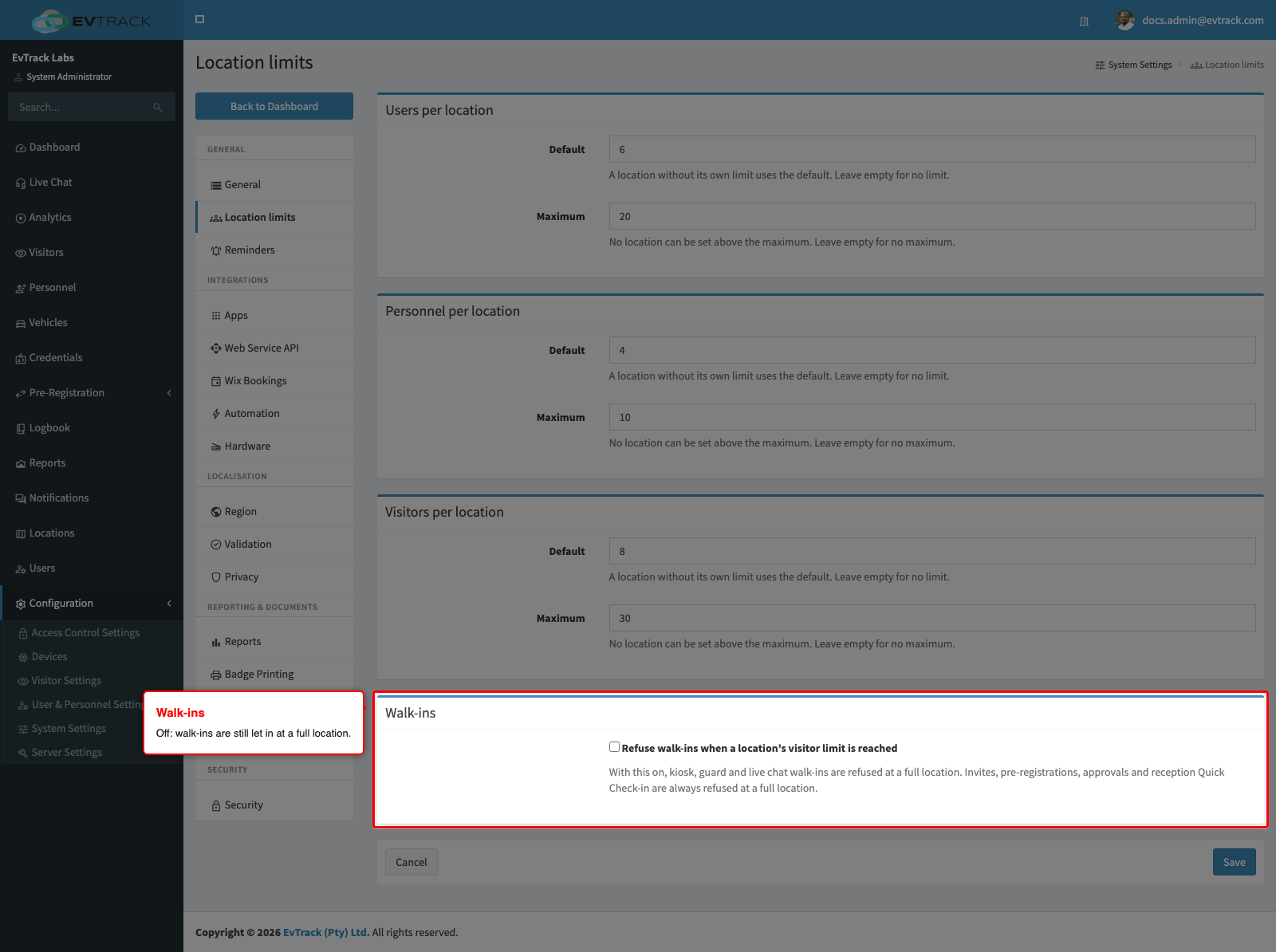
Step 5: Choose what happens to walk-ins
Invites, pre-registrations, approvals and reception’s Quick Check-in into a full window are always refused. A public self-registration is accepted when the visitor submits it and checked when it is approved, so a full location keeps it pending. Refuse walk-ins when a location’s visitor limit is reached decides walk-ins at kiosks and guard devices, and visitors let in through live chat: off (the default), a walk-in is let in even when the location is full; on, a walk-in at a full location is refused. An invited visitor who arrives is never refused, and check-ins a device saved while offline are always accepted.
Step 6: Save
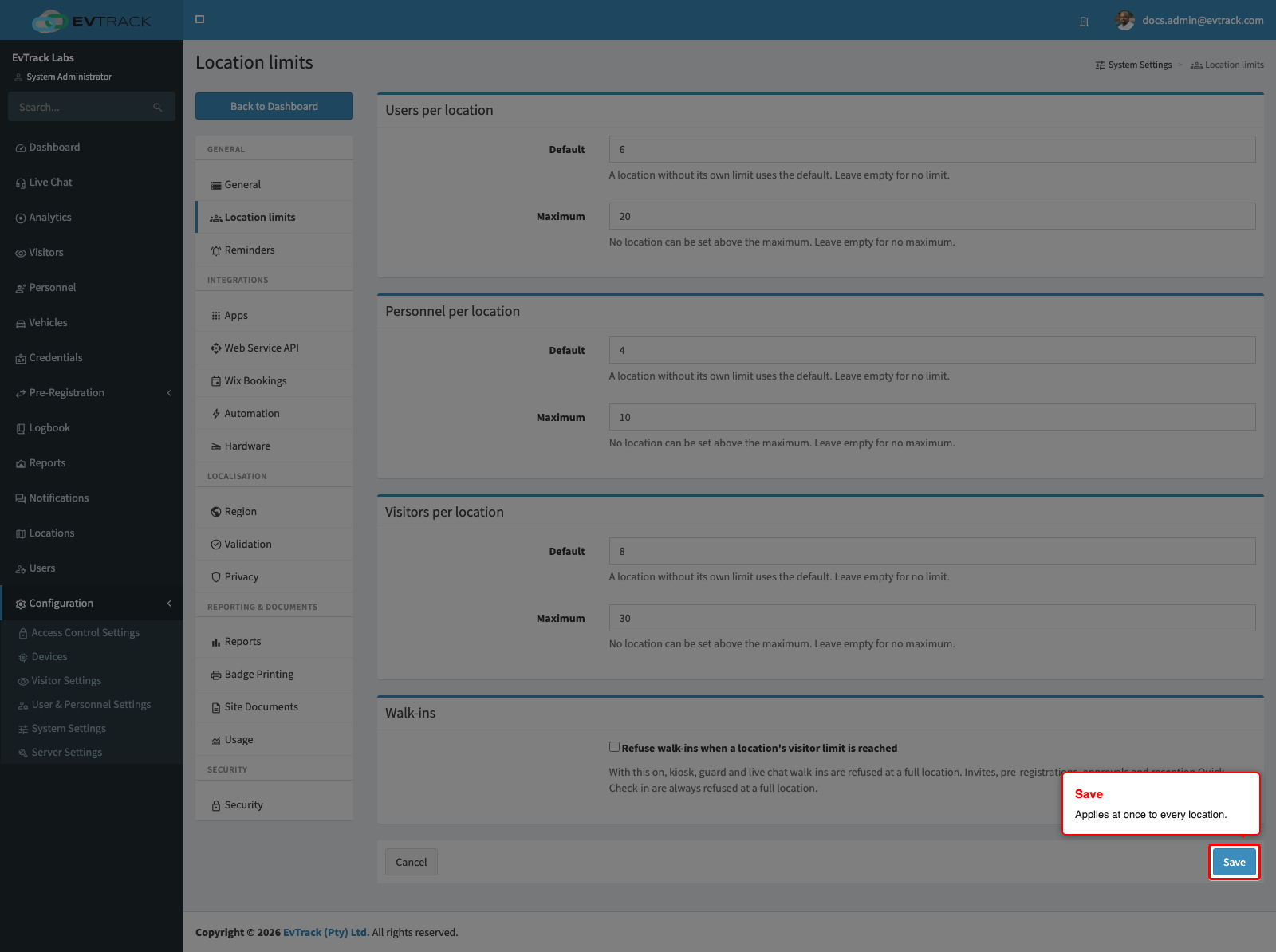
Click Save. The new numbers apply at once to every location. When locations are already above their new limit, the page then says so, for example “3 locations are now over their user limit.” Those locations keep everyone they hold and accept nobody new until they are back under the limit; nothing is removed, disabled or cancelled.
Options on this page
| Option | Rules | Default |
|---|---|---|
| Users: Default | Empty, or a whole number of 0 or more. Cannot be above the maximum. | Empty (no default) |
| Users: Maximum | Empty, or a whole number of 0 or more. Cannot be below the default. | Empty (no maximum) |
| Personnel: Default | As for users. | Empty |
| Personnel: Maximum | As for users. | Empty |
| Visitors: Default | As for users. | Empty |
| Visitors: Maximum | As for users. | Empty |
| Refuse walk-ins when a location’s visitor limit is reached | A tick box. | Off |
If a number breaks a rule, the page comes back with a red note under it: “Enter 0 or more, or leave the field empty.”, “The default cannot be above the maximum (N).” or “The maximum cannot be below the default (N).” Nothing is saved until every number is valid.
How it works
- Which limit a location has. A location with its own value uses that value, never above the maximum. A location set to “Use system default” uses the default; with no default it uses the maximum; with neither it has no limit.
- Lowering a maximum does not rewrite the own values of locations: they are simply held to the new maximum.
- What is counted. Users count while enabled and inside their active and expiry dates; personnel while their status is empty, Active or On Leave. A visitor with an invite or a pre-registration holds a place for the whole visit window; a walk-in from check-in until check-out, or the end of that day. See Location General Details for the full rules.
- No exemptions. No visitor type or visit reason is exempt. For a function, raise the location’s limit for the evening and lower it again afterwards.
- The audit log. Every change on this page, and every refused addition at a full location, is recorded in the audit log.